

AI settings
Go to Settings > AI to enable or disable AI features in your account. These settings apply across all workspaces in your account.
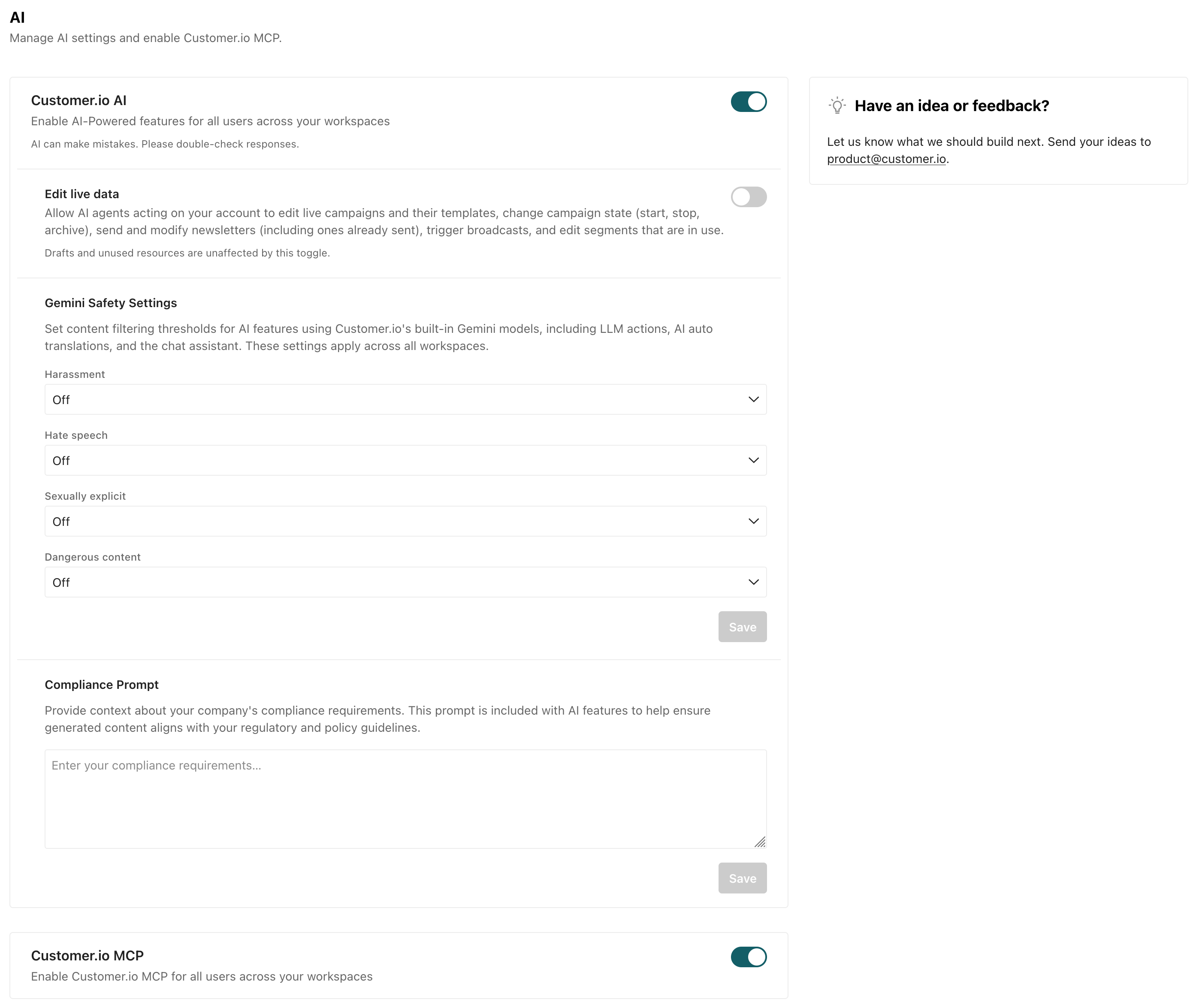
Here you can also edit safety settings and provide a compliance prompt for our native AI features to abide by.
We don’t use your data to train AI models
We do not use your customer data to train AI models, and we don’t use your users’ personal data (attribute A key-value pair that you associate with a person or an object—like a person's name, the date they were created in your workspace, or a company's billing date etc. Use attributes to target people and personalize messages.
Customer.io AI toggle
By default, you and your team members can take advantage of AI-based features in your account.
If you’re not comfortable with members of your team using AI-based features, disable Customer.io AI under Settings > AI. Disabling Customer.io AI turns off all in-app AI features for everybody in your account. This doesn’t affect Customer.io MCP, which has its own setting.
Edit live data
By default, the Customer.io agent cannot edit “live” data, delete people, or trigger broadcasts, one-time sends, and other messages. This protects you from accidental changes to your Customer.io data and automations.
If you want the agent to make changes to live resources, turn on the Edit live data setting. When this setting is on, the agent can modify anything that a user’s permissions allow, including active automations and in-use segments. You must be an account admin to manage this setting.
Be careful when working with live data. Things like changing an active automation workflow can disrupt user journeys A profile's path through an automation workflow. If the automation is triggered by a webhook, then a journey captures the webhook's path, not a profile's.
Slack needs this setting and its own. The agent in Slack can only edit live data when Edit live data is on here, Allow live-data edits in Slack is on in your Slack Agent settings, and you approve the specific change. Slack settings can be stricter than this one, never looser.
This setting does not affect the Customer.io CLI. The CLI operates within the scope of its service-account token, so it can read or write anything that token allows—regardless of this setting. Take care when working with live data through the CLI.
Gemini safety settings
AI features in Customer.io use Google’s Gemini models. You can configure safety thresholds for content created by our tools from the Gemini Safety Settings section. For a full list of features powered by these settings, see our current functionality powered by AI.
You can set filters for four categories:
- Harassment
- Hate Speech
- Sexually Explicit
- Dangerous Content
For each category, you can choose a threshold ranging from Off (no filtering) to Block low and above (strictest filtering). Learn more about Gemini’s safety settings in Google’s documentation.
Compliance prompt
In your AI settings, you can include a Compliance Prompt to help ensure generated content aligns with other regulatory and policy guidelines not covered by Gemini Safety Settings.
Customer.io MCP
Turn on Customer.io MCP to use our MCP server with external AI tools like Claude, ChatGPT, and Cursor. See our MCP documentation for setup steps and details.
You can turn Customer.io MCP support on or off independently of Customer.io AI support in our UI. This means you can use external AI tools without turning on the agent, content analysis, or other AI features in our UI.
MCP security settings
MCP has its own safety settings and compliance prompt. You can configure them in the MCP Security Settings section.
- Allow MCP to edit live data: By default, MCP connections can’t edit “live” data—things like active automations or segments that are in use—or delete people. If you want MCP connections to make changes to live resources, turn on Allow MCP to edit live data. This setting is independent of the agent’s Edit live data toggle.
- Allow MCP to access sensitive data: By default, MCP connections can’t read profile attributes that are classified as sensitive. If you want MCP connections to access sensitive data, turn on Allow MCP to access sensitive data. Users also need the Sensitive Data View permission to access sensitive data through MCP.