Account Admins grant team members access to workspaces by assigning them workspace-level roles. A standard role comes with a defined set of permissions. To create roles with custom permission sets, check out Custom roles.
A workspace-level role controls the set of permissions a team member has in a single workspace. We offer three standard roles:
Workspace Admin (full access)
Author (partial access)
Viewer (view-only access)
When you assign Author or Viewer roles, you choose whether to limit their access to sensitive data. This helps you keep your account as secure as possible.
Remember that before you specify workspace-level persmissions, you have to choose an account-level permission: Account Admin or Member. Account Admins are always Workspace Admins in every workspace. This ensures Account Admins have full rights across each of your workspaces. Members can have different workspace-level roles for each workspace they have access to.
Workspace Admin
Workspace Admins have full access to all settings and features in a workspace. This is the only workspace-level role that can:
Mark attributes as sensitive in the Data Index and hide them from Authors or Viewers
They cannot create or delete workspaces; only Account Admins can.
Author
Authors have partial access to workspace settings and features. They can manage some features like content and campaigns, but only view others like collections. They can create individual webhooks in campaigns, but can’t create or manage reusable webhooks in workspace settings.
Authors with sensitive data hidden can’t edit people
Authors with sensitive data hidden have the same functionality as authors who can view all data, with one exception: they can’t edit people.
Viewer
Viewers have no access to workspace settings and partial access to workspace features. They have view-only permissions to all workflows, content, and data in a workspace.
If you’re on a Premium or Enterprise plan, then Account and Workspace Admins can mark profile attributes as “sensitive” in the Data Index and decide whether to hide this data from team members. This redacts values but not attribute names from the workspace.
Mark attributes as sensitive
Account admins and workspace admins can mark profile attributes as sensitive in the Data Index. This redacts values but not attributes names from the workspace and helps ensure data privacy across team members. If you have a custom role that includes the Edit permission for the Data Index, you can also mark attributes as sensitive.
You can also mark event attributes as sensitive independently. In the Events tab, select an event to find its attributes and mark them as sensitive. Profile and event attributes are separate—marking a profile attribute as sensitive doesn’t automatically redact event attributes with the same name.
In the Attributes tab, click an attribute.
Click Edit in the panel.
Click “Make sensitive.” To unhide sensitive attributes, select the box to uncheck it.
Not seeing Make sensitive?
Check that you’re an Account Admin or Workspace Admin in Team Members. If you are, then check whether you’re on a Premium or Enterprise plan or reach out to someone with billing access. Otherwise, you’ll have to upgrade for access.
Click Save.
Next, assign “Hide sensitive attributes” to team members.
Choose “Hide sensitive attributes” when assigning standard roles
After an admin marks attributes as sensitive in the Data Index, they must update Authors or Viewers so they can’t view these sensitive attributes:
Scroll to the bottom section “Who should have access?”
Change the dropdown from “Show all attributes” to “Hide sensitive attributes” for each team member.
If you’re an Account Admin, you can also assign this from Team Members:
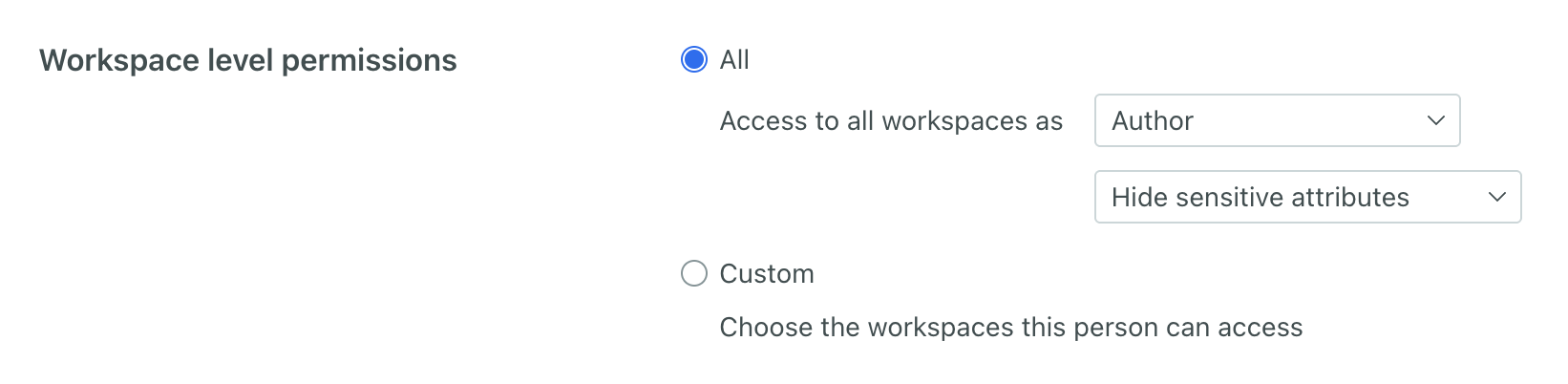
Under Workspace level permissions, specify Author or Viewer for workspaces.
Choose Hide sensitive attributes from the dropdown.
Save or invite your team member.
These team members will now see values redacted for sensitive attributes. If they send test messages or webhooks from your workspace, those messages and responses will also contain redacted values.
Authors with sensitive data hidden can’t edit people
Authors with sensitive data hidden have the same functionality as Authors who can view all data, with one exception: they can’t edit people.