How to add team members to your account
UpdatedAccount Admins can add team members and assign roles to grant the right level of access. If you’re on a Premium or Enterprise plan, you can create custom roles to grant specific permissions to team members to meet your business’ needs.
Overview
In Account Settings > Team Members, you can add team members to collaborate on campaigns, help with integrations, and more across your workspaces. Customer.io does not charge for team members, so feel free to grant access to anyone that you need! Only Account Admins can add team members. And each account can have up to 300 team members across all workspaces.
For each team member, you’ll need to decide the level of access they should have to your account and to each of your workspaces.
- Account-level permissions are defined in Account Admin and Member roles.
- Workspace-level permissions are defined by standard or custom roles.
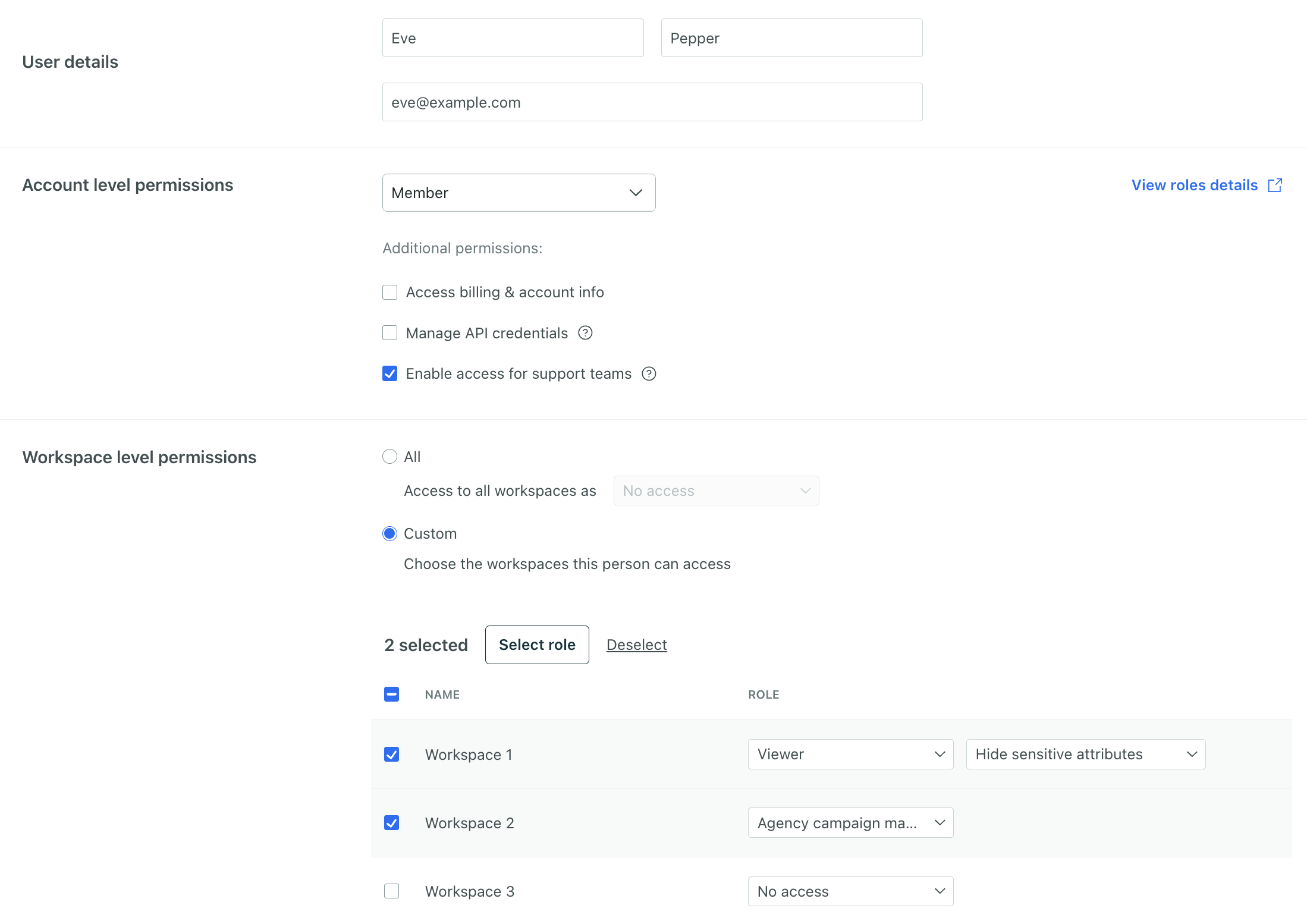
In this example, Eve will be invited as a Member with the ability to grant Customer.io access to the account to help troubleshoot. She’ll be a Viewer with limited access to data for Workspace 1, have a custom role for Workspace 2, and have no access to Workspace 3.
Account-level roles
Every team member has an account-level role—Account Admin or Member.
- Account Admins have all permissions available across your account and every workspace. Think of them as account owners—they can manage billing, team members, API credentials, integrations, workspace data, create campaigns, and more. Account admins are always Workspace Admins; they have full permissions to the account and all workspaces.
- Members have partial access to your account. They can view but not manage team members or cookie settings. You can optionally give them the power to access billing and account info, manage API credentials, and enable access for support teams at Customer.io. To give them access to a workspace, you must assign a workspace-level role.
Workspace-level roles
After you decide the account-level permissions for your team member, you can assign them access to one or more workspaces.
Choose from a list of standard roles to grant them predefined sets of permissions:
- Workspace Admin
- Author
- Viewer
If you’re on a Premium or Enterprise plan, you can also create and assign your own custom roles with specific sets of permissions.
Each team member can have access to one or more workspaces, but can only have one role per workspace. For instance, you can assign them as a Workspace Admin for your demo workspace but a Viewer of your production workspace.
Hide sensitive data
Account Admins and Workspace Admins can mark data as sensitive in the Data Index then choose which team members to hide this info from. This helps secure your data and comply with privacy regulations.
How you hide sensitive data depends on the type of workspace-level role a team member has.
- For standard roles, admins choose “Hide sensitive attributes” when assigning the role.
- For custom roles (only available on Premium or Enterprise plans), admins choose “Hide sensitive attributes” when creating the role.
This means everyone with the same custom role has the same visibility into data, whereas everyone with the same standard role could have different visibilities into workspace data. If that’s an issue, consider creating the standard roles as custom roles.
Compare Account Admin to Member permissions
View team members
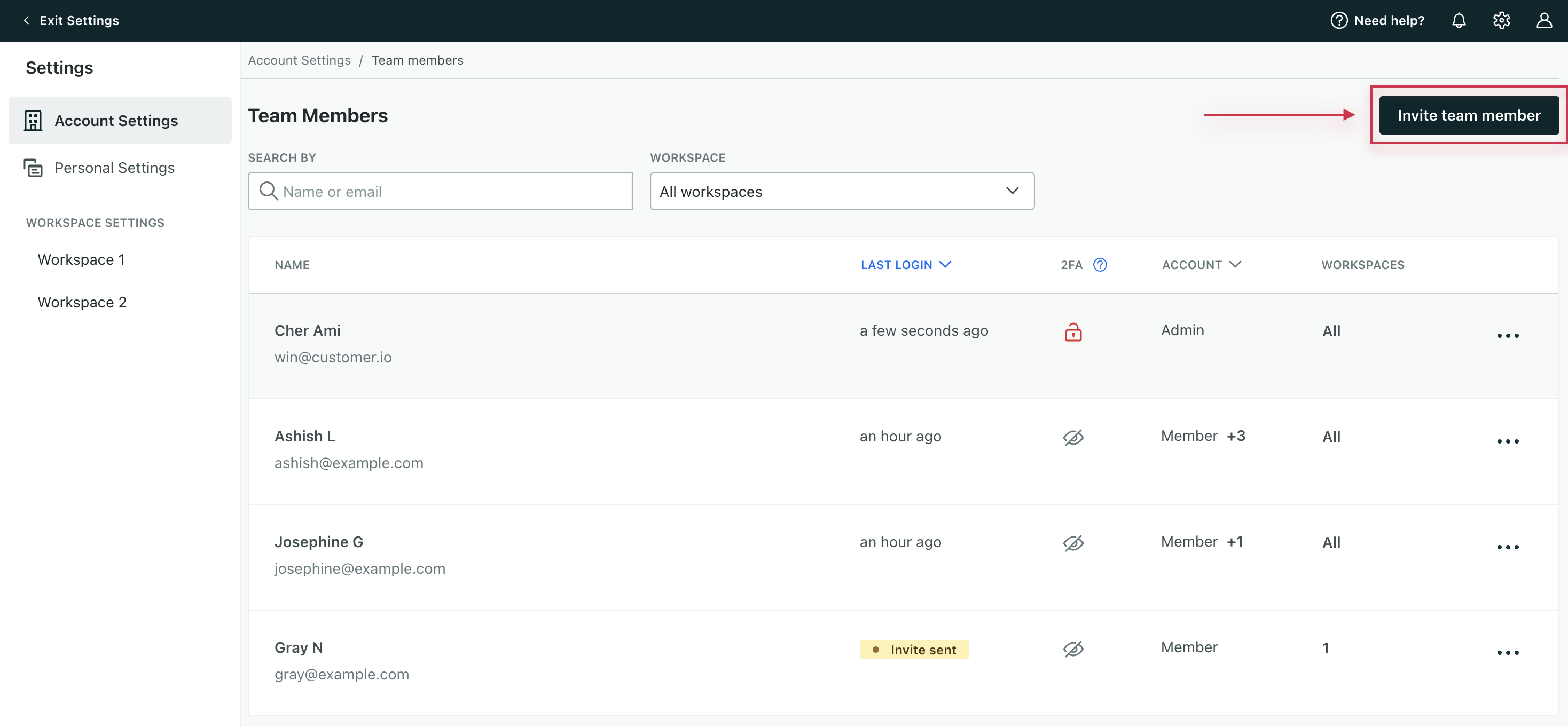
In Account Settings, the Team Members table shows you:
- Who has access to your account
- When they last logged in
- Whether two-factor authentication (2FA) is enabled
- Their account-level roles
- Which workspaces they have access to
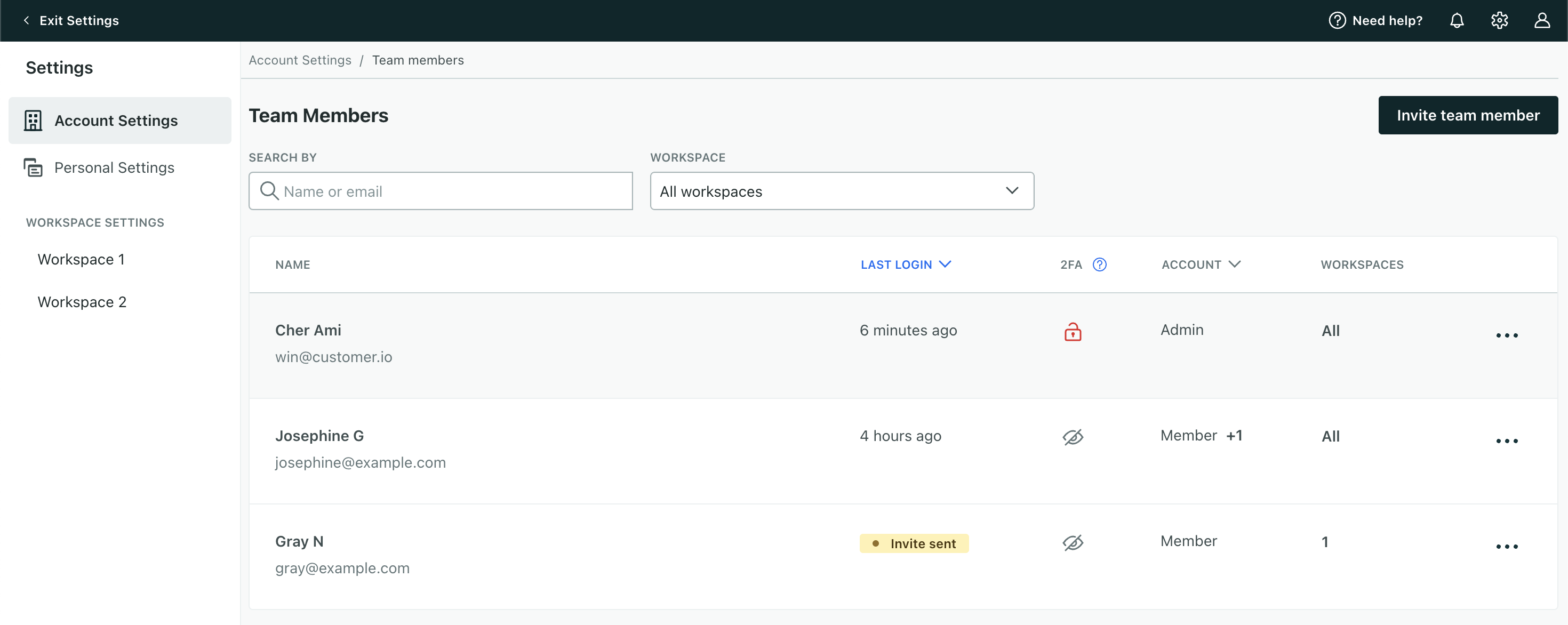
Under Account, hover over to see additional account-level permissions each Member has.
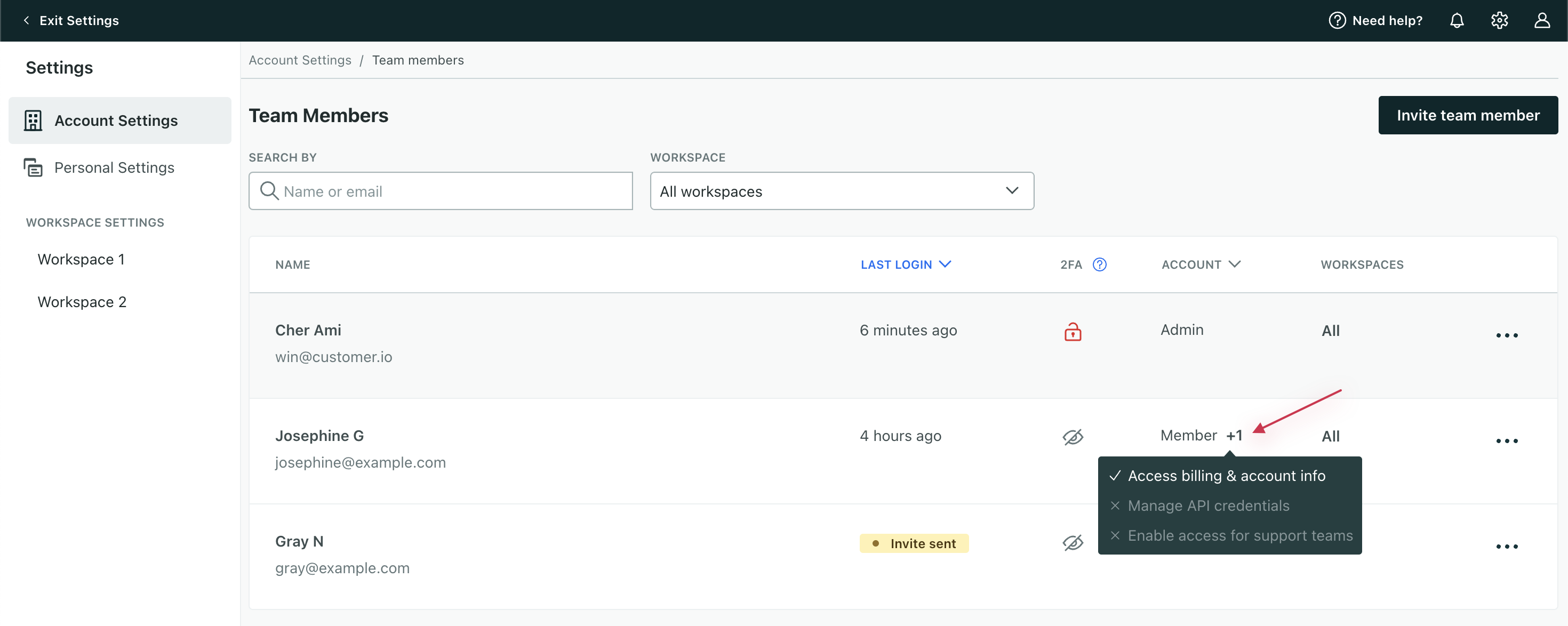
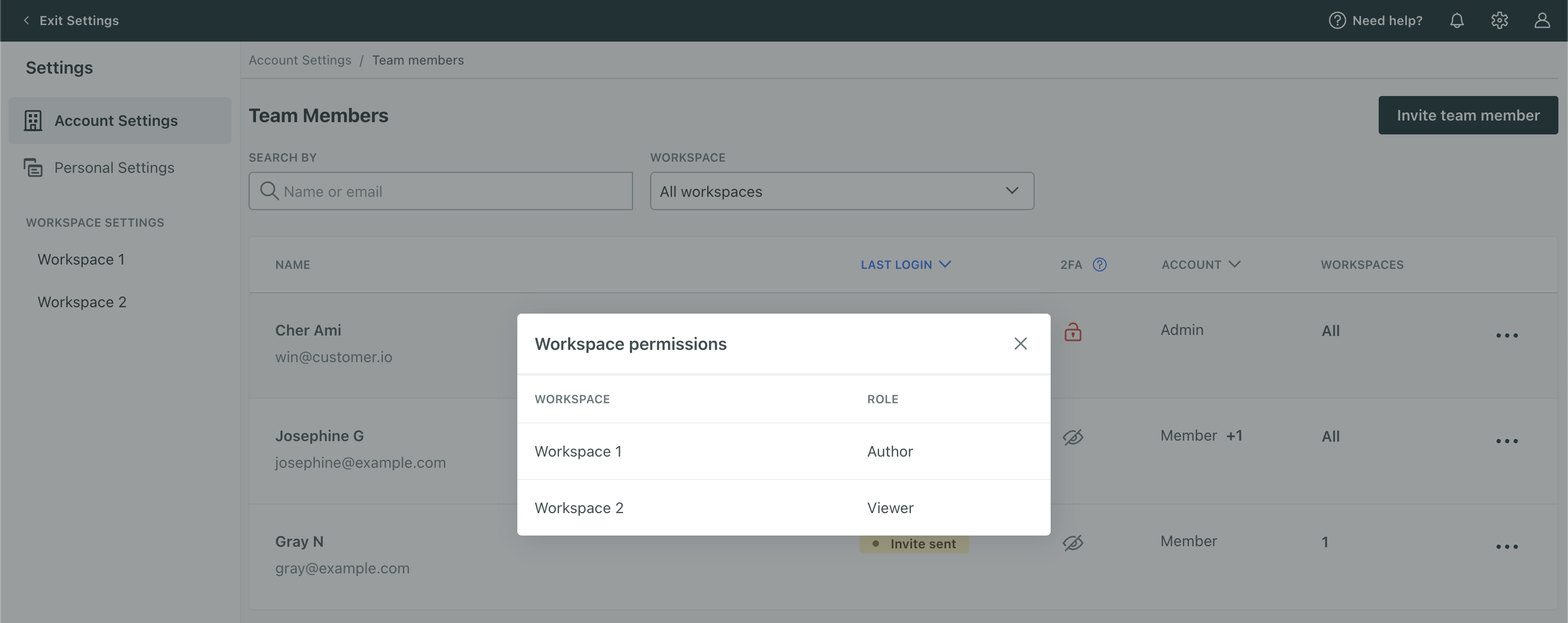
Under Workspaces, click the value to see a list of each role a team member has for each workspace.
Add team members
To add or remove team members, you must be an Account Admin.
Do you want to create a custom role?
Click Invite team member.
Enter the new team member’s first name, last name, and email address. An email address can only belong to one account.
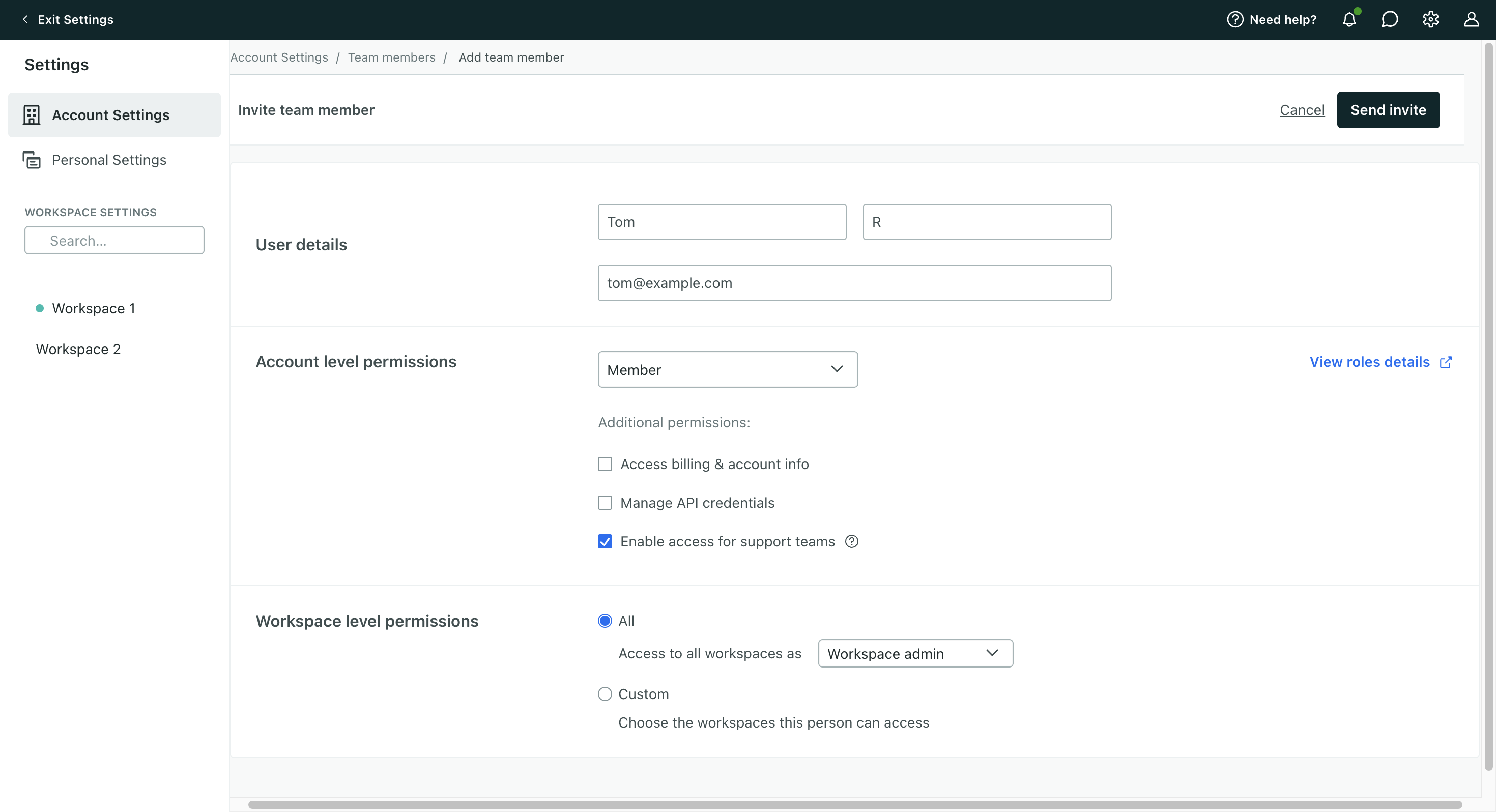
Grant account-level access. By default, we assign people the Member role. Members cannot manage team members or cookie settings, but you can optionally grant them the following permissions:
- Access billing & account info
- Manage API credentials
- Enable access for support teams
If this person should have access to all account settings and workspaces, choose Account Admin instead of Member.
If you’re adding a Member, decide how to grant workspace-level permissions. You can assign them one of these standard roles to each workspace: Workspace Admin, Author, or Viewer. If you created a custom role, you can also assign that here.
- Choose “All” if you want to give this person the same access across all workspaces. Then select the role from the dropdown.
- Choose “Custom” if this person should have different roles across multiple workspaces.
Check the box next to a workspace then choose a role from the dropdown. For Authors and Viewers, decide whether to hide attributes. You can also assign the same role to multiple workspaces at once.
Click Send invite.
You’ll see the person you just created. Their last login will show as “Invite sent” until they log in.
Your new team member will receive an email with a link to set a password. The link in the invitation expires after seven days. When the new team member sets their password, they can log in and get started with Customer.io! Note, if you’ve enabled SSO, they will not have to set a password.
Assign the same role to multiple workspaces at once
You can assign or remove a role across multiple workspaces for a single person. You cannot assign roles and permissions across multiple team members at once though.
- Go to Account Settings > Team Members.
- Click Invite team member to add a team member or click then Edit to modify an existing member.
- Locate workspace-level permissions at the bottom. Select Custom.
- Select the workspaces you want to assign the same access for.
- Click Select role. In the panel, select the role. For Authors and Viewers, decide whether to hide sensitive attributes. You can also assign “No access.”
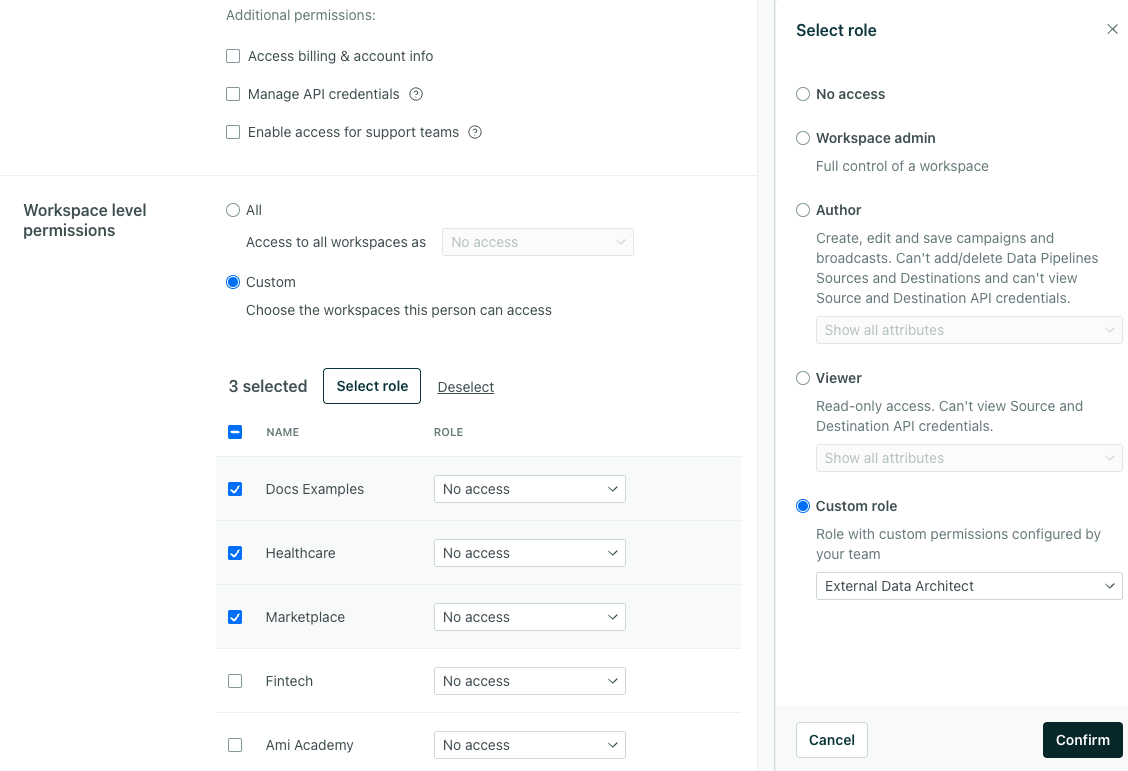
- Click Confirm. The table will update to reflect your selection.
- Click Send invite or Save.
If you created a new team member, they’ll receive an email invitation. If you updated a team member, they will not receive an email.
Edit team members
Any team member can edit their own name in Personal Settings.
Account Admins can edit other team members’ names, email addresses, roles, and the workspace(s) they have access to in Account Settings.
- Go to Account Settings > Team Members.
- On the right, click then choose Edit and make your changes.
- Click Save.
Changes to permissions take effect immediately. If you reduce someone’s permissions while they’re logged in, they may lose their work. For instance, if a team member is logged in as an Author and editing a campaign, then you assign them a Viewer role, they could lose unsaved changes to the campaign. Make sure you communicate with your team before editing their roles.
Delete team members
To delete or remove a team member, you must be an Account Admin.
You might need to remove team members if they leave your organization. Removing a person does not impact content in your account—anything a person did as a member of your account will remain after you remove them from your team. If you only need to change someone’s settings—their name, email address, roles, or the workspace(s) they have access to—you can edit the team member instead.
- Go to Account Settings > Team Members.
- Find the team member you want to remove. Click then Delete.
- Confirm the action.
Export team members
To help you audit access to your account, Account Admins can export a list of team members and their level of access to each of your workspaces.
Click Export to CSV at the top of Team Members. We’ll log this action in Exports of the first workspace created in your account (not necessarily the workspace you just accessed). You’ll also receive an email to download the CSV.
Reset a team member’s password
If a team member forgets their password or their password is compromised, you can reset it on behalf of a team member.
- Go to Account Settings > Team Members.
- Find the team member. Click then Reset password.
We’ll send the team member an email with instructions to reset their password.
FAQs
Having trouble accepting an invitation?
Did you create a trial account under your email address or did you previously belong to a different Customer.io account?
Your email address can only belong to a single account in Customer.io. So, before you can accept the invitation, we need to free up your email address.
- If you created a trial account under your email address, cancel your trial.
- Contact us to disconnect your email address from the trial account.
Why can’t I see all of our team members in my list?
Account Admins see all team members. Members only see team members assigned roles in one or more workspaces they have access to.
Why can’t I see all of our workspaces in my list?
Workspace Admins, Authors, Viewers, and people assigned custom roles only see the workspaces they can access. Ask an Account Admin to add or remove workspaces from a team member’s list.

