Reducing billing overages
UpdatedYou should develop a cadence to delete unnecessary people and objects from your account to reduce overages and keep your billing predictable. Regularly deleting unused or defunct profiles can help you control your costs. This is probably something you should do monthly or every few months, rather than once or twice a year!
1. Review your integrations
Overall, we recommend you review your integrations and ensure that you only add people and objects that provide value to your company/organization. Adding fewer empty or unwanted profiles in the first place will reduce the number of profiles that count toward your bill.
You should also make sure your integrations won’t automatically re-add deleted profiles after you delete them. If you delete profiles but your integrations automatically re-add them during the same billing cycle, you’ll be charged for both the original profiles and the re-added profiles—effectively doubling your count for those profiles.
2. Adopt a sunset policy to delete unengaged profiles
Adopting a sunset policy is a great way to identify unengaged people and contributes to good list hygiene. Limiting your messages to engaged users can positively impact your sending reputation.
In your workspaces, create segments with conditions based on actions that target inactivity, like “has not opened any email within the last 180 days.”
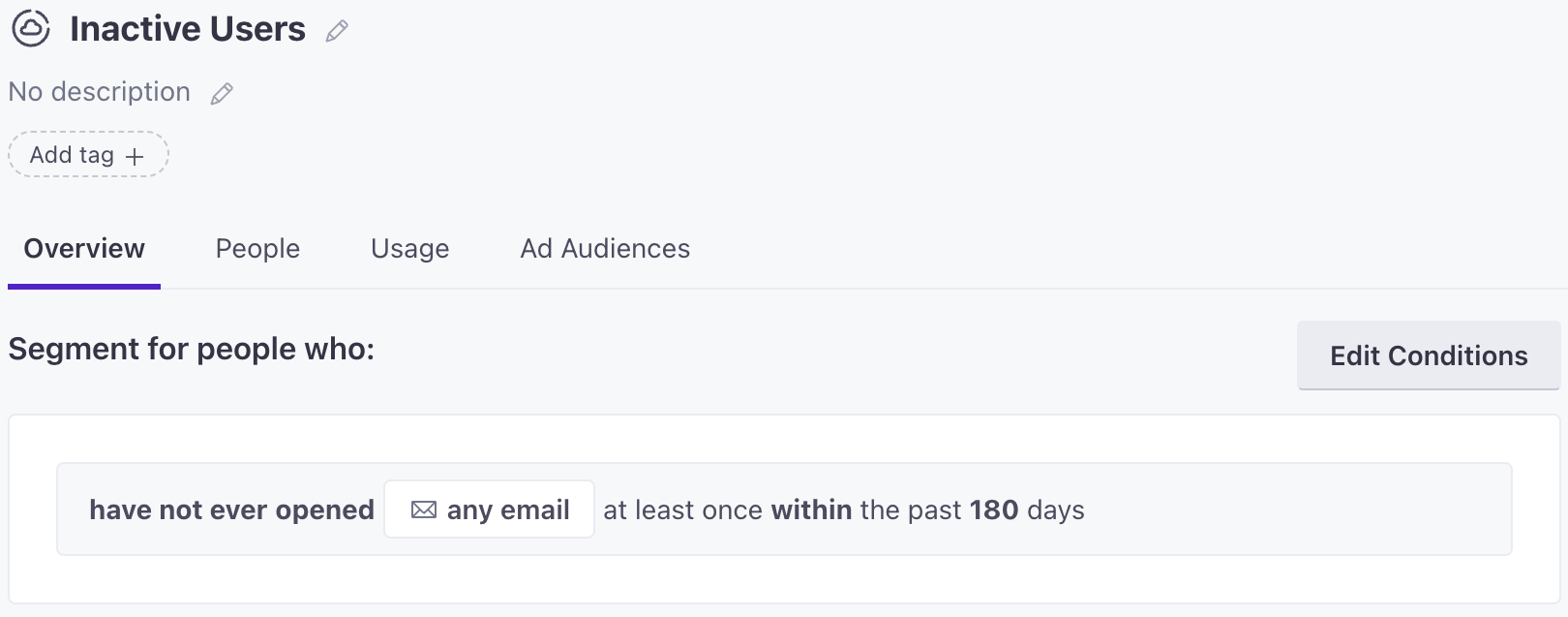
Then you can delete the people that match your criteria so you accurately reflect churn and reduce your overall total of billable profiles.
3. Delete profiles before your billing date
To keep from going over your profile limit in future billing cycles, you should delete unnecessary people and objects 1-2 days before your billing date. This ensures that we don’t count unnecessary profiles in your next billing cycle.
You might not need an object if it doesn’t have relationships to your customers. You can quickly find them by filtering for objects without relationships, and then delete them if appropriate.
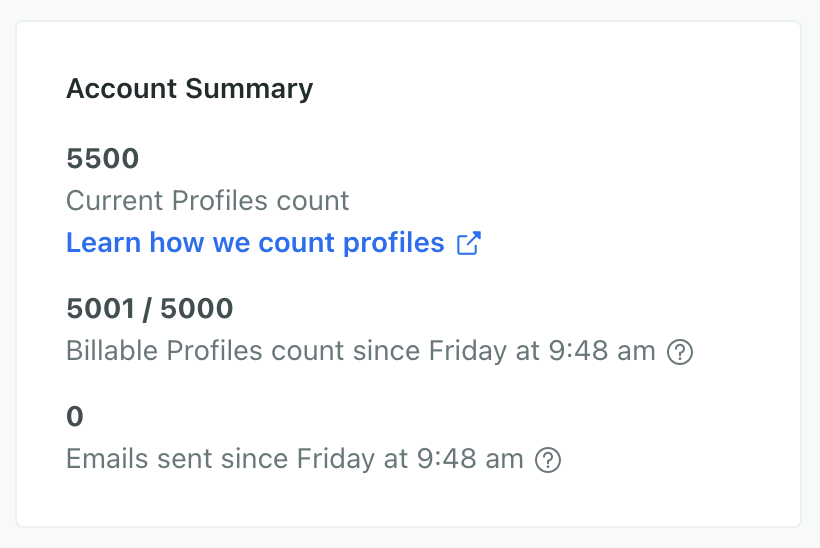
You can see your billable profile counts, overage rates, and any overages on your account’s Plans & Billing page. Keep in mind, this shows your totals across ALL workspaces.
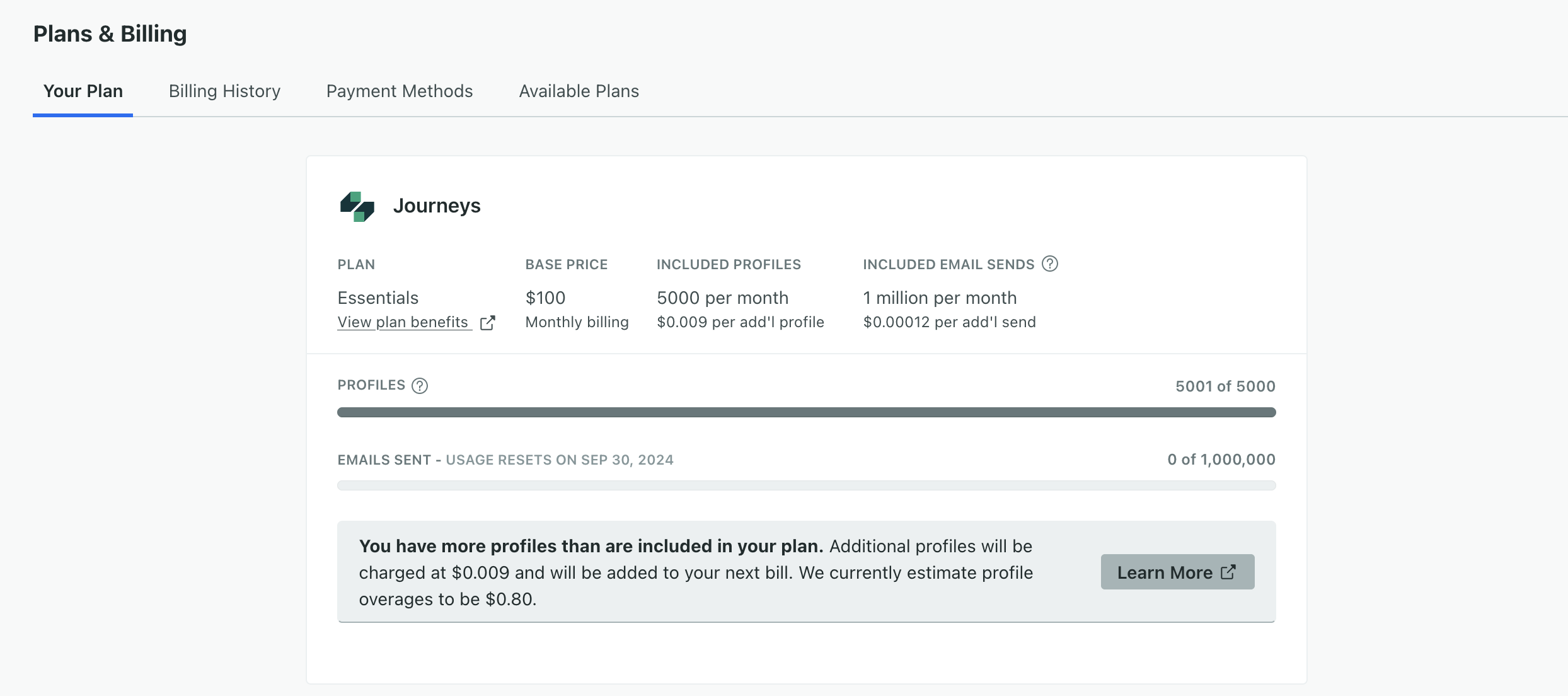
Your Account Summary shows two profile counts across all your workspaces: current and billable profiles. Current profiles are those in your account right now, and billable profiles are all profiles added since the billing period started, including any you deleted.