Tasks: Workspace performance
UpdatedUse the Tasks page to monitor background tasks that might take some time to complete, like segment creation and imports. This lists processes for your workspace, not your account as a whole.
Access tasks
In your workspace’s top navigation bar, click and then choose Tasks. You’ll see your latest background tasks and their status.
Click See all tasks to drill in further.
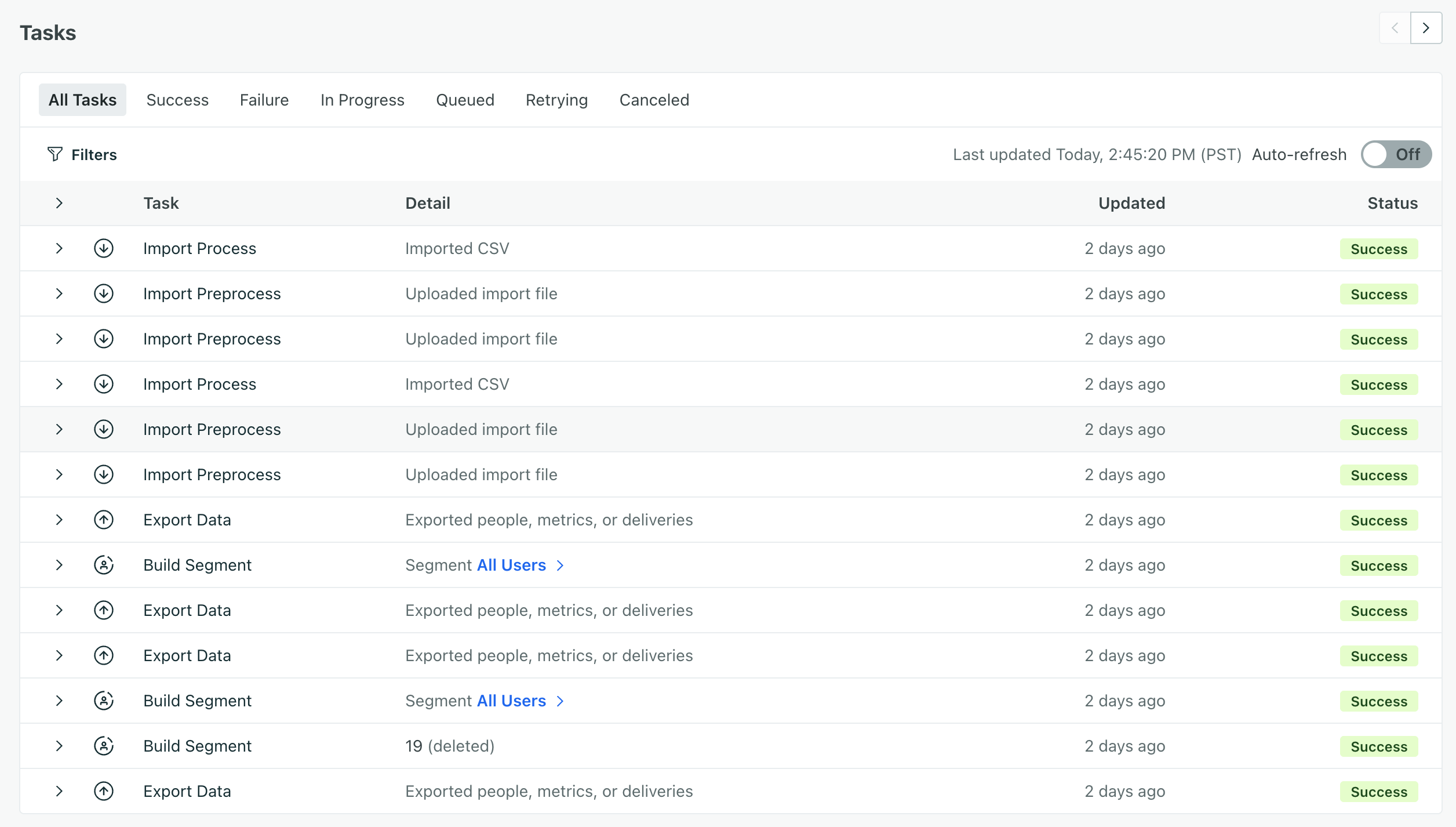
From the Tasks page, you can find more information on each task by clicking . Check when the task started, how long it was queued for, and how long it took to complete.
How we process priority levels
You’ll also see a priority within the details of a task.

Priority levels represent separate processing queues, not which tasks are processed first; a high-priority task runs in parallel with a low-priority task. High-priority tasks have more dedicated processing capacity, but they don’t preempt or delay other tasks.
Enable auto-refresh to monitor long-running tasks
To monitor long-running tasks, turn on Auto-refresh. The page will automatically refresh every 10 seconds; otherwise, you have to manually refresh.
Filter tasks
You can filter tasks by status and task type to quickly find the tasks you’re looking for.
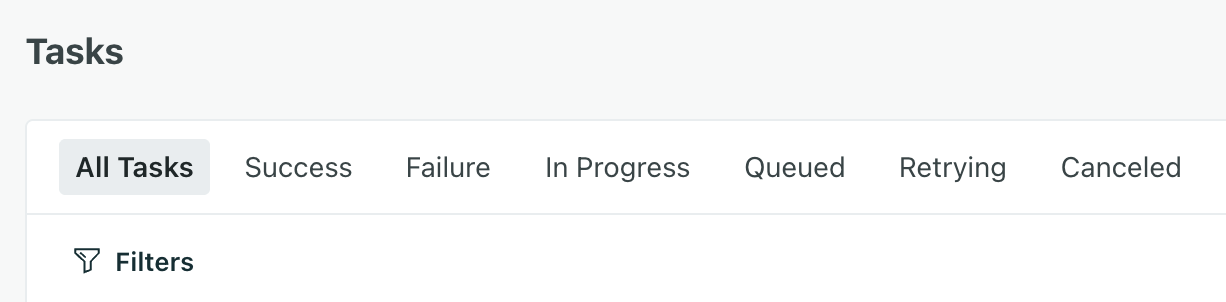
Status
Choose a status to filter by Success, Failure, etc. This helps you monitor long-running tasks and check when jobs are completed.
Tasks with the status of Canceled or Failure include error messages. Click to find more info on the status.
Task type
Filter by task type to monitor specific actions. Click Filters to get started. Learn more about how we process priority levels above.
| Task type | Priority | How long it took to… | |
|---|---|---|---|
| API Triggered Broadcast | High | To send a broadcast to all matching audience members when triggered via the API | |
| API Triggered Broadcast Including Custom Data | Medium | To process a per-user data file CSV with custom Liquid/merge data per recipient provided when triggering a broadcast via API | |
| Archive Campaign | High | To exit all active journeys and transition the campaign to an archived state | |
| Backfill Campaign | High | To evaluate the trigger conditions against all people and enter matches into the campaign. Triggered when a campaign is started or when trigger conditions change on a running campaign | |
| Build Segment | Medium | To rebuild segment membership after saving/updating segment conditions | |
| Change Campaign Frequency | High | To update or clear the restart/re-entry interval scheduler for people in a campaign | |
| Clear Manual Segment | Medium | To remove all members from a manual static segment | |
| Delete Action | Low | To clean up journeys when workflow actions like emails, wait untils, branches, etc. are deleted from a campaign | |
| Export Data | Medium | To export people data, metrics, or deliveries | |
| Import Collection | Medium | To import catalog/collection data from a file | |
| Import Preprocess | Medium | To validate and upload a CSV import file before processing | |
| Import Process | Medium | To process a validated CSV import | |
| Manage Deliveries | High | To perform bulk delivery operations: send drafts, delete drafts, retry failed deliveries, or delete deliveries | |
| Prepare Newsletter | Medium | To send a broadcast/newsletter to its audience | |
| SQL Sync | Medium | To run a SQL-based sync through any Reverse ETL integration Snowflake, BigQuery, etc. | |
| Stop Campaign | High | To end all journeys in the campaign and transition the campaign to a stopped state. This task does not run if you choose to let journeys finish naturally. | |
| Update Action | High | To re-evaluate an action for people currently waiting at it. Triggered by: shortening a delay, rescheduling an action, changing a time window, wait until or branch condition |

