Routines
UpdatedHow it works
Routines are recurring tasks that the agent runs automatically on a schedule. You tell the agent what to check and how often, and it delivers a summary by email each time it runs.
You can use routines to automate the kinds of checks you’d otherwise do manually—monitoring deliverability, auditing segments, comparing broadcast performance, or tracking goal conversions. Routines run in safe mode—the agent can read your workspace data and analyze it, but it can’t make changes to your campaigns, segments, or other resources.
When a routine runs, it creates a fresh agent session—no conversation history from previous runs. It executes your prompt using the same tools available in normal agent conversations. That way, if a routine executes while you’re working on something, it won’t affect your current work. Whenever a routine runs, you’ll see it as an entry in your agent’s conversation history.
What routines can do
Routines can:
- Query campaign, segment, and subscriber data
- Analyze performance metrics and trends
- Compare results across campaigns or time periods
- Generate reports and summaries
- Send email notifications with findings
Routines can’t:
- Modify campaigns, segments, newsletters, or workspace settings
- Execute code or scripts
- Delete or overwrite files
Before you begin
- Routines are available to workspaces with Customer.io AI enabled.
- You need Editor or Admin permissions to create routines.
Create a routine
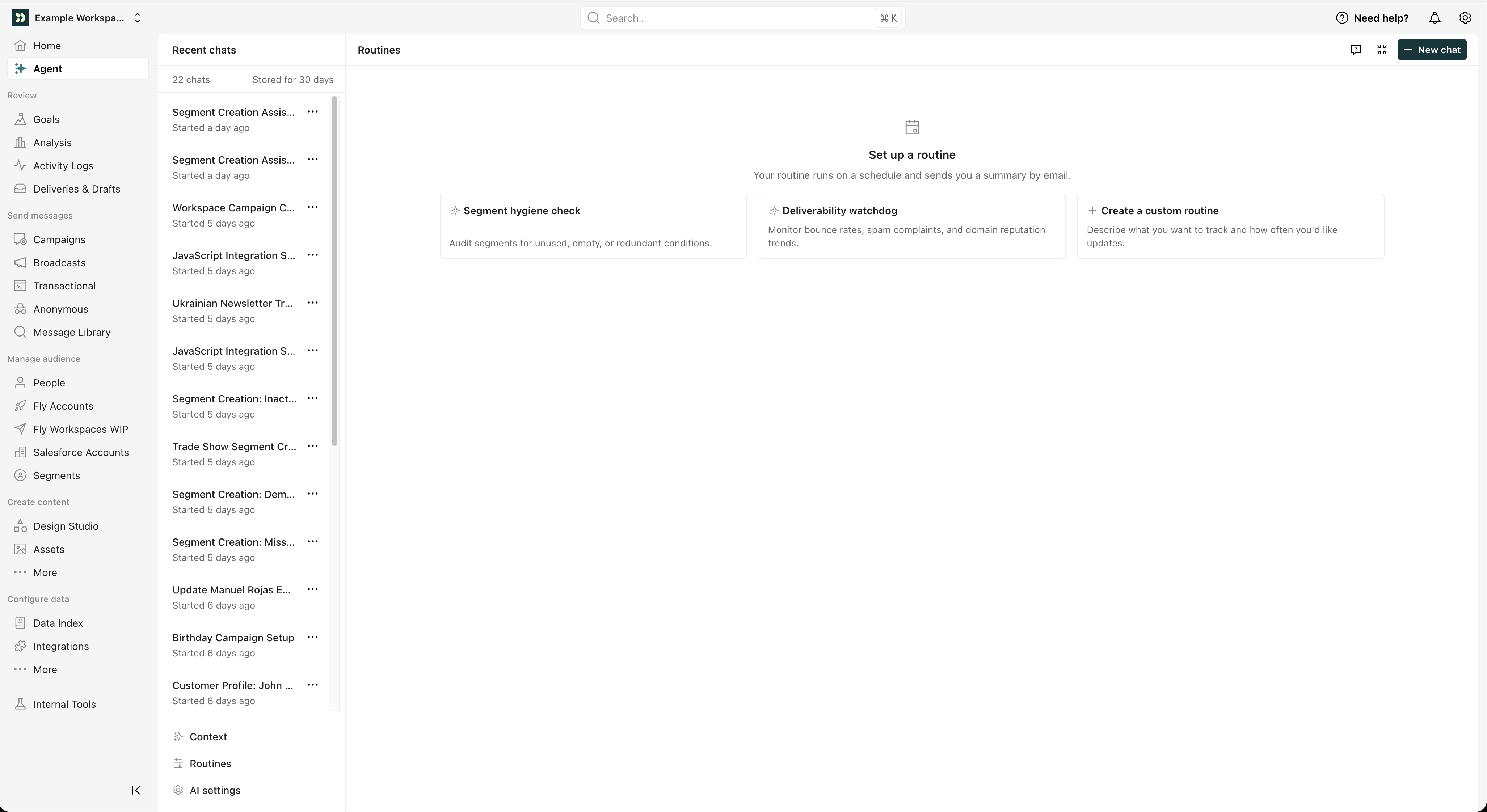
You can create routines at any time by chatting with the agent. Just ask it to set up a routine describing what you want to track, how often you want updates, and what you’d like in each summary. But you can also click Routines in the agent sidebar to see suggestions and manage your routines.
Go to Agent and click Routines in the sidebar.
Pick a suggestion or click Create a custom routine to start a conversation.
The agent will ask what you want to monitor and how frequently. Be specific about what you want to track and why. Something like “check my campaigns” is too vague to be useful!
When you’re done, the agent creates the routine and it starts running on schedule.
Routine suggestions
When you visit the Routines page, you’ll see suggestion cards to help you get started:
- Deliverability watchdog—Monitor bounce rates, spam complaints, and domain reputation trends.
- Broadcast recap—Compare how recent broadcasts performed and surface actionable takeaways.
- Segment hygiene check—Audit segments for unused, empty, or redundant conditions.
- Goal conversion report—Track conversion rates and week-over-week trends across all goals.
- Subscriber churn early warning—Spot at-risk subscribers before they disengage or unsubscribe.
- Audience growth tracker—Track how key segments are growing or shrinking over time.
Clicking a suggestion opens an agent conversation pre-filled with a detailed prompt. You can modify it before the agent creates the routine.
Manage routines
Go to Agent > Routines to see all your routines. Each routine shows its name, schedule, status, and when it last ran.
Pause and resume
Toggle a routine on or off from the list. Pausing a routine stops it from running on schedule. Resuming it re-enables the schedule.
Edit a routine
Expand a routine to see its details. Click Edit to change the name or prompt. The agent updates the routine when you save.
To change a routine’s schedule, ask the agent in a chat conversation.
Delete a routine
Expand a routine and click Delete. This permanently removes the routine and its schedule.
Trigger a run manually
Ask the agent to run a specific routine immediately, outside its normal schedule. You might do this if you want to test a new routine or get an on-demand report.
Results and delivery
When your routine runs, it generates a separate agent session so that it doesn’t interrupt your current work. You can review the full conversation in your conversation history.
Auto-disable on failure
If a routine fails 3 times in a row, it automatically pauses to prevent repeated failures. The Routines page shows an error banner with details about the last failure.
To fix it:
- Review the error message on the Routines page.
- Edit the prompt to address the issue.
- Toggle the routine back on—this resets the failure counter.
You can configure the failure threshold between 1 and 5 consecutive failures when creating the routine.
Plan limits
Routine limits are per user, per workspace. Each user gets their own limits in each workspace they belong to. For example, on an essentials plan, if you have two users and three workspaces, each user can have 1 active routine per workspace for a total of 6 active routines.
| Essentials | Premium | Enterprise | |
|---|---|---|---|
| Active routines (per user, per workspace) | 1 | 5 | 5 |
| Minimum interval | Weekly | Daily | Daily |
| Total routines (per user, per workspace) | 10 | 10 | 10 |
- Active routines are routines that are currently enabled and running on schedule. Paused routines don’t count against this limit. For example, on an Essentials plan, you can have 1 active routine per workspace—but a different user in the same workspace gets their own limit of 1.
- Total routines is the maximum number of routines you can create in a workspace, regardless of whether they’re active or paused. You can create up to 10 routines but only enable as many as your plan allows at a time.
- Minimum interval is the shortest time between runs. Essentials plans can schedule weekly runs; Premium and Enterprise plans can schedule daily runs.

