

Get started with the Customer.io MCP server
How it works
Customer.io MCP connects your Customer.io account to AI tools that support the Model Context Protocol. With the MCP server, you can do just about anything you can do in Customer.io via your AI tool of choice—read workspace data, create and manage automations and one-time sends, work with segments, and more—all through natural language prompts.
Our MCP server URLs are:
- US region:
https://mcp.customer.io/mcp - EU region:
https://mcp-eu.customer.io/mcp
The way you set up your MCP client depends on the tool you use. For ChatGPT or Codex, install the Customer.io plugin; for Cursor or Grok bot, install the Customer.io plugin for Cursor and Grok bot; and for Claude Code or Cowork, install the Customer.io plugin for Claude Code. You can also set up ChatGPT or the Claude chat connector directly, or connect other editors that support MCP.
What can Customer.io MCP do?
Customer.io MCP gives your AI tools access to your workspace through a set of tools. You don’t need to tell your AI tool which tools to use—just describe what you want, and it picks the right ones.
The current version of Customer.io MCP gives your AI tool access to the full Journeys UI API and CDP Data Pipelines API. Your AI tool can discover endpoints, read data, and perform write operations—all through natural language prompts.
The tools available to your AI tool are:
| Tool | What it does |
|---|---|
cio_prime | Loads the AI-ready reference for the Customer.io API. Your AI tool should call this at the start of a task. |
cio_schema | Discovers API endpoints—list resources, find endpoints, and inspect parameters before making calls. |
cio_read_api | Makes authenticated GET requests. Use for listing, reading, and inspecting resources. Supports filtering, pagination, and dry-run previews. |
cio_write_api | Makes authenticated POST, PUT, and PATCH requests. Use for creating and editing resources. Supports dry-run previews. |
cio_delete_api | Makes authenticated DELETE requests. Use for removing resources. Supports dry-run previews. |
cio_skills_list | Lists available agent skills—task-specific instructions for multi-step operations like creating automations. |
cio_skills_read | Reads the full content of a specific skill so the AI tool can follow step-by-step workflows. |
cio_auth_status | Shows the current authentication state, including which workspaces the token can access. |
Reads are separated from writes and deletes. The API surface is split into three tools—cio_read_api (GET), cio_write_api (POST/PUT/PATCH), and cio_delete_api (DELETE)—so you can approve each category independently. In MCP clients that support tool-level permissions (like Claude's Connectors UI), you can allow reads automatically while requiring approval for writes and deletes.
- Strict body validation. Requests with unknown fields in the body return a
422error rather than silently dropping them. This catches typos and stale field names before they cause confusing failures. - Structured JSON errors. Tool errors come back as JSON, not plain text. If you’ve built workflows that parse the older text-format errors, you’ll need to update them.
The MCP includes skills to help your AI tool understand Customer.io. Some of the tools above (cio_skills_list, cio_skills_read) give your AI access to a Customer.io-maintained library of task-specific instructions. Your AI tool fetches the right skill on its own when it recognizes a task; you don't need to invoke them by name.
So when you give your AI tool a task, it’ll read skills to understand how to accomplish the task in Customer.io, look up schemas to perform the task, and then do the work.
You don’t need to tell your AI tool which skills to use—it’ll figure it out on its own when it recognizes a task. But you can ask your AI to do things like:
- “List all active automations in my workspace.”
- “Create a segment of users who signed up in the last 7 days.”
- “Show me the delivery metrics for my onboarding automation.”
- “Draft a welcome email in Design Studio.”
- “Set up a new CDP source for my React Native app.”
Enable Customer.io MCP for your account
You must be an account admin to enable Customer.io MCP for your account. After you enable it, you and other users can set up clients—install the Customer.io plugin for ChatGPT and Codex, the Customer.io plugin for Cursor and Grok bot, or the Customer.io plugin for Claude Code, or set up ChatGPT, the Claude chat connector, or other editors directly.
-
Go to Settings > AI.
-
Turn on Customer.io MCP.
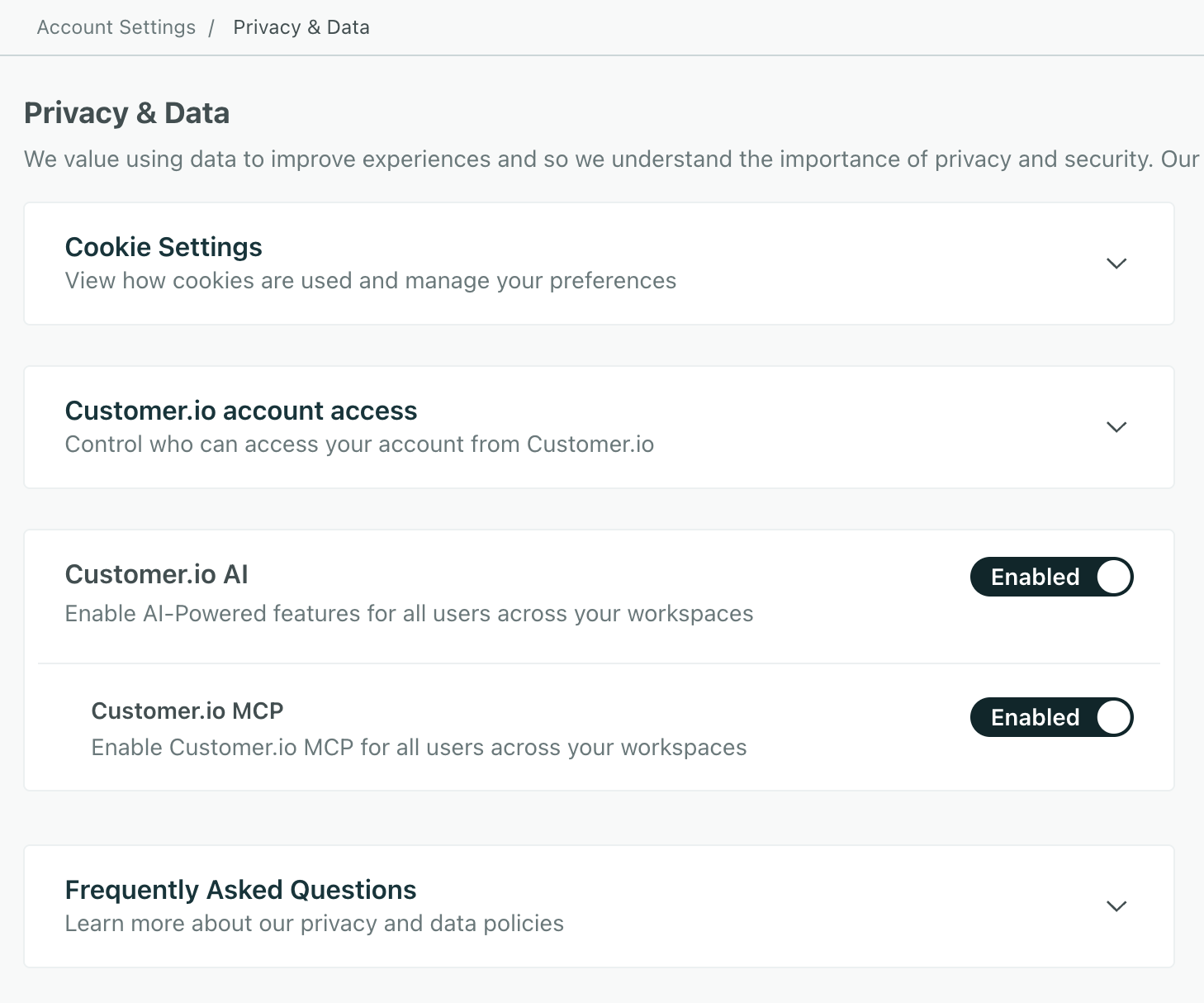
Now you’re ready to set up your MCP client. For ChatGPT or Codex, install the Customer.io plugin; for Cursor or Grok bot, install the Customer.io plugin for Cursor and Grok bot; and for Claude Code or Cowork, install the Customer.io plugin for Claude Code. You can also set up ChatGPT or the Claude chat connector directly, or connect other editors.
Who can do what
- Account admins can enable or disable Customer.io MCP for the account. Other users can’t change this setting.
- Any user in an account where MCP is enabled can connect their own MCP client. Each user authenticates with their own Customer.io login, and connections respect that user’s role and permissions—your AI tool can only do things you can do.
- Each user manages their own sessions. Account admins can’t view or revoke MCP sessions for other users. To revoke a session, the user who created it has to do it from their own personal settings.
Permission scopes for MCP users
When you connect an AI tool to Customer.io through MCP, you’ll set up scopes that determine whether your AI tool can read data, make changes, or access sensitive information. You cannot grant the MCP server greater access permissions than you personally have in Customer.io—but you can grant it less.
By default, a connection only gets the read scope. Your AI tool requests additional scopes when it connects, and you approve or deny access during the authorization flow.
| Scope | Description |
|---|---|
read | Required. Read automations, segments, people, content, and delivery metrics etc—excluding sensitive personal data. This is the default scope. |
read:sensitive | Read profile attributes classified as sensitive (PII). Only available if your account admin has turned on Allow MCP to access sensitive data and your role allows you to view sensitive data. |
write | Create, edit, and delete drafts: automations, segments, one-time sends, templates, people, and other content. |
write:live | Send messages, manage subscriptions and suppressions, enable subscription centers. Doesn’t include editing content. Only available if your account admin has turned on Allow MCP to edit live data. |
configure | Configure integrations, webhooks, channel settings, and other workspace settings. Doesn’t include editing content or sending messages. |
The write, write:live, and configure scopes are independent of each other. For example, if your AI tool needs to edit content and send messages, it must request both write and write:live.
What happens when you disable MCP
Turning off the Customer.io MCP toggle stops MCP requests immediately. Customer.io checks the toggle on every API call, so existing sessions can no longer use any MCP tools. Re-enabling the toggle restores access for those same sessions—we don’t delete the underlying OAuth tokens, so users don’t need to reconnect.
If you want to revoke a specific connection permanently, the user who created it has to revoke their session in personal settings.
See AI settings for related account-level controls, including the master Customer.io AI toggle.
Allow the MCP server to edit live data
By default, MCP connections can’t delete people or edit “live” data—things like active automations or segments that are in use. You can still create new messages, automations, segments, and so on; you just can’t edit or delete items that are currently in use. This prevents accidental changes that might affect your audience.
If you want to allow MCP connections to make changes to live data, and you’re an account admin, turn on Allow MCP to edit live data under the Customer.io MCP section of your AI settings. This lets everybody with an MCP connection in your account make changes to live data.
Allow the MCP server to access sensitive data
By default, MCP connections can’t read profile attributes A key-value pair that you associate with a person or an object—like a person's name, the date they were created in your workspace, or a company's billing date etc. Use attributes to target people and personalize messages.
If you want MCP connections to access sensitive profile attributes, and you’re an account admin, you can turn on Allow MCP to access sensitive data under Customer.io MCP in your AI settings. Users also need the Sensitive Data View permission to access sensitive data through MCP.
Find your workspace
When you use Customer.io MCP, you’ll need to tell your AI tool which workspace to work in. You can select a workspace by name or by ID.

Manage your MCP sessions
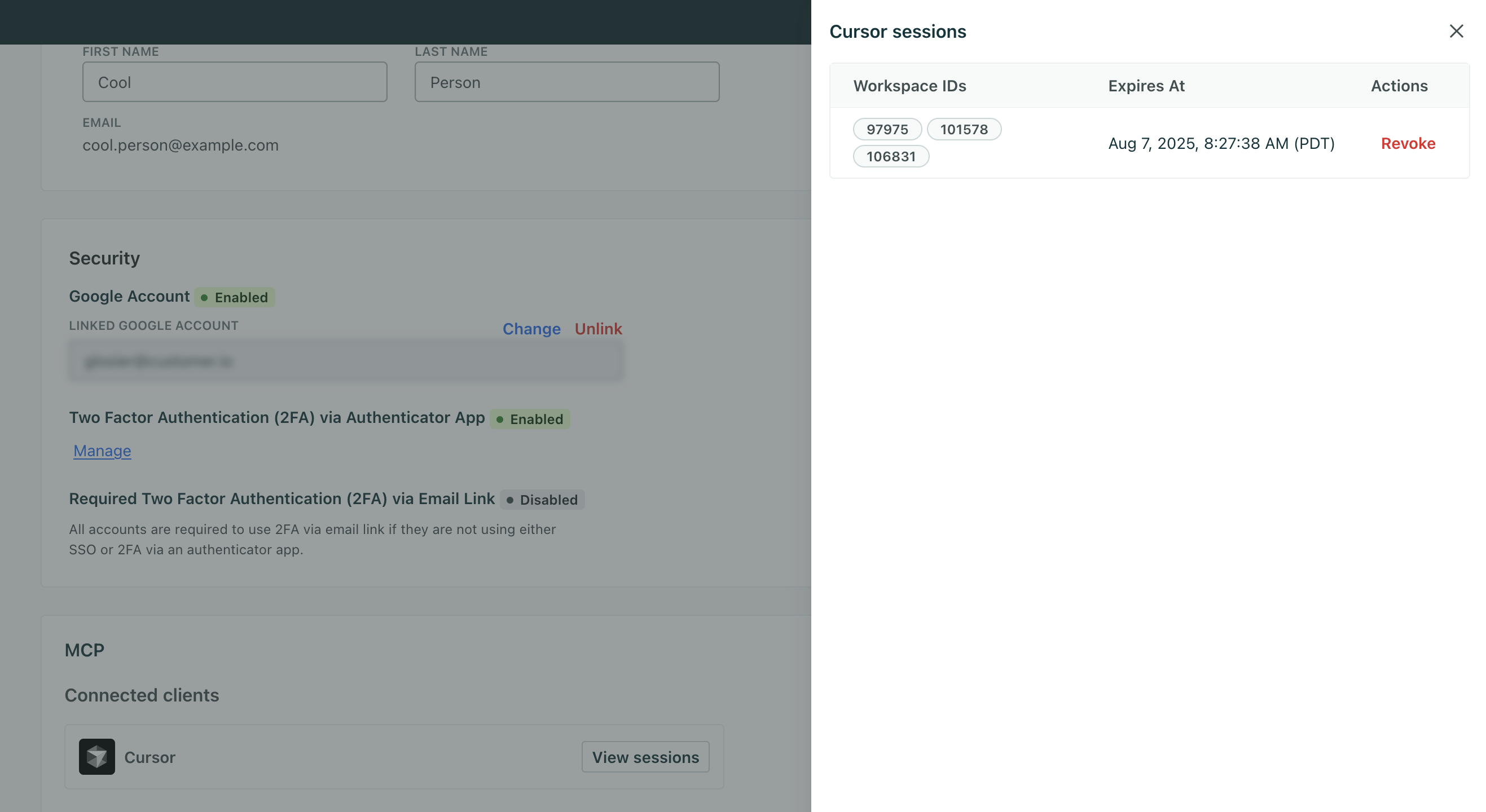
To see active sessions or revoke a connection, go to Settings > Personal Settings and click View sessions under Connected clients. Revoking a session ends it immediately and forces the client to re-authenticate.
Install and troubleshoot SDKs
Customer.io MCP includes skills that can help you install and troubleshoot any of our SDK-based integrations, including mobile SDKs or any of our web-based integrations like our JavaScript client.
You can ask your AI tool questions like:
- Can you help me integrate with the Customer.io SDK for iOS?
- My users aren’t receiving push notifications on Android. Can you help me troubleshoot?
Your AI tool will help you update your code and return detailed steps to help you find and troubleshoot issues.
403 errors after a successful connection
If your MCP tool can connect and authenticate but every tool call fails with a 403, your account admin probably turned off the Customer.io MCP toggle. Customer.io checks the toggle on every request, so a freshly authorized client still gets rejected if the toggle is off. Ask your admin to re-enable MCP in AI settings.
Troubleshooting OAuth client not found error
If you see an “OAuth client not found” error, it means the connection between your MCP tool and Customer.io expired or was reset during the authorization process.
This typically happens when your AI tool (like Claude or Cursor) restarts, disconnects, or refreshes its connection while you’re completing the authorization flow. If you complete authorization in a browser tab from a previous connection attempt, Customer.io can’t find the original session and returns this error.
To fix the error, try the following things:
- Close any open “Customer.io authorization” browser tabs.
- Fully remove the Customer.io connection.
- Restart your AI tool.
- Re-add the Customer.io MCP connection from scratch.
- Complete the authorization flow only in the newly opened browser tab.
I don’t see new tools
When we add new tools or actions to the MCP server, your AI of choice might not pick them up automatically. You may need to refresh your MCP connection. The way you do this depends on your client:
- Claude Desktop: Restart the app, or click the MCP server icon and select Refresh.
- Cursor / VS Code: Restart the editor, or use the command palette to reload MCP servers.
- ChatGPT: New tools should appear automatically the next time you start a conversation.
- Other clients: Check your client’s documentation for how to refresh or reconnect MCP servers. Most clients cache the tool list and need a restart or reconnect to pick up changes.
If new tools still don’t appear after you refresh, you might need to remove and re-add the Customer.io MCP connection.