

Customer.io Pipelines API
With the Pipelines API (shown in the UI as the Customer.io API source), you can send data from anywhere directly to Customer.io and other downstream integrations without using an SDK. See our API documentation for more information about the Pipelines APIs.
Connect a Customer.io Pipelines API source
- Go to Integrations and click Add integration.
- Find the Customer.io API integration.
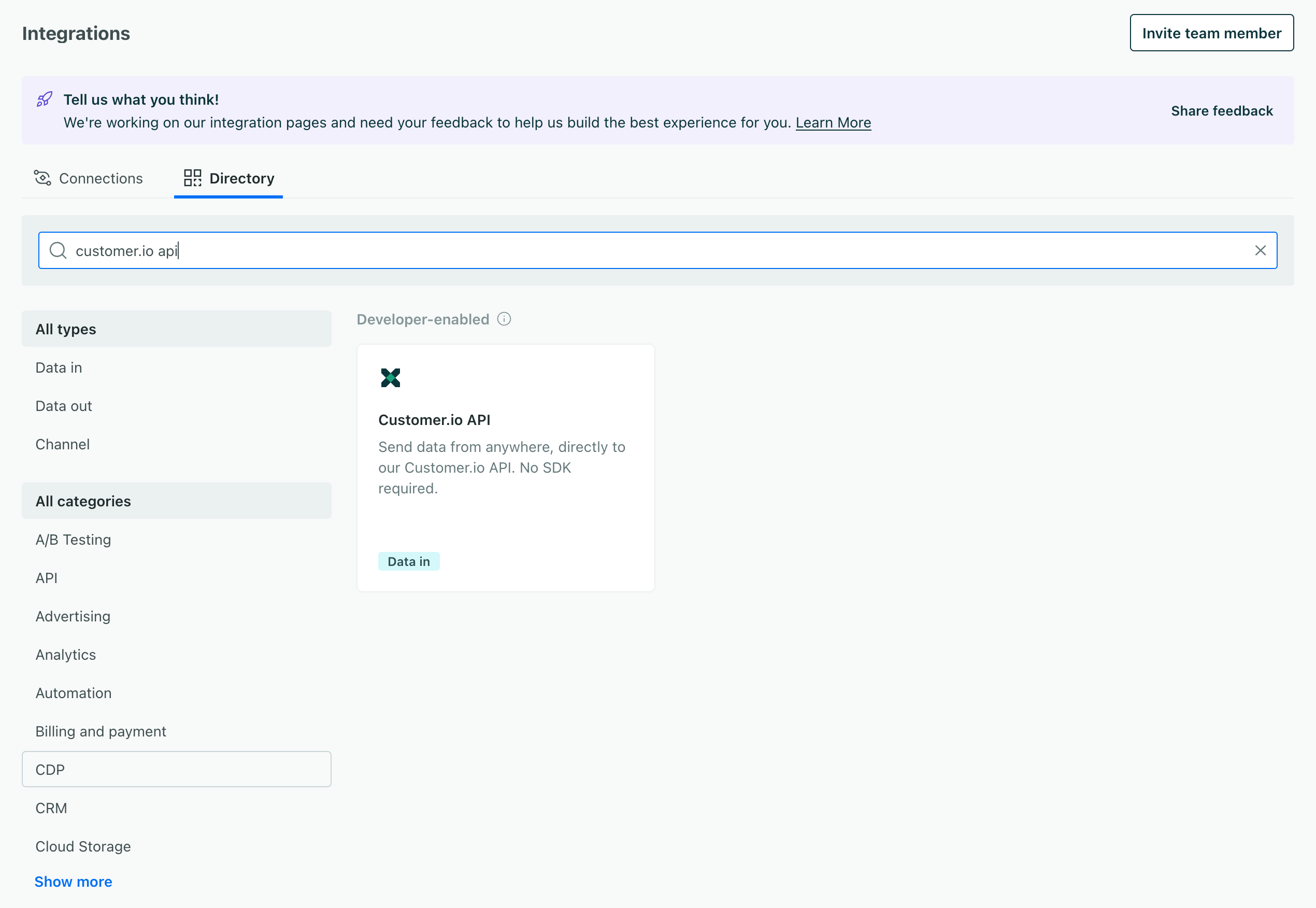
- Give the integration a name. The name helps you find and differentiate between different API credentials; you might name them for users, environments, or the services you use them for.
- Under Configure your API call, copy the API key. This is the key you’ll use to authenticate with Customer.io. The page also shows you a ready-made
curlrequest with your key already filled in, so you can paste that straight into a terminal instead of building the request yourself. - Send a test call with your key. Your key is the username and the password is blank, so pass it to
curlwith a trailing colon and letcurlencode the credentials for you. Here’s an example:SHELLcurl --request POST \ --url https://cdp.customer.io/v1/identify \ --user '<your api key>:' \ --header 'content-type: application/json' \ -d ' { "userId": "97980cfea0067", "traits": { "name": "Cool Person", "email": "cool.person@example.com" } }' - Click Test connection. We check whether we’ve received data from your source. Sending the call isn’t enough on its own; you have to run this check for us to record that your source is connected.
- Click Complete setup.
After you’ve added your source, you can start making your own calls and add a destination to work with your new source.
Enable automatic geolocation support
You can automatically geolocate people when you identify them and pass their IP addresses in the context.ip field in your identify requests. This helps you gather information about your audience’s location and time zone so you can schedule messages at the right times or send messages relevant to their communities.
If you’ve already set up your integration to capture IP addresses, and you’ve enabled the workspace-level Automatic Geolocation Data Collection setting, you can enable geolocation for your integration.
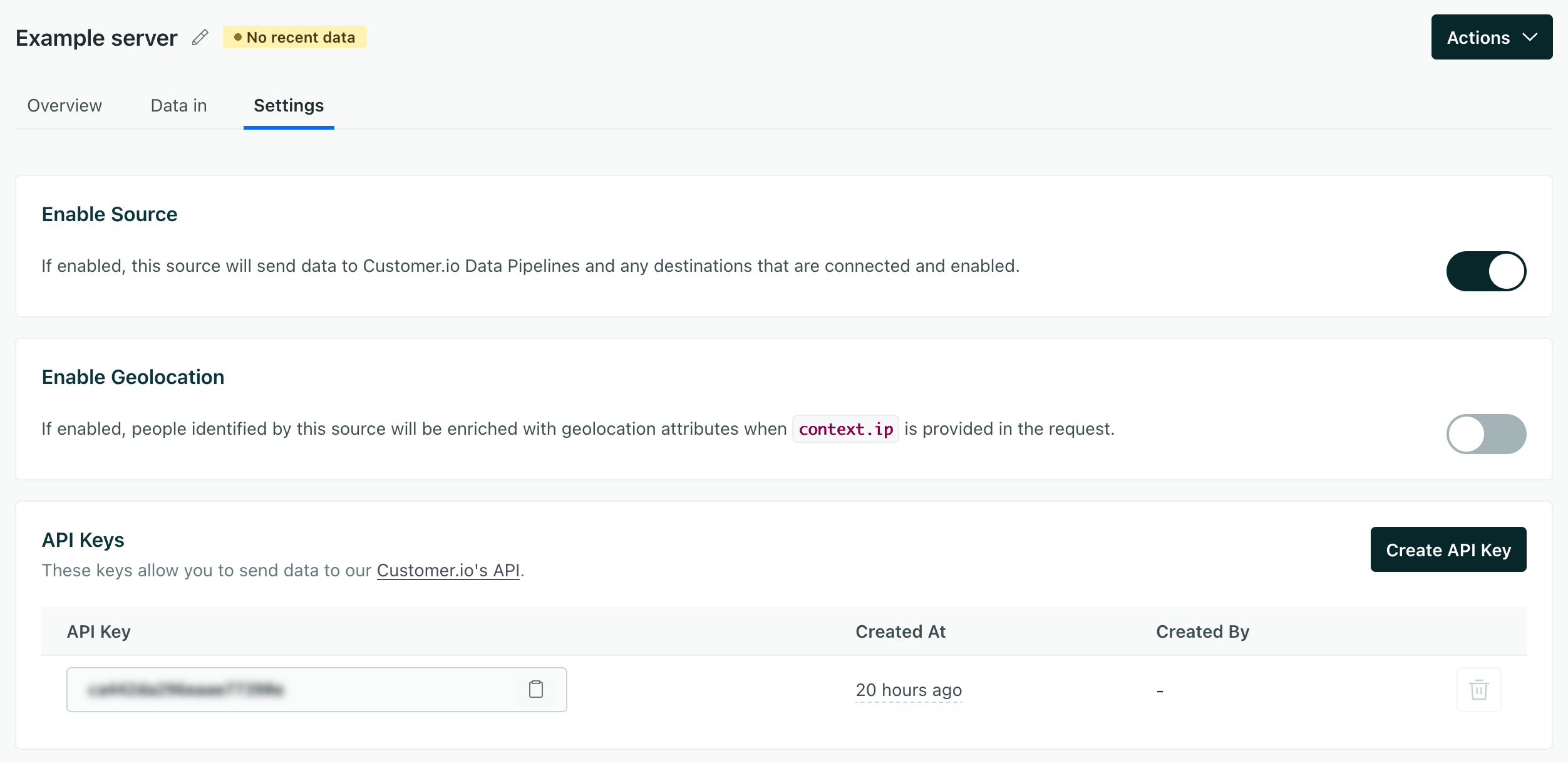
After you enable the Customer.io API source, go to your integration’s Settings tab and turn on the Enable Geolocation setting.
Identify
You should call A key-value pair that you associate with a person or an object—like a person's name, the date they were created in your workspace, or a company's billing date etc. Use attributes to target people and personalize messages.identify when your customers create an account, log in, or otherwise identify themselves. The identify method tells you who the current website or app visitor is and lets you set or update unique traits
You can send an identify call with an anonymous ID and/or user ID. To associate anonymous activity with an identified person, send both IDs in a single call.
- Anonymous ID only: This assigns traits to a person before you know who they are.
- User ID only: Identifies a user and sets traits.
- Both user ID and anonymous ID: Associates the data sent in previous anonymous
page,track, andidentifycalls with the person you identify by user ID.
- userIdstringrequiredThe unique identifier for a person. This value should be unique across systems, so you recognize the same person in your sources _and_ destinations.
- anonymousIdstringA unique substitute for a User ID in cases when you don’t have an absolutely unique identifier. Our libraries generate this value automatically to help you track people before they sign up, log in, provide their email, etc.
- A dictionary of context about a source call/event, like the user’s IP address or locale. Context is automatically collected by our source libraries.
- Contains a list of booleans indicating the integrations that are enabled (true) or disabled (false). By default, all integrations are enabled (returning an empty object). Set
"All": falseto reverse this behavior. - messageIdstringA unique identifier for a Data Pipelines call, ensuring that each individual event is unique. This is set by Customer.io
- originalTimestampstring(date-time)In general, you can use
timestamprather than this field if you want to back-date events. This is the timestamp on the client device you invoke a call or the timestamp value you manually passed in a server-side library call. - sentAtstring(date-time)The ISO-8601 timestamp when a library sends an event to Data Pipelines.
- timestampstring(date-time)The ISO-8601 timestamp when the event originally took place. This is mostly useful when you backfill past events. If you're not backfilling data, you can leave this field empty and we'll use the current time or server time.
- Additional properties that you know about a person. We've listed some common/reserved traits below, but you can add any traits that you might use in another system.
Merge anonymous activity into a person
Unlike our client-side JavaScript library, server-side libraries and the API don’t assign an anonymous ID automatically. You assign an anonymous ID to track a person’s anonymous track and page calls. Then when you identify the user, you pass the anonymous ID with their user ID and Customer.io will merge the last 30 days of anonymous activity with the identified person.
You can’t reuse an anonymous ID after it’s merged into a person. Once an identify call links an anonymous ID to a user ID, Customer.io merges that ID’s anonymous activity into the person and marks the anonymous ID as used—any events sent under the same anonymous ID afterward stay anonymous and won’t link to the person.
If a person generates new anonymous activity after you’ve identified them—for example, they log out and keep browsing before logging back in—assign a new anonymous ID for that activity, then send another identify call with their user ID and the new anonymous ID to merge it into the same profile.
However, there is a 5 minute window after you merge anonymous activity into a person where you can still merge anonymous activity using the same anonymous ID. This allows you to merge anonymous activity in a batch or in rapid succession without worrying about the order of your calls.
Track
The track method tells us about actions people take—the events people perform—on your site. Every track call represents an event.
You should track your audience’s activities with events both as performance indicators and so you can respond to your audience’s activities with automations An automated process people enter when they meet your criteria. An automation has a trigger (who enters, and when), a workflow of messages and actions, and exit criteria (when they leave). A person's path through the workflow is their journey.
You can send events with an anonymousId or a userId. Calls that you make with an anonymousId are associated with a userId when you identify someone by their userId.
Track calls require an event name describing what a person did. And they generally include a series of properties, providing additional information about the event. Beyond that, we’ve provided a complete schema for writable event fields below, and you can find more information in our API documentation.
- eventstringrequiredThe name of the event
- userIdstringrequiredThe unique identifier for a person. This value should be unique across systems, so you recognize the same person in your sources _and_ destinations.
- A dictionary of context about a source call/event, like the user’s IP address or locale. Context is automatically collected by our source libraries.A dictionary of context about a source call/event, like the user’s IP address or locale. Context is automatically collected by our source libraries.
- activebooleanWhether a user is active.
This is usually used when you send an .identify() call to update the traits independently of when you've “last seen” a user.
- Contains information about the campaign that resulted in the API call, gathered from, or mapping to, UTM parameters (e.g.
utm_source). - channelstringThe channel the event originated from.Accepted values:
browser,server,mobile - ipstringThe user's IP address. This isn't captured by our libraries, but by our servers when we receive client-side events (like from our JavaScript source).
- localestringThe locale string for the current user, e.g.
en-US. - Contains information about the current page in the browser. This is automatically collected by our JavaScript source.
- userAgentstringThe user agent of the device making the request
- Contains a list of booleans indicating the integrations that are enabled (true) or disabled (false). By default, all integrations are enabled (returning an empty object). Set
"All": falseto reverse this behavior.- Enabled/Disabled integrations *boolean
- messageIdstringA unique identifier for a Data Pipelines call, ensuring that each individual event is unique. This is set by Customer.io
- originalTimestampstring(date-time)In general, you can use
timestamprather than this field if you want to back-date events. This is the timestamp on the client device you invoke a call or the timestamp value you manually passed in a server-side library call. - Additional properties for your event.
- Event Properties *any typeAdditional properties that you want to capture in the event. These can take any JSON shape.
- sentAtstring(date-time)The ISO-8601 timestamp when a library sends an event to Data Pipelines.
- timestampstring(date-time)The ISO-8601 timestamp when the event originally took place. This is mostly useful when you backfill past events. If you're not backfilling data, you can leave this field empty and we'll use the current time or server time.
Page
The Page method records page views on your website, along with optional extra information about the page a person visited.
- userIdstringrequiredThe unique identifier for a person. This value should be unique across systems, so you recognize the same person in your sources _and_ destinations.
- A dictionary of context about a source call/event, like the user’s IP address or locale. Context is automatically collected by our source libraries.
- activebooleanWhether a user is active.
This is usually used when you send an .identify() call to update the traits independently of when you've “last seen” a user.
- Contains information about the campaign that resulted in the API call, gathered from, or mapping to, UTM parameters (e.g.
utm_source). - channelstringThe channel the event originated from.Accepted values:
browser,server,mobile - ipstringThe user's IP address. This isn't captured by our libraries, but by our servers when we receive client-side events (like from our JavaScript source).
- localestringThe locale string for the current user, e.g.
en-US. - Contains information about the current page in the browser. This is automatically collected by our JavaScript source.
- userAgentstringThe user agent of the device making the request
- Contains a list of booleans indicating the integrations that are enabled (true) or disabled (false). By default, all integrations are enabled (returning an empty object). Set
"All": falseto reverse this behavior.- Enabled/Disabled integrations *boolean
- messageIdstringA unique identifier for a Data Pipelines call, ensuring that each individual event is unique. This is set by Customer.io
- namestringThe name of the page.
- originalTimestampstring(date-time)In general, you can use
timestamprather than this field if you want to back-date events. This is the timestamp on the client device you invoke a call or the timestamp value you manually passed in a server-side library call. - Additional
pageproperties. Analytics.js automatically collectsurl,title,referrer,path, andsearchproperties. But, if you use our other sources or you write your own integration, you should consider sending these properties yourself. Destination actions that takepageevents often rely on theurlandtitleproperties.- categorystringThe category of the page. This might be useful if you have a single page routes or have a flattened URL structure.
- pathstringThe path of the page. This defaults to
location.pathname, but can be overridden. - referrerstringThe referrer of the page, if applicable. This defaults to
document.referrer, but can be overridden. - searchstringThe search query in the URL, if present. This defaults to
location.search, but can be overridden. - titlestringThe title of the page. This defaults to
document.title, but can be overridden. - urlstringThe URL of the page. This defaults to a canonical url if available, and falls back to
document.location.href. - Page Properties *any type
- sentAtstring(date-time)The ISO-8601 timestamp when a library sends an event to Data Pipelines.
- timestampstring(date-time)The ISO-8601 timestamp when the event originally took place. This is mostly useful when you backfill past events. If you're not backfilling data, you can leave this field empty and we'll use the current time or server time.
Screen
The Screen method sends screen view events for mobile devices. These help you understand the screens that people use in your app.
- userIdstringrequiredThe unique identifier for a person. This value should be unique across systems, so you recognize the same person in your sources _and_ destinations.
- A dictionary of context about a source call/event, like the user’s IP address or locale. Context is automatically collected by our source libraries.
- activebooleanWhether a user is active.
This is usually used when you send an .identify() call to update the traits independently of when you've “last seen” a user.
- Contains information about the mobile app the event originated from, automatically collected by our mobile libraries when possible.
- channelstringThe channel the event originated from.Accepted values:
browser,server,mobile - Contains information about the device the event originated from.
- ipstringThe user's IP address. This isn't captured by our libraries, but by our servers when we receive client-side events (like from our JavaScript source).
- localestringThe locale string for the current user, e.g.
en-US. - Information about the current network connection, containing
bluetooth,carrier,cellular, andwifi. If thecontext.network.cellularandcontext.network.wififields are empty, then the user is offline. - Dictionary of information about the operating system, containing
nameandversion. - userAgentstringThe user agent of the device making the request
- Contains a list of booleans indicating the integrations that are enabled (true) or disabled (false). By default, all integrations are enabled (returning an empty object). Set
"All": falseto reverse this behavior.- Enabled/Disabled integrations *boolean
- messageIdstringA unique identifier for a Data Pipelines call, ensuring that each individual event is unique. This is set by Customer.io
- namestringThe name of the screen the person visited.
- originalTimestampstring(date-time)In general, you can use
timestamprather than this field if you want to back-date events. This is the timestamp on the client device you invoke a call or the timestamp value you manually passed in a server-side library call. - Additional properties for your screen.
- Screen Properties *any type
- sentAtstring(date-time)The ISO-8601 timestamp when a library sends an event to Data Pipelines.
- timestampstring(date-time)The ISO-8601 timestamp when the event originally took place. This is mostly useful when you backfill past events. If you're not backfilling data, you can leave this field empty and we'll use the current time or server time.
Group
The Group method associates an identified person with a group—like a company, organization, project, online class or any other collective noun you come up with for the same concept. In Customer.io Journeys, we call groups objects An object is a non-person entity that you can associate with one or more people—like a company, account, or online course.
Group calls are useful for integrations where you maintain relationships between people and larger organizations, like in Customer.io! In Customer.io Journeys, you can store groups as objects An object is a non-person entity that you can associate with one or more people—like a company, account, or online course.
Find more details about group, including the group payload, in our API spec.
- groupIdstringrequiredID of the group
- A dictionary of context about a source call/event, like the user’s IP address or locale. Context is automatically collected by our source libraries.A dictionary of context about a source call/event, like the user’s IP address or locale. Context is automatically collected by our source libraries.
- activebooleanWhether a user is active.
This is usually used when you send an .identify() call to update the traits independently of when you've “last seen” a user.
- Contains information about the campaign that resulted in the API call, gathered from, or mapping to, UTM parameters (e.g.
utm_source). - channelstringThe channel the event originated from.Accepted values:
browser,server,mobile - ipstringThe user's IP address. This isn't captured by our libraries, but by our servers when we receive client-side events (like from our JavaScript source).
- localestringThe locale string for the current user, e.g.
en-US. - Contains information about the current page in the browser. This is automatically collected by our JavaScript source.
- userAgentstringThe user agent of the device making the request
- Contains a list of booleans indicating the integrations that are enabled (true) or disabled (false). By default, all integrations are enabled (returning an empty object). Set
"All": falseto reverse this behavior.- Enabled/Disabled integrations *boolean
- messageIdstringA unique identifier for a Data Pipelines call, ensuring that each individual event is unique. This is set by Customer.io
- originalTimestampstring(date-time)In general, you can use
timestamprather than this field if you want to back-date events. This is the timestamp on the client device you invoke a call or the timestamp value you manually passed in a server-side library call. - sentAtstring(date-time)The ISO-8601 timestamp when a library sends an event to Data Pipelines.
- timestampstring(date-time)The ISO-8601 timestamp when the event originally took place. This is mostly useful when you backfill past events. If you're not backfilling data, you can leave this field empty and we'll use the current time or server time.
- Additional information about the group.
- objectTypeIdstringIf you use Customer.io Journeys as a destination, this value is the type of group/object your group belongs to; object type IDs are stringified integers. If you don't include this value, we assume the object type ID is
1. See objects in Customer.io Journeys for more information. - relationshipAttributesobjectAttributes that you want to set for the relationship between the person and the group.
- Group Traits *any type
- userIdstringThe unique identifier for a person. This value should be unique across systems, so you recognize the same person in your sources _and_ destinations.
Alias
The Alias method combines two previously unassociated user identities. Some integrations automatically reconcile people with different identifiers based on whether you send anonymousId, userId, or another trait that the integration expects to be unique. But for integrations that don’t, you may need to send alias requests to do this.
In general, you won’t need to use the alias call; we try to handle user identification gracefully so you don’t need to merge people. But you may need to send alias calls to manage user identities in some data-out integrations.
For example, in Mixpanel it’s used to associate an anonymous user with an identified user once they sign up.
- previousIdstringrequiredThe anonymousId or userId value that you want to merge into the canonical profile.
- userIdstringrequiredThe userId that you want to keep. This is required if you haven't already identified someone with one of our web or server-side libraries.