

Capture events and set up segments
The real power of Customer.io comes from using the things you know about profiles, and the things they do, to organize them into groups, automatically trigger automations, and so on.
How it works
You can use attributes A key-value pair that you associate with a person or an object—like a person's name, the date they were created in your workspace, or a company's billing date etc. Use attributes to target people and personalize messages. Something that a person in your workspace did. Events can trigger automations, add people to segments, etc, and you can use properties from events to personalize messages. A group of people who match a series of conditions. People enter and exit the segment automatically when they match or stop matching conditions.
Data Index: Know your data
If you’re going to use attributes and events to group profiles, trigger automations, and so on, you should know what attributes and events are available to you.
If you’re not already aware of the data coming into your system, you can see the attributes and events in your system under Integrations > Data Index.
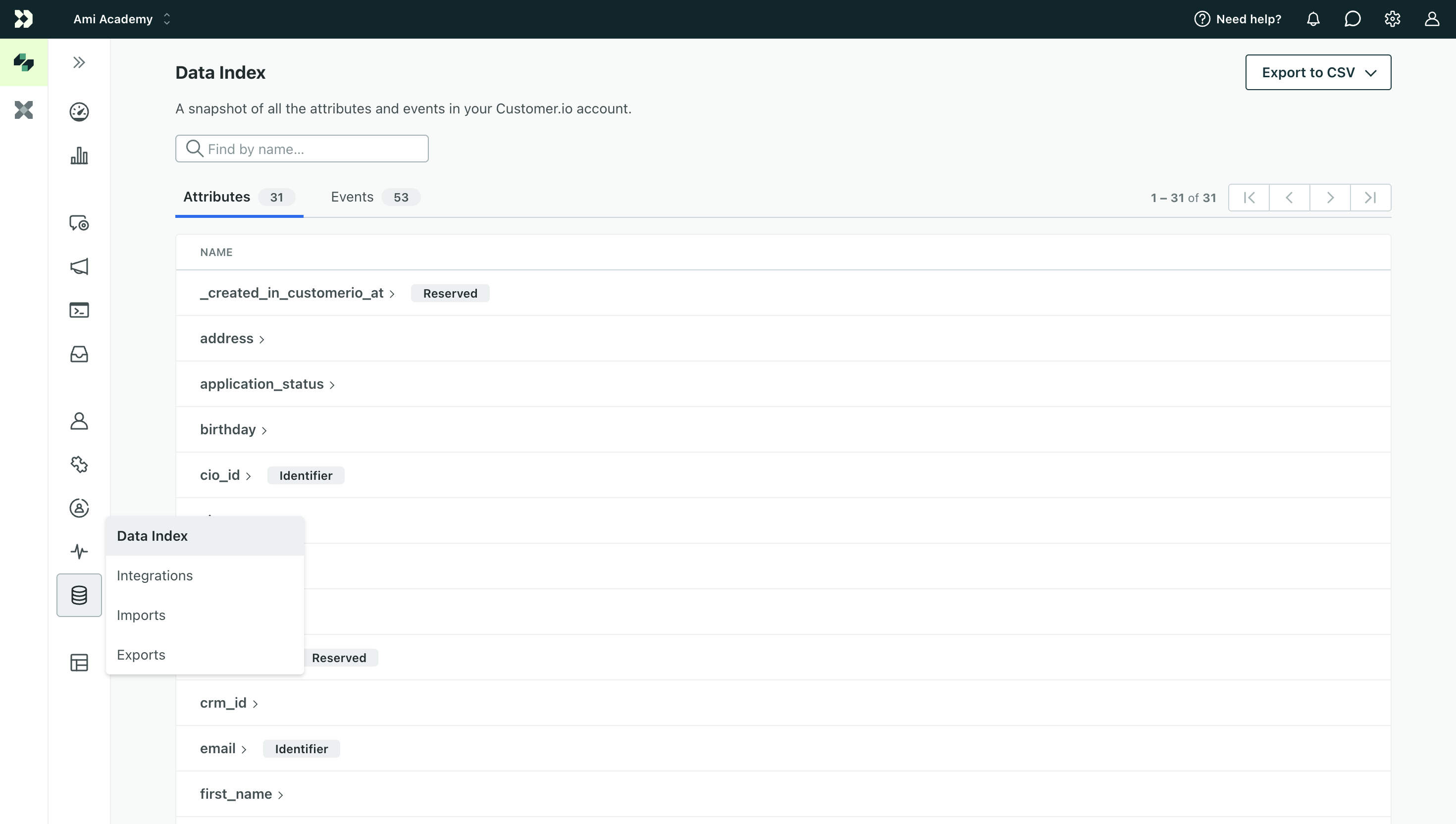
The Data Index shows all of the attributes in your system and a list of events performed within the last 30 days. If you don’t see an attribute or event that you think you might need, you may need to update your integration to send the right attributes and events to Customer.io!
Segments
A Segment is a group of profiles in your workspace—profiles who share the same attributes, performed the same events, and so on. You can use segments to trigger automations, as the audience for a broadcast, as a goal for an automation (e.g. you want profiles to join a particular segment), and so on.
You can add profiles to segments manually or automatically—which we call data-driven segments.
In general, you should use data-driven segments whenever possible, because they update as your audience’s data changes—they’re easier to set up and update automatically. Profiles join and leave data-driven segments automatically based on whether they match the conditions you set.
But manual segments can be helpful when you don’t want a segment to update in real time—like if you want to maintain a static list of profiles you met at a conference. Unlike data-driven segments, profiles don’t join or leave manual segments automatically. You can add profiles to manual segments by uploading a CSV file, or by adding them to a segment as part of an automation or broadcast workflow.
Data-driven segments
Data-driven segments group profiles based on the data you send to Customer.io, so profiles join the segment when they match certain criteria, and leave it when they stop matching the criteria.
These kinds of segments are an essential part of your marketing automation plans because you can use them as automation triggers. In the same way that profiles join segments when they match your criteria, they can also start automation journeys when they join your segments.
With well-defined segments, you can automate your messaging strategy and send messages to your audience at the right times—without having to manually update lists or trigger messages.
You can define data-driven segments on the Segments page.

You can use most of your customer’s data as segment criteria, including attributes, events, page views, and devices. You can also use metadata from inside Customer.io like when profiles click tracked links in emails, open messages, etc.
Example segments
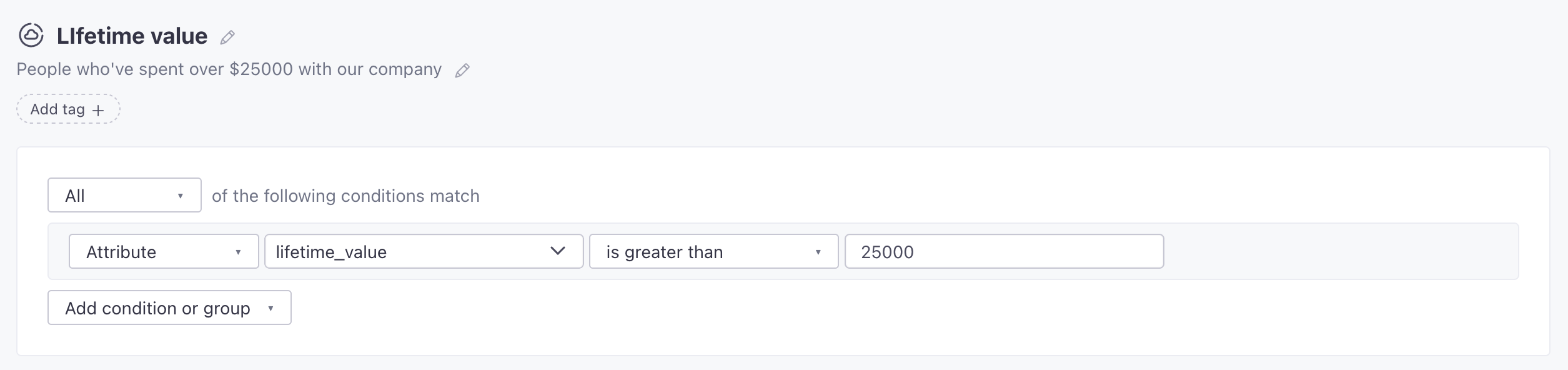
Lifetime value:
Imagine Profiles have a A key-value pair that you associate with a person or an object—like a person's name, the date they were created in your workspace, or a company's billing date etc. Use attributes to target people and personalize messages. A group of people who match a series of conditions. People enter and exit the segment automatically when they match or stop matching conditions.lifetime_value attributelifetime_value value is greater than a certain amount; for our example below, we’re using 25000.
You might trigger an automation based on this segment to send special messages to your high-value customers!
High value offers: Let’s say you send events to Customer.io when your customers visit high value offers on your site. You might create a segment that matches profiles that have seen the same high value offer five times in the past week but haven’t used it or made a purchase yet. The segment could trigger an automation that sends those users a special offer or nudge that encourages them to finish their purchase.
Manual Segments
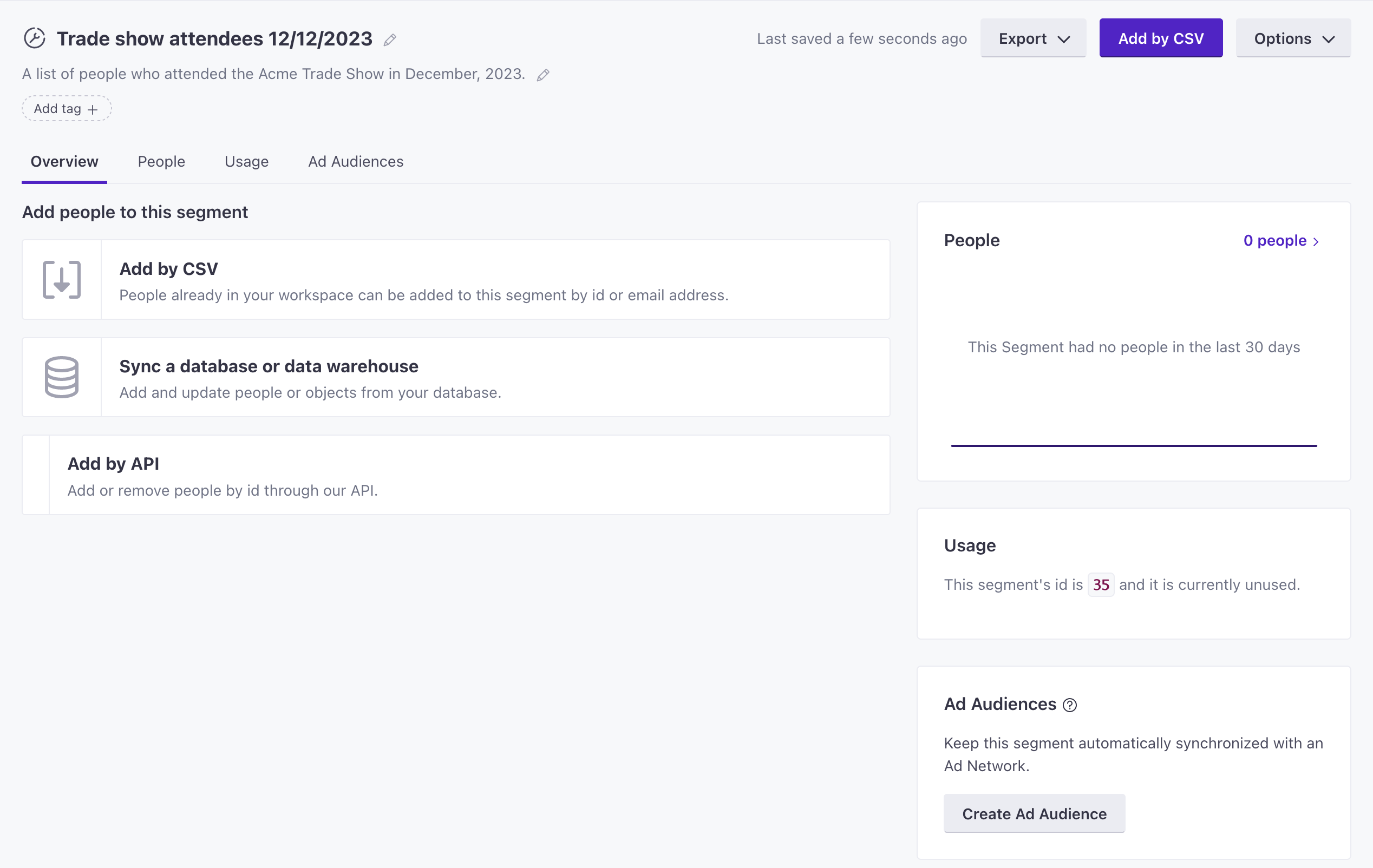
Manual segments let you define exactly who belongs in the segment, and they’ll remain there until you remove them. They’re good for keeping static lists of profiles—like people you met at a conference, or people who signed up for a beta program.
You can add profiles to (and remove them from) manual segments by uploading a CSV file or invoking our API. You can remove profiles from manual segments as a part of an automation or broadcast workflow.
Events
Events are the things that profiles do in your system—like signing up, logging in, or making a purchase. You can use events to trigger automations, as segment criteria, and so on.
Unlike attributes, which you can set manually, events are a standard part of your integration(s) with Customer.io. You’ll need to send events into Customer.io programmatically to take advantage of your audience’s real-time activities.
Beyond their use in Customer.io, events are a typical way to pass data out An integration that sends data out of Customer.io.
Event data
Each event carries data with it. Data properties can provide important information about the event a profile performed. For example, if you send a purchase event, you might include product_name and price properties so you know what a profile bought and how much it cost.
You can use these properties in a few different ways:
- Fine-tuning automation triggers: for example, you might want to trigger an automation that sends a coupon to profiles when they spend over a certain amount in a purchase.
- Personalizing messages with liquid
A syntax that supports variables, letting you personalize messages for your audience. For example, if you want to reference a person's first name, you might use the variable
: for example, if someone signs up for an online class, you might send them a message that reminds them of the class they signed up for, and includes a link to the class materials.{{customer.first_name}}.
Here’s an example of a signup event that includes some relevant properties.
{
  "type": "track",
  "event": "Course Started",
  "properties": {
    "course_in_series": 1,
    "course_format": "pass/fail",
    "title": "Intro to Customer.io"
  }
}
Page and Screen View Events
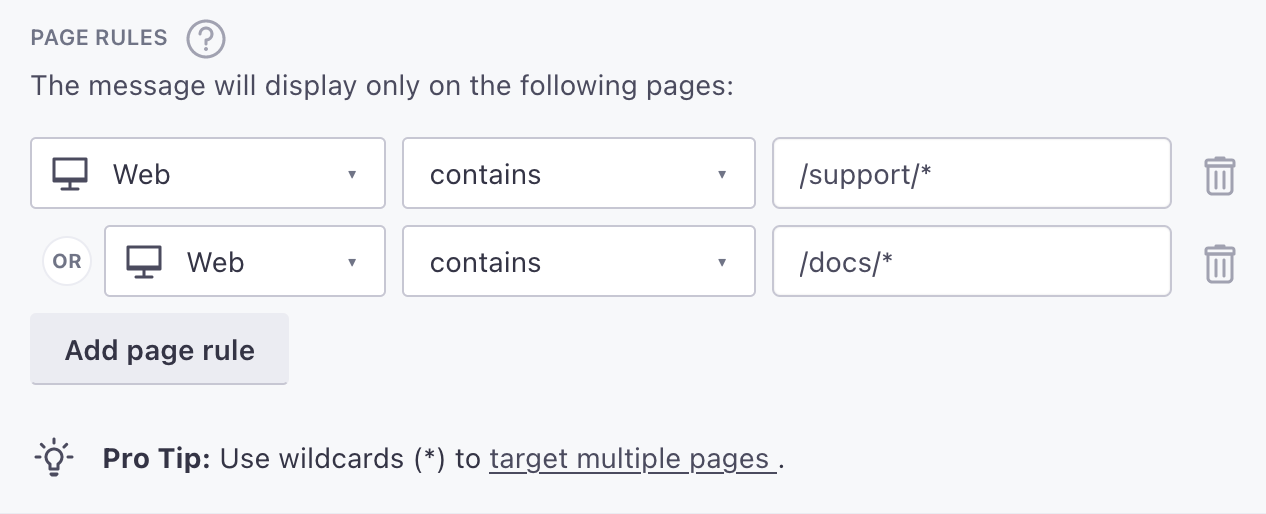
There are two very specific kinds of events: page and screen views. These events represent the pages (web) and screens (mobile) that your audience visits.
These events work much like other events. You can do everything you do with standard events, plus two special things:
- Create special segments based on the pages and screens your audience visits.
- Determine the pages/screens on which profiles receive in-app messages. We call these Page Rules.
Semantic events
Some events have special meaning in Customer.io or your downstream destinations An integration that sends data out of Customer.io—your data's ultimate destination.
For example, we don’t have a call from our source libraries to remove a profile from your Customer.io workspace using our JavaScript source snippet. So, if you need to delete a profile from your workspace, you can send an event called Delete Profile.
// Remove a profile from your Customer.io workspace
cioanalytics.track("User Deleted");
Semantic events are based on the event name. You can set up your own events for any destination, but we’ve pre-defined a significant number of these events to support various destinations—so you don’t have to define them yourself if you’re just getting started. See Semantic Events for more information.