

JavaScript client: getting started
How it works
Our JavaScript client library helps you send data from your website to Customer.io and any downstream integrations where you want to use your data. This is our most popular integration.
When people visit your website, you’ll want to identify them. The identify method is fundamental to Customer.io, providing a unique identity for a profile that we can use across Customer.io and all the services you integrate with. After you identify a profile, subsequent calls reference the identified profile for the remainder of the client’s session on your site.
You can still generate events before you identify someone. These events are anonymous. When you identify a profile, we’ll automatically associate the identified profile and their anonymous activity, giving you a complete view of your audience’s activity on your site.
Want to learn more? Check out the Pipelines API reference.
What can I do with the JavaScript snippet?
When you add the JavaScript snippet, it’ll begin tracking anonymous pageviews. This is similar to the way Google Analytics works.
However, you’ll need to identify your audience to take advantage of most analytics and marketing tools. You can do that with the identify method described below. This is enough to use most basic CRM functionality—like in Salesforce or Intercom.
But, lots of analytics can do more than record identities. You can get the most out of platforms by recording the actions that people perform on your website. that’s what you can do with the track call.
Set up your JavaScript Client
As a part of this installation process, you’ll either use the JavaScript snippet or import the JavaScript client as a package.
- Go to Integrations. In the Connections tab, pick the JavaScript integration.
- Give the integration a Name and click Submit. The name is simply a friendly name to help you find and recognize your integration in Customer.io.
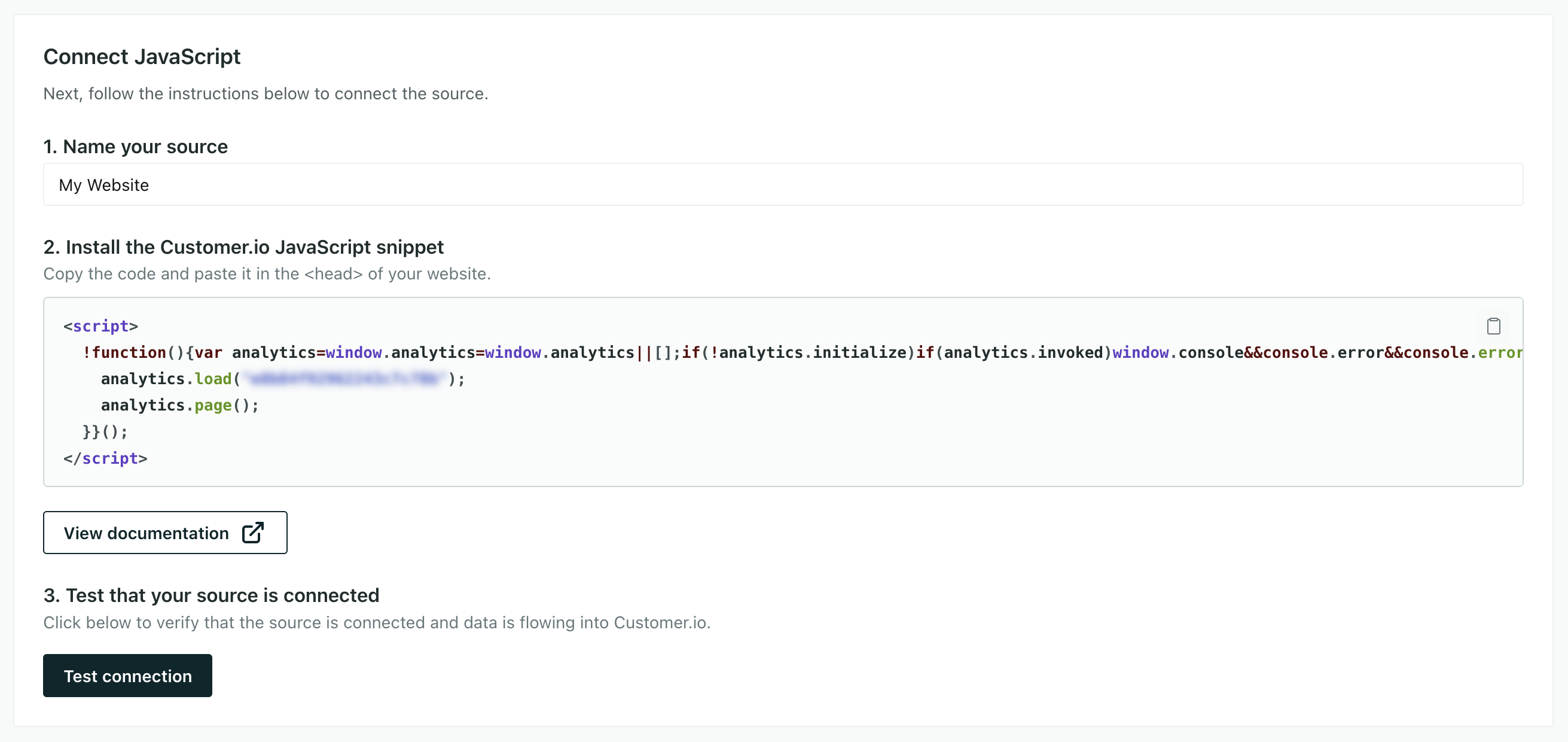
- Install the JavaScript client.
-
If you use a framework like React, Vue, or Next.js, you might want to import the JavaScript client as a package. See the JavaScript Frameworks guide for more information.
-
Otherwise, copy the Sample Code into the
headsection of your website. If you’re in our EU region, make sure thatt.srccontains our EU url (https://cdp-eu.customer.io/v1/analytics-js/snippet/).
-
Now you’re ready to use the snippet to identify profiles and send events to Customer.io!
Install the JavaScript client via a tag manager
You can use our JavaScript client with a tag manager like Google Tag Manager. This might be a good option if you don’t have direct access to your website’s codebase.
Follow the process above to install the JavaScript client. But, instead of adding the code to your website, you’ll add it as a tag in your tag manager.
In general, the tag manager approach is perfectly fine. But, you should understand that a tag manager can lead to additional latency between your client and Customer.io. It can also make it tougher to trace, troubleshoot, and diagnose problems.
Framework-specific installation
For framework-specific instructions—including React, Next.js, and Vue.js—see our JavaScript Frameworks guide.
Identifying users
You should call A key-value pair that you associate with a person or an object—like a person's name, the date they were created in your workspace, or a company's billing date etc. Use attributes to target people and personalize messages.identify when your customers create an account, log in, or otherwise identify themselves. The identify method tells you who the current website or app visitor is and lets you set or update unique traits
Before you identify someone, their activity is anonymous. The JS snippet automatically assigns unidentified people an anonymousId so you can still send page and track events. After you identify a person, we automatically associate the identified person with their anonymous activity, so you have a more complete view of your audience’s activity.
cioanalytics.identify('f4ca124298', {
  email: 'sid@example.com',
  first_name: 'Sid',
  last_name: 'Singh'
});
This call creates or updates a profile with the unique userId—f4ca124298 and sets their first_name, last_name and email traits. Traits are information that you want to record about your audience in Customer.io and other integrations.
In general, we recommend that you inject an identify call into the footer of every page of your site where a user is logged in. That way, no matter what page the user first lands on, they are always identified.
Stop identifying profiles (logout)
When someone comes to your website, we’ll assign them an anonymousId. When they log in or provide information you can use to identify them, you’ll use the identify method. This stores their identity to a cookie and local storage, so you’ll recognize them when they come back to your website.
When they log out of your website, you’ll call the reset method to reset their identity. This anonymizes their data again, respecting your audience’s right to privacy.
Tracking events
The track method tells us about actions profiles take—the events profiles perform—on your site. Every track call represents an event.
You should track your audience’s activities with events both as performance indicators and so you can respond to your audience’s activities with automations An automated process people enter when they meet your criteria. An automation has a trigger (who enters, and when), a workflow of messages and actions, and exit criteria (when they leave). A person's path through the workflow is their journey.
You can send events with an anonymousId or a userId. Calls that you make with an anonymousId are associated with a userId when you identify someone by their userId.
Track calls require an event name describing what a person did. And they generally include a series of properties, providing additional information about the event. Beyond that, we’ve provided a complete schema for writable event fields below, and you can find more information in our API documentation.
For example, imagine that you want to send an event when someone begins an online course. You’d send a call that looks something like this:
cioanalytics.track('class_started', {
  title: 'How to use Customer.io',
  progress: '2%',
  category: 'getting started'
});
In this case, the event is called class_started. That event contains the title, progress and category properties that tell you more information about the class the person started and why.
If you’re just getting started, some of the events you should track are events that indicate the success of your site, like Signed Up, Item Purchased or Article Bookmarked. You can get started with just a few events and add more later!
Querystring Methods
You can trigger an identify and a track method based on query strings in your URL. This can help you execute calls when tracking visitors from email click-throughs, social media clicks, and digital advertising.
| Parameter | Description | Triggers |
|---|---|---|
ajs_uid | The userId for an identify call. | This triggers an identify call, letting you automatically identify people who click links. |
ajs_event | The event name for a track call. | This triggers a track call automatically when people visit a link. |
ajs_aid | The anonymousId for the current user. | If you don’t pass a value, this returns the current anonymousId. If you pass a value, it sets the value as the user’s anonymousId. |
ajs_prop_<property> | A property you want to pass to a track call. | This won’t implicitly trigger an event and is dependent on you also passing ajs_event. This property is included in the resulting track call. |
ajs_trait_<trait> | A trait for the profile in the identify call. | This won’t implicitly trigger a call. It’s dependent on you also passing ajs_uid. This trait is included in the resulting identify call. |
For example, this URL:
https://example.com/?ajs_uid=123456789abcd&ajs_event=Clicked%20Email&ajs_aid=abc123&ajs_prop_emailCampaign=First+Touch&ajs_trait_name=Karl+Jr.would create the following events on the page.
cioanalytics.identify('123456789abcd', { name: 'Karl Jr.' });
cioanalytics.track('Clicked Email', { 'emailCampaign': 'First Touch' });
cioanalytics.user().anonymousId('abc123');
Automatically identify people who click links in your messages
In links you add to messages, you can add a ajs_uid UTM parameter that automatically identifies people who click your link. This helps you attribute message metrics and conversions to your messages!
To automatically identify people who click links in your messages, you must use their cio_id An identifier for a person that is automatically generated by Customer.io and cannot be changed. This identifier provides a complete, unbroken record of a person across changes to their other identifiers (id, email, phone, etc). A syntax that supports variables, letting you personalize messages for your audience. For example, if you want to reference a person's first name, you might use the variable cio_id, but you can pass it to tracked links using liquid{{customer.first_name}}.
On links in your messages, you’ll add the UTM parameter ajs_uid=cio_{{customer.cio_id}} and we’ll automatically identify the person when they click the link and land on a page containing our JavaScript client.
https://link.example.com?ajs_uid=cio_{{customer.cio_id}}Capture URL parameters as event properties
The JavaScript client automatically adds a search property to every page call. This property contains the raw query string, but we don’t automatically split individual parameters into their own properties. The JavaScript client also collects utm_ parameters in each call’s context.campaign object, but Customer.io doesn’t turn context data into event properties.
To segment or filter on a URL parameter, like utm_source or utm_campaign, you need to capture it from the URL and pass it to your page or track call as a property.
The JavaScript snippet includes a page call whenever it loads. Unless you have a single-page application, you should modify that call rather than adding a second one (which would send a duplicate page view event on every page load).
This example changes the snippet’s final line to send every URL parameter as a property, alongside the default page properties:
All parameters
const params = Object.fromEntries(new URLSearchParams(window.location.search));

cioanalytics.page(params);
Selected parameters
const params = new URLSearchParams(window.location.search);

cioanalytics.page({
  utm_source: params.get('utm_source'),
  utm_campaign: params.get('utm_campaign')
});
You can pass the same properties object to a track call if you want to record the parameters on a custom event instead.
Trigger automations from page views
Customer.io records page calls as page view events, but you can’t trigger an automation from a page view event. Event triggers only match the standard events you send with track. To start an automation when someone views a page, you have two options:
- Build a segment with a page view condition, then use the Attribute or Segment trigger. This takes no changes to your website code. People trigger the automation when they join the segment, so a repeat view doesn’t start a new journey until they leave the segment and join it again.
- Send a
trackevent for the page in addition to thepagecall, then use an Event trigger on that event. This starts an automation on every view, and your messages can use the properties you send with the event.
Frequently Asked Questions
Will the snippet slow things down for users?
No. Our JavaScript snippet loads code asynchronously, so it won’t affect your page load speed. When the snippet is running on your site, you can enable integrations in your workspace and we’ll start sending data to them automatically.
What should I do with third party code?
When you use our JavaScript client, you should remove third party code for any integrations you’re going to send data to using Customer.io. This ensures that you don’t record duplicate information. For example, if you want to send data from your JavaScript client to Google Analytics, you’ll want to remove Google Analytics tracking code from your site otherwise you may double-count visitors and events!
Do I need to update the snippet to support new integrations?
No! You don’t have to do anything to support new integrations.
When you add a new data-out integration in Customer.io, we’ll automatically route your data to it.
When you create (or change!) an integration, we generate a new API Key for that integration. You use the API Key in your code to tell our servers where the data comes from, so we can route it to outbound integrations and other tools.