Action triggers: code mode
UpdatedEach destination action has a Trigger field. This determines when we send data to your integration. By default, we have a visual editor to help you set up triggers, but you can use Code mode to write trigger conditions using our Filter Query Language (FQL).
How it works
On any action, click Code mode to see the FQL trigger for that action. You can set or edit the trigger conditions to determine when we send data to your integration.
This can be especially helpful if you need to set up complex trigger logic with nested and/or conditions—which you can’t do with the simple visual editor.
| Standard view | Code mode |
|---|---|
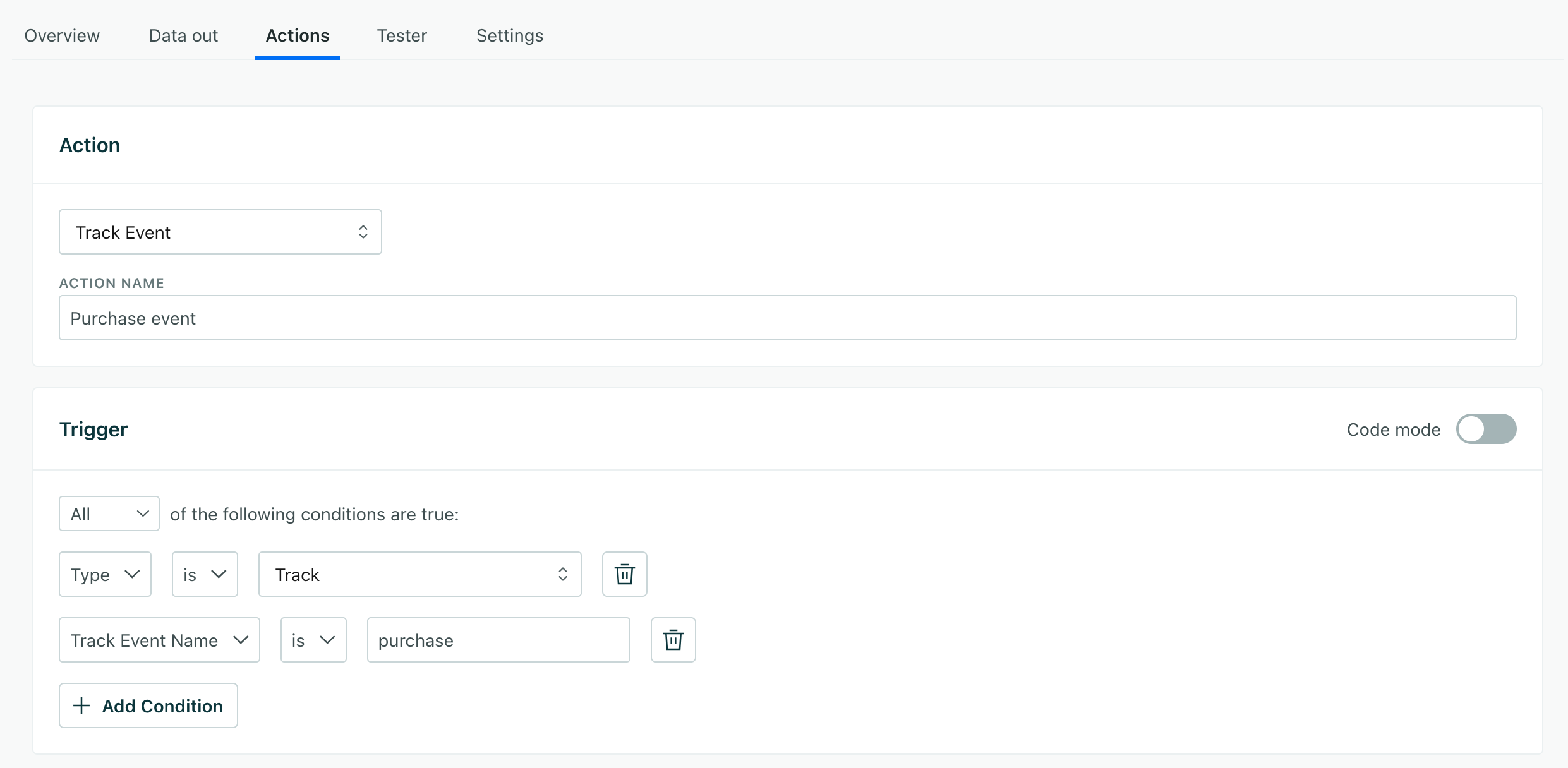 | 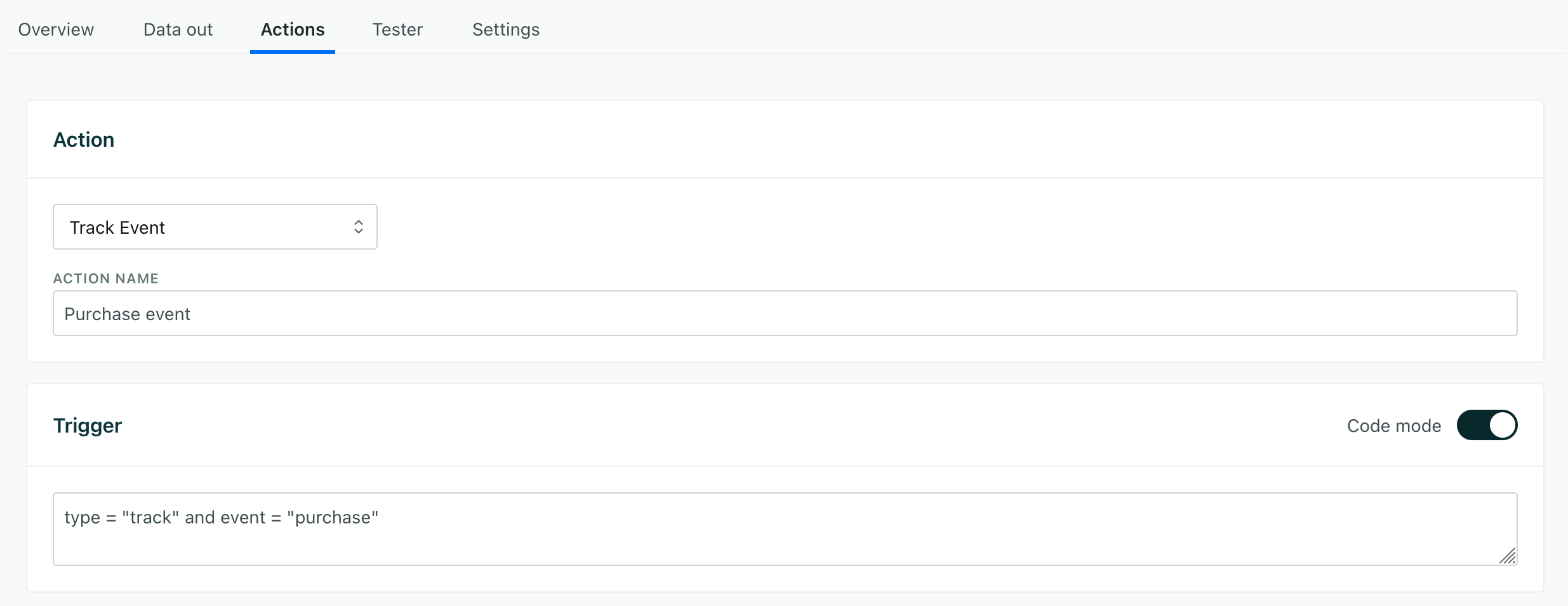 |
You’ll apply criteria that evaluates to true or false based on the contents of incoming requests. If the statement evaluates to true, we’ll send data (matching the action’s Data Structure) to your integration.
The syntax supports basic boolean logic and equality operators like and and >=. But it also contains built-in functions that make it more powerful like contains( str, substr ) and match( str, pattern ).
Example
Imagine that you have an action called Create or Update Person, and you only want to use trigger this action when you send an identify call containing an email trait.
Your filter might look like this:
type = 'identify' and traits.email != null
Then an identify call containing an email trait will trigger the action. If the call doesn’t contain an email trait, the call doesn’t match the trigger and we won’t send data to your integration.
| Would match | Would not match |
|---|---|
| |
What data can I reference in a trigger?
Your trigger can reference any field in the incoming request, including nested properties like context.library.version or properties.title using JSON dot notation.
{
  "type": "...",       // type
  "event": "...",      // event
  "context": {         // context
    "library": {       // context.library
      "name": "..."    // context.library.name
    },
    "page": {          // context. page
      "path": "...",   // context.page.path
    }
  }
}
Operators
Comparison
Use comparison operators to compare two values. You might do this to check if one value equals another or to compare string/number values.
| Operator | Description |
|---|---|
= | Equal |
!= | Not equal |
> | Greater than |
>= | Greater than or equal to |
< | Less than |
<= | Less than or equal to |
// Equals
traits.email = 'alex.lee@example.com'

// Not equals
traits.email != 'alex.lee@example.com'

// Greater than
traits.total_visits > 30
Boolean comparison
Compare two conditions with and or or.
and: both conditions must be trueor: at least one condition must be true
// "and": both conditions must be true
type = 'identify' and traits.email != null

// "or": at least one condition must be true
traits.phone != null or traits.email != null
Not (logical negation)
Use the ! operator to negate a condition. You can negate a complex condition by wrapping it in parentheses.
// Negate the condition
!traits.isLead

// Negate a complex condition
!( traits.isLead or traits.isContact )
Nesting conditions
You can use parentheses to group conditions for more complex “and/or” logic.
type = 'track' and ( event = 'Click' or match( 'Button *', event ) )

( type = 'track' or type = 'identify' ) and ( properties.enabled or match( traits.email, '*@company.com' ) )
The match function
The match( string, pattern ) function uses “glob” matching. It returns true if the given string fully matches a given pattern. Glob patterns are case sensitive.
The examples below use a literal for the string we want to evaluate, but this is just to show how pattern matching works. In most cases you’ll evaluate an incoming variable. For example, match( event, 'purchase*' ) returns true if the event name for a track request begins with purchase.
| Pattern | Summary |
|---|---|
* | Matches zero or more characters. |
? | Matches one character. |
[abc] | Matches one character in the given list. In this case, a, b, or c will match. |
[a-z] | Matches a range of characters. In this case, any lowercase letter will match. |
\a | Matches the character a literally. This is useful if you need to match *, ? or ] literally. For example, \*. |
| Pattern | Result | Reason |
|---|---|---|
match( 'abcd', 'a*d' ) | true | * matches zero or more characters between a and d. |
match( '', '*' ) | true | * matches zero or more characters. |
match( 'abc', 'ab' ) | false | The pattern must match the full string. |
match( 'abcd', 'a??d' ) | true | ? matches any character between a and d, and the string is 4 characters long. |
match( 'abcd', '*d' ) | true | * matches one or more characters at the beginning of the string. |
match( 'ab*d', 'ab\*d' ) | true | \* matches the literal character *. |
match( 'abCd', 'ab[cC]d' ) | true | [cC] matches either c or C, and the string is 4 characters long. |
match( 'abcd', 'ab[a-z]d' ) | true | [a-z] matches any character between a and z, and the string is 4 characters long. |
match( 'abcd', 'ab[A-Z]d' ) | false | [A-Z] matches any character between A and Z but c is not in that range because it is lowercase. |
Error Handling
Our user interface catches invalid FQL statements. We won’t let you save an action with invalid syntax.
But we can’t catch things like misspellings, field names that don’t match incoming data, and so on. Make sure you use the Tester tab to test your actions to make sure they work the way you expect them to.

