# Set up push notifications
There's a new version available!
These pages cover version 2 of our SDK, but a newer version is available. In general, we suggest that you update to the latest version to take advantage of new features and fixes.
* Are you new to our SDKs? [Check out the latest docs.](/integrations/sdk/flutter/getting-started)
* Otherwise, [learn about updating to the latest version](/integrations/sdk/flutter/whats-new/)
Our Flutter SDK supports push notifications over FCM—including rich push messages with links and images. This page helps you add push support to your app.
## How it works[](#how-it-works)
If you’ve followed our [getting started instructions](/integrations/sdk/flutter/getting-started/#install), you’re already set up to send push notifications to your Android audience. But you’ll need to add a bit of code to support your iOS users.
Remember that a device/user can’t receive a push notification until you:
1. (iOS) Register a device token for the device; code samples on this page help you do that.
2. [Identify a person](/integrations/sdk/flutter/identify/). This associates a token with the person; you can’t send push notifications to a device until you identify the recipient.
3. (Both iOS and Android) Check for notification permissions. If your app user doesn’t grant permission, notifications will not appear in the system tray.
4. (Optional) Set up your app to report push metrics back to Customer.io.
Did you already set up your push providers?
To send, test, and receive push notifications, you’ll need to set up your push notification service(s) in Customer.io. If you haven’t already, set up [Firebase Cloud Messaging (FCM)](/push-getting-started/#for-android).
## Set up push for Android[](#register-push-android)
If you followed our [Getting Started instructions](/integrations/sdk/flutter/getting-started/), you’re already set up to send push notifications to Android devices. You just need to [set up iOS push support](#register-push) in your app.
Next, you can set up [deep links](/integrations/sdk/flutter/push-notifications/deep-links/#deep-links-android) if you want your notifications to link into your app.
### Set or change your push icon[](#set-or-change-your-push-icon)
You’ll set the icon that appears on push notifications as a part of the `AndroidManifest.xml` file in your app’s `android` folder. If your icon appears in the wrong size, or if you want to change the standard icon that appears with your push notifications, you’ll need to update your app’s manifest.
```xml
```
## Set up push for iOS[](#register-push)
You’ll need to add some additional code to support push notifications for iOS. You’ll need to add push capabilities in XCode and integrate push capabilities in your app.
### Add push capabilities in Xcode[](#add-push-capabilities-in-xcode)
Before you can work with push notifications, you need to add Push Notification capabilities to your project in XCode.
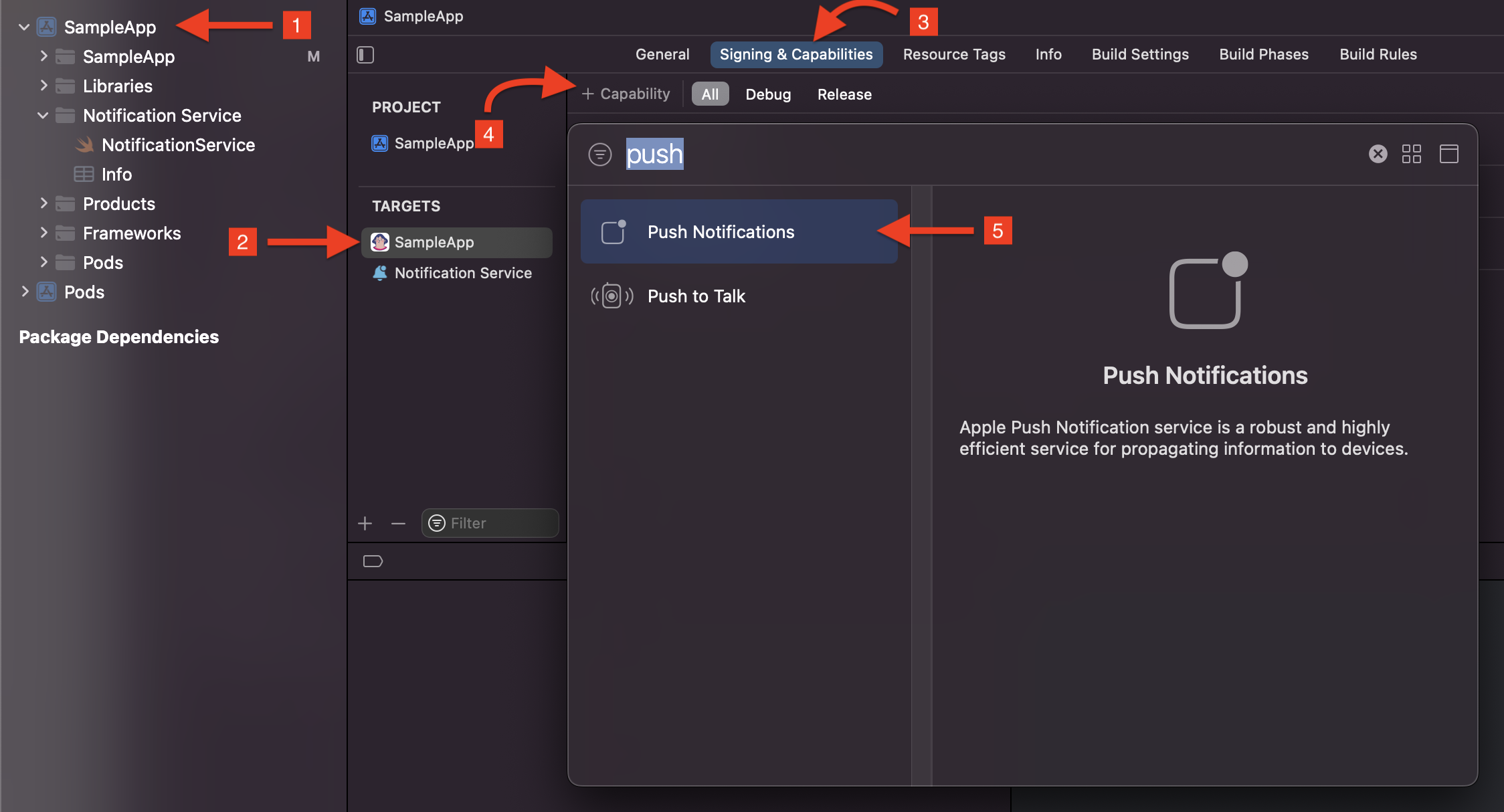
1. In your Flutter project, go to the `ios` subfolder and open `.xcworkspace`.
2. Select your project. Under *Targets*, select your main app.
3. Click the **Signing & Capabilities** tab and click **Capability**.
4. Add **Push Notifications** to your app.
[](#b837646bba75943a4f08d0fee059210c-lightbox)
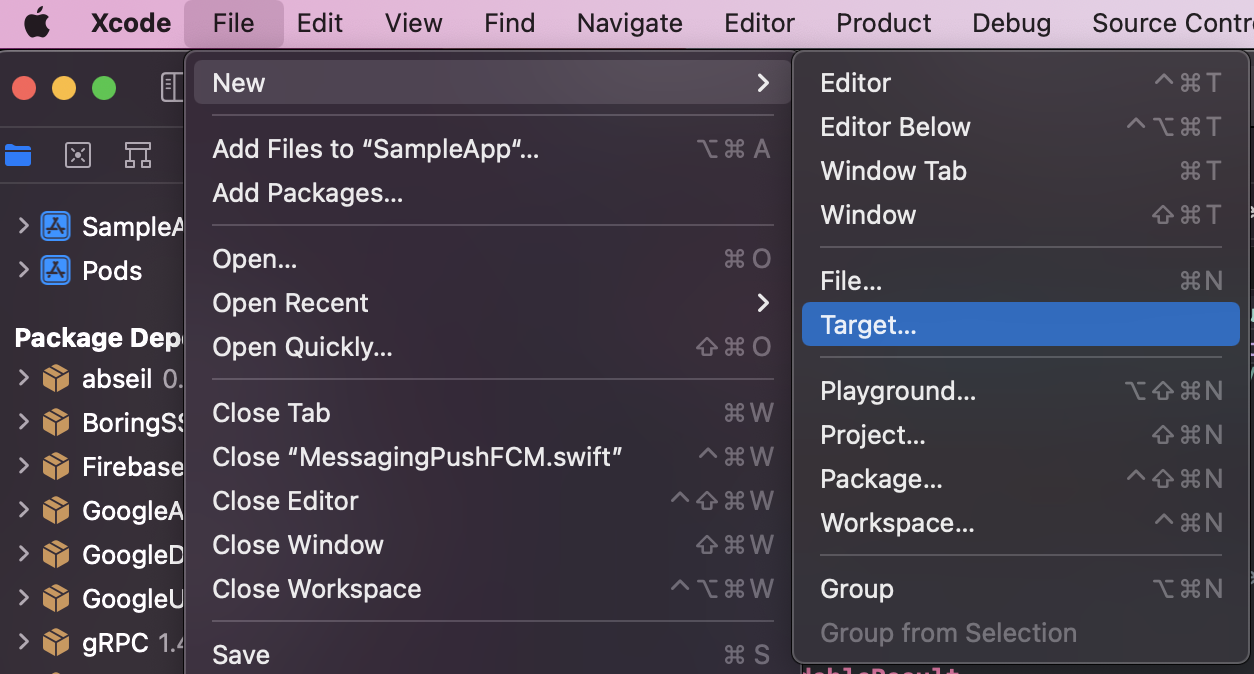
5. Select **File** > **New** > **Target**.
[](#64d64173bde7b46bad5fc1f14cc8f36a-lightbox)
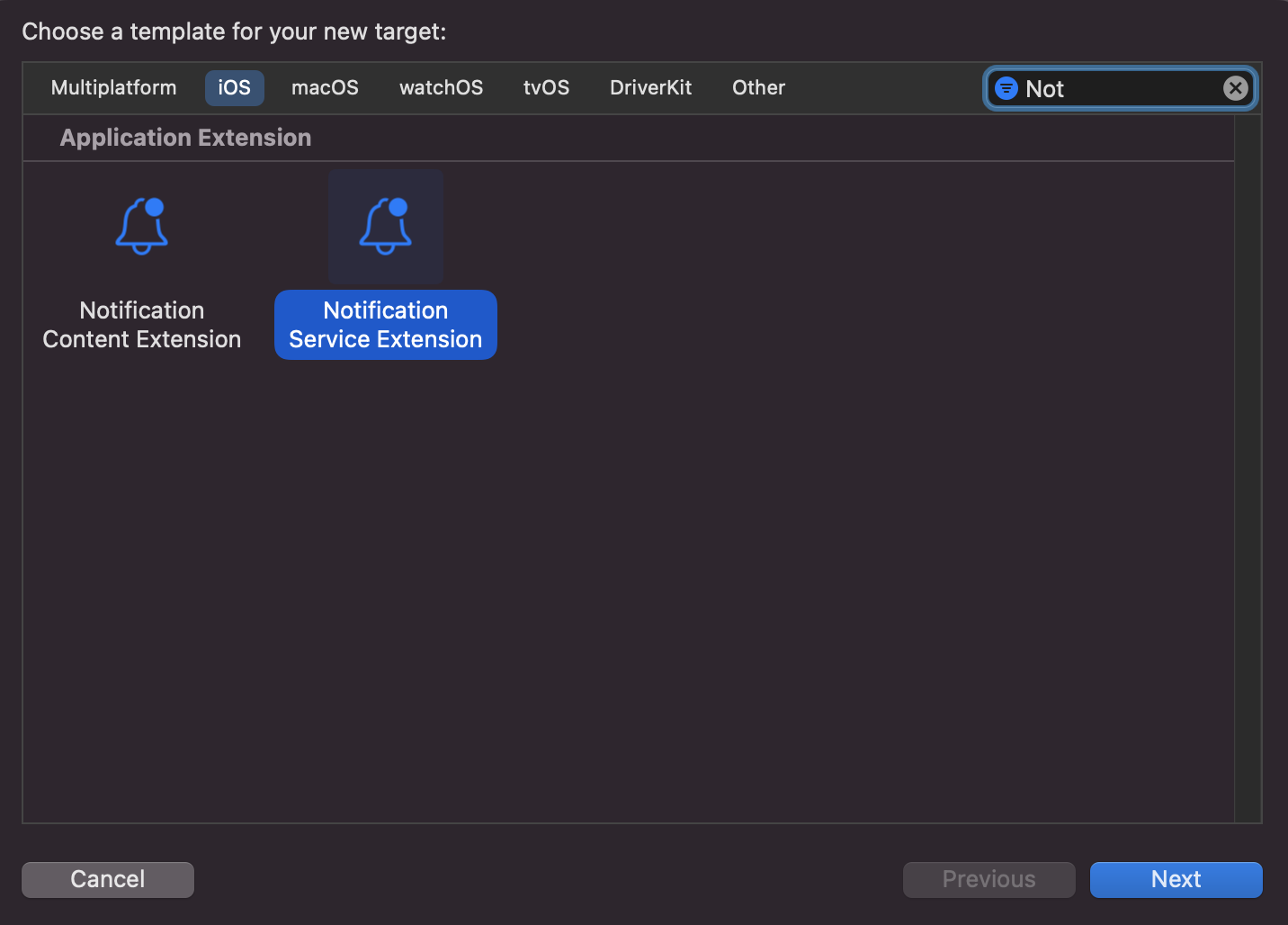
6. Select *Notification Service Extension* and click *Next*.
[](#6413f7694da0358105aca5a02cf835dc-lightbox)
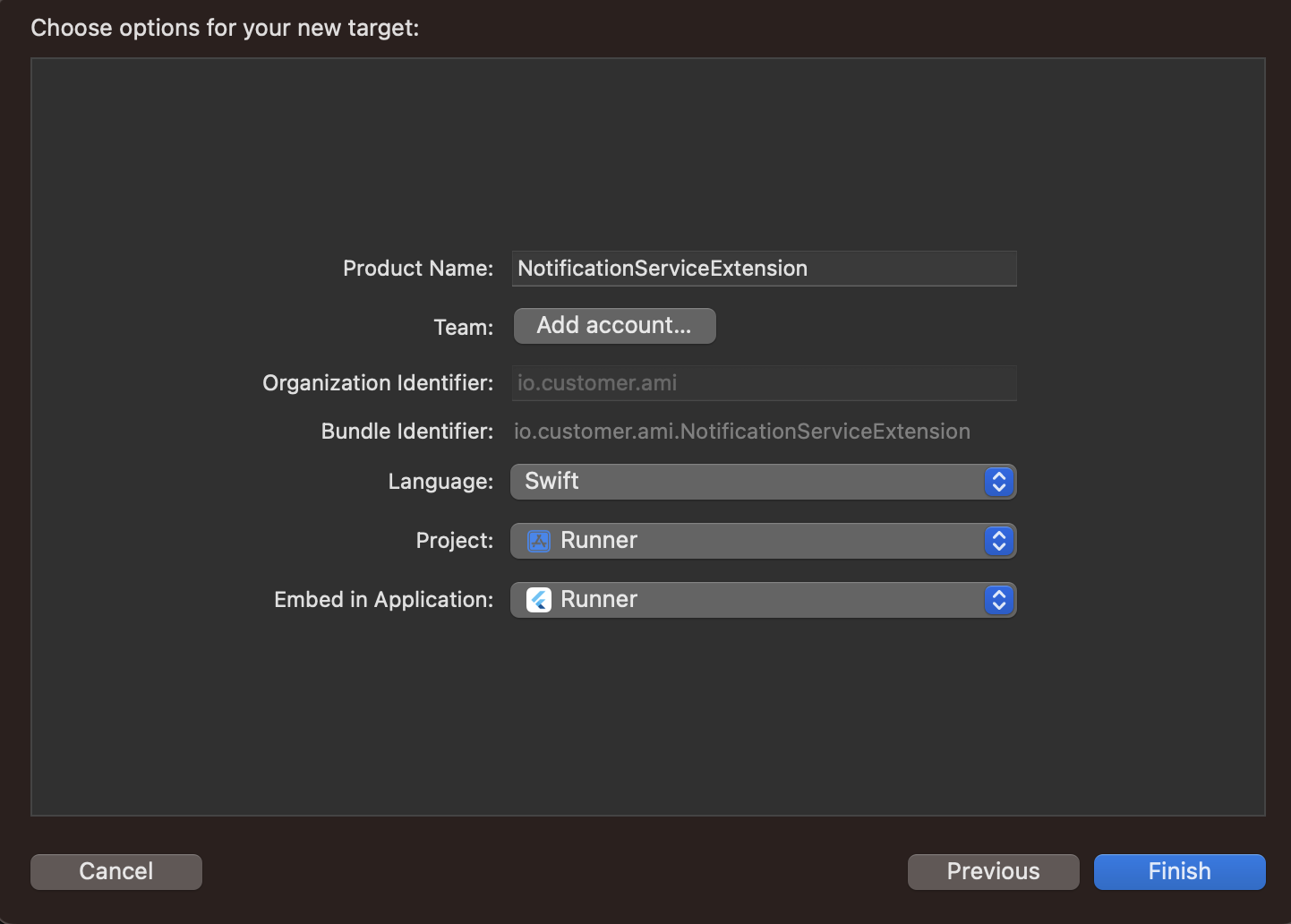
7. You should see a window such as this:
[](#97f7eea0f5f268a29a24b1bdea3c767c-lightbox)
You can leave many of the options in this window as their defaults, but you should:
* Enter a product name, like *NotificationServiceExtension* (which we use in our examples on this page)
* Confirm that your main app is selected in the *Embed in Application* drop-down menu
When you’re done, click **Finish**.
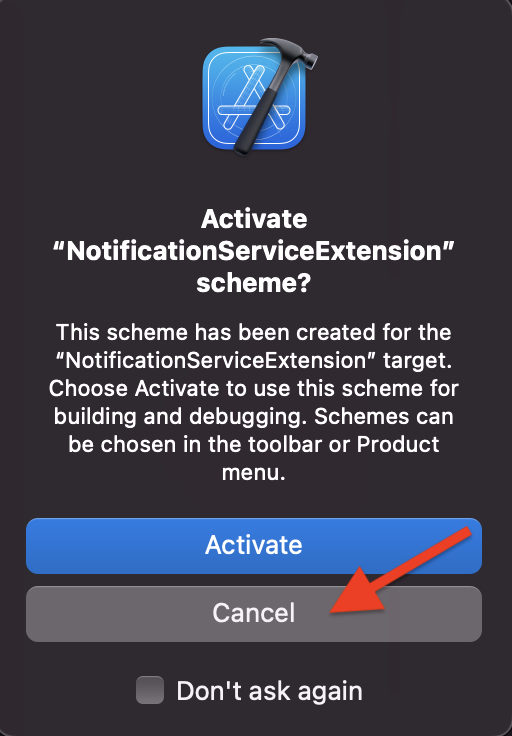
8. When presented with the dialog below, click **Cancel**. This will help Xcode continue debugging your app and not just the extension you just added.
[](#7a87192ad7f0dc9047625d6dfc407e77-lightbox)
Now you have another target in your project navigator named `NotificationServiceExtension`. We’ll configure this extension when we [Integrate Push Notifications](#swift-push) in the following section.
### Integrate push capabilities in your app[](#swift-push)
1. Open the file `ios/Podfile` and make the following modifications:
```ruby
target 'Runner' do # Look for the main app target.
# Required by FCM push notification service
use_frameworks!
# Make all file modifications after these lines:
config = use_native_modules!
# Add the following line to add the Customer.io native dependency:
pod 'customer_io/fcm', :path => '.symlinks/plugins/customer_io/ios
end
# Next, copy and paste the code below to the bottom of your Podfile:
target 'NotificationServiceExtension' do
pod 'customer_io_richpush/fcm', :path => '.symlinks/plugins/customer_io/ios'
end
```
Do you need to fetch updates?
[See our update guide](/integrations/sdk/flutter/update) for full instructions on how to update the Flutter SDK, including how to update the `Podfile`.
2. Run `pod install --repo-update --project-directory=ios` from the root directory of your Flutter project. When dependencies finish installing, you should see a message like this:
```fallback
Pod installation complete! There are X dependencies from the Podfile and Y total pods installed.
```
3. Update your `AppDelegate.swift` file to handle push notifications.
```swift
import UIKit
import Flutter
import CioMessagingPushFCM
import FirebaseMessaging
import FirebaseCore
@main
class AppDelegateWithCioIntegration: CioAppDelegateWrapper {}
class AppDelegate: FlutterAppDelegate {
override func application(
_ application: UIApplication,
didFinishLaunchingWithOptions launchOptions: [UIApplication.LaunchOptionsKey: Any]?
) -> Bool {
GeneratedPluginRegistrant.register(with: self)
// Depending on how you install Firebase,
// you may need to add functions to this file, like:
// FirebaseApp.configure()
//
// Read the official Firebase docs to install Firebase correctly!
MessagingPushFCM.initialize(
withConfig: MessagingPushConfigBuilder()
.build()
)
// Add line below only if you want to have custom control over notifications being presented and processed - Customer.io will handle those automatically
UNUserNotificationCenter.current().delegate = self as UNUserNotificationCenterDelegate
return super.application(application, didFinishLaunchingWithOptions: launchOptions)
}
override func application(_ application: UIApplication,
didRegisterForRemoteNotificationsWithDeviceToken deviceToken: Data) {
super.application(application, didRegisterForRemoteNotificationsWithDeviceToken: deviceToken)
Messaging.messaging().apnsToken = deviceToken
}
}
```
4. Open your `NotificationService.swift` file in XCode and modify it with the highlighted changes below:
```swift
import CioMessagingPushFCM
class NotificationService: UNNotificationServiceExtension {
override func didReceive(_ request: UNNotificationRequest,
withContentHandler contentHandler:
@escaping (UNNotificationContent) -> Void) {
MessagingPushFCM.initializeForExtension(
withConfig: MessagingPushConfigBuilder(cdpApiKey: "YourCdpApiKey")
// Optional: set your Customer.io account region (.US or .EU). Default: US
.region(.US)
.build()
)
MessagingPush.shared.didReceive(request, withContentHandler: contentHandler)
}
override func serviceExtensionTimeWillExpire() {
MessagingPush.shared.serviceExtensionTimeWillExpire()
}
}
```
Now you can run your app on a physical device and send yourself push notifications with images and deep links to test your implementation. You’ll have to use a physical device because emulators can’t receive push notifications.
### Sound in push notifications (iOS Only)[](#sound-in-push-notifications)
When you send a push notification to iOS devices that uses our SDK, you can opt to send the *Default* system sound or no sound at all. If your audience’s phone is set to vibrate, or they’ve disabled sound permissions for your app, the *Default* setting will cause the device to vibrate rather than playing a sound.
In most cases, you should use the *Default* sound setting to make sure your audience hears (or feels) your message. But, before you send sound, you should understand:
1. Your app needs permission from your users to play sounds. This is done by your app, not our SDKs. [Here’s an example from our iOS sample app](https://github.com/customerio/customerio-ios/blob/main/Apps/APN-UIKit/APN%20UIKit/Util/NotificationUtil.swift#L12-L13) showing how to request sound permissions.
2. iOS users can go into *System Settings* and disable sound permissions for your app. Enabling the *Default* setting doesn’t guarantee that your audience hears a sound when your message is delivered!
We don’t support custom sounds yet
If you want to send a custom sound, you’ll need to handle it on your own, outside the SDK and use a custom payload when you set up your push notifications.
## Test your implementation[](#rich-push-payloads)
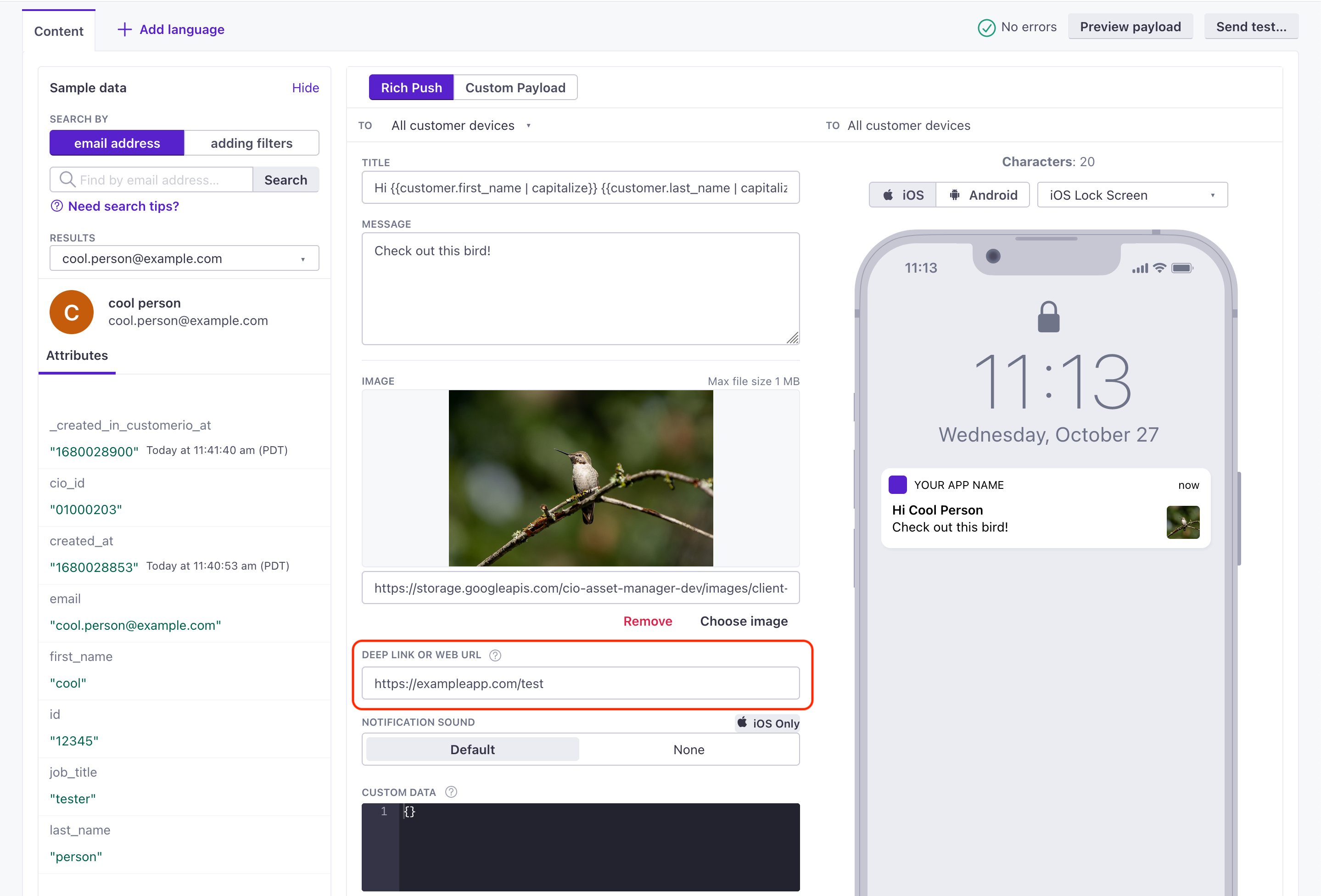
After you set up rich push, you should test your implementation. Below, we show the payload structure we use for iOS and Android. In general, you can use our regular rich push editor; it’s set up to send messages using the JSON structure we outline below.
If you want to fashion your own payload, you can use our [custom payload](/journeys/push-custom-payloads/#getting-started-with-custom-payloads).
[](#4e089ac68a22d5b994db09266a531737-lightbox)
iOS FCM payload
#### iOS FCM payload[](#iOS FCM payload)
```json
{
"message": {
"apns": {
"payload": {
"aps": {
// basic iOS message and options go here
"mutable-content": 1,
"alert": {
"title": "string", //(optional) The title of the notification.
"body": "string" //(optional) The message you want to send.
}
},
"CIO": {
"push": {
"link": "string", //generally a deep link, i.e. my-app://... or https://yourwebsite.com/...
"image": "string" //HTTPS URL of your image, including file extension
}
}
},
"headers": {
// (optional) headers to send to the Apple Push Notification Service.
"apns-priority": 10
}
}
}
}
```
* message object
Required The base object for all FCM payloads.
* apns object
Required Defines a payload for iOS devices sent through Firebase Cloud Messaging (FCM).
* headers object
Headers defined by [Apple’s payload reference](https://developer.apple.com/documentation/usernotifications/setting_up_a_remote_notification_server/sending_notification_requests_to_apns) that you want to pass through FCM.
* payload object
Required Contains a push payload.
* CIO object
Contains properties interpreted by the Customer.io iOS SDK.
* push object
Required A push payload for the iOS SDK.
* *Custom key-value pairs\** any type
Additional properties that you've set up your app to interpret outside of the Customer.io SDK.
Android payload
#### Android payload[](#Android payload)
```json
{
"message": {
"data": {
"title": "string", //(optional) The title of the notification.
"body": "string", //The message you want to send.
"image": "string", //https URL to an image you want to include in the notification
"link": "string" //Deep link in the format remote-habits://deep?message=hello&message2=world
}
}
}
```
* message
Required The parent object for all push payloads.
* android object
Contains properties that are **not** interpreted by the SDK but are defined by FCM. You need to write your own code to handle these Android push features.
* data object
Required Contains all properties interpreted by the SDK.
* android object
Contains properties that are **not** interpreted by the SDK but are defined by FCM. You need to write your own code to handle these Android push features.
* data object
Contains the `link` property (interpreted by the SDK) and additional properties that you want to pass to your app.
* notification object
Required Contains properties interpreted by the SDK except for the `link`.