

Authentication
To use the SDK, you need a CDP API key to send data to Customer.io. If you use in-app messaging or upgrade from an earlier SDK version, you also need your Site ID.
To get your SDK keys and send data to the right places, set up a data in An integration that feeds data into Customer.io.
If you haven’t already set up your app as an integration in Customer.io, set up your integration first.
Credentials you’ll need
- CDP API key: This key, shown in code samples as
cdpApiKey, lets you send data to Customer.io. You need it to initialize the SDK. You get this key when you set up your integration in Customer.io. - Site ID: This key tells the SDK which workspace your messages come from. You need it to initialize the
CioMessagingInApppackage and send in-app messages from your workspace. If you’re upgrading from version 2.x or earlier, you also use your previous Site ID as themigrationSiteId.
Set up a new iOS integration in Customer.io
If you don’t already have a CDP API key, set up a new data in An integration that feeds data into Customer.io.
-
Go to Integrations and click Add Integration.
-
Select iOS.
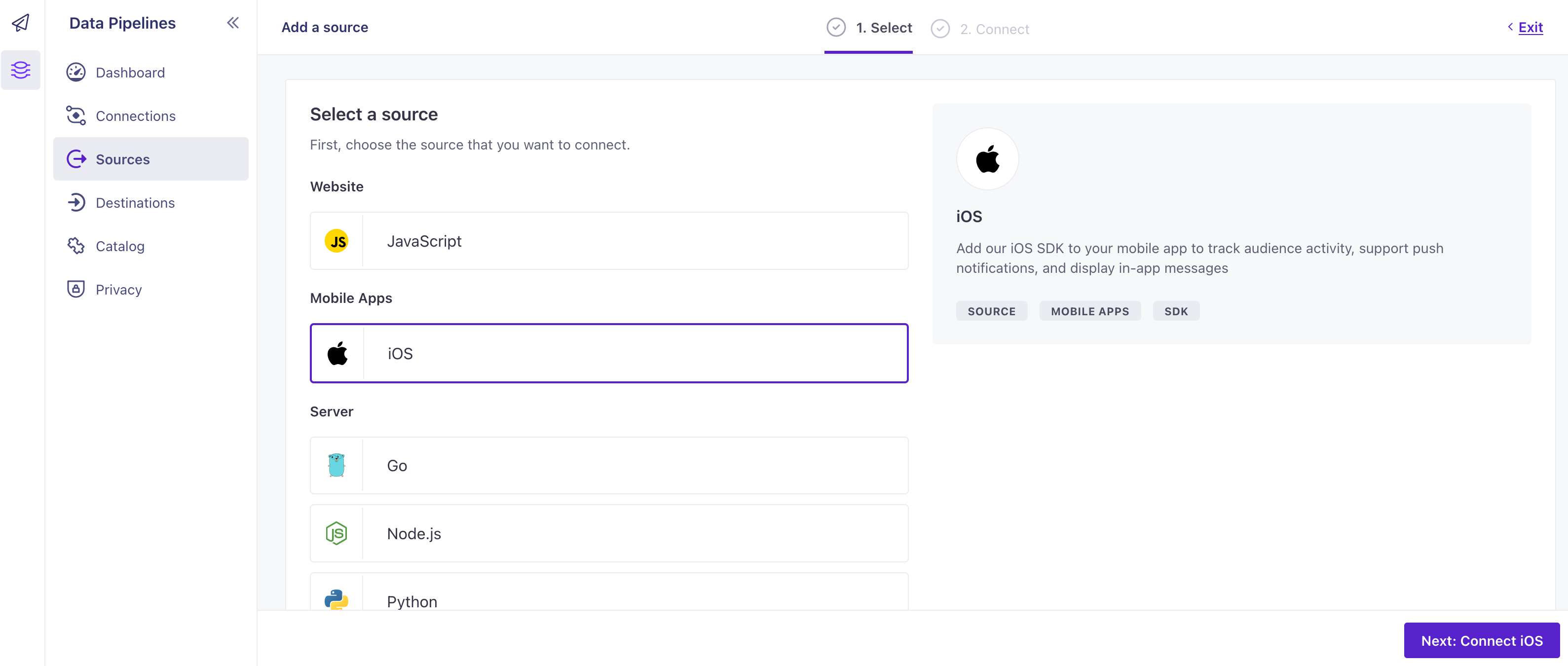
-
Enter a Name for your integration, like “My iOS App”.
-
Customer.io shows a code sample with the credentials you need. The sample includes
cdpApiKey, which initializes the SDK and sends data to Customer.io. If you use in-app messaging, it also includessiteId, which initializesCioMessagingInApp. -
Click Complete Setup to finish setting up your integration.
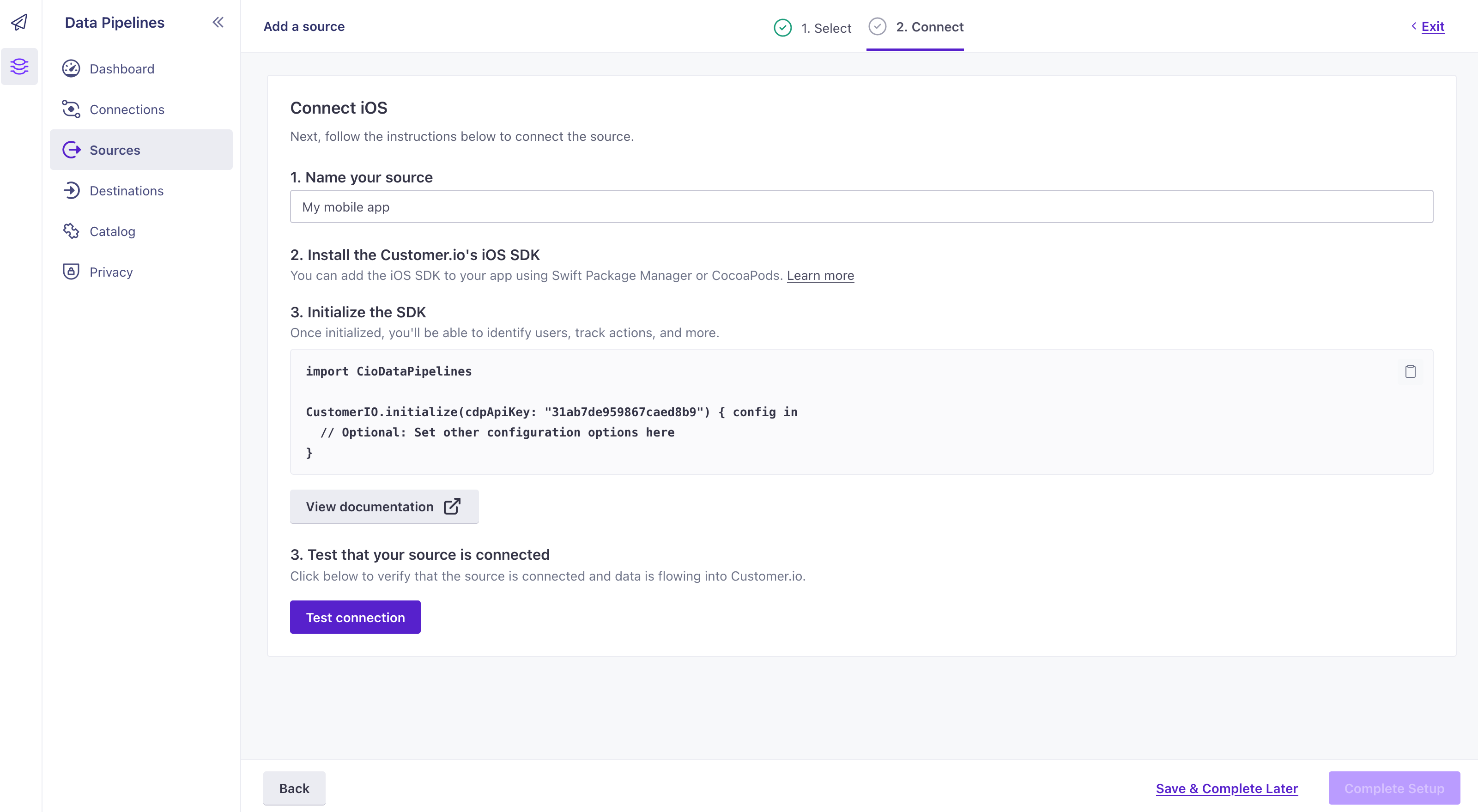
Copy the code—or at least the
cdpApiKey—into your app. If you use in-app messaging, copy thesiteIdtoo.SWIFTCustomerIO.initialize( withConfig: SDKConfigBuilder(cdpApiKey: "YOUR_CDP_API_KEY") .region(.US) .build() ) MessagingInApp.initialize( withConfig: MessagingInAppConfigBuilder(siteId: "YOUR_SITE_ID", region: .US) .build() )
Get credentials from an existing iOS integration
Use this section if you’ve already set up an iOS integration and need to copy your credentials again.
Get your CDP API key
Use your CDP API key to initialize the SDK and send data to Customer.io. You can find this key from your mobile app’s integration card in Customer.io.
- Go to Integrations.
- Select your iOS integration in the Overview tab. If you don’t see an iOS integration, you’ll need to set it up.
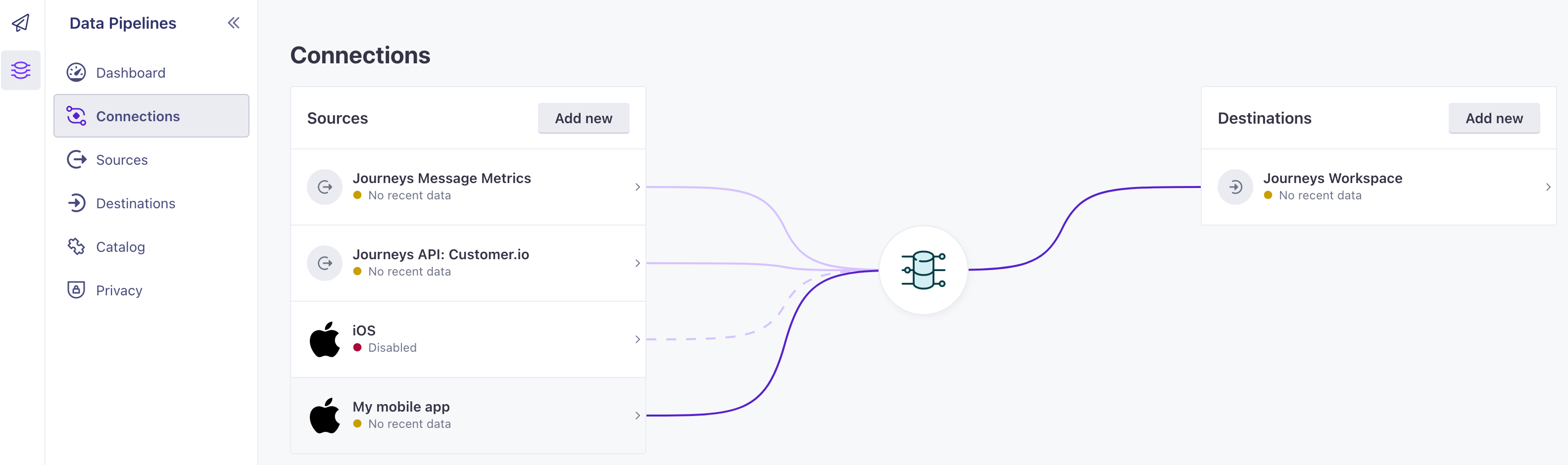
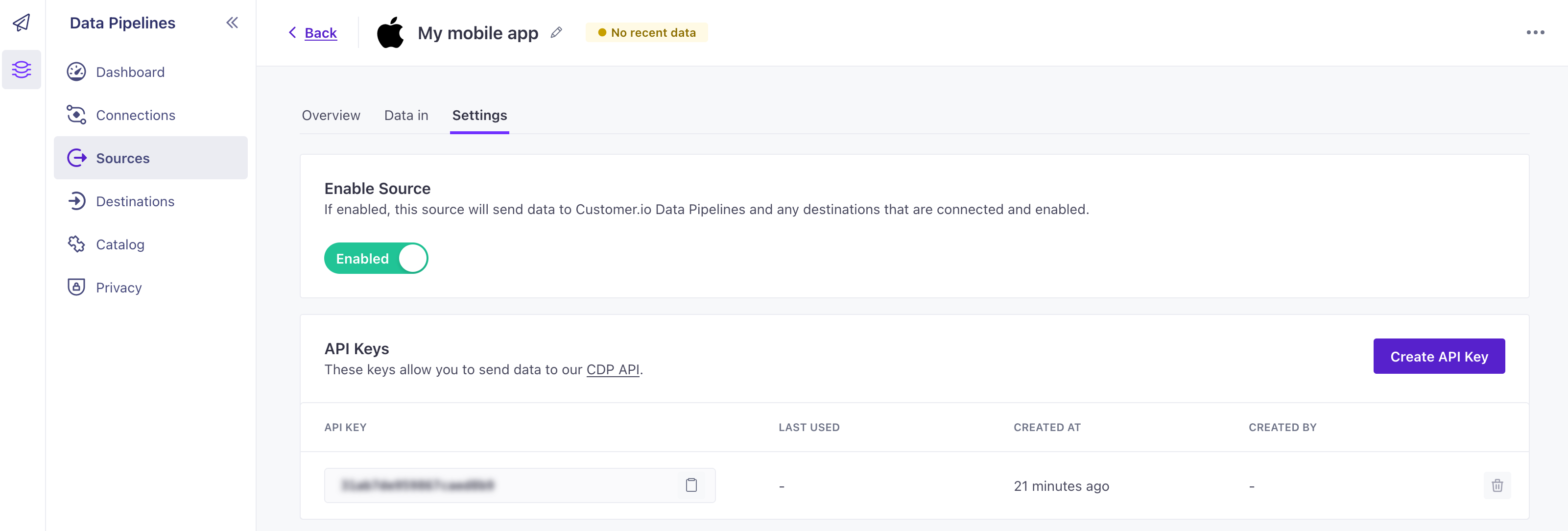
- Go to Settings and find your API Key. Copy this key into your initialization call.
 SWIFT
SWIFTfunc application(_ application: UIApplication, didFinishLaunchingWithOptions launchOptions: [UIApplication.LaunchOptionsKey: Any]? = nil) -> Bool { ... let config = SDKConfigBuilder(cdpApiKey: "YOUR_CDP_API_KEY") .autoTrackDeviceAttributes(true) CustomerIO.initialize(withConfig: config.build()) }
Find your Site ID manually
You only need to look up your Site ID manually if you didn’t copy it during setup, you’re adding in-app messaging later, or you’re setting migrationSiteId while upgrading from version 2.x or earlier.
-
Go to and select Workspace Settings in the upper-right corner of the Customer.io app. Then go to API and Webhook Credentials.
-
Copy the Site ID for the set of credentials that you want to send your in-app messages from. If you don’t have a set of credentials, click Create Tracking API Key.
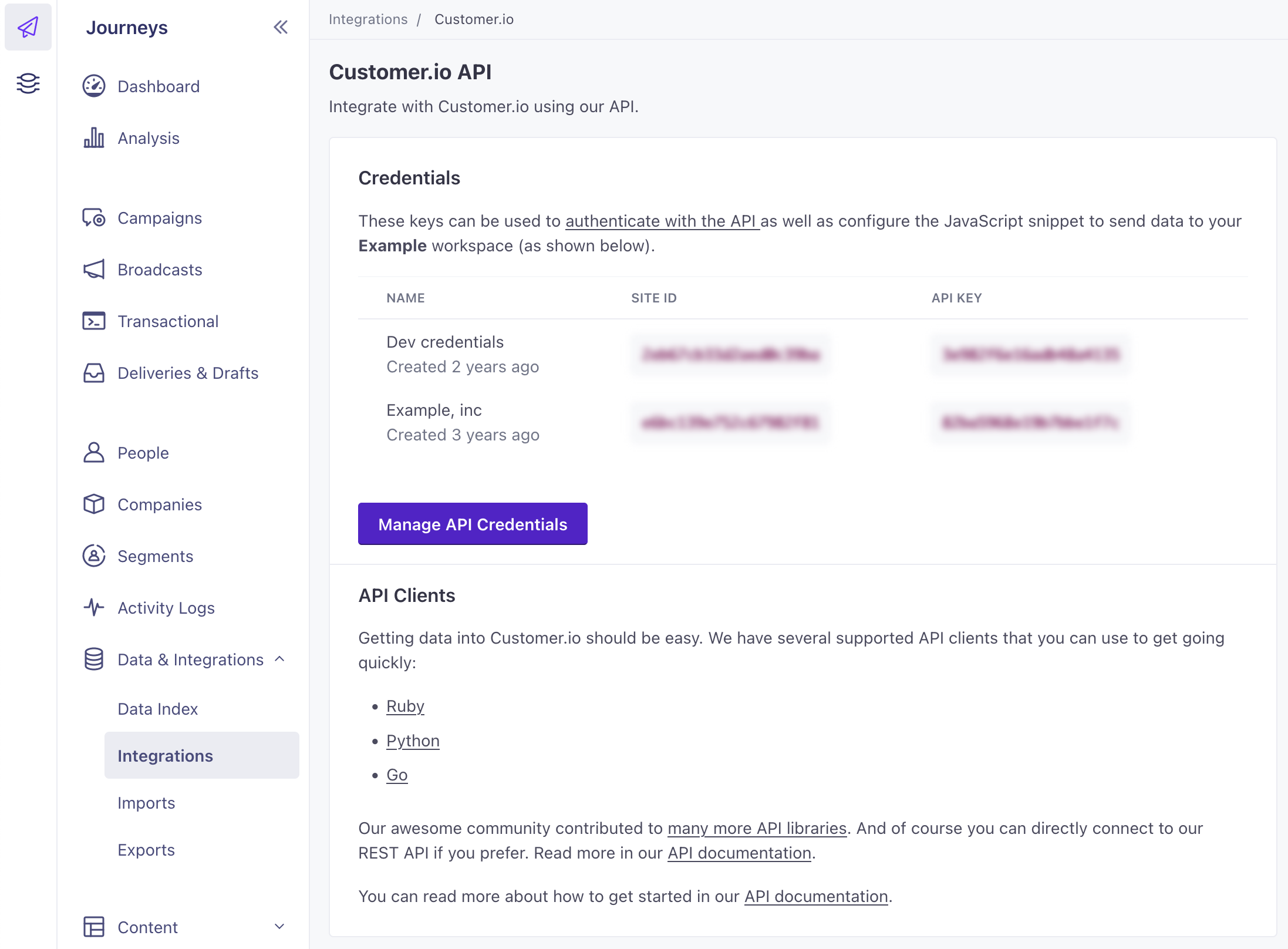
Use this value in MessagingInAppConfigBuilder(siteId: "YOUR_SITE_ID", region: .US). If you’re upgrading from version 2.x or earlier, use the Site ID from your previous SDK setup as migrationSiteId.
Securing your credentials
To simplify things, code samples in our documentation sometimes show API keys directly in your code. But you don’t have to hard-code your keys in your app. You can use environment variables, management tools that handle secrets, or other methods to keep your keys secure if you’re concerned about security.
To be clear, the keys that you’ll use to initialize the SDK don’t provide read access to data in Customer.io; they only write data to Customer.io. A bad actor who found your credentials can’t use your keys to read data from our servers.