# Deep Links
There's a new version available!
These pages cover version 2 of our SDK, but a newer version is available. In general, we suggest that you update to the latest version to take advantage of new features and fixes.
* Are you new to our SDKs? [Check out the latest docs.](/integrations/sdk/react-native/getting-started)
* Otherwise, [learn about updating to the latest version](/integrations/sdk/react-native/whats-new/)
## How it works[](#how-it-works)
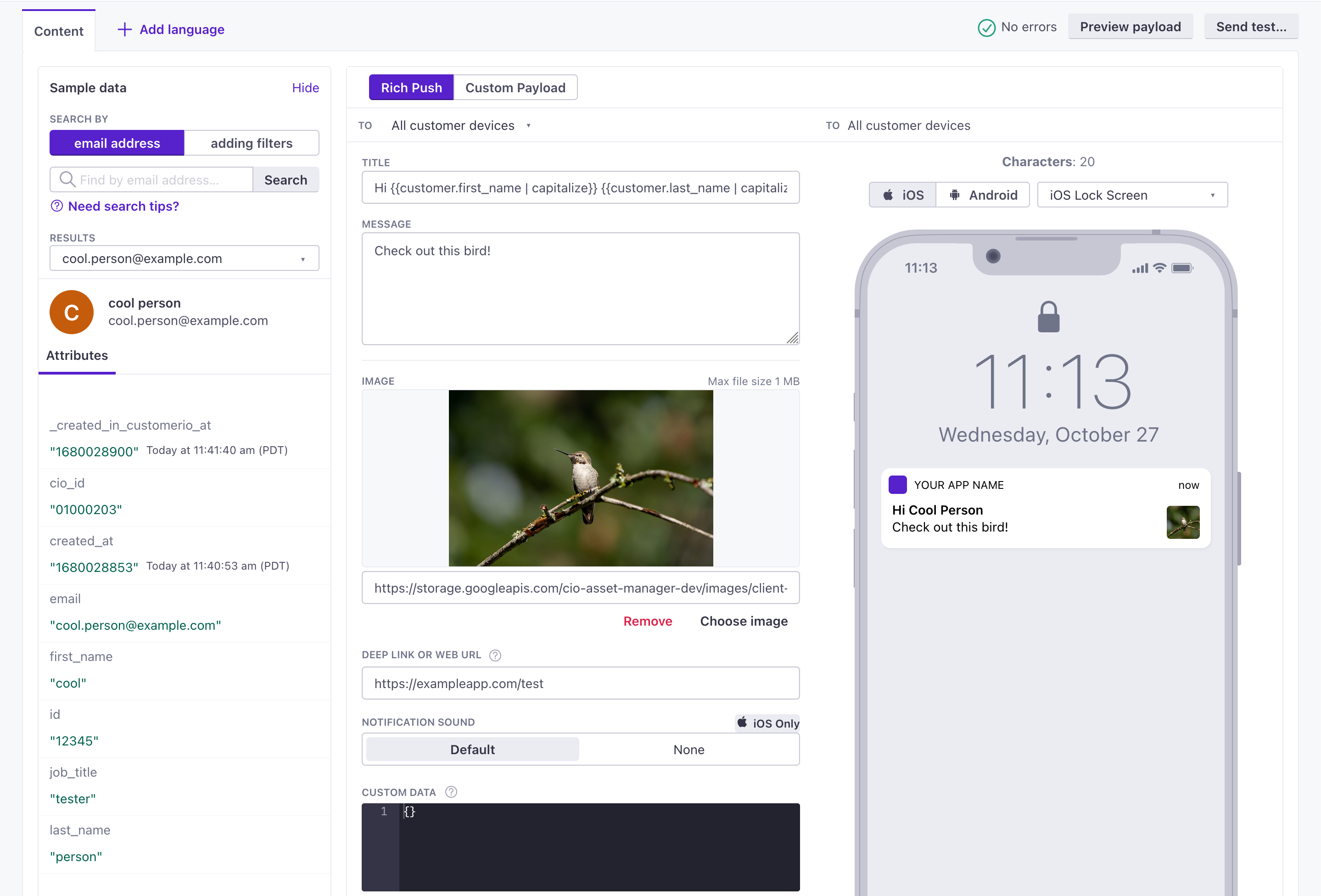
Deep links are links that send a person from push notifications to pages in your app. When you set up your notification, you can set a “deep link.” When your audience taps the notification, the SDK will route users to the right place.
Deep links help make your message meaningful, with a call to action that makes it easier, and more likely, for your audience to follow. For example, if you send a push notification about a sale, you can send a deep link that takes your audience directly to the sale page in your app.
[](#0b950966d05f4fabaf05514462715bdc-lightbox)
However, to make deep links work, you’ll have to handle them in your app. We’ve provided instructions below to handle deep links in both Android an iOS versions of your React Native app.
## Android: set up deep links[](#deep-links-android)
1. Deep links provide a way to link to a screen in your app. You’ll set up deep links by adding [intent filters](https://developer.android.com/training/app-links/deep-linking) to the `AndroidManifest.xml` file.
```xml
```
2. Now you’re ready to handle deep links. In your `App.js` file or anywhere you handle navigation, you’ll add code that looks like this.
```javascript
import { NavigationContainer } from '@react-navigation/native';
const config = {
screens: {
Home: {
path: 'home/:id?',
parse: {
id: (id: String) => `${id}`,
},
},
}
};
const linking = {
prefixes: ['amiapp://'],
config
};
return (
...
)
```
After you set up intent filters, you can test your implementation with the Rich Push editor or the payloads included for [Testing push notifications](https://customer.io/sdk/react-native/push/#rich-push-payloads).
## iOS: set up deep links[](#deep-links-ios)
After you [set up push notifications](/integrations/sdk/react-native/push/#register-push) you can enable deep links in rich push notifications. There are a number of ways to enable deep links. Our example below uses `@react-navigation` with a `config` and `prefix` to automatically set paths. The paths are the values you’d use in your push payload to send a link.
However, before you can do this, you need to set up your app link scheme for iOS. [Learn more about URL schemes for iOS apps](https://developer.apple.com/documentation/xcode/defining-a-custom-url-scheme-for-your-app).
There’s an issue deep linking into iOS when the app is closed
In iOS, deep link click events won’t fire when your app is closed. See our [troubleshooting section](/integrations/sdk/react-native/troubleshooting/#troubleshoot-ios-deep-links) for a workaround to this issue.
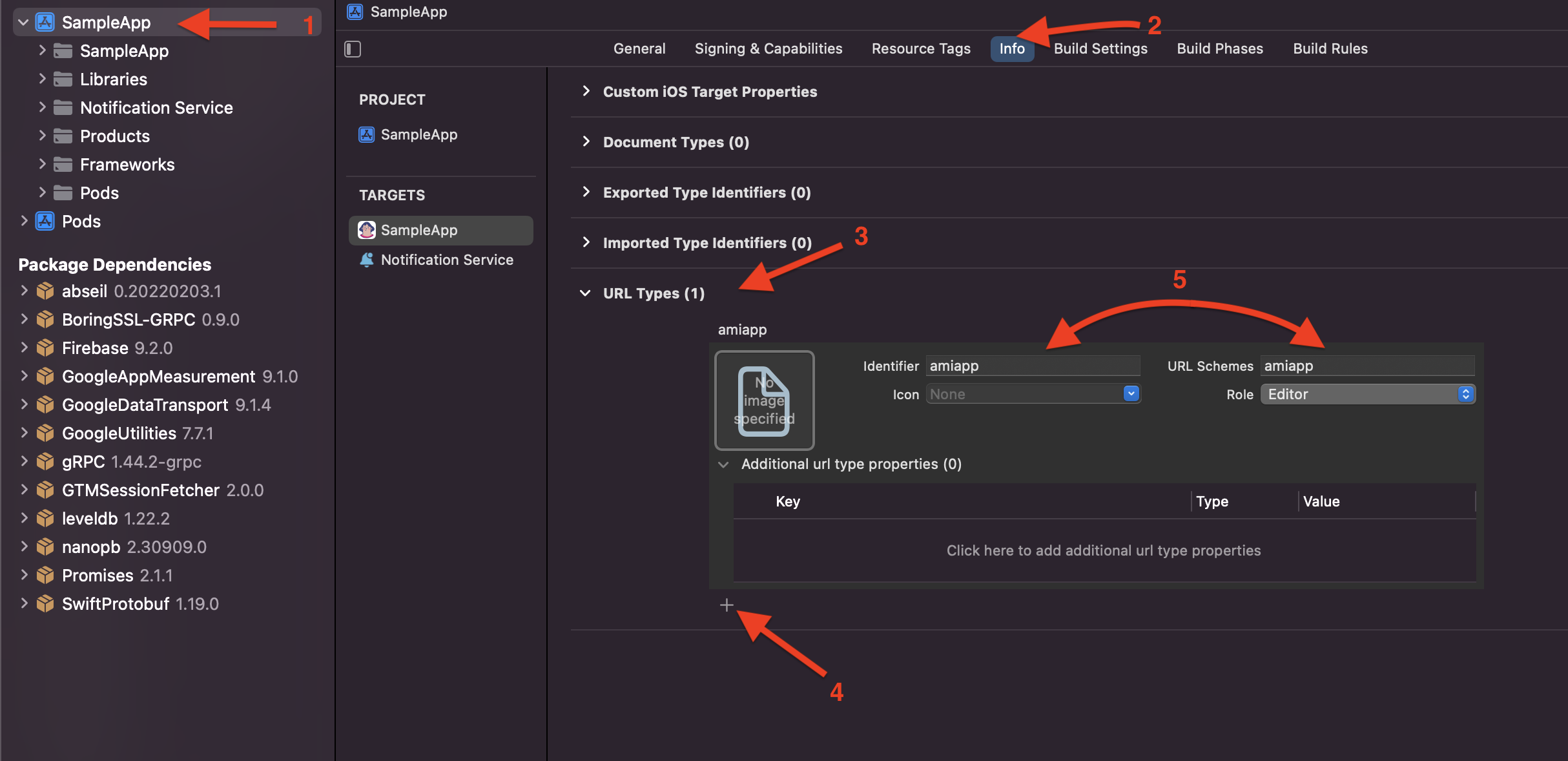
1. Open your project in Xcode and select your root project in the Project Navigator.
2. Go to the **Info** tab.
3. Scroll down to the options in the *Info* tab and expand **URL Types**.
4. Click to add a new, untitled schema.
5. Under **Identifier** and **URL Schemes**, add the name of your schema.
[](#c619327cb81e2efb9935b0551472c376-lightbox)
6. Open your `AppDelegate.m` file and add this code.
```objective-c
// Add this import statement at the top of the file
#import
// Add this inside in AppDelegate implementation
- (BOOL)application:(UIApplication *)application
openURL:(NSURL *)url
options:(NSDictionary *)options
{
return [RCTLinkingManager application:application openURL:url options:options];
}
```
7. Now you’re ready to handle deep links. In your `App.js` file or anywhere you handle navigation, you’ll add code that looks like this.
```javascript
import { NavigationContainer } from '@react-navigation/native';
const config = {
screens: {
Home: {
path: 'home/:id?',
parse: {
id: (id: String) => `${id}`,
},
},
}
};
const linking = {
prefixes: ['amiapp://'],
config
};
return (
...
)
```