Archive layouts
UpdatedWhen you archive a layout, you can keep using it in existing workflows, but you can’t use it in new campaigns, broadcasts, etc.
Layouts are only available in our rich text or code editors.
You cannot use layouts with Design Studio or our drag and drop editor; instead, start from a template. Or learn more about the reusable content features available in Design Studio (components) and the drag and drop editor (saved rows, snippets).
Archive a layout
From Email Layouts, hover over a layout and click Archive. This moves it to the Archived tab.
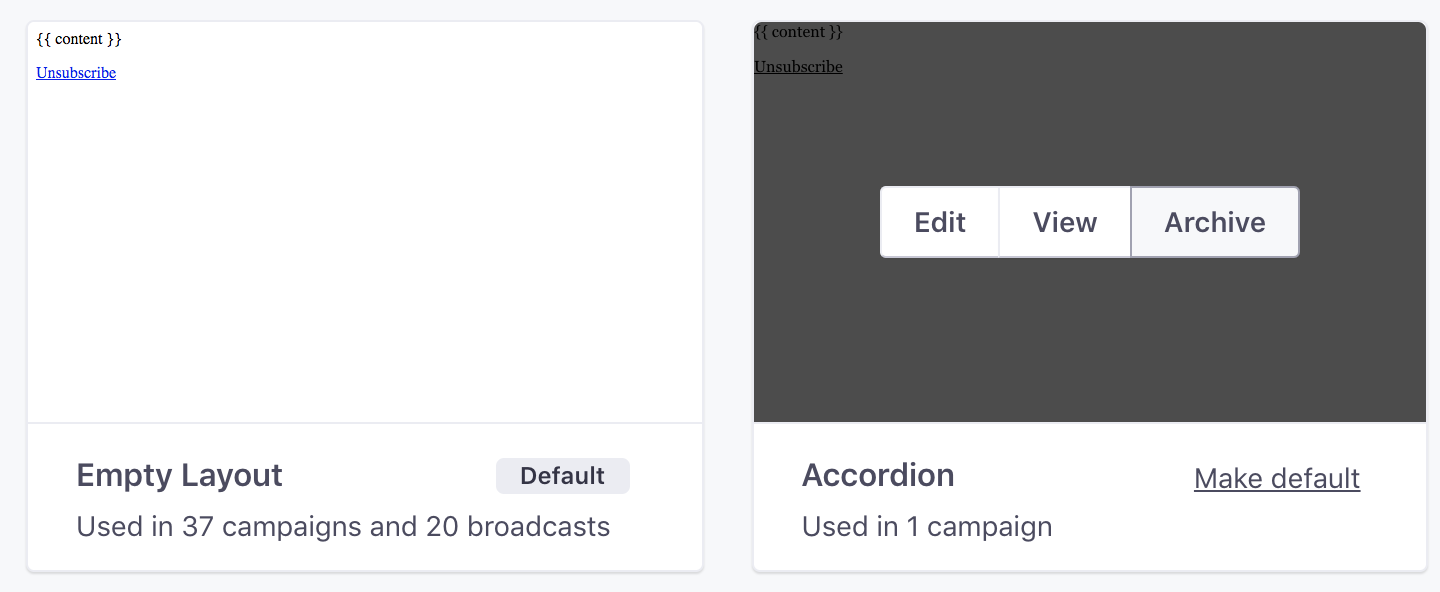
You can’t add an archived layout to future emails but you can continue to edit it. To use it again, you can unarchive it.
If you want to archive your default layout, assign a different layout as your default then proceed to archive it.
Unarchive a layout
If you’d like to use the layout in emails again, go to the Archived tab in Email Layouts, hover over your layout, and click Unarchive:
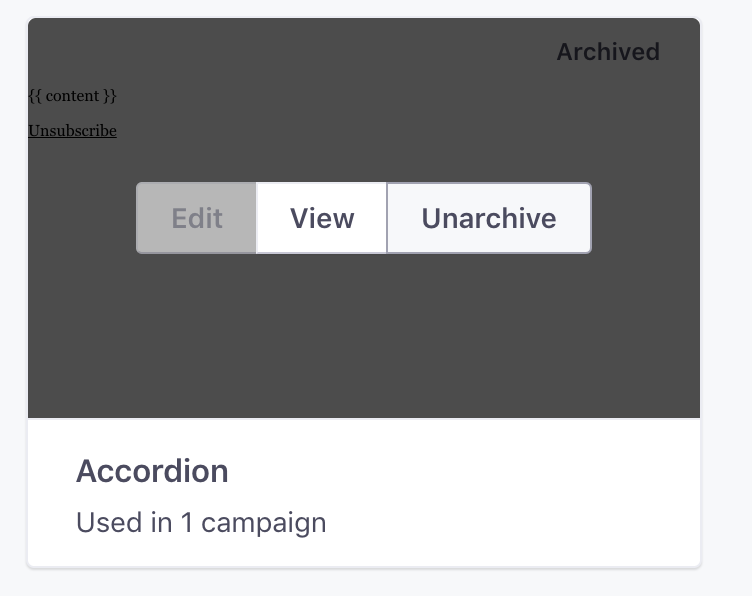
This moves it back to the Active tab and makes it discoverable in your emails again.
Copied to clipboard!

