Campaign journeys
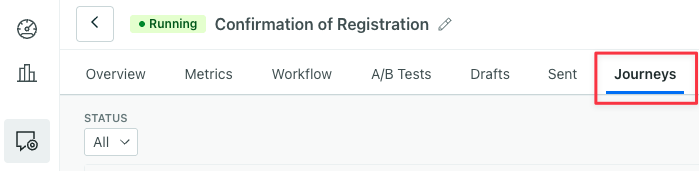
UpdatedWhen a person enters a campaign, they start a journey. They let you follow people’s history through a campaign like the deliveries they’ve received, conversions, and when they entered/exited. You can find them in the Journeys tab of a campaign.
View and troubleshoot journeys
Journeys help you track people’s current or historical pathway through your campaign. This makes it very useful for troubleshooting issues like people not proceeding in your workflow or exiting campaigns when you’d expect.
To access individual journeys, go to the Journeys tab of Campaigns or a person’s profile.
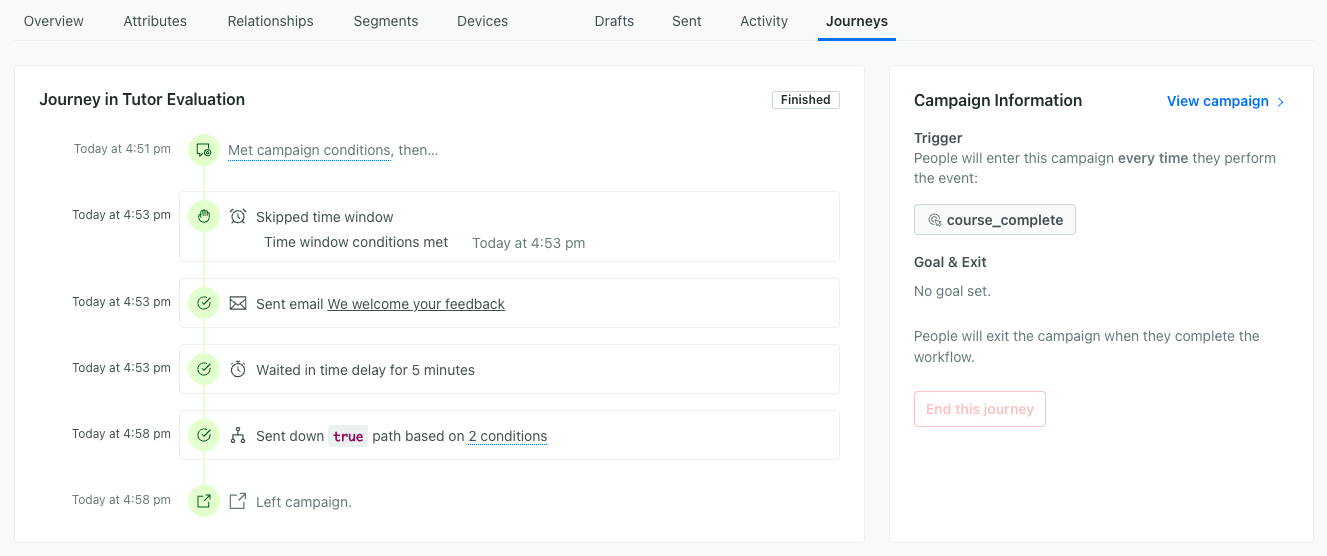
In this campaign, you can see this person entered the campaign at 4:51pm and left it at 4:58pm, a short journey! You can see how the person was impacted by each workflow action along the way.
Learn more about using this page to help you troubleshoot why people aren’t entering or why people aren’t receiving messages when you’d expect.
When journeys begin
If your campaign doesn’t have filter conditions, the journey starts immediately when a person matches your trigger criteria.
If the campaign has filter conditions, the following happens:
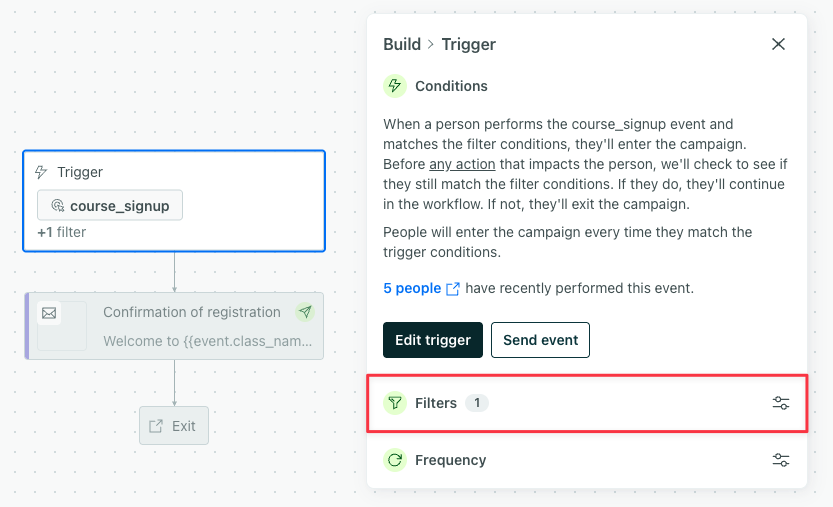
For legacy segment-triggered campaigns, a journey starts as soon as a person matches the campaign’s trigger conditions. If they don’t match the filter conditions, they’ll wait to continue your workflow until they meet these conditions or exit after a period of time. Learn more about how we evaluate filters for legacy segment-triggered campaigns.
You know you’re using a legacy segment trigger if the trigger panel has filter conditions; the latest segment trigger does not have filters. Check out Triggers with segments for more on the differences.
For campaigns triggered by an event, object, relationship, date or form, a journey starts after the trigger conditions AND filter conditions are met. Keep the following in mind:
- If the person does not meet the filter conditions when we receive the event, we will retry for up to 30 minutes.
- If the person matches your filter conditions within 30 minutes, they start a journey.
When journeys end
When journeys end depends on your exit conditions, which you can modify in your campaign’s settings.

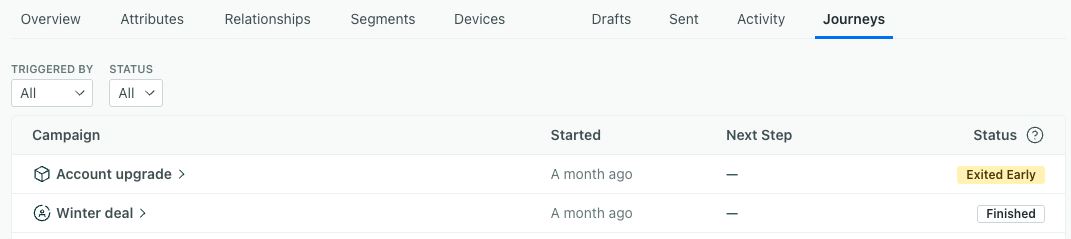
You know a person exited if the journey shows “Exited early” or “Finished”.
The journey log will show “Left campaign” next to the timestamp.

Manually end a journey
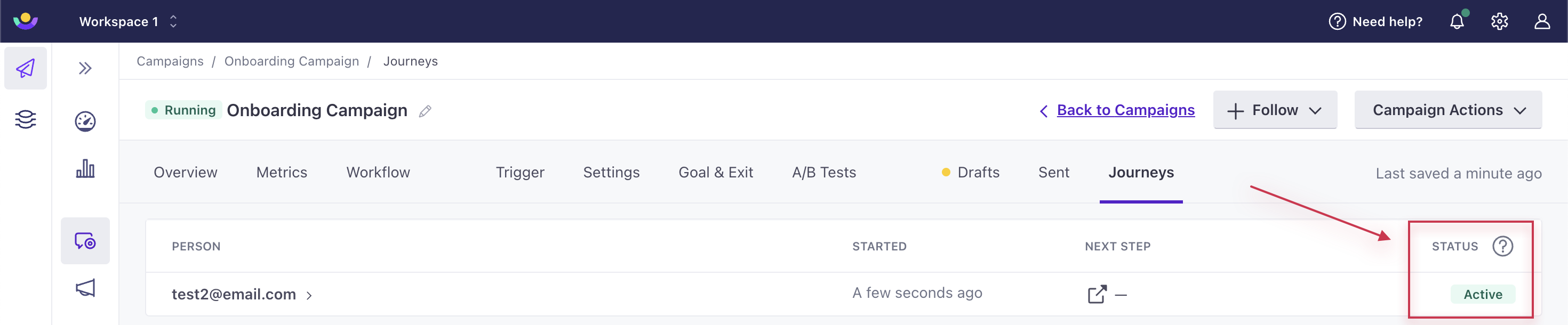
You can end a journey for a person from the Journeys tab of a campaign or a person’s profile.

- Click the journey you want to end.
- Then click End this journey on the right.
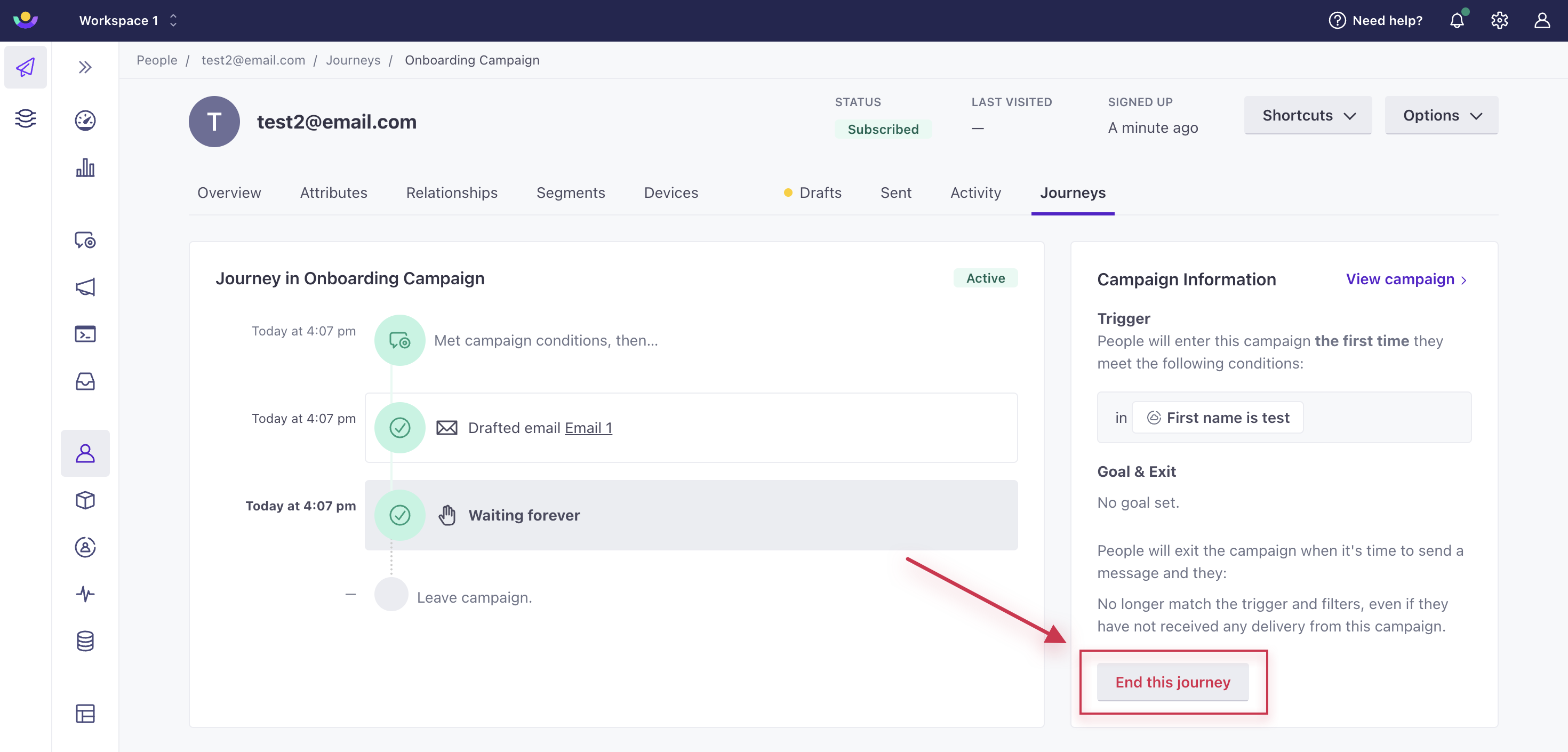 The journey will update to “Exited early.” And you’ll see this as the reason: “The person was manually removed from the campaign.”

