FAQ
PremiumThis feature is available for Premium plans. EnterpriseThis feature is available for Enterprise plans. UpdatedFrequently asked questions about anonymous in-app messages and forms.
What is an anonymous person?
An anonymous person is anybody you haven’t yet identified by ID or email address. In most cases, this means someone you can’t message—you can’t send them an email, an SMS, push notification, and so on because you don’t know them yet.
When someone visits your website or uses your app for the first time, we assign them an anonymous ID.
- For our JavaScript client, this ID lets us track their activity on your site or app. You can see anonymous activity in the Activity Log, but you won’t see a “person” in your workspace.
- For our mobile SDKs, we won’t show anonymous activity in the activity log, but we can use their
screenevents to make sure we surface messages to people who visit the right screens in your app.
When you formally identifyThe Customer.io operation that adds or updates a person. When you identify a person, Customer.io either adds a person if they don’t exist in your workspace, or updates them if they do. Before you identify someone (by their email address or an ID), you can track them anonymously. them by ID or email address, we:
- Create or update a profile for them in Customer.io. You’ll see them in the People section of your workspace.
- Merge their anonymous activity with the identified profile. This lets you do things like message people based on their anonymous activity after you identify them.
Your goal with anonymous messaging is to turn someone from an anonymous user into an identified person.
How do I know if I’m set up to send in-app messages?
Go to Settings > Workspace Settings > In-app. If in-app messages are enabled, then you’re ready to go!
Where does my message appear?
When you set up your message, you can determine both:
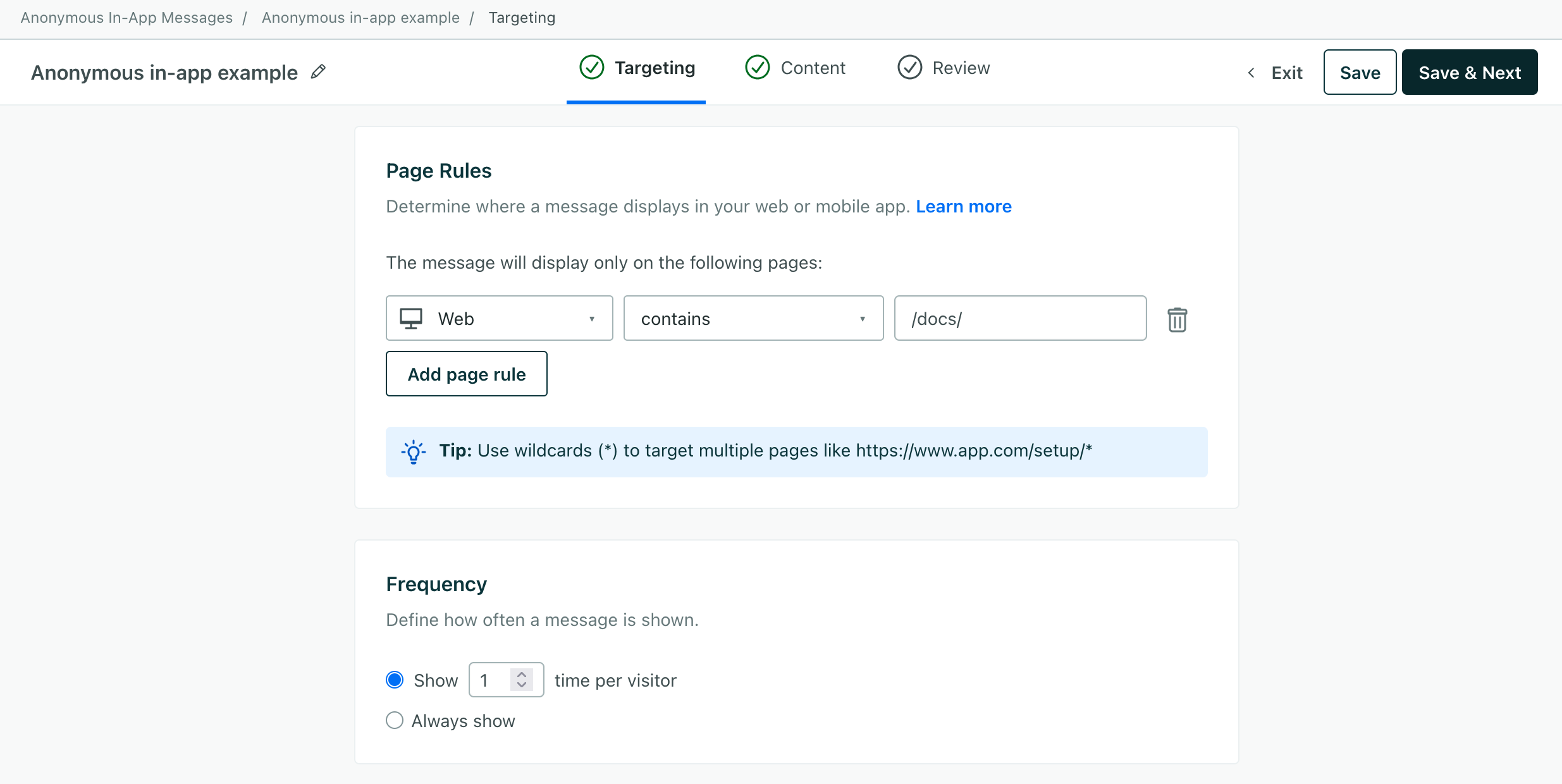
- Which pages or screens your message will appear on. These are called Page Rules.
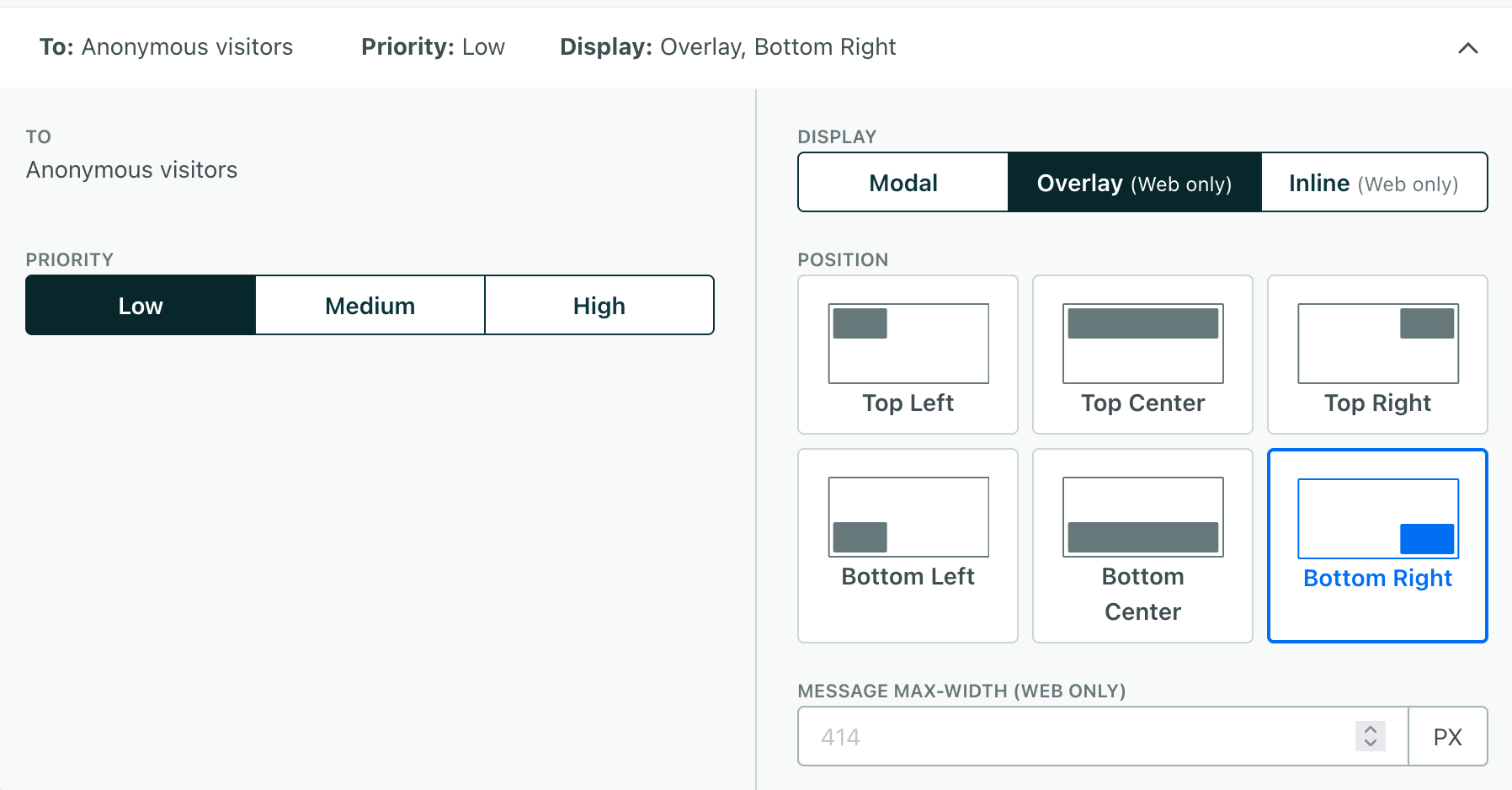
- Where on the page or screen your message will appear. These are called Display preferences.
If you don’t set Page Rules, your message will appear on every page on your website or mobile app. That might be overwhelming for your visitors, so make sure you set page and frequency settings to make sure you don’t over-message your visitors.
By default, we display messages as modals in the center of your page. That might obstruct your content, so you can set Display preferences to move your message. For example, rather than a modal message that covers your content, you might want to move to an Overlay style message that appears in one of the corners of your page.
How many times will a user see my message?
A user will see your message on every page meeting your page rules until:
- You
identifythem. Once you identify a person, they’re no longer anonymous, and they won’t see your anonymous message. - They meet your frequency settings without dismissing the message. Imagine that you set a Frequency setting of
2. If a person sees your message once, they can see it again on another page or screen in your app. If they dismiss the message, they won’t see it again. If you want to show a message until your audience interacts with it, you can set the frequency to Show Always.
If a user has already seen your message but clears their browser cache, or you otherwise reset their anonymous ID in your app, they’ll get a new anonymous_id. We’ll treat this new ID as a new person, and they’ll see your message again.
visits website) a-->b{Is person anonymous?} b-.->|No, they've
been identified|c(Do not show
anonymous message) b-->|yes|d{Does the page match the
message's page rules?} d-.->|no|c d-->|yes|e{Has the person reached the
message's frequency limit?} e-.->|yes|c e-->|no|f(Display
anonymous message)

