Customer.io Customer.io
  • Log In
Book demo Start trial
  • Platform
  • Pricing
  • Customers
  • Docs

Request Demo Sign In
  • Get Started
    • Welcome to Customer.io
    • Quick start guide
    • Academy: Structured Learning
    • 1. Create your workspace
    • 2. Set up message channels
    • 3. Integrate with Customer.io
    • 4. Add people
    • 5. Send events and make segments
    • 6. Start sending campaigns and workflows
  • Journeys
    • Introduction to Journeys
    • People & Events
    • Objects & non-people data
    • Segmentation
    • Design Studio
    • Campaigns & Workflows
    • Message Channels
    • Liquid & Personalization
    • Metrics
  • Integrations
    • Integration Directory
    • Get Started
    • Data In
    • Data Out
    • APIs
      • Pipelines API
      • Track API
      • App API
      • Reporting Webhooks
      • Comparing the Pipelines and Track APIs
    • Mobile SDKs
      • iOS
      • Android
      • React Native
      • Expo
      • Flutter
    • Account Verification
    • Audit Logs
    • Billing
    • Your Account
    • Workspaces
    • Privacy & Security
    • Troubleshooting
  • AI Features
    • Use Customer.io with AI
    • Your Customer.io agent
    • Customer.io CLI
    • Customer.io MCP
    • Email content analysis
    • In-app message suggestions
    • In-app survey analysis
    • Use our docs with AI
  • Releases
    Releases

    Latest features at Customer.io

    No-code notification inbox for your website
    2026-06-23

    We’ve made it easy to set up a notification inbox for your website, complete with messages styled to match your brand’s look and feel. You …

    Add brand variants to Design Studio
    2026-06-22

    You can now save more than one branded look for a global component, then switch between these variants as you build on-brand messages. We also added …

    Use snippets in anonymous in-app messages
    2026-06-18

    You can now reference snippets ({{snippets.example}}) in anonymous in-app messages, and reuse shared content like a logo or URL across messages.

  • Welcome to Customer.io
  • Quick start guide
  • Academy: Structured Learning
  • 1. Create your workspace
  • 2. Set up message channels
  • 3. Integrate with Customer.io
  • 4. Add people
  • 5. Send events and make segments
  • 6. Start sending campaigns and workflows
  • Introduction to Journeys
      • People and their profiles
      • Add or update people
      • How to identify people
      • Manage customer attributes
      • Manage devices
      • Resolve duplicate people
      • What's the Last Visited field, and how do I use it?
      • Delete people and suppress profile IDs
      • Export a person's data
      • Export data for multiple people
    • Storing and using JSON
    • Events
    • Import people or events via CSV
      • Search for people
      • Filter Activity Logs
      • Using your Data Index
      • How do I know what data I have available?
      • Anonymous people
      • Anonymous activity
      • Merging anonymous activity
      • Anonymous events
    • How do I create multiple subscription types?
    • Shortcuts to external services
    • Overview: Objects vs Collections
      • Objects: how they work
      • Objects: video tutorials
      • Object types
      • Objects
      • Relationships
      • Import objects or relationships via CSV
      • Export objects or relationships via CSV
      • Objects and relationships in campaigns
      • Use objects in liquid
      • Upsell: monetize power users
      • Adoption: drive feature usage
      • Awareness: announce events
      • Conversion: activate people on your event waitlist
    • Collections
    • How segments work
    • Build segments with AI
    • Data-driven segments
    • Manual Segments
    • Create segments based on mobile devices
    • Ad Audiences
    • Timestamp Conditions
    • Using JSON in segments
    • Timestamp Conditions FAQ
    • Timestamp Rules for Building Segments
    • Why don't people match 'within the past X days' conditions?
    • Setting Up Segments for Specific Purposes
    • Welcome to Design Studio!
    • Manage your files
      • Keyboard shortcuts
        • Set global styles
        • Assign global styles to components
        • Dark mode
        • Responsive styles
        • Get started
        • Style individual messages
        • Add & preview liquid
        • Rules: Display content based on conditions
        • Get started
        • Validate your email
          • MJML framework
          • CSS inlining
          • Formatting
          • Set URL parameters for a single message
          • CSS cleanup
          • CSS variables
          • Accessibility fixes
        • Use Emmet syntax
        • Use MSO syntax
      • Preview email in Design Studio
        • Connect an email to an automation
        • Edit connected messages & publish changes
        • Disconnect an email from an automation
      • Understand components
      • Add components to your message
      • Understand and style standard components
        • How to create & edit a component
        • Create a component from scratch
        • Create modifiable, placeholder content
        • Style custom components
        • Delete a component
          • Understand syntax
          • Add conditionals & directives
          • Loop through data
          • Create a stylesheet
        • Migrate components from Parcel
      • How to collaborate
      • Submit & manage feedback
      • Manage version history
      • Send a test message
    • WhatsApp templates
    • Campaigns, broadcasts, and transactional messages
    • Tags
      • Campaign concepts & settings
      • Campaign journeys
      • Create a campaign
      • Campaigns page
      • Triggers, filters, and frequencies
      • When to use filters
      • Goals & conversion criteria
      • Exit conditions
      • Schedule a campaign
      • Change the state of a campaign
        • Why aren't people entering my campaign?
        • Why aren't people receiving my message?
        • Edit triggers, filters, or frequencies
        • Edit goals
        • Edit workflows
        • Webhook campaigns
        • Send event
        • Batch update
        • Follow up on NPS responses
        • Sync customers from Stripe to Customer.io
        • Campaign for syncing Mixpanel cohorts
        • Slack notification for support tickets
      • Grace periods
      • Our Recipe Book
      • Send a Welcome Email
      • Birthday and Anniversary Campaigns
      • Cart Abandonment
      • Double Opt-In
      • Onboarding Campaign
      • Optimize emails with Just Words
      • Trial expiration reminders
      • Cohort tests
      • Trigger campaigns based on Roles
      • RSS Feed Email Campaign
      • Reminders for multiple upcoming trips
      • Delete inactive people
      • Introduction to broadcasts
      • Newsletters
      • API-triggered broadcasts
      • Personalize messages with trigger data
      • Format API-Triggered Broadcasts
      • Edit live API-triggered broadcasts
      • Common API-Triggered Broadcast errors
      • Getting started: key concepts
      • Set up a transactional email
      • Set up a transactional push
      • Set up a transactional in-app message
      • Set up a transactional SMS
      • Transactional examples
      • Common transactional API errors
      • Frequently Asked Questions
      • Campaigns with transactional messages
      • Workflow builder
      • LLM actions: Generate data & decisions with AI
      • Send event
      • Batch update
      • Conditions
      • Holdout tests
      • A/B tests
      • Copy workflow items
        • Create or update person
        • Set journey attributes
        • Fix inconsistent attribute names
        • Reformat timestamp attributes
        • Types of branches
        • Multi-Split Branches
        • Random Cohorts
        • True/False Branches
        • Exit Blocks
        • Time Window
        • Wait Until...
        • Randomized delay
        • Send and receive data with webhook actions
        • Configure reusable webhooks
        • Send in-app messages using webhooks
        • Web push with webhooks
        • Send direct mail with Lob
      • Default sending settings
      • Sending behavior options
      • Queue Draft for Campaign QA
      • Geolocation and time zone data
      • Recommended send time
      • Send messages in users' time zones
      • Supported time zone formats
      • Message Limits
      • Email: Getting Started
      • Transitioning to Customer.io as a sender
      • Introduction to Creating Emails
      • Test your emails
      • Email Attachments
        • Email Deliverability Best Practices
        • Domain Authentication
        • Delete a domain
        • Domain warming
        • Track links with your domain
        • IP addresses: shared vs dedicated
        • Spamhaus blocklist listings
        • How to manage suppressions
        • Email suppression lists
        • Google Postmaster Tools
        • Custom unsubscribe links (RFC 8058)
        • Authenticating for Apple Private Email Relay
        • Set up anonymized email relay addresses
        • Verify deliverable email addresses with Kickbox
          • Use Your Own SMTP Server
          • Using Multiple SMTP servers
          • Use your Mailgun Account
          • Use your Mailjet Account
          • Use your Mandrill Account
          • Use your Postmark Account
          • Use your SendGrid Account
          • Use your Sparkpost Account
          • Use your Oracle Dyn Account
        • Choose the right email editor
        • Drag-and-Drop Emails: The Basics
        • Drag-and-Drop Editor FAQ
        • Troubleshooting Your Drag-and-Drop Emails
        • Email code editor
        • Introduction to Email Layouts
        • Customizing Email Layouts
        • Archive layouts
        • HTML and CSS Email vs. Web
        • CSS pre-processing
        • AMP for email
        • Adding a view in browser link
        • Resources for templates, code, and best practices
        • Adapting Foundation's Basic template
        • Adapting MailChimp's Two-Column template
        • How do I add an avatar/logo to my emails?
        • Set Custom Email Headers
        • Set custom preheader/preview text
        • What does the Fake BCC option do?
        • Create multiple from addresses
        • Welcome Email Copy
        • Gmail Promotions
        • Code editor: send Trustpilot reviews
      • Get started
      • Integrate your app
      • Migrate from another provider
      • Registering device tokens
      • Send push notifications
      • Custom push payloads
      • Test push notifications
      • Push metrics and message statuses
      • Best practices for push notifications
      • Frequently Asked Questions
      • Troubleshooting mobile issues
      • Get Started
      • Send SMS/MMS messages
      • Link shortening
        • Getting started
        • Inbound statuses and activities
        • Respond to inbound keywords
      • Senders
      • Tracking
      • Frequently Asked Questions
      • Smart character encoding
      • Opt-out keyword handling
      • Validate Mobile Phone Numbers
        • Getting a phone number
        • Update your privacy policy for SMS
        • Build a compliant SMS opt-in form
        • Brand and campaign registration
        • Opt-in and out flow
        • What kind of phone number do I need?
        • HIPAA compliance and privacy regulations
      • Get started
      • Set up your website
      • Send in-app messages
      • Global styles for in-app messages
        • Get started
        • Send inbox messages
        • Trigger inbox messages from your backend
        • Inbox message metrics
          • Overview
          • Compose JSON messages
          • Display inbox messages in your app
        • Anonymous messages
        • Forms
        • FAQ
        • Forms
        • Lead capture
        • Surveys
      • Inline messages
      • Multi-step messages
      • In-app metrics
      • Test your messages
      • Localize messages
      • In-App FAQ
        • NPS Surveys
        • Promotions and offers
        • Promote upcoming event
        • Milestones and achievements
        • Feature adoption
        • The visual editor
        • In-app component reference
        • Legacy in-app editor
      • Get Started
      • Create content templates
      • Send a WhatsApp Message
      • WhatsApp metrics and reporting
        • Getting started
        • Respond to inbound messages
        • Inbound statuses and activities
      • Frequently Asked Questions
      • Get Started
      • Send messages
      • LINE metrics and reporting
      • Get Started
      • Translate your messages
      • Set up your localization attribute
      • Track metrics for translations
      • Link Tracking
      • Checking Link Status
      • Adding URL parameters to links
      • Track universal links and app links in email
      • HTTPS Link Tracking
      • Overview of subscription options
      • Global unsubscribes
      • The subscription center
      • Brand your subscription pages
      • Subscription FAQs
      • Manage subscription preferences
      • Subscription preference metrics
      • Multi-language support for the subscription center
      • Migrate subscription preferences
      • Set preferences outside of the subscription center
    • Find messages using the Message Library
    • Assets library: store files
    • Image requirements
    • Message Statuses
    • Deliveries & Drafts data
    • Personalize messages with liquid
    • Liquid upgrade
    • Liquid syntax list
    • Liquid recipes
    • Personalize actions with JavaScript
    • Reusing content with snippets
    • Composer errors
    • Metrics Overview
    • Goals
    • Campaign and Broadcast Metrics
    • Home dashboard
    • Workspace Performance dashboard
    • Analysis page & reports
    • Email deliverability metrics
    • Understanding your A/B test results
    • Getting conclusive results from A/B tests
    • Failed and attempted messages
  • Integration Directory
    • Quick start guide
    • Understanding Integrations in Customer.io
    • Troubleshooting
    • Data Compliance and Privacy
    • Introduction
      • Understanding incoming data
      • Identify
      • Group
      • Page
      • Screen
      • Track
      • Alias
      • Common fields
    • Custom events
      • Understanding Semantic Events
      • A/B Test events
      • Customer.io events
      • Ecommerce Events
      • Email events
      • Live chat events
      • Mobile App Lifecycle Events
      • Video playback events
    • Backfill historical data
    • Proxying requests to Customer.io
      • Customer.io API
      • Journeys Message Metrics
      • Mobile App Sources
        • Get started
        • Formstack
        • Jotform
        • Squarespace
        • Typeform
        • Unbounce
        • Webflow
        • Wordpress with WPForms
        • Custom JS integrations
        • Facebook Lead Ads
        • Use form data in Customer.io
        • Forms API (backend integrations)
        • Edit or disconnect forms
        • Getting Started
        • JavaScript Frameworks
        • Method Reference
        • Migrate from another service
        • Managing identities
        • Cookies and identity management
        • Utility Methods and Performance
        • In-app messages
        • Notification inbox
        • Content Security Policy (CSP)
        • Proxying the JavaScript client
          • Get started
          • Identify people
          • Track and page events
          • In-app messages
          • Content Security Policy (CSP)
        • Add a Classic Track API integration
        • Advanced: transform data
        • Invalid Track API Requests
        • Get started
        • Map HubSpot data to Customer.io
        • Filter incoming data
        • Deleting Data
        • HubSpot forms
        • About Reverse ETL
        • Amazon Redshift
        • Google BigQuery
        • Microsoft SQL Server
        • MySQL
        • PostgreSQL
        • Snowflake
          • Reverse ETL Overview
          • Amazon Redshift
          • Google BigQuery
          • Microsoft SQL server
          • MySQL
          • PostgreSQL
          • Snowflake
        • Getting Started
        • Map Salesforce data to Customer.io
        • Map data to other services
        • Scheduled syncs
        • Deleting Data
        • API Call Calculator
        • Node.js
        • Python
        • Go
        • Segment
        • Segment data-in (classic)
        • Rudderstack
        • mParticle (Legacy)
        • Using Zapier with the Track API
        • Zoho integration
        • Hubspot integration
    • Getting Started
    • Add a data-out integration
    • Actions
    • Action triggers: code mode
      • Introduction
      • Standard integrations
      • Advanced Integrations
    • Filtering and mapping actions
    • Resend past data
      • Actable Predictive
      • Adobe Target
      • Algolia Insights
      • Amazon Redshift
      • Amazon Redshift (Advanced)
      • Amazon S3
      • Amazon S3 (Advanced)
      • Amplitude
      • Amplitude (Message Metrics)
      • Attio
      • Azure blob storage
      • Bing Ads
      • Braze
      • Braze Cohorts
      • Clevertap
      • Close
      • CommandBar
      • Cordial
      • Criteo Audiences
      • Customer.io
      • Facebook Conversions API
      • Friendbuy
      • FullStory
      • Gainsight PX
      • Google Ad Conversions
      • Google Ads (Gtag)
      • Google Analytics
      • Google BigQuery
      • Google BigQuery (Advanced)
      • Google Cloud Storage
      • Google Cloud Storage (Advanced)
      • Google Sheets
      • Google Tag Manager (GTM)
      • Heap
      • HubSpot
      • Intercom
      • Koala
      • LaunchDarkly
      • LiveLike
      • LogRocket
      • Meta (Facebook) Pixel
      • Metronome
      • Mixpanel
      • Mixpanel (Message Metrics)
      • MoEngage
      • MS Azure Blob Storage (Advanced)
      • Pinterest Conversions
      • Pipedrive
      • PlayerZero
      • Qualtrics
      • Reporting Webhooks
      • Ripe
      • Rudderstack (legacy)
        • About this integration
        • Sent messages as tasks
        • Frequently Asked Questions
      • SalesWings
      • Segment
      • Segment (Message Metrics)
      • SendGrid Marketing Campaigns
      • Slack
      • Snowflake
      • Snowflake (Advanced)
      • Sprig
      • Talon.One
      • TikTok Conversions
      • Twilio
      • Twilio Engage Messaging
      • Twilio Studio
      • Twitter Pixel
      • Visual Website Optimizer (VWO)
      • Webhooks
      • Wisepops
      • Yandex
      • Zendesk
    • About our APIs
    • Comparing the Pipelines and Track APIs
    • Pipelines API
    • Track API
    • App API
    • Design Studio: HTML best practices
    • Journeys Webhooks
      • Quick Start Guide
        • How it works
        • Authentication
        • Packages and Configuration Options
        • Swift 6
        • Troubleshooting
        • Identify people
        • Track events
        • Screen tracking
        • Mobile Lifecycle events
        • Anonymous activity
        • Location tracking
        • Set up push notifications
        • Set up rich push
        • App Groups for push tracking
        • Deep Links
        • Push metrics
        • Sound in push notifications
        • Provisional Push
        • Push service certificates
        • Test your push implementation
        • Set up in-app messaging
        • Inline in-app messages
        • Page rules
        • In-app event listeners
        • Notification inbox
        • 4.x -> 4.4.0
        • 3.x -> 4.0.0
        • 3.x -> 3.13.0
        • 3.x -> 3.9.0
        • 2.x -> 3.x
        • 1x -> 2.x
        • Changelog
        • Quick Start Guide
          • How it works
          • Authentication
          • Packages and Configuration Options
          • Troubleshooting
          • Identify people
          • Track events
          • Screen tracking
          • Mobile Lifecycle events
          • Anonymous activity
          • Set up push notifications
          • Set up rich push
          • Deep Links
          • Push metrics
          • Sound in push notifications
          • Provisional Push
          • Push service certificates
          • Test your push implementation
          • Set up in-app messaging
          • Inline in-app messages
          • Page rules
          • In-app event listeners
          • 3.x -> 3.13.0
          • 3.x -> 3.9.0
          • 2.x -> 3.x
          • 1x -> 2.x
          • Changelog
        • Get Started
        • Identify people
        • Track events
        • Push notifications
        • Rich push notifications
        • In-app messages
        • Test support
        • Changelog
        • Get Started
        • Identify people
        • Track events
        • Push notifications
        • In-app messages
        • Test support
        • Update from 2.10 to 2.11
        • Migrate from an earlier version
        • Troubleshooting
        • Changelog
      • Quick Start Guide
        • How it works
        • Authentication
        • Packages and Configuration Options
        • Troubleshooting
        • Identify people
        • Screen tracking
        • Mobile Lifecycle events
        • Anonymous activity
        • Track events
        • Location tracking
        • Push notifications
        • Deep Links
        • Channel
        • Push service certificates
        • Test your push implementation
        • In-app messages
        • In-app event listeners
        • Inline in-app messages
        • Page rules
        • Notification inbox
        • 4.x -> 4.10
        • 3.x -> 4.x
        • 2.x -> 3.x
        • Changelog
        • Get Started
        • Identify people
        • Track events
        • Push notifications
        • In-app messages
        • Test support
        • Migrate from an earlier version
        • Troubleshooting
        • Changelog
        • Get Started
        • Identify people
        • Track events
        • Push notifications
        • Rich push notifications
        • Test support
        • Migrate from an earlier version
        • Changelog
      • Quick Start Guide
        • How it works
        • Authentication
        • Packages and Configuration Options
        • Troubleshooting
        • Identify people
        • Track events
        • Screen tracking
        • Mobile Lifecycle events
        • Anonymous activity
        • Location tracking
        • Set up push notifications
        • App Groups for push tracking
        • Deep Links
        • Handling Multiple Push Providers
        • Capture Push Metrics
        • Android channels
        • Set up in-app messages
        • Inline in-app messages
        • In-app event listeners
        • Notification inbox
        • 6.x -> 6.4.0
        • 5.x -> 6.0.0
        • 4.x -> 5.0.0
        • 4.x -> 4.3
        • 3.4x -> 4.x
        • 3.x -> 3.4
        • 2.x -> 3.x
        • Changelog
        • Quick Start Guide
          • How it works
          • Authentication
          • Packages and Configuration Options
          • Troubleshooting
          • Identify people
          • Track events
          • Screen tracking
          • Mobile Lifecycle events
          • Anonymous activity
          • Set up push notifications
          • Deep Links
          • Handling Multiple Push Providers
          • Capture Push Metrics
          • Android channels
          • Set up in-app messages
          • Inline in-app messages
          • In-app event listeners
          • 4.x -> 4.3
          • 3.4x -> 4.x
          • 3.x -> 3.4
          • 2.x -> 3.x
          • Changelog
        • Quick Start Guide
          • How it works
          • Authentication
          • Packages and Configuration Options
          • Troubleshooting
          • Identify people
          • Track events
          • Screen tracking
          • Mobile Lifecycle events
          • Anonymous activity
          • Set up push notifications
          • Deep Links
          • Handling Multiple Push Providers
          • Capture Push Metrics
          • Android channels
          • Set up in-app messages
          • Inline in-app messages
          • In-app event listeners
          • 4.x -> 5.0.0
          • 4.x -> 4.3
          • 3.4x -> 4.x
          • 3.x -> 3.4
          • 2.x -> 3.x
          • Changelog
        • Get Started
        • Identify people
        • Track events
          • Set up push notifications
          • Deep Links
          • Handling Multiple Push Providers
          • Capture Push Metrics
          • Set up in-app messages
          • In-app event listeners
          • Migrate from an earlier version
          • Troubleshooting
          • Changelog
        • Get Started
        • Identify people
        • Track events
          • Set up push notifications
          • Deep Links
          • Handling Multiple Push Providers
          • Capture Push Metrics
          • Set up in-app messages
          • In-app event listeners
          • Migrate from an earlier version
          • Update to version 3.4
          • Troubleshooting
          • Changelog
      • Quick Start Guide
        • How it works
        • Authentication
        • Packages and Configuration Options
        • Troubleshooting
        • Identify people
        • Track events
        • Screen tracking
        • Mobile Lifecycle events
        • Anonymous activity
        • Location tracking
        • Set up push notifications
        • App Groups for push tracking
        • Deep Links
        • Capture Push Metrics
        • Android channels
        • Multiple push providers
        • Inline in-app messages
        • Notification inbox
        • Set up in-app messages
        • In-app event listeners
        • 3.x -> 3.3
        • 2.x -> 3.x
        • 1x -> 2.x
        • Changelog
        • Get Started
        • Identify people
        • Track events
          • Set up push notifications
          • Deep Links
          • Capture Push Metrics
          • Set up in-app messages
          • In-app event listeners
          • Troubleshooting
          • Changelog
      • Quick Start Guide
        • How it works
        • Authentication
        • Configuration Options
        • Troubleshooting
        • Identify people
        • Mobile Lifecycle events
        • Anonymous activity
        • Screen tracking
        • Track events
        • Location tracking
        • Set up push notifications
        • App Groups for push tracking
        • Deep links
        • Handling multiple push providers
        • Capture push metrics
        • Android channels
        • In-app messages
        • Inline in-app messages
        • Notification inbox
        • In-app event listeners
        • 3.x -> 4.0.0
        • 3.x -> 3.5.0
        • 2.x -> 3.0.0
        • 2.x -> 2.2
        • Upgrade to Flutter 2.x
        • Changelog
        • Quick Start Guide
          • How it works
          • Authentication
          • Configuration Options
          • Troubleshooting
          • Identify people
          • Mobile Lifecycle events
          • Anonymous activity
          • Screen tracking
          • Track events
          • Set up push notifications
          • Deep links
          • Handling multiple push providers
          • Capture push metrics
          • Android channels
          • In-app messages
          • Inline in-app messages
          • In-app event listeners
          • 2.x -> 2.2
          • Upgrade to Flutter 2.x
          • Changelog
        • Get Started
        • Identify people
        • Track events
        • Update Flutter SDK
          • Set up push notifications
          • Deep Links
          • Handling Multiple Push Providers
          • Capture Push Metrics
          • In-app messages
          • In-app event listeners
          • Update iOS
          • Troubleshooting
          • Changelog
  • Account Verification
  • Audit logs
  • Tasks: Workspace performance
    • How We Bill
    • Billing for SMS messages
    • Billing for WhatsApp messages
    • AI credits
    • Reducing billing overages
    • Payment Problems
    • Canceling Your Account
    • Plan Features
    • Builder plan
      • How to add team members
      • Assign standard roles
      • Create & assign custom roles
    • Switch between accounts
    • Edit Account Information
    • Customize your UI
    • Manage your API credentials
    • Security Best Practices
    • Two-Factor Authentication
    • Single Sign-on (SSO)
    • Account Regions (US and EU)
    • Enable experimental features
    • Workspaces in Customer.io
    • Understand timezone conversion
    • Case sensitivity and your data
    • Search your workspace
    • Session cookies and expiration
    • Allowlist our IP addresses
    • Customer.io, GDPR, and you!
    • Security
    • Mobile and App Store Privacy
    • Privacy
    • Respecting your users' privacy
    • AI settings
    • Customer.io Security Qualifications
    • Troubleshooting login and browser issues
    • Create a HAR file for help troubleshooting
  • Use Customer.io with AI
    • Ask the agent
    • Custom skills
    • Routines
    • Segment builder
    • Troubleshooting and feedback
    • Get started
    • Service accounts
    • Command reference
    • Get Started
    • ChatGPT setup
    • Claude setup
    • Cursor and other IDEs
    • Update your MCP client
  • Email content analysis
  • In-app message suggestions
  • In-app survey analysis
  • Use our docs with AI
This page is part of the Customer.io documentation. For the complete documentation index, see llms.txt.
journeys/channels/in-app/editor/message-templates-gist.md

200

Legacy in-app editor

Updated June 9, 2026

 The legacy in-app editor is deprecated

You will not be able to create new messages in the legacy editor after October 1, 2025. We’re sunsetting the legacy in-app editor January 31, 2026. If you haven’t made the switch yet, now’s the perfect time to start using the new in-app editor, designed to help you build better in-app experiences.

How it works

In-app message templates built in our older template editor include all of your message content, including the text areas you can customize when you create a message in Customer.io.

Any of the messages that you set up with this editor contain basic components like text and images, wrapped in actions that make them tappable. These items are then contained in blocks, lists, and grids that organize the layout of your message. For example, a button in your message that takes a person to a deep link is an action (deep link), containing a block (defining the shape of the button), containing a text component (button text).

Unlike messages you create with our new editor, messages built in this older editor also rely on in-app branding settings (fonts, colors, etc) that are only used in this editor.

Create a message...and use it in a campaign
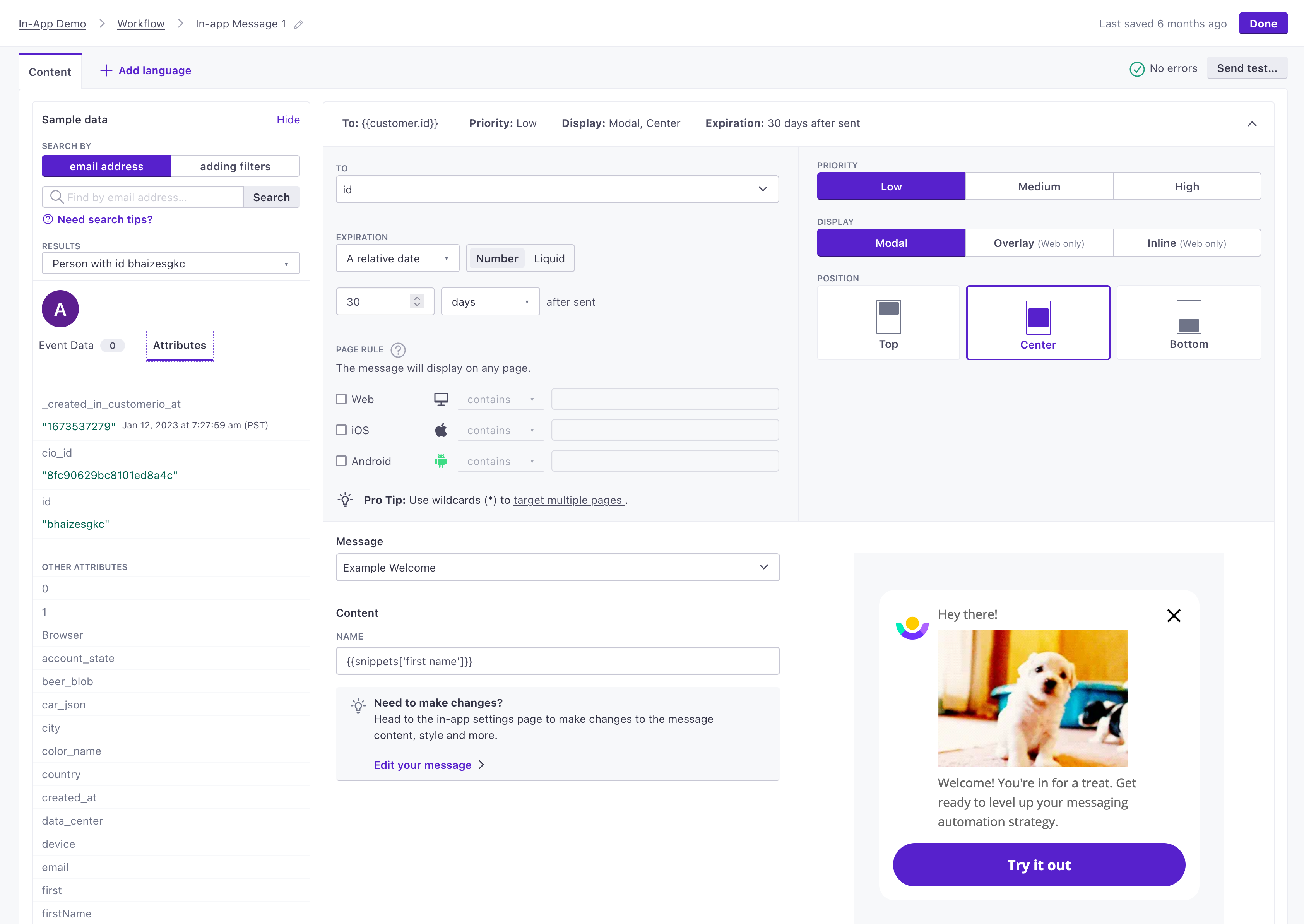
Set up an in-app message
use the message in a campaign

In-app branding

Branding rules determine the colors, fonts, and padding options used in the old template editor. They do not apply to messages you create in the block-based editor, which supports custom CSS classes and reusable styles.

Go to the Branding tab under Content > In-App Messages to set or change your in-app branding rules.
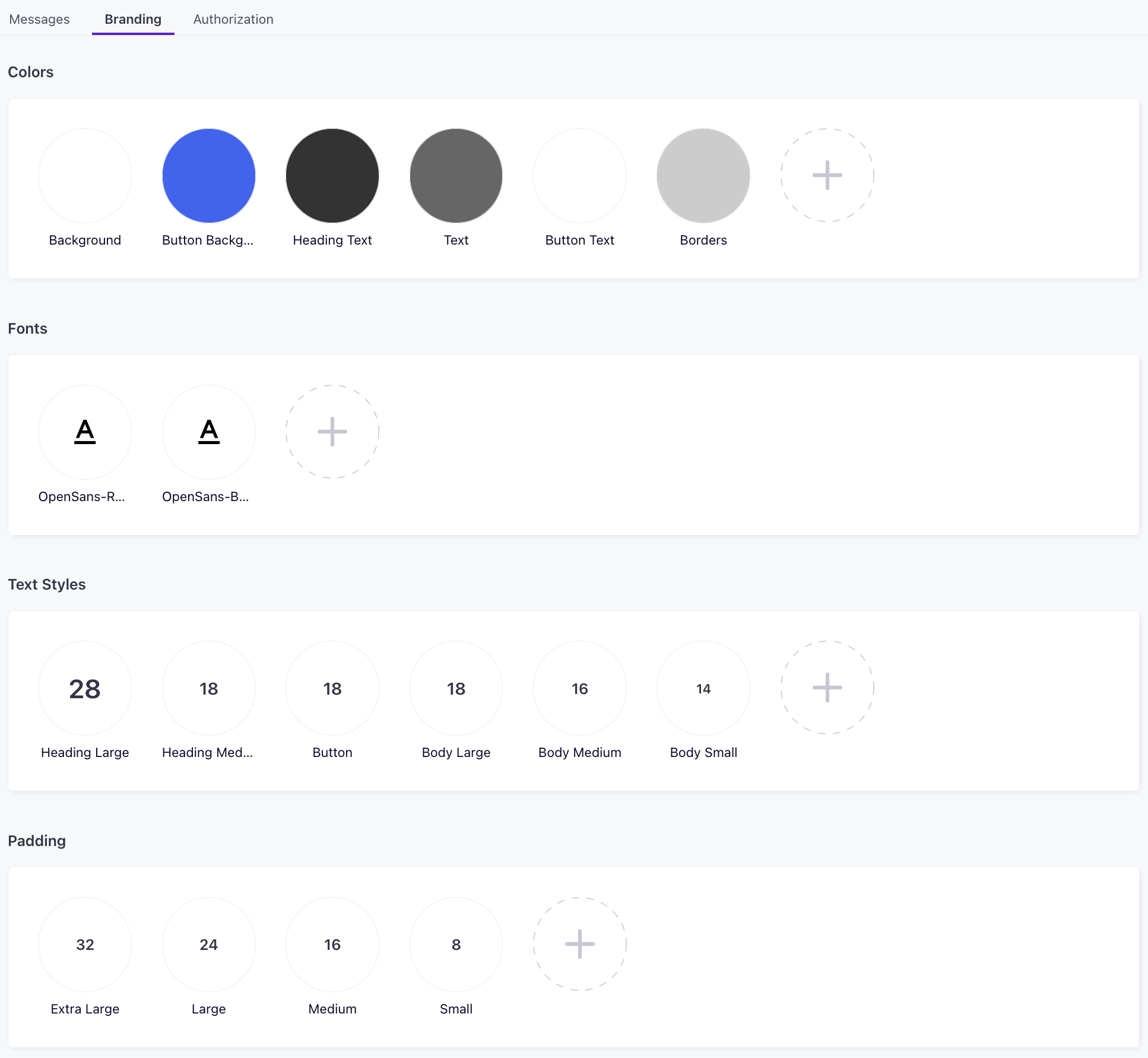
Set up branding rules for your messages

 Branding changes take effect immediately

Changes to your branding settings affect all of your messages, even messages that are in-flight!

In-App message JSON

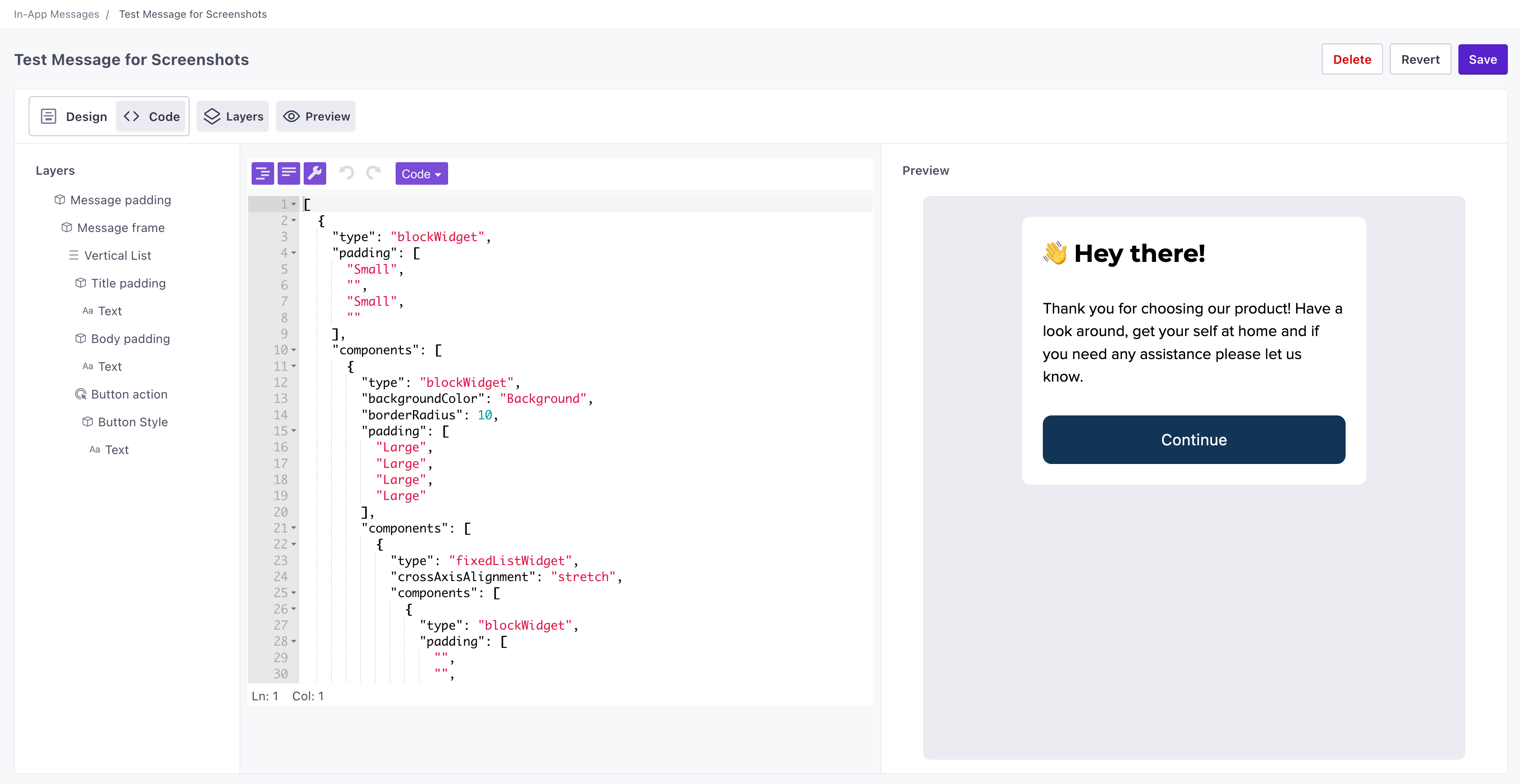
You can use the Show Code option to expose the JSON representation of your message.

Messages created in this editor are an array of objects, where each object represents a part of your message. Some items, like actions and blocks, contain nested components. You might use the code editor to rearrange your message by moving components in and out of blocks, or moving them up or down in the array.

Each component has a type and a gist object, both are required and set automatically by the editor.

  • type determines the type of widget you’re using in the editor—textWidget, imageWidget, actionWidget, etc.
  • gist is an object containing a unique id for the widget.
See the JSON representation of your message in the code editor

Edit an in-app message

While we have a newer, easier to use editor, you might still want to edit messages that you created in our older in-app message editor. You can create new messages in this editor, but we strongly recommend that you use our new editor for new messages.

  1. Go to the Messages tab under Content > In-App Messages and select the message you want to edit.
  2. Add or move around components in your message. By default, a component only shows required fields.
    • Use $properties.<var> to add variables to your message that you can supply in Customer.io. For example, $properties.name creates a field called Name in Customer.io
    • Click to reveal additional properties for the component.
    • Click Actions in the upper-right of any component to change the order of components, wrap them in blocks, actions, etc.

As you create and update your message, we’ll show how it will appear in your app or on your website.
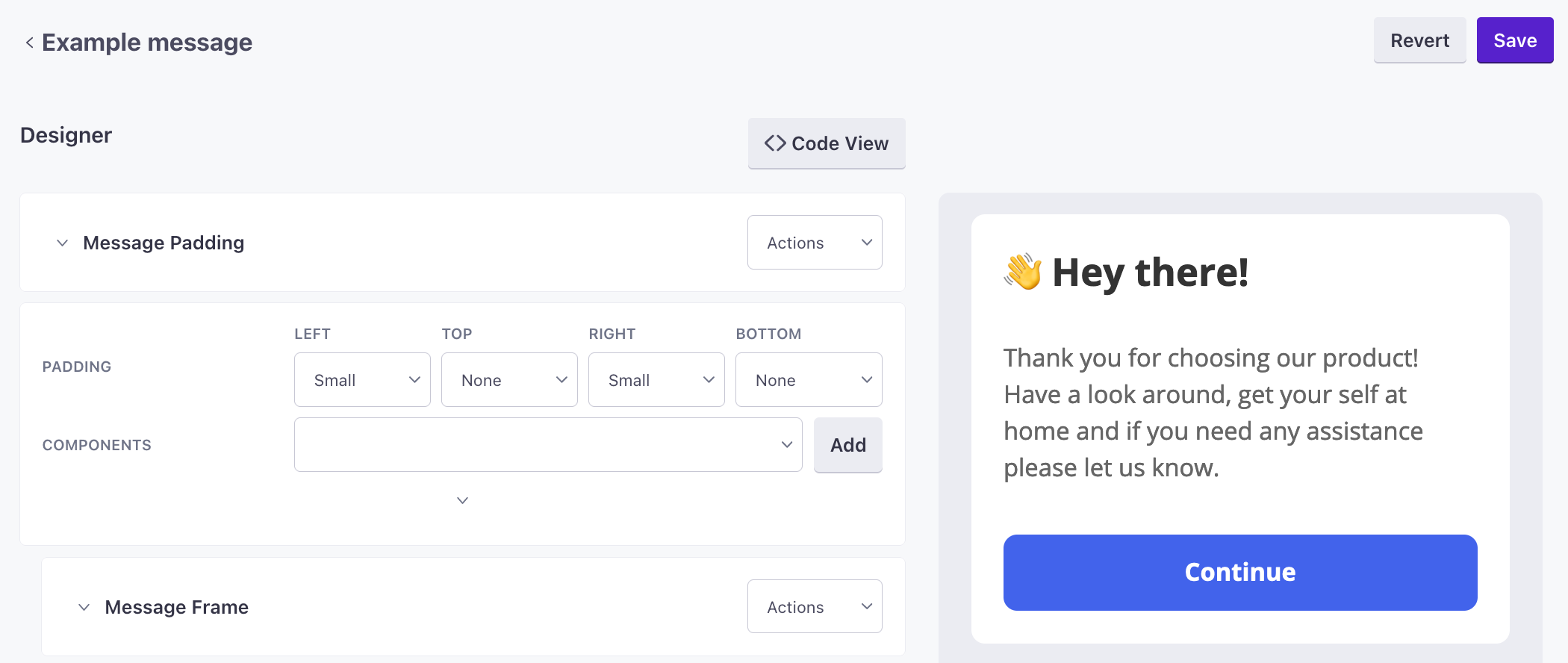
the message designer

Customizing messages with variables

You can customize text in your message by adding $properties.<variableName> to text field. You can include as many variables as you like, and even simply set a variable name for an entire block if you want to give message creators control over the text that they send in messages. You can use the same variable multiple times if you want to duplicate variable text in your message.

When you create and populate your messages, you can use liquidA syntax that supports variables, letting you personalize messages for your audience. For example, if you want to reference a person’s first name, you might use the variable {{customer.first_name}}. to use your audience’s attributes or event data—like a person’s name or the items they left in their cart. In the example below, we use a variable in an in-app message called $properties.name to add a field called name when you use the message in a campaign or broadcast.
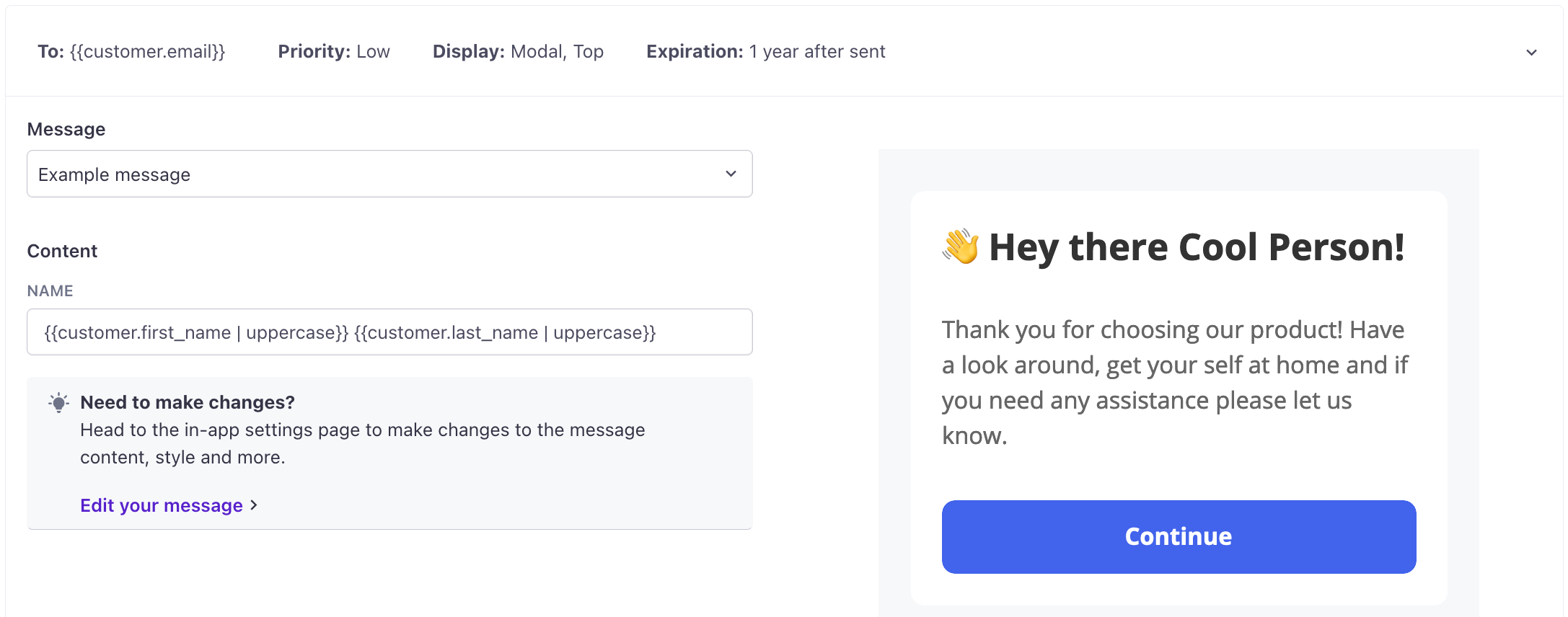
add variables to your messages so that you can personalize them in your campaigns

Organizing your message

When you add a component or container, we show required settings by default. Click to show additional options.

We organize message items into blocks, content, and layout. In general, blocks make it easy to build your message with premade components, and the content and layout components give you more granular control to customize your message.

  • blocks are premade groups of components that you can use to build your message.
  • content are content components for your message, like text, images, etc.
  • layout components help you organize the visible parts of your message horizontally, vertically, blocks that let you set padding, etc.

in-app messages are flexible: you can nest some containers inside each other. In this section, we’ll show a few common arrangements that you’ll use to create buttons, carousels, and so on.

Blocks

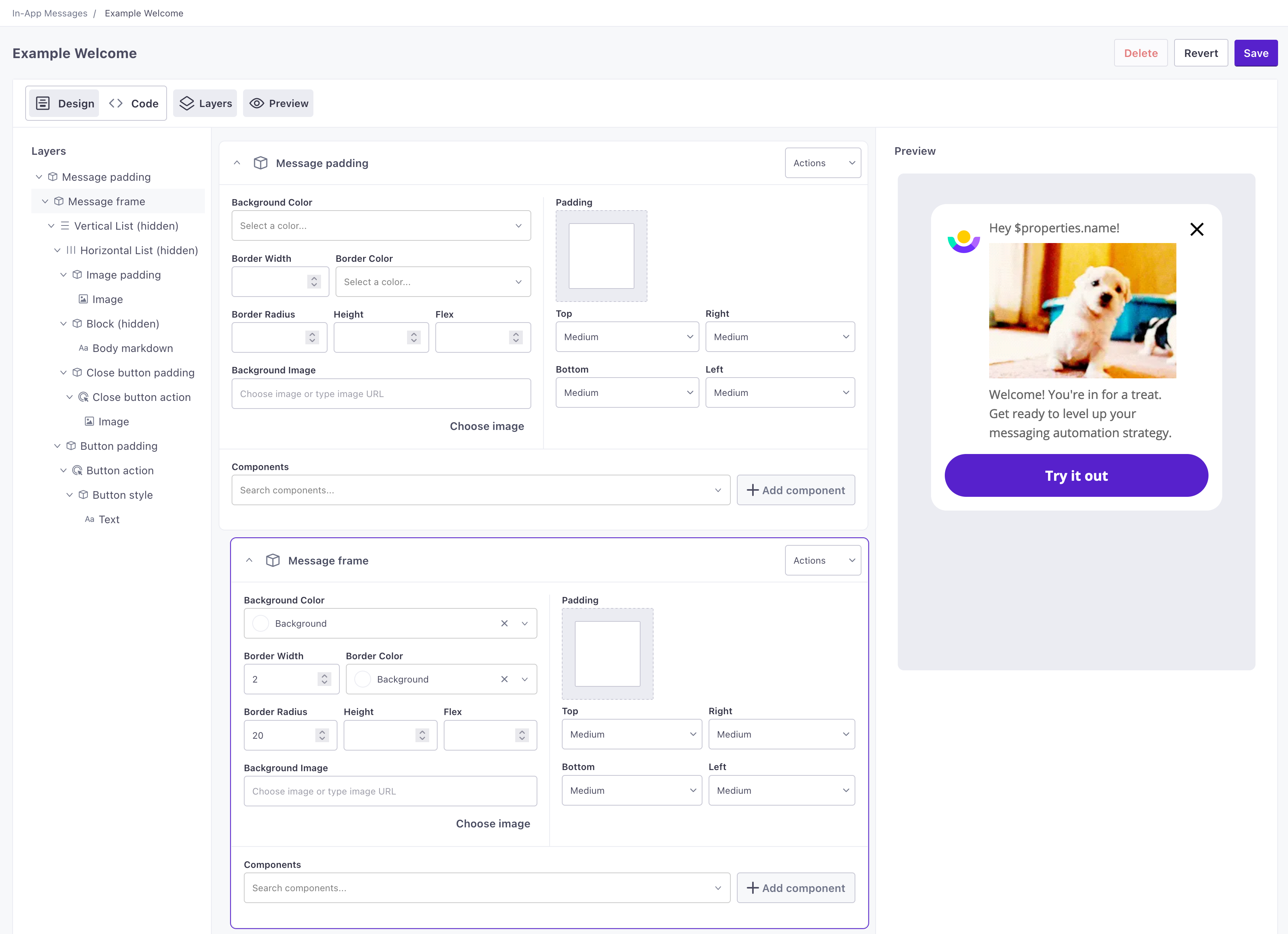
Message Frame

A message frame is a group of components you can use to establish an area with rounded corners. Nest content components within the frame as you see fit.
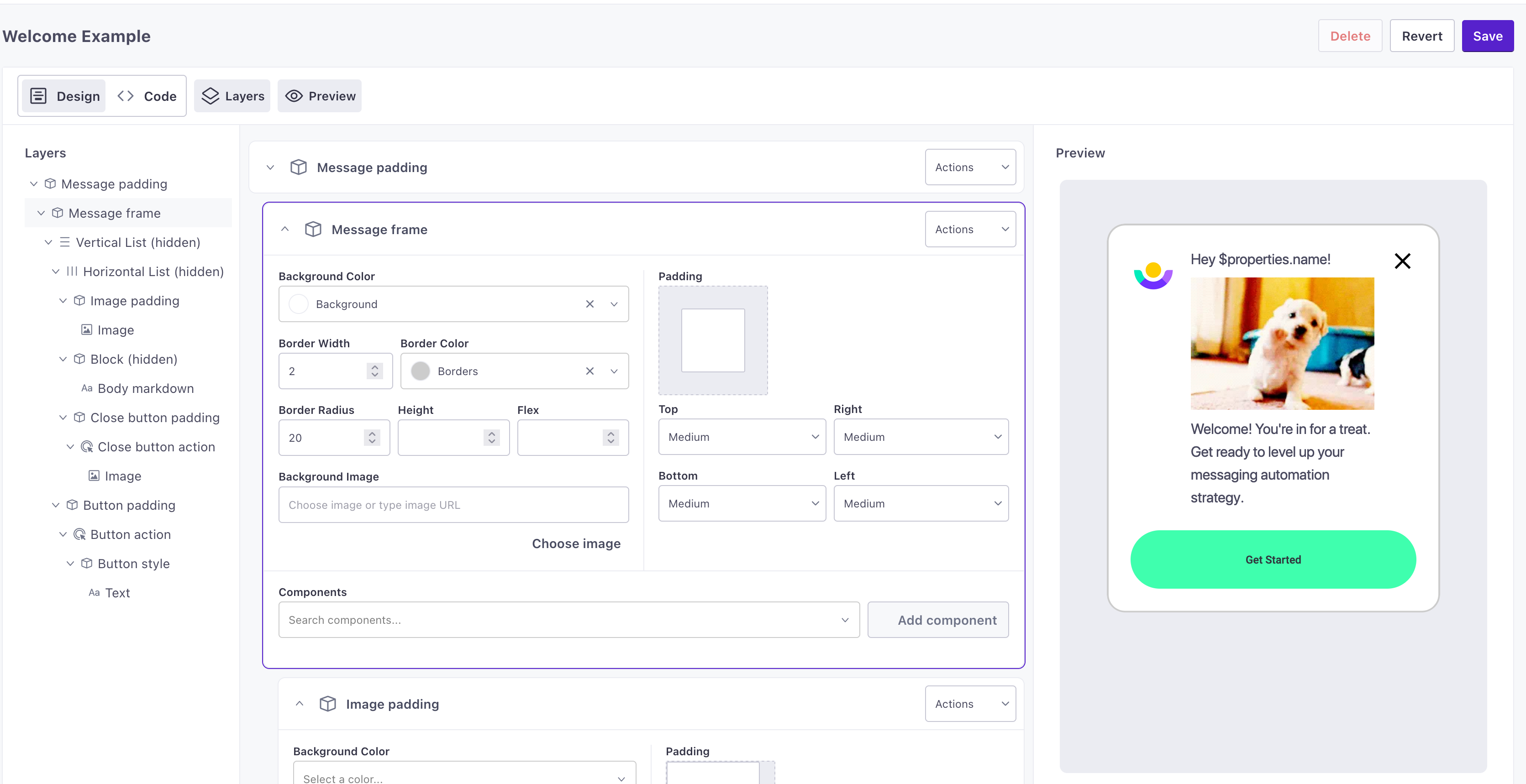
A message frame has a vertical list nested within a block for the frame and a block for the message padding.

Close Button

A close button is a group of components you can use to do just that - close an in-app message. The action is automatically set to close the message, but you can also adjust the action and styling as you see fit.
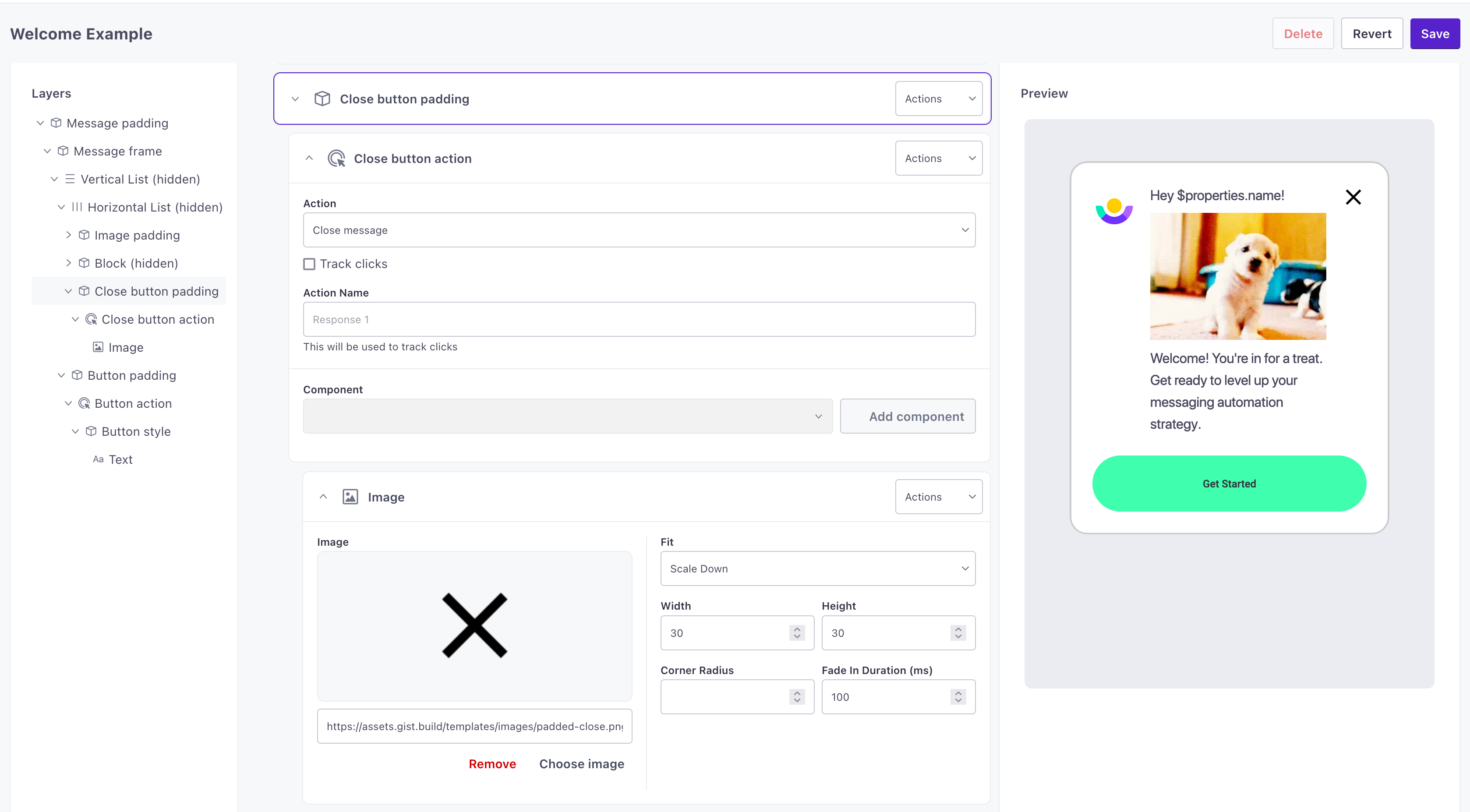
in-app-close-button.png

Button

A button is a group of components you can use to add an actionable area to your message. The action is automatically set to close the message, but you can also adjust the action and styling as you see fit.
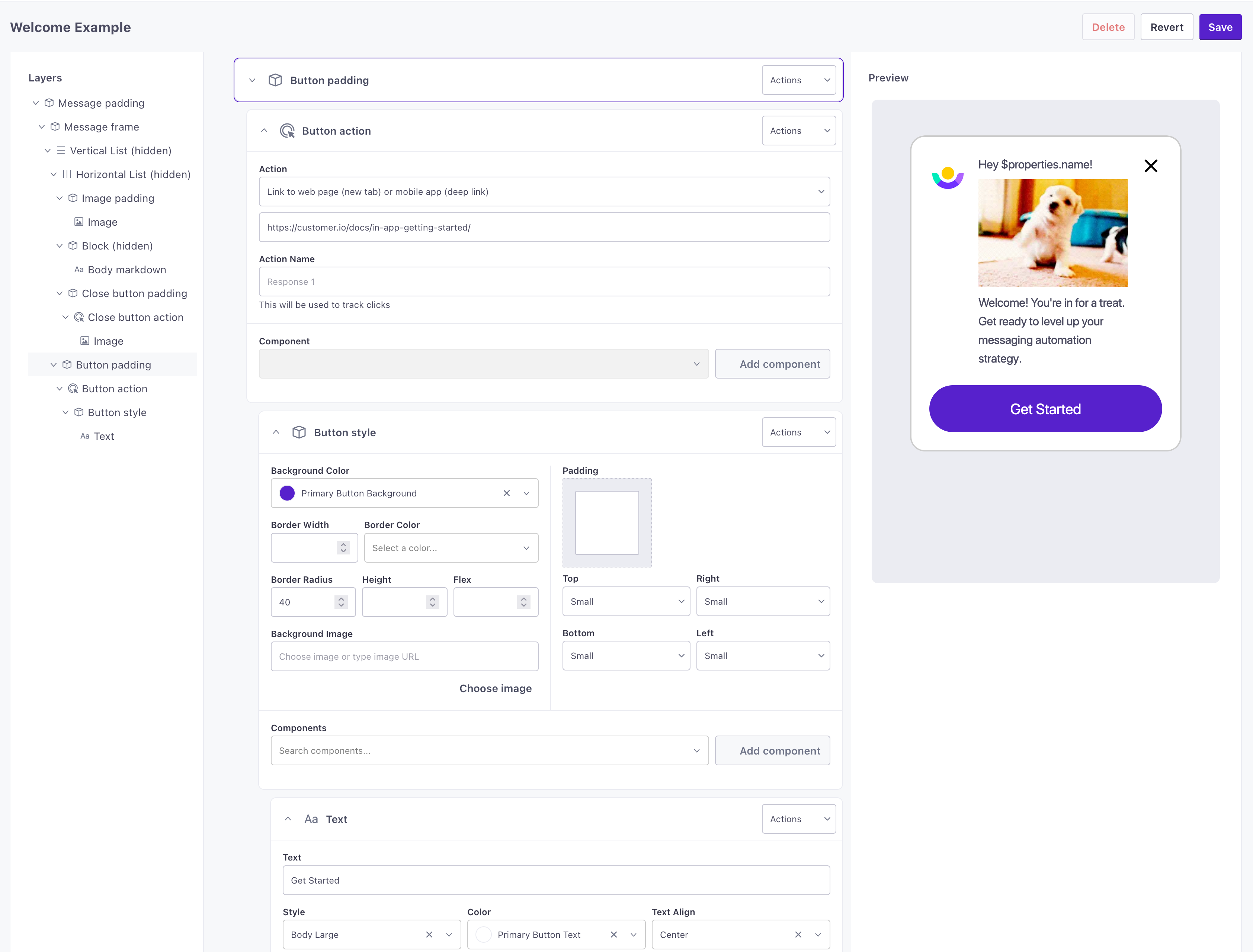
in-app-button.png
in-app-button.png

A button consists of four items, nested in this order:

  1. Button padding: a block that determines the padding around the outside of the tappable area.
  2. Button action: this determines what happens when someone taps the button.
  3. Button style: a block that defines the tappable area and controls the border color, the border radius/roundness of the button, and the color of the button.
  4. Text: the text for the button. You could substitute this for a different content component: icon, image or markdown for button text.

Click to style your blocks and content. You can modify the background color or center your button text, for instance.

Remember, if you want to personalize the text for your buttons when you create your message, use the syntax $properties.fieldname. When you create your message in Customer.io, you’ll see a fieldname that you can personalize with liquidA syntax that supports variables, letting you personalize messages for your audience. For example, if you want to reference a person’s first name, you might use the variable {{customer.first_name}}. or otherwise change so that it’s relevant to your message!

Two Button Row

A two button row is a group of components that places two buttons, side-by-side in the same row. Set the action, styling, and text as you see fit. You might use this to create an action button and a button that dismisses your message.
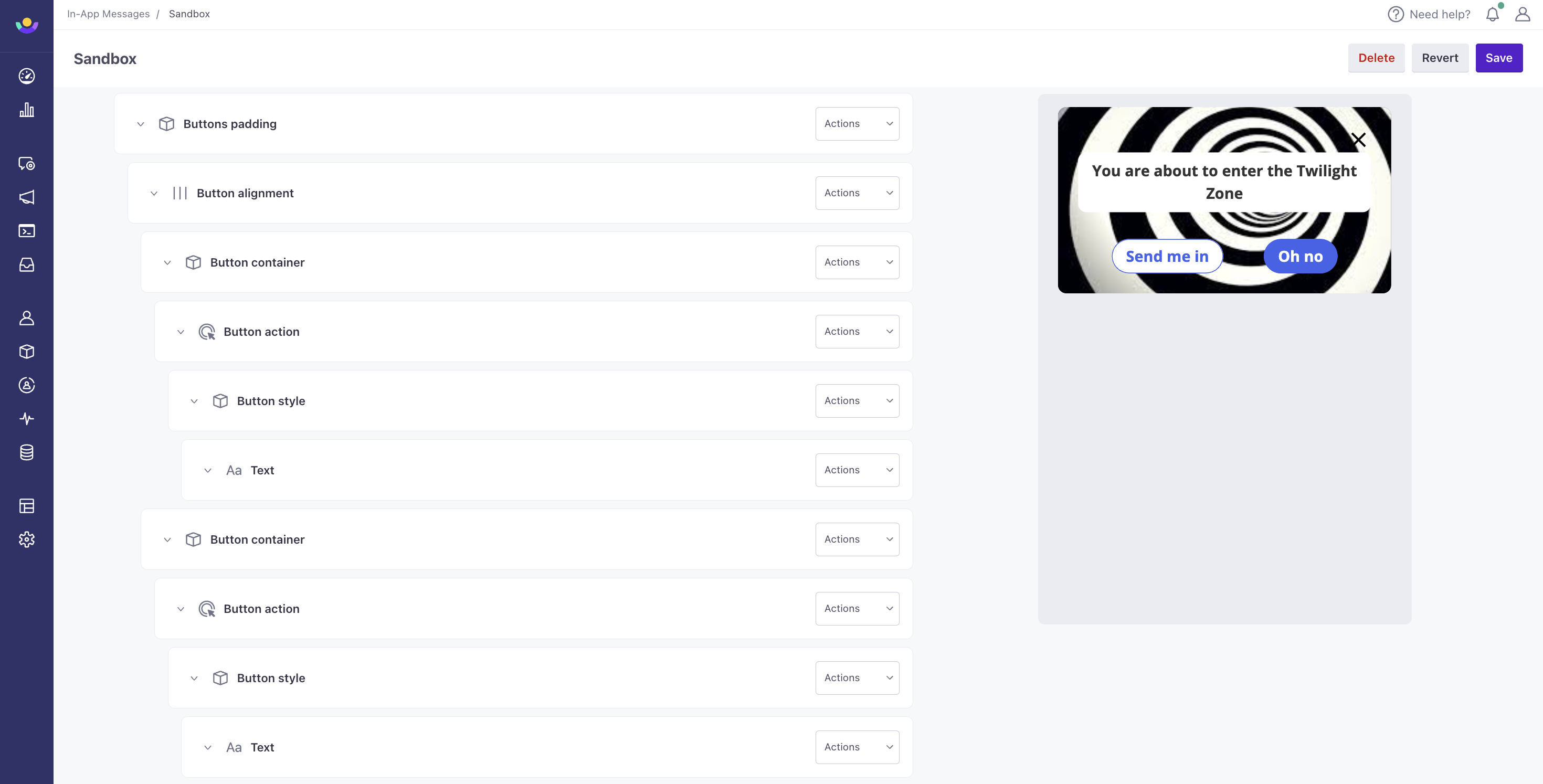
in-app-two-button-row.png

Rounded Image

A rounded image is a group of components that displays an image within a circular viewport. You can adjust the rounding through Corner Radius within the image component.
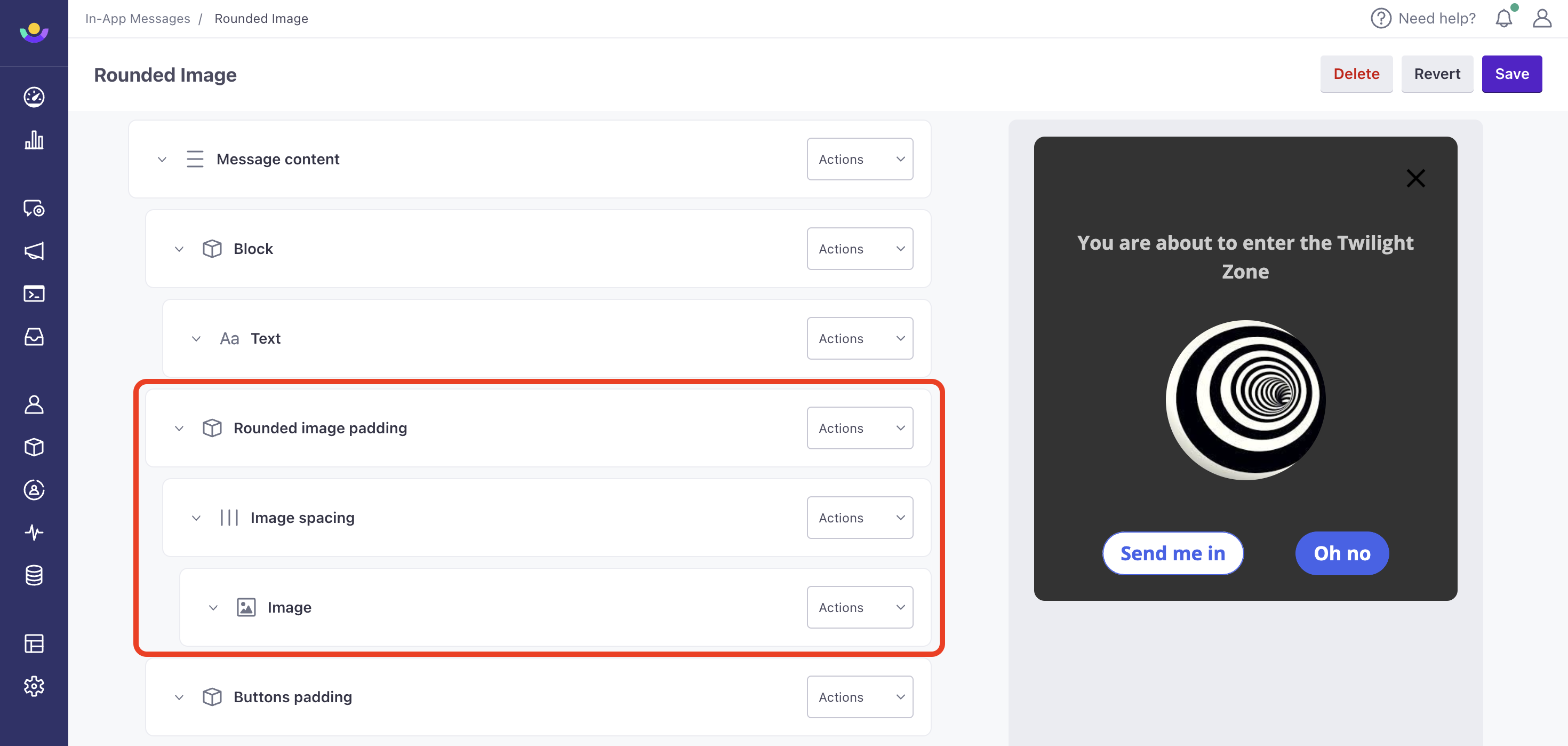
in-app-rounded-image.png

Surveys

The Survey components make it easy to set up surveys for your recipients and automatically track responses in Customer.io. You can use these components to ask for feedback, ratings, or other information from your audience.

With these components, it’s easy to set up the options or ratings available to your audience. See microsurveys for more information about setting up surveys and tracking responses in Customer.io.
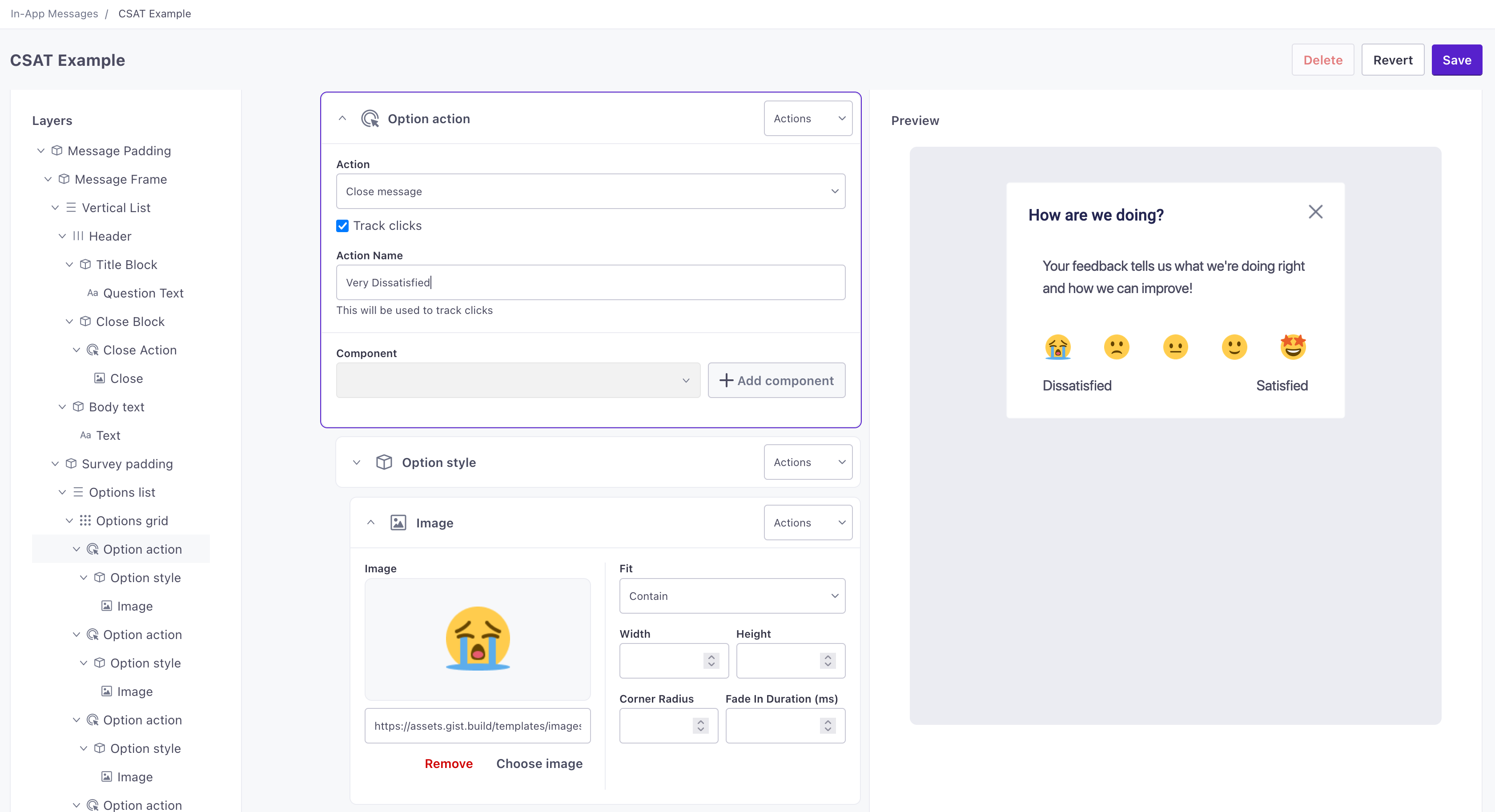
set up a survey to get feedback from recipients

Links

You can set up a link by adding an action component and then adding a text component inside the action. The action determines what happens when someone taps the text—whether the link goes to a website, somewhere in your app, a mail application, etc.
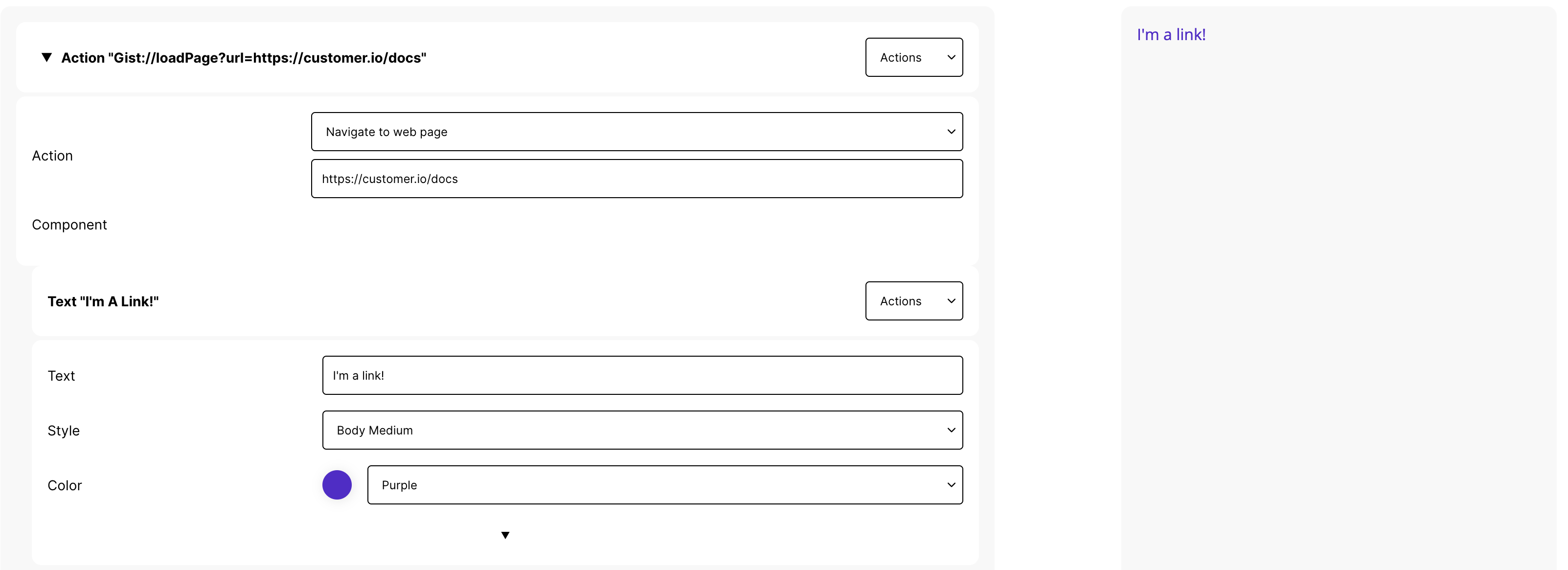
set up a link in your message

Content

Text

A text component represents any text in your message—headings, body, footers, etc. Use $properties.<variableName> to add a customizable variable to your message. When someone uses your message in a campaign or broadcast workflow, they’ll see a field called <variableName> that they can personalize for your audience.

Press to expose options to style your text.

JSON

{
	"type": "textWidget",
	"text": "$properties.name",
	"style": "bodyText",
	"color": "black",
	"textAlign": "left",
	"maxLines": 1,
	"overflow": "ellipsis"
}

Schema

  • maxLines integer
    The maximum lines of text you want to display. Text over this limit is controlled by the overflow property. If unset, the message displays an unlimited number of lines.
  • overflow string
    Determines how to handle text that overflows the maxLines limit (if set). By default, we cut off overflowing text with ellipsis (...).

    Accepted values:ellipsis,fade,clip

  • style string
    The style of text you want to display. You can only set values here that are defined under Content > In-App Messages.
  • text string
    Required The text you want to display.
  • textAlign string
    How you want to align this text.

    Accepted values:center,right,left,start,end,justify

  • type string
    Required Defines the widget type.

    Accepted values:textWidget

Markdown

You can use the markdown component to style text using markdown syntax.

Markdown
# Heading 1
## Heading 2
### Heading 3
**bold**
__bold__
`code`
[text](link)
1. go to concert
2. scream-sing your favorite song
3. return home overjoyed and exhausted
- carrots
- broccoli
- raspberries

To render markdown using your branding settings, select the styles for headings, text and links below the markdown field. Begin by specifying the color so that they appear on the canvas.
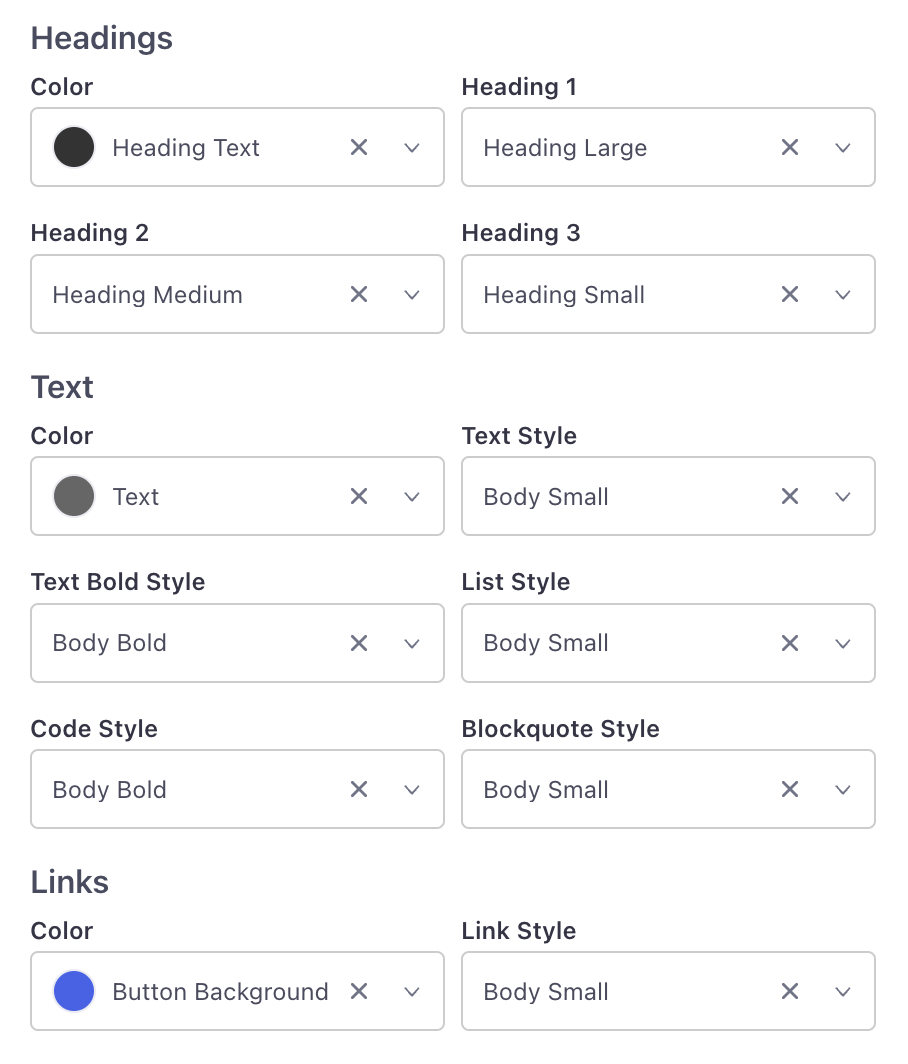
in-app-markdown.png
in-app-markdown.png

Check the preview on the right to see if you’ve chosen your desired fonts and colors.

Image

Upload an image for your message. Click the downarrow to reveal additional properties determining the width of your image, how it should fit the bounds of the message, whether it should fade in, etc.

JSON

{
	"type": "imageWidget",
	"image": "$properties.imageUrl",
	"fit": "cover",
	"height": 50,
	"width": 50,
	"cornerRadius": 25,
	"fadeInDuration": 200
}

schema

  • fadeInDuration integer
    The durration for the image to fade in, in milliseconds, similar to the fadeIn CSS transition property.
  • fit string
    Determines how the image fits your message. Defaults to cover.

    Accepted values:none,fitWidth,cover,contain,scaleDown,fill,fitHeight

  • type string
    Required Defines the widget type.

    Accepted values:imageWidget

Icon

The Icon widget displays an icon from an icon font. You must load fonts in the assets section of your app configuration to show icon fonts.

JSON

{
	"type": "IconWidget",
	"color": "black",
	"font": "IconFont-One",
	"size": 18,
	"value": "\e012"
}

schema

  • size integer
    The pixel size of the icon.
  • type string
    Required Defines the widget type.

    Accepted values:iconWidget

  • value string
    Required The value of the icon that you want to use. For example, for font-awesome, you’d use the name of the icon.

Action

An Action determines what happens when someone taps one or more components in your message. You might use an action to send someone to a link in your app, an external link, etc. When you add an action, you’ll determine the action and then add components inside the action.
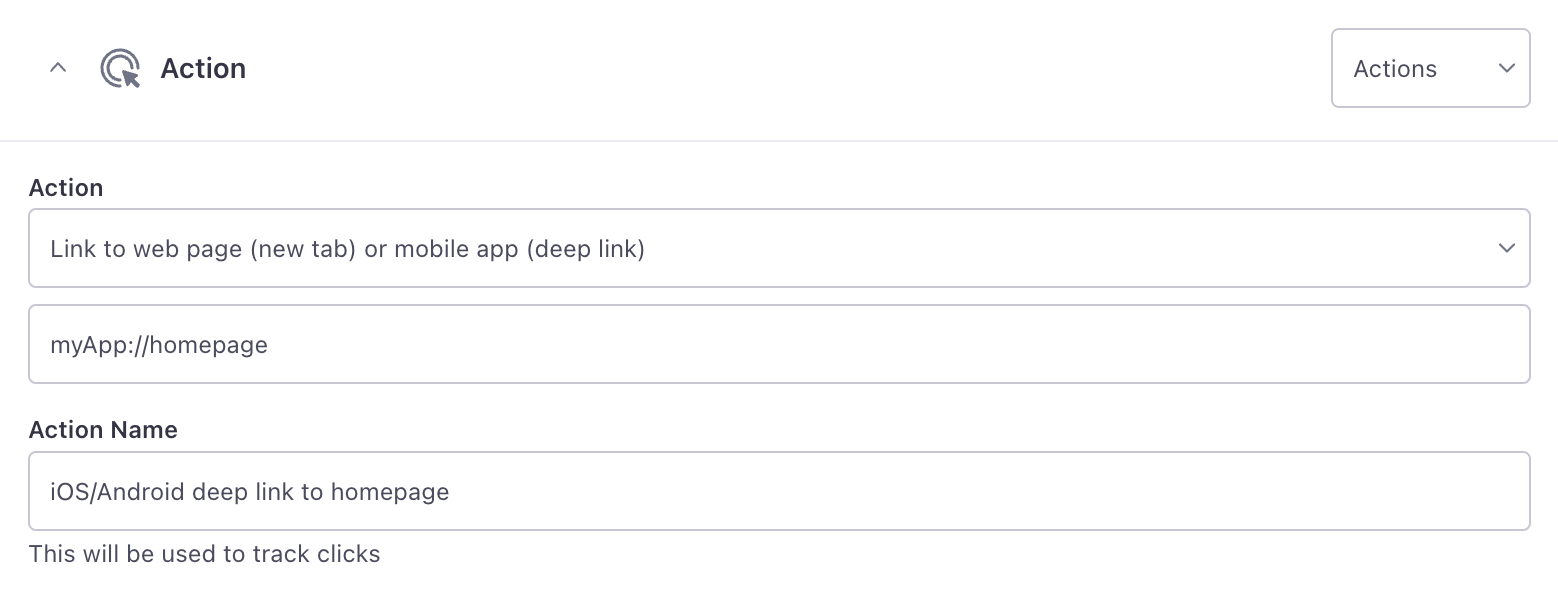
example of a link action

We support the following actions:

  • Close message: Dismisses the in-app message.
  • Link to web page: Sends the message recipient to a web page in their default browser.
  • Link to web page (new tab) or mobile app (deep link): Sends a person to a deep link in your app or a webpage (if you use Universal Links). You’ll need to know the deep link format and screen you want to send a person to.
  • Show another message: Change the content of your message when someone interacts with it.
  • Custom action: Set up an action handled directly by your app. See the section below for more information.

If you use the Show Code option, the action is the link. You can set a behavior key determining how to handle the action. See the schema below for available values.

JSON

{
	"type": "actionWidget",
	"action": "myApp://homepage",
	"behaviour": "push",
	"component": {}
}

schema

  • action string
    Required The link or place you want to send a person. This is either a deep link in your app, a web address, a mailto link, or a way to close the message (gist://close).
  • behaviour string
    • push: pushes a new route into the navigation stack.
    • system: offloads the action onto the operating system. Actions like mailto:support@bourbon.sh will open the default email client.
    • back: pops the navigation stack one step back.
    • retain: retain replaces the current view with a new route.

    Accepted values:push,system,back,retain

  • type string
    Required Defines the widget type.

    Accepted values:actionWidget

Track Clicks

The Track Clicks box tells Customer.io to track when someone taps the action—similar to the way tracked links work in emails. This setting is enabled by default. If you disable this setting, we won’t track when someone taps the action.

Tracked responses are based on the action name, so make sure that you give your actions names that will make sense to you when you look at metrics later.

Custom actions

Unlike other actions, which do something predefined by our SDKs, you can also set up “Custom Actions”—this is custom code that you want to execute when someone interacts with your message. For example, if you send an in-app message requesting that your audience opts-into push notifications, you might execute custom code to trigger the operating system’s native opt-in prompt. Custom actions give you the flexibility to handle your audience’s responses to messages in ways that fit your app uniquely.

Our SDKs expose an in-app event listener called messageActionTaken. You’ll set up your app to listen for this event and the custom actionName or actionValue that you set. When it occurs, you’ll execute custom code in your app. See the in-app pages for our SDKs to learn more about in-app event listeners and set up your first custom action.
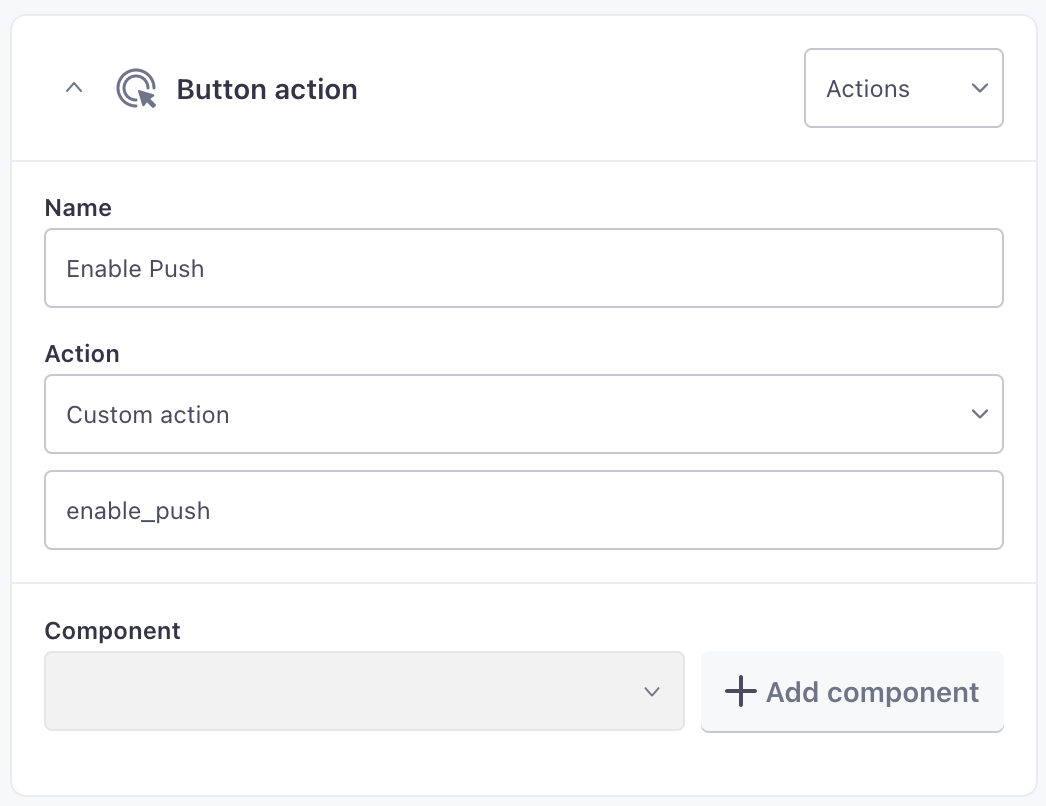
Set up a custom in-app action
Dismissing messages with custom actions

All of our SDKs expose methods to listen for the actions people take when they interact with your messages and methods to dismiss the message. If you use custom actions, you’ll need to make sure that your app or website does the following things to execute custom actions and dismiss messages appropriately:

  1. Listen for the custom action (either by event.actionName or event.actionValue).
  2. Perform your custom action—this is your own code.
  3. Use the dismissMessage method to stop showing the message to your audience. See relevant documentation for our SDKs for more information about event listeners and dismissing messages.

Carousel

A carousel is content that users can swipe without dismissing your message. You might use a carousel to showcase new features, provide a tutorial, etc.

You’ll use a Fixed horizontal scroll widget containing at least two components. You can even wrap items in the carousel in actions, so that each item in your carousel performs a different action.

Layout

 Click Show Code to move components in and out of lists or grids

You might want to try different list and grid layouts as you create your message. Rather than re-creating components in different list and grid containers, you can use the Show Code option and copy the components array into different containers to play with different layouts!

Block

A block is a group of components that you apply a design to. You might group components to set a background image, apply rounded corners, etc. The only required property is the list of components you want to nest inside the block.

JSON

{
	"type": "blockWidget",
	"safeInsets": false,
	"padding": ["m","m","m",""],
	"backgroundColor": "white",
	"borderColor": "black",
	"borderWidth": 1,
	"borderRadius": 10,
	"height": 150,
	"backgroundImage": "$properties.backgroundImage",
	"flex": 1,
	"components": []
}

schema

  • backgroundColor string
    The background color for your block. You must set a value defined under Branding > Colors.
  • backgroundImage string
    Set a background image for the block
  • borderColor string
    The border color for your block, if you set a border width greater than 0. You must set a value defined under Branding > Colors.
  • borderWidth integer
    The width of the border for this block in pixels.
  • flex integer
    The single digit syntax for the CSS flex property. The value you use here determines the propotional amount of space the block consumes in a parent container.
  • padding array of [ strings ]
    Defines padding for the block, based on the values set under Branding > Padding. As with the CSS padding property, values in the array represent top, right, bottom, and left padding.
  • safeInsets boolean
    Based on the env safe-area-inset-* CSS properties. Set to true to ensure that the block can’t overflow the defined screen or the defined area of your message. Defaults to false.
  • type string
    Defines the widget type.

    Accepted values:blockWidget

The Flex property

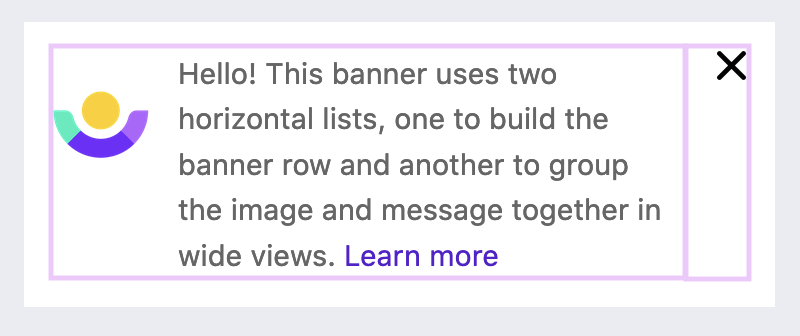
The flex property is an integer that defines the proportion of two or more blocks in a horizontal list. Using a banner example, we can show the same banner with three different pairs of flex values.

1:1
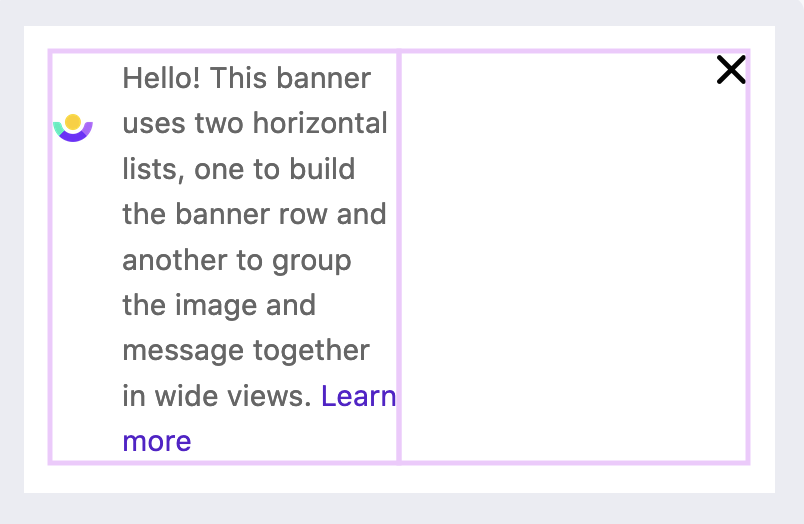
Banner with 1-1 flex ratio

3:1

Banner with 3-1 flex ratio

9:1

Banner with 9-1 flex ratio

Horizontal List

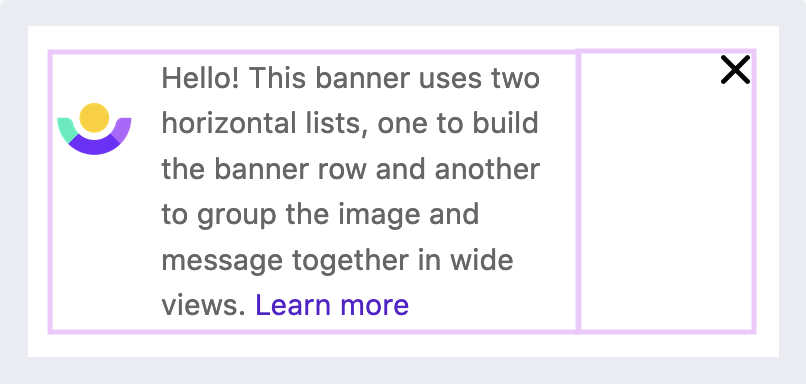
A horizontal list lays out components horizontally, letting you set the alignment of the items in the list. Nest content components within this layout to horizontally align them. Wrap these components in blocks for additional styling. The flex property of blocks can help you establish the ratio of space between each block in a horizontal list.
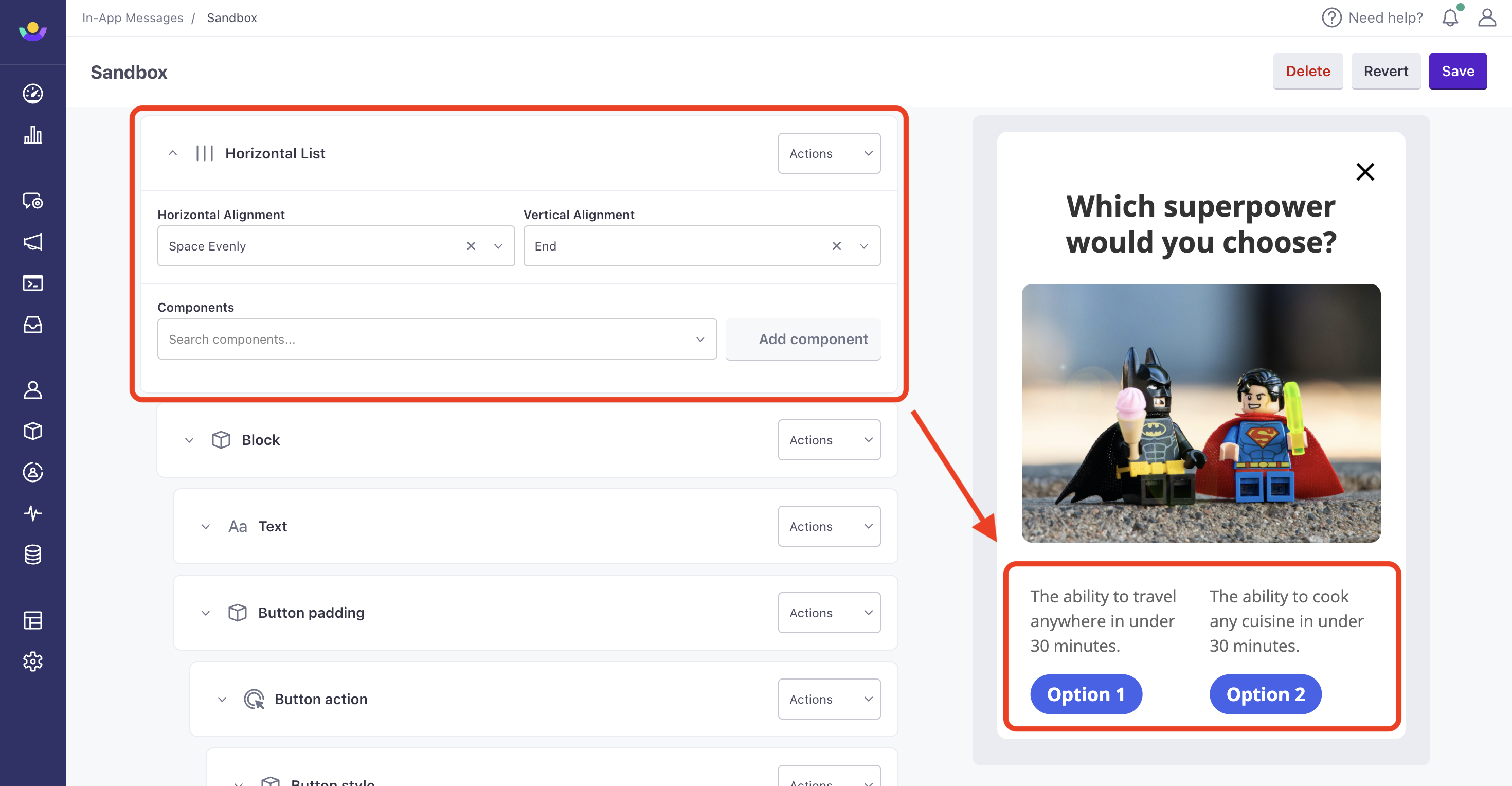
in-app-horizontal-list.png

JSON

{
	"type": "fixedHorizontalListWidget",
	"mainAxisAlignment": "start",
	"crossAxisAlignment": "center",
	"components": [{},{}]
}

schema

  • type string
    Defines the widget type.

    Accepted values:fixedHorizontalListWidget

Vertical List

While components in your message are typically displayed top-to-bottom, a vertical list helps you align these items. You can set up vertical lists to control the vertical layout of your message.

JSON

{
	"type": "fixedListWidget",
	"mainAxisAlignment": "start",
	"crossAxisAlignment": "center",
	"components": [{},{}]
}

schema

    Carousel

    A carousel is a list of items you can scroll hortizontally. One component displays at a time, and users can swipe left to right to see different components. A carousel takes up the entire width of the parent list, block, or grid.

    JSON

    {
    	"type": "fixedHorizontalListScrollWidget",
    	"height": 150,
    	"components": [{},{}]
    }
    

    schema

    • height integer
      The height of the widget in pixels.
    • type string
      Defines the widget type

      Accepted values:fixedHorizontalListScrollWidget

    Grid

    A grid is like a horizontal list, except that you can control the padding between elements and the aspect ratio of items in the grid. This allows you to customize your layout with tall, skinny grids or short, long grids. By default, a grid’s aspect ratio is 1.0.

    JSON

    {
    	"type": "fixedGridWidget",
    	"itemPadding": "xs",
    	"columns": 2,
    	"childAspectRatio": 1.5,
    	"components": [{},{}]
    }
    

    schema

    • childAspectRatio number
      The aspect ratio for items in the grid. Defaults to 1.0
    • columns integer
      Required The number of columns in your grid.
    • itemPadding string
      The padding between items in your grid.
    • type string
      Required Defines the widget type.

      Accepted values:fixedGridWidget

    Conditional

    Use a conditional to show or hide parts of your message based on a true/false condition.

    There are three fields to complete when using a conditional component:

    • Condition: The function that you want to evaluate as “true” or “false”. The condition field supports: >, <, == & in. If you don’t specify an operator, the condition will check if the property is null.
    • If True: The components that you want to display when the condition is true.
    • If False: The the components that you want to display when the condition is false.

    When building your message, entering 1 == 1 is an easy way to force the condition to true and 1 == 0 will force it to false. When you’re set with the design, replace the condition with $properties.condition_field == MATCH-VALUE. This adds a field called Condition Field to your in-app messages which you can then configure with static or dynamic values from the campaign or broadcast. If the value matches, the True section will show to the recipient. Otherwise, the False section will show.
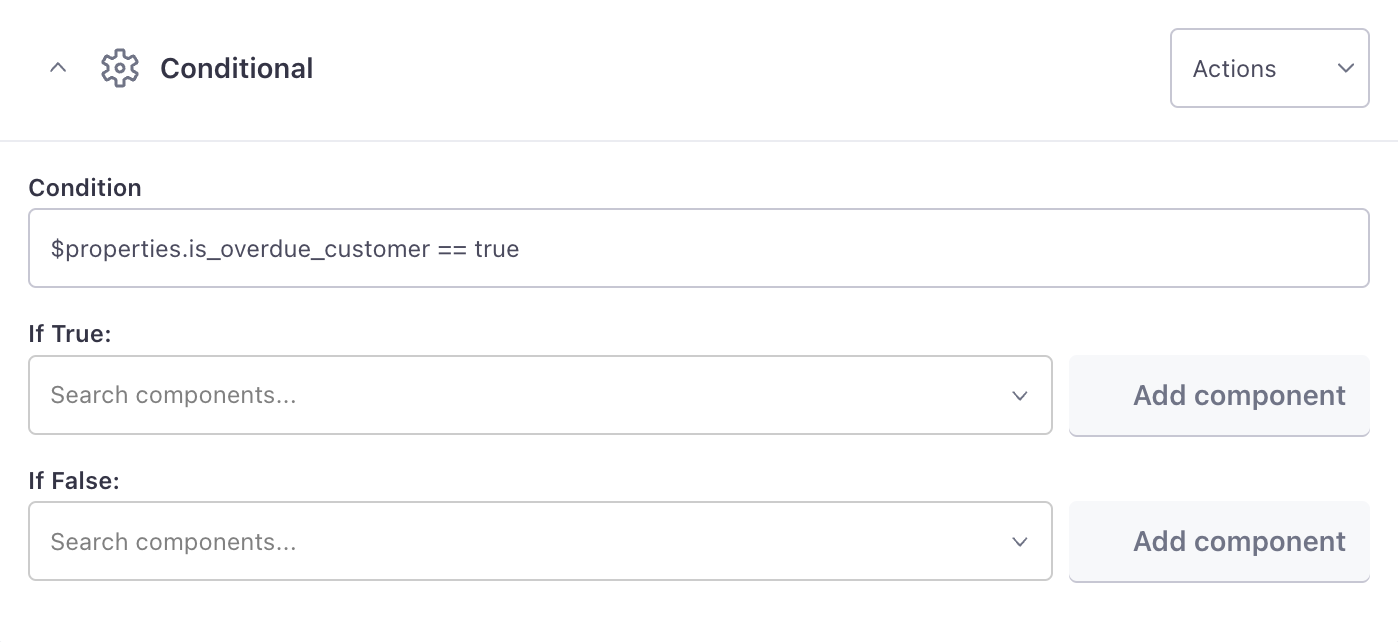

    Example in-app conditional
    Example in-app conditional
    Copied to clipboard!
      • How it works
        • In-app branding
        • In-App message JSON
      • Edit an in-app message
      • Customizing messages with variables
      • Organizing your message
        • Blocks
          • Message Frame
          • Close Button
          • Button
          • Two Button Row
          • Rounded Image
          • Surveys
          • Links
        • Content
          • Text
          • Markdown
          • Image
          • Icon
          • Action
          • Track Clicks
          • Custom actions
          • Carousel
        • Layout
          • Block
          • Horizontal List
          • Vertical List
          • Carousel
          • Grid
          • Conditional
    Download .md
    Is this page helpful?

    How can we make it better?

    No
    Yes
    Please provide a valid email address

    We appreciate your feedback!

    Our support team will contact you as soon as possible


    Platform
    • Platform overview
    • Platform features
    • Journeys
    • Data Pipelines
    • Parcel
    • Pricing
    Resources
    • Documentation
    • Release Notes
    • Blog
    • Community
    • Competitors
    • API
    • Guides
    Company
    • About
    • Careers
    • Support
    • Partners
    • Startup Program
    • Contact
    Customer.io
    win@customer.io

    9450 SW Gemini Dr
    Suite 43920
    Beaverton, Oregon 97008-7105 US
    LinkedIn
    Twitter (X)
    Youtube
    Instagram
    Status Terms of Service Privacy Policy @2024 Peaberry Software, Inc.