Send inbox messages
UpdatedYou send inbox messages from an automation or broadcast workflow the same way you send other in-app messages. This page covers the process for the visual editor, which is the default editor for most users.
If you built your own inbox, you’ll use the advanced editor. See compose JSON messages for more information.
Add an inbox message to your workflow
Before you send an inbox message, make sure you’ve set up your inbox.
In your automation or broadcast workflow, drag an Inbox message block into your workflow.
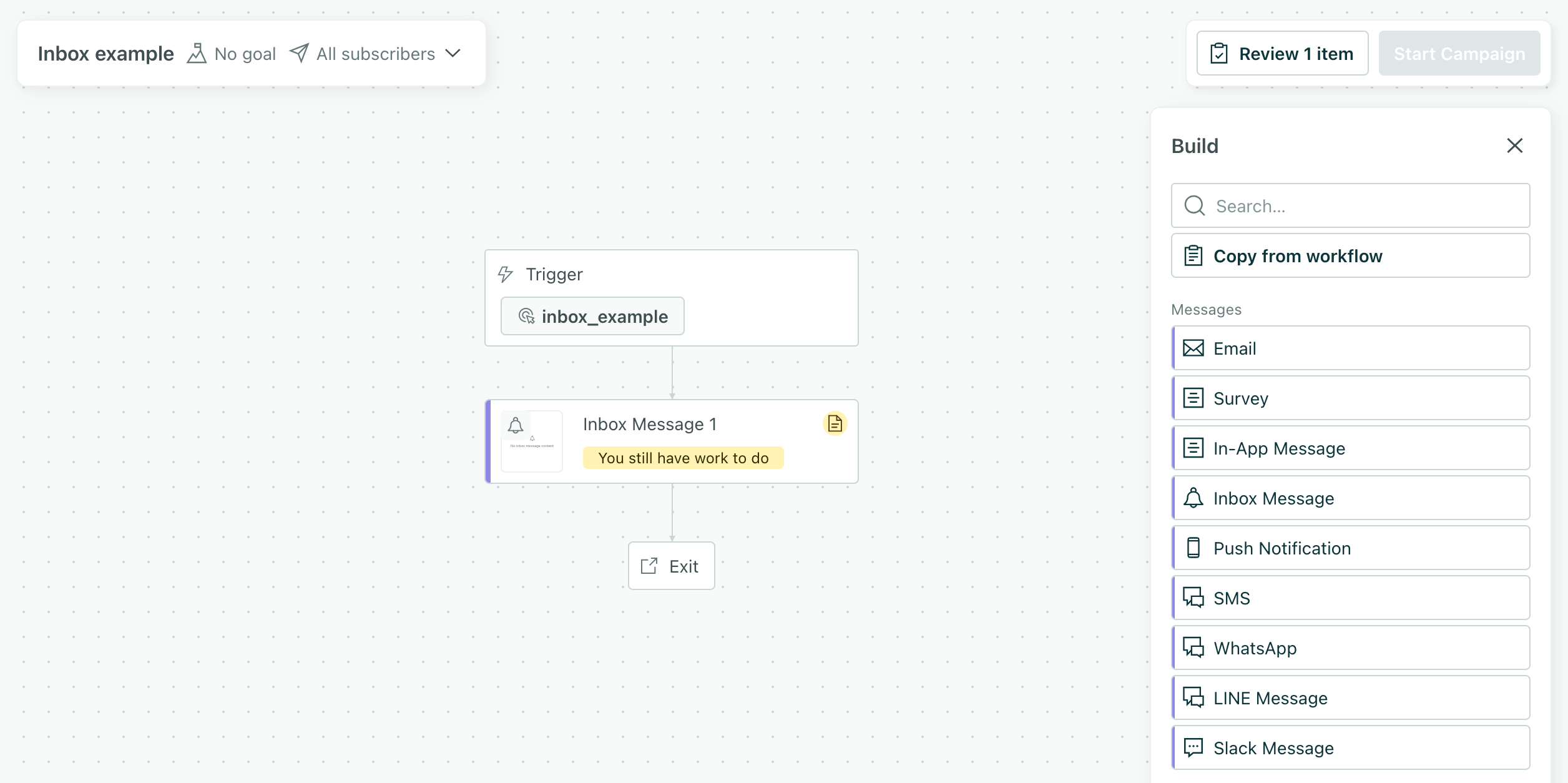
Click the message and choose an editor. For most users (and the process on this page), choose the Visual editor.
If you built your own inbox, choose the Advanced editor and see compose JSON messages for more information.

Now you’re ready to build your inbox message.
Build a message in the visual editor
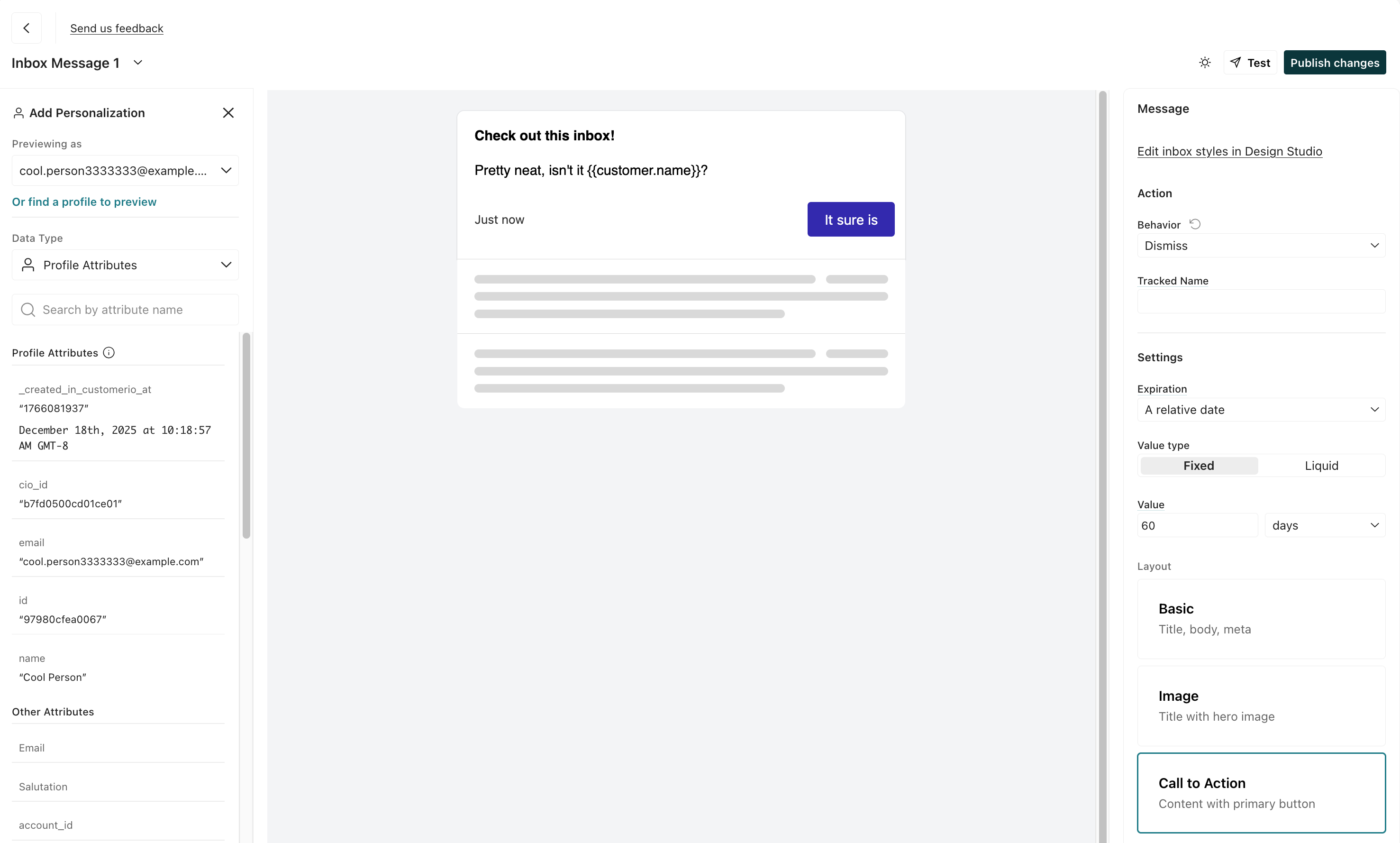
The visual editor opens a Design Studio canvas with a live preview. Your message inherits the styles you set when you styled your inbox.
- Choose a layout:
- Basic: a heading, body, and timestamp.
- Image: a heading, image, body, and timestamp.
- Call to action: a heading, body, timestamp, and a button.
- Add your content. You can personalize any text with liquidA syntax that supports variables, letting you personalize messages for your audience. For example, if you want to reference a person’s first name, you might use the variable
{{customer.first_name}}.. - Set the message’s expiration. By default, messages expire 60 days after you send them. See message expiration to set a relative or specific date, or to base the expiration on a liquidA syntax that supports variables, letting you personalize messages for your audience. For example, if you want to reference a person’s first name, you might use the variable
{{customer.first_name}}. expression. - When you’re ready, click Publish changes. Your message is ready, and it’ll send when you send your automation or broadcast.
Personalize your message
You can use liquidA syntax that supports variables, letting you personalize messages for your audience. For example, if you want to reference a person’s first name, you might use the variable {{customer.first_name}}. to include dynamic content in your message. You can use profile attributesA key-value pair that you associate with a person or an object—like a person’s name, the date they were created in your workspace, or a company’s billing date etc. Use attributes to target people and personalize messages. in any message in the format {{customer.<attribute_name>}}. You can use event data in messages triggered by an event or an API call.
| Source | Example | Automation | Broadcast | One-time send | Description |
|---|---|---|---|---|---|
| Profile attributes | {{customer.first_name}} | Yes | Yes | Yes | Attributes belonging the message recipient. |
| Event data | {{event.order_number}} | When triggered by an event | N/A | N/A | Data from an event that triggered the message. |
| Trigger data | {{trigger.order_number}} | N/A | Yes | N/A | Data sent in the message_data object when you trigger a broadcast or a transactional message. |
Message expiration
Inbox messages expire after a certain amount of time and disappears from the inbox. Messages can expire up to 60 days after you send them.
In the visual editor, two settings control expiration:
- Expiration: choose A relative date—a duration after the message is sent, in minutes, hours, or days—or A specific date, a fixed point in time.
- Value type: choose Fixed to enter the duration or date yourself, or Liquid to base the expiration on a liquidA syntax that supports variables, letting you personalize messages for your audience. For example, if you want to reference a person’s first name, you might use the variable
{{customer.first_name}}. expression referencing a value you pass in the data that triggers the message (an event property or a broadcast/transactional message trigger).
Use liquid for expiration
If you want to set an expiration for a message dynamically based on data, you can use the liquid option for your message expiration.
When you set Value type to Liquid, your expression resolves at send time, so each recipient’s message will expire based on data—either a profile attribute or a value you pass in the message trigger. For a relative date, the expression resolves to a duration (like {{ trigger.ttl }} hours); for a specific date, it resolves to a timestamp (like {{ event.expires_at }}).
The data you can reference depends on how you send the message:
| Send type | Data you can reference | Example |
|---|---|---|
| Event-triggered automation | Profile attributes and event data | {{ event.expires_at }} |
| Broadcast | Profile attributes and trigger data | {{ trigger.expires_at }} |
| Transactional (from your backend) | Profile attributes and trigger data (from message_data) | {{ trigger.expires_at }} |
Profile attributes ({{ customer.<attribute> }}) are available for every send type. See personalize your message for more on these data sources.
If you don’t set an expiration, it expires after 30 days
Troubleshooting
Inbox messages follow the same delivery patterns as regular in-app messages. Check our in-app messaging FAQ for additional troubleshooting.
My message doesn’t appear
- Verify that you’ve enabled in-app and inbox messaging in workspace settings.
- Confirm that your inbox is published—a draft inbox doesn’t display on your website.
- Check that the person is identified.
- Confirm that the message you intend for people to see hasn’t expired. You may need to investigate a specific deliveryThe instance of a message sent to a person. When you set up a message, you determine an audience for your message. Each individual “send”—the version of a message sent to a single member of your audience—is a delivery. to see the expiration date.
If you build your own inbox, see display inbox messages in your app for troubleshooting topics, filtering, and the inbox() API.

