WhatsApp: Frequently Asked Questions
UpdatedAnswers to common questions about WhatsApp messages in Customer.io.
How much does it cost to send WhatsApp messages?
Customer.io doesn’t charge you for WhatsApp messages. However, both Meta and Twilio (if you use Twilio) charge for WhatsApp usage. See Billing for WhatsApp messages for more information.
- Meta charges per message using a tiered pricing model based on the template type (marketing, utility, authentication, or service), recipient country, and message volume. See Meta’s WhatsApp pricing page for details.
- Twilio As of February 2026, Twilio charges $0.005 per WhatsApp message. If you send WhatsApp messages through Twilio, you’ll pay this amount in addition to Meta’s fees. See Twilio’s WhatsApp pricing for details.
How do I know the difference between SMS and WhatsApp deliveries?
If you set up WhatsApp support in Customer.io using your Facebook Business Account, you’ll see a whatsapp type in the Delivery Logs.
If you send WhatsApp messages using Twilio, you’ll see a twilio type in the Delivery Logs. WhatsApp messages sent through Twilio are nearly identical to SMS messages in Customer.io. You can see the difference between Twilio SMS and WhatsApp messages using the to and from fields in the Delivery Logs. WhatsApp messages prefix these values with whatsapp:.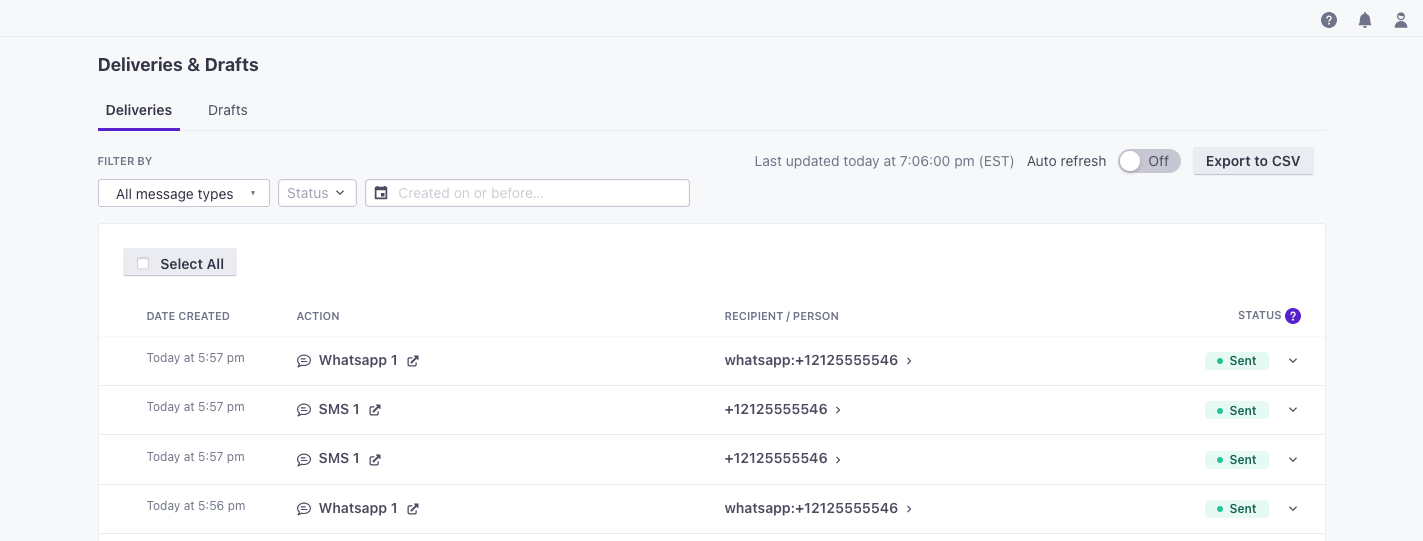
Otherwise, all of the reporting metrics that apply to SMS messages also apply to WhatsApp messages. See WhatsApp metrics and reporting for more information.
Does Customer.io know if a Twilio sender is WhatsApp-approved?
No. Unfortunately, if you send WhatsApp messages using Twilio, we cannot identify WhatsApp senders separately from your SMS senders. You can only obtain this information from the WhatsApp Senders page in your Twilio console.
Because Customer.io can’t tell the difference WhatsApp and SMS senders, you might want to add “WhatsApp” or “SMS” to your sender names in Twilio before you sync sender identities from Twilio to Customer.io. When, when you sync (or re-sync) your sender identities from Twilio to Customer.io, you’ll be able to tell the difference between SMS and WhatsApp senders in Customer.io.
A phone number doesn’t appear as a sender
If you don’t see your phone number listed as a WhatsApp sender in Customer.io:
Native WhatsApp support
- Make sure that you’ve registered the phone number you want to use as a WhatsApp sender in your Facebook Business Account. If you haven’t, you’ll need to register it before you can use it to send WhatsApp messages.
- Go to > Workspace Settings > WhatsApp and confirm that setup completed successfully. You should see your connected phone number listed there.
- If setup didn’t complete, click Connect WhatsApp Business and go through the setup flow again, making sure to complete all steps including granting the required permissions.
WhatsApp via Twilio
- Go to Twilio and check your WhatsApp senders page to confirm that your sender is listed as WhatsApp-approved. If you don’t see your sender, or it isn’t listed as WhatsApp-approved, you’ll need to register it.
- If your sender is correctly set up in Twilio, go to > Workspace Settings > WhatsApp and click Sync from Twilio.
Add ‘WhatsApp’ to your sender names
Do you support Messaging Service SIDs?
No. You must provide a single sender ID when you send a message.
Why do I get a 21212 error?
This error means that your message’s From address uses a Messaging Service SID. We don’t support Messaging Service SIDs for WhatsApp messages today. You’ll need to provide a single sender ID when you send a message.
A Messaging Service SID is essentially a pool of senders that Twilio uses to load-balance messages. See Twilio’s documentation for more information about registering WhatsApp senders with Twilio.
Do you support conversational messaging?
Yes, but you’ll need to set up specialized campaigns to support it.
Conversational messaging are one-to-one, free-form messages between you and your customers. Per WhatsApp requirements, your audience must initiate the session by texting you first. When your audience begins a session, you can send free-form replies for up to 24 hours.
To detect the start of a session, you’ll need to set up a workflow in Twilio to handle the incoming message. The process would be similar to our unsubscribe keyword process.
How do I disconnect my WhatsApp account?
You can’t revoke WhatsApp access from within Customer.io directly. To disconnect your WhatsApp account, you need to remove Customer.io from Meta’s Business Manager.
- Go to business.facebook.com.
- Go to Settings > Partners and remove Customer.io from your Business Portfolio.
- Go to Settings > Integrations > Connected Apps and remove Customer.io.
After you complete these steps, Customer.io no longer has access to your WhatsApp Business Account.
You can reconnect your WhatsApp account to Customer.io in the future. Go to > Workspace Settings > WhatsApp and click Connect WhatsApp Business to set up the connection again.

