

Automations page
Automations are automated workflows you set up to send people messages and perform other actions when they meet your criteria. This article describes what you can do on the automations page.
Click Automations in the left-hand menu to find a list of your automations. You can filter for your automations, change the default data you see, modify the state of your automations, or initiate creating one.
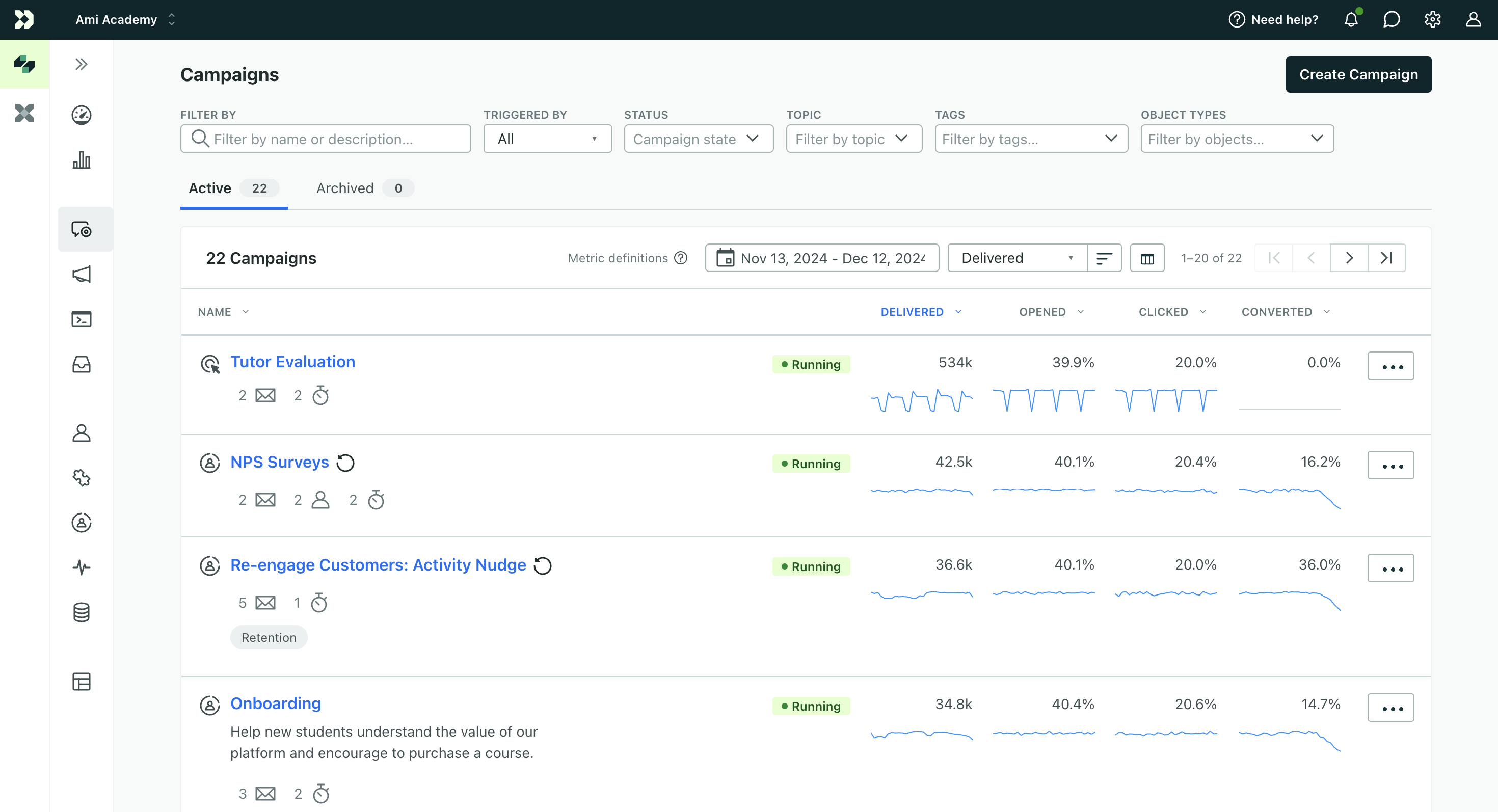
Search for automations
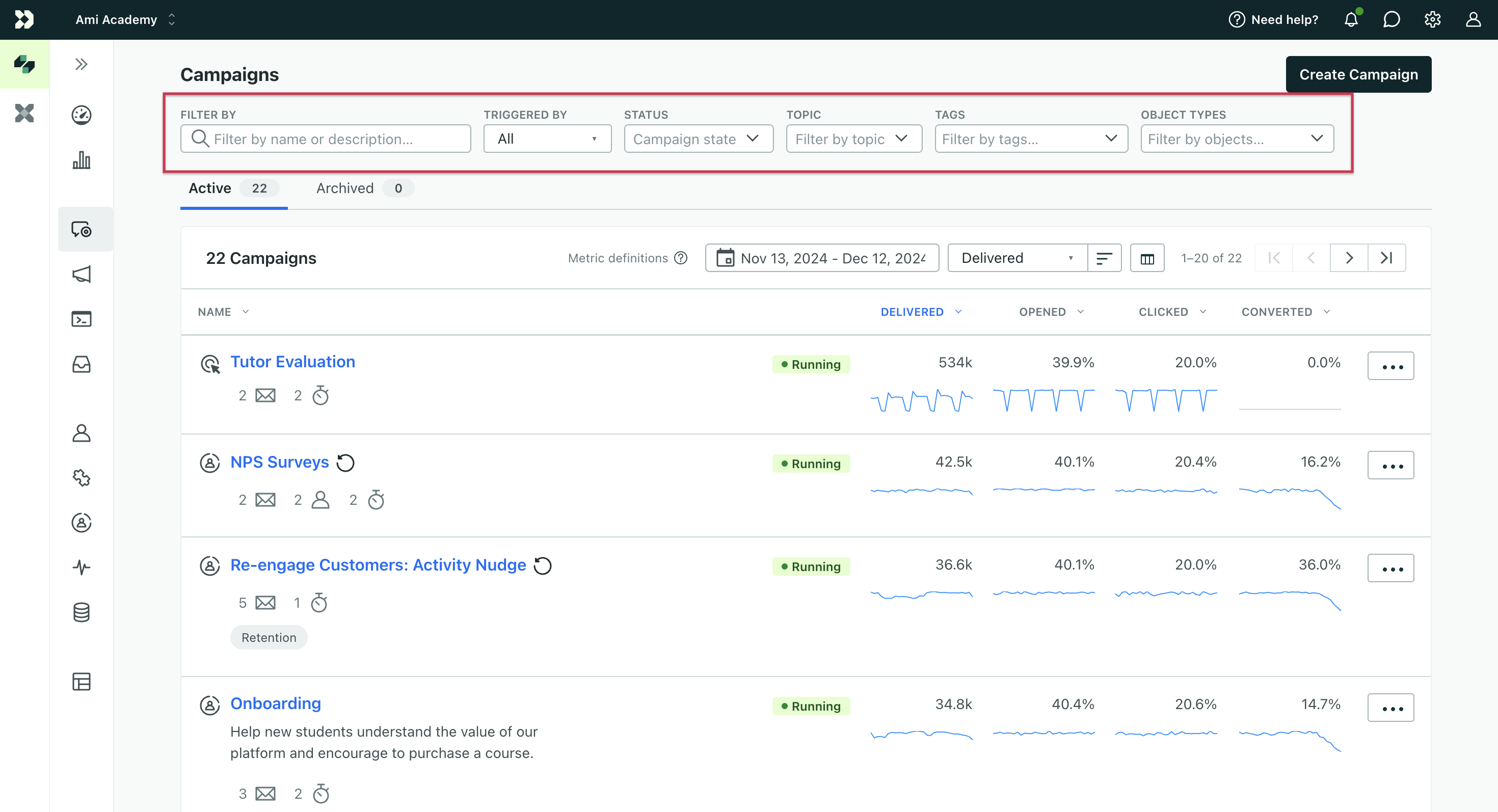
You can filter to find automations by:
- name
- description
-
trigger
A trigger determines who enters your automation and when.
- status - whether your automation is active (running) or not (draft, stopped)
- topic - the subscription preference
Customer.io's subscription center feature provides a way for customers to subscribe to, or unsubscribe from, specific topics. This helps you manage your audience's preferences and make sure that they only get the messages they're interested in.
you’ve set for messages - tags you’ve used to organize your automations in your workspace
- object types
An object type is a group of objects. An object type could be Online Classes while an object within the type could be English 101. Customer.io generates a unique, immutable
- the results include automations whose triggers are objects or relationships and automations with messages that contain object liquidobject_type_id.
Table view
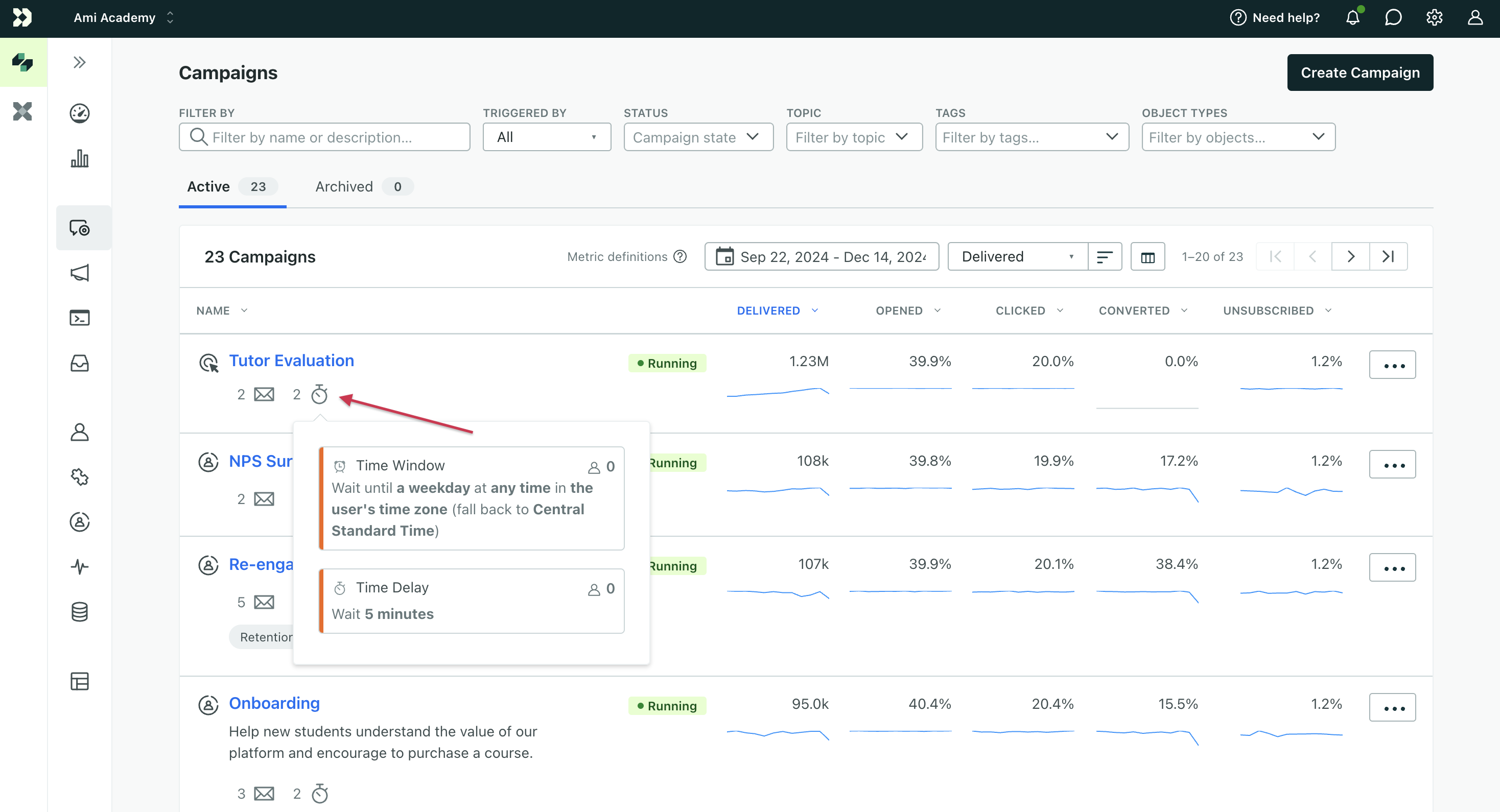
The automation list contains a series of icons to help you understand at a glance what type of automation you’re viewing.
- Each trigger type has its own icon to the left of your automation name. Hover over the icon to see which type.
- Each automation also lists the types of messages and actions you’ll find. Hover over each to see a list of each action.
Modify the default display
Click the table icon to change the view of your automations. This will only the change the default view for you, not other team members.
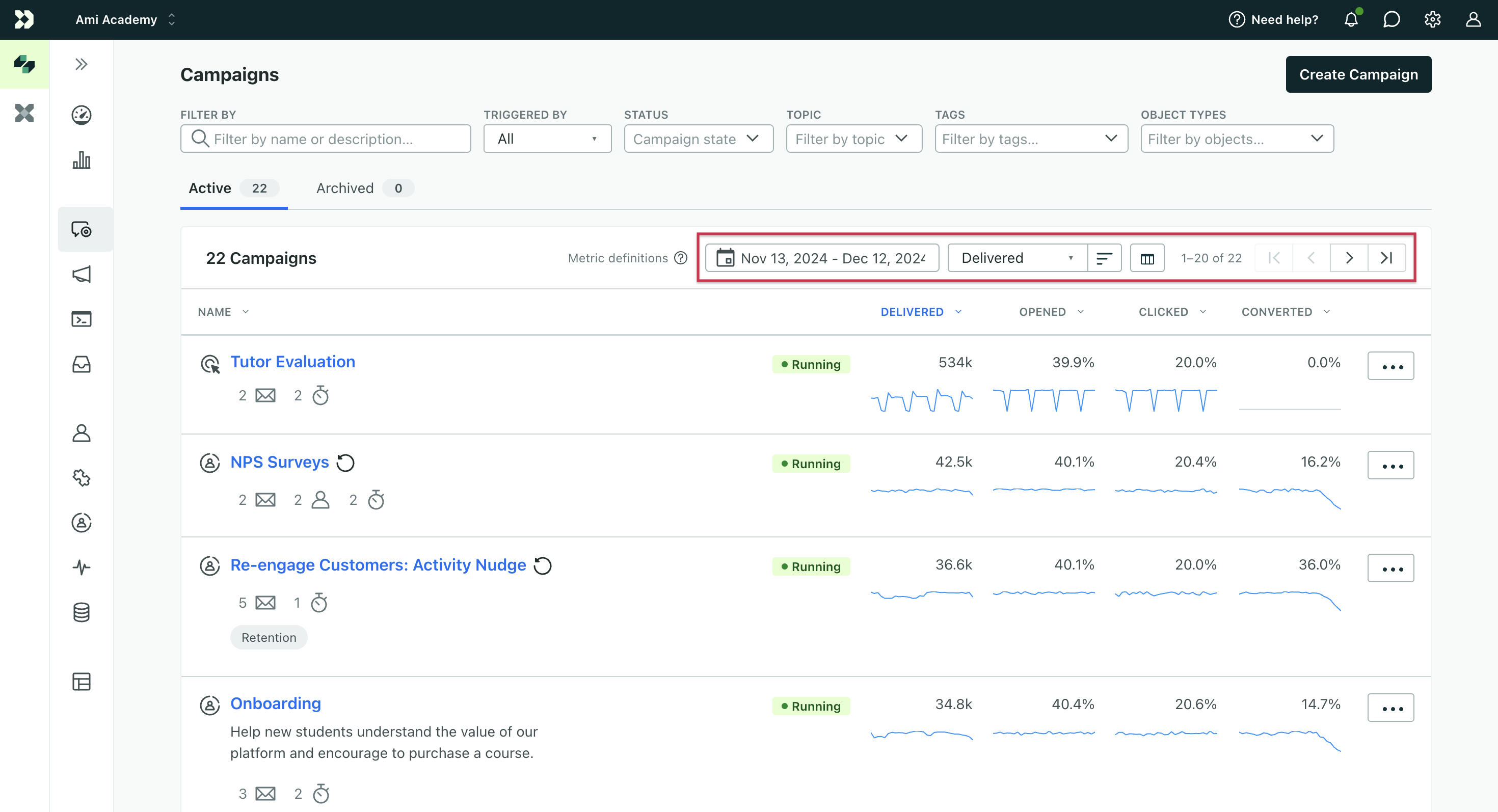
You can change the display based on automation data like name and metrics. Adjust the date range, which metrics appear, and what data to sort by.
You can view 20 automations per page.
Change state
You can also change the state of an automation from the landing page.
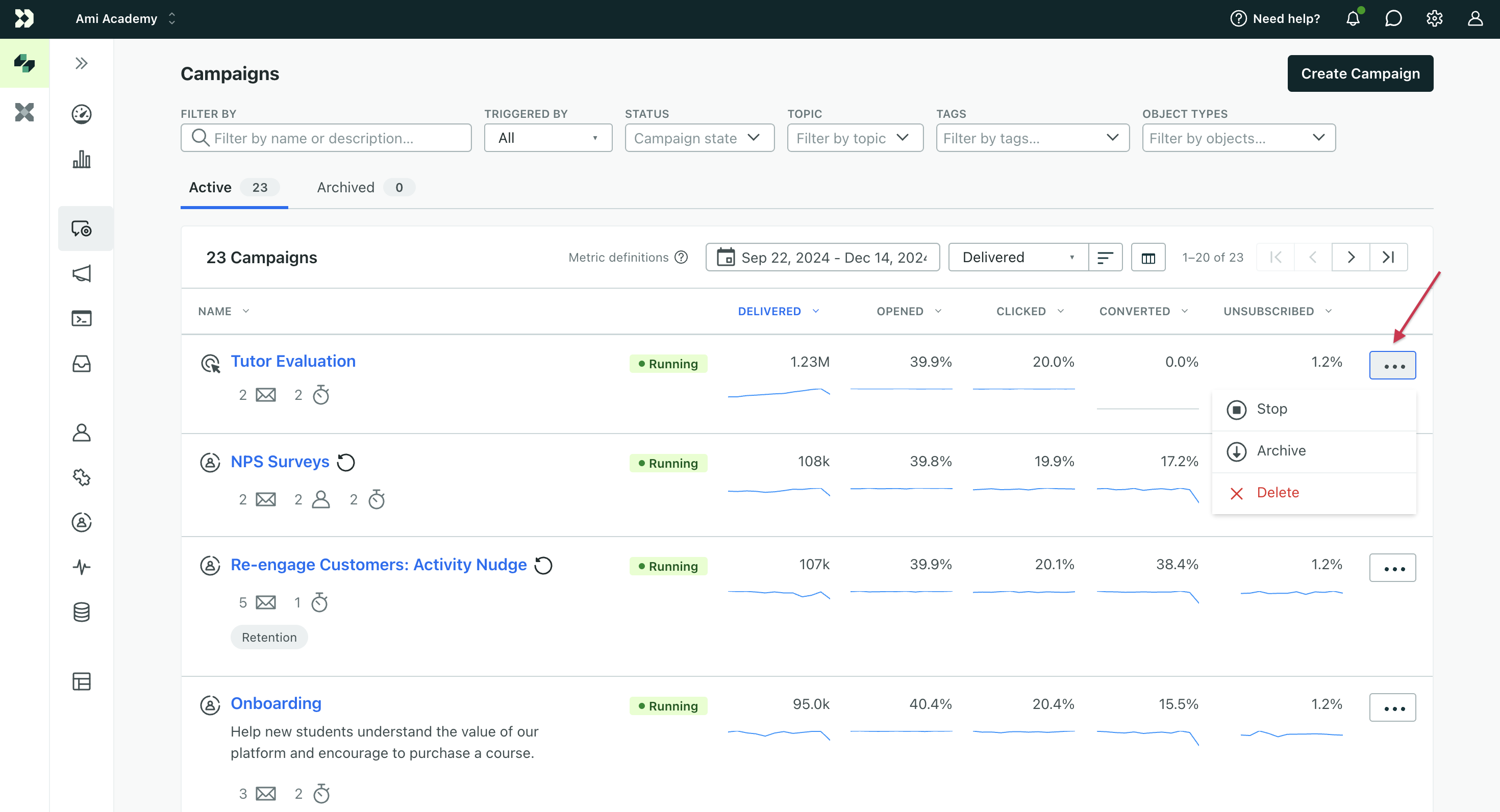
You can’t start an automation from this view. To stop, schedule a stop for, archive, duplicate, or delete an automation, click the three dots to the right of it. The menu only shows the actions that fit the automation’s current state. For example, Stop now and Schedule stop only appear for running automations, and an archived automation shows Unarchive instead of Archive.