Line: Get Started
UpdatedGet started using LINE to send messages to your customers as part of your triggered campaigns!
Set up LINE
Before you connect LINE to Customer.io, you need:
- A LINE Official Account with the Messaging API enabled
- A Messaging API channel in the LINE Developers Console
If you haven’t done these things yet, follow LINE’s getting started guide to create an account and enable their Messaging API.
Get your channel access token
To connect LINE to Customer.io, you’ll need your LINE API key. This is the channel access token for your Messaging API channel.
- Go to the LINE Developers Console and select your provider.
- Select your Messaging API channel.
- Go to the Messaging API tab and scroll to the Channel access token section. Click Issue to generate a token and copy it.
Connect LINE to Customer.io
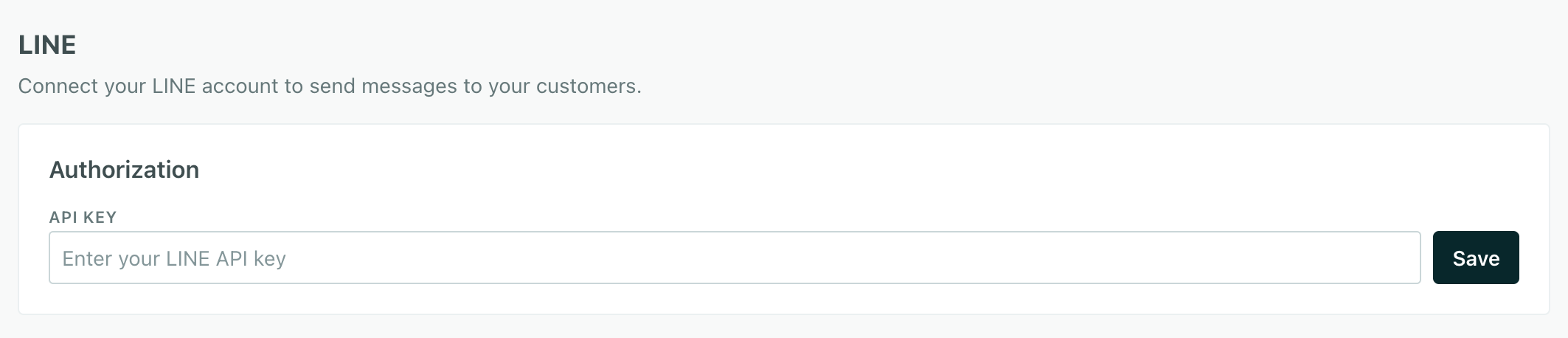
- Go to Data & Integrations > Integrations > Add Integration and select LINE.
- Paste your channel access token into the LINE API key field.
Set up LINE webhook to track metrics
You’ll set a webhook in your LINE account to send metrics back to Customer.io—things like message deliveries, opens, and so on.
- Go to the LINE Developers Console and select your Messaging API channel.
- Go to the Messaging API tab and find the Webhook settings section.
- Set the Webhook URL to
https://track.customer.io/inbound/lineand make sure that the Use webhook setting is enabled.
This webhook also handles follow and unfollow events. When someone follows your LINE Official Account, we automatically create a profile in Customer.io with their LINE ID. When someone unfollows, we update their profile accordingly.
Backfill existing LINE users
If you already have followers on your LINE Official Account and want to import them into Customer.io, your account must be Verified or Premium in LINE. Contact your Customer.io account manager and we’ll help you backfill your existing audience.
Now you’re ready to send messages using LINE!
LINE IDs: Identifying your audience
The LINE ID is not the same as a user’s display name or the typical ID that people use to become searchable by friends.
A user’s LINE ID is a unique identifier that they get per provider, where a provider essentially represents your business or a subsidiary of your business. That means that, in most cases, people will have a single LINE ID per workspace—though they could have multiple LINE IDs if you serve multiple businesses or providers from the same Customer.io workspace.
When someone follows or unfollows your LINE account, we automatically create a profile in Customer.io for them with their LINE id. You should send messages to new followers inviting them to go to a website or app that you own, where people can self-identifyThe Customer.io operation that adds or updates a person. When you identify a person, Customer.io either adds a person if they don’t exist in your workspace, or updates them if they do. Before you identify someone (by their email address or an ID), you can track them anonymously.. This will let you associate their LINE ID with their profile in your workspace and act as a bit of a two-factor opt-in path for your audience.
If you don’t do this, you’ll have line IDs in Customer.io that are effectively anonymous; by itself, a LINE ID doesn’t tell us much about the user. That’s not necessarily a problem—you can still send these people messages. But people with just a LINE ID likely won’t have meaningful attributes that you’d normally use to set up behavioral campaigns or personalize messages.
your LINE account] --> b[We create a profile
in Customer.io for them] b --> c[User receives
LINE message] c --> d[User visits
your website or app] d --> e[User self-identifies
e.g. logs in or fills a form] e --> f[Your app sends
LINE ID + identity
to Customer.io] f --> g[LINE ID linked
to person's profile]
Merging users with multiple LINE IDs
While people can have multiple IDs in LINE, or could generate new IDs over time, they’ll only have one line_id attribute in your workspace. We have some logic in place to make sure that we store and use the correct, canonical line_id for any given recipient.
When you identify a user with a LINE ID, we’ll automatically look up the user’s LINE ID to see if it belongs to a profile in your workspace. If the person already exists, we’ll merge the profile with the new LINE ID to the existing profile.
When you send a message, we’ll send to the correct profile based on the LINE ID.
multiple LINE IDs] --> b[Customer.io looks up
the correct LINE ID] b --> c[Customer.io merges
the profile with the
correct LINE ID] c --> d[Person receives
the correct LINE message]
Merging new LINE IDs will temporarily increase your profile count

