# Link Tracking
When link tracking is enabled, we track clicks to help you understand how people are engaging with your messages in campaigns, broadcasts, and transactional use cases.
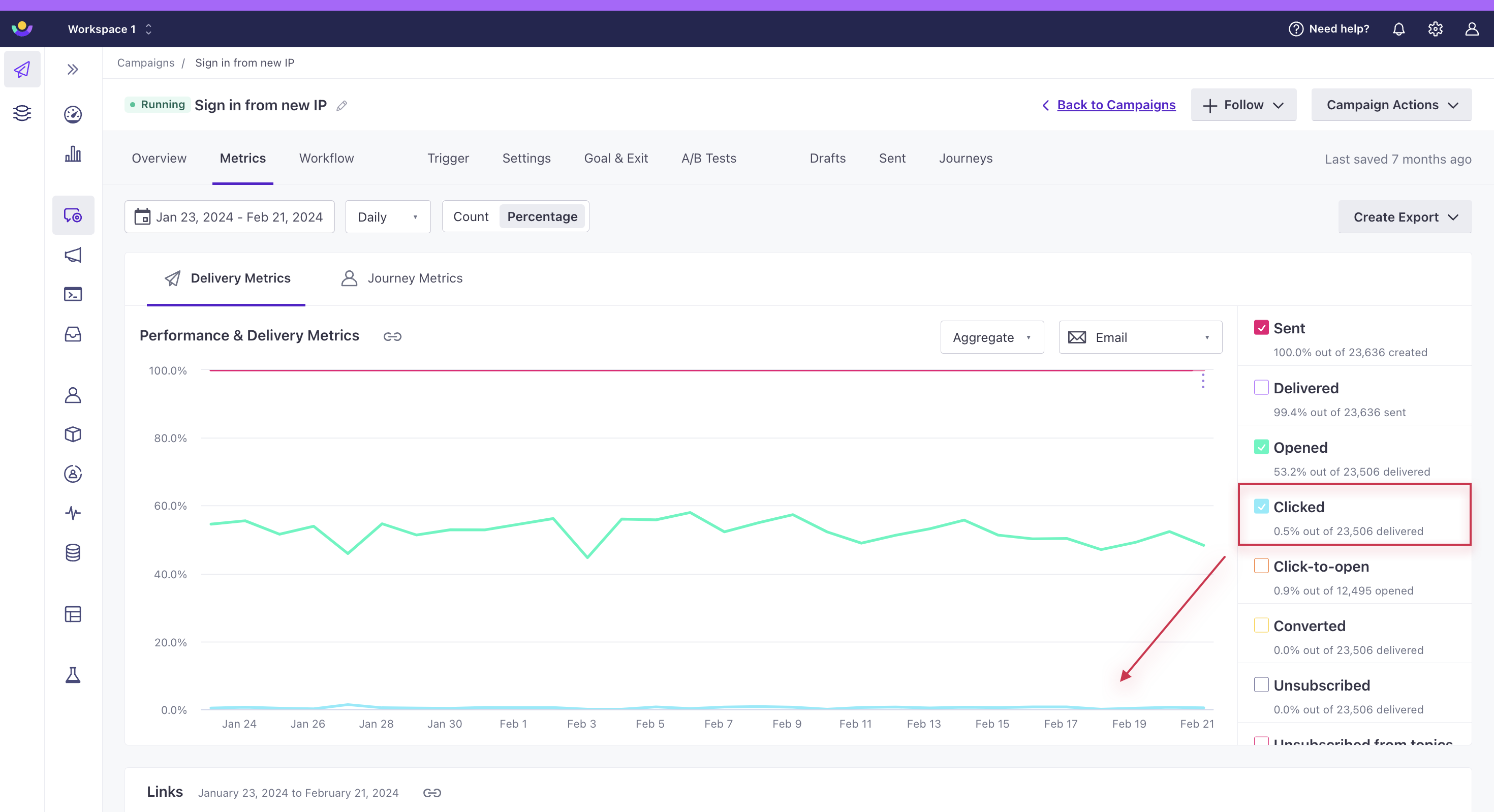
We track the number and percentage of recipients who clicked links in your messages:
[](#c885209ca1be970176e90cc640e50839-lightbox)
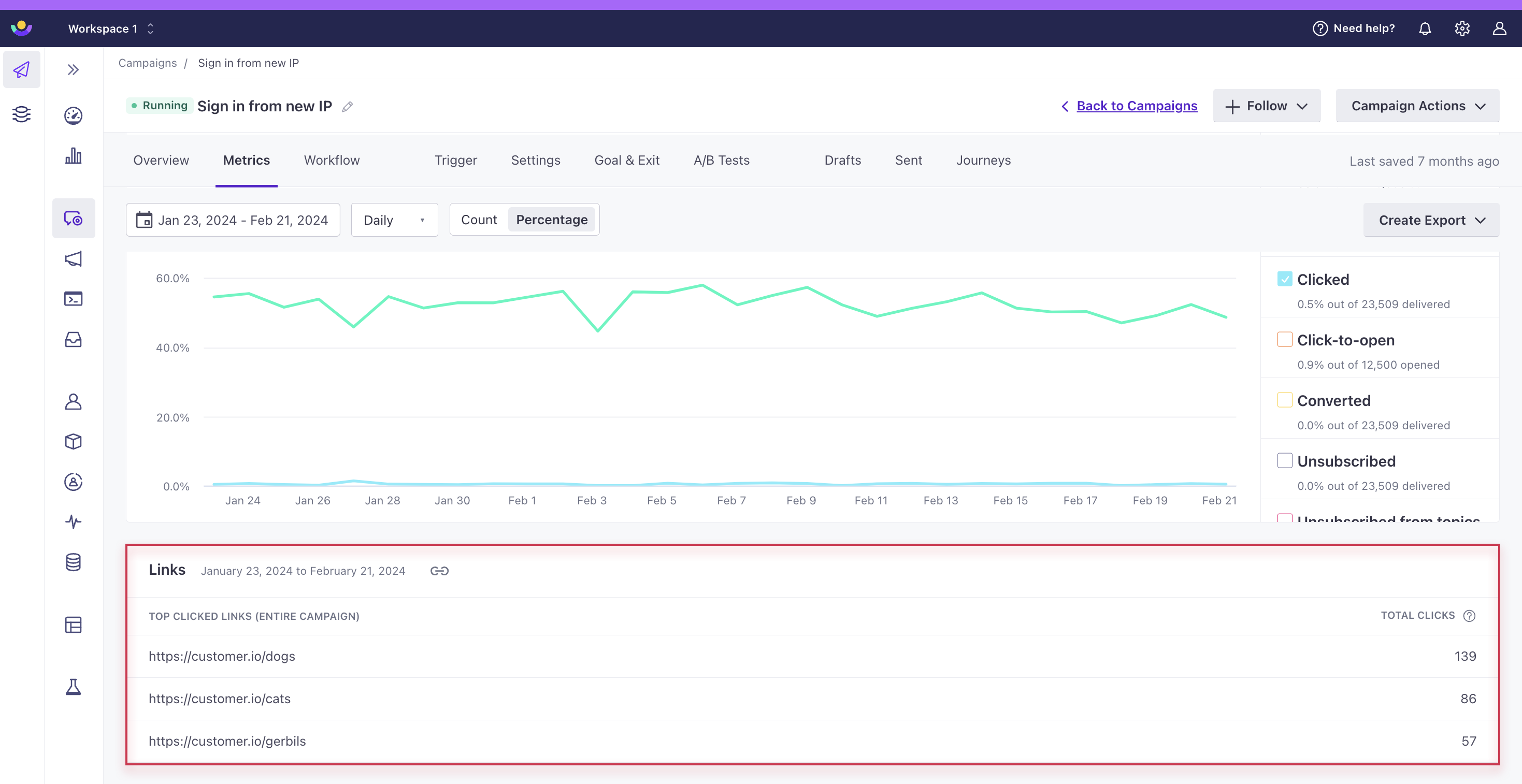
We also track which links they clicked:
[](#e48572b53176cd5ab4113f687d4d2767-lightbox)
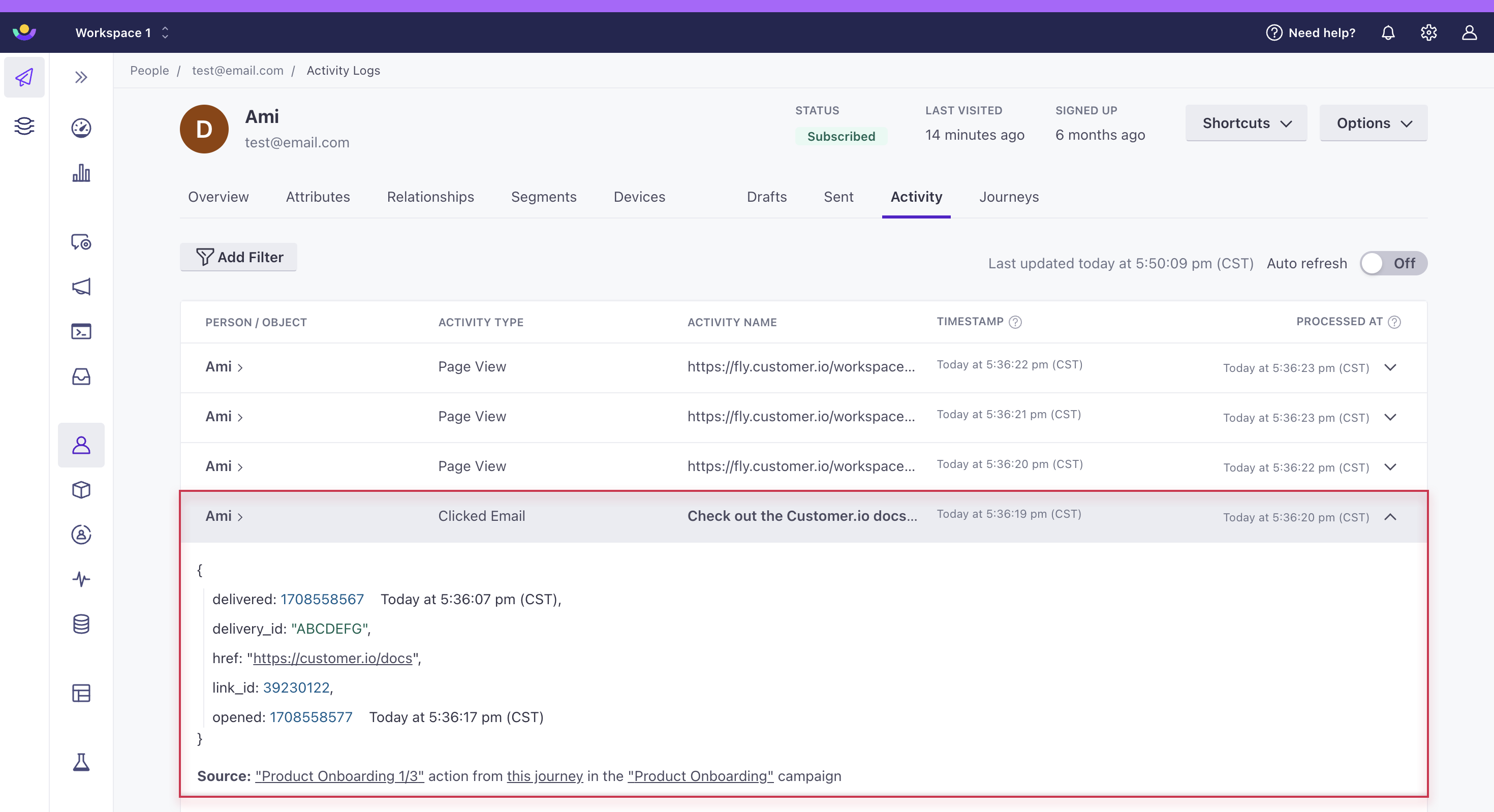
You can view clicked links on a person’s profile through the **Activity** tab by expanding a **Clicked** action entry:
[](#fc75ebd1cf74db4e296bd395c2caad9d-lightbox)
Your links must include the protocol—HTTP or HTTPS
We can’t track links if you don’t include the protocol. To generate secure HTTPS links, visit [HTTPS Link Tracking](/journeys/https-link-verification/).
## Emails[](#emails)
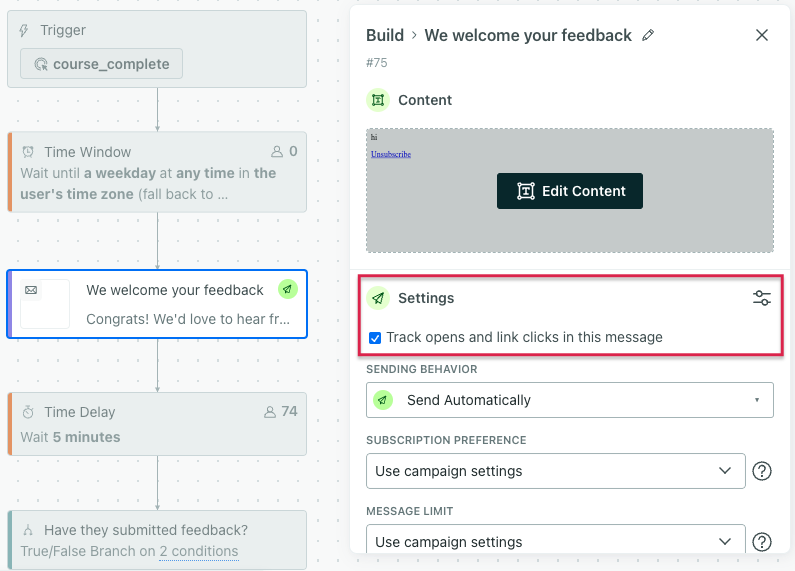
For campaigns and API-triggered broadcasts, link tracking is enabled for emails in your workflows by default. While editing the workflow, tap the email you want to edit and a panel of options will appear on the left:
[](#fd3a207b1503906e57af7ede0a15056a-lightbox)
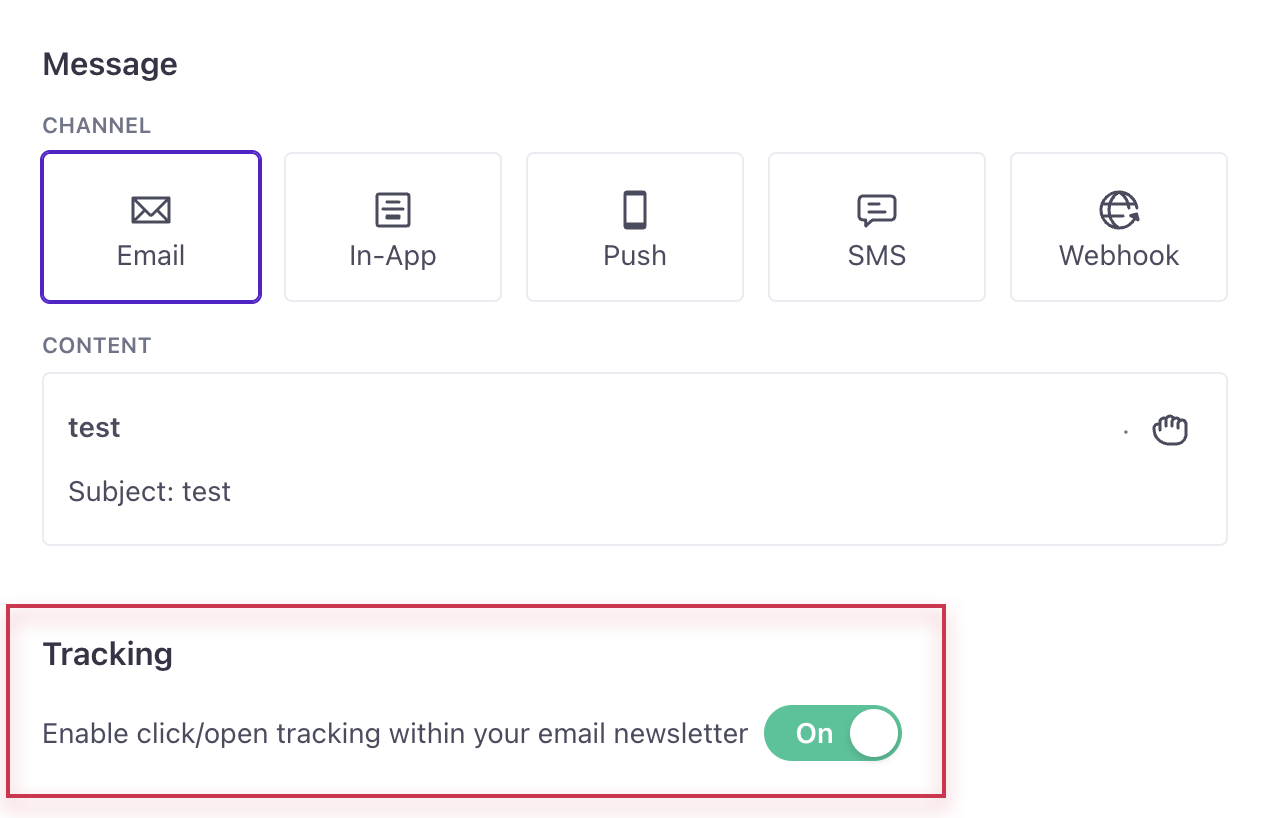
For newsletters, you can enable/disable link tracking for the whole message on the **Content** tab during setup:
[](#b560360391c29580bc0ddf14b302e20f-lightbox)
### Tracking personalized links in transactional emails[](#tracking-personalized-links-in-transactional-emails)
To track personalized links in transactional messages, you must populate your links using liquid. Use attributes or trigger properties—like `{{trigger.custom_url}}`—to enter custom URLs.
If you provide custom URLs directly in the `body` or `subject` of a [transactional `/send/email` request](/integrations/api/app/#operation/sendEmail), you should use `data-cio-tag` to group links together for reporting purposes:
`CLICK HERE`
If you enter fully personalized URLs (without liquid) in the `body` or `subject` of a transactional API request and enable link tracking, Customer.io will track a new link for each transactional message you send, cluttering link tracking metrics.
## Tracking links in other message types[](#other-message-types)
By default, link tracking is enabled for emails, SMS, and WhatsApp messages. It is **not** enabled for other channels by default. In the case of push and in-app notifications, this is because our SDKs report clicks back to Customer.io.
Wherever link tracking is disabled, or whenever you want to track `mailto` links, you can use the [liquidA syntax that supports variables, letting you personalize messages for your audience. For example, if you want to reference a person’s first name, you might use the variable `{{customer.first_name}}`.](/using-liquid) `cio_link` tag in the format`{% cio_link url:https://example.com %}`
Beyond the `url` field, you can also add `track` and `url_params` to your link. By default, both are `true`:
* A true value for `track` means you would like Customer.io to track this particular link.
* A true value for `url_params` indicates you would like Customer.io to add your URL parameters to this particular link. (Workspace-wide URL parameters are configured in your [workspace settings](https://fly.customer.io/workspaces/last/settings/actions/url_params).)
`{% cio_link url:https://example.com track:true/false url_params:true/false %}`
This would become:
```fallback
http://e.customeriomail.com/e/c/eyJlbWFpb29pZCI6IlJLS2hBZ01BQVhKaVBtS2pKeGtWWllCME21N0Qzdz09IiwiaHJlZiI6Imh0dHBzOi8vZmFucy5jb20vaG91c2Utc7VsZXMvIi7ibGlua19pZCI7NTkwMTE5NzMsInBvc7l0779uIjoyMH0/e72cf17efa292d48f56d65535b3f7c45fe75d2365bf18caa1aebcaf6a2632c66
```
Enable link shortening for SMS and WhatsApp messages
SMS and WhatsApp messages have character limits, so you should [enable link shortening](/journeys/sms-link-shortening/) to make sure that your links fit in your messages.
URL parameters can get in the way of links to telephone numbers. [Learn more about disabling URL parameters for phone numbers](/journeys/url-parameters/#disable-url-parameters-for-phone-numbers).
### Tracking links in WhatsApp messages[](#tracking-links-in-whatsapp-messages)
To track links in WhatsApp messages:
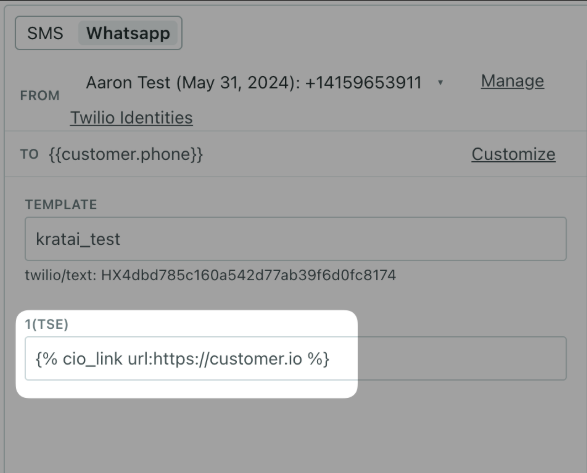
* **Links must be in variable fields**: You cannot add links directly to messages. Instead, you must create a variable field for your WhatsApp template and add the link when you compose your message.
* **Use the `cio_link` liquid tag**: When adding links in variable fields, you must use the `cio_link` liquid tag format: `{% cio_link url:https://example.com %}`
We don’t support link tracking for things like Call-to-Action (CTA) buttons.
[](#2b2706d4c6c70bbde105d11d853bc044-lightbox)
## Counting link clicks[](#counting-link-clicks)
There are two ways of counting clicks in Customer.io. Which way is better depends on the information you need!
1. **Total clicks**: For each tracked link in a given campaign or newsletter, you can find this in the “Top Clicked Links” metric in the campaign overview or newsletter report.
[](#e48572b53176cd5ab4113f687d4d2767-lightbox)
Total Clicks is the number of times each link has been clicked, which includes multiple clicks on the same link from the same user. This is not a count of unique links.
Want to group links together in reports?
You can use the tag `data-cio-tag` to track links of the same type—like all of your password reset links or all of your links to your users’ dashboards. This helps you gather usable metrics for links that include personalized variables.
`CLICK HERE`
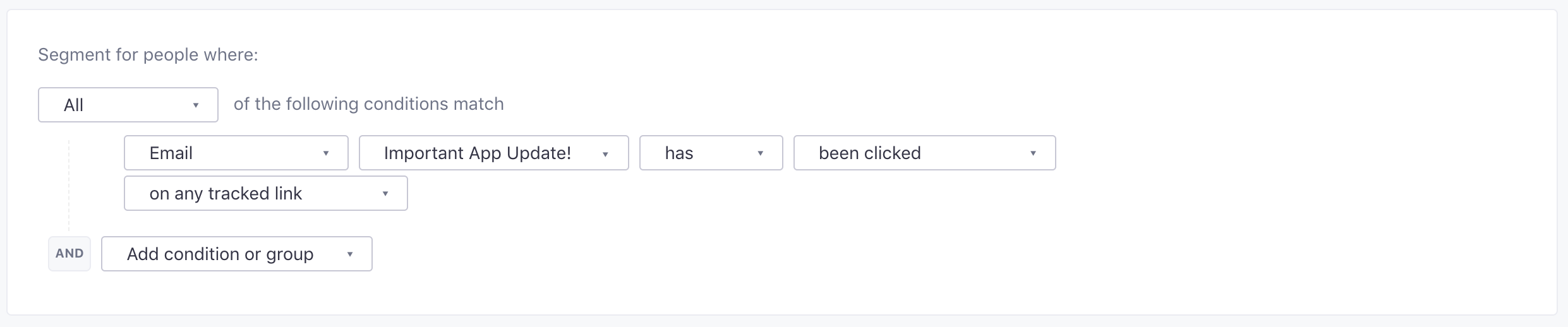
2. **Unique clicks**: For a given tracked link, create a segment for the link you’d like to track, like this:
[](#8f24f5e2ef66abf18024de05f8a5fb58-lightbox)
Then, when you save this segment, you’ll see how many people it contains. This is the number of unique clicks.
## Automatically identify people who click tracked links[](#auto-identify)
By default (for workspaces created after July 12, 2021), Customer.io automatically appends a `_cio_id` parameter containing a person’s [cio\_idAn identifier for a person that is automatically generated by Customer.io and cannot be changed. This identifier provides a complete, unbroken record of a person across changes to their other identifiers (id, email, etc).](/identifying-people/#cio_id) to tracked linksA link in a message that logs when a person clicks it. You can gather metrics for tracked links and use them to determine your audience’s level of engagement..
* If your tracked link sends people to a webpage containing our [JavaScript library](/integrations/data-in/connections/javascript/js-source/#auto-identify), which we recommend, **you’ll need to append links with `ajs_uid=cio_{{customer.cio_id}}`** to automatically identify people. See our [JavaScript documentation](/integrations/data-in/connections/javascript) for more information.
* If your tracked links send people to a webpage containing our [legacy JavaScript snippet](/integrations/data-in/connections/javascript/legacy-js/getting-started/), **the snippet automatically identifies people**.
Even if you don’t use our JavaScript Snippet, you can still take advantage of the `_cio_id` parameter in tracked links to identify people. If you integrate directly with our API or one of our [libraries](https://github.com/customerio/), you can [identify people](/api/track/#operation/identify) using `cio_<_cio_id-param-value>` rather than a person’s ID or email address.
To change or disable this setting:
1. Go to [*Workspace Settings > URL Parameters*](https://fly.customer.io/workspaces/last/settings/actions/url_params).
2. If you already have URL parameters enabled, click **Settings**; otherwise, click **Get Started**.
3. Toggle **Add \_cio\_id URL parameter**.
[](#e43adffa304acb89028ae65a0ae2e001-lightbox)
This setting affects messages you send after you enable or disable it. It does not affect messages that you’ve already sent.
## Security and privacy[](#security-and-privacy)
Our tracked links are securely sent over HTTPS by default. But you should **not** enable link tracking for links that contain secure or private information such as password resets or time-limited downloads.
If you want to track links with your custom subdomain using HTTPS, configure [HTTPS link tracking](/journeys/https-link-verification/).
If [HSTS](https://en.wikipedia.org/wiki/HTTP_Strict_Transport_Security) (HTTP Strict Transport Security) is enabled on your domain, you **must** configure HTTPS Link Tracking or your tracked links will not resolve correctly.
We surface links in activity logs and campaign metrics.
This means your URLs are visible in your workspace, so to keep these private, **we strongly recommend disabling link tracking for sensitive links**.
## Disable tracking for specific links[](#disable-tracking-for-specific-links)
If you’d like to prevent tracking for specific links within emails, you’ll want to add `class="untracked"` to the anchor element, like this:
`CLICK HERE`
### Design Studio[](#design-studio)
Within the visual editor of Design Studio, you can disable link tracking for specific links by turning off the [Track link toggle](/journeys/standard-components/#disable-link-tracking-for-specific-links).
### Drag-and-drop editor[](#drag-and-drop-editor)
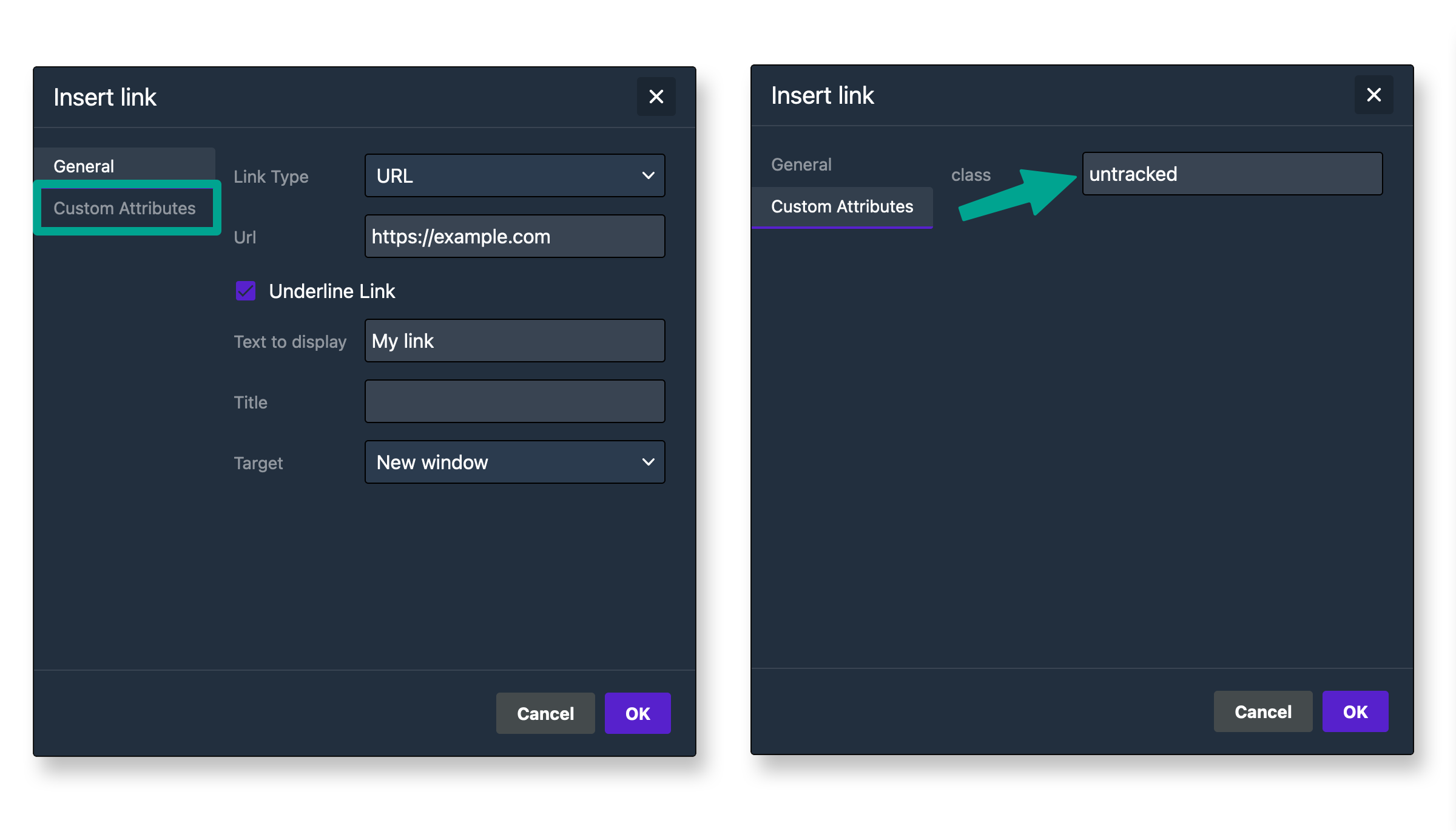
If you’re using the drag-and-drop editor, you can remove tracking on specific text links by highlighting the text and then clicking *Edit Link.* From there you can add the `untracked` class under the **Custom Attributes** section.
[](#26299c583883d392ce779c51e8deaf24-lightbox)
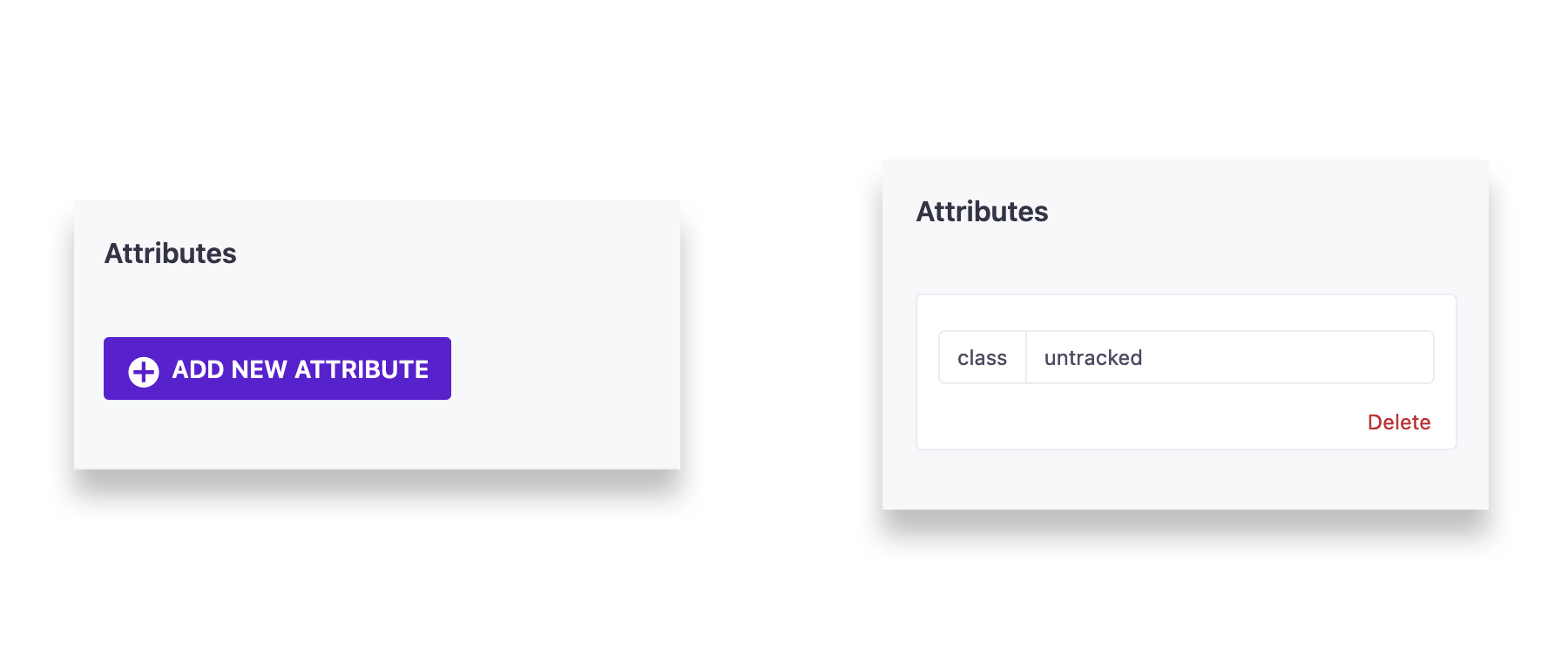
You can also disable link tracking on **Buttons** and **Images** in the drag-and-drop editor by clicking on the content block and then scrolling down to the **Attributes** section of the Content Properties menu. There you can add a **class** attribute with a value of `untracked`.
[](#ff36f989daaef572873d1981befc4176-lightbox)
Need to disable link tracking and URL parameters on the same link?
You can add both the `disable-url-params` and `untracked` classes to the same class attribute in the drag-and-drop editor. Just be sure to leave a space between the two class names.
See the [URL parameters](/journeys/url-parameters/#disable-params) page for help disabling URL parameters.
## Disable link tracking for individual messages[](#disable-link-tracking-for-individual-messages)
If you’d like to **disable tracking for all links in an email, SMS, or WhatsApp message**, go to the workflow in your campaign or api-triggered broadcast. Click the email you’d like to disable tracking for and uncheck “Track opens and link clicks in this message” on the left.
[](#fd3a207b1503906e57af7ede0a15056a-lightbox)
This will disable open and click tracking for that particular email only. If you want to disable tracking for a whole campaign, you will have to disable it in each email.
You can also [disable open tracking](/journeys/workspaces/#disable-open-tracking) for all messages sent from your workspace. This prevents emails from tracking opens, even if the *Track opens and link clicks in this message* setting is enabled at the message level.
## Disable link tracking for a newsletter[](#disable-link-tracking-for-a-newsletter)
You can disable link tracking in a newsletter through the **Content** tab during setup:
[](#b560360391c29580bc0ddf14b302e20f-lightbox)