Customer.io Customer.io
  • Log In
Book demo Start trial
  • Platform
  • Pricing
  • Customers
  • Docs

Request Demo Sign In
  • Get Started
    • Welcome to Customer.io
    • Quick start guide
    • Academy: Structured Learning
    • 1. Create your workspace
    • 2. Set up message channels
    • 3. Integrate with Customer.io
    • 4. Add people
    • 5. Send events and make segments
    • 6. Start sending campaigns and workflows
  • Journeys
    • Introduction to Journeys
    • People & Events
    • Objects & non-people data
    • Segmentation
    • Design Studio
    • Campaigns & Workflows
    • Message Channels
    • Liquid & Personalization
    • Metrics
  • Integrations
    • Integration Directory
    • Get Started
    • Data In
    • Data Out
    • APIs
      • Pipelines API
      • Track API
      • App API
      • Reporting Webhooks
      • Comparing the Pipelines and Track APIs
    • Mobile SDKs
      • iOS
      • Android
      • React Native
      • Expo
      • Flutter
    • Account Verification
    • Audit Logs
    • Billing
    • Your Account
    • Workspaces
    • Privacy & Security
    • Troubleshooting
  • AI Features
    • Use Customer.io with AI
    • Use AI features responsibly
    • Ask the Assistant
    • Our MCP Server
    • Segment builder
    • Email content analysis
    • In-app message suggestions
    • In-app survey analysis
    • Use our docs with AI
  • Releases
    Releases

    Latest features at Customer.io

    Automate domain warming with Daily ramp for newsletters
    2026-03-30

    You can now set a daily ramp period when rate limiting newsletters, which gradually increases your send volume over multiple days to warm up your …

    Live preview for in-app messages
    2026-03-30

    Our new Live Preview makes it easy to see and adjust your in-app messages in real time, so you can make sure they look and behave the way you want …

    Send in-app tooltips to educate your audience
    2026-03-30

    We’ve added a new Tooltip display type for Web-based in-app messages that anchors your message to a specific element on a page, like a button, …

  • Welcome to Customer.io
  • Quick start guide
  • Academy: Structured Learning
  • 1. Create your workspace
  • 2. Set up message channels
  • 3. Integrate with Customer.io
  • 4. Add people
  • 5. Send events and make segments
  • 6. Start sending campaigns and workflows
  • Introduction to Journeys
      • People and their profiles
      • Add or update people
      • How to identify people
      • Manage customer attributes
      • Manage devices
      • Resolve duplicate people
      • What's the Last Visited field, and how do I use it?
      • Delete people and suppress profile IDs
      • Export a person's data
      • Export data for multiple people
    • Storing and using JSON
    • Events
    • Import people or events via CSV
      • Searching and filtering people
      • Filter Activity Logs
      • Using your Data Index
      • How do I know what data I have available?
      • Anonymous people
      • Anonymous activity
      • Merging anonymous activity
      • Anonymous events
    • How do I create multiple subscription types?
    • Shortcuts to external services
    • Overview: Objects vs Collections
      • Objects: how they work
      • Objects: video tutorials
      • Object types
      • Objects
      • Relationships
      • Import objects or relationships via CSV
      • Export objects or relationships via CSV
      • Objects and relationships in campaigns
      • Use objects in liquid
      • Upsell: monetize power users
      • Adoption: drive feature usage
      • Awareness: announce events
      • Conversion: activate people on your event waitlist
    • Collections
    • How segments work
    • Build segments with AI
    • Data-driven segments
    • Manual Segments
    • Segment mobile device audiences
    • Ad Audiences
    • Timestamp Conditions
    • Using JSON in segments
    • Timestamp Conditions FAQ
    • Timestamp Rules for Building Segments
    • Why don't people match 'within the past X days' conditions?
    • Setting Up Segments for Specific Purposes
    • Welcome to Design Studio!
      • Manage your files
      • Keyboard shortcuts
        • Set global styles
        • Dark mode
        • Responsive styles
        • Get started
        • Style individual messages
        • Add & preview liquid
        • Get started
        • Validate your email
          • MJML framework
          • CSS inlining
          • Formatting
          • Set URL parameters for a single message
          • CSS cleanup
          • CSS variables
          • Accessibility fixes
        • Use Emmet syntax
        • Use MSO syntax
      • Preview email in Design Studio
        • Connect an email to an automation
        • Edit connected messages & publish changes
        • Disconnect an email from an automation
      • Understand components
      • Add components to your message
      • Understand and style standard components
        • How to create & edit a component
        • Create a component from scratch
        • Create modifiable, placeholder content
        • Style custom components
        • Delete a component
          • Understand syntax
          • Add conditionals & directives
          • Loop through data
          • Create a stylesheet
        • Migrate components from Parcel
      • How to collaborate
      • Submit & manage feedback
      • Manage version history
      • Send a test message
    • Campaigns, broadcasts, and transactional messages
    • Tags
      • Campaign concepts & settings
      • Campaign journeys
      • Create a campaign
      • Campaigns page
      • Triggers, filters, and frequencies
      • When to use filters
      • Goals & conversion criteria
      • Exit conditions
      • Schedule a campaign
      • Change the state of a campaign
        • Why aren't people entering my campaign?
        • Why aren't people receiving my message?
        • Edit triggers, filters, or frequencies
        • Edit goals
        • Edit workflows
        • Webhook campaigns
        • Send event
        • Batch update
        • Follow up on NPS responses
        • Sync customers from Stripe to Customer.io
        • Campaign for syncing Mixpanel cohorts
        • Slack notification for support tickets
      • Grace periods
      • Our Recipe Book
      • Send a Welcome Email
      • Birthday and Anniversary Campaigns
      • Cart Abandonment
      • Double Opt-In
      • Onboarding Campaign
      • Optimize emails with Just Words
      • Trial expiration reminders
      • Cohort tests
      • Trigger campaigns based on Roles
      • RSS Feed Email Campaign
      • Reminders for multiple upcoming trips
      • Introduction to broadcasts
      • Newsletters
      • API-triggered broadcasts
      • Personalize messages with trigger data
      • Format API-Triggered Broadcasts
      • Edit live API-triggered broadcasts
      • Common API-Triggered Broadcast errors
      • Getting started: key concepts
      • Set up a transactional email
      • Set up a transactional push
      • Set up a transactional SMS
      • Transactional examples
      • Common transactional API errors
      • Frequently Asked Questions
      • Campaigns with transactional messages
      • Workflow builder
      • Send event
      • Batch update
      • Conditions
      • Holdout tests
      • A/B tests
      • Copy workflow items
        • Create or update person
        • Set journey attributes
        • Fix typos in attributes
        • Reformat timestamp attributes
        • Types of branches
        • Multi-Split Branches
        • Random Cohorts
        • True/False Branches
        • Exit Blocks
        • Time Window
        • Wait Until...
        • Randomized delay
        • Send and receive data with webhook actions
        • Configure reusable webhooks
        • Send in-app messages using webhooks
        • Web push with webhooks
        • Send direct mail with Lob
      • Default sending settings
      • Sending behavior options
      • Queue Draft for Campaign QA
      • Geolocation and time zone data
      • Recommended send time
      • Send messages in users' time zones
      • Supported time zone formats
      • Message Limits
      • Email: Getting Started
      • Transitioning to Customer.io as a sender
      • Introduction to Creating Emails
      • Test your emails
      • Email Attachments
        • Email Deliverability Best Practices
        • Domain Authentication
        • Delete a domain
        • Domain warming
        • Track links with your domain
        • IP addresses: shared vs dedicated
        • Email suppression lists
        • Google Postmaster Tools
        • Custom unsubscribe links (RFC 8058)
        • Authenticating for Apple Private Email Relay
        • Verify deliverable email addresses with Kickbox
          • Use Your Own SMTP Server
          • Using Multiple SMTP servers
          • Use your Mailgun Account
          • Use your Mailjet Account
          • Use your Mandrill Account
          • Use your Postmark Account
          • Use your SendGrid Account
          • Use your Sparkpost Account
          • Use your Oracle Dyn Account
        • Choose the right email editor
        • Drag-and-Drop Emails: The Basics
        • Drag-and-Drop Editor FAQ
        • Troubleshooting Your Drag-and-Drop Emails
        • Email code editor
        • Introduction to Email Layouts
        • Customizing Email Layouts
        • Archiving Old Layouts
        • HTML and CSS Email vs. Web
        • CSS pre-processing
        • AMP for email
        • Adding a view in browser link
        • Resources for templates, code, and best practices
        • Adapting Foundation's Basic template
        • Adapting MailChimp's Two-Column template
        • How do I add an avatar/logo to my emails?
        • Set Custom Email Headers
        • Set custom preheader/preview text
        • What does the Fake BCC option do?
        • Create multiple from addresses
        • Welcome Email Copy
        • Gmail Promotions
        • Send data from Customer.io to Salesforce, Highrise or another CRM
        • Code editor: send Trustpilot reviews
      • Get started
      • Integrate your app
      • Migrate from another provider
      • Registering device tokens
      • Send push notifications
      • Custom push payloads
      • Test push notifications
      • Push metrics and message statuses
      • Best practices for push notifications
      • Frequently Asked Questions
      • Troubleshooting mobile issues
      • Get Started
      • Send SMS/MMS messages
      • Link shortening
        • Getting started
        • Inbound statuses and activities
        • Respond to inbound keywords
      • Senders
      • Tracking
      • Frequently Asked Questions
      • Smart character encoding
      • Opt-out keyword handling
      • Validate Mobile Phone Numbers
        • Getting a phone number
        • Update your privacy policy for SMS
        • Opt-in and out flow
        • Brand and campaign registration
        • What kind of phone number do I need?
        • HIPAA compliance and privacy regulations
      • Get started
      • Set up your website
      • Send in-app messages
      • Global styles for in-app messages
      • Anonymous messages
        • Set up your notification inbox
        • Send inbox messages
        • Trigger inbox messages from your backend
        • Inbox message metrics
        • Forms
        • Lead capture
        • Surveys
      • Inline messages
      • Multi-step messages
      • In-app metrics
      • Test your messages
      • Localize messages
      • In-App FAQ
        • NPS Surveys
        • Promotions and offers
        • Promote upcoming event
        • Milestones and achievements
        • Feature adoption
        • The visual editor
        • In-app component reference
        • Legacy in-app editor
      • Get Started
      • Create content templates
      • Send a WhatsApp Message
      • WhatsApp metrics and reporting
      • Frequently Asked Questions
      • Get Started
      • Send messages
      • LINE metrics and reporting
      • Get Started
      • Translate your messages
      • Set up your localization attribute
      • Track metrics for translations
      • Link Tracking
      • Checking Link Status
      • Adding URL parameters to links
      • Track universal links and app links in email
      • HTTPS Link Tracking
      • Overview of subscription options
      • Global unsubscribes
      • Subscription center
      • Brand your subscription pages
      • Subscription FAQs
      • Multi-language support for the subscription center
      • Migrate subscription preferences
      • Set preferences outside of the subscription center
    • Send from a personal support rep
    • Find messages using the Message Library
    • Assets library: store files
    • Image requirements
    • Message Statuses
    • Deliveries & Drafts data
    • Personalize messages with liquid
    • Liquid upgrade
    • Liquid syntax list
    • Liquid recipes
    • Personalize actions with JavaScript
    • Reusing content with snippets
    • Composer errors
    • Metrics Overview
    • Campaign and Broadcast Metrics
    • Workspace Dashboard
    • Analysis page & reports
    • Email deliverability metrics
    • Understanding your A/B test results
    • Getting conclusive results from A/B tests
    • Failed and attempted messages
  • Integration Directory
    • Quick start guide
    • Understanding Integrations in Customer.io
    • Troubleshooting
    • Data Compliance and Privacy
    • Introduction
      • Understanding incoming data
      • Identify
      • Group
      • Page
      • Screen
      • Track
      • Alias
      • Common fields
    • Custom events
      • Understanding Semantic Events
      • A/B Test events
      • Customer.io events
      • Ecommerce Events
      • Email events
      • Live chat events
      • Mobile App Lifecycle Events
      • Video playback events
    • Backfill historical data
    • Proxying requests to Customer.io
      • Customer.io API
      • Journeys Message Metrics
      • Mobile App Sources
        • Get started
        • Formstack
        • Jotform
        • Squarespace
        • Typeform
        • Unbounce
        • Webflow
        • Wordpress with WPForms
        • Custom JS integrations
        • Facebook Lead Ads
        • Use form data in Customer.io
        • Forms API (backend integrations)
        • Edit or disconnect forms
        • Getting Started
        • JavaScript Frameworks
        • Method Reference
        • Migrate from another service
        • Managing identities
        • Cookies and identity management
        • Utility Methods and Performance
        • In-app messages
        • Notification inbox
        • Content Security Policy (CSP)
        • Proxying the JavaScript client
          • Get started
          • Identify people
          • Track and page events
          • In-app messages
          • Content Security Policy (CSP)
        • Add a Classic Track API integration
        • Advanced: transform data
        • Invalid Track API Requests
        • Getting Started
        • Map HubSpot data to Customer.io
        • Filter incoming data
        • Deleting Data
        • HubSpot forms
        • About Reverse ETL
        • Amazon Redshift
        • Google BigQuery
        • Microsoft SQL Server
        • MySQL
        • PostgreSQL
        • Snowflake
          • Reverse ETL Overview
          • Amazon Redshift
          • Google BigQuery
          • Microsoft SQL server
          • MySQL
          • PostgreSQL
          • Snowflake
        • Getting Started
        • Map Salesforce data to Customer.io
        • Map data to other services
        • Scheduled syncs
        • Deleting Data
        • API Call Calculator
        • Node.js
        • Python
        • Go
        • Segment
        • Segment data-in (classic)
        • Rudderstack
        • mParticle (Legacy)
        • Using Zapier with the Track API
        • Zoho integration
        • Hubspot integration
    • Getting Started
    • Add a data-out integration
    • Actions
    • Action triggers: code mode
      • Introduction
      • Standard integrations
      • Advanced Integrations
    • Filtering and mapping actions
    • Resend past data
      • Actable Predictive
      • Adobe Target
      • Algolia Insights
      • Amazon Redshift
      • Amazon Redshift (Advanced)
      • Amazon S3
      • Amazon S3 (Advanced)
      • Amplitude
      • Amplitude (Message Metrics)
      • Attio
      • Azure blob storage
      • Bing Ads
      • Braze
      • Braze Cohorts
      • Clevertap
      • Close
      • CommandBar
      • Cordial
      • Criteo Audiences
      • Customer.io
      • Facebook Conversions API
      • Friendbuy
      • FullStory
      • Gainsight PX
      • Google Ad Conversions
      • Google Ads (Gtag)
      • Google Analytics
      • Google BigQuery
      • Google BigQuery (Advanced)
      • Google Cloud Storage
      • Google Cloud Storage (Advanced)
      • Google Sheets
      • Google Tag Manager (GTM)
      • Heap
      • HubSpot
      • Intercom
      • Koala
      • LaunchDarkly
      • LiveLike
      • LogRocket
      • Meta (Facebook) Pixel
      • Metronome
      • Mixpanel
      • Mixpanel (Message Metrics)
      • Moengage
      • MS Azure Blob Storage (Advanced)
      • Pinterest Conversions
      • Pipedrive
      • PlayerZero
      • Qualtrics
      • Reporting Webhooks
      • Ripe
      • Rudderstack (legacy)
        • About this integration
        • Sent messages as tasks
        • Frequently Asked Questions
      • SalesWings
      • Segment
      • Segment (Message Metrics)
      • SendGrid Marketing Campaigns
      • Slack
      • Snowflake
      • Snowflake (Advanced)
      • Sprig
      • Talon.One
      • TikTok Conversions
      • Twilio
      • Twilio Engage Messaging
      • Twilio Studio
      • Twitter Pixel
      • Visual Website Optimizer (VWO)
      • Webhooks
      • Wisepops
      • Yandex
      • Zendesk
    • About our APIs
    • Comparing the Pipelines and Track APIs
    • Pipelines API
    • Track API
    • App API
    • Design Studio: HTML best practices
    • Journeys Webhooks
      • Quick Start Guide
        • How it works
        • Authentication
        • Packages and Configuration Options
        • Swift 6
        • Troubleshooting
        • Identify people
        • Track events
        • Screen tracking
        • Mobile Lifecycle events
        • Anonymous activity
        • Location tracking
        • Set up push notifications
        • Set up rich push
        • Deep Links
        • Push metrics
        • Sound in push notifications
        • Provisional Push
        • Push service certificates
        • Test your push implementation
        • Set up in-app messaging
        • Inline in-app messages
        • Page rules
        • In-app event listeners
        • Notification inbox
        • 3.x -> 4.0.0
        • 3.x -> 3.13.0
        • 3.x -> 3.9.0
        • 2.x -> 3.x
        • 1x -> 2.x
        • Changelog
        • Quick Start Guide
          • How it works
          • Authentication
          • Packages and Configuration Options
          • Troubleshooting
          • Identify people
          • Track events
          • Screen tracking
          • Mobile Lifecycle events
          • Anonymous activity
          • Set up push notifications
          • Set up rich push
          • Deep Links
          • Push metrics
          • Sound in push notifications
          • Provisional Push
          • Push service certificates
          • Test your push implementation
          • Set up in-app messaging
          • Inline in-app messages
          • Page rules
          • In-app event listeners
          • 3.x -> 3.13.0
          • 3.x -> 3.9.0
          • 2.x -> 3.x
          • 1x -> 2.x
          • Changelog
        • Get Started
        • Identify people
        • Track events
        • Push notifications
        • Rich push notifications
        • In-app messages
        • Test support
        • Changelog
        • Get Started
        • Identify people
        • Track events
        • Push notifications
        • In-app messages
        • Test support
        • Update from 2.10 to 2.11
        • Migrate from an earlier version
        • Troubleshooting
        • Changelog
      • Quick Start Guide
        • How it works
        • Authentication
        • Packages and Configuration Options
        • Troubleshooting
        • Identify people
        • Screen tracking
        • Mobile Lifecycle events
        • Anonymous activity
        • Track events
        • Location tracking
        • Push notifications
        • Deep Links
        • Channel
        • Push service certificates
        • Test your push implementation
        • In-app messages
        • In-app event listeners
        • Inline in-app messages
        • Page rules
        • Notification inbox
        • 4.x -> 4.10
        • 3.x -> 4.x
        • 2.x -> 3.x
        • Changelog
        • Get Started
        • Identify people
        • Track events
        • Push notifications
        • In-app messages
        • Test support
        • Migrate from an earlier version
        • Troubleshooting
        • Changelog
        • Get Started
        • Identify people
        • Track events
        • Push notifications
        • Rich push notifications
        • Test support
        • Migrate from an earlier version
        • Changelog
      • Quick Start Guide
        • How it works
        • Authentication
        • Packages and Configuration Options
        • Troubleshooting
        • Identify people
        • Track events
        • Screen tracking
        • Mobile Lifecycle events
        • Anonymous activity
        • Location tracking
        • Set up push notifications
        • Deep Links
        • Handling Multiple Push Providers
        • Capture Push Metrics
        • Android channels
        • Set up in-app messages
        • Inline in-app messages
        • In-app event listeners
        • Notification inbox
        • 5.x -> 6.0.0
        • 4.x -> 5.0.0
        • 4.x -> 4.3
        • 3.4x -> 4.x
        • 3.x -> 3.4
        • 2.x -> 3.x
        • Changelog
        • Quick Start Guide
          • How it works
          • Authentication
          • Packages and Configuration Options
          • Troubleshooting
          • Identify people
          • Track events
          • Screen tracking
          • Mobile Lifecycle events
          • Anonymous activity
          • Set up push notifications
          • Deep Links
          • Handling Multiple Push Providers
          • Capture Push Metrics
          • Android channels
          • Set up in-app messages
          • Inline in-app messages
          • In-app event listeners
          • 4.x -> 4.3
          • 3.4x -> 4.x
          • 3.x -> 3.4
          • 2.x -> 3.x
          • Changelog
        • Quick Start Guide
          • How it works
          • Authentication
          • Packages and Configuration Options
          • Troubleshooting
          • Identify people
          • Track events
          • Screen tracking
          • Mobile Lifecycle events
          • Anonymous activity
          • Set up push notifications
          • Deep Links
          • Handling Multiple Push Providers
          • Capture Push Metrics
          • Android channels
          • Set up in-app messages
          • Inline in-app messages
          • In-app event listeners
          • 4.x -> 5.0.0
          • 4.x -> 4.3
          • 3.4x -> 4.x
          • 3.x -> 3.4
          • 2.x -> 3.x
          • Changelog
        • Get Started
        • Identify people
        • Track events
          • Set up push notifications
          • Deep Links
          • Handling Multiple Push Providers
          • Capture Push Metrics
          • Set up in-app messages
          • In-app event listeners
          • Migrate from an earlier version
          • Troubleshooting
          • Changelog
        • Get Started
        • Identify people
        • Track events
          • Set up push notifications
          • Deep Links
          • Handling Multiple Push Providers
          • Capture Push Metrics
          • Set up in-app messages
          • In-app event listeners
          • Migrate from an earlier version
          • Update to version 3.4
          • Troubleshooting
          • Changelog
      • Quick Start Guide
        • How it works
        • Authentication
        • Packages and Configuration Options
        • Troubleshooting
        • Identify people
        • Track events
        • Screen tracking
        • Mobile Lifecycle events
        • Anonymous activity
        • Location tracking
        • Set up push notifications
        • Deep Links
        • Capture Push Metrics
        • Android channels
        • Multiple push providers
        • Inline in-app messages
        • Notification inbox
        • Set up in-app messages
        • In-app event listeners
        • 2.x -> 3.x
        • 1x -> 2.x
        • Changelog
        • Get Started
        • Identify people
        • Track events
          • Set up push notifications
          • Deep Links
          • Capture Push Metrics
          • Set up in-app messages
          • In-app event listeners
          • Troubleshooting
          • Changelog
      • Quick Start Guide
        • How it works
        • Authentication
        • Configuration Options
        • Troubleshooting
        • Identify people
        • Mobile Lifecycle events
        • Anonymous activity
        • Screen tracking
        • Track events
        • Location tracking
        • Set up push notifications
        • Deep links
        • Handling multiple push providers
        • Capture push metrics
        • Android channels
        • In-app messages
        • Inline in-app messages
        • Notification inbox
        • In-app event listeners
        • 2.x -> 3.0.0
        • 2.x -> 2.2
        • Upgrade to Flutter 2.x
        • Changelog
        • Quick Start Guide
          • How it works
          • Authentication
          • Configuration Options
          • Troubleshooting
          • Identify people
          • Mobile Lifecycle events
          • Anonymous activity
          • Screen tracking
          • Track events
          • Set up push notifications
          • Deep links
          • Handling multiple push providers
          • Capture push metrics
          • Android channels
          • In-app messages
          • Inline in-app messages
          • In-app event listeners
          • 2.x -> 2.2
          • Upgrade to Flutter 2.x
          • Changelog
        • Get Started
        • Identify people
        • Track events
        • Update Flutter SDK
          • Set up push notifications
          • Deep Links
          • Handling Multiple Push Providers
          • Capture Push Metrics
          • In-app messages
          • In-app event listeners
          • Update iOS
          • Troubleshooting
          • Changelog
  • Account Verification
  • Audit logs
  • Tasks: Workspace performance
    • How We Bill
    • Billing for SMS messages
    • Billing for WhatsApp messages
    • AI credits
    • Reducing billing overages
    • Payment Problems
    • Canceling Your Account
    • Plan Features
      • How to add team members
      • Assign standard roles
      • Create & assign custom roles
    • Edit Account Information
    • Manage your API credentials
    • Security Best Practices
    • Two-Factor Authentication
    • Single Sign-on (SSO)
    • Account Regions (US and EU)
    • Enable experimental features
    • Workspaces in Customer.io
    • Date and Time Data in Customer.io
    • Case sensitivity and your data
    • Session cookies and expiration
    • Allowlist our IP addresses
    • Customer.io, GDPR, and you!
    • Security
    • Mobile and App Store Privacy
    • Privacy
    • Respecting your users' privacy
    • Customer.io Security Qualifications
    • Troubleshooting login and browser issues
    • Create a HAR file for help troubleshooting
  • Use Customer.io with AI
  • Use AI features responsibly
  • Ask the Assistant
  • Our MCP Server Beta
  • Segment builder
  • Email content analysis
  • In-app message suggestions
  • In-app survey analysis
  • Use our docs with AI
journeys/campaigns-and-workflows/workflows-and-journeys/llm-actions.md

5

LLM actions: Generate data & decisions with AI

BetaThis feature is new and we're actively working on it. Updated April 1, 2026

An LLM action lets you prompt a Large Language Model (LLM) to generate and store data for use throughout a campaign. It’s how you use generative AI to enhance your workflows!
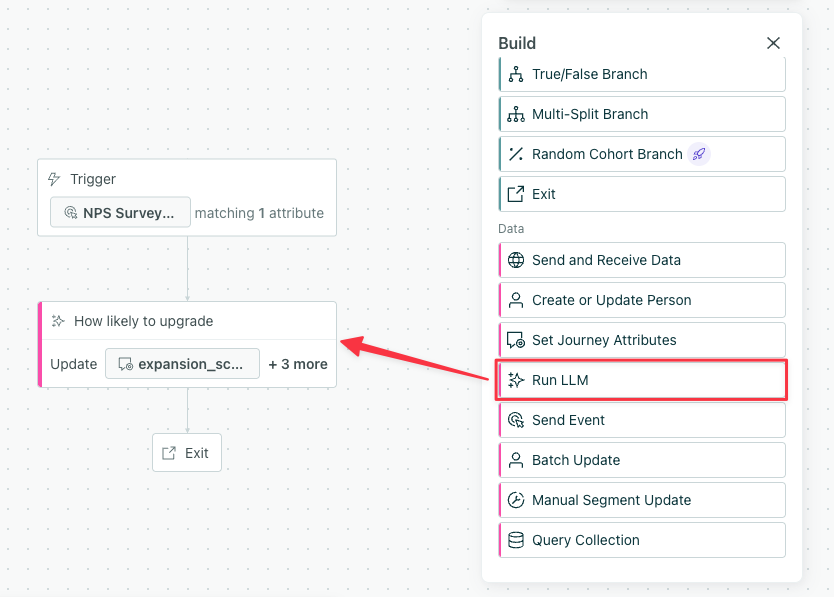
An LLM action in a campaign workflow

 Not seeing this AI feature?

Make sure “Customer.io AI” is enabled in Privacy, Data, & AI settings. Reach out to an Account Admin if you can’t edit the toggle.

How it works

LLM actions let you prompt an AI model as a part of a campaign and store the output as attributes so you can use them later in the campaign. You can personalize messages, enrich data, and create conditions to help you reach the right audience.

flowchart LR A[Person enters
campaign] --> B[LLM action
runs] B --> C[Response stored as
attribute] C --> D[Use attribute in
messages and conditions]

By default, LLM actions store data as journey attributesAn attribute stored on a journey during a campaign. Journey attributes expire when people exit your campaign., which expire when people exit your campaign. If you want to use the LLM’s response outside of the campaign, you can change them to customer attributesData stored on your customers’ profiles, like a person’s name. You can include this data in messages or conditions across your workflows. instead.

Billing: LLM actions use AI credits

Unlike other workflow blocks, LLM actions have their own currency: AI credits. Each time an LLM action calls a model, it uses AI credits. This includes when a person reaches the action in a campaign and when you use Preview response to test it. The number of credits consumed depends on the model you select, the size of the prompt, and the amount of context sent with the request. See AI credits for details on pricing and what happens when credits run out.

Ways to use LLM actions

You can use LLM actions to generate data for use across your workflows. Here are a few use cases you could consider:

  • Personalized product recommendations: Pass purchase history and browsing data to suggest relevant products for each person.
  • Follow-up on purchase based on customer sentiment: Create message content based on a customer’s experience from purchase to delivery. If sentiment is positive, request review. If sentiment is negative, send a follow-up asking what you could do better.
  • Classify accounts: Classify customers based on their companies’ data.

Update data from the response of an LLM action

You can use LLM actions to analyze a customer’s behavior and generate insights that you store on attributes for use later on in your campaign.

To set or update data based on an LLM’s insights, you would follow these steps:

  1. Prompt the LLM to analyze specific customer attributes, trigger data, or data provided in the prompt.
  2. Store the output as a journey or customer attribute, depending on if you want to use the data outside of the campaign.
  3. Create subsequent conditions that target the updated attribute or reference the data in messages using liquid.

Send a message using content from an LLM action

 Don’t communicate sensitive information or updates with LLM actions

If you’re looking to automate personalized messaging at scale, you can use LLM actions to create email content unique to each person moving through your workflow. However, you’ll be sending content that hasn’t been reviewed by your team.

Remember that LLMs can make mistakes, like not quite matching your tone or incorrectly categorizing your data. Don’t communicate sensitive matters with unreviewed, LLM-generated content. Consider using our Agent to generate a template instead.

To send a message using content from an LLM action, you would follow these steps:

  1. Prompt the LLM action to create copy based on your customer’s data and your content guidelines.
  2. Store the output as a journey attribute, like body.
  3. Reference the journey attribute in a subsequent message block: {{journey.body}}.

Set up an LLM action

LLM actions are available for campaigns. In the workflow builder, scroll down to Data, then drag the Run LLM onto your campaign’s canvas.

An LLM action in a campaign workflow
  1. Click the block to open its configuration menu, and select Edit Content to get started.
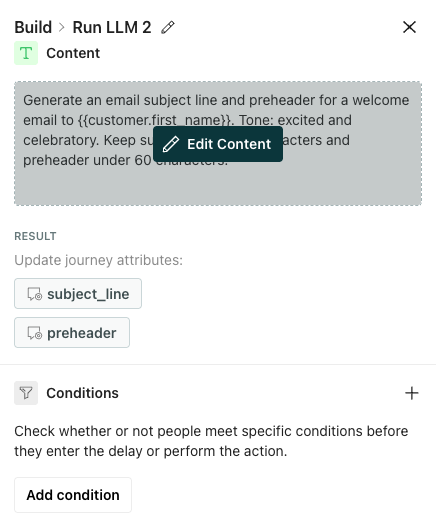
    To the right of the LLM action is the configuration menu with options to edit content or add conditions.
    To the right of the LLM action is the configuration menu with options to edit content or add conditions.

    (Optional) If you only want certain people who trigger the campaign to run the LLM action, you can add Conditions here to filter your audience.

  2. Add a Prompt to instruct the LLM on what to do and how. The more specific you are, the better the results will be. Learn more about creating prompts below.
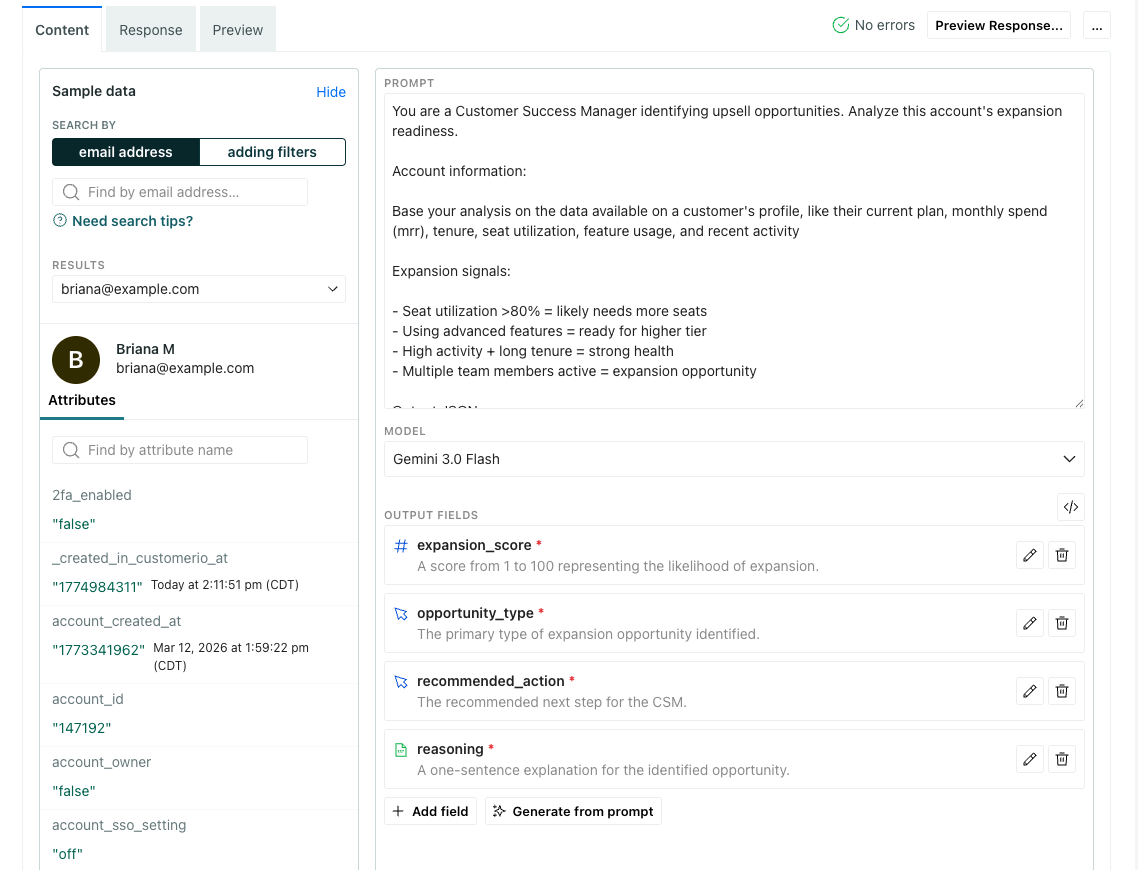
    The LLM action prompt is a text area where you can add your prompt.
    The LLM action prompt is a text area where you can add your prompt.

  3. Choose your Model. Read the descriptions to determine which one will best suit your needs.

  4. Generate Output Fields—the journey attributesAn attribute stored on a journey during a campaign. Journey attributes expire when people exit your campaign. you want to create to store data from the LLM response. Learn more about setting and storing responses below.

  5. Click the Response tab to set fallback values for each attribute created by your output fields.

    If you want this data available outside the campaign, this is also where you can change a journey attribute to a customer attribute.

  6. Click Preview Response to test the LLM action and see an example of how the chosen LLM would interpret your prompt. This counts towards your AI credit usage. Learn more about billing.

Prompt: Tell the LLM what to do and how

When you prompt an LLM action, you should include the following so the LLM has full context on your use case:

  • Define your goal. If you don’t know exactly what you want, the LLM won’t either.
  • Be direct, concise, and specific. Provide any context that’s necessary to achieve your goal, like how and why to evaluate data.
  • Include any attributes you want the LLM to use in its response. See What data can an LLM action use for more info.
  • Define the structure of your output.

Your AI settings (compliance prompt, business context, etc.) influence the output of LLM actions too. If you want your responses to differ from these defaults, consider updating your settings or explicitly define the tone, audience, etc in the prompt of the LLM action.

You can learn more about best practices for prompts from the LLM providers.

  • If you choose a Google model to process your prompt, learn more in the Google’s Gemini documentation.
  • If you choose an Anthropic model to process your prompt, learn more in the Anthropic’s Claude documentation.

Prompt example

Below is an example of how to improve a prompt. Bottom line, you should preview responses to your prompt to gauge whether the output is what you want. But if you’re looking to improve your output quality and make it more consistent, here’s an example that highlights best practices.

PromptQualityWhy
Account upsell: Compare customer seat utilization to their current plan.LowThe goal is not clear; there’s only an idea around upselling. The data to use is barely defined and the desired output is absent.
Analyze this account’s expansion readiness. Compare their seat utilization {{customer.seats_used}} to their current plan {{customer.plan_name}}. An account may expand if seat utilization is greater than 80% and they’re not on the highest plan.MediumThe goal is stated. Some data is identified along with some criteria for evaluation. But the desired output is still absent.
The prompt gives the LLM action a persona, followed by a goal. Then there are three separate lists showing what data to use to make a decision, how to evaluate criteria, and what the output should look like.
HighThe goal is defined and criteria for being expansion ready is defined. The prompt includes the data to use and desired output format.

Review your AI settings

In your account and workspace settings, you can add context about your company and audience to improve how AI generates responses across your workflows. These settings influence how the Agent communicates with you, how AI features like segment generation and email content analysis work, and the data generated by LLM actions.

You can manage context given to LLM actions on these pages:

  • Workspace settings > Business context
  • Account settings > Privacy, Data, & AI
    • Gemini Safety Settings—Within Run LLM actions, these settings only apply if you’re using one of Google’s models, as indicated in the model dropdown menu. They don’t apply to Anthropic models.
    • Compliance Prompt

If you want a single LLM action to differ from these defaults, make sure you include that in the prompt you give the LLM.

What data can an LLM action use?

An LLM action bases responses on the text in the LLM action prompt, the context from account and workspace settings, and the workspace data it has access to.

Data availableData unavailable
Text and data provided in the LLM action promptAny media files like images and videos
Context from account and workspace settingsWebsites, articles, or other online content; it can’t crawl any sites
Customer attributesEvents (unless they’re part of the trigger data)
Journey attributes set earlier in the campaignObject or relationship attributes (unless they’re part of the trigger data)
Data that triggered the campaign

Any trigger data available through liquid is accessible to LLM actions; the LLM action can use events, objects, webhooks, etc that trigger campaigns to generate responses. However, LLM actions cannot access event and object relationships that did not trigger campaigns.

For instance, this means you could ask an LLM action to generate a message based on event data from the trigger, but you shouldn’t prompt the LLM action to analyze all event data for a person and save its findings to the customer’s profile. That wouldn’t be inclusive of the breadth of a person’s activity across your platform.

Model: Choose the right model for the task

When you configure an LLM action, you choose which model processes your data. Different models have different strengths—and different costs.

  • Reasoning models produce higher-quality results for complex tasks but use more credits per run.
  • Quick models are faster and more cost-efficient, using fewer credits per run.

Consider the complexity of your task when choosing a model. If you’re doing simple categorization or translation, a quick model may work well. For nuanced analysis or creative content, a reasoning model may produce better results. Check the descriptions in the model dropdown for more info.

Output: Store the response as attributes

After you add your prompt, you’ll generate the output—how the LLM will store its response. By default, the LLM action stores data as journey attributesAn attribute stored on a journey during a campaign. Journey attributes expire when people exit your campaign., which you can use throughout a person’s journey in the campaign, but not once they exit. If you want to use this data outside the campaign, change them to customer attributes in the Response tab.

You can use these attributes in a variety of ways in subsequent actions:

  • Personalize messages with liquid
  • Create branches in your workflow based on the attribute output from the model
  • Build conditions to filter people out of certain actions or messages
  • Use them as inputs for other LLM actions downstream

Create outputs manually

  1. On the Content tab, click Add field under Output Fields.
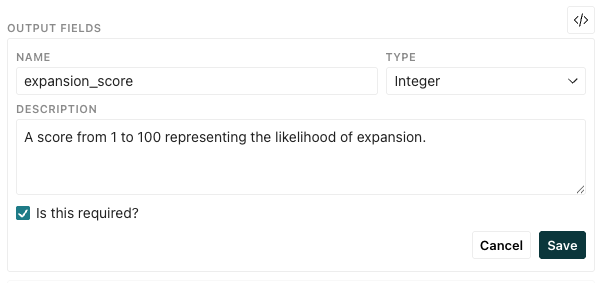
    A filled in output field with a name, type and description. The checkbox for required is checked.
    A filled in output field with a name, type and description. The checkbox for required is checked.
  2. Add a Name. This becomes the key used to reference the output through liquid syntax.
  3. Select a Type of value you want to store.
  4. Enter a Description so you know how to use the output. This is especially helpful if you’re setting customer attributes. This description will appear in your Data Index and help you audit your data in the future.
  5. Select whether the LLM action is required to generate the output.
  6. Click Save.

By default, output fields are journey attributes, which expire once a person exits the campaign. If you want to use these attributes outside the campaign, you can change them to customer attributes in the Response tab.

Generate outputs from your prompt

  1. On the Content tab, click Generate from prompt under Output Fields.
  2. Click Replace to view the latest output fields.
  3. Review the output: click to view the returned name, value type, and descriptions. Modify them as you see fit.
    A filled in output field with a name, type and description. The checkbox for required is checked.
    A filled in output field with a name, type and description. The checkbox for required is checked.
    • Name: The key used to reference the output through liquid syntax.
    • Type: The type of value you want to store.
    • Description: A description of the output. This is especially helpful if you’re setting customer attributes. This description will appear in your Data Index and help you audit your data in the future.
  4. Save your changes.

You can also add fields manually alongside generated outputs or delete items you don’t want to store.

By default, output fields are journey attributes, which expire once a person exits the campaign. If you want to use these attributes outside the campaign, you can change them to customer attributes in the Response tab.

Types of values

Each output field has a type of value that defines what the LLM action should store in your attributes.

TypeDescriptionExample
TextA text string value“Mark your calendars: the summer solstice is coming!”
NumberA number that can include decimals3.14
IntegerA whole number (no decimals)42
BooleanA true/false valuetrue
DateA date string (ISO 8601 format)“2026-03-31”
Date and TimeA timestamp string (ISO 8601 format)“2026-03-31T14:30:00Z”
TimeA time string“14:30:00”
ListAn array of generated text values["Subject line 1", "Subject line 2", "Subject line 3"]
Single SelectOne value picked from predefined options“positive” (from options like ["positive", "negative", "neutral"])
Multi SelectMultiple values picked from predefined options["positive", "neutral"] (from options like ["positive", "negative", "neutral"])

Delete output fields

To remove output fields stored from an LLM action response, go to the Content tab and click beside the field you want to delete. The Response tab will update to reflect the changes.

Change from journey to customer attributes

By default, the output fields generated in the Content tab are journey attributes, but you can change that in the Response tab. If you want to take action on the data outside the campaign, then you’ll want to change them to customer attributes.

Click beside an attribute to switch types.
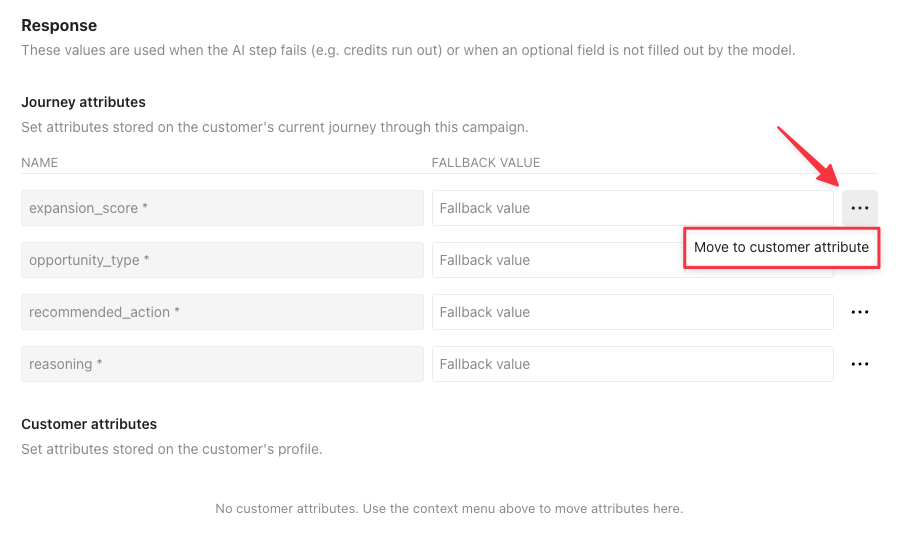
Response tab. Under journey attributes, there's a field expansion_score. To the right, a menu is selected showing Move to customer attribute.

You can’t set or modify events, objects, or relationships with LLM actions. However, you can use a Send event action to store events based on customer or journey attributes set by an LLM action.

Respond to failed LLM actions

An LLM action can fail for reasons including:

  • Your account runs out of AI credits
  • The model returns an error
  • The action times out

If an LLM action fails, your campaign will retry the action twice. If the action fails after three attempts, the journey will continue without the attribute updates, which could impact subsequent workflow actions that rely on them.

You can set fallback values so any condition or content that references the attributes continues to be evaluated in a way that’s best for your customers. By default, output attributes do not have fallback values, but you can set them in the Response tab.
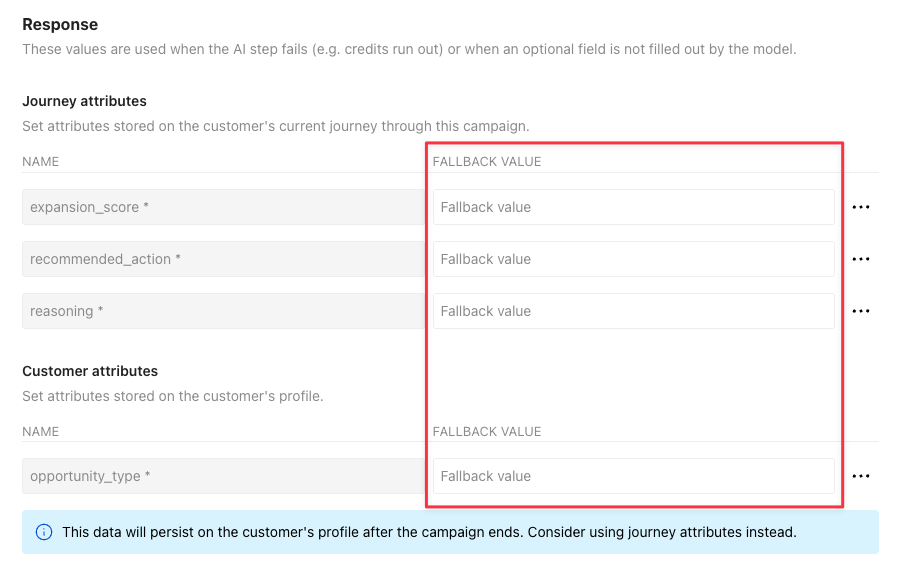
Response tab. To the right of each attribute name is a field labeled Fallback value.

Consider what’s best for your use case. How should people move through your campaign if the Run LLM action fails?

  • If the LLM action generates email copy, it might make sense to store fallback content so your customers still get the core of your message in a subsequent action, just with less personalization. Otherwise, the email would fail to send altogether, and they’d move onto the next action.
  • If the LLM action is meant to determine whether your customer is likely to upgrade their plan, you might leave the fallback blank so you know it didn’t update and send them down a different path in the workflow when the attribute does not exist.

If a customer or journey attribute is already set and the LLM action should update them, the attributes will only update if the LLM action succeeds or has fallback values. If the LLM action fails and has no fallbacks set, the attributes remain unchanged; they won’t be cleared or unset.

Preview your LLM action response

You’ll see two preview options in an LLM action:

  • Preview Response—This shows you an example of how the LLM model you selected will interpret your prompt. This uses up AI credits.
  • Processed Prompt—This renders any liquid in your prompt according to the sample data selected in the panel. Use this to make sure any liquid logic in your prompt works as expected. On smaller screens, click the Preview tab to see the processed prompt.

At the top of an LLM action prompt, there's a tab labeled Preview and a button labeled Preview Response.

To use either preview, any liquid in your prompt must render. This means the keys must exist in the sample data selected and/or have fallbacks. If the prompt preview doesn’t work, click Review Errors to find and fix liquid that’s causing an issue.

Before you activate a campaign with an LLM action, test it to make sure it returns the results you expect.

  1. Search for and select a person from the Sample Data panel that would cause the LLM action to run.

  2. Click Preview Response. Remember, each run uses AI credits.
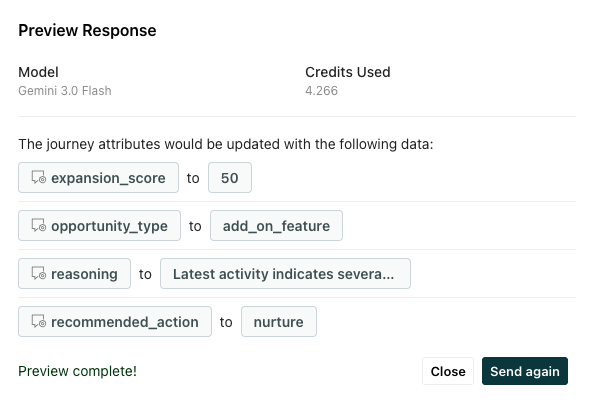
    A pop-up modal shows a response from the LLM action including the model used, credits used, and attributes that would update.
    A pop-up modal shows a response from the LLM action including the model used, credits used, and attributes that would update.

  3. Review the model’s output to verify it meets your expectations.

    Check your credit usage; does your account have enough credits to run the action considering the anticipated size of your audience?

    If a value is cutoff, hover your cursor over it to view the full output.

  4. Adjust your prompt or model selection if needed and preview the response again.

 Test LLM actions with multiple people

Try testing with several people to make sure your prompts handle a variety of inputs. Check edge cases like missing attributes or unusual values to make sure the LLM returns something useful.


Copied to clipboard!
  Contents
    • How it works
    • Billing: LLM actions use AI credits
    • Ways to use LLM actions
      • Update data from the response of an LLM action
      • Send a message using content from an LLM action
    • Set up an LLM action
    • Prompt: Tell the LLM what to do and how
      • Prompt example
      • Review your AI settings
      • What data can an LLM action use?
    • Model: Choose the right model for the task
    • Output: Store the response as attributes
      • Create outputs manually
      • Generate outputs from your prompt
      • Types of values
      • Delete output fields
      • Change from journey to customer attributes
      • Respond to failed LLM actions
    • Preview your LLM action response
Copy page
Download Markdown
Is this page helpful?

How can we make it better?

No
Yes
Please provide a valid email address

We appreciate your feedback!

Our support team will contact you as soon as possible


Platform
  • Platform overview
  • Platform features
  • Journeys
  • Data Pipelines
  • Parcel
  • Pricing
Resources
  • Documentation
  • Release Notes
  • Blog
  • Community
  • Competitors
  • API
  • Guides
Company
  • About
  • Careers
  • Support
  • Partners
  • Startup Program
  • Contact
Customer.io
win@customer.io

9450 SW Gemini Dr
Suite 43920
Beaverton, Oregon 97008-7105 US
LinkedIn
Twitter (X)
Youtube
Instagram
Status Terms of Service Privacy Policy @2024 Peaberry Software, Inc.