Manage subscription preferences
UpdatedLearn how to set, find, and filter subscription preferences for your audience—including adjusting preferences in the UI, migrating from another service, and using the API.
After you set up your subscription center, you can manage people’s subscription preferences in several ways.
Set subscription preferences
Beyond people unsubscribing themselves from messages, you can also:
- manually set subscription preferences in your workspace
- migrate people’s existing preferences from another service
- send out a campaign requesting they update their preferences
- track their preferences outside of the subscription center
You have the option to set preferences for some subscription topics or channels, while preserving those set for others, using JSON dot notation.
Adjust subscription preferences in the UI
After you enable your subscription center, you can view and change people’s preferences on their profiles:
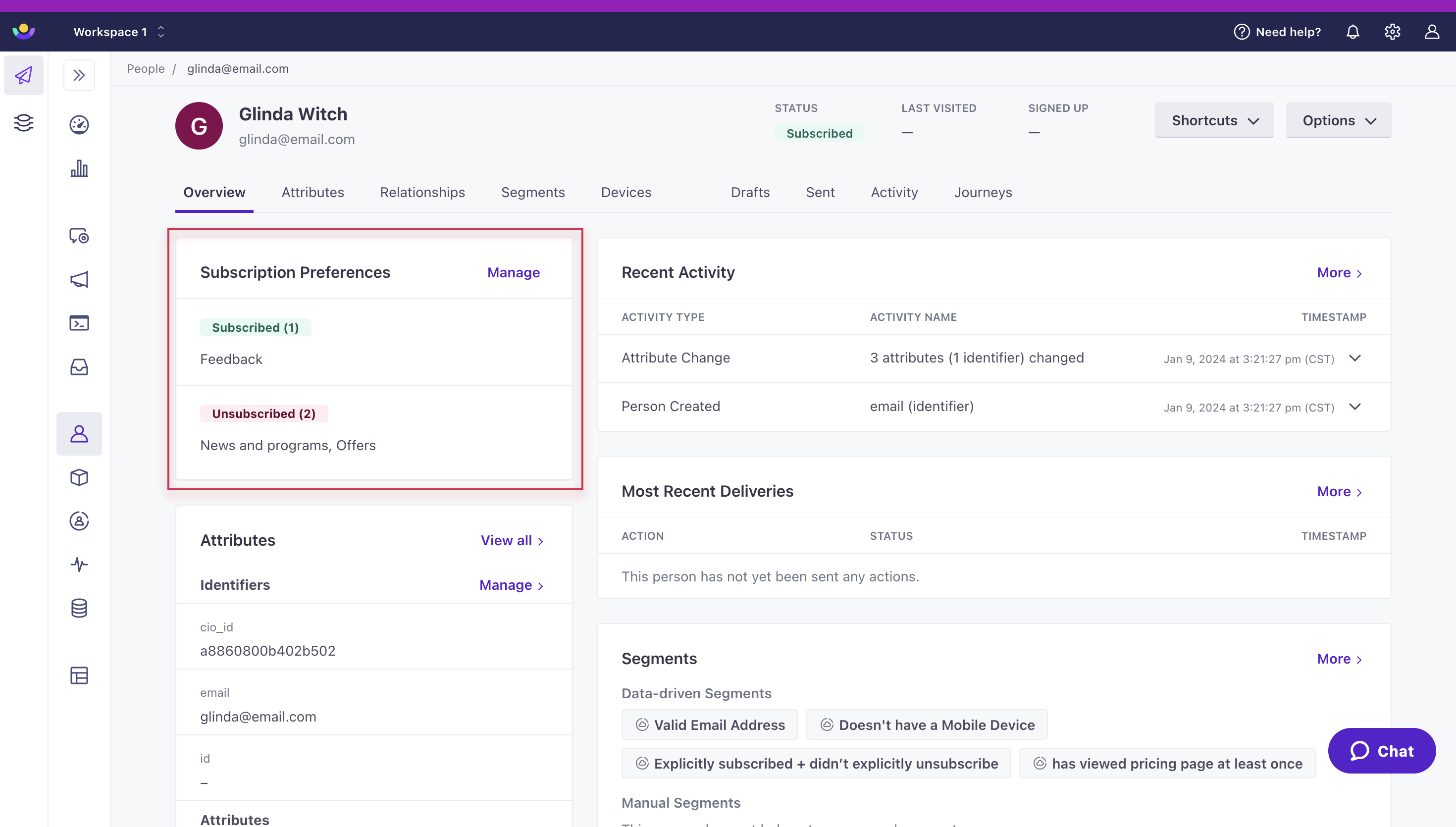
Click Manage beside Subscription Preferences to change them.
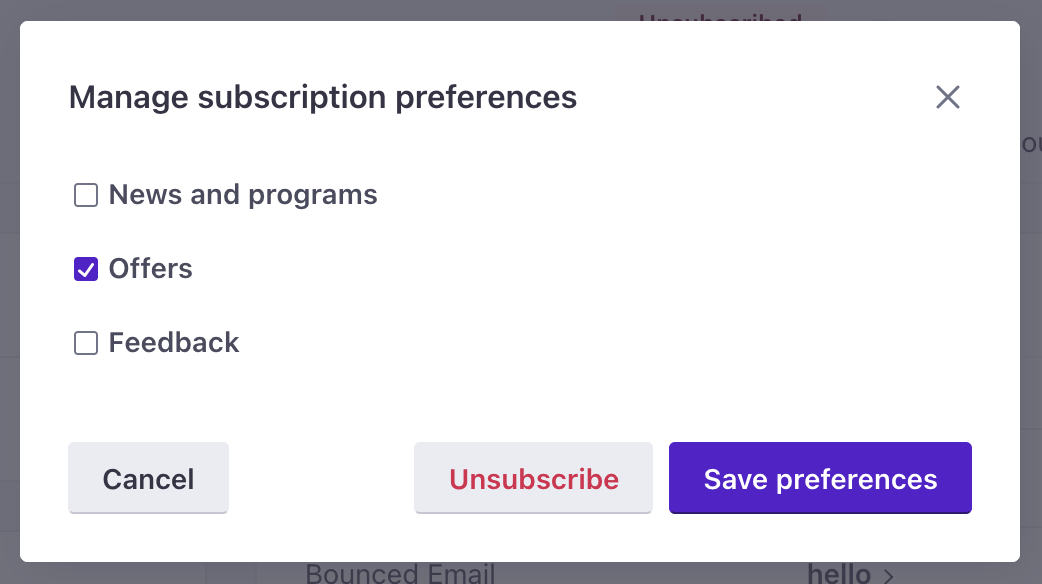
Click Save Preferences to adjust individual preferences or click Unsubscribe so they no longer receive emails, SMS, or push.
Backfill or migrate preferences
Before you enable subscription center topics, you might want to set or migrate people’s subscription preferences. You’ll almost certainly need to do this if you set your topics up as “opt-in” by default.
You can set your audience’s subscription preferences using the reserved cio_subscription_preferences attributeA key-value pair that you associate with a person or an object—like a person’s name, the date they were created in your workspace, or a company’s billing date etc. Use attributes to target people and personalize messages.. This attribute contains both topics and channels preferences where every individual preference is a boolean (true/false).
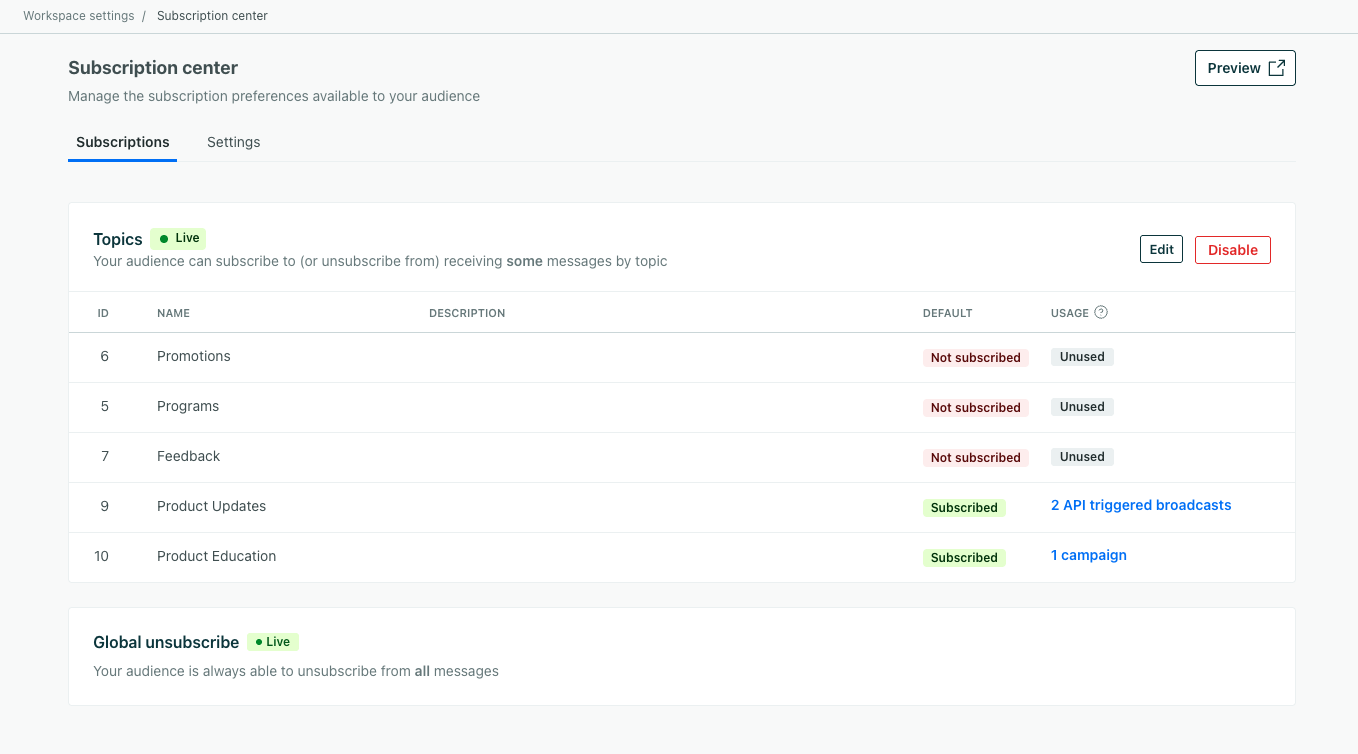
Topics are numbered based on the ID that you see in the UI—topic_1 corresponds to ID 1 in the left-column in your Subscription Center setup page. We set subscription preferences by topic ID rather than the topic Name, so that you can change the name of a topic without affecting your audience’s preferences.
Channels use the channel type name as the key (email, sms, push, in_app, whatsapp, slack, line, inbox). Channel preferences let people opt in or out of specific messaging channels, independent of their topic preferences.
When you send a message, a person must be subscribed to both the relevant topic and channel to receive the message.
{
   "cio_subscription_preferences": {
      "topics": {
         "topic_1": true,
         "topic_2": false
      },
      "channels": {
         "email": true,
         "sms": true,
         "push": false
      }
   }
}
Create a campaign to record preferences
After your subscription center is enabled, you can send a campaignCampaigns are automated workflows you set up to send people messages and perform other actions when they meet your criteria. to customers to show them they now have the option to subscribe to topics and channels. You can prompt them to manage their preferences in the message.
Set preferences outside of the subscription center
You can send subscription preferences to your workspace based on actions your customers take outside of Customer.io’s messaging. For instance, you may want to track and send preferences upon account sign-up. This ensures your marketing platform is up-to-date with your other systems of record.
Resubscribe a person
If a person accidentally unsubscribes from a topic or channel, they have the option to resubscribe.
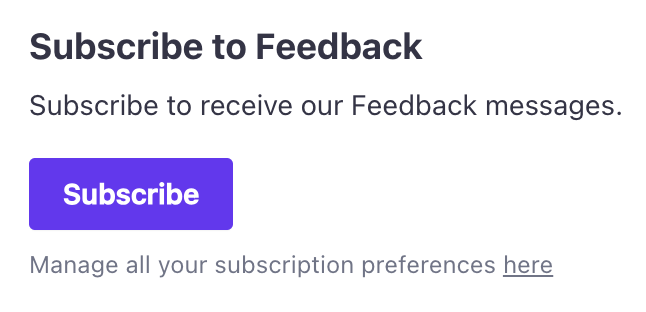
If they click the resubscribe button, we set their preference back to true and confirm that they are subscribed once again.
If a person accidentally unsubscribes from all on the preferences pages, they just need to recheck the topics and channels they want to receive messages for then save their preferences again.
Find subscription preferences
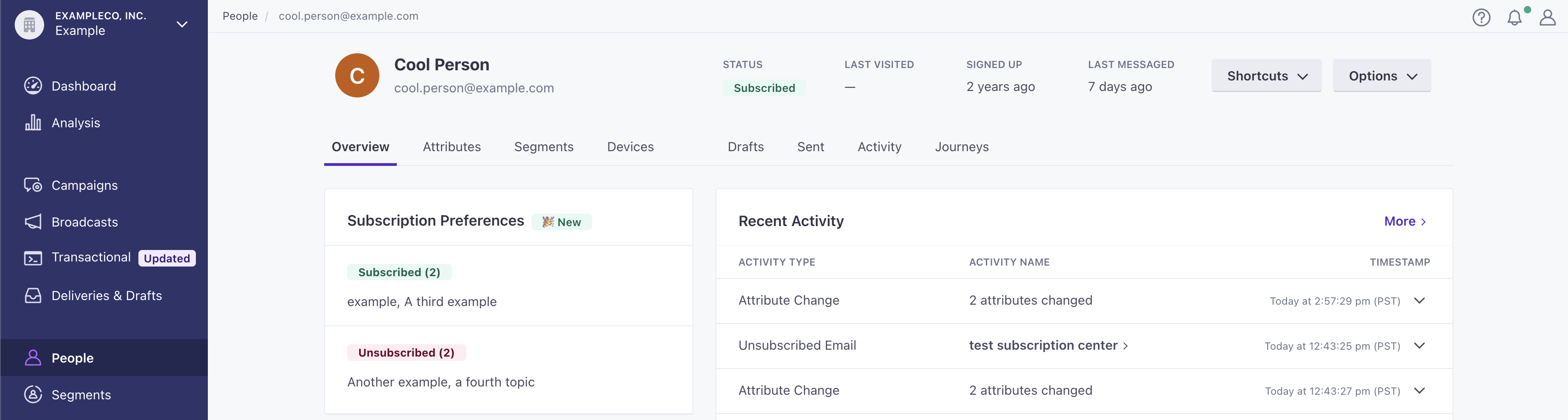
After you set up your subscription center, you’ll find people’s subscription preferences when you select them on the People page. You can view and edit subscription preferences from the Overview tab of a person’s profile.
Track changes to preferences
On the Attributes tab, as well as your workspace’s Activity Log, you can track when someone changed a subscription preference with the reserved attribute cio_subscription_preferences (more on that below).
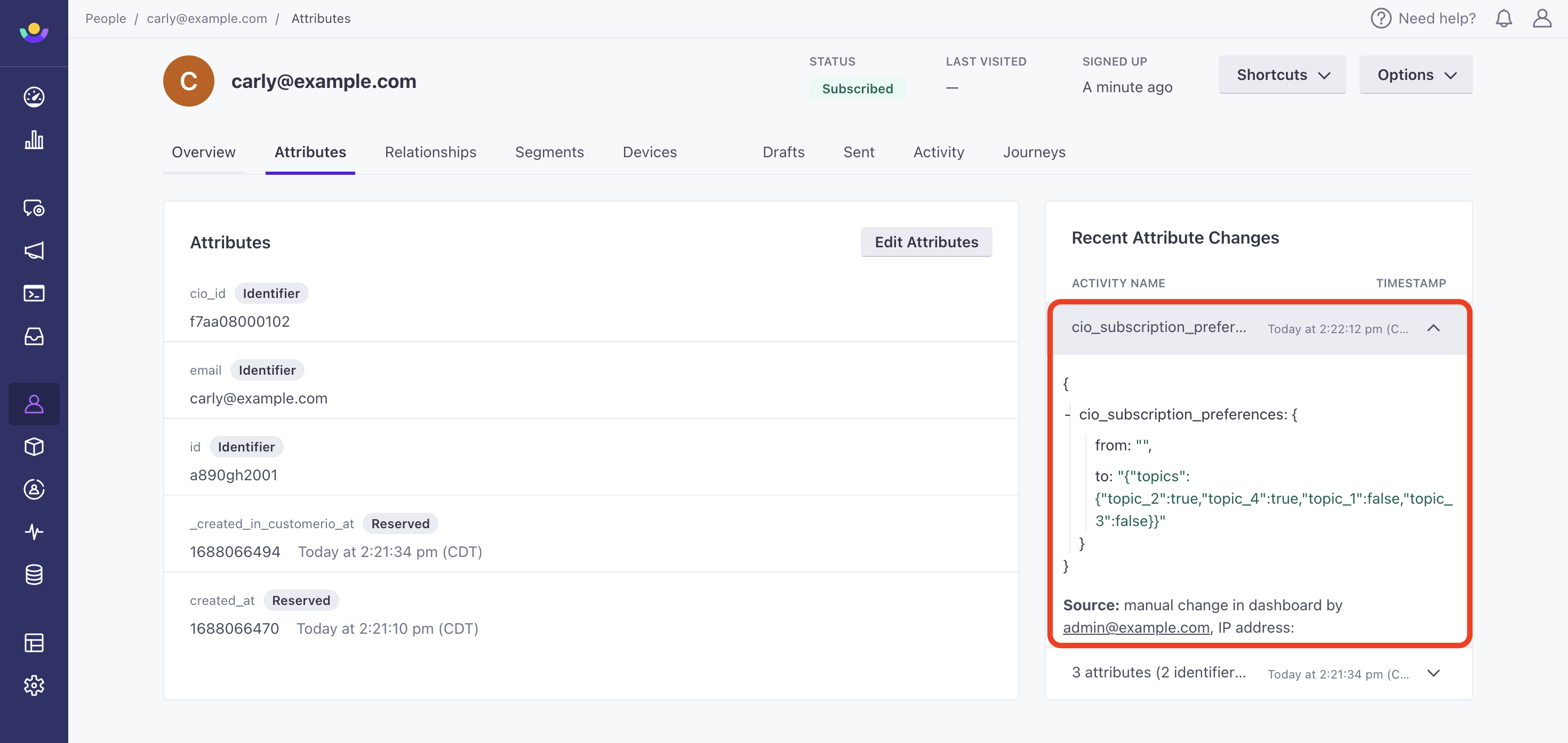
A change is logged when:
- your customer updates a subscription preference from the subscription preferences page.
- you/an admin manually change a subscription preference from the Journeys UI.
- a campaign with an Update or Create Person workflow action updates a subscription preference.
- you update a person’s subscription preferences via CSV, Track API, web SDK, or a reverse ETL sync.
Subscription preferences in the API
When you look up a person using our API, or export a person, we include a person’s subscription preferences and their computed subscription preferences.
The cio_subscription_preferences attribute contains preferences that a person set through the subscription center—or attributes you otherwise applied to a person. This includes both topic and channel preferences. However, a person might not have set preferences, or you may have changed topics or channels since the last time a person set their preferences.
For these cases, we also include a _cio_subscription_preferences_computed attribute containing all of a person’s subscription preferences, including defaults for topics and channels a person hasn’t set preferences for yet. For example, if you have an opt-in topic that a person hasn’t set a preference for, that topic would show false—even though a person doesn’t have that attribute on their profile. The same applies to channel preferences.
This is an example of what we show when you look up a person’s attributes.
Use reporting webhooks to track preference changes
If you capture your people’s attributes in an external CRM or another system, you can use reporting webhooks to get real-time events when people change their subscription preferences.
{
"customer": {
"id": "1",
"attributes": {
"\_last_emailed": "1528932553",
"created_at": "1489014595",
"email": "test@example.com",
"id": "1",
"cio_id": "03000001",
"cio_subscription_preferences": "{\"topics\":{\"topic_7\":false,\"topic_8\":false},\"channels\":{\"email\":true,\"push\":false}}",
"\_cio_subscription_preferences_computed": "{\"topics\":{\"topic_6\":false,\"topic_7\":false,\"topic_8\":false},\"channels\":{\"email\":true,\"sms\":true,\"push\":false}}"
},
"timestamps": {
"cio_id": 1489014595,
"\_last_emailed": 1528932553,
"created_at": 1489014595,
"email": 1508932553,
"id": 1489014595,
"\_cio_subscription_preferences_computed": 0,
"cio_subscription_preferences": 1673987303
},
"unsubscribed": false,
}
}
Filter by subscription preferences
On the People page, you can filter by subscription preferences. Filtering works the same way for both topic and channel preferences—you set conditions based on the corresponding attribute path.
- Topics: use the attribute
cio_subscription_preferences.topics.topic_<id>. For example, to find people who unsubscribed from a topic, filter wherecio_subscription_preferences.topics.topic_<id>is equal toFALSE. You can also create data-driven segments to track topic subscription trends over time. - Channels: use the attribute
cio_subscription_preferences.channels.<channel>. For example, to find people who have opted out of push notifications, filter wherecio_subscription_preferences.channels.pushis equal toFALSE.

