

Merge duplicate people
If you inadvertently create duplicate instances of a person, you can merge them and consolidate information to accurately represent a single "person" in your workspace.
How merging people works
You can merge people manually or automatically. When you merge two people, you pick a primary person and a secondary person. The primary person remains after the merge and the secondary is deleted. This process is permanent: you cannot recover the secondary person. Depending on the data type, the primary person may retain its data or inherit the data from the secondary person.
When the primary person inherits the data from the secondary person
The primary person inherits the following information from the secondary person:
-
Attributes that are not set, or are empty, on the primary will be overwritten if the secondary person has values for the attributes.
-
Event history: the most recent 29 days of events are merged immediately. It can take up to an hour to merge older events. Events merged from the secondary person cannot trigger automations.
-
Campaign journeys that the primary person has not entered
A journey is a person’s path through an automation workflow. If the secondary person has started a journey that the primary person has not, the primary person continues on that automation journey after the merge.
If the secondary person has completed journeys that the primary person has not, the primary person gains these historical journeys after the merge. This may be important for determining entry (or re-entry) criteria for subsequent automations, segments, etc.
-
Manual segments that the primary person did not already belong to
-
Message delivery
The instance of a message sent to a person. When you set up a message, you determine an audience for your message. Each individual "send"—the version of a message sent to a single member of your audience—is a delivery.
history -
Conversions
A conversion happens when a person performs an action (enters/leaves a segment or sends an event) after interacting with a message (receives, opens, clicks) within a time window. Considering this, it’s possible one of the people has performed the action and the other hasn’t. In this situation:
- If the primary profile performs the action while the secondary only interacts with the message (no action performed), the primary profile will not inherit a conversion. The primary profile will only inherit the interaction from the secondary profile.
- If the secondary profile performs the action, the primary profile will inherit a conversion AS LONG AS the action is an event OR the primary profile inherits the attribute change that made the secondary profile enter/leave the goal segment.
-
Relationships and relationship attributes that the primary did not have
When the primary person retains its data
When both the primary and secondary people have conflicting data—both people have the same attribute, subscription preference topic, or have experienced the same automation—we pick a “winner” to resolve the conflict; the “winner” value remains after the merge, and the “loser” is lost with the secondary person. See the sections below to learn more about how we resolve conflicts in the merge process.
Resolving conflicts between attributes
If the primary and secondary people both have the same attribute, and the primary person’s attribute value is not empty, the primary person’s attribute “wins”: it remains on the merged person and the secondary person’s attribute value is lost in the merge.
For example, if both the primary and secondary people have a first_name attribute, the first_name on the primary person remains and the attribute on the secondary person is lost in the merge.
Resolving conflicts between subscription topic preferences
If you’ve enabled a subscription center in your workspace, then people have subscription topic preferences. The subscription topic preferences of the primary person “win” over the secondary profile. These preferences remain on the merged person and the secondary person’s preferences are lost.
For example, if you have a subscription topic “Product Education” and it’s set to TRUE for the primary profile but FALSE for the secondary profile, the merged profile will have a value of TRUE.
In workspace settings, you can change this behavior to respect the most restrictive unsubscribe settings, regardless of which person is primary or secondary. Learn more about preserving unsubscribes on merge below.
Resolving conflicts between relationships
If the primary and secondary people both have the same relationship, the primary person’s relationship attributes “win.” We add relationship attributes from the secondary to the primary if the primary did not have these attributes. We also overwrite empty values in the primary if the value is populated in a relationship attribute in the secondary profile.
Resolving conflicts between automation journeys
A journey is a person’s path through an automation. If the primary and secondary people have both started or completed the same automation, we pick a “winner” journey to remain on the merged person. The “winner” depends on whether the people have completed a journey in the past or are active in an automation at the time of the merge.
If both people are active in an automation, the primary person continues its automation journey. The secondary person exits its journey early.
If both people have completed an automation, the merged person keeps the most recently started automation journey. The history of completed automations doesn’t necessarily affect people, but you may use it as re-entry criteria for follow-up automation or segment membership.
How to identify people
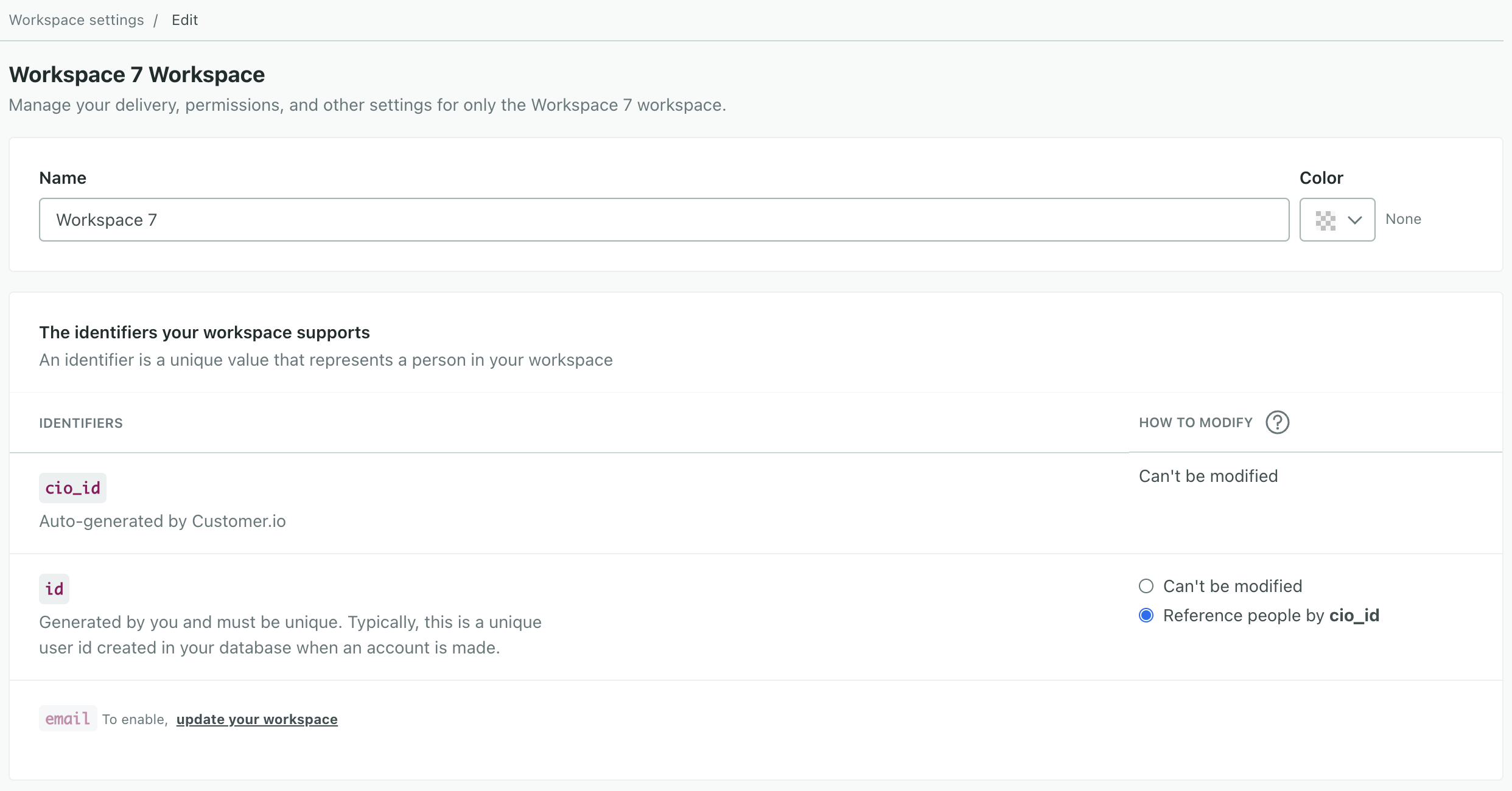
How you identify people to merge depends on your workspace settings. Which identifiers are enabled—email, phone, or both? Go to General Workspace Settings to find out.
If email or phone is enabled, you can identify people by that identifier, plus cio_id and id. You can also automatically merge people in this case.
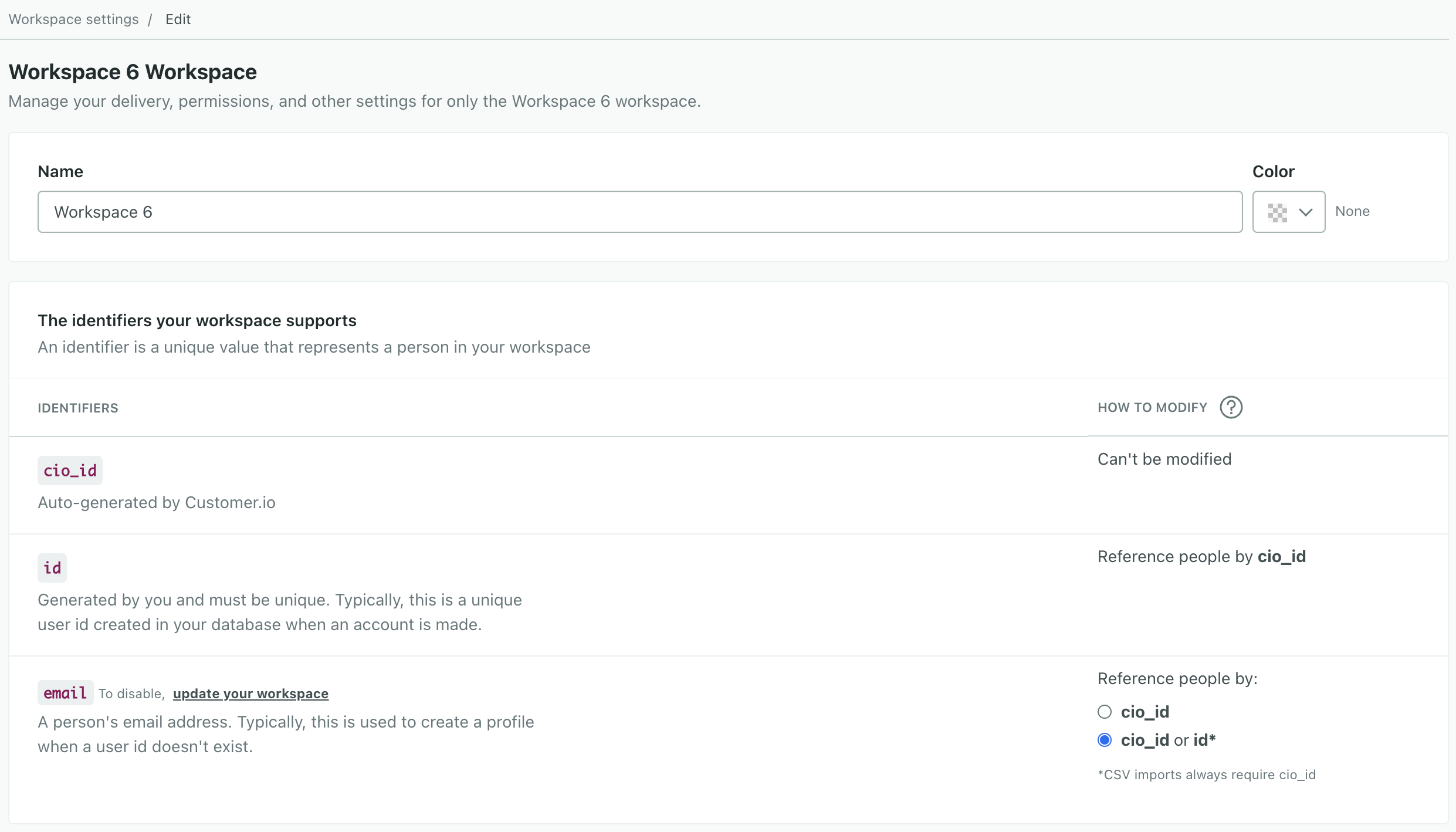
If both email and phone are disabled, you can identify people only by cio_id or id. You must also ensure id is set to “Reference people by cio_id” to make the merge possible.
Merge two people together
When you merge two people, you pick a primary person and merge a secondary person into it. The primary person remains after the merge and the secondary is deleted.
Merging people may cause the primary person to enter or exit segments and automations based on information you merge from the secondary person. Make sure that you understand how a merge will impact the primary person before you initiate a merge.
-
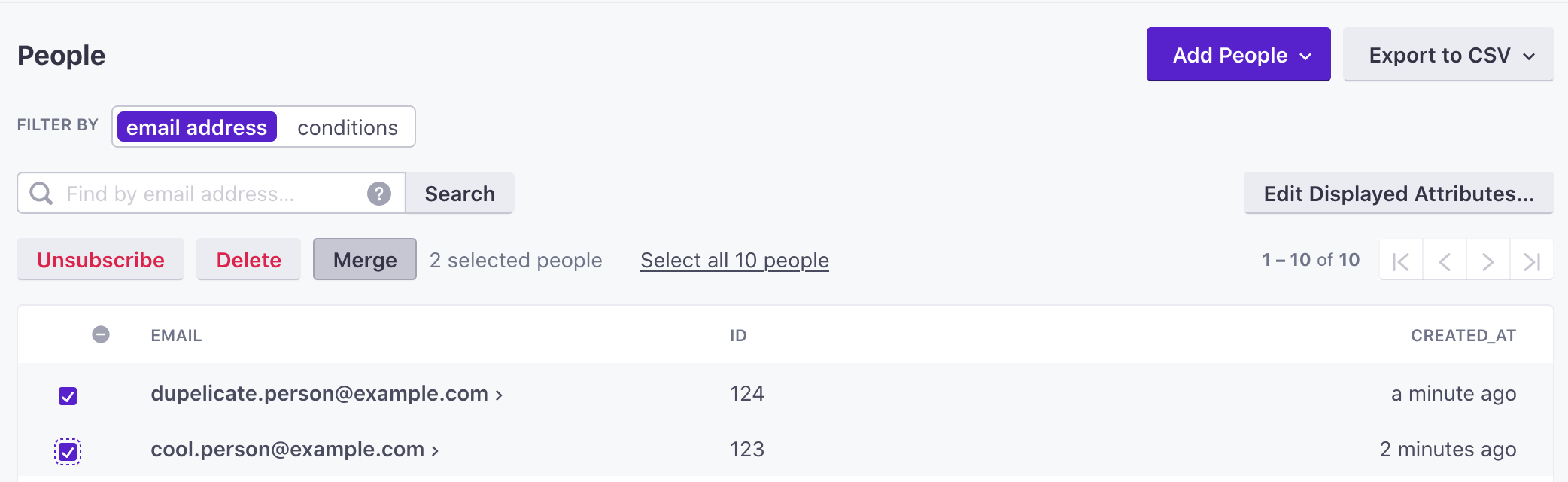
Go to the People page.
-
Click Merge. You can pick people before you click merge.
-
Select your Primary and Secondary people and click Next.
If you already selected people, you can click Swap to reverse your primary and secondary people. Remember, when you merge people, the primary gains some information from the secondary person, and any data that is not merged to the primary person is lost.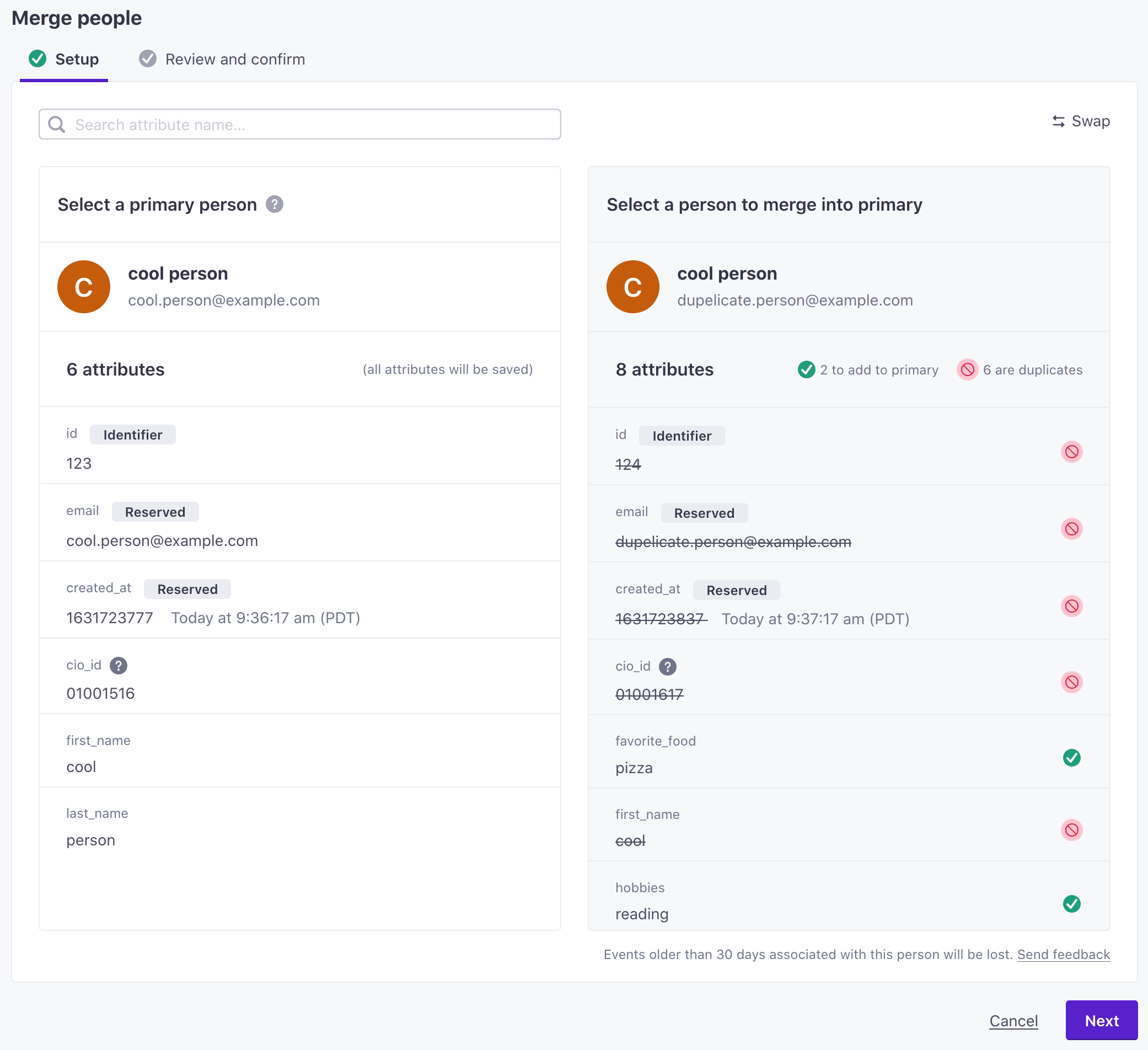
-
Review your changes one last time. When you're sure you want to merge people, click Confirm and merge.
You can search for attributes on the primary person, ensuring that the values on the primary person are correct before you finish your merge.
You’ll also see a count of the attributes, events, and deliveries
The instance of a message sent to a person. When you set up a message, you determine an audience for your message. Each individual "send"—the version of a message sent to a single member of your audience—is a delivery.
on each person. Items remaining on the Secondary person are lost.
When you confirm a merge, you’ll go to the newly merged person’s profile. Attribute changes take effect immediately, but event history may take a moment.
Merge people via the API
You can also merge people using the Track API. The payload contains primary and secondary profile objects. As when you merge people from the People page, the primary profile remains after the merge. The secondary profile’s information is merged into the primary, and then it is deleted.
  curl --request POST \
  --url https://track.customer.io/api/v1/merge_customers \
  --header "Authorization: Basic $(echo -n site_id:api_key | base64)" \
  --header 'content-type: application/json' \
  --data '{"primary":{"email":"cool.person@company.com"}, "secondary":{"email":"cperson@gmail.com"}}'
Automatically merge people
By default, new workspaces use The attributes you use to add, modify, and target people. Each unique identifier value represents an individual person in your workspace.email, phone, and id as identifiers
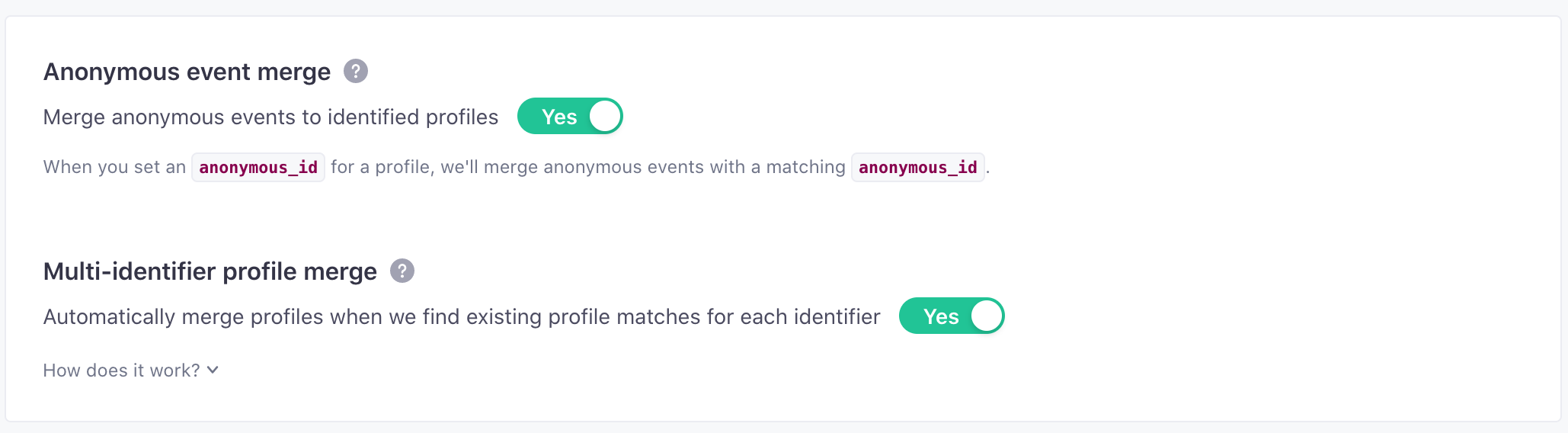
- Multi-identifier profile merge merges people whose identifiers are complementary—each person has identifier values the other doesn’t.
- Auto-merge on update merges people when an
identifycall tries to set an identifier to a value that already belongs to a different person, as long as the two profiles are complementary on every other identifier.
You can enable Multi-identifier profile merge on its own, but Auto-merge on update requires you to enable Multi-identifier profile merge as well. If your incoming identifier data is reliable, you should enable both settings to reduce duplicate profiles and Failed Attribute Change errors. See Enable auto-merge for your workspace below for instructions.
These settings apply to incoming data on an ongoing basis. Separately, when you enable email or phone as an identifier for an existing workspace, you choose how to merge people who already share the same value—a one-time cleanup that’s part of the enable process.
Multi-identifier person merge
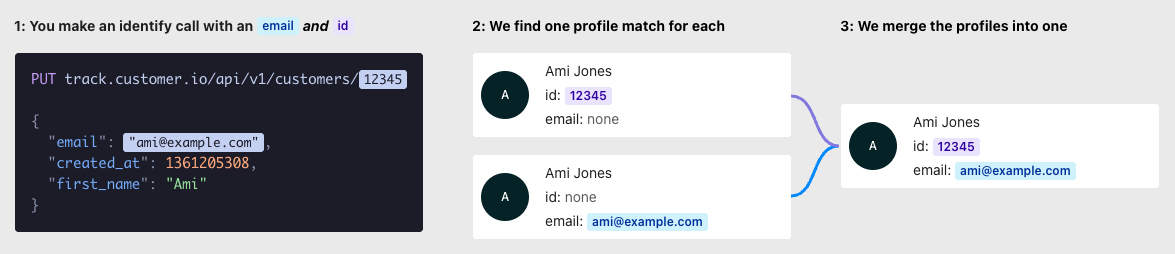
If your workspace supports An instance of a person. Profiles start journeys through automations, join segments, and more. You reference a person's profile attributes in messaging using the liquid key email, phone, or id as identifiers, and you created your workspace after September 24, 2021, you can enable Multi-identifier profile merge. With this setting on, Customer.io merges two profilescustomer, like {{customer.email}}.identify call with identifiers that belong to different people—provided all of the following are true:
- Two identifiers in the request (for example, an
idand anemail, or anidand aphone) match different people. - Each of those identifiers matches exactly one person.
- The profiles are complementary: each profile is missing the identifier value that matched the other profile, and they don’t conflict on any other identifier.
When Customer.io merges these people, the older profile is the Primary and the younger profile is the secondary.
Auto-merge on update
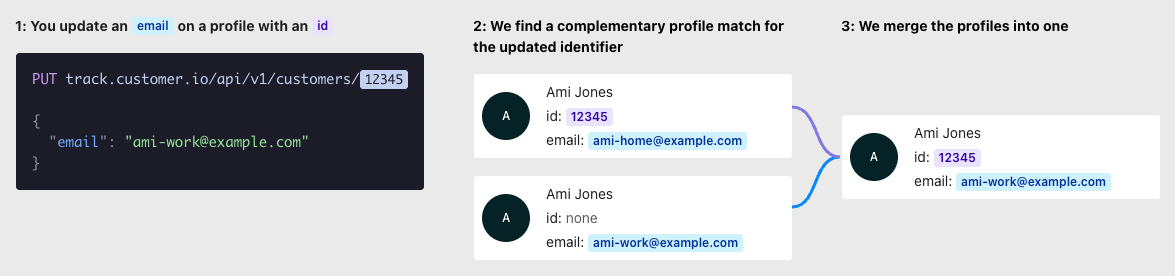
Auto-merge on update extends the Multi-identifier profile merge feature to cover cases in which an identify call tries to change an identifier to a value that already belongs to a different profile.
Without this setting, Customer.io silently drops the identifier change and records a Failed Attribute Change. With this setting on, Customer.io merges the two profiles automatically—as long as the profiles are clearly the same person.
When we merge people
In general, we only merge when the identifier being updated is the only overlap between the profiles. All other identifiers must be complementary: one profile has a value and the other doesn’t.
Specifically, we merge profiles when all of the following are true:
- Both Multi-identifier profile merge and Auto-merge on update are enabled for the workspace.
- The
identifycall is eligible to update the identifier in question, according to the rules for updating identifiers. - An identifier attribute in the request body (for example,
email) belongs to a different profile than the one in the identify request. - The two profiles are complementary on every identifier except the one being updated. That means:
- Neither profile has a conflicting identifier value other than the one being updated. For example, if the request references a profile by
idand the conflicting profile has a differentid, we can’t automatically merge the profiles. - Neither profile has an identifier value that isn’t in the request.
- Neither profile has a conflicting identifier value other than the one being updated. For example, if the request references a profile by
What happens when profiles merge
When we merge profiles, we merge the secondary profile’s attributes into the primary profile and delete the secondary profile. If the primary profile and secondary profile both have an attribute with different values, the primary profile’s value wins.
The merged profile also keeps:
- The primary profile’s cio_id
An identifier for a person that is automatically generated by Customer.io and cannot be changed. This identifier provides a complete, unbroken record of a person across changes to their other identifiers (id, email, phone, etc).
. Acio_idis a canonical, immutable identifier, so Customer.io always preserves the primary profile’scio_id. Auto-merge on update selects the primary profile the same way Multi-identifier person merge does: the older person wins. - The incoming request’s value for the identifier being updated. This is the one exception to “primary wins”—Customer.io trusts that the request reflects the current state of the world.
When we can’t merge profiles automatically
If we can’t merge profiles under the rules above, Customer.io records a Failed Attribute Change for the identifier in the request. You need to resolve the conflict yourself, either by merging the profiles manually or by correcting your data pipeline.
Example: both profiles have an id:
- Profile A:
id=12345, email=ami-home@example.com - Profile B:
id=67890, email=ami-work@example.com - Request: identifier
id=12345, attributeemail=ami-work@example.com
Both profiles have an id, and the values differ. Customer.io can’t tell which id is correct, so we can’t automatically merge the profiles. You need to merge these profiles yourself.
Preserve unsubscribes on merge
Person merges preserve the subscription preferences of the primary profile by default. However, you can change the default behavior in Workspace settings > Merge options.
If you’d like to preserve unsubscribes, the most restrictive preferences across both the primary and secondary profiles, turn on Preserve unsubscribes on merge.
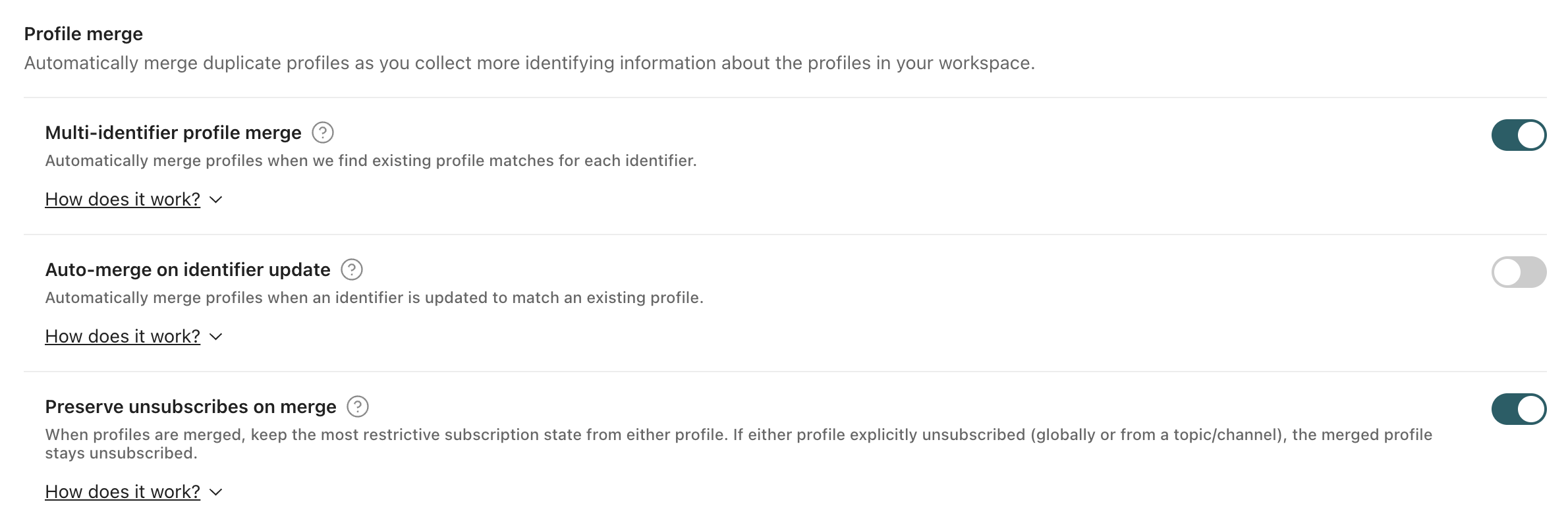
If either person explicitly unsubscribed (globally or from a topic/channel), the merged person is unsubscribed.
For example, if one person is unsubscribed from “Promotions” and subscribed to “Product updates” while the other person is reversed—it’s subscribed to “Promotions” and unsubscribed from “Product updates”, then the merged person is unsubscribed from BOTH subscription topics.
This setting applies to both automatic and manual merges.
Enable auto-merge for your workspace
You can enable Multi-identifier profile merge on its own, or enable both settings. Auto-merge on update requires Multi-identifier profile merge, so you can’t turn it on by itself.
- Go to Settings > Workspace Settings.
- Click Settings next to Merge options.
- Enable Multi-identifier profile merge.
- (Optional) Enable Auto-merge on update.
Merged people in the profile activity
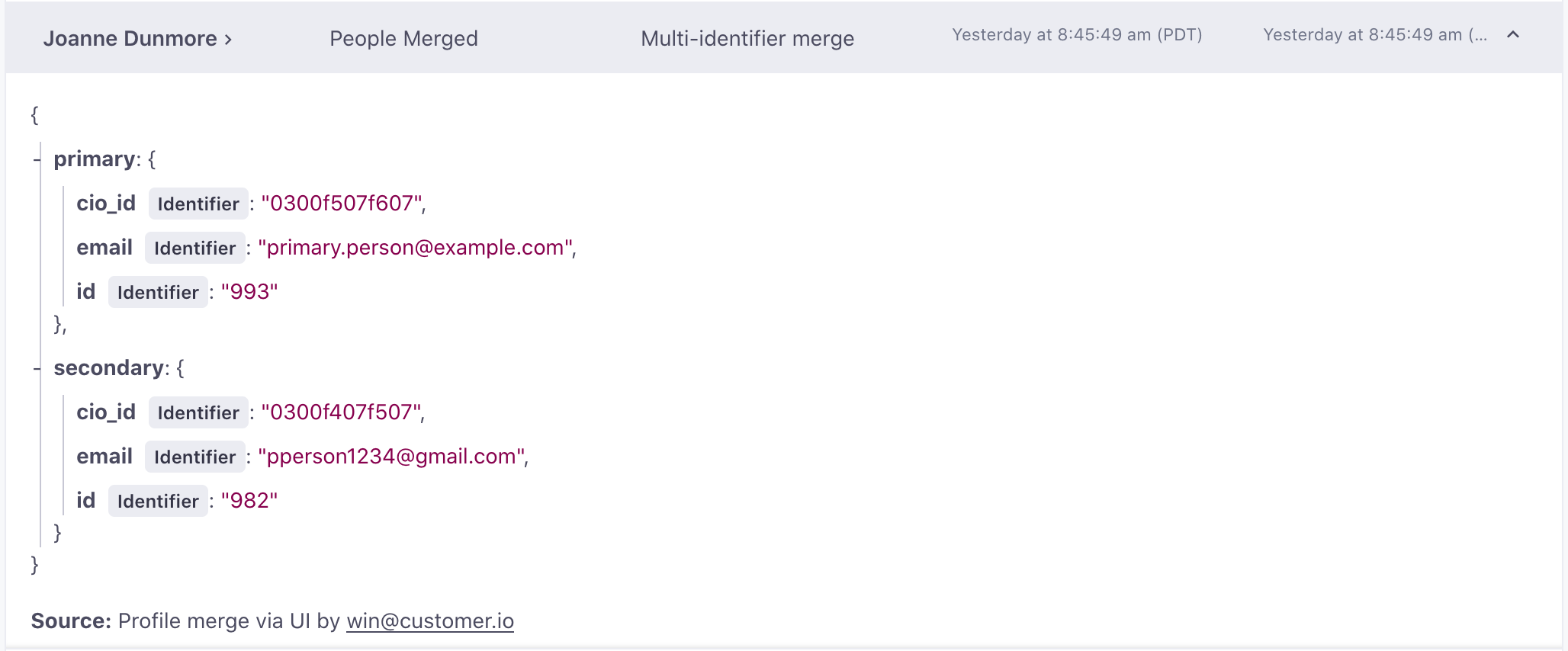
When you merge people, the profile activity reports a People merged activity on the primary person. The activity Source shows how the merge was performed, through the People page, the API, or automatically (if your workspace has the setting enabled).
Merged people in data warehouse sync
Like the Profile activity, merges are represented in your data warehouse as attribute changes and a deleted person.
- In the People table, the secondary person is deleted.
- In the Attributes table, the primary person shows new entries for each attribute inherited from the secondary person in the merge.
Segment membership and automation triggers after a merge
When you merge people, you may cause the primary person to enter or exit segments and automations. In many cases, these changes are easy to understand—the primary person directly inherits a manual segment membership or an attribute that adds the person to a data-driven segment.
However, it’s important to remember that the primary person also inherits automation and delivery history from the secondary person, both of which can affect segment membership and automation filters. For example, if both the primary and secondary people received the same message, the merged person will become a member of a data-driven segment A group of people who match a series of conditions. People enter and exit the segment automatically when they match or stop matching conditions.