Create multiple from addresses
UpdatedYou may have messages that should come from different email addresses depending on your use case—onboarding emails from customer success managers, newsletters from a general company address, etc. You can add multiple from addresses to fit your needs.
Add multiple from addresses
To add a new from address:
- Go to Settings > Workspace Settings and select Email.
- Find the sending domain you want to add the new address to and click Add from address.
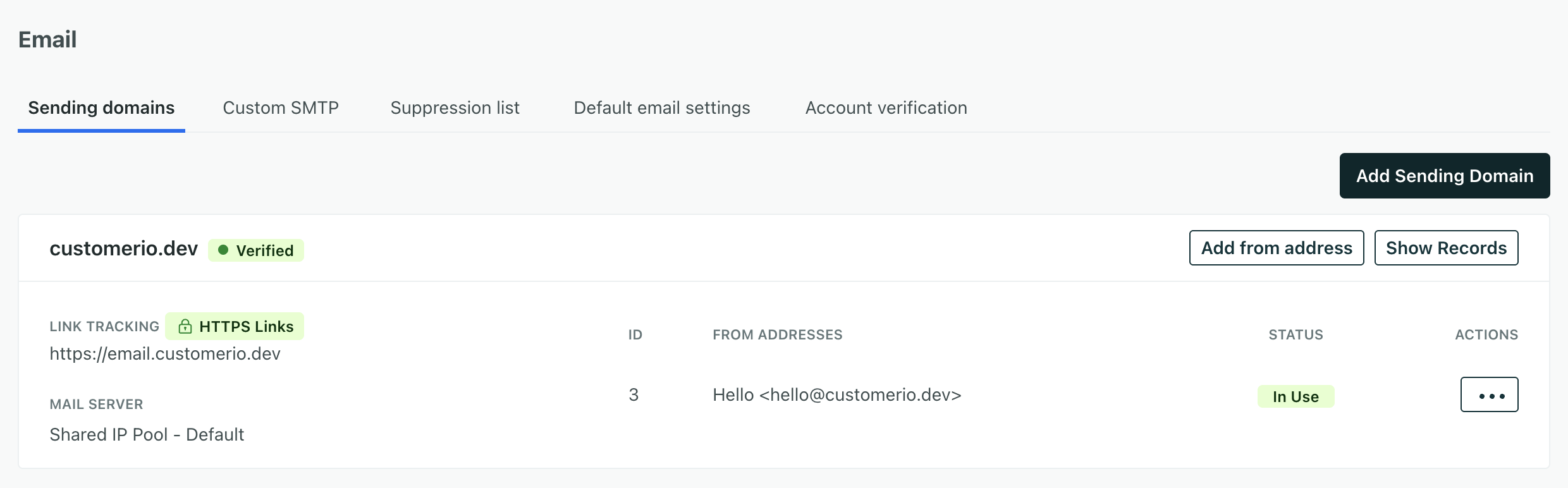
- Enter the sender name and email address.
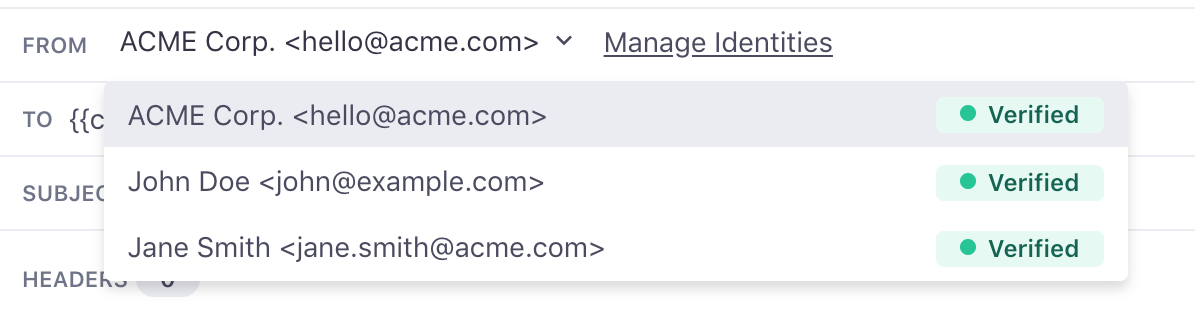
After you add a new from address and the domain is verified, you can pick your new address using the drop-down next to the From label when creating an email.
Add dynamic from addresses
You can set a dynamic from address to personalize emails based on relationships between your company and your recipients.
For example, if you assign an account manager to each of your customers, you can add a liquid statement as your from address to pull in the account manager’s email: {{customer.account_manager}}.
To set a dynamic from address, you should include a liquid statement with a fallback from address to ensure your emails always reach your customers. In this case, your workspace would send from the fallback address when a recipient doesn’t have an assigned account manager.
- Go to > Workspace Settings and select Email. Click Dynamic addresses.
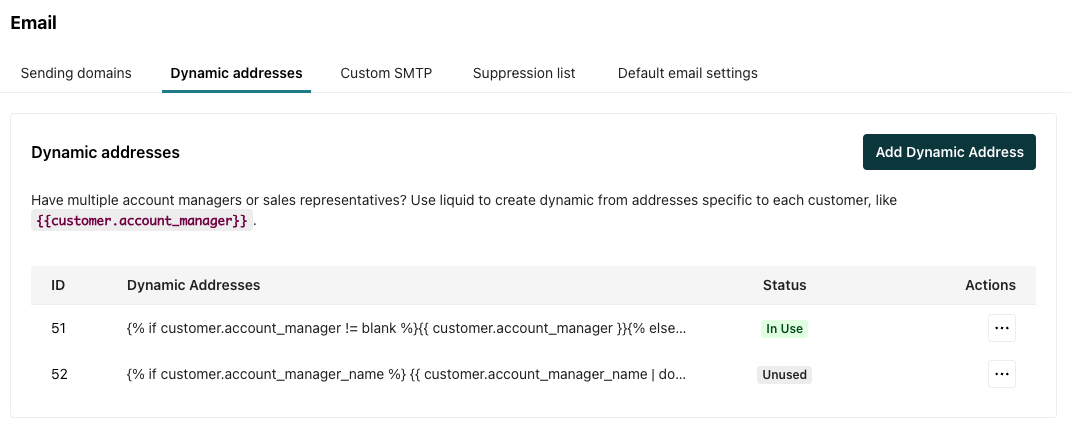
- Select Add Dynamic Address.
- Enter the display name and email address. You can use liquid in either field. For the email address, make sure you add a fallback from address for customers that don’t have the variable.
Here are a couple examples of dynamic from addresses:
{% if customer.account_manager != blank %}{{ customer.account_manager }}{% else %}accounts@example.com{% endif %}
In this example, the statement sets the email based on the account manager’s name and your sending domain.
{% if customer.account_manager_name %}{{ customer.account_manager_name | downcase | replace: " ", "." }}@example.com {% else %} noreply@example.com{% endif %}
Check that your dynamic addresses resolve to your verified domains
Starting June 22, 2026, if your dynamic address doesn’t resolve to a verified domain, your emails won’t send. Your workspace marks them as Undeliverable: from address does not belong to a verified sending domain. Until then, if the liquid renders an unverified domain, your emails will send from a Customer.io domain instead.
If you use a custom SMTP server to send email, this does not impact you; you do not need to verify your from addresses.
Check where from addresses are used
If you’d like to see where a specific from address is being used, search for it in your Message Library.
This is a dedicated page in your workspace where you can locate specific templates by searching on keywords, as well as locate all message actions and broadcasts that are using a specific from address. You can also filter the results based on whether the message is actively sending or drafted.

