

Send in-app messages
Before you begin
You’re welcome to try out our in-app message editor and set up automations with in-app messages before you integrate our SDKs. But your audience won’t be able to see your in-app messages until you integrate with our SDKs for your app or your website.
How it works
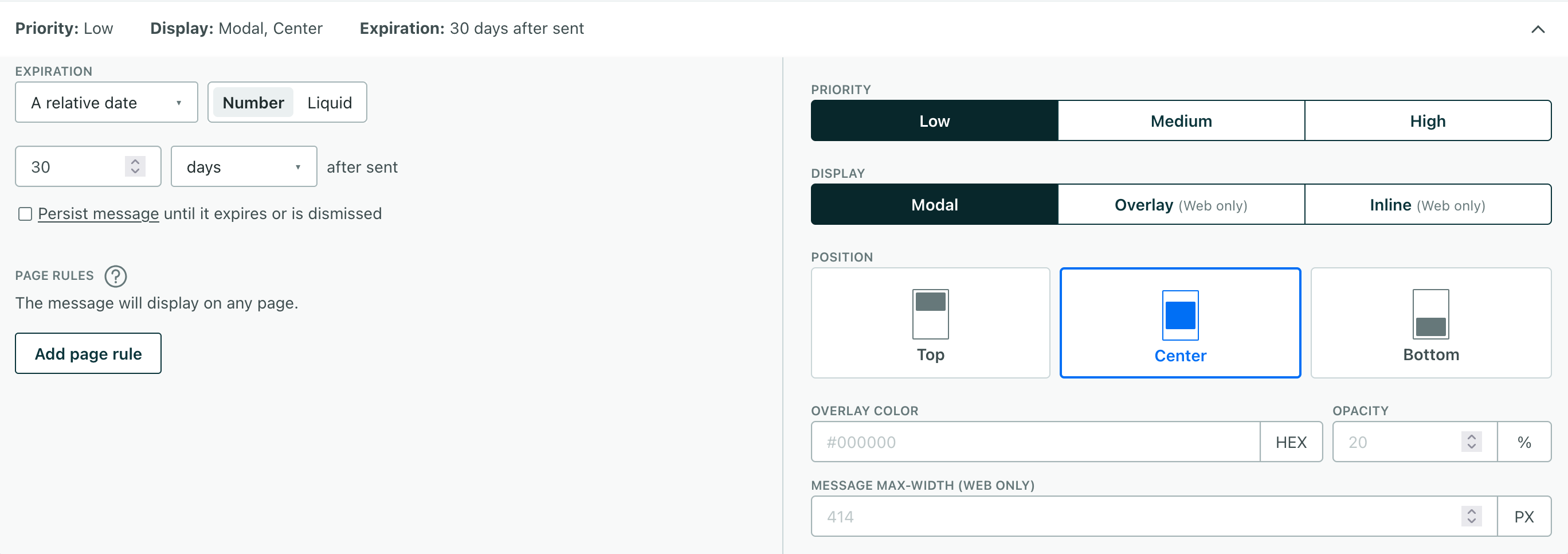
You can send in-app messages as a part of any automation or broadcast workflow. In addition to creating your message, you’ll also determine when and where your message will show up for your audience:
- Page rules: the pages and screens a person must visit to see your message.
- Expiration: this determines how long a message will remain available to a person. It ensures that people only get relevant messages.
- Display and Position: where your message will appear on a page or screen. You can add different settings for steps in a multi-step message.
When you send a message, people don’t necessarily see it right away! Your audience will see your in-app message when:
- They visit a page or screen that matches your page rules.
- They’re identified
The Customer.io operation that adds or updates a person. When you identify a person, Customer.io either adds a person if they don't exist in your workspace, or updates them if they do. Before you identify someone (by their email address or an ID), you can track them anonymously.
. - The message has not expired.
Send an in-app message
-
Drag an In-App Message into your workflow.
-
Select your message, give it a Name
The name of a message. This is just a friendly name to help you understand the purpose of a message in your workflow.
, and click Add Content. -
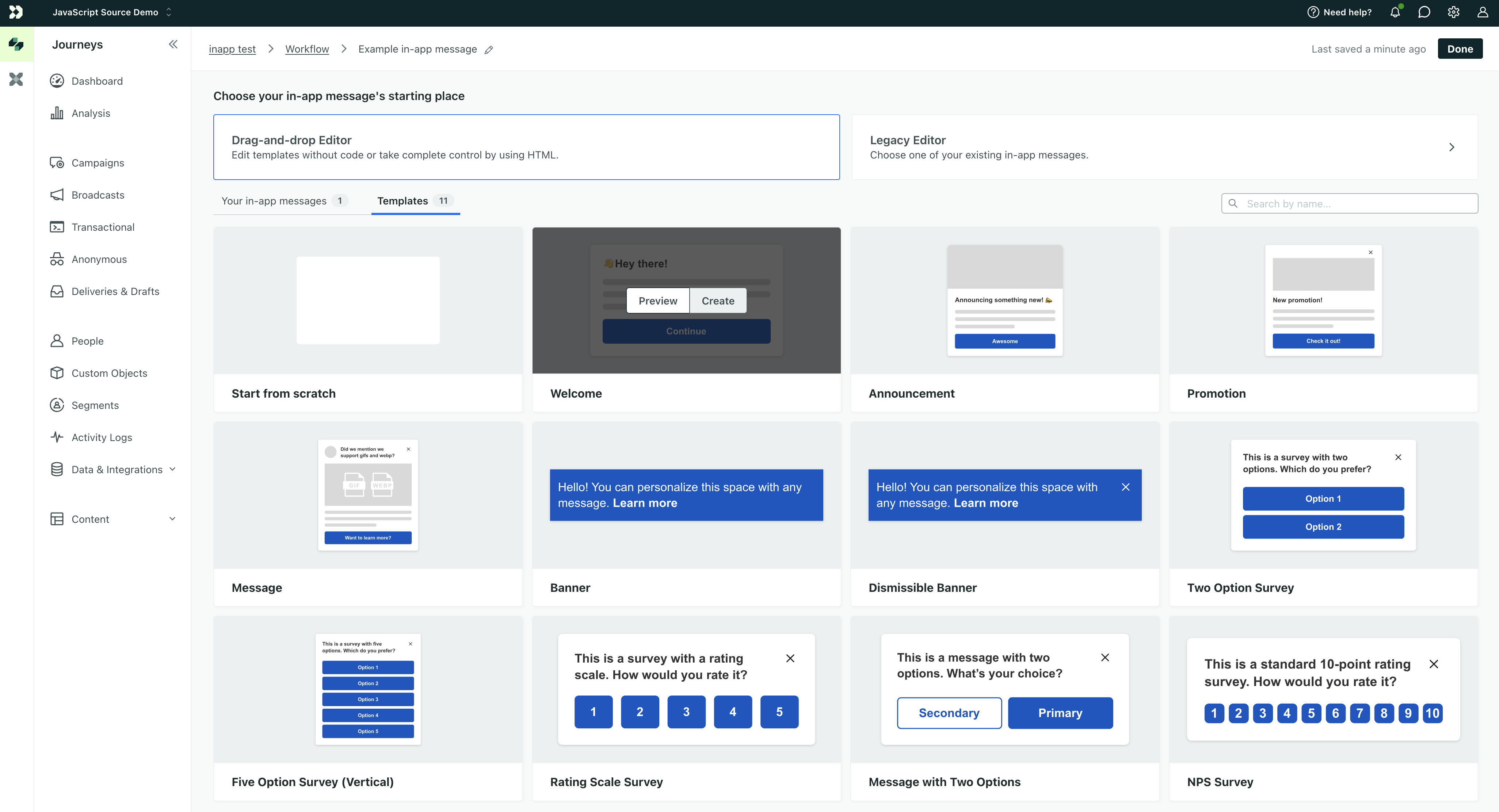
Select a starting template, a previous message, or start from scratch.
-
Set your message settings:
- Priority: negotiates between multiple messages with the same Page Rules and Display settings.
- Page Rules: determine the pages where a person can see your message.
-
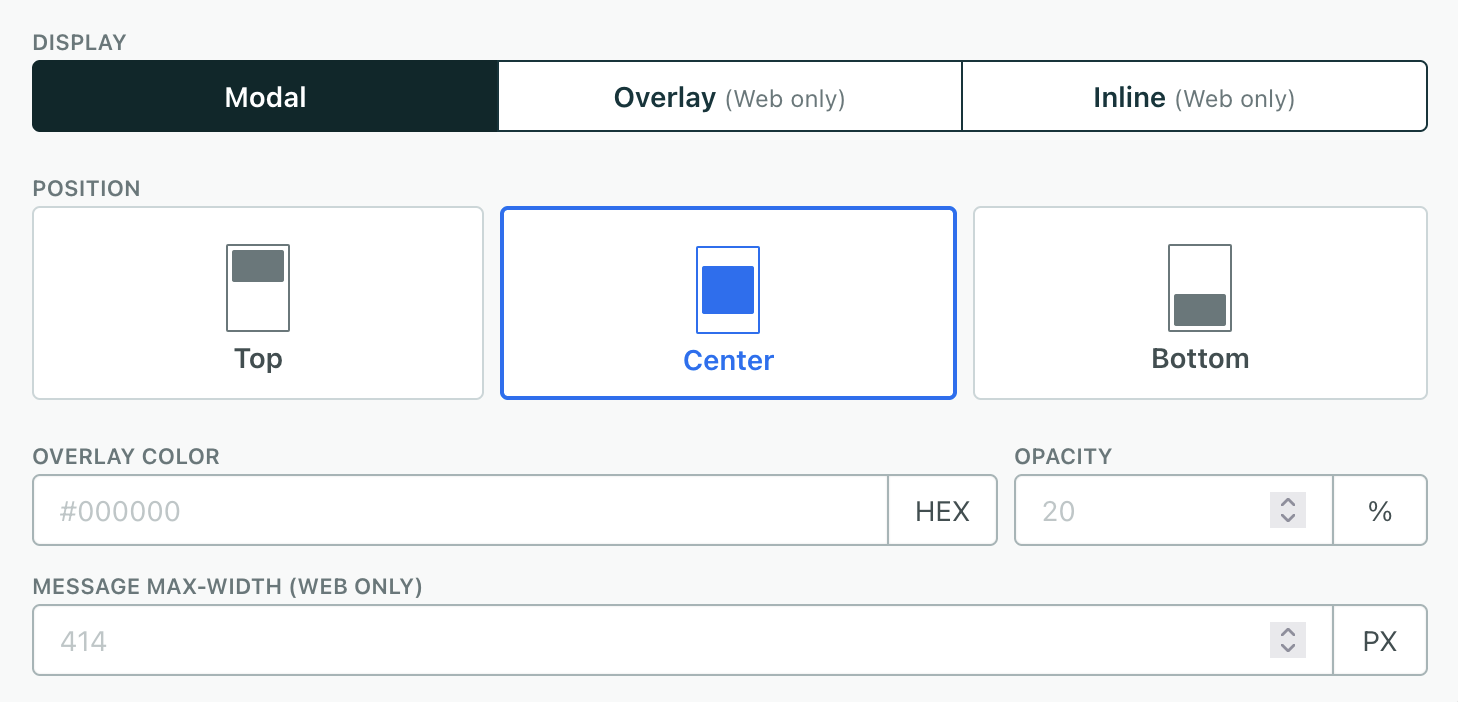
Set your message’s Display and Position. This determines where your message appears on a page. You can find these settings by selecting the message background or going to Steps and selecting the Step for your message. See Display and Position for more information.
-
Build your message. Remember, you can use liquid
A syntax that supports variables, letting you personalize messages for your audience. For example, if you want to reference a person's first name, you might use the variable
to customize your message!{{customer.first_name}}.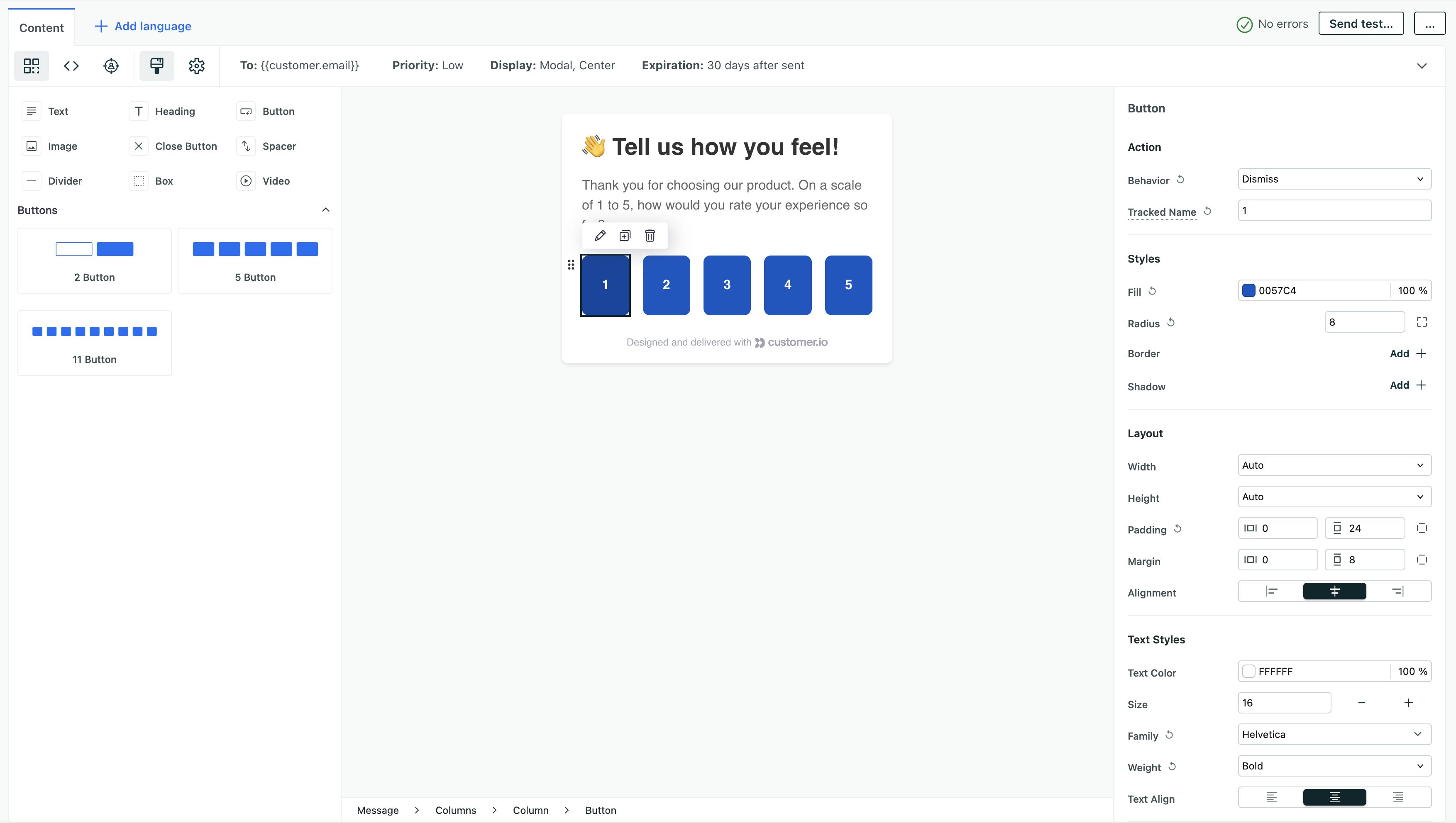
-
Click Save Changes.
Set light and dark mode styles
By default, an in-app message uses the same styles in light and dark mode. You can set separate dark mode values for color properties—like Fill, Text color, borders, and divider colors—on any component or on the message background. Anywhere you don’t set a dark value, the light value applies in both modes. Other properties, like spacing, radius, and font size, stay the same in both modes.
If you set your dark mode styles in your global styles, then your message will automatically inherit them.
You can also override your global styles on any message. On any setting relevant to dark mode (like fill, text color, border color, and divider color), click to expose separate light and dark mode values, then set each one.
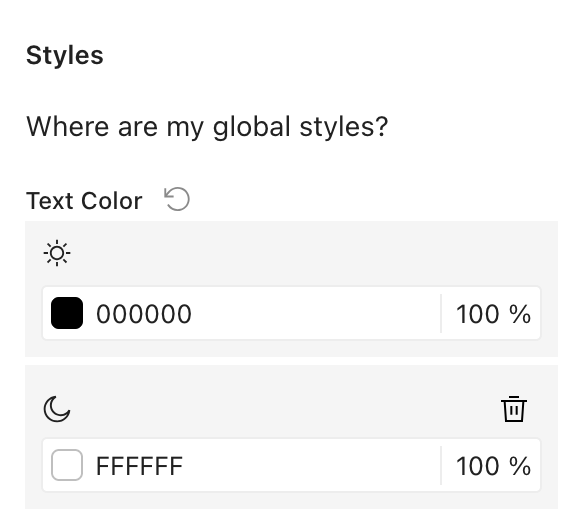
When you’re done setting styles, you can click at the top of the canvas to switch the canvas between the light and dark previews.
Message expiration
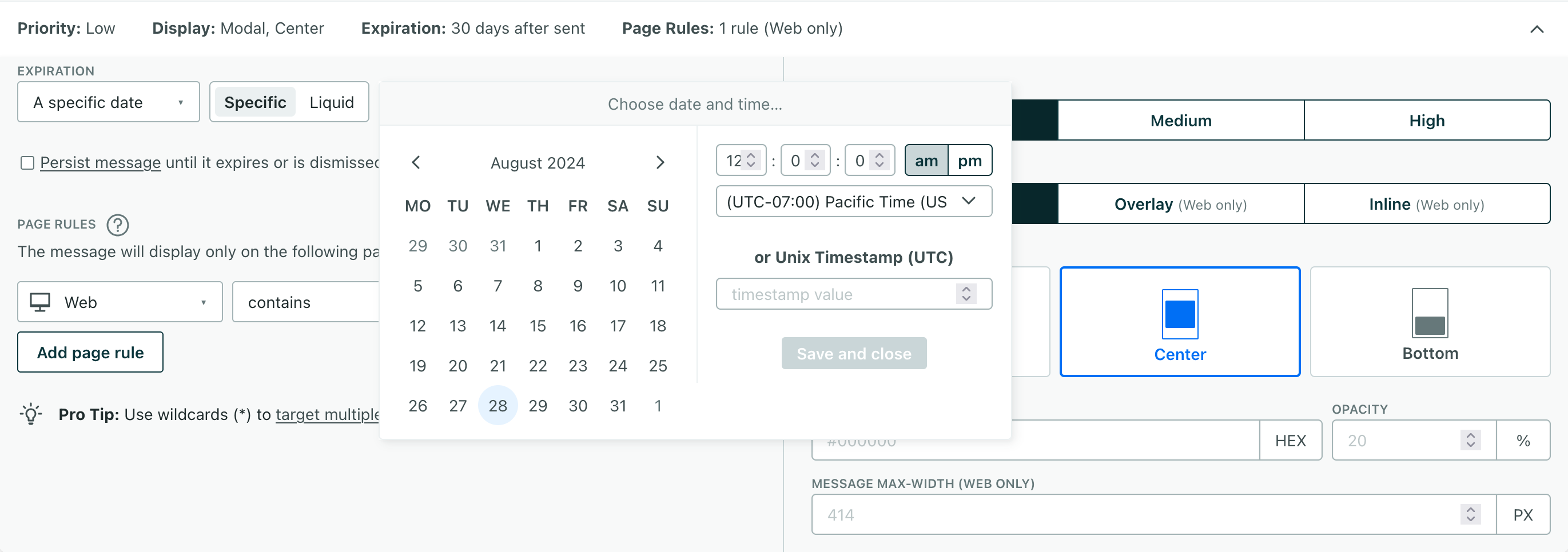
By default, messages expire 30 days after they’re sent, but you can change the expiration period to make sure that people only see your messages while they’re relevant. If someone doesn’t see your message within the expiration period, we’ll cancel the message.
However, many messages are more time-sensitive. For example, you wouldn’t want to send someone an expired coupon code. To prevent people from receiving old messages, make sure that you change the Expiration for your message. You can set your message to expire
- At a specific date and time
- At a relative time after the message is sent (for example, 10 days after the message is sent)
- Or using liquid
A syntax that supports variables, letting you personalize messages for your audience. For example, if you want to reference a person's first name, you might use the variable
to configure the expiration date based on an event property, profile attribute, trigger variable, or snippet relative to the send time of the message.{{customer.first_name}}.
The maximum expiration window is 60 days.
Persistent messages
By default, in-app messages only show once—the message disappears after the customer clicks, taps, or refreshes the page.
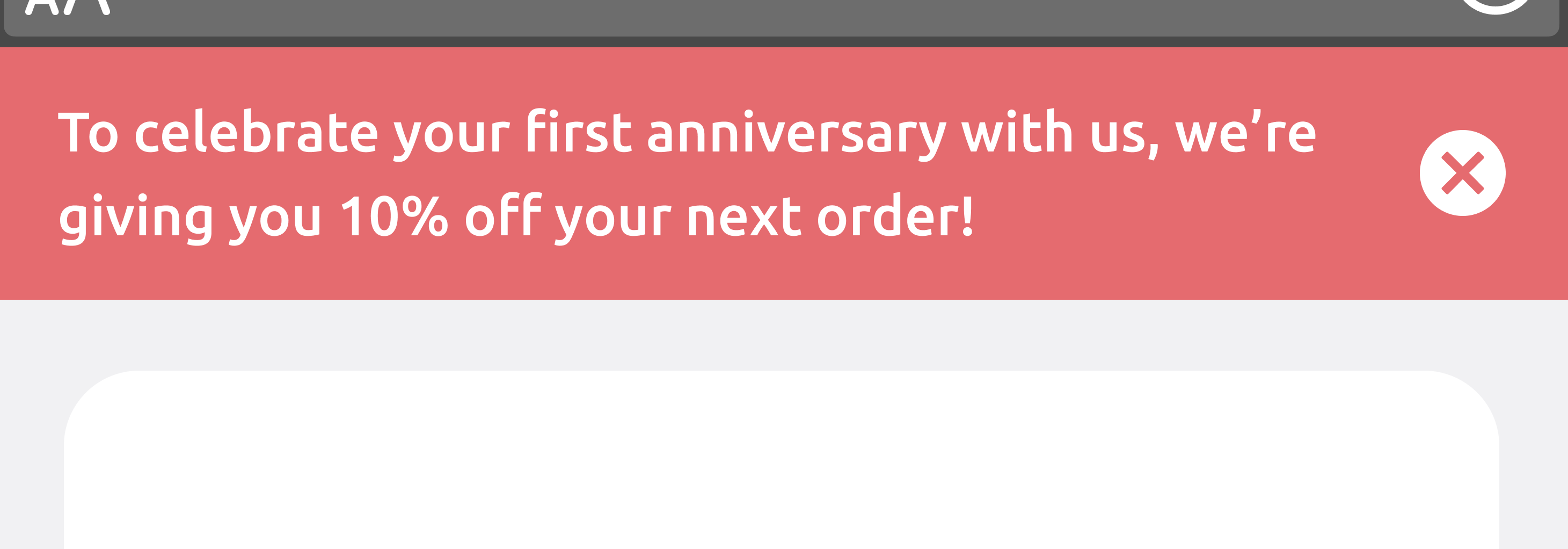
You can check the Persist Message option to show your message across multiple sessions and page views. Your audience will continue to see a persistent message until they close it or until the message expires. Make sure your messages include a Close button or an icon so that customers can permanently dismiss your message.
If you use one of our web SDKs, you’re all set to send persistent messages. For mobile devices, you must use the versions below or later to take advantage of this feature. Persistent messages are available starting in:
Message Priority
When you send a message, a user won’t see it until they visit a page or open your app. This means that a user can become eligible for multiple messages. We use priority to determine the order in which we deliver queued messages that have the same Display and Page Rule settings.
Priority affects the order in which we deliver queued messages, but it doesn’t replace messages that are already displayed. If a person visits a page and gets a low-priority message before you send a higher-priority message, they’ll see the low-priority message. Our SDKs won’t replace the lower-priority message with the higher-priority message.
Priority applies based on your Display setting:
- Modal (Position does not matter): We only display one modal at a time. If you send two modal messages, we’ll display the one with the highest priority. If you send two messages with the same priority, we’ll display the one that was sent first.
- Overlay (Position matters): We can display up to six overlay messages at a time! One for each Position—top left, center, right and bottom left, center, right.
- Inline (Position ID matters): Priority affects the order messages are queued for delivery to a specific position ID. If a message is already displayed in an inline position, higher-priority messages won’t replace it until the current message is dismissed or expires.
- Tooltip (Target matters): Priority affects the order of queued tooltip messages. Tooltips only display if the target element exists on the page.
You can avoid competing messages using Page Rule triggers or by using conditions in automations to check for competing messages. Page rules cause messages to appear when a person visits specific pages in your app or website, helping you deliver messages that are relevant to the pages your audience visits.
Page rules
By default, your audience will see your message on the first page or screen they visit. Page rules let you determine the specific platforms and pages or screens that a person must be on to see a message. They help you send messages that are relevant to the places your audience visits and the things they do.
You can set two kinds of page rules:
- Include: your message will appear on any of these pages.
- Exclude: your message will not appear on any of these pages.
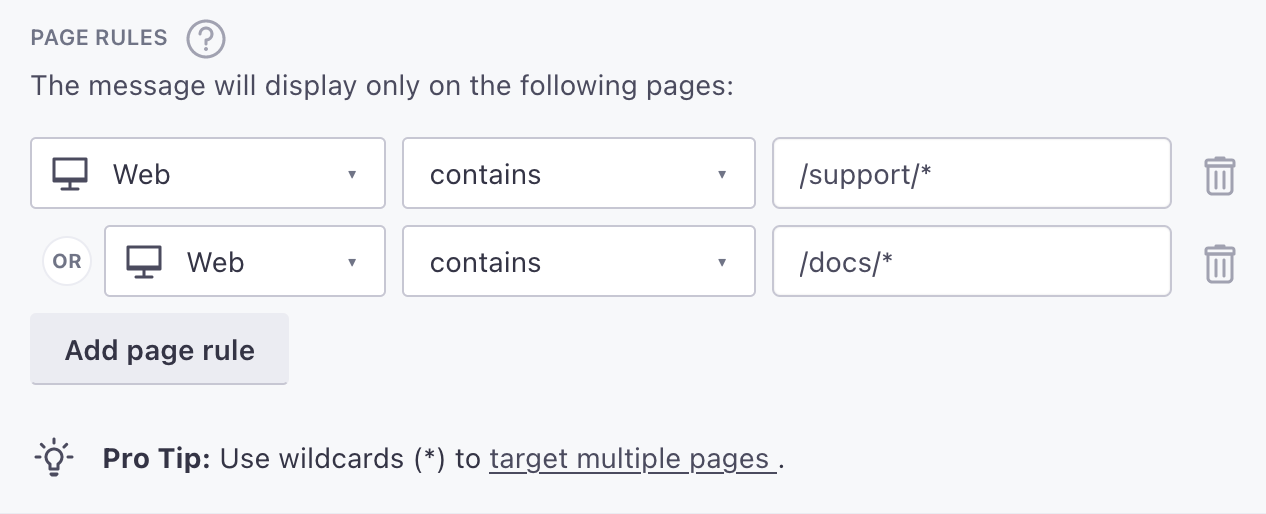
Click Add Rule to add a page rule. Click it again to add multiple rules. When you add a rule, you’ll set the platform and then the pages or screens a person must visit to see your message.
- You can use wildcards (
*) in rules to match multiple pages. For example the/messaging/path would only match a single page but/messaging/*would match all pages in the/messaging/path. - You can also use liquid
A syntax that supports variables, letting you personalize messages for your audience. For example, if you want to reference a person's first name, you might use the variable
to set a page rule based on an event property, profile attribute, trigger variable, and so on. For example{{customer.first_name}}./{{event.product_family}}/*would match pages that begin with the value of theproduct_familyevent property. - You can look for query parameters (or values of query parameters) in the URL using the contains operator. For example,
contains utm_sourcewould match pages with autm_sourcequery parameter.
Evaluating multiple page rules
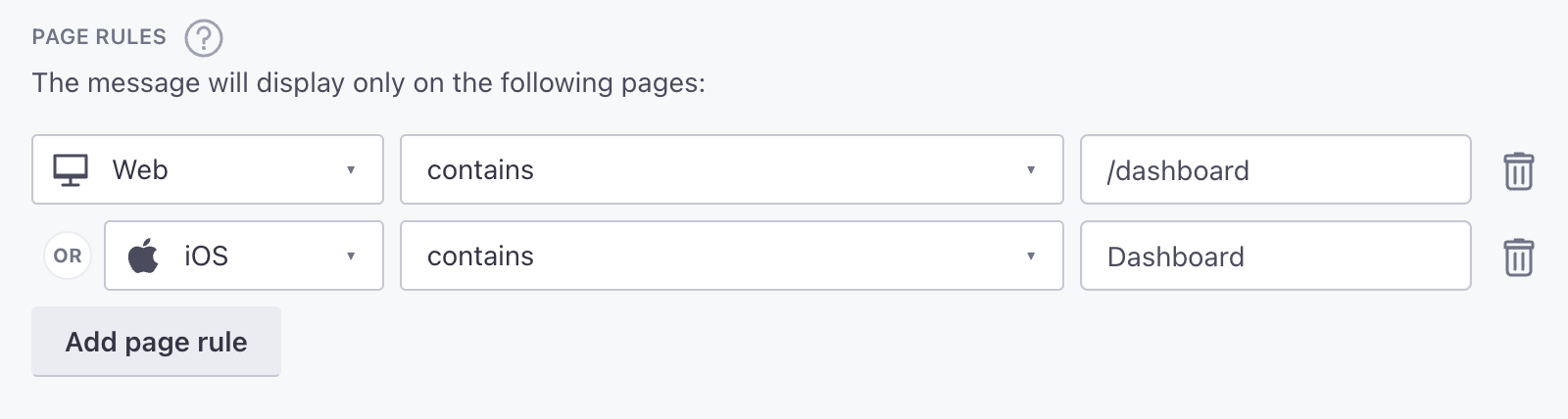
When you set multiple rules of the same type, any matching path satisfies the rule. For example, if you have multiple include rules, a page matching any of your rules will show your message. Similarly, any page matching your exclude rules will not show your message.
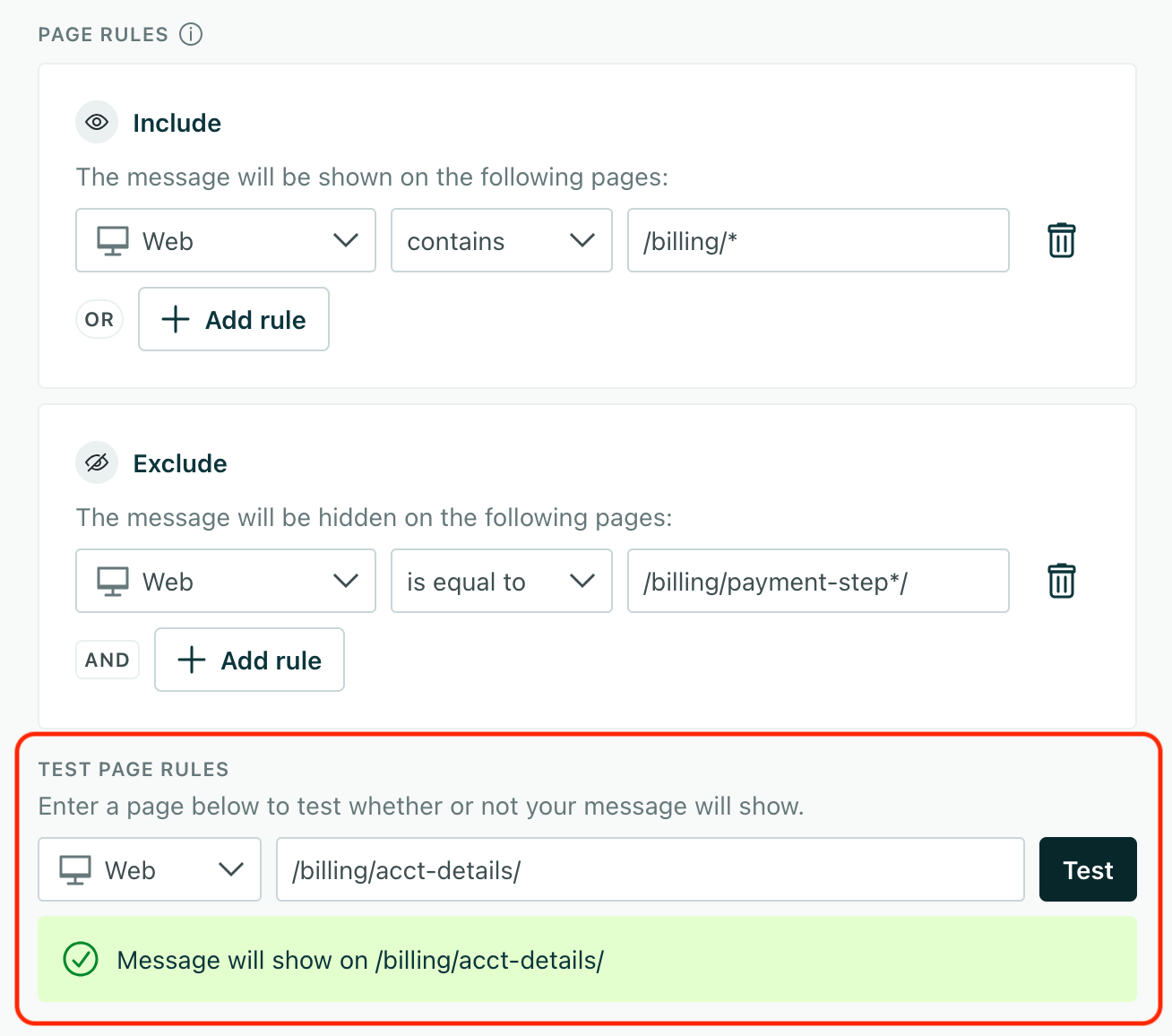
When you set both include and exclude rules, a person must match at least one include rule and not match any exclude rules to see your message. If a person goes to a page that matches an exclude rule, they won’t see your message even if they also satisfy an include rule.
Test your page rules
Page rules may contain regular expressions, and the rules along which we evaluate them can be hard to understand. That’s why we have the Test Page Rules section below the page rule editor.
Here you can enter a URL or page path and see whether your message will appear or not. Use tests to fine-tune your page rules and make sure that your message appears on the right pages before you send it.
What is a “page”?
A “page” means something different for your mobile apps and website:
- Mobile Apps (iOS and Android): the page is the same as the
namevalue that you send inscreenevents. For example,billing*would cover all screens in your app that begin with “billing”. - Websites: the page is the URL (
window.location.href) unless you passpagecalls with a different name parameter. For example,https://example.com/*/billingwould cover paths on your website like your in-app billing pagehttps://example.com/ui/billingor documents about billing underhttps://example.com/billing.
Page rules in single-page applications
If your website is a single page application you must send page calls to tell Customer.io what “page” a person is on.
You might use page rules to point out new features within specific areas of your app or new products on your website and you can even use liquid A syntax that supports variables, letting you personalize messages for your audience. For example, if you want to reference a person's first name, you might use the variable {{customer.first_name}}.{{event.product_url}}). Page rules also help avoid conflicting messages. If you send two messages of the same priority without page rules, they’ll appear one after the other; if you set a page rule for at least one message, it’ll distribute the messages across your app, and only show when your audience is on a page matching the rule.
Keep in mind: page rules are case sensitive. If you’re targeting your mobile app, make sure your page rules match the casing of the name in your screen events. If you’re targeting your website, your page rules should always be lowercase.
Set page rules through the Newsletters API
When you create an in-app message with the Newsletters API, you can set page rules as a part of the payload. You might do this if you create in-app messages programmatically outside of Customer.io.
Pass route_rules and excluded_route_rules in the message’s body_json to set page rules. body_json is a stringified JSON object, so you’ll need to pass it as a string.
route_rules and excluded_route_rules are objects that take keys for the available platforms (web, ios, or android); each platform key’s value is an array of rules.
A rule has an operator (contains or equals), a value (the path or screen to match, where * is a wildcard), and an order (an integer). Any matching rule results in the message being displayed. If you set rules for any platform, your message won’t appear on the platforms you leave out—give every platform a rule if you want your message to appear everywhere.
The example below is not stringified. You must stringify it before passing it to the API.
{
    "message_id": "welcome",
    "display": {
        "mode": "modal",
        "value": "center"
    },
    "carta_content": "<x-base><x-message>Hello {{customer.first_name}}!</x-message></x-base>",
    "route_rules": {
        "web": [
            {
                "operator": "contains",
                "value": "/dashboard",
                "order": 0
            }
        ]
    },
    "excluded_route_rules": {
        "web": [
            {
                "operator": "equals",
                "value": "/admin",
                "order": 0
            }
        ]
    }
}
You can’t change page rules through the API after you create your newsletter. The endpoints that update message content ignore body_json, so use the message editor to change page rules on an existing message.
Position your message
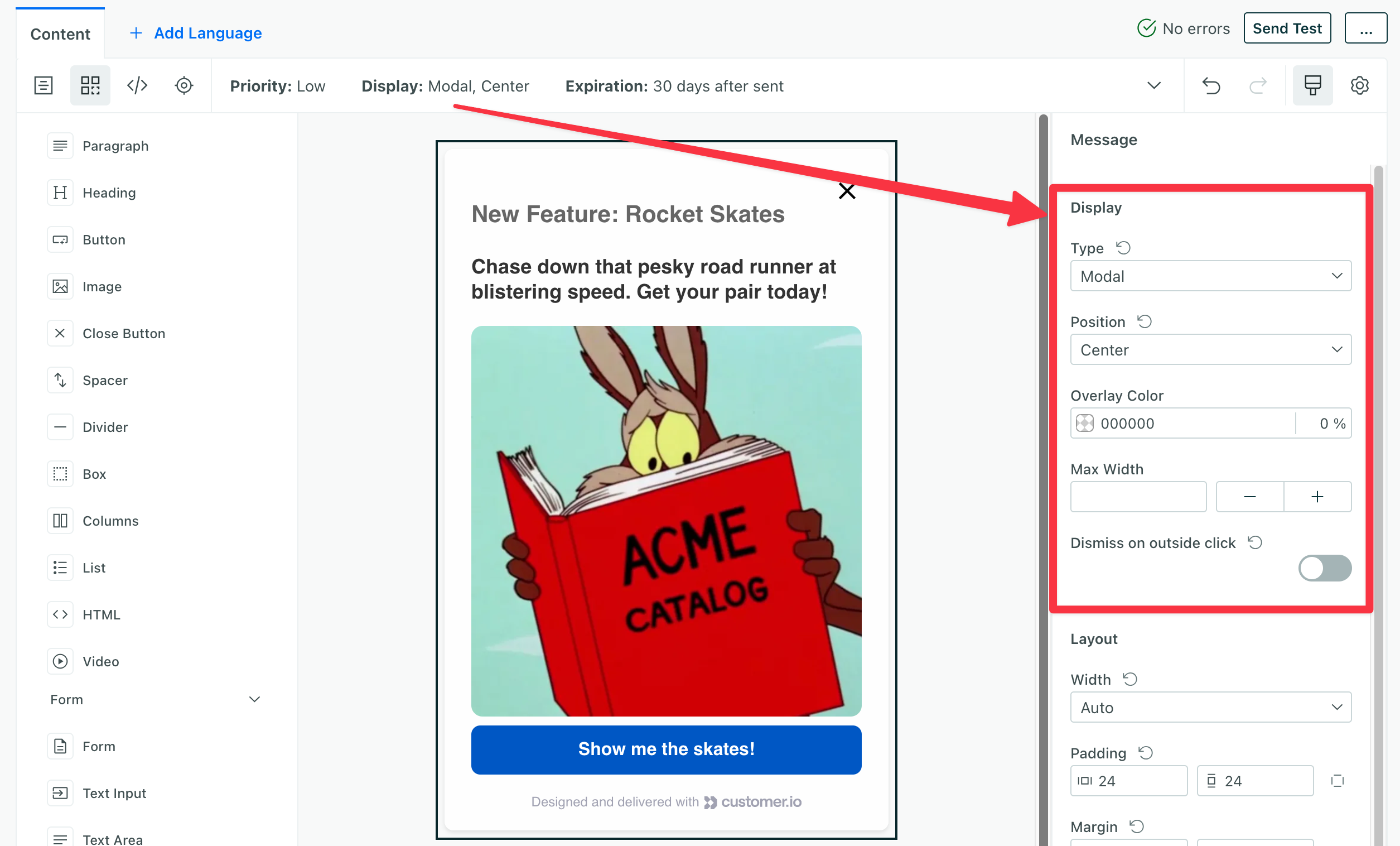
Click the message background to get to the display and position settings.
The Display and Position settings determine where your message appears on a page or screen. You can set different values for different steps in a multi-step message, giving you more control over things like product tours or other flows where you need your message to move.
The Overlay option effectively limits your message to your website visitors because mobile apps won’t display the message.
| Display setting | iOS | Android | Web | Description |
|---|---|---|---|---|
| Modal | Position your message at the top, in the center, or at the bottom of your audience’s screen. | |||
| Overlay | Position your message in the location you select, relative to your audience’s browser. | |||
| Inline | Replace an empty element with your message. For example, you may have dynamic div elements on a homepage that you periodically update with new content—like new products or features. | |||
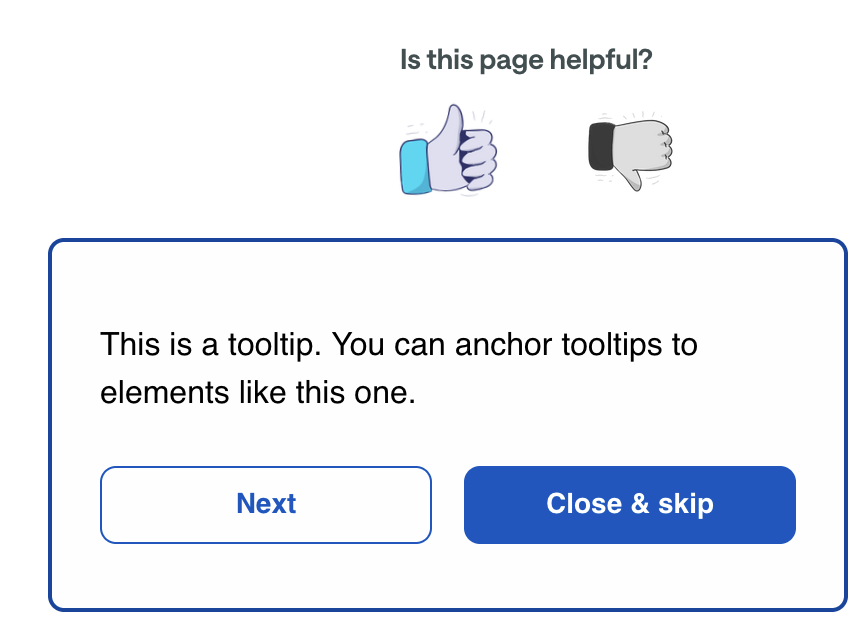
| Tooltip | Anchor your message to a specific element on the page using a CSS selector. Great for feature callouts, onboarding flows, and product tours. |
Tooltip messages
Tooltips are anchored to a specific element on a page, like a button, menu item, or feature. They’re ideal for drawing attention to new features, guiding users through your interface, or providing contextual help. Tooltips are available for web only.
You can string together multiple tooltips to create a tooltip tour—which can help with things like onboarding flows or product tours.
When you select the Tooltip display type, you’ll configure:
- Target: A CSS selector for the element you want to anchor your tooltip to—like
#my-button,.nav-link, or[data-tooltip="feature"]. The tooltip is “anchored” to this element. - Position: Where the tooltip appears relative to the target element:
Top,Bottom,Left, orRight. The default isTop.
The tooltip arrow automatically matches the background color of your message. To change the arrow color, update the background color of your message in the editor. You can’t set the arrow color independently.
You can click Select Target to open a live preview window and select an element on your website, or enter a CSS selector manually.

Tooltips appear automatically when the message is delivered and the target element exists on the page. They are not triggered by hovering over the target element. If the target element doesn’t exist on the page, the tooltip won’t display.
Specifying your tooltip’s target element
The easiest way to set a tooltip’s target is to use the visual selector—you don’t need to write CSS selectors by hand. Click Select Target in your tooltip’s display settings (or use Live Preview) to open a preview of your website:
- Click Select Target to open a live preview of your website. If you haven’t set a target yet, your tooltip won’t appear in the preview. You have to select a target to make your tooltip appear in the preview.
- In the preview bar at the bottom, click Select Element.
- Click the element on your page that you want to anchor your tooltip to—a button, a nav item, a feature card, etc.
The CSS selector is generated automatically and synced back to the editor.

Make sure that the element you anchor your tooltip to is visible on every page in your page rules. If the element isn’t on a page, the tooltip will never appear. If you set your tooltip up with a page rule where some pages have the element and some pages don’t, the tooltip will only appear on the pages that have the element!
If you’d rather set your tooltip’s target element manually, your CSS selector should reliably match a single element on the page. Here are some tips:
- Use an ID when possible:
#onboarding-buttonis the most reliable option. - Use a data attribute for elements without IDs: add something like
data-tooltip="feature-name"to your HTML element and target it with[data-tooltip="feature-name"]. - Avoid fragile selectors like
.container > div:nth-child(3)that break when your page structure changes.
Inline messages
Inline messages are a special type of in-app message that appear inline with the content on a page or screen. They’re a great way to add interactive elements to your page without interrupting the user’s experience or having to release a new version of your app.
To set up inline messages, you need to add empty elements to your website or views to your app to contain your inline messages. Then, when you send an inline message, you’ll specify the Position ID for your inline message—the empty element or view where you want to display your message.
You might need to work with your developer or marketer counterpart to work with inline messages. For example, if you’re a marketer, you might need to work with a developer to add elements or views to your app. And, if you’re a developer, you’ll need to work with whoever sends messages to figure out where you should place inline message positions and what IDs to set for them.
Custom message width
By default, the max width of a message is 414 pixels, a common breakpoint for mobile devices. This might not be wide enough for certain messages—especially ones that you display on your website.
If you need more space, you can set a custom Message Max-Width (px) for your in-app message. This expands messages to the set value, while still being responsive (100% of width) when the screen size is smaller than the max-width value.
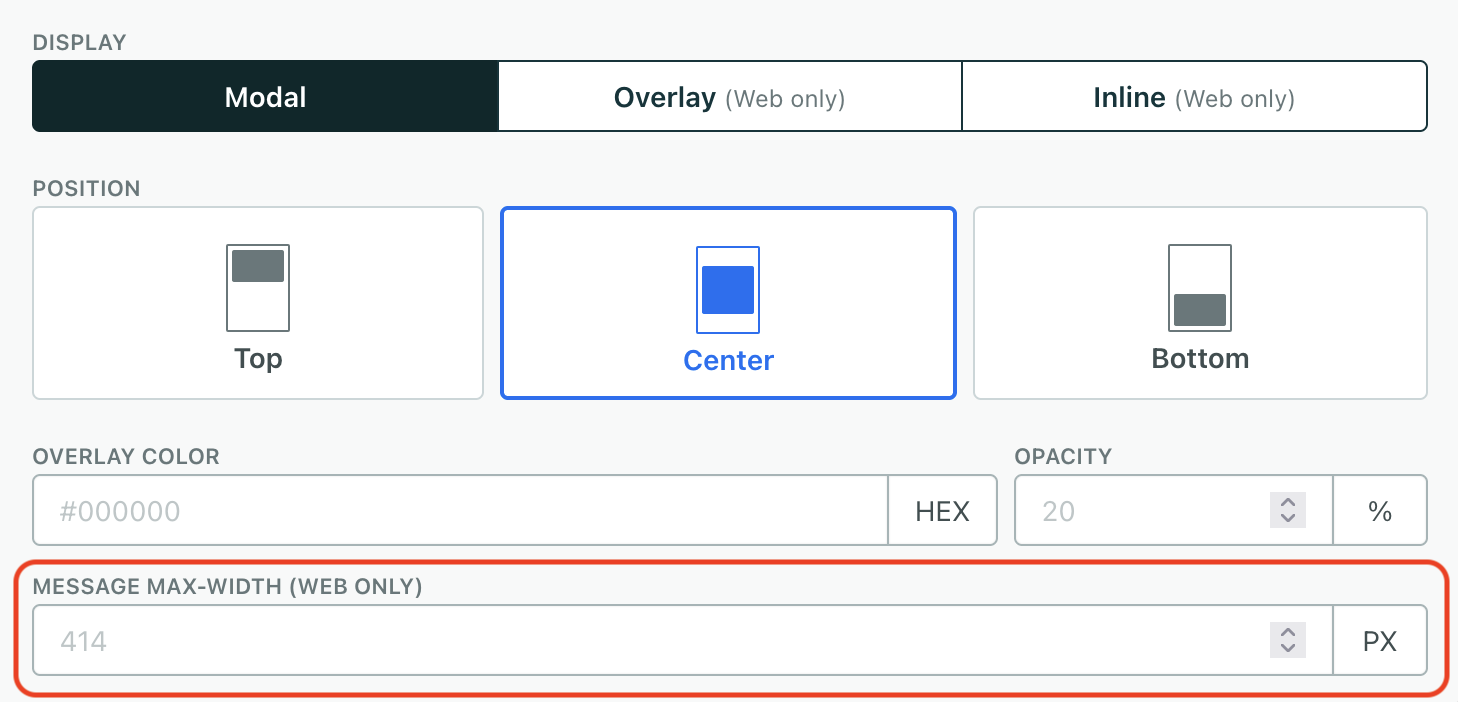
Custom background overlay color and opacity
When you use the modal display position for your in-app message, we display your message on top of a background overlay. The overlay has a default hex color of #000000 (black) with a 20% opacity.
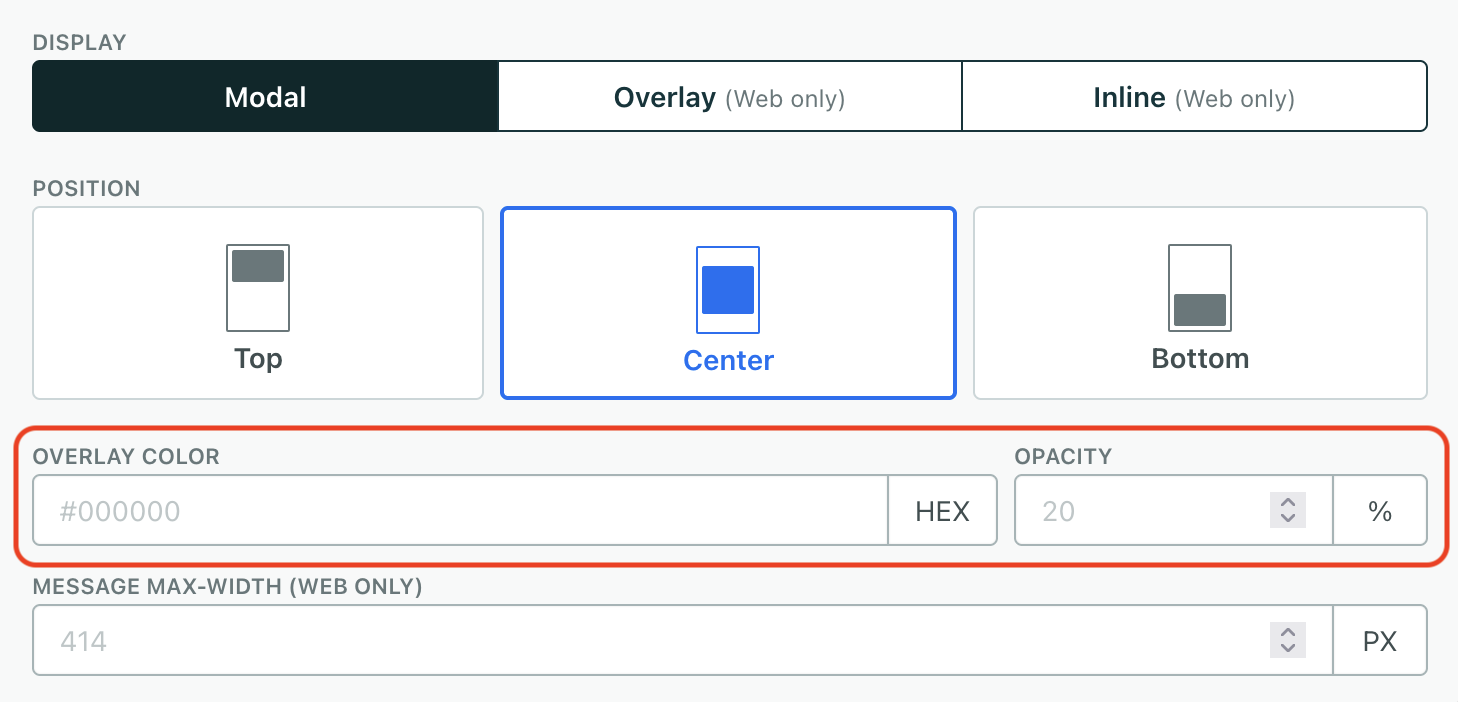
You can change the Overlay Color and Opacity values to better fit your brand when you configure your in-app message’s display settings.
Dismiss on outside click (Web only, modals)
The Dismiss on outside click setting lets users dismiss a modal message when they click outside the message on your website. This setting is only available for the Modal display type—it doesn’t apply to tooltips, overlays, or inline messages.
We wait 1 second after the message appears before we check for clicks outside the message. This prevents the user from unintentionally dismissing the message when they click on something on your page.
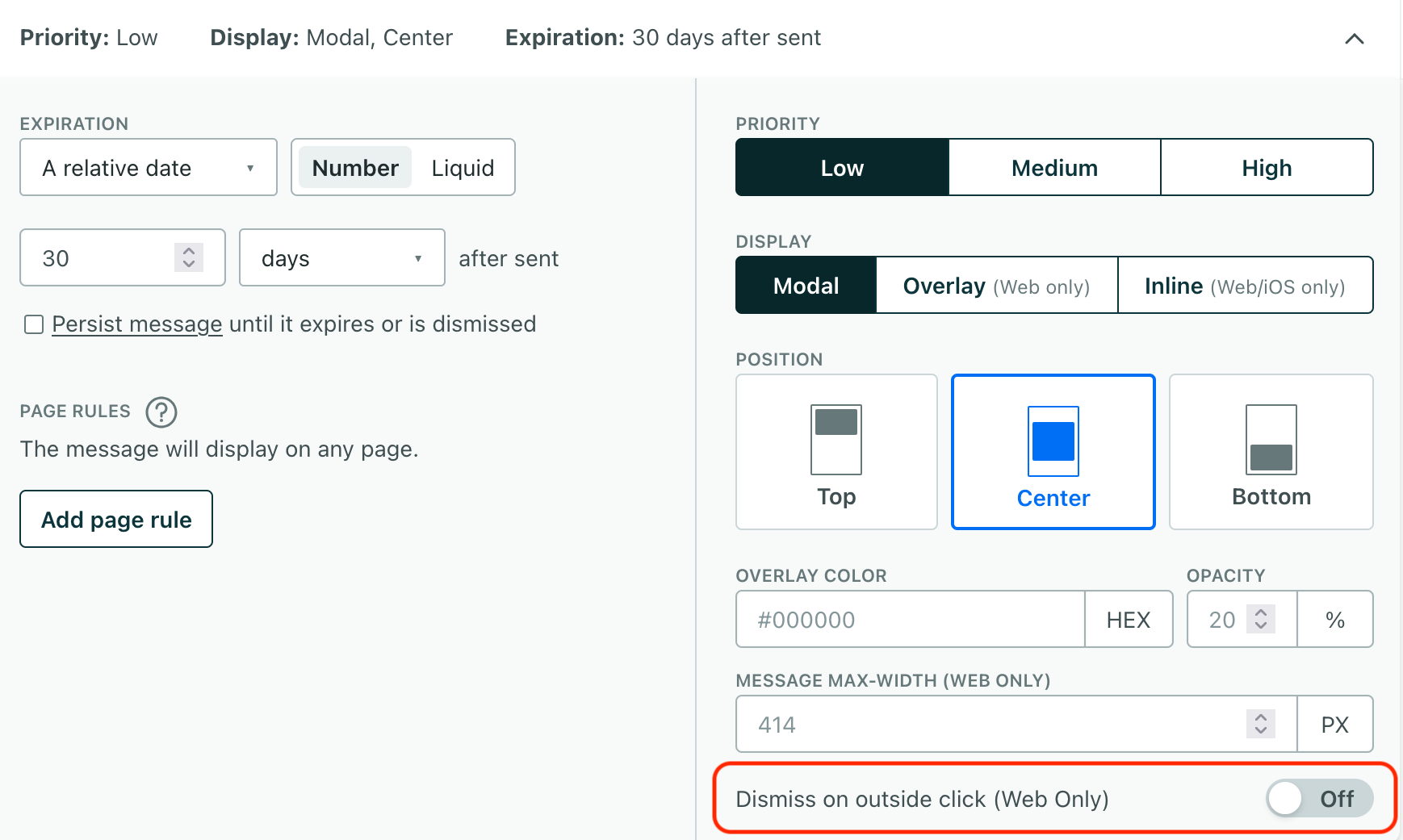
If you enable this setting, clicking outside the message also sends the in-app:message.dismissed event—just like if someone clicks the close button in your message. You can listen for this event and perform additional actions when a person dismisses a message.
Send to more than one app
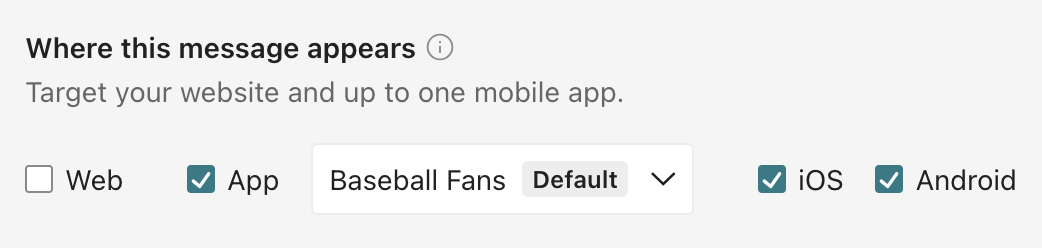
If you have multiple apps, your message settings include a Where this message appears section: pick the mobile app your message belongs to and the platforms that show it. Page rules then filter pages and screens within the platforms you select. See send in-app messages to multiple apps for how targeting works and the SDK versions it requires.
Limit your message to web or mobile audiences
By default, when you set up an in-app message, your audience can see your message in your mobile app or on your website—anywhere you’ve integrated in-app notifications. You can limit your message to specific message channels using page rules. If you have multiple apps, you can also choose the app and platforms that show your message directly.
When you set a page rule, your message will only go to the channels and pages that match your rules. If you want to send a message to any page on your website or mobile app, you can use a wildcard (*). You can also use wildcards in your path to send your message to all pages within a directory or all pages that match a pattern.
For example, if you want to send a message to all pages in the billing path on your website, you could set a page rule like Web contains /billing/*.
Segmenting an audience of app users
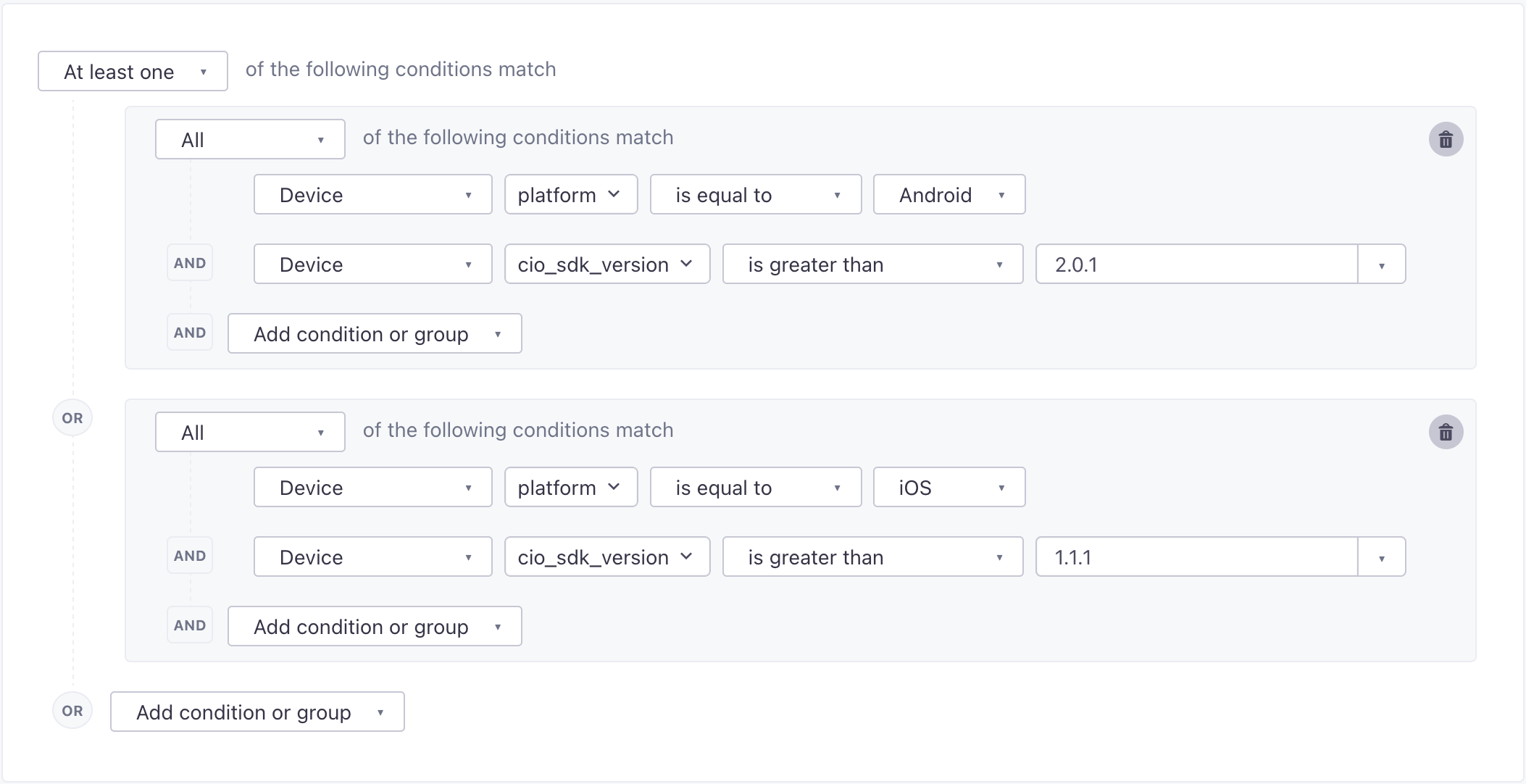
When you set up your automation, you may also want to make sure your segment includes, or filters for, people who have a version of the SDKs supporting in-app messages. If someone in your audience doesn’t have a version of your app that supports in-app messages, they’ll never receive your in-app messages. Messages intended for them will be sent, but never opened, which can produce inaccurate metrics.
Our SDKs have implemented in-app messages in different versions. So, if you create segments or filters for this purpose, you should group platform AND cio_sdk_version conditions:
Test your in-app message
You can send a test version of your in-app message to make sure that your message looks and behaves the way you expect it to.
Click Send test and find the person you want to send your message to.
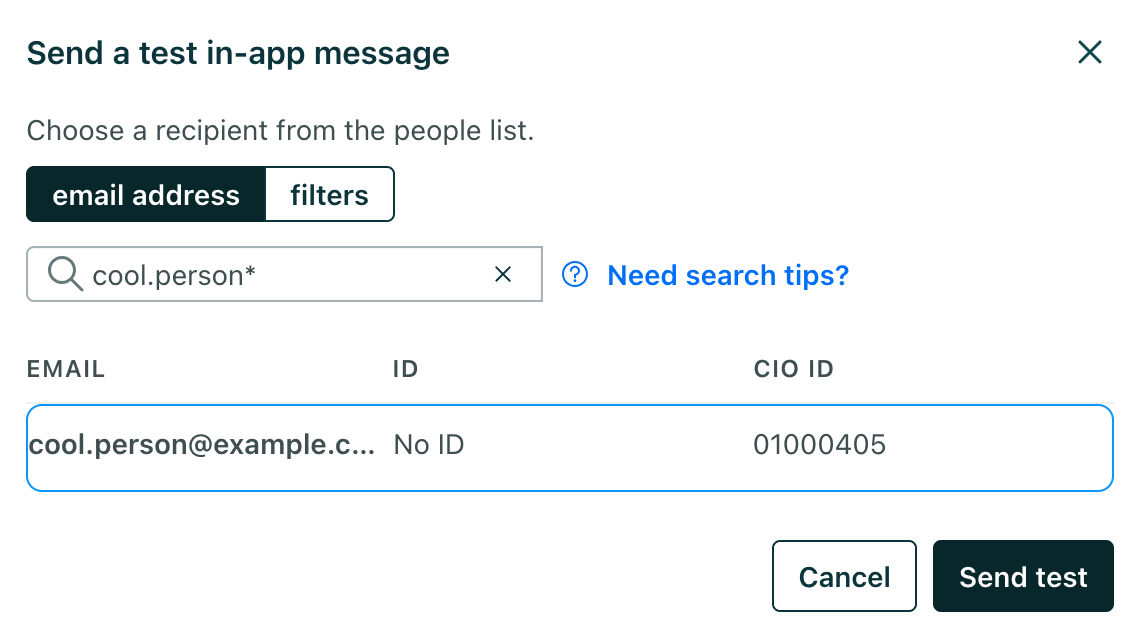
If your test looks good, then you’re all set to send! If not, you can edit your message and send more tests to check your work.