Trigger inbox messages from your backend
UpdatedYou can send inbox messages in response to user activity directly from your backend. While we call this a transactional message, it’s not a transactional message in the traditional, legal sense—it’s a message that you send to your audience that they can access at their leisure.
How it works
You can leverage our transactional messaging feature to send inbox messages immediately from your backend without triggering a campaign or broadcast. This gives you a way to send one-to-one messages using Customer.io without having your message-sending logic inside Customer.io.
that triggers an inbox message?} a-->|yes|b(Trigger
inbox_message)
a-.....->|no|c(Message not sent)
b-->d{Is the recipienton your website or app?} d-->|no, wait for user to return
to your website or app|d h{Does the inbox send
markOpened when themessage is displayed?} d-.->|yes|e{Does the user
open the inbox?} e-.->|no, wait for the user
to open the inbox|e e-->|yes|h h-->|yes|i(Message is
marked as
opened)
h-.->|no|j(Message is sent butnot opened/delivered)
Setup process
- Set up a message template: This represents the “template” for the message you want to send. You’ll also use liquidA syntax that supports variables, letting you personalize messages for your audience. For example, if you want to reference a person’s first name, you might use the variable
{{customer.first_name}}. to personalize the message for the recipient. - Set up your backend to trigger your inbox message: This is where you’ll send the message payload to Customer.io. You’ll reference the template to make sure that you send the correct message.
1. Set up a message
When you set up a message, you’re essentially determining the id or name of the message you want to send. You’ll use one of these values to send and populate your message when you’re ready to send it.
Go to the Transactional page and click Create Message.
Give your message a Name and a Description, then click Next: Add Content. The name and description help your team members understand what kind of message this is (like “Order Update”).
Select Inbox as the message type and click Add Content.
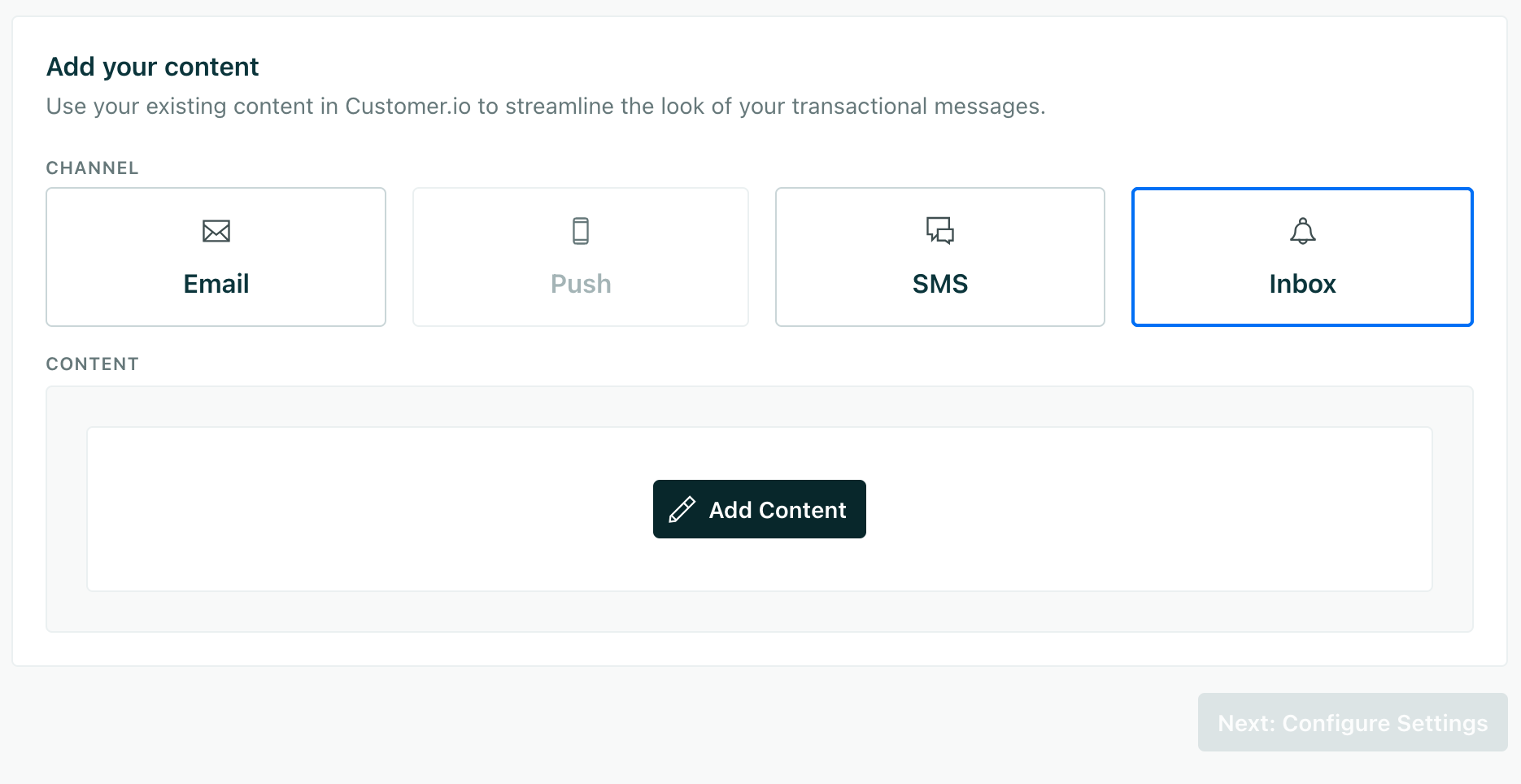
Define your message settings:
- Type: Provides a way to differentiate messages in your inbox. For example, if a message type is
rich, that might tell your inbox client to display a rich message with support for images, etc. - Expiration: The time between when the message is sent and when it should expire. Messages only expire if they’re sent but not delivered. By default, messages expire after 60 days.
- Topics: These are the topics that the message belongs to, used to filter the inbox (when you call
analytics.inbox('topic1', 'topic2')). You can let your audience filter on topics when they open the inbox.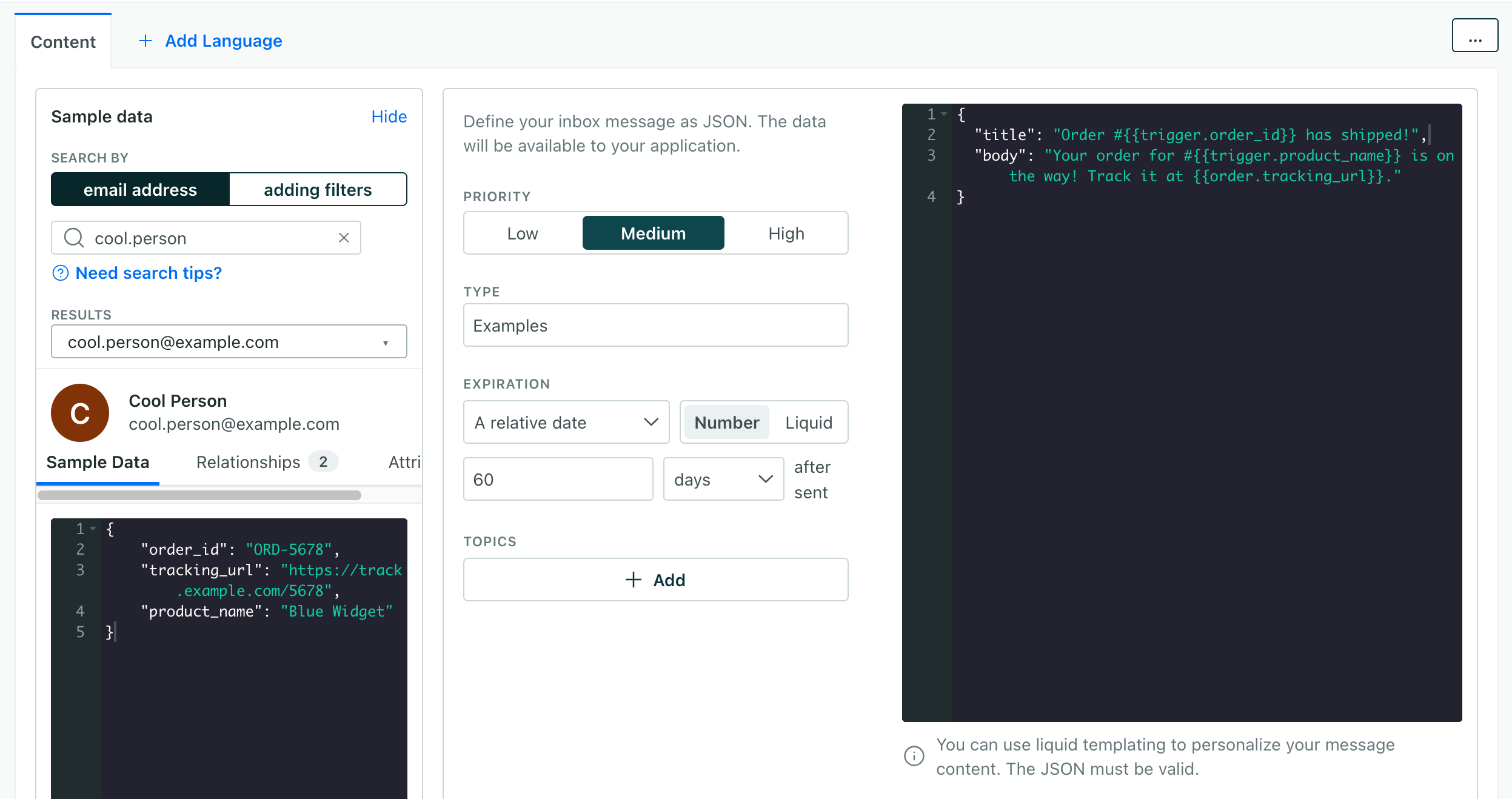
- Type: Provides a way to differentiate messages in your inbox. For example, if a message type is
In the JSON area, set the
titleandbodyof your message: these are the two “message” fields you’ll send with your message. You can send other fields in the payload when you trigger the message, but these are the two fields that represent the message itself.You can use liquidA syntax that supports variables, letting you personalize messages for your audience. For example, if you want to reference a person’s first name, you might use the variable
{{customer.first_name}}. to include dynamic content from your trigger data. Use{{customer.<attribute_name>}}to include customer attributes and{{trigger.<attribute_name>}}to include data from your payload—these are values you can set when you send a transactional message.For example, your message might look like this:
{
 "title": "Order #{{trigger.order_number}} has shipped!",
 "body": "You can track your order for {{trigger.order_number}} here: {{trigger.tracking_url}}",
}
When you’re done, save your message and click Next: Configure Settings.
Update your message settings. We recommend that you use the default settings, but you should Set a trigger name so that it’s easier to send your message later. By default, you’ll trigger a message using the
transactional_message_id, which is the last number in the URL of your message; the trigger name makes this more human readable.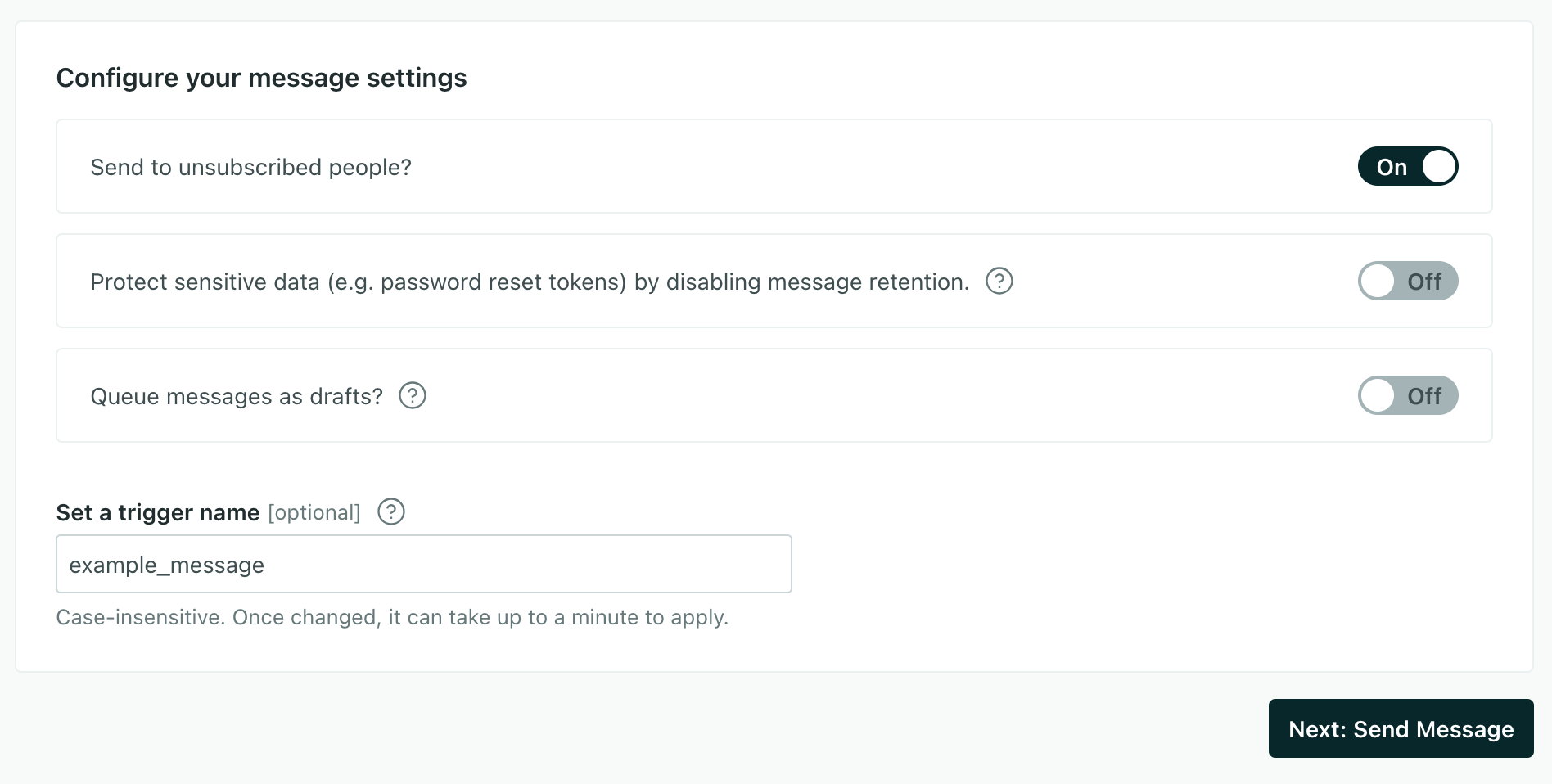
Click Next: Send Message.
Now you’re ready to send your message! You’ll need to update your backend to trigger your message. We also recommend that you test your message to make sure it displays the way you expect it to.
Using Liquid in messages
You can use liquidA syntax that supports variables, letting you personalize messages for your audience. For example, if you want to reference a person’s first name, you might use the variable {{customer.first_name}}. to include dynamic content from your trigger data. Use {{customer.<attribute_name>}} to include customer attributes and {{trigger.<attribute_name>}} to include data from your payload—these are values you can set when you send a transactional message.
- Customer attributesA key-value pair that you associate with a person or an object—like a person’s name, the date they were created in your workspace, or a company’s billing date etc. Use attributes to target people and personalize messages.: these are attributes that are already set on your audience. For example,
{{customer.first_name}}corresponds to thefirst_nameattribute on your customer’s profile. - Trigger data: data sent in the
message_dataobject when you trigger an inbox message. For example{{trigger.order_number}}corresponds tomessage_data.order_numberin your payload.
Your trigger data comes from the message_data object in your transactional message payload.
Message types
The message type gives you a way to categorize messages that you want to show in your inbox. You might do this if you want to let users filter the messages they see.
If you don’t want to filter messages by type, and you don’t want to assign “types” to your messages, leave this field empty.
If you send a message with a type that isn’t specified in the analytics.inbox() parameter, the message won’t appear to the user.
2. Set up your backend to trigger inbox messages
You’ll trigger inbox messages using our inbox_message API. You send calls to this endpoint using one of our App API-based libraries (Node.js, Python, Ruby, Go) or by sending requests directly to POST https://api.customer.io/v1/send/inbox_message.
Triggering an inbox message is fairly similar to the way you send events to Customer.io. But, where events can trigger campaigns or get used in other capacities, the inbox_message endpoint explicitly triggers a message for the end user. The following examples show how to trigger an inbox message using the libraries listed above. See our API documentation for more information on the inbox_message endpoint.
transactional_message_id: Thetransactional_message_idis the ID of your transactional message. You can find this in the URL of your transactional message or in the code sample in the Overview tab for your transactional message.identifiers: Theidentifiersare the identifiers for the recipient. You can use theid,email, orcio_ididentifier.message_data: Themessage_datais the data you want to include in your message. You can use liquidA syntax that supports variables, letting you personalize messages for your audience. For example, if you want to reference a person’s first name, you might use the variable{{customer.first_name}}. to include dynamic content from your trigger data.
Below are examples showing how to trigger an inbox message using our SDKs.
Node.js
const { APIClient } = require("customerio-node");

const client = new APIClient("YOUR_APP_API_KEY");

const request = {
  transactional_message_id: "order_shipped",
  identifiers: {
    id: "user_123"
  },
  message_data: {
    order_id: "ORD-5678",
    tracking_url: "https://track.example.com/5678",
    product_name: "Blue Widget"
  }
};

client.sendInboxMessage(request)
  .then(res => console.log(res))
  .catch(err => console.log(err.statusCode, err.message));
Python
from customerio import APIClient

client = APIClient("YOUR_APP_API_KEY")

request = {
  "transactional_message_id": "order_shipped",
  "identifiers": {
    "id": "user_123"
  },
  "message_data": {
    "order_id": "ORD-5678",
    "tracking_url": "https://track.example.com/5678",
    "product_name": "Blue Widget"
  }
}

response = client.send_inbox_message(request)
print(response)
Ruby
require "customerio"

client = Customerio::APIClient.new("YOUR_APP_API_KEY")

request = {
  transactional_message_id: "order_shipped",
  identifiers: {
    id: "user_123"
  },
  message_data: {
    order_id: "ORD-5678",
    tracking_url: "https://track.example.com/5678",
    product_name: "Blue Widget"
  }
}

begin
  response = client.send_inbox_message(request)
  puts response
rescue Customerio::InvalidResponse => e
  puts e.message, e.code
end
Go
import "github.com/customerio/go-customerio/v3"

client := customerio.NewAPIClient("YOUR_APP_API_KEY")

request := customerio.SendInboxMessageRequest{
  TransactionalMessageID: "order_shipped",
  Identifiers: map[string]string{
    "id": "user_123",
  },
  MessageData: map[string]interface{}{
    "order_id": "ORD-5678",
    "tracking_url": "https://track.example.com/5678",
    "product_name": "Blue Widget",
  },
}

body, err := client.SendInboxMessage(context.Background(), &request)
if err != nil {
  fmt.Println(err)
}

fmt.Println(body)
cURL
curl --request POST \
  --url https://api.customer.io/v1/send/inbox_message \
  --header 'Authorization: Bearer YOUR_APP_API_KEY' \
  --header 'content-type: application/json' \
  --data '{
    "transactional_message_id": "order_shipped",
    "identifiers": {
      "id": "user_123"
    },
    "message_data": {
      "order_id": "ORD-5678",
      "tracking_url": "https://track.example.com/5678",
      "product_name": "Blue Widget"
    }
  }'

