

Send a WhatsApp message
After you've enabled WhatsApp support and created WhatsApp-approved templates, you can send WhatsApp messages in any automation or broadcast.
Set up your WhatsApp message
-
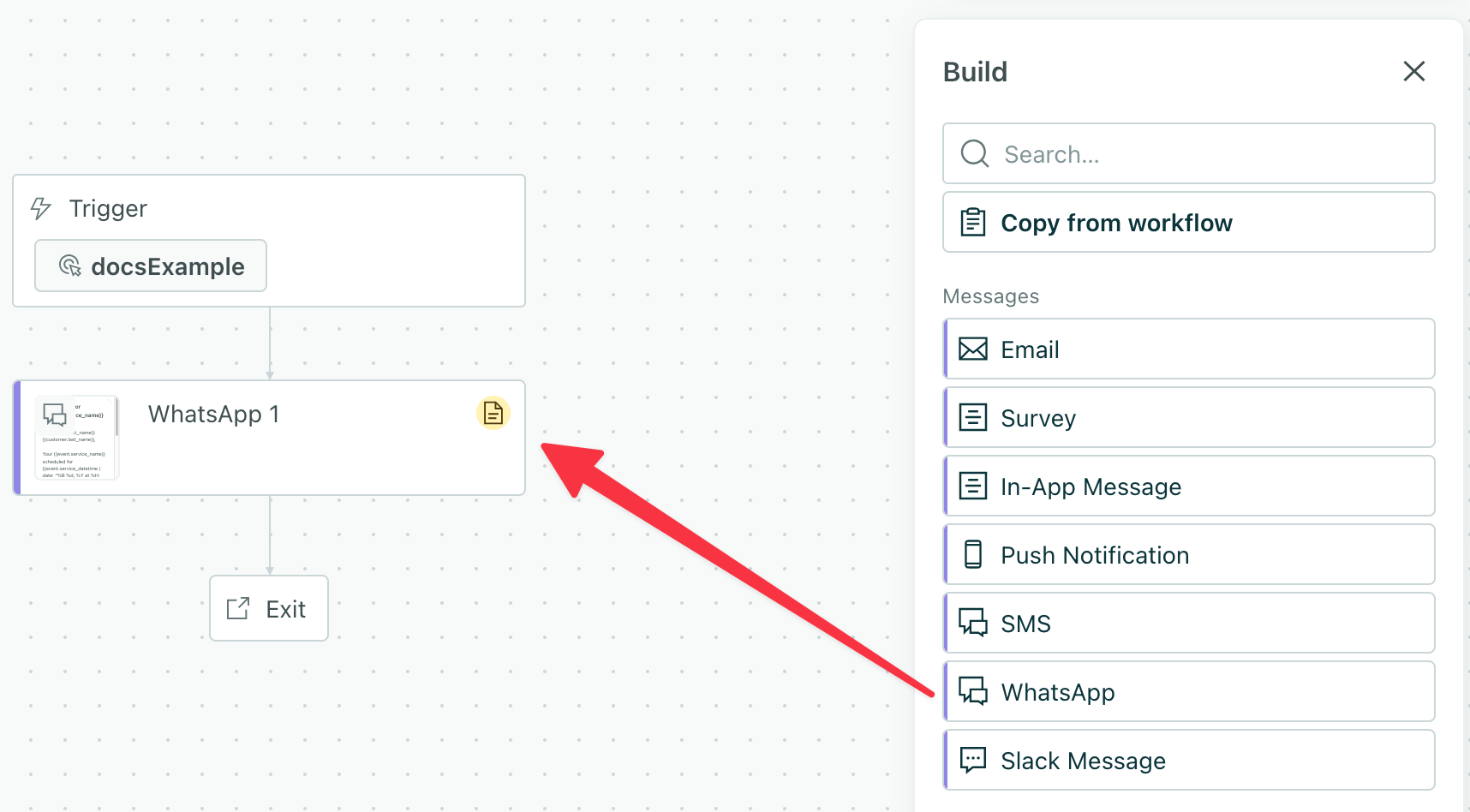
Add a WhatsApp message block to your automation or broadcast workflow.
-
Click Add Content.
-
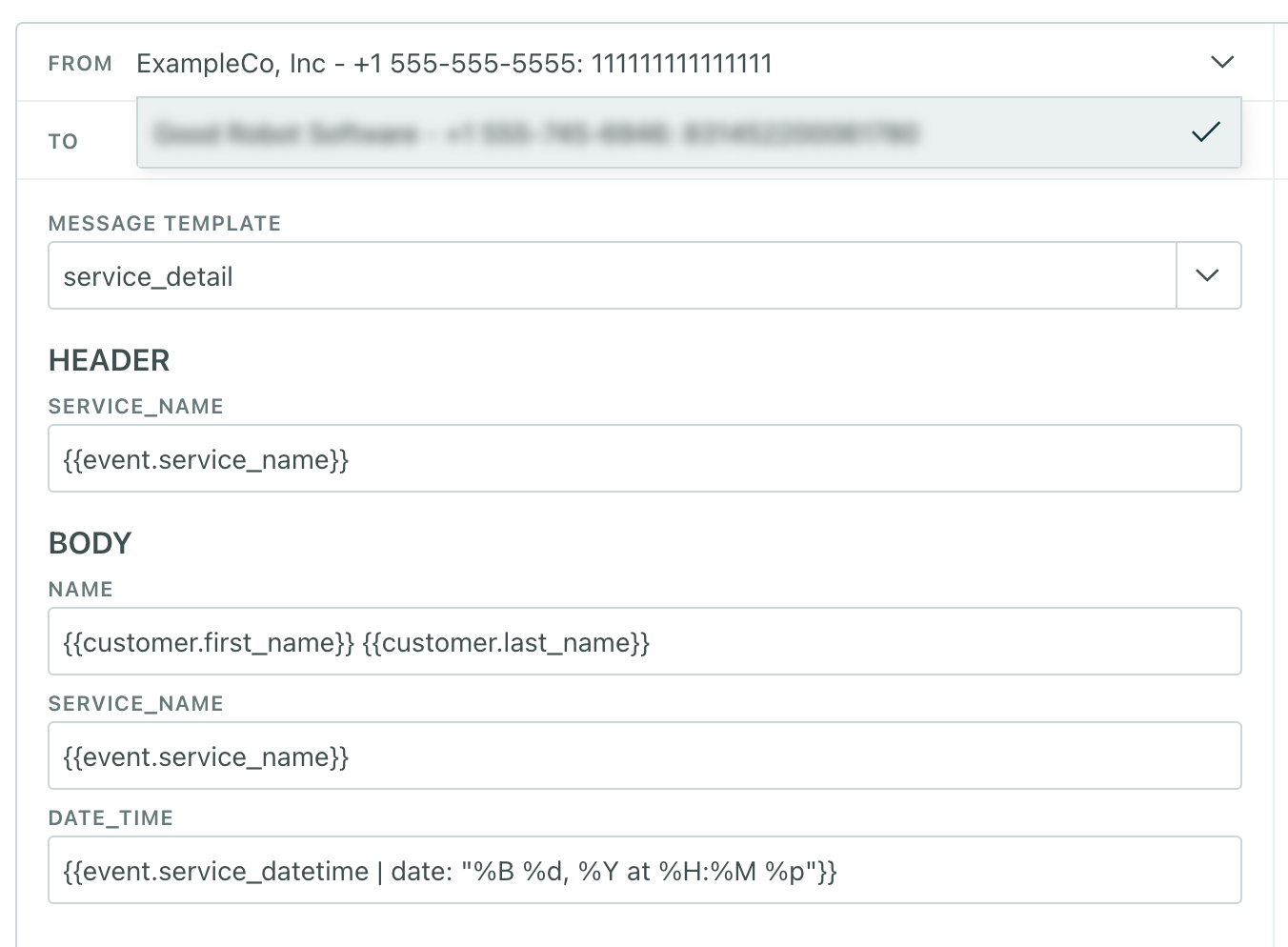
Select a WhatsApp approved sender in the From field. If you only have one sender phone number, it’s already selected for you.
-
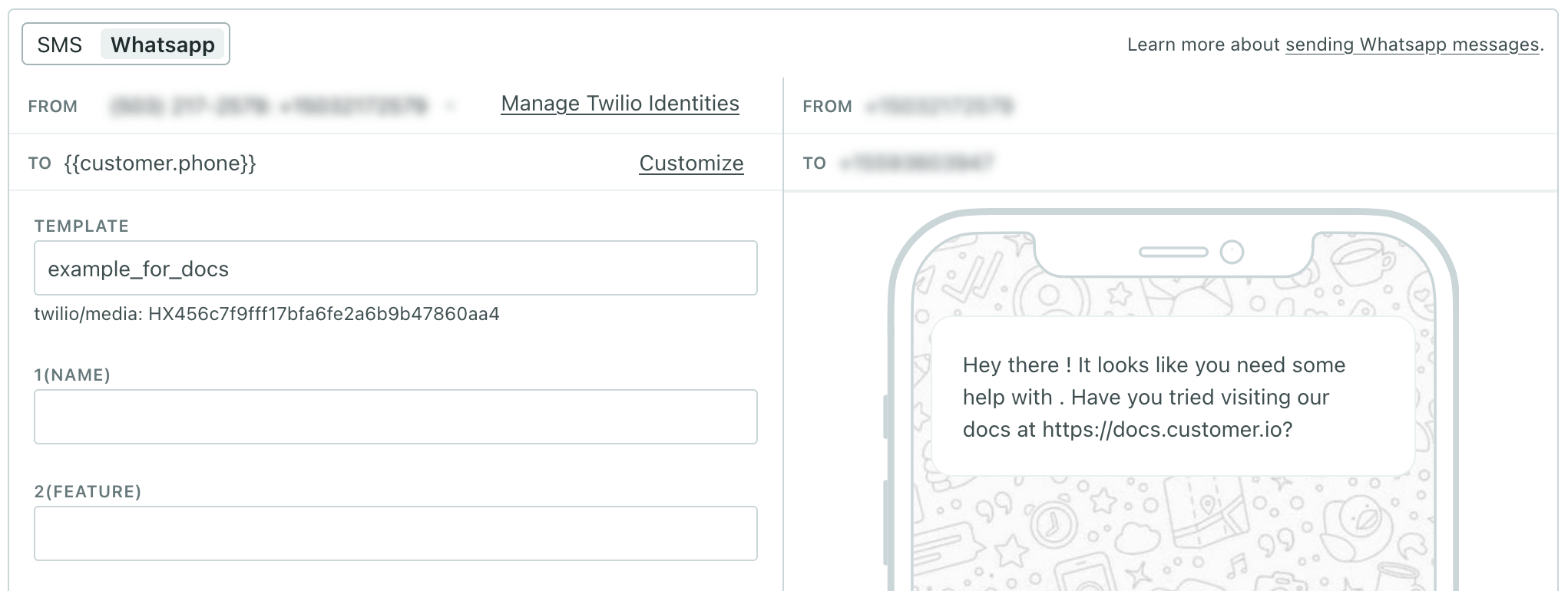
In the Template field, search for the template you want to use for your message. If you don’t see the template you’re looking for, you may not have created it yet or it may not have been approved by WhatsApp.
-
Fill in the templated variables for your message. You can use liquid
A syntax that supports variables, letting you personalize messages for your audience. For example, if you want to reference a person's first name, you might use the variable
in these fields to personalize your message.{{customer.first_name}}.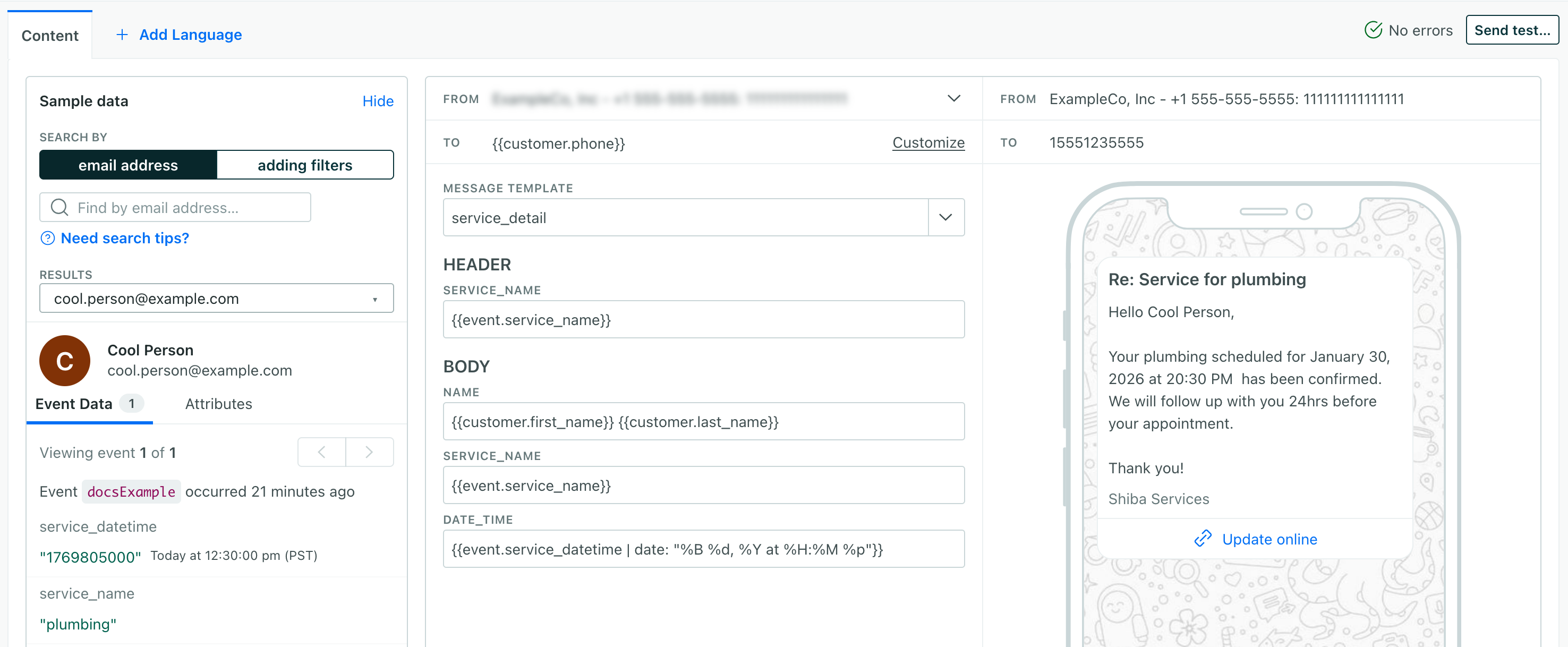
-
Click Save.
Localizing WhatsApp messages
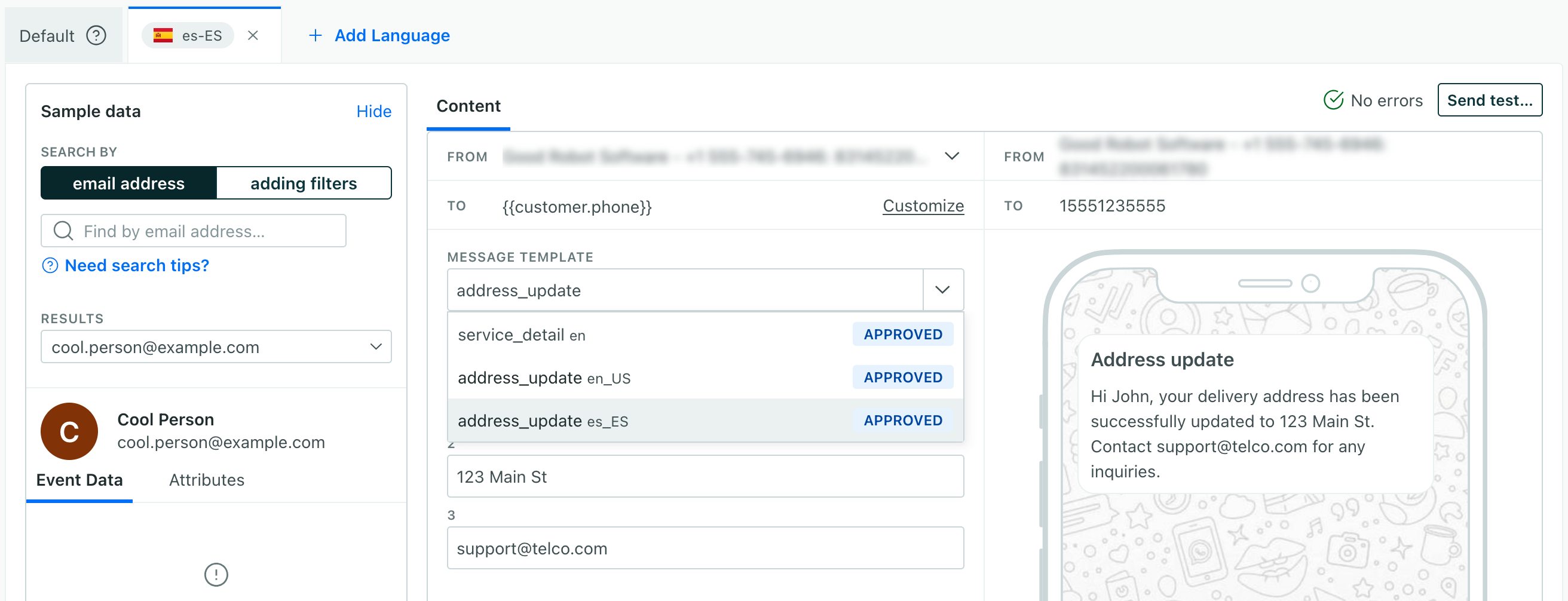
WhatsApp supports different languages, but only one language per template. If you want to translate your WhatsApp messages, you’ll need to create a separate template for each language. Then, in Customer.io, you’ll need to set the right template for each language variant.
You can create multiple templates in WhatsApp with the same name but different languages.
Business-initiated vs user-initiated sessions
The kinds of messages you can send through WhatsApp change depending on whether you or your audience initiate the conversation. These are called business-initiated and user-initiated (or conversational messaging) sessions respectively. In general, WhatsApp messages sent through Customer.io are business-initiated.
User-initiated conversations can be more flexible than business-initiated messages, providing a 24-hour window during which you can send free-form replies and use special templates, like location-based or list-based messages, that aren’t available in business-initiated conversations.
Customer.io supports inbound WhatsApp messages, so you can respond to your audience when they reply to or message you. Inbound messages can trigger automations, add profiles to segments, and mark your messages as replied. See Inbound messages to learn how to handle replies and user-initiated conversations.