Fix inconsistent attribute names
UpdatedThis article assumes you’ve already identified issues with your attributes. If you want to discover if there are redundant attributes or typos in your workspace, you can audit your data through your Data Index.
Overview
Have you ever added data to Customer.io and noticed typos after the fact? Or realized you’ve been adding two different attributes for first names? You can create a campaign to fix your misnamed attributes or consolidate redundant attributes.
A campaign can help you fix existing profiles, but make sure you also update any integrations that send data to your workspace. By updating your integrations, you avoid re-adding the attributes you’re trying to fix! Go to your Data Index to identify which integrations are setting these attributes.
1. Create a campaign triggered by the misspelled attribute
- Go to Campaigns.
- Click Create campaign.
- Click Choose trigger.
- Choose Attribute or Segment then add your attribute as the condition:
frist_nameexists.
2. Add Create or Update Person to fix the attribute
Drag the Create or Update Person action into your workflow to set a correctly spelled attribute.
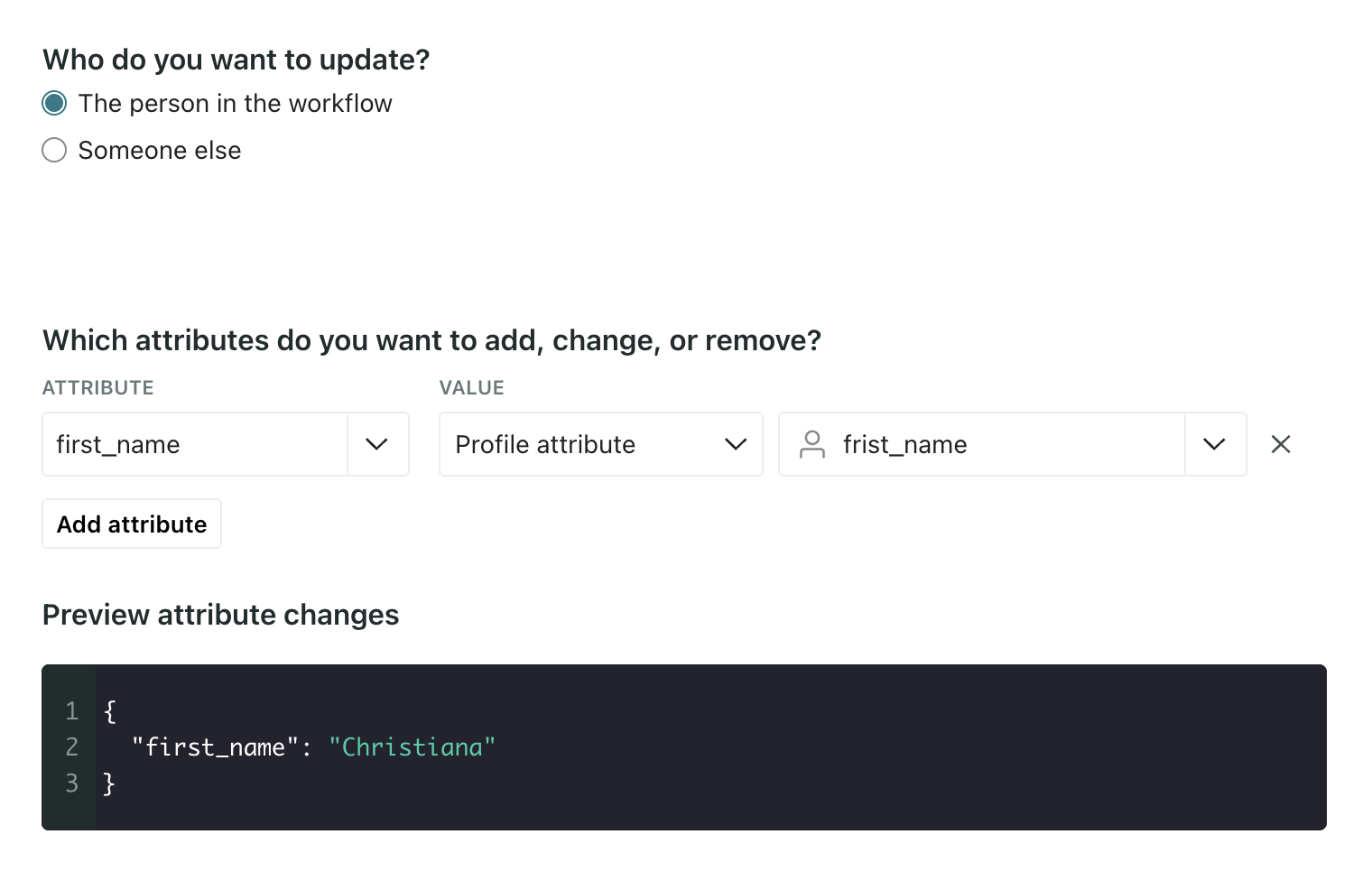
In this case, we set first_name equal to the profile attribute frist_name for the person in the journey.
It’s best to not remove or delete the misspelled attribute in the same action to ensure profiles are updated in the right order.
Once your update is complete, you can delete the attribute from your workspace using your Data Index.
3. Review and start your campaign
Click Start campaign for your final review.
Under Trigger, select Current people and future additions. This way your campaign corrects the typo for all of your people, both those currently in your workspace and future people.
Then click Start campaign to activate it!

