

SMS/MMS: get started
Send SMS through Customer.io with the provider of your choice. Connect the account you already have with Twilio, Sinch, Infobip, or Vonage—or, if you're in the US or Canada, we can set you up.
How it works
You build, send, and track SMS messages in Customer.io, and an SMS provider—Twilio, Sinch, Infobip, or Vonage—delivers them. You give us credentials for your provider account, and we sync your sender identities: the phone numbers, sender IDs, or apps you’ve configured with your provider. When you compose a message, you pick one of your synced senders, we deliver the message through your provider, and your provider reports delivery outcomes back to us.
You can integrate one or more providers to help you reach a global audience. For example, you can have one provider for EU, another for North America, or multiple subaccounts within one provider.
No matter which provider delivers your messages, Customer.io works the same way:
- You compose and send the same way: your messages work in automations, broadcasts, and transactional messages no matter the provider.
- Metrics look the same: we record
sent,delivered,bounced,clicked, andconvertedfor every provider—in Customer.io, reporting webhooks, and data warehouse exports. See Metrics.
Beyond connecting a provider, you need to store your audience’s phone numbers so we know who to send messages to.
Don’t have an SMS provider yet?
If you already send SMS with Twilio, Sinch, Infobip, or Vonage, skip ahead and connect your provider. If you don’t have a provider yet, you have two options:
- Sign up with a provider we support: create an account with Twilio, Sinch, Infobip, or Vonage, set up a sender there, then come back and connect it. Customer.io works the same with all of them.
- Let us set you up: if you’re based in the US or Canada and send to people in the US or Canada, you don’t need your own provider account at all—we can handle it.
Either way, before carriers approve you to send, you’ll need to meet regulatory requirements. Get a head start on the things every provider requires:
You’ll also have to articulate your SMS use cases when you register as a sender—regardless of who you register with.
Let us set you up
If you’re based in the US or Canada and send messages to people in the US or Canada, you don’t need to sign up with a provider yourself: we can set up and manage SMS for you. We provision your sender phone numbers, walk you through carrier registration, and bill you for your messages directly. Your connection appears as SMS in your workspace settings rather than under a provider’s name.
To get started, contact your customer success manager, or win@customer.io if you don’t have one yet. See Getting a phone number for more information—in particular, the checklist of things you’ll need to do before you can get a phone number and start sending messages.
Connect your provider
If you have a provider account, you’re ready to connect it. You can connect more than one provider, and you can connect the same provider twice—for example, separate Sinch accounts for US and EU traffic.
Set up SMS with Twilio
To send SMS and MMS messages in Customer.io, you’ll need to have a Twilio account and the Sender phone number. This might be a regular phone number, a short code, or a messaging service. Twilio can lease these numbers to you.
You’ll Enable alphanumeric sending in Twilio, and then add the ID as a manual sender identity.
- Set up a Twilio account if you don’t already have one.
- Set up a Twilio-specific Sender if you don’t already have one. You can’t use your own phone number to send SMS; you need to purchase a number from Twilio. If you already set up your sender number, select it when you compose messages.
- Create an API key. Learn more about standard vs restricted API keys.
- In your Customer.io workspace, go to > Workspace Settings > SMS and add your Twilio Account SID and API key SID, and API secret. You’ll find these values in your Twilio dashboard.
After you set up Twilio, we’ll sync your phone numbers from Twilio to Customer.io, and you’ll see the SMS message option in your workflows. See Senders to manage the phone numbers and sender IDs we sync.
Standard vs restricted API keys
When creating an API key in Twilio, you can choose between a standard and a restricted API key.
If you choose restricted, then you need to include these permissions:
- Iam
- Accounts: Read
- Messaging
- Content-templates: Read and List
- Messages:
- Messages: Read and List
- Phone-numbers
- Active-numbers: Read and List
- Available-numbers: List
- Event-streams
- Event-type: Read, List
- Subscription: Read, List and Create
Set up SMS with Sinch
Customer.io connects to Sinch through the Sinch Conversation API. Each app in your Sinch project becomes a sender in Customer.io: when you compose a message, you pick the app you want to send from, and Sinch delivers the message through that app’s configured SMS channel. We attach a delivery-report callback to every message we send, so delivery metrics show up without extra webhook setup on your part.
Before you connect, you need a Conversation API project in Sinch’s US region—we don’t currently support other Sinch regions—with at least one app whose SMS channel is connected to a provisioned number or sender ID.
- In your Sinch dashboard, go to Settings > Access Keys and create an access key. Copy the Key secret right away—Sinch shows it only once—along with the Key ID. You’ll also need your Project ID, shown in the dashboard’s project selector and in the URL when you’re viewing your project.
- In Customer.io, go to > Workspace Settings > SMS.
- Under Add a provider, select Sinch.
- Enter your Project ID, Access key ID, and Access key secret, then save the connection.
When you save, we validate your credentials by listing the apps in your project, then sync each app as a sender. If validation fails, check that your access key is active and that your project ID matches the project that contains your apps. If you add or reconfigure apps in Sinch later, sync the connection again.
Set up SMS with Infobip
Customer.io connects to Infobip with an API key and your account’s API base URL. We’ll sync your phone numbers and alphanumeric sender IDs as senders.
- Go to the Infobip web interface and create an API key. Note your account’s Base URL while you’re there: Infobip assigns your account its own API base URL—it looks like
https://xxxxx.api.infobip.com, and Infobip shows it alongside your API keys. - In Customer.io, go to > Workspace Settings > SMS.
- Under Add a provider, select Infobip.
- Enter your API key and Base URL, then save the connection.
When you save, we validate your credentials against your base URL, then sync your numbers and alphanumeric sender IDs as senders. If you register more senders with Infobip later, sync the connection again. If you connected Infobip before alphanumeric senders were supported, sync again to pick yours up.
Alphanumeric sender IDs
While we support alphanumeric sender IDs like InfoSMS, they behave differently from phone numbers:
- They’re one-way: people can’t reply to them, so opt-out keywords like STOP never reach you. Give recipients another way to opt out.
- Country support varies: many countries don’t allow alphanumeric senders, and some require you to register the sender first. Infobip rejects the message at send time if the destination country doesn’t allow your sender—check Infobip’s SMS documentation for the countries you send to.
- You register them with Infobip, not Customer.io: we sync the sender IDs already on your Infobip account. To add one, you must first register it with Infobip, then sync your senders again.
If a sender ID you registered with Infobip doesn’t show up after a sync, check that your API key has permission to list resources. When a key can’t list alphanumeric senders, we sync your numbers and keep any alphanumeric senders that synced previously rather than removing them.
Set up SMS with Vonage
Customer.io connects to Vonage with your account-level API credentials. Each phone number on your Vonage account becomes a sender in Customer.io. We attach a delivery webhook to every message we send, so delivery metrics show up without extra webhook setup on your part.
- In your Vonage API dashboard, find your API key and API secret in the API settings.
- In Customer.io, go to > Workspace Settings > SMS.
- Under Add a provider, select Vonage.
- Enter your API key and Base URL. Then save the connection.
When you save, we validate your credentials, then sync your phone numbers as senders. If you buy or release numbers with Vonage later, sync the connection again.
Vonage supports MMS (image messages) to US numbers only.
Manage your connections and delivery settings
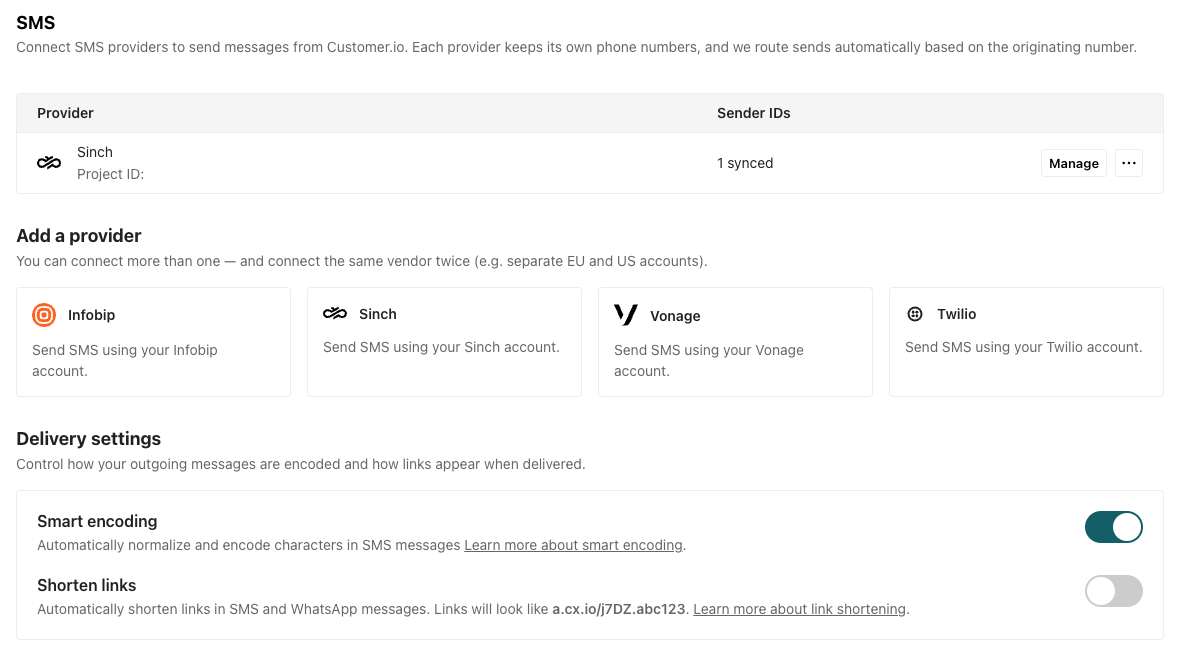
Your SMS Providers page lists every connected provider and how many sender identities synced from it. Select Manage on a connection to open its detail page, where you can:
- View synced senders: see the sender identities we’ve synced from your provider, with each sender’s name and phone number.
- Sync sender identities: if you add or change senders with your provider, sync again to see the changes in Customer.io.
- Disconnect: remove the connection. We stop sending SMS through the provider immediately, and its senders are no longer available when you compose messages.
To change a connection’s credentials—for example, when you rotate keys with your provider—disconnect it, then connect again with your new values.
The page also shows Delivery settings that control how we encode messages and handle links. These settings apply to every provider you connect on this page—they’re workspace-wide, not per-connection:
- Smart encoding (on by default): we replace special characters with their GSM 7-bit equivalents so your messages stay within the 160-character limit. See Smart character encoding.
- Shorten links (off by default): we shorten the links in your messages so tracked links fit within your character limit. When you turn this on, you can also set a custom domain for your shortened links.
Store phone numbers in Customer.io
No matter how you set up SMS, you need to store your audience’s phone numbers as attributes A key-value pair that you associate with a person or an object—like a person's name, the date they were created in your workspace, or a company's billing date etc. Use attributes to target people and personalize messages.phone. If you store multiple phone numbers, you might label different phone numbers primary_phone, cell_phone, etc.
You’ll select the phone number you want to use when you send your message. If you have multiple phone number values, you can use liquid A syntax that supports variables, letting you personalize messages for your audience. For example, if you want to reference a person's first name, you might use the variable {{customer.first_name}}.
{% if customer.primary_phone %}
    {{customer.primary_phone}}
{% else %}
    {{customer.cell_phone}}
{% endif %}
Store phone numbers in E.164 format
You should store phone numbers in E.164 format. If your numbers aren’t stored in this format, your provider may not be able to detect your phone number format and messages may not make it to your audience.
E.164 is the internationally standardized format for all phone numbers, containing up to fifteen digits and usually written as shown below.
[+][country code][subscriber number including area code]Here are a few examples:
| Country | Local | E.164 |
|---|---|---|
| USA | 415 555 2671 | +14155552671 |
| UK | 020 7183 8750 | +442071838750 |
| China | 021 6309 5246 | +862163095246 |
| Australia | (08) 9287 8230 | +61892878230 |
Send your first message
How you write your message depends on your provider:
- If you integrated your SMS provider before July 30, 2026, then you write messages in the classic SMS composer. See Send SMS/MMS messages.
- If you integrated your SMS provider July 30, 2026 or after, then you write messages in Design Studio, where you pick your sender from your synced identities, personalize with liquid
A syntax that supports variables, letting you personalize messages for your audience. For example, if you want to reference a person's first name, you might use the variable
, preview against a real person’s data, add an image to send MMS, and send yourself a test message. Then attach your message to an automation—add the SMS action to your workflow and select your Design Studio message—or link it to a transactional message the same way.{{customer.first_name}}.
Character limits and link shortening
SMS messages are limited to 160 characters. Two features help you stay under the limit:
- Smart encoding (on by default) replaces special characters with GSM 7-bit equivalents, so a stray curly quote doesn’t drop your limit to 70 characters per message.
- Link shortening keeps tracked links—which are long—from eating into your character count. Enable Shorten links in your delivery settings.
Replies and opt-outs
When someone texts an opt-out keyword like STOP, CANCEL, or UNSUBSCRIBE to one of your senders, we mark them as opted out of that sender and stop sending them SMS from it. Texting START or UNSTOP to that sender opts them back in. See Opt-outs for the full keyword list and behavior.
Other replies can trigger events and automations, so you can respond to your audience automatically. To capture replies, Customer.io needs to receive your inbound messages. If we manage SMS for you, this is already set up. If you bring your own provider account, copy the Inbound URL from your connection’s page and set it as the inbound webhook in your provider’s console—see Inbound messages. Delivery reports are separate and need no setup: we attach a callback to every message, so delivery metrics arrive automatically for every provider.
Not seeing the option to integrate multiple providers?
If you integrated Twilio before July 30, 2026 and want to integrate with another provider, reach out to your CSM to request access. If you don’t have a CSM, reach out to win@customer.io.