Subscription preference metrics
UpdatedTrack unsubscribes from topics, monitor subscription trends over time with data-driven segments, and send subscription events to external systems.
You can track subscription preference changes across campaigns, broadcasts, and newsletters—and send subscription events to external systems through reporting webhooks and data warehouse integrations.
Metrics for subscription preferences
You can track unsubscribes from topics across campaigns and broadcasts within the Journeys UI or through reporting webhooks. Unsubscribed from topics counts each subscription topic that a user unsubscribed from through a delivered message. As such, you may see a percentage above 100; say you have 4 subscription topics and 5 messages are delivered to five users. Two users unsubscribe from 3 topics each (6 total). We would divide this by the number of delivered messages (5) to get 1.2 or 120% unsubscribed from topics. You can read more about how our subscription center works in Customer.io.
For campaigns and API-triggered broadcasts, you can find data in the Metrics tab under Performance & Delivery Metrics and Message Metrics. Check Unsubscribed from topics in the right hand column of Performance & Delivery Metrics to update the chart. Scroll down to Message Metrics to find the unsubscribed rate per message. Select on the right and check the box for Unsubscribed from topics.
For newsletters, go to the Overview tab. You’ll find Unsubscribed from topics at the top of the table.
You can also go to the Analysis Dashboard to view unsubscribed rates across any campaign, newsletter, and API-triggered broadcast. Check which type of workflows you want to compare at the top. Then select the table icon to add Unsubscribed from topics as a column.
Tracking subscriptions over time
You can track the evolution of the volume of subscribed or unsubscribed profiles for a subscription topic or channel by creating data-driven segmentsA group of people who match a series of conditions. People enter and exit the segment automatically when they match or stop matching conditions..
The examples below use topic preferences, but the same logic applies to channel preferences. Use the attribute cio_subscription_preferences.channels.<channel> (for example, cio_subscription_preferences.channels.push) instead of cio_subscription_preferences.topics.topic_<id> when building segments for channels.
Subscription preferences attribute
Keep in mind that users do not have a subscription preference attribute until their status has been explicitly set, which means it is no longer the default status you set in your subscription center. As such, we’ll have to target attributes based on whether they exist as well as when they equal certain, boolean values.
When creating a data-driven segment, a subscription topic will only show in the dropdown of attributes AFTER at least one person’s preference has been explicitly set for the topic. At this point, the topic will also show as an attribute in the data index.
For this recipe, let’s say a workspace has 2 topics: an opt-out topic and an opt-in topic. Remember that opt-out means people are subscribed by default (they must opt-out to stop receiving messages) and opt-in means people are unsubscribed by default (they must opt-in to receive messaging).
Tracking people that are subscribed to a topic
To track the evolution of subscribers to the 2 topics above, create 2 data-driven segments:
Opt-out topic
For an opt-out topic, people are subscribed if they have not unsubscribed from it, that is, their subscription comes from the default status of the topic (so the attribute doesn’t exist) or if they have explicitly subscribed to the topic (so the attribute exists and equals true).
To track all people who are subscribed to an opt-out topic, set this condition:
Attribute
cio_subscription_preferences.topics.topic_<id>is NOT equal toFALSE
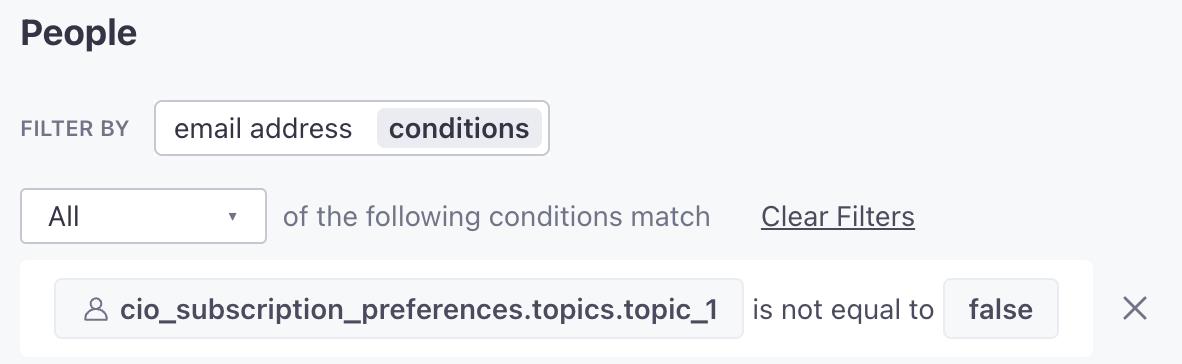
where topic<id> corresponds to the topic ID you can find in your workspace’s subscription center or fetch through the App API.
Opt-in topic
For an opt-in topic, people are subscribed only if they have explicitly subscribed to it (so the attribute exists and equals true).
To track all people who are subscribed to an opt-in topic, set this condition:
Attribute
cio_subscription_preferences.topics.topic_<id>is equal toTRUE
where topic<id> corresponds to the topic ID you can find in your workspace’s subscription center or fetch through the App API.
Tracking people that are unsubscribed from a topic
To track the evolution of unsubscribed users to the 2 topics above, create 2 data-driven segments:
Opt-out topic
For an opt-out topic, people are unsubscribed only if they have explicitly unsubscribed (so the attribute exists and equals false).
To track all people who are unsubscribed to an opt-out topic, set this condition:
Attribute
cio_subscription_preferences.topics.topic_<id>is equal toFALSE
where topic<id> corresponds to the topic ID you can find in your workspace’s subscription center or fetch through the App API.
Opt-in topic
For an opt-in topic, people are unsubscribed by default (so the attribute doesn’t exist) or if they have explicitly unsubscribed from the topic (so the attribute exists and equals false).
To track all people who are unsubscribed to an opt-in topic, set this condition:
Attribute
cio_subscription_preferences.topics.topic_<id>is NOT equal toTRUE
where topic<id> corresponds to the topic ID you can find in your workspace’s subscription center or fetch through the App API.
Data-out integrations
You can use our reporting webhooks to send information on whether a person is subscribed or unsubscribed from messaging and whether the status of any of their subscription preferences has changed.
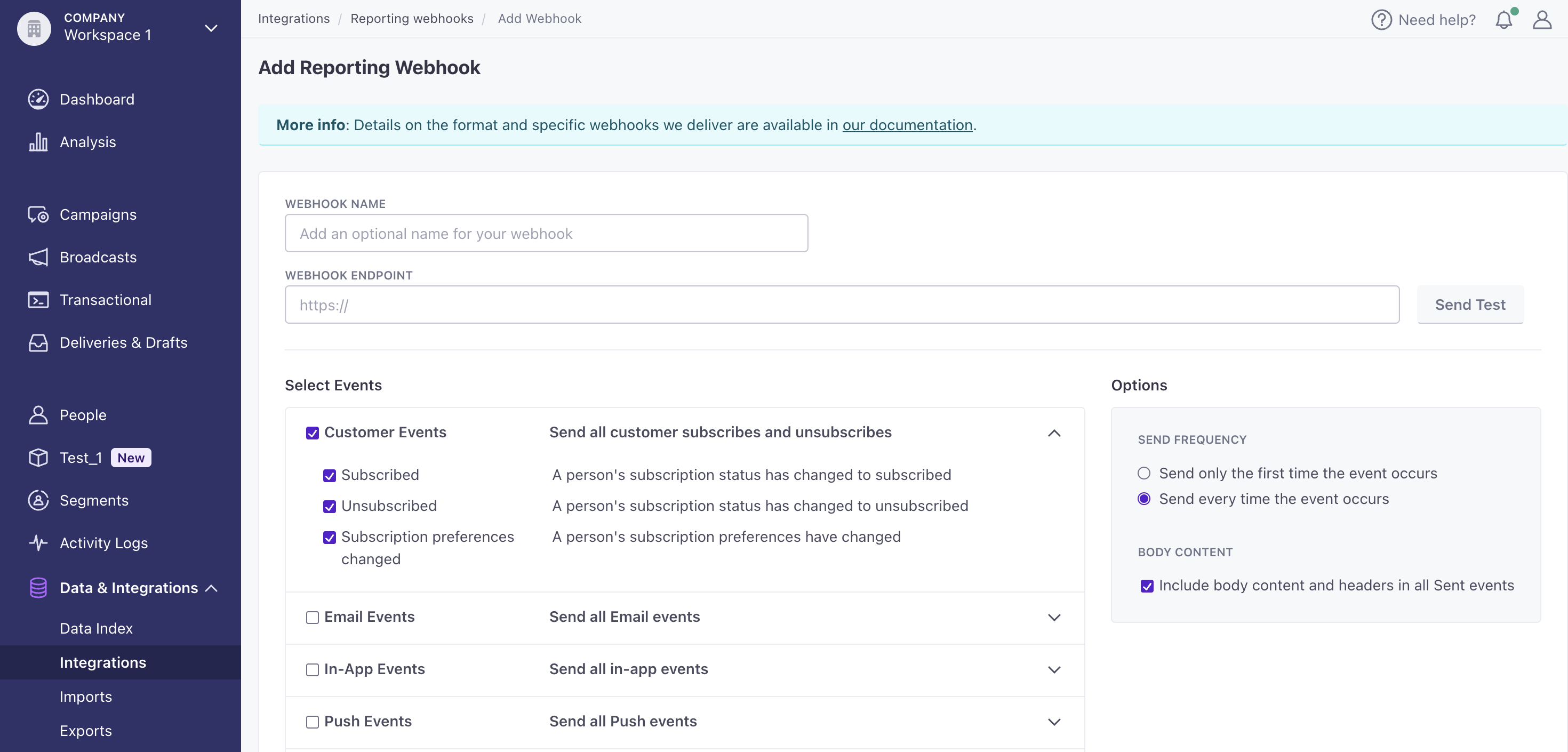
In order to send the specific values of people’s preferences, check “Include body content and headers in all Sent events” to the right of the event checklist.
We’ll also send subscription preferences as a part of the Attributes schema in our outbound data warehouse integrations.

