# Announce a promotion

During certain times of the year, like Black Friday or Cyber Monday, you might want to display a banner or modal message on your website that highlights a promotion! With in-app messages, you can announce your promotion and drive sales, increase subscriptions, and so on.

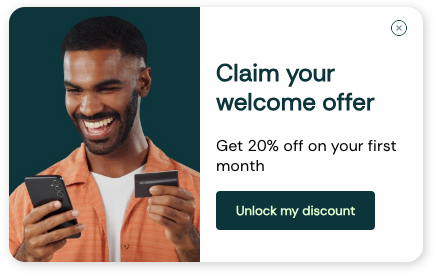
Read on for instructions on how to build messages like this welcome offer.

[![an in-app welcome offer teasing 20% off](https://docs.customer.io/images/web-in-app-welcome-offer.png)](#b375bfff83992309274054cde2a40ecf-lightbox)
## How it works[](#how-it-works)

In this recipe, we’ll broadcastA single broadcast sent to a group of people, all from the Customer.io user interface. Newsletters provide a simple way to send a message without having to set up a campaign workflow or send a call to the API to trigger your broadcast. You can also A/B test a newsletter. an in-app message telling people that we’re running a promotion. Our message will persist until a user dismisses it or the promotion ends.

We’ll also set up our message so that it only appears on relevant pages and in the right spot. For example, we don’t want our promotion to block an *Add to Cart* button, and we might not want it to appear on the checkout page if a promotion is already applied.

### Example promotions you can copy[](#example-promotions-you-can-copy)

We’ve set up a few examples that you can use for inspiration or even use as templates. If you to start your message from one of these examples, just click the code icon in the editor and paste the example code below into the editor!

 Banner Example

#### Banner Example[](#Banner Example)

[![web-in-app-promo-banner.png](https://docs.customer.io/images/web-in-app-promo-banner.png)](#c6f9308c16ee78d084f8801bb61821d5-lightbox)

```html
<x-base>
  <x-message  background="#111827">
    <x-heading-2 margin="0px" :font-size="36" font-family="'Readex Pro', sans-serif" color="#ffffff">Black Friday <span style="color: #facc15">Linguist</span> Bonanza!</x-heading-2>
    <x-row :gap="8" :layout='[50,25,"auto"]'>
      <x-column>
        <x-paragraph margin="0px" :font-size="18" font-weight="700" color="#ffffff">Unlock your language potential with <span style="color: #facc15">20% OFF</span></x-paragraph>
        <x-paragraph margin="0px" :font-size="18" font-weight="700" color="#ffffff">Valid Nov 28 - Dec 2 | First 500 customers only</x-paragraph>
      </x-column>
      <x-column>
        <x-heading-2 text-align="right" margin="0px" :font-size="29" font-family="'Roboto', sans-serif" color="#ffffff">20% OFF</x-heading-2>
        <x-paragraph text-align="right" margin="0px" :font-size="18" font-weight="700" color="#ffffff">for individuals &amp; teams</x-paragraph>
      </x-column>
      <x-column>
        <x-cta margin="0px" padding="12px 32px" border-radius="8px 8px 8px 8px" hover-background="#eab308" font-family="'Roboto', sans-serif" color="#111827" background="#facc15">Claim Offer</x-cta>
      </x-column>
    </x-row>
  </x-message>
</x-base>
```

 Upgrade Offer

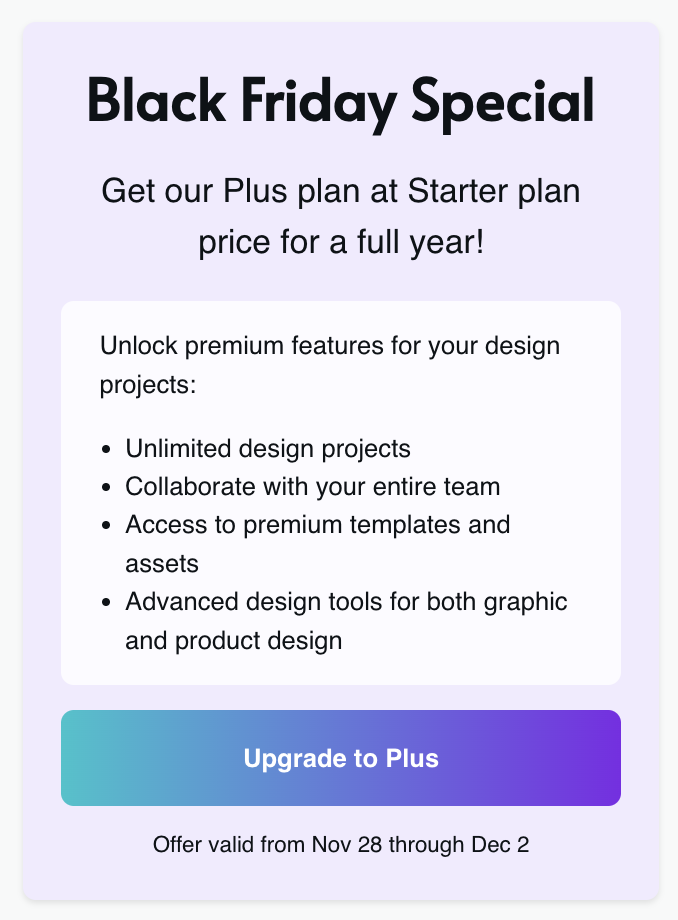
#### Upgrade Offer[](#Upgrade Offer)

[![web-in-app-promo-sketchery.png](https://docs.customer.io/images/web-in-app-promo-sketchery.png)](#9820c1f966295d9e0e287c47dac6ca05-lightbox)
```html
<x-base>
  <x-message
    width="auto"
    box-shadow="0 2px 4px 0 rgba(0, 0, 0, 0.1)"
    margin="8px"
    padding="24px 24px"
    border-radius="8px"
    background="#f1ebff"
    font-family="Helvetica"
    :line-height="1.5"
    color="#666666"
  >
    <x-heading-1 font-family="'Alata', sans-serif" text-align="center"
      margin="0px"
      :font-size="36"
      :line-height="1.25"
      color="#0d1216"
      >Black Friday Special</x-heading-1
    >
    <x-paragraph color="#0d1216" :font-size="21"  text-align="center">Get our Plus plan at Starter plan price for a full year!</x-paragraph
    ><x-box border-radius="8px 8px 8px 8px" background="rgba(255, 255, 255, 0.8)" padding="0px 24px 0px 0px" margin="0px 0px 16px"><x-paragraph margin="16px 0px 0px 24px" color="#0d1216">Unlock premium features for your design projects:</x-paragraph
    ><x-list color="#0d1216"><li>Unlimited design projects</li><li>Collaborate with your entire team</li><li>Access to premium templates and assets</li><li>Advanced design tools for both graphic and product design</li></x-list></x-box>
    <x-cta background="linear-gradient(90deg,#00c4cc,#7d2ae8)    #000000"
      align="center"
      text-transform="none"
      font-weight="700"
      font-family="Helvetica"
      :full-width="true"
      border-radius="8px"
      padding="18px 0px"
      hover-background-color="#0046a0"
      background-color="#0057c4"
      behavior="dismiss"
      >Upgrade to Plus</x-cta
    ><x-paragraph margin="14px 0px 0px" :font-size="14" color="#0d1216" text-align="center">Offer valid from Nov 28 through Dec 2
    </x-paragraph>
  </x-message>
</x-base>
```

 Fintech Coupon

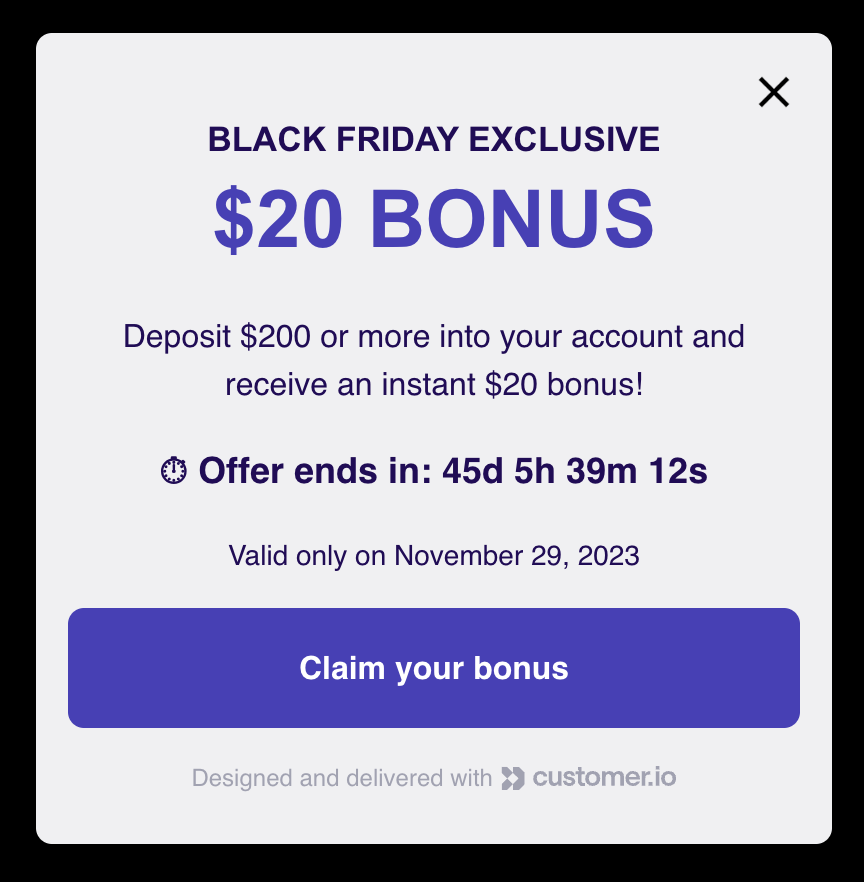
#### Fintech Coupon[](#Fintech Coupon)

[![web-in-app-promo-fintech.png](https://docs.customer.io/images/web-in-app-promo-fintech.png)](#7c753552a95ff68a81bfc416c4c46e69-lightbox)
```html
<x-base>
  <x-message
    width="auto"
    box-shadow="0 2px 4px 0 rgba(0, 0, 0, 0.1)"
    margin="8px"
    padding="16px 16px 32px"
    border-radius="8px"
    background="#f0f0f2"
    font-family="Helvetica"
    :line-height="1.5"
    color="#666666"
  ><x-image align="right" behavior="dismiss" width="26px" src="https://storage.googleapis.com/cio-in-app-templates/assets/close-padding.603304e2.png" />
    <x-heading-1 text-align="center" font-family="Arial, sans-serif"
      margin="0px"
      :font-size="17"
      :line-height="1.25"
      color="#230b59"
      >BLACK FRIDAY EXCLUSIVE</x-heading-1
    ><x-paragraph margin="0px" text-align="center" color="#4840bb" font-weight="700" :font-size="40" font-family="Arial, sans-serif">$20 BONUS</x-paragraph>
    <x-paragraph text-align="center" color="#230b59">Deposit $200 or more into your account and receive an instant $20 bonus!</x-paragraph
    ><x-paragraph font-weight="700" :font-size="18" text-align="center" :line-height="1.5" color="#230b59">⏱︎ Offer ends in: <span id="countdown"></span></x-paragraph
    ><x-paragraph margin="8px 0px 16px" text-align="center" :font-size="14" color="#230b59">Valid only on November 29, 2023</x-paragraph
    >
    <x-cta hover-background="#2b23a2" background="#4840bb"
      align="center"
      text-transform="none"
      font-weight="700"
      font-family="Helvetica"
      :full-width="true"
      border-radius="8px"
      padding="18px 0px"
      hover-background-color="#0046a0"
      background-color="#0057c4"
      behavior="dismiss"
      >Claim your bonus</x-cta
    >
    <x-watermark />
  </x-message>
  <script>
// Set the date we're counting down to
var countDownDate = new Date("November 29, 2024 23:59:59").getTime();

// Update the count down every 1 second
var x = setInterval(function() {

  // Get today's date and time
  var now = new Date().getTime();

  // Find the distance between now and the count down date
  var distance = countDownDate - now;

  // Time calculations for days, hours, minutes and seconds
  var days = Math.floor(distance / (1000 * 60 * 60 * 24));
  var hours = Math.floor((distance % (1000 * 60 * 60 * 24)) / (1000 * 60 * 60));
  var minutes = Math.floor((distance % (1000 * 60 * 60)) / (1000 * 60));
  var seconds = Math.floor((distance % (1000 * 60)) / 1000);

  // Display the result in the element with id="demo"
  document.getElementById("countdown").innerHTML = days + "d " + hours + "h " + minutes + "m " + seconds + "s ";

  // If the count down is finished, write some text
  if (distance < 0) {
    clearInterval(x);
    document.getElementById("countdown").innerHTML = "EXPIRED";
  }
}, 1000);
</script>
</x-base>
```

 Travel Promo

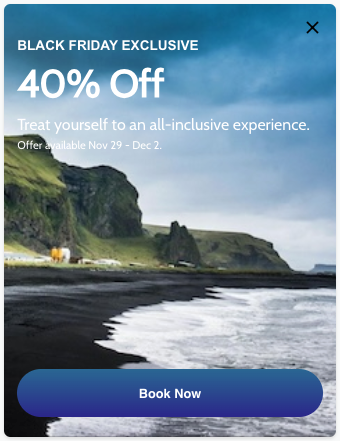
#### Travel Promo[](#Travel Promo)

[![web-in-app-promo-travel.png](https://docs.customer.io/images/web-in-app-promo-travel.png)](#51d389870eed4b4b4ec5d3303c3e362a-lightbox)
```html
<x-base>
  <x-message
    width="auto"
    box-shadow="0 2px 4px 0 rgba(0, 0, 0, 0.1)"
    margin="0px"
    padding="0px"
    border-radius="8px"
    background="#f0f0f2"
    font-family="Helvetica"
    :line-height="1.5"
    color="#666666"
  ><x-box padding="16px" background="url('https://userimg-assets.customeriomail.com/images/client-env-122460/1729037025116_iceland-beach_01JA9A6G19AMMF7QDRV30T8WYK.jpg') center center / cover no-repeat"><x-image align="right" behavior="dismiss" width="26px" src="https://storage.googleapis.com/cio-in-app-templates/assets/close-padding.603304e2.png" /><x-heading-1 text-align="left" font-family="Arial, sans-serif"
      margin="0px"
      :font-size="17"
      :line-height="1.25"
      color="#ffffff"
      >BLACK FRIDAY EXCLUSIVE</x-heading-1
    ><x-paragraph margin="0px" text-align="left" color="#ffffff" font-weight="700" :font-size="48" font-family="'Cabin', sans-serif">40% Off</x-paragraph><x-paragraph font-weight="400" font-family="'Cabin', sans-serif" margin="0px" :font-size="20" text-align="left" color="#ffffff">Treat yourself to an all-inclusive experience.</x-paragraph
    ><x-paragraph font-family="'Cabin', sans-serif" margin="0px 0px 270px" text-align="left" :font-size="14" color="#ffffff">Offer available Nov 29 - Dec 2.</x-paragraph
    ><x-cta hover-background="#2b23a2" background="linear-gradient(rgb(38, 104, 147) 0%, rgb(40, 39, 140) 100%)    #4840bb"
      align="center"
      text-transform="none"
      font-weight="700"
      font-family="Helvetica"
      :full-width="true"
      border-radius="50px 50px 50px 50px"
      padding="18px 0px"
      hover-background-color="#0046a0"
      background-color="#0057c4"
      behavior="dismiss"
      >Book Now</x-cta
    ></x-box>
  </x-message>
</x-base>
```

 Welcome Offer

#### Welcome Offer[](#Welcome Offer)

[![an in-app welcome offer teasing 20% off](https://docs.customer.io/images/web-in-app-welcome-offer.png)](#b375bfff83992309274054cde2a40ecf-lightbox)

```html
<x-base>
  <x-message box-shadow="2px 2px 10px 0 rgba(0, 0, 0, 0.2)" border-radius="16px 16px 16px 16px" padding="0px"  background="#ffffff">
      <x-row :gap="0" :layout='[50, 50]'>
          <x-column background="url('https://userimg-assets.customeriomail.com/images/client-env-122460/1729186391320_person_1_01JADRMSF0AE6T7EN1D03KNQ99.jpg') center center / cover">
              <x-spacer></x-spacer>
          </x-column>
          <x-column padding="0px 16px">
              <x-image margin="8px 0px 0px" 
                  align="right" 
                  behavior="dismiss" 
                  width="16px" 
                  src="https://userimg-assets.customeriomail.com/images/client-env-138234/1715273992530_Close-Button-Forest_01HXF4R2DGQ70XVN3G37A71RVR.png" />
              <x-heading-2 font-family="'Rethink Sans', sans-serif" font-weight="700" color="#0b353b" :line-height="1.2">Claim your welcome offer</x-heading-2>
              <x-paragraph :line-height="1.2" font-weight="400" font-family="'Rethink Sans', sans-serif">Get 20% off on your first month</x-paragraph>
              <x-cta margin="8px 0px 32px" font-weight="700" font-family="'Rethink Sans', sans-serif" align="left" text-align="center" :font-size="13" color="#e4ffce" background="#0b353b">Unlock my discount</x-cta>
          </x-column>
      </x-row>
  </x-message>
</x-base>
```

## Before you begin[](#before-you-begin)

This recipe assumes you’ve already set up your website to identify people and receive in-app messages. If you haven’t done that, you’ll need to:

1.  Set up your website with our [JavaScript source integration](/journeys/in-app-web). If you haven’t done this yet, we have [a helpful video](/journeys/in-app-web/#javascript-snippet) to get you started!
2.  [IdentifyThe Customer.io operation that adds or updates a person. When you identify a person, Customer.io either adds a person if they don’t exist in your workspace, or updates them if they do. Before you identify someone (by their email address or an ID), you can track them anonymously. your web visitors](/journeys/in-app-web/#identify-people-web). People can’t see your message until you know who they are!

If you’ve already set up our JavaScript integration, identification is often automatic—based on a cookie. But people *might* not see your message immediately if they’ve recently cleared their cookies and cache or visit your website in a private browsing window.

## 1\. Create your in-app broadcast[](#1-create-your-in-app-broadcast)

1.  Go to **Broadcasts** and click **Create Broadcast**.
    
2.  Give your broadcast a name. We’re calling ours **Promotional Broadcast**.
    
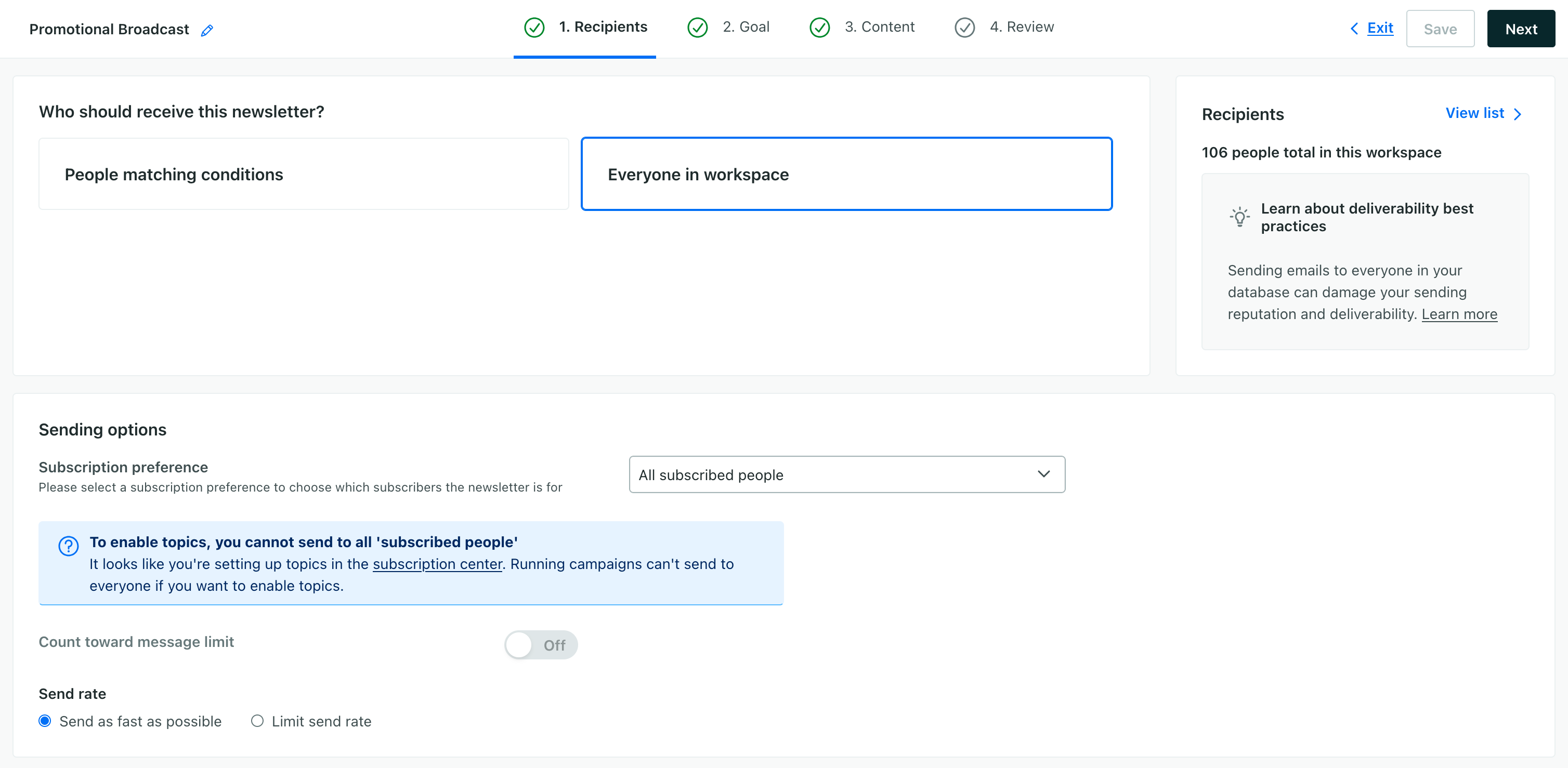
3.  Select **Everyone in workspace** as your audience and click **Next**. We want to send our promotion to everyone!
    
     Is your promotion limited to a particular product or region?
    
    For this recipe, we’re sending our promotion to everyone. But, if your promotion is limited to a particular region, product, or other criteria, you can set up a [segmentA group of people who match a series of conditions. People enter and exit the segment automatically when they match or stop matching conditions.](/journeys/data-driven-segments/) to target your promotion more effectively.
    
    [![The recipients step of a broadcast with the audience set to everybody](https://docs.customer.io/images/web-in-app-promo-recipients.png)](#a616a79d9e928b9fd675642dda28ef90-lightbox)
    
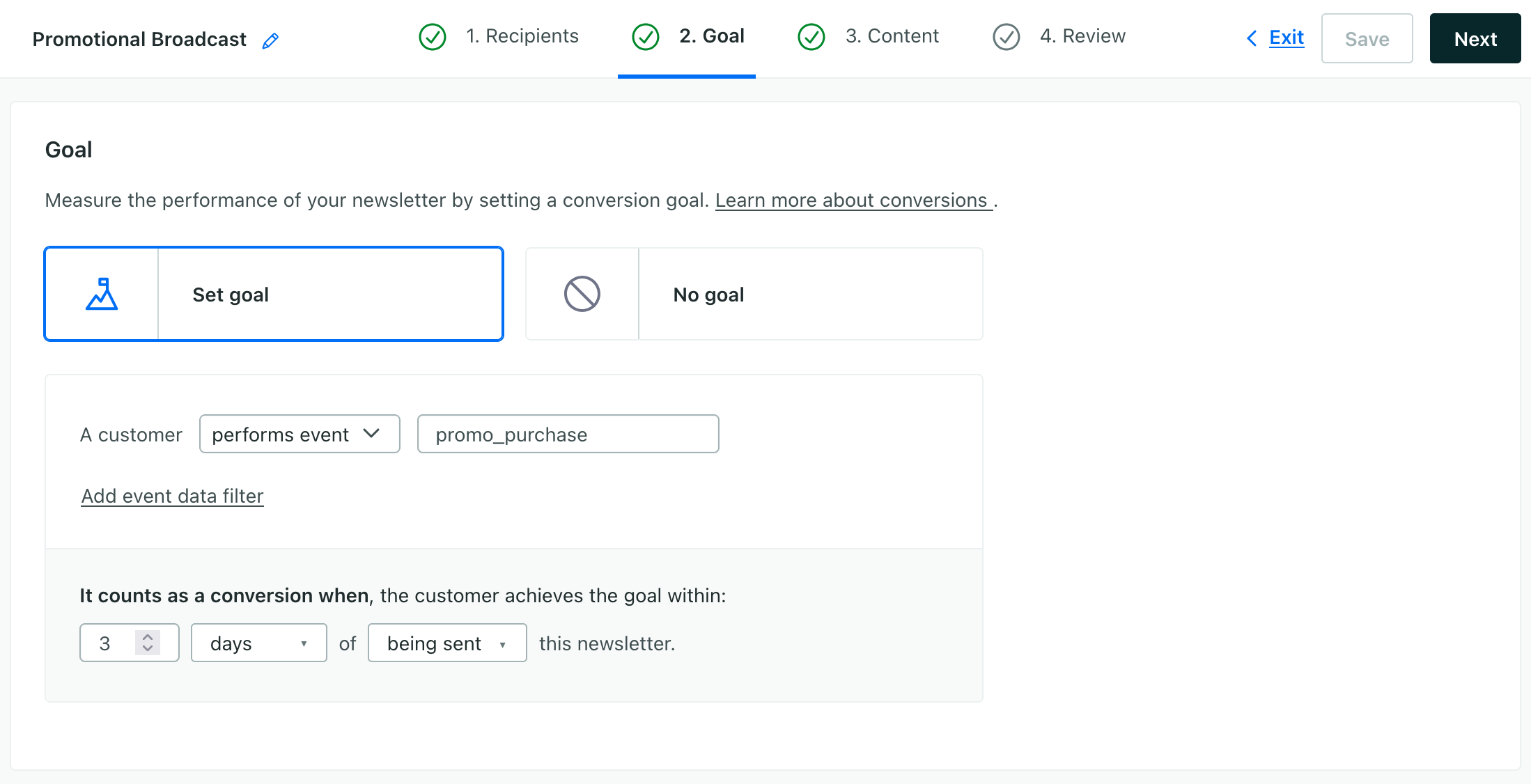
4.  Set a **Goal** that helps you track engagement with your promotion. To do this, you’ll need to have a way to track people that redeem your promotion. If the promotion isn’t something you can track—like a coupon code people use or a specific URL people visit—then you might not be able to set a goal in Customer.io. See [Advanced: Use an event as a goal](#advanced-use-an-event-as-a-goal) for more information.
    
    [![the goal step of a message with the goal set to an event called promo_purchase](https://docs.customer.io/images/web-in-app-promo-goal.png)](#1d3bc94ab448c6b3527a1b5061013200-lightbox)
    
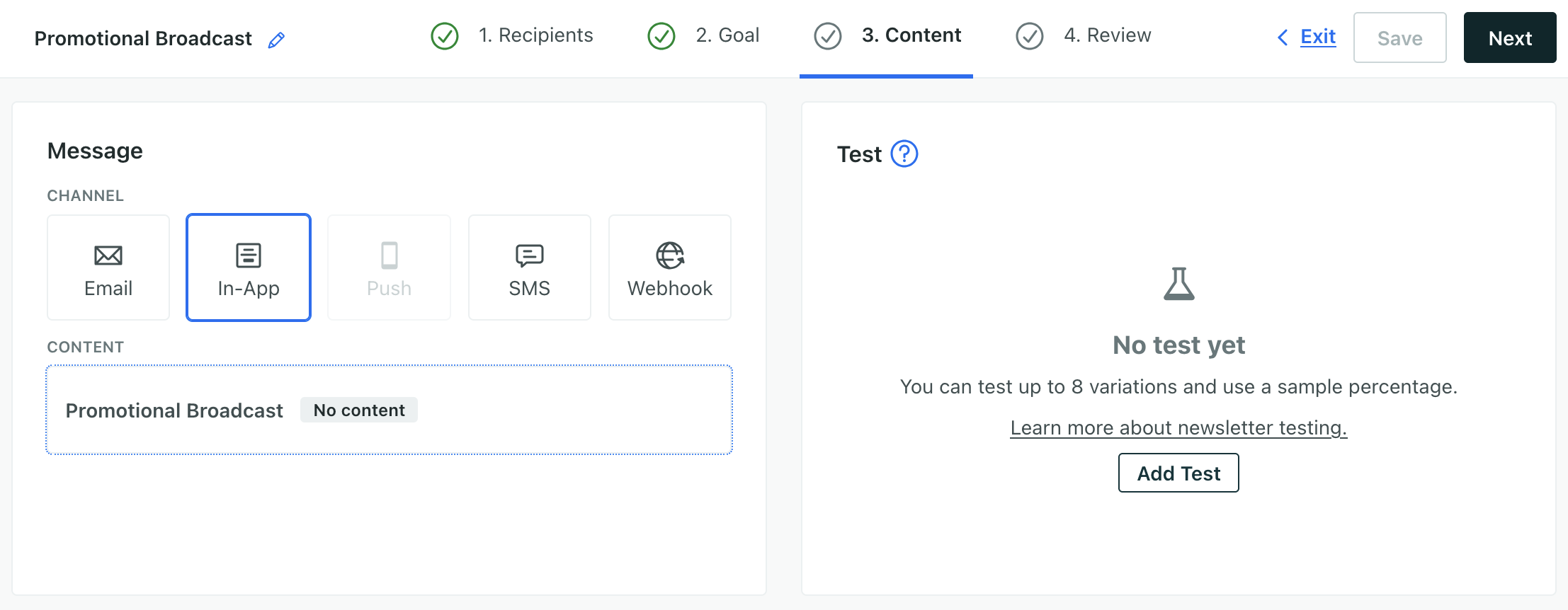
5.  In the **Content** step, pick **In-App** and click your message.
    
    [![Select content when setting up your broadcast to craft your in-app message](https://docs.customer.io/images/web-in-app-promo-content.png)](#3fc45351035321b9d0be773b2d317c55-lightbox)
    

Now we’re ready to set up our in-app message.

## 2\. Set up your in-app message[](#2-set-up-your-in-app-message)

In the content step, you can start from our *Promotion* template, or you can start from scratch. If you’re new, we recommend starting from the template. Our example is a short promotion letting people know that we have a sale on all products.

1.  Click the bar above the message that shows **Priority**, **Display**, and **Expiration**.
    
    [![Set your message to persist until dismissed or expired, set page rules, and change your message display settings](https://docs.customer.io/images/web-in-app-promo-position.png)](#c96da98724427ca535b357edbbf35eb4-lightbox)
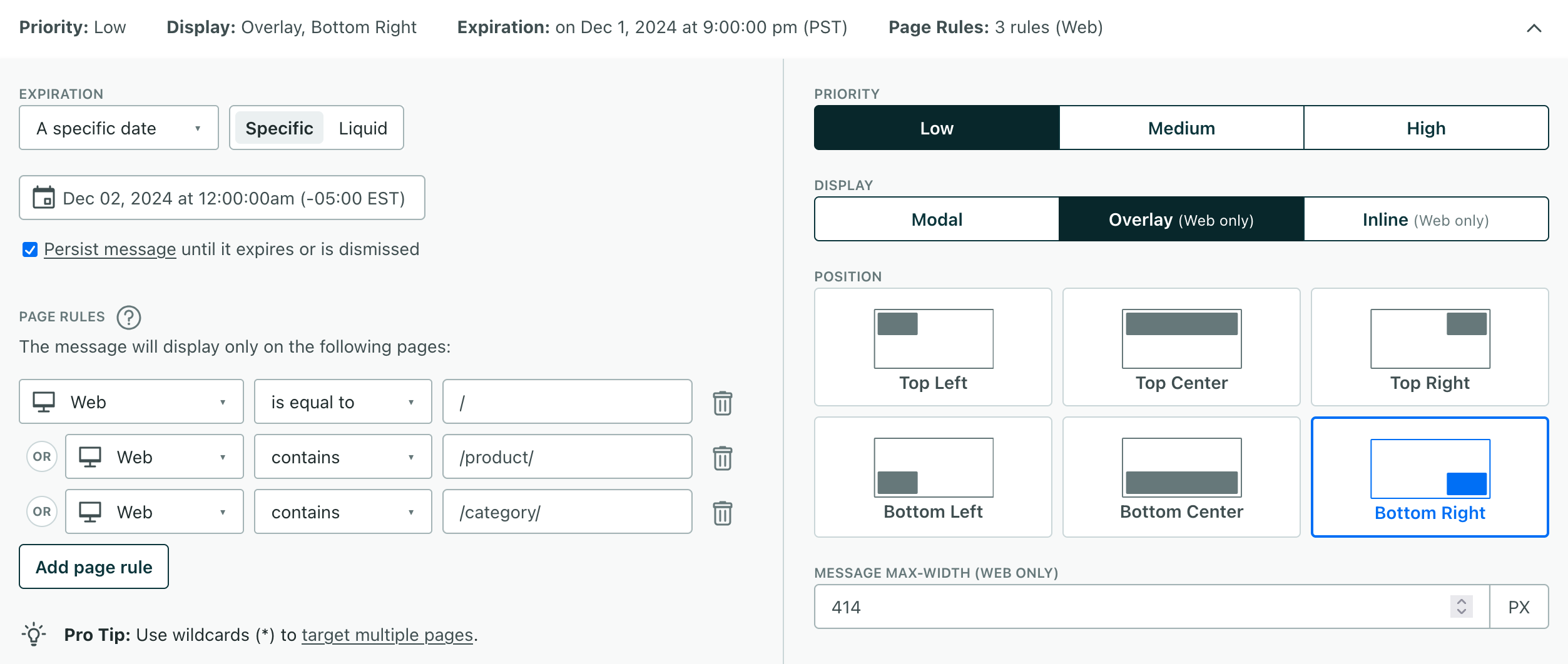
    
2.  Under **Expiration**, select *Persist message until it expires or is dismissed*. This will keep your message on the page until someone dismisses it or the promotion ends.
3.  Set the expiration period for the message. Our promotion runs from the last Friday in November through Sunday December 1st 2024 in the eastern time zone (EST), so we set our message to expire on Monday at midnight (12 AM).
4.  Set **Page rules** to determine where your message will appear. We want our promotion to appear on our home page and our product pages, but *not* our `/checkout` pages, so we set page rules where the page equals `/`, contains `/product/`, or `/category/`.
5.  Set **Display** settings. By default, our promotional template is a modal message that appears in the center of the screen. Because our message is persistent, we probably don’t want to interrupt the user flow or cover up important information on the page! So, we’re changing our message to an *Overlay* that appears in the bottom-right of the page.

Now we’re ready to work on our message content!

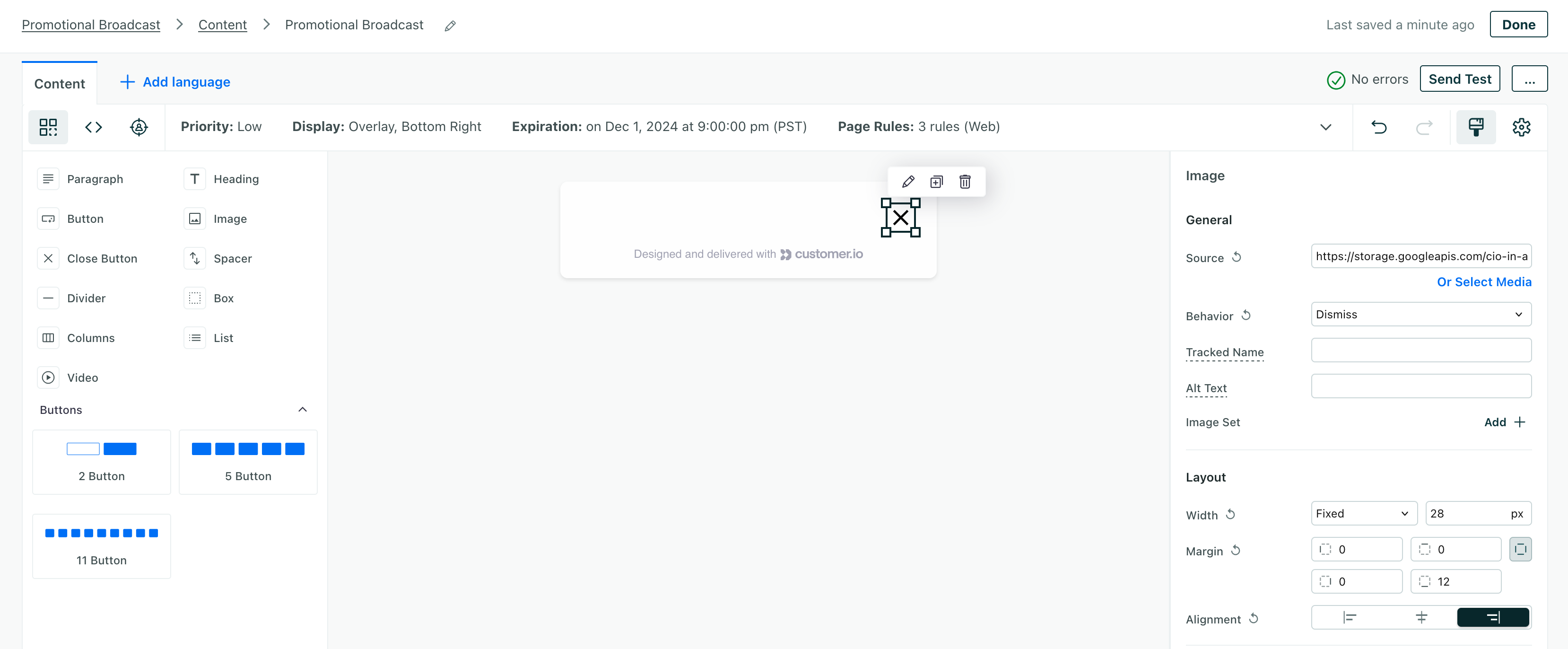
1.  Add a **Close Button** to the top-right of your message.
    
    [![an empty in-app message with the close button selected](https://docs.customer.io/images/web-in-app-promo-close.png)](#e51e2de8952e09e0f0823cd815927c33-lightbox)
    
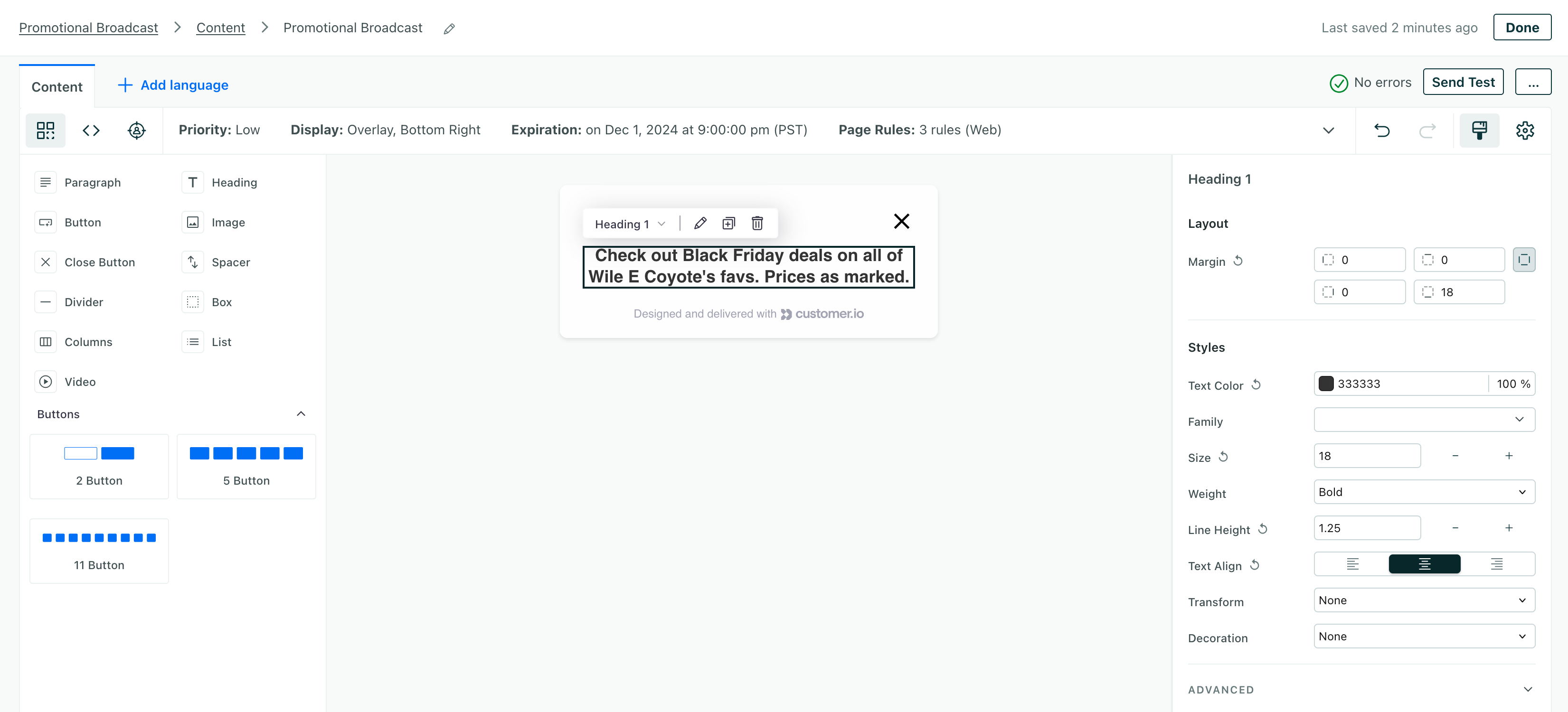
2.  Add a **Heading** to your message.
    
    [![an in-app message with the heading selected](https://docs.customer.io/images/web-in-app-promo-heading.png)](#debe8139a24af2c908c81eca6ed5c018-lightbox)
    
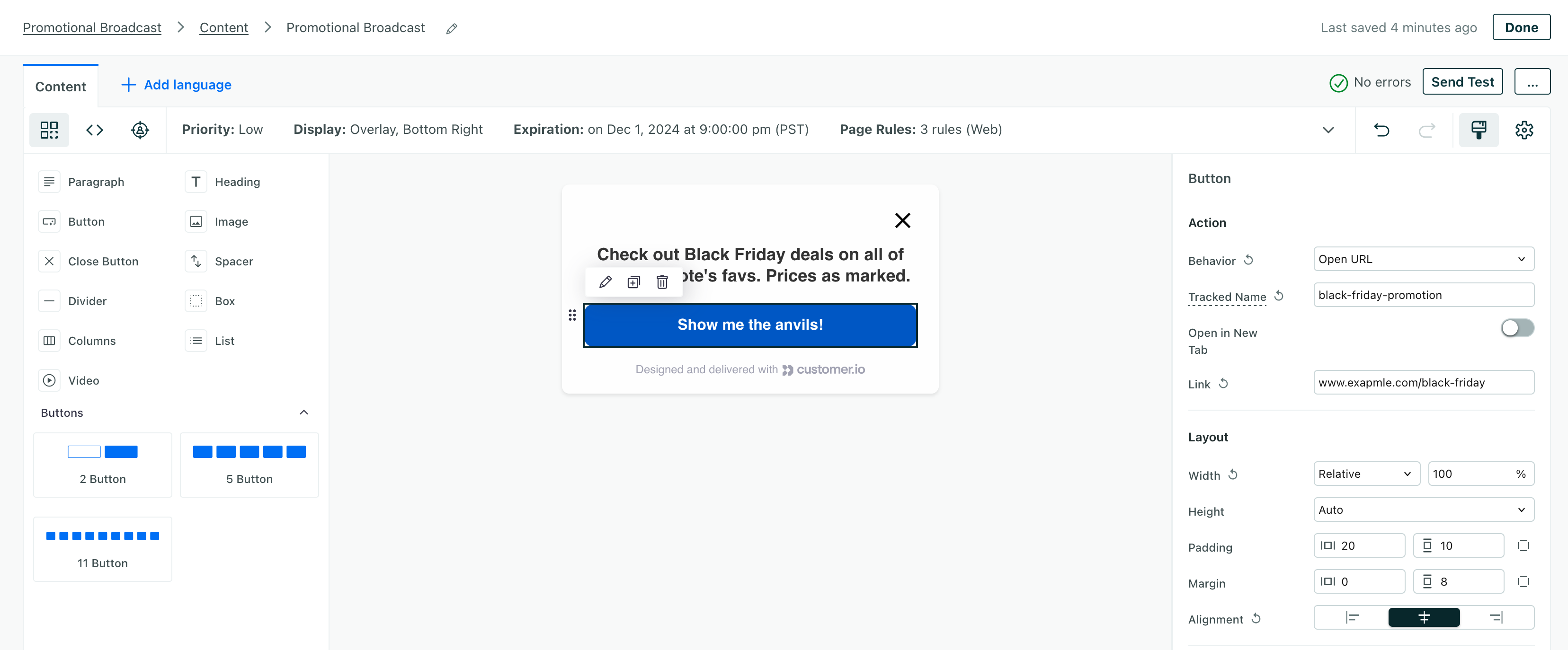
3.  If you have a call to action, add a **Button** to your message. If you’re promoting a specific product or category, you might use your button to link people to a page where they can use your promotion.
    *   Set an **Action** for your button. We’re going to set our button to link to our `/black-friday` page.
    *   Set a **Tracked Name** for your button. This is the value we record when someone clicks your button. We’re going to set our tracked name to `black-friday-promotion`.
        
        [![A web in-app message with a button selected showing tracked name and action settings](https://docs.customer.io/images/web-in-app-promo-button.png)](#4e867ed4ab92945b138eb15da9be4341-lightbox)
        
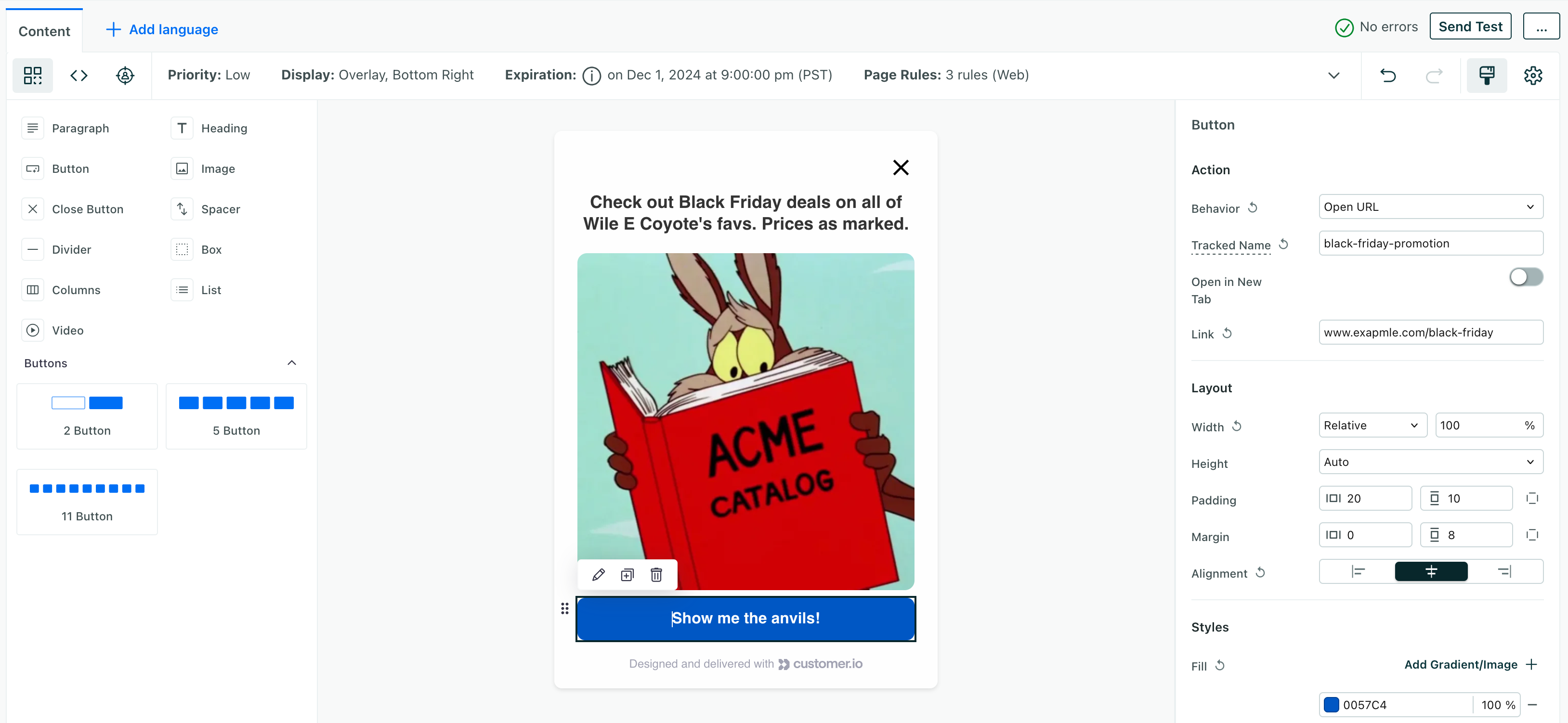
4.  (Optional) Add an image to your promotion if you have a specific product to highlight or a visual element that you want to include.
    
     Make your image clickable!
    
    Your in-app image can act like a button. Just add a **Behavior** and a **Tracked Name**, so people can interact with your image. You might give it the same action and tracked name as a button so people can click in a much larger area in your message.
    
    [![A completed promo message for black friday](https://docs.customer.io/images/web-in-app-promo.png)](#0fb7dc68595257cb9c446927001671d8-lightbox)
    
5.  When you’re done, click **Send Test** and send yourself a test message! Open your website and make sure your message looks good on your website and that your buttons and links work as expected.
    
    [![a list of email addresses with the first selected, ready to receive a test](https://docs.customer.io/images/web-in-app-test.png)](#2442976789a8ba90565314046214a7ff-lightbox)
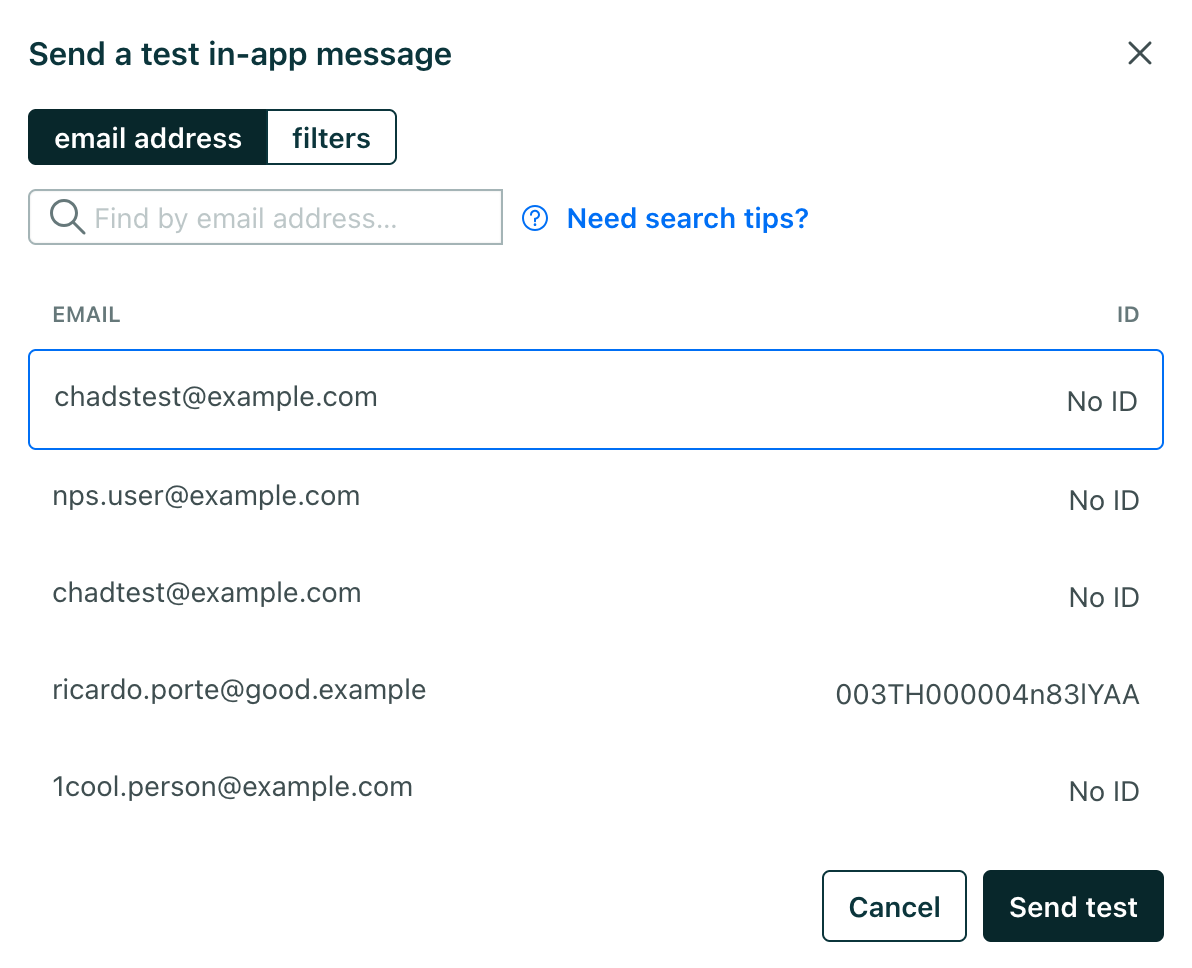
    
6.  Click **Save** and then click **Next** in the upper-right to go to the **Review** step of your broadcast.

## 3\. Review and schedule your broadcast[](#3-review-and-schedule-your-broadcast)

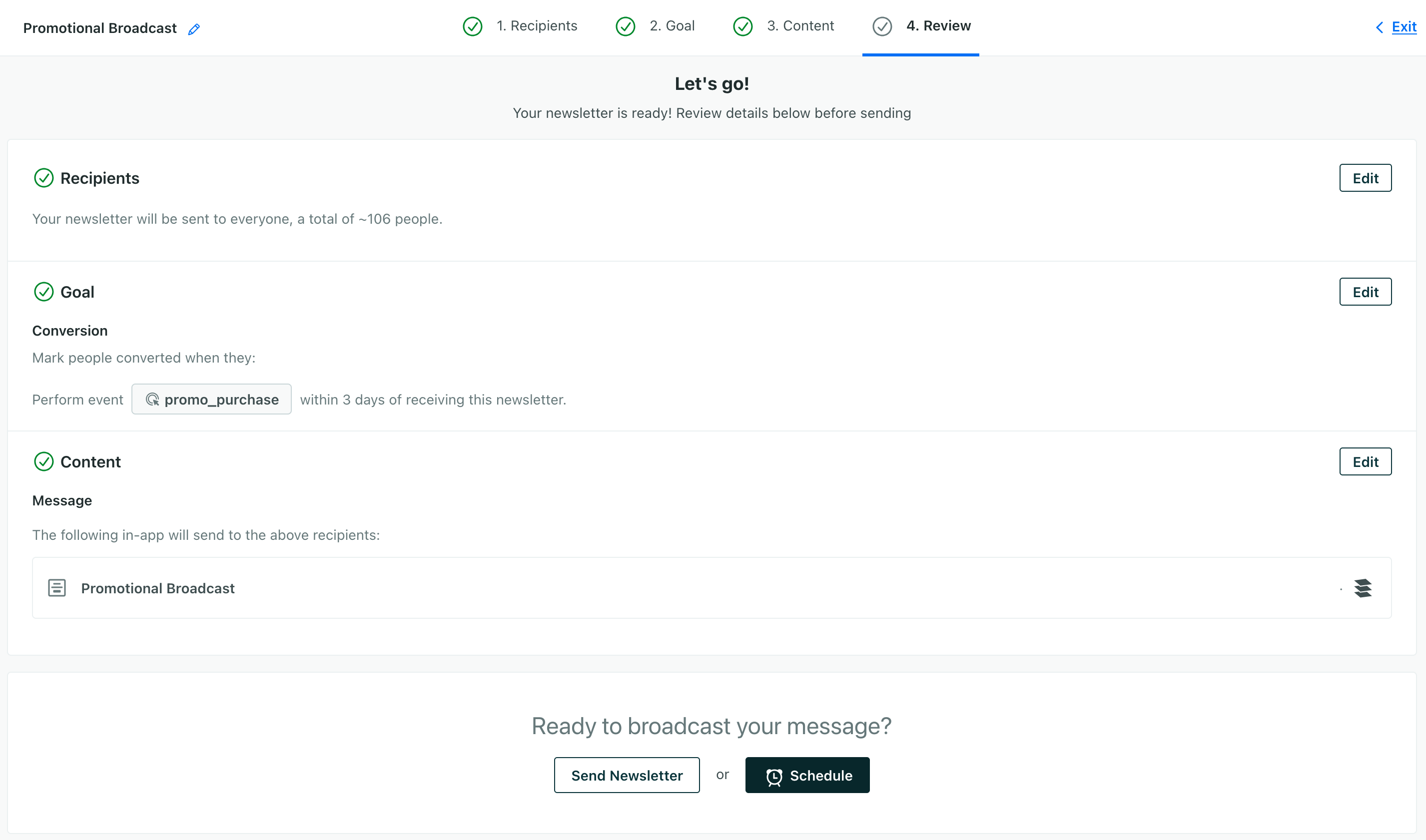
Remember, we want to send our message over the 2024 Black Friday weekend in the US, but we don’t want to spend our holidays writing a broadcast! So, we’re writing our broadcast ahead of time and we’re going to schedule it to send when the promotion starts.

1.  Click **Schedule** at the bottom of the screen to set up your message’s delivery.
    
    [![the review step of your broadcast before you set a schedule](https://docs.customer.io/images/web-in-app-promo-review1.png)](#9cf06d5ae78caf60214dcce900ddef89-lightbox)
    
2.  Set the **Date** when you want to send your message. In our case, we’re scheduling for Friday, November 29th 2024.
3.  We’re going to schedule our message to go live at midnight in the US Eastern time zone, so we’re setting our **Time** to *12:00 AM* and the **Time Zone** to *Eastern Time*.
    
    [![Schedule your in-app message](https://docs.customer.io/images/web-in-app-promo-review.png)](#d13182ab0657fd00f2702ec219342dd0-lightbox)
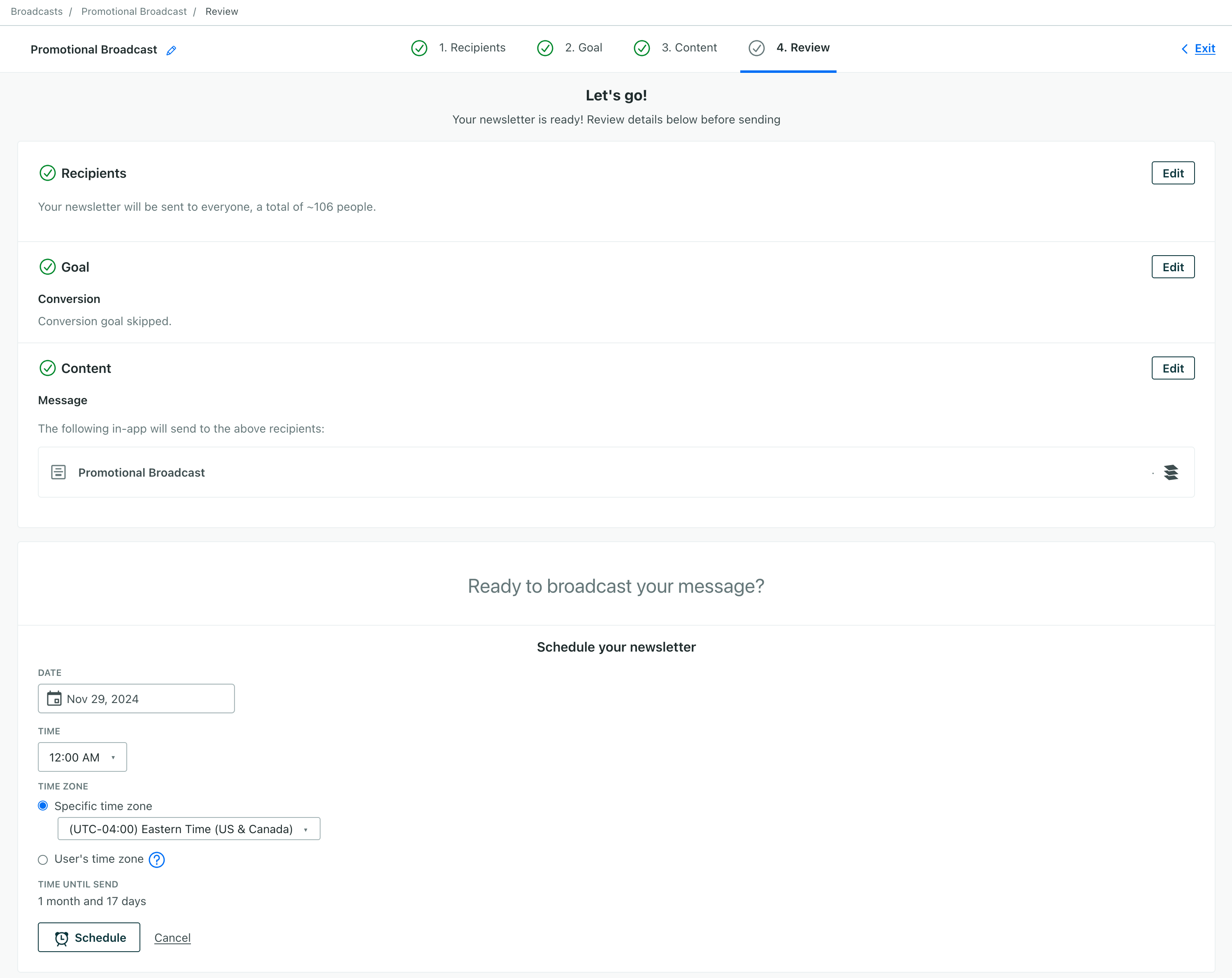
    
4.  Click **Schedule** to set up your message to send on the day of your promotion.

Now you’re all done! You can check the status of your promotion in the **Broadcasts** page. You can make changes to your broadcast if you need to, right up until it sends.