Configure reusable webhooks
UpdatedIn Workspace Settings, create webhook configurations to reuse across campaigns and broadcasts and secure your credentials.
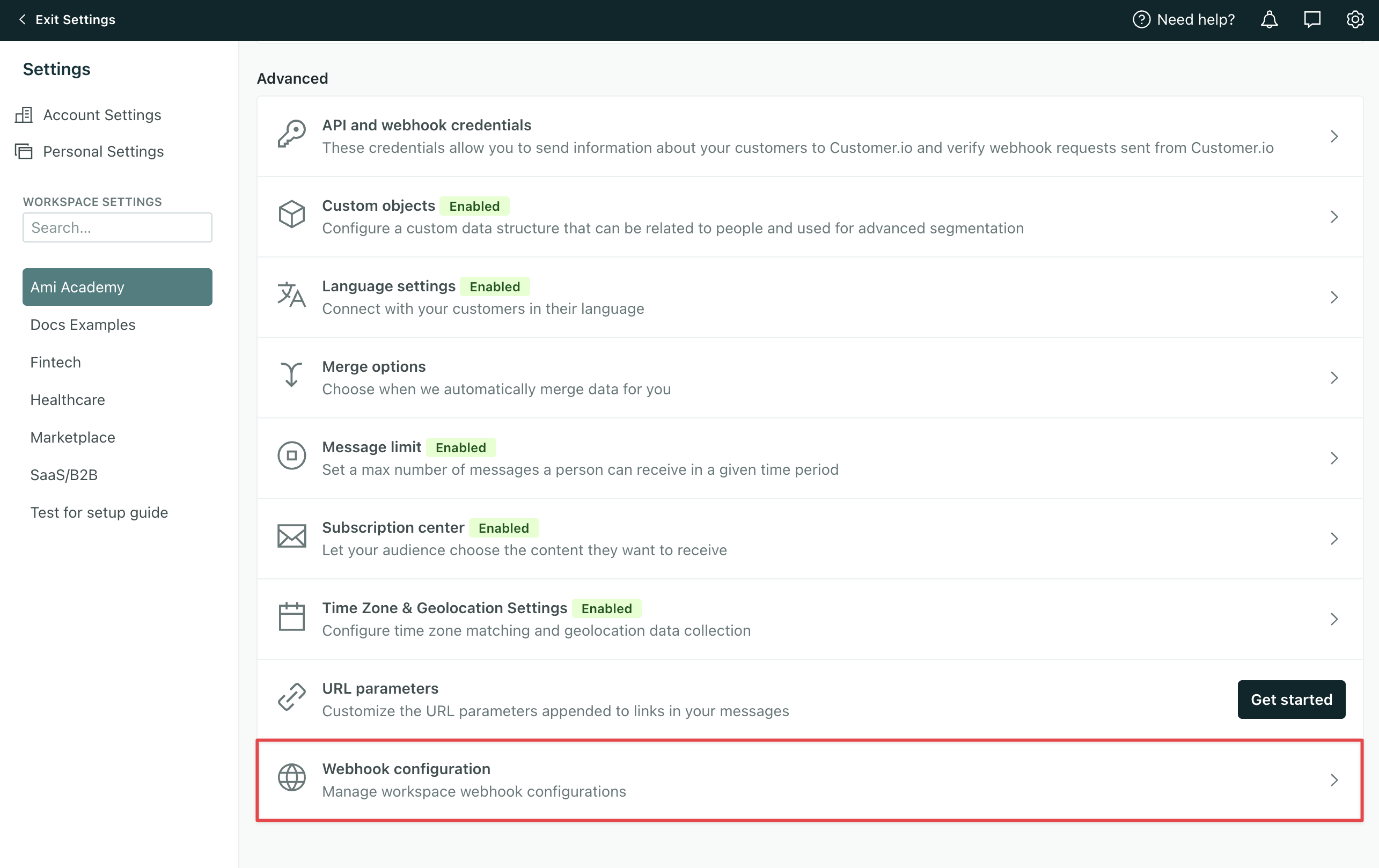
Overview
In Workspace Settings, you can configure webhooks to reuse them across your campaigns and API-triggered broadcasts. Use them to reduce friction across your workflows:
- Less repetitive work & fewer errors. Define your webhook URL, headers, and auth details once, and reference them in any campaign.
- Updates at scale. When an API endpoint or auth header changes, update the configuration in one place and all referencing campaigns pick up the change automatically.
- Tighter security. Team members can select pre-configured webhooks without ever seeing sensitive data like API keys, auth tokens, or headers.
Account admins and Workspace managers have full access to creating and choosing webhooks in your campaigns, while Authors can only select which webhooks to use.
Currently, people with custom roles cannot create or configure reusable webhooks.
Create webhooks
- Go to Workspace Settings > Webhook configuration.
- Click Create webhook.
- Add a Name for your webhook.
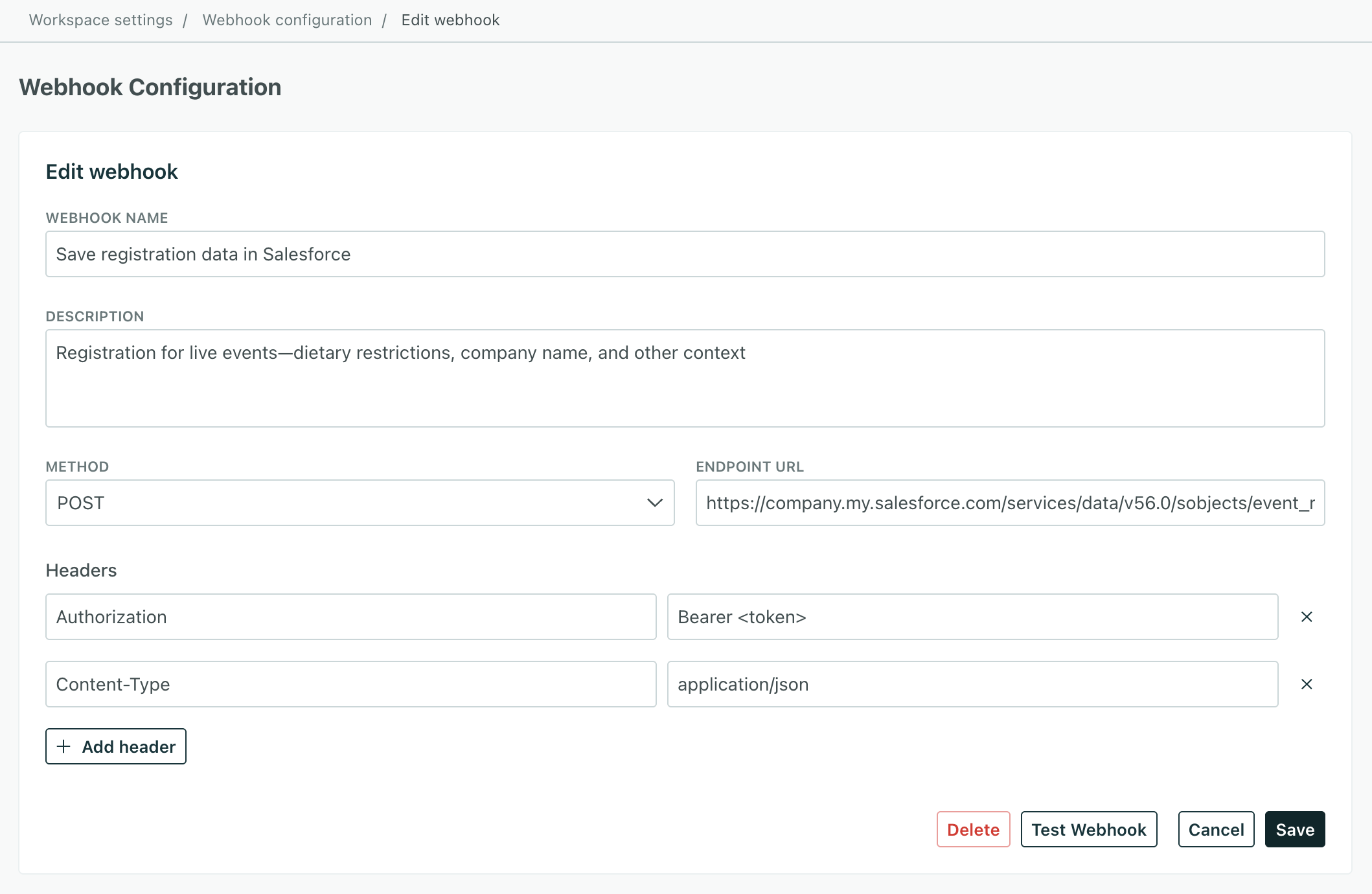
- (Optional) Add a Description to help you distinguish your webhooks.
- Specify the right Method and Endpoint URL.
- Add any other Headers you need.
- (Optional) Send a Test Webhook to ensure your webhook is functional.
Now you can add the webhook to your campaigns and API-triggered broadcasts, which is where you’ll specify the Body or store data on attributes for use later on.
For more information on setting up a webhook, check out our webhook action article.
Edit webhooks
To edit a webhook, click Edit from the Webhook configuration page. Make sure you test the webhook before you save; changes take effect immediately across your campaigns and broadcasts.
Delete webhooks
To delete a webhook, click Edit and choose Delete from the webhook’s page. You can’t delete a webhook in use; you must remove it from all campaigns and broadcasts first.
Use saved webhooks
You can use saved webhooks in campaigns or API-triggered broadcasts.
To assign a configured webhook to a campaign or broadcast, follow these steps:
- Drag a Send and receive data action into your workflow.
- Click the action and then choose Edit Request.
- Click the dropdown at the top and select a pre-configured webhook. You’ll see the name and description set in the configuration manager.
Then you can finish setting up the webhook:
- Add a request body.
- Set journey attributes to temporarily store and use data in an active journey.
- Set customer attributes to use the data outside of the campaign.
- Preview the webhook with sample customer data.
- Send a test.

