WhatsApp: create & approve templates in Design Studio
BetaThis feature is new and we're actively working on it. UpdatedYou can create and submit WhatsApp templates for approval in Customer.io if you send messages through your Facebook Business Account. If you send through Twilio, you have to manage your templates on their site.
How it works
To manage WhatsApp templates in Design Studio, you must integrate directly with your Facebook Business Account.
Then you can create WhatsApp templates and submit them for approval from Design Studio, instead of having to leave your workspace to create them with Meta.
The process goes like this:
From Design Studio, create a WhatsApp message from scratch and add your content including any relevant liquid syntax.
Submit it for approval from Meta. You can track the approval status from the Design Studio dashboard!
Unlike Meta-created templates, you don’t need to take the extra steps of assigning liquid variables to your template variables!
Add the template to your campaign.
Wait to activate your campaign until Meta approves your template.
Your audience may not receive WhatsApp messages unless they’re approved! Make sure the status says “Approved” before you start sending.
If you’re familiar with Design Studio, you know there are Global styles—variables for fonts, colors, etc that apply across your emails and in-app messages. These styles do not influence WhatsApp messages, since they’re simple text or image-based messages.
Any templates you created outside of Design Studio are not visible from the dashboard.
Limitations compared to building within your Meta account
We’re working to close the gap between Design Studio and Meta’s template builder, so you can do more in Customer.io.
Currently, you can’t do the following in Design Studio:
- Add buttons, CTAs, or Quick Replies
- Create Authentication templates
Create a WhatsApp template & submit for approval
Go to Design Studio in your left-hand navigation to get started.
- Click Create > New WhatsApp.
- Add a message name—this helps you find it when adding it to a campaign.
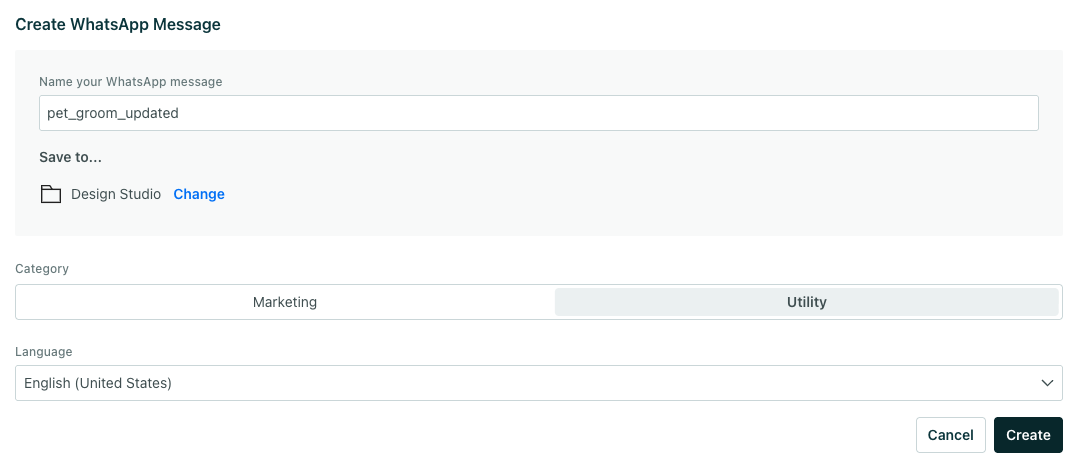
- (Optional) Save to a folder.
- Choose a category of template. Learn more about template types in Meta’s docs.
- Marketing—Content that may include promotions (Note, people in North America must be opted into receiving marketing messages via WhatsApp to get this type.)
- Utility—Non-promotional messages related to transactions, like order updates
- Select the language of your message. Note, you have to create a template for each language you want to support.
- Click Create.
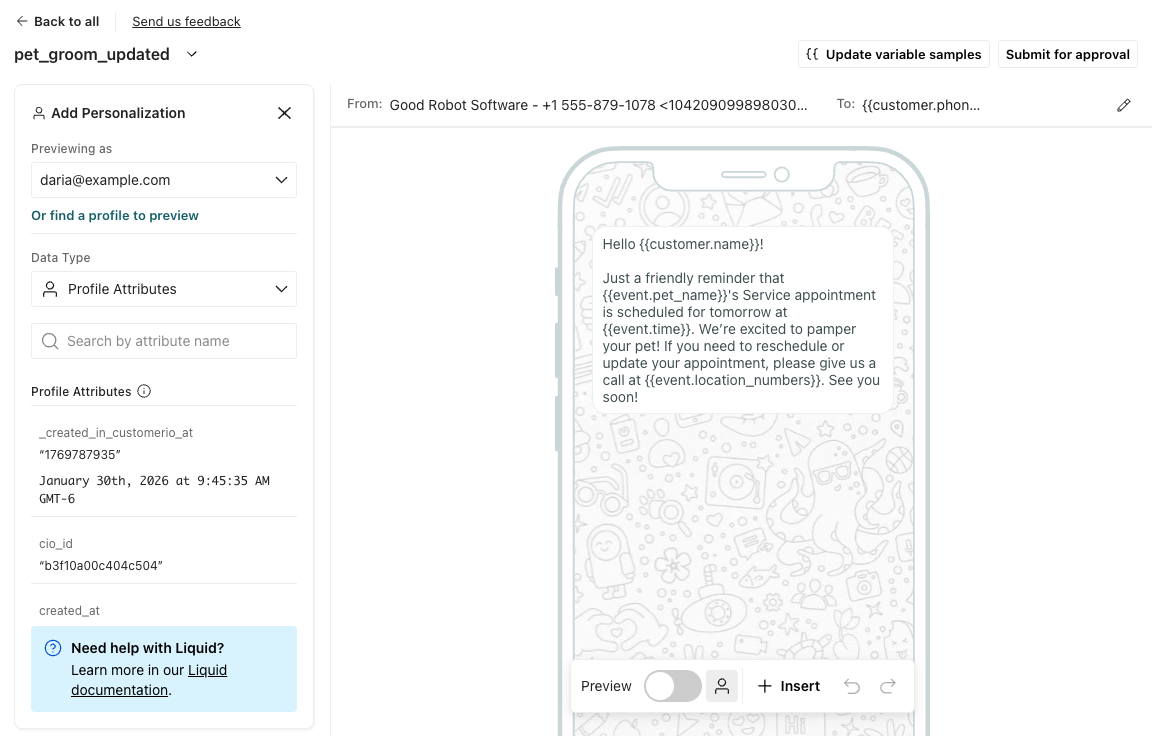
- Edit the From field if you need to change your sender number.
- Edit the To field to target the right customer attribute for phone numbers.
- Edit your message’s body content.
- (Optional) Click Insert to add a header or footer.
- To personalize the message, add liquid. Open the personalization panel or use the agent to help you write liquid (Ask Agent). Learn more in our Design Studio Liquid doc.
Once your template is complete, your next step is to Submit for approval from Meta.
Submit for review
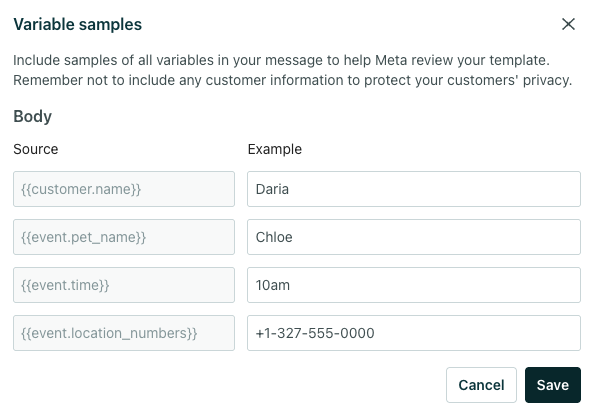
After you complete your template, you’ll submit it for approval. If your template contains liquid syntax, add example data. Then click Submit for approval.
If you added liquid to your template, you must Add variable samples before submitting. You provide a sample value for each liquid variable in your template. Make sure these values respect your customers’ privacy.
Then double check that your template is complete. Once you submit, you can’t change anything while Meta reviews your submission. If your template is rejected, you can edit it and resubmit for approval. If your template is approved, you’ll have to submit a new template with your changes.
You can check the status of your WhatsApp templates from the Design Studio dashboard.

It can take up to 48 hours for Meta to review your templates
Resubmitting a WhatsApp template for approval
If your WhatsApp template is rejected, you can edit it and resubmit it for approval. Adjust your template based on the information returned from Meta.
Connect to a campaign
You can connect a WhatsApp template to a campaign at any time—you don’t have to wait for approval. However, make sure the template is approved BEFORE you activate your campaign. Your complete audience might not receive the message until it’s approved, due to some of Meta’s regulations.
From your campaign’s workflow, follow these steps:
- Drag in a WhatsApp block from the Build menu.
- Click Add Content.
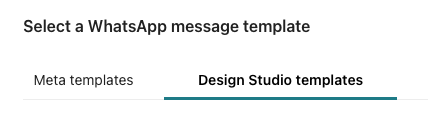
- Choose your template under Design Studio.
- Preview your message with sample data as you see fit.
Unlike Meta-created templates, you don’t need to take the extra steps of assigning liquid variables to your template variables!
If you realize you want to use a different template, click Change template to start over.
To edit the From or To fields, go back to Design Studio and modify your template there.
Translate WhatsApp templates
If you want to translate your WhatsApp messages, you have to create a separate template for every translation and submit them for approval.
This means you may have to set up a separate WhatsApp message for each translated template and branch your audience based on their language preferences.

