

WhatsApp: get started
You can set up WhatsApp using your Facebook Business Account or through Twilio if you use Twilio to send SMS messages. We'll help you figure out which option is right for you and get you set up.
How it works
WhatsApp is similar to SMS in that you can send messages to your audience using their phone numbers. But you’ll need WhatsApp-approved phone numbers to send messages; these are separate from the phone numbers you use to send SMS messages.
After you’ve enabled WhatsApp support, you’ll set up templates for your messages. Unlike SMS and other channels, you won’t write message content directly in Customer.io; WhatsApp messages are based on templates that you create in WhatsApp (or through Twilio), and then populate in Customer.io.
So, before you can send WhatsApp messages, you’ll need to:
- Set up WhatsApp support in Customer.io through either your Facebook Business Account or your Twilio account.
- Create templates and have them approved by WhatsApp.
- Select a template when you go to send a WhatsApp message.
Should I set up WhatsApp through Twilio?
Whether or not you set up WhatsApp through Twilio, you’ll need a Facebook Business Account to send WhatsApp messages. If you don’t have one, that’s where you’ll start.
Beyond that, if you already have your own Twilio account that you use to send SMS messages through Customer.io, it might be easier to set up WhatsApp support using your Twilio account. Twilio can help you get WhatsApp-approved phone numbers, and they’ll help you create and get WhatsApp-approved templates approved by WhatsApp (Meta).
However, while Twilio can act as a concierge for your WhatsApp setup, using a third party makes it difficult to understand what parts of the process are handled by Twilio and what parts are handled by Customer.io.
If you don’t have a Twilio account—or you want to make sure that your WhatsApp setup isn’t dependent on a third party—you can connect Customer.io directly to your Facebook Business Account to send WhatsApp messages. Removing Twilio from the equation can make it easier to understand and troubleshoot WhatsApp support.
Set up WhatsApp support
Before you can send WhatsApp messages, you must have a WhatsApp-approved phone number that you’ll use to send messages. If you haven’t gotten a WhatsApp-approved phone number, you might want to do that before you set up WhatsApp support in Customer.io.
If you’re going to send WhatsApp messages through Twilio, see Set up WhatsApp support using Twilio below.
- Go to > Workspace Settings > WhatsApp.
- Click Connect WhatsApp Business.
- Enter your Facebook Business Account credentials and follow the prompts. As a part of this process, you’ll enter your business information and the sender number you want to use to send messages.
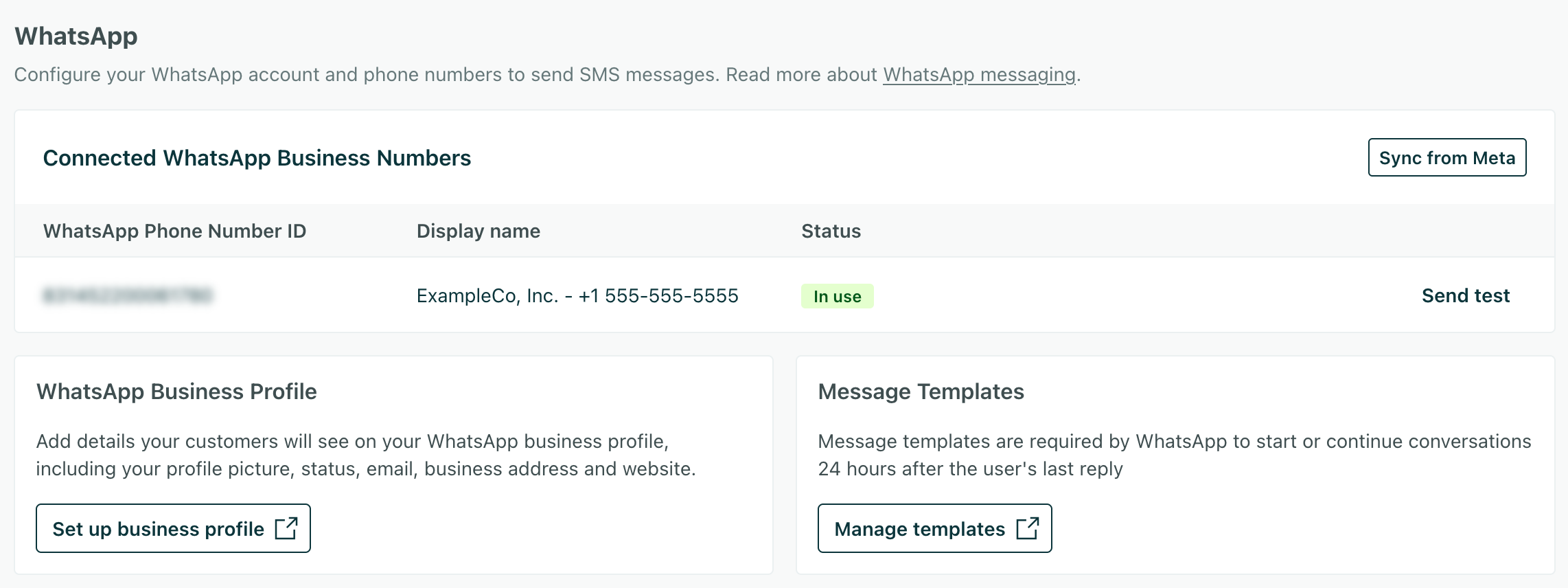
When you’re done, you’ll be set up to send messages from Customer.io. Though you’ll need to create WhatsApp-approved templates in your Facebook Business Account before you can send messages.
Set up WhatsApp support using Twilio
Twilio WhatsApp support is tied to our SMS functionality. If you want to send WhatsApp messages using your Twilio account, you’ll need to set up SMS in Customer.io first and then ask Customer.io to enable WhatsApp support for your account and workspace.
Twilio’s WhatsApp approval process may take a few weeks to complete. We manage WhatsApp support on a customer-by-customer basis to make sure that your account and workspaces are fully prepared to send WhatsApp messages before we enable the feature.
To send SMS and MMS messages in Customer.io, you’ll need to have a Twilio account and the Sender phone number. This might be a regular phone number, short code, or an alphanumeric ID.
Twilio can lease these numbers to you. Or, if you have a paid Twilio account with Alphanumeric Sending enabled, you can send messages from an Alphanumeric ID instead of a Twilio phone number.
-
Set up a Twilio account if you don’t already have one. We recommend using a trial account to get started.
-
Set up a Twilio-specific Sender if you don’t already have one. You can’t use your own phone number to send SMS; you need to purchase a number from Twilio. If you already set up your sender number, select it when you compose messages.
-
In your Customer.io workspace, go to > Workspace Settings > SMS and add your Twilio Account SID and Auth Token. You’ll find these values in your Twilio dashboard.


- Complete the WhatsApp approval process. You must have an approved WhatsApp Business Account to send WhatsApp messages. Twilio facilitates the approval process and provides instructions to help you enable WhatsApp messaging.
- In Twilio, create the content templates you want to use to send messages.
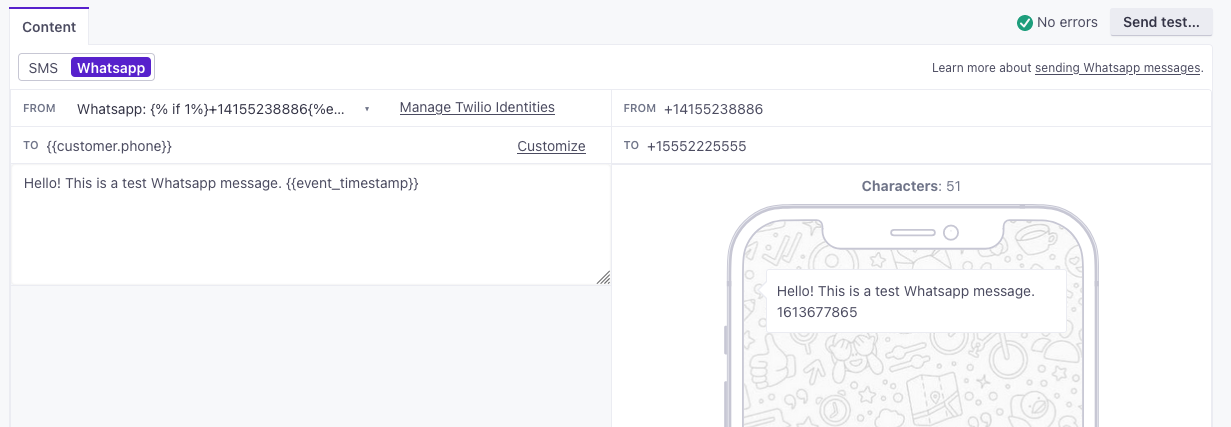
- Contact win@customer.io to enable WhatsApp in your Customer.io account. After we enable WhatsApp support in your account, you’ll see an option in the SMS editor to send a message to your WhatsApp audience.
Link in WhatsApp messages
You might want to track and shorten links that you add to WhatsApp messages. In general, if you track links, you should also use our link shortening feature; when you track a link, it becomes a much longer URL that can take up considerable space in your message if you don’t shorten it.
Link tracking
You can enable link tracking by either:
- Enabling link tracking at the automation or message level.
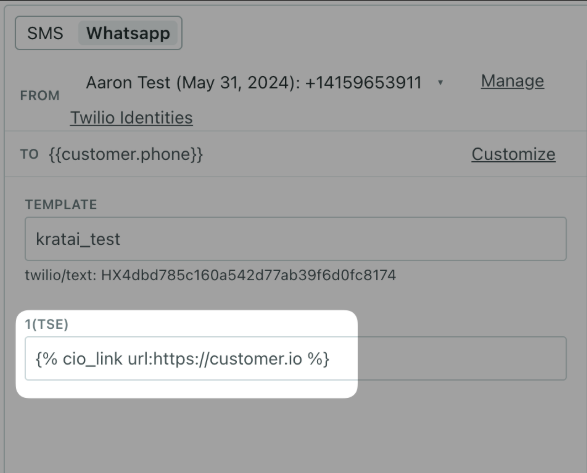
- If you want to track individual links, you can use the
{% cio_link url:"https://example.url" %}tag to track links in your messages.
Link shortening
Link shortening settings depend on how you set up WhatsApp support—directly through your Facebook Business Account (WhatsApp in your workspace settings) or through Twilio (SMS in your workspace settings).
Native WhatsApp support
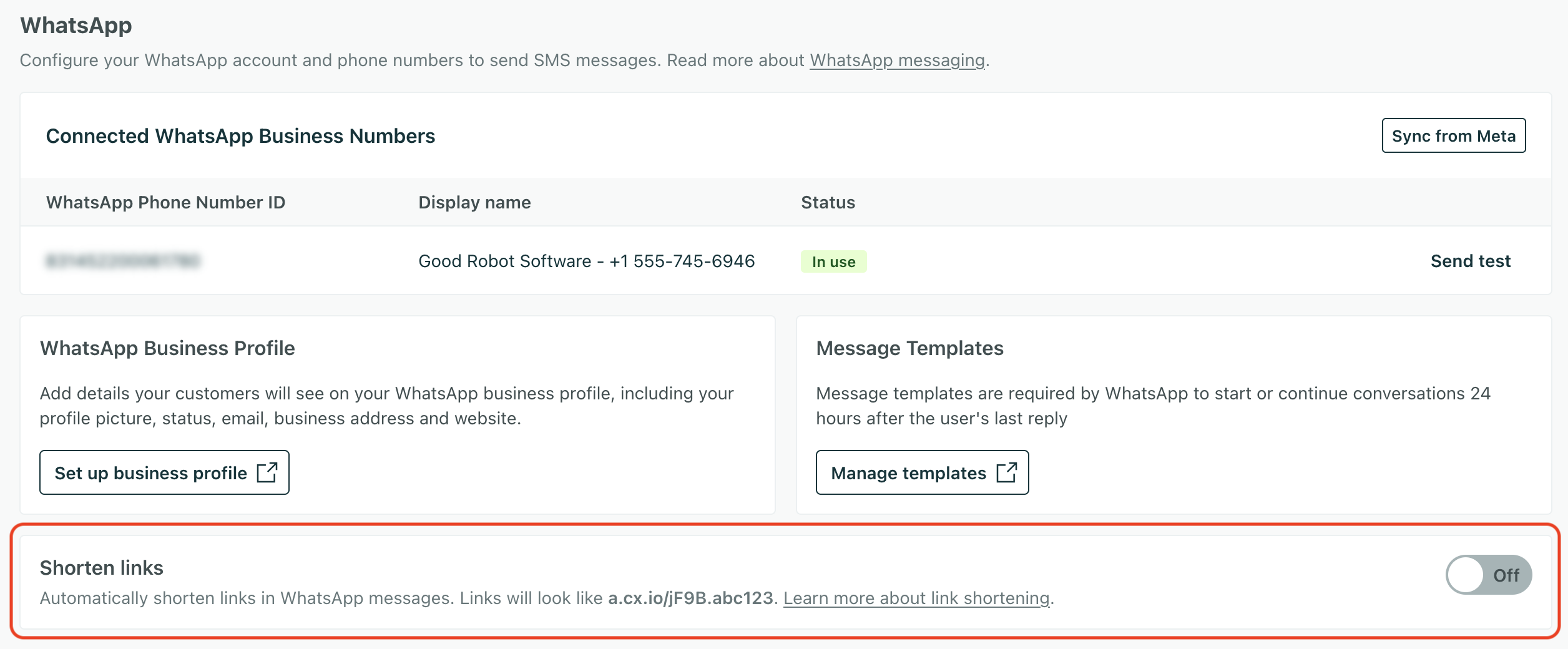
You’ll find link shortening settings in Workspace settings > WhatsApp.
When you enable link shortening, we’ll automatically shorten links to a URL like https://a.cx.io/abcde12345 (or https://e.cx.io/abcde12345 if you’re in our EU data center).
Shortened links are between 26 and 36 characters:
- 8 for the
https://prefix. - 7 for the domain (
a.cx.ioore.cx.io). - 11-16 characters for the path (the slash and random characters
/lnk.abc123). We start with a 10 character path and increase the length until we find a path that isn’t in use. - Shortened links expire after 90 days.
Add a custom short link domain
Custom short link domains help you brand your links and make them easier for your audience to recognize. You can add up to 10 custom short link domains per workspace, which are shared across your SMS and WhatsApp channels; any domain you add is available for both channels, and you can set the default domain for each channel.
As a part of this process, you’ll need to add CNAME and TXT records to your domain to verify that you own it and grant Customer.io permission to use it. Your custom short link domain cannot be the same domain you use for email link tracking.
- Go to your > Workspace settings > SMS or WhatsApp settings.
- Click Add custom domain.
- Enter your custom domain and click Add domain.

- Go to your domain registrar and add the appropriate records to your domain. The Add custom domain dialog contains the values you’ll need to copy to your domain host.
- CNAME record: points your custom domain to Customer.io’s servers.
- TXT record: verifies that you own the domain. The record name uses the format
_cio.yourdomain.com.

It can take up to 24 hours for these records to propagate, though it usually happens much faster. Until then, you’ll see that your custom domain is pending. In many cases, you can wait a minute or two and refresh the page to see that your custom domain is active.

If you want to use multiple domains or override the default for individual messages, see use multiple short link domains.
WhatsApp via Twilio
If you send WhatsApp messages through Twilio, your WhatsApp messages share link shortening settings with SMS messages. You’ll find link shortening settings in Workspace settings > SMS.
Here you can set up link shortening including a custom short link domain. See link shortening for more about your short link setup.