

When to use automation filters
This article covers the difference between triggers and filters for all types of automations.
How it works
Both triggers and filters are sets of conditions that determine who enter your automations.
- A trigger determines who’s eligible to enter an automation and when.
- A filter is additional criteria that a person or triggering data must meet for people to enter or remain in the automation.
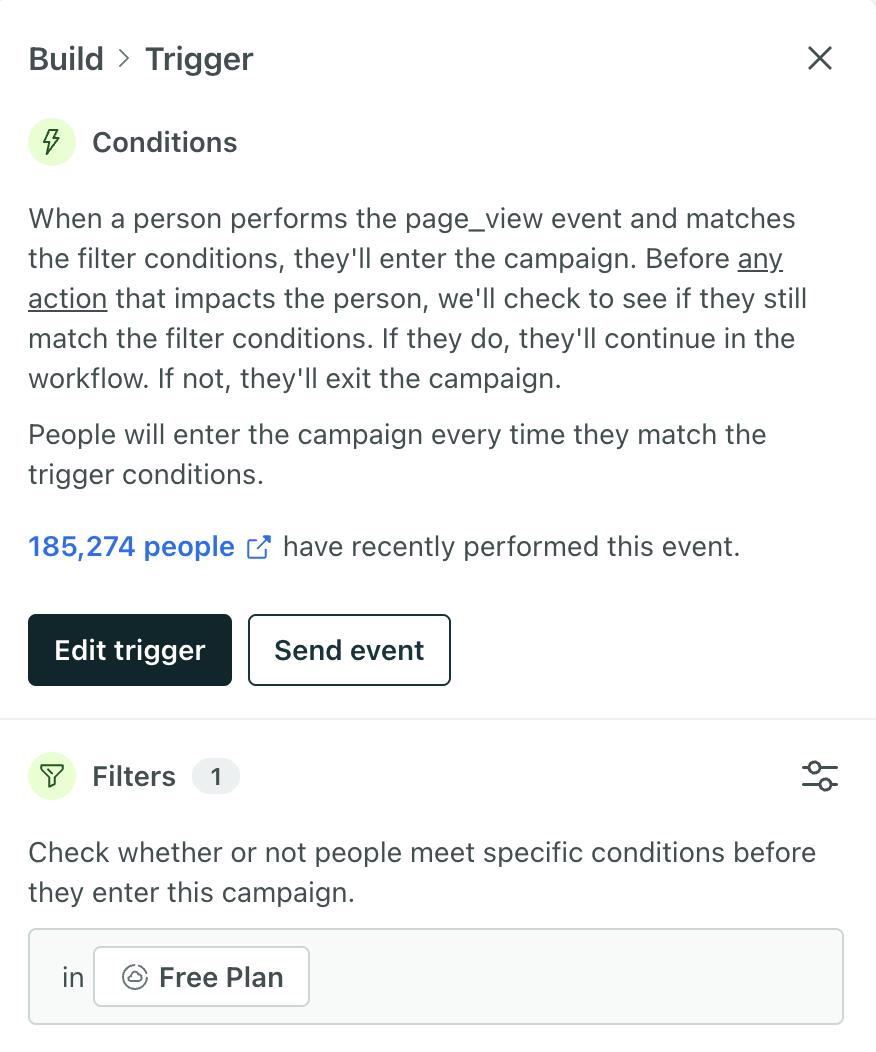
For example, you might want to send a message when someone views the pricing page of your website (event trigger: a pricing page viewed event your site sends), but only send that message to people who aren’t on a paid plan (filter: free plan).
You should think about triggers and filters separately to help differentiate the condition that triggers an automation from the state of the user going through it (or the data they’re related to). In the case of legacy segment-triggered automations, using a segment filter with a segment trigger may not matter when there’s no delay at the beginning of your automation.
How we evaluate filters
For most of our automations (see the exception for legacy segment-triggered automations below), we evaluate filters:
-
At the start of an automation
- If trigger conditions are met but not filter conditions, we recheck up to 30 minutes.
-
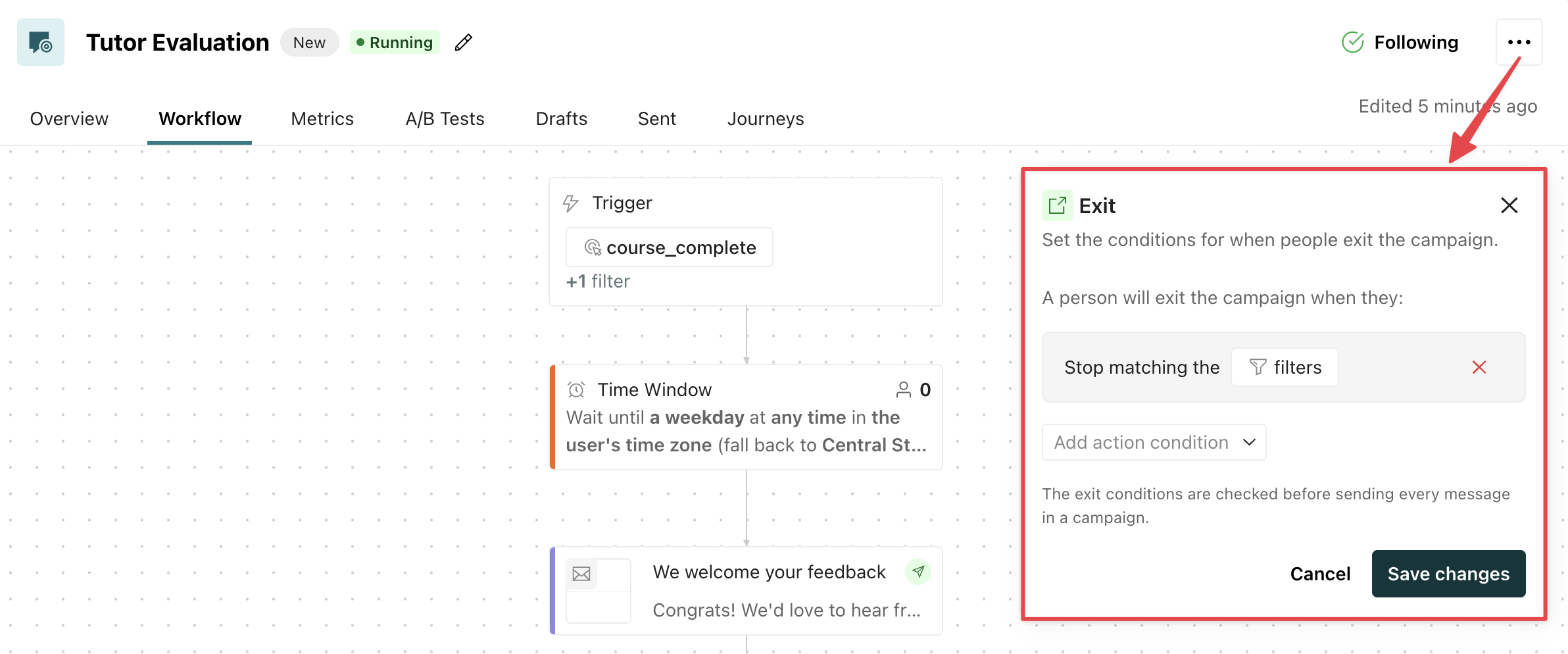
During the automation - specifically, before workflow actions if you include filters in your exit conditions:
Legacy segment-triggered automations
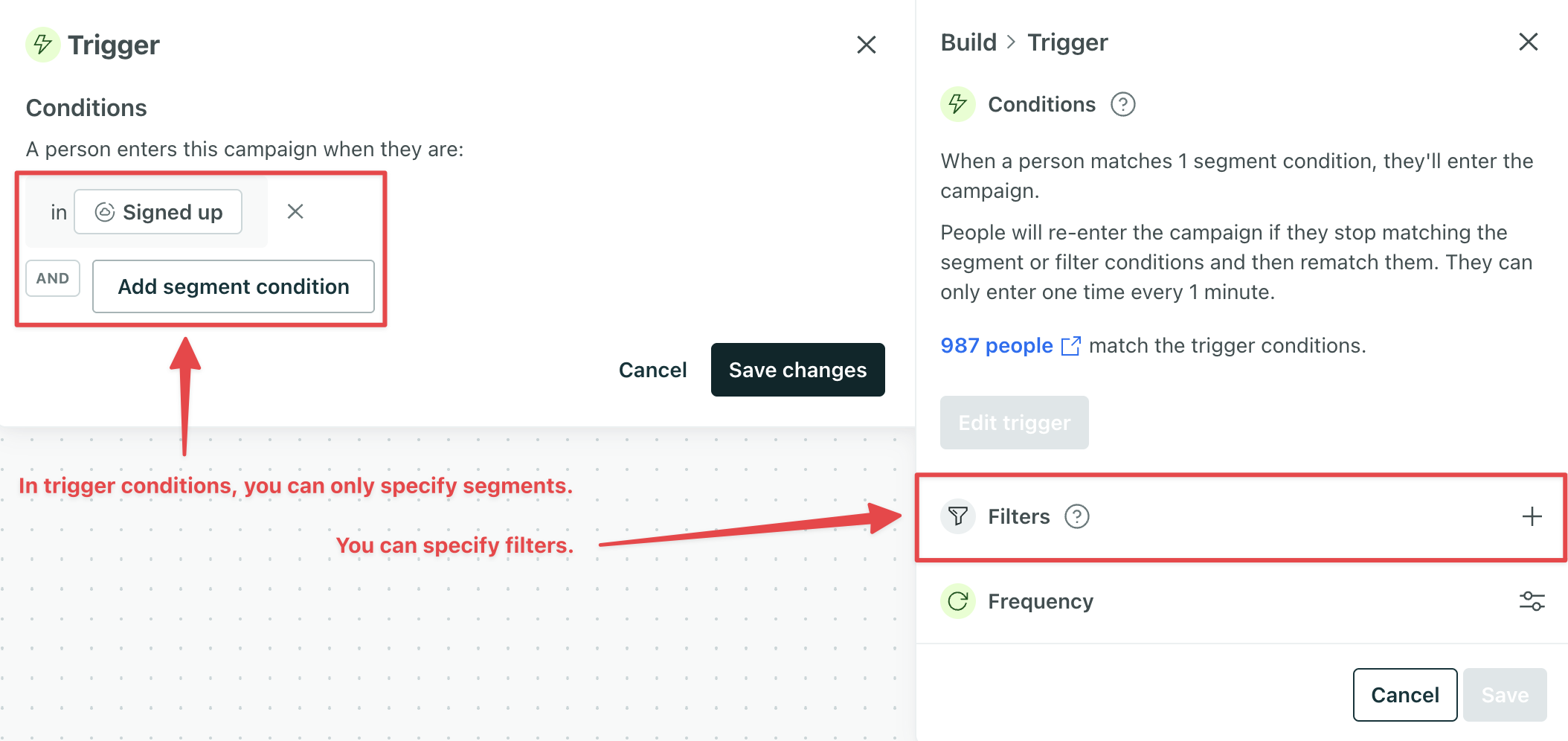
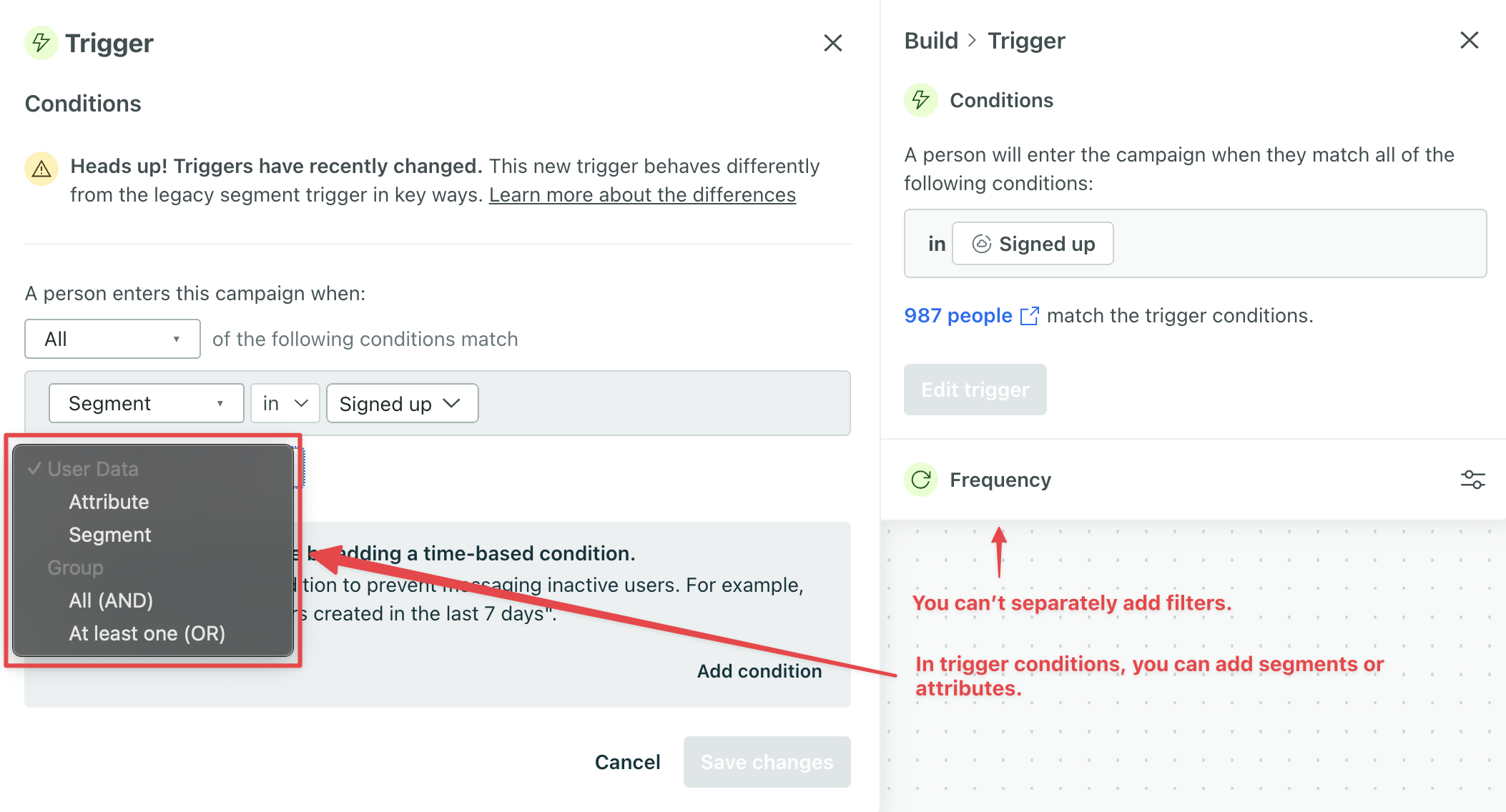
You know you’re working in a legacy segment-triggered automation if you can add a filter in the trigger panel:
| Legacy segment trigger | Latest segment trigger |
|---|---|
 |  |
When people meet the trigger condition, they start a journey. However, they won’t move through your workflow until they meet filter conditions. We pause their journeys until they meet your filter conditions, or they exit after a period of time.
If they continue forward, we will re-evaluate filter conditions only if the automation uses one of these exit conditions:
- They stop matching the trigger segment or filters
- They match the conversion criteria or they stop matching the trigger segment or filters
Looking for more info on grace periods? Learn about how they impact legacy segment-triggered automations.
Types of filters
For automations triggered by events, forms, objects, relationships, or dates, you can add one or more segment filter conditions. A segment filter checks for people in or not in a segment. For example, you might want to send a message when someone views the pricing page of your website (event trigger: a pricing page viewed event your site sends), but only send that message to people who aren’t on a paid plan (filter: free plan segment).
For object and relationship automations, you can also add object or relationship filters.
-
An object filter refines your audience based on the attributes of the object they’re related to.
-
A relationship filter refines your audience based on the attributes on people’ relationships to the object.
In legacy segment-triggered automations, you should weave filter criteria into the trigger conditions. But see below to understand when to include a separate filter.
For automations that use the latest “Attribute or segment” trigger or a webhook trigger, you can’t add filters on the trigger. Add all conditions to the trigger criteria instead.
FAQs
Do people still get a journey for the automation if they don’t meet the filter?
For legacy segment-triggered automations, yes. For all other automations, they won’t if they don’t match the filter after a 30 min pause. Check out Journeys for more information.
Legacy segment trigger vs segment filter
You might be wondering, “When do I put my filter conditions in my segment trigger criteria?” In most cases, you should! But if you want people to trigger an automation based on segment criteria AND filter them out after a certain time period, you’ll want to create both a segment trigger and a segment filter. Think of this as a way to ensure people move through this automation only when it’s relevant to them and not accidentally later on.
Consider the example below - people have just signed up for your service and should receive a special offer if they perform certain actions within a timeframe.
Let’s say you want to send an automation to people who have viewed your pricing page at least once within 10 days of signing up. Your goal is to convince them to upgrade with a special “newbie” offer. Here’s how to set it up:
- Trigger an automation based on people joining the “Signed up” segment. Filter your automation based on “has viewed pricing page at least once”.
- Set your exit condition to include filters.
- Add a 10-day delay to the beginning of your workflow, followed by your message with a special offer.
This means: as soon as someone signs up, they enter the automation and the 10-day clock starts ticking. After 10 days, the automation will send messages if they meet the filter criteria (viewed the pricing page at least once). Otherwise, people would not get this offer and would exit the automation. Whether they move through the whole automation or not, these people will never be eligible for this automation again because people can only enter a segment-triggered automation with a filter the first time they match the criteria.
If you had combined both conditions into the trigger, the 10-day automation clock would not start ticking until people had both signed up AND viewed the pricing page once. This combination of conditions could happen at any time, no matter when they signed up, so your customer could receive this newbie offer a year later.