

Start sending automations and workflows
How it works
A message is what you want to send. But before you send a message, you have to determine who to send your message to and when to send it. You answer these questions when you set up an automation, broadcast, one-time send, or transactional message.
Each of these mechanisms has a different use case, but they all contain the same basic concepts/questions:
- How do I trigger messages?
- Who should receive messages?
- When should people get messages?
- What messages should people get?
| Trigger | Audience | Timing | Messages | |
|---|---|---|---|---|
| Automation | When people meet your criteria | People who meet your criteria | Automated by workflow | Multiple |
| Broadcast | When you trigger the broadcast (API or UI) | People who meet your criteria | When you send the API call | Multiple, all at once (or spaced out with delays) |
| One-time send | When you click send in the UI | People who meet your criteria | When you trigger the one-time send (manually) | Single |
| Transactional Message | When a customer requests a message (API) | A specific person | When you send the API call | Single |
When should I use automations, broadcasts, or one-time sends?
We’re glad you asked! There are a multitude of factors that can help you pick the right message mechanism for your needs. But, in general, you can use the following guidelines to help you pick the right one.
I want to control when my audience gets messages: You should send a one-time send or a broadcast. You’ll trigger one-time sends manually (or on a schedule), which makes it easy to determine who gets messages and when. Broadcasts are a bit trickier, but you base the send on an API call that you control—so you can send messages when something relevant to your business happens.
I want to send messages in response to my audience’s behaviors: You should send a automation or a transactional message. These things are very different, but they’re both predicated on your audience’s behaviors. You’ll send transactional messages when a person performs an action that expects a message—like a receipt or a password reset. You’ll send automations when people meet certain criteria, like when they perform an event, gain certain attributes A key-value pair that you associate with a person or an object—like a person's name, the date they were created in your workspace, or a company's billing date etc. Use attributes to target people and personalize messages.
If you want to send multiple messages or perform multiple actions: you should send a automation or a broadcast. Automations contain a workflow that you can send people through to get multiple messages, or perform multiple actions A block in an automation workflow—like a message, delay, or attribute change.
Try a one-time send if you’re just getting started
Many of the sending mechanisms in Customer.io rely on your data. If you’re just getting started, a One-time send, like the one in our quick start guide, is a great way to get started with Customer.io.
Where other kinds of messages rely on your data, API calls, etc, you can control all aspects of a One-time send from our UI. That can make it easy to test your implementation and get a feel for how our platform works.
Automations
Automations are the most powerful and common way to automate your messaging strategy with Customer.io. When people enter an automation, they start a journey A profile's path through an automation workflow. If the automation is triggered by a webhook, then a journey captures the webhook's path, not a profile's.
An automation consists of a trigger, workflow, and goal. When people meet your trigger criteria, they start a journey A profile's path through an automation workflow. If the automation is triggered by a webhook, then a journey captures the webhook's path, not a profile's.
- Finish the workflow
- Match your goal criteria (depending on your settings)
- Stop matching the trigger criteria (depending on your settings)
Because people can match your trigger at different times and exit automations for different reasons, each person’s journey is unique and personalized for them. This makes it easy for you to maintain an automated messaging strategy that resonates with your individual users.
Automation triggers
The trigger determines when people start an automation. You can set up automations to trigger when people perform an event, move into (or out of) a segment A group of people who match a series of conditions. People enter and exit the segment automatically when they match or stop matching conditions.
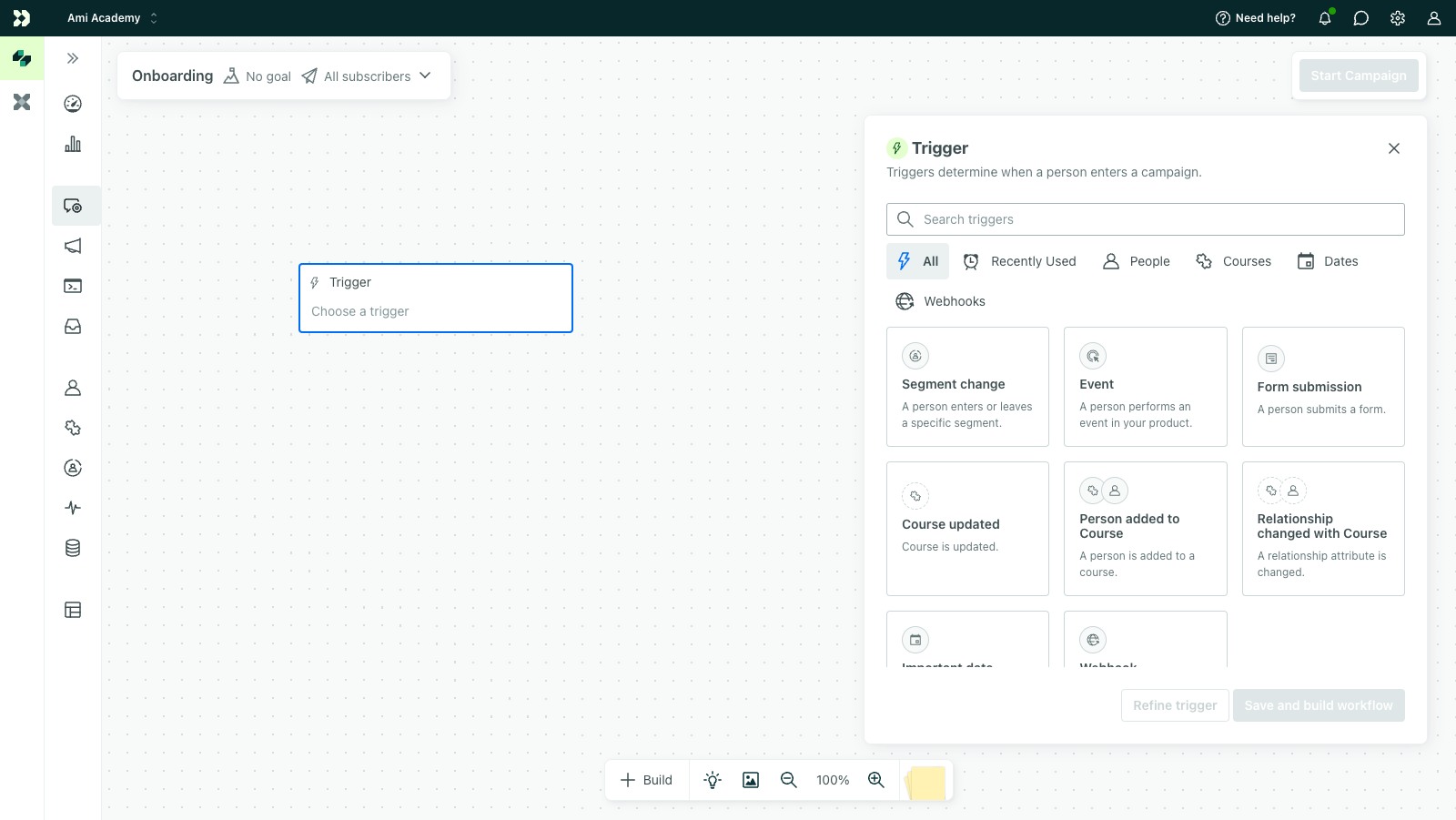
In many cases, understanding the purpose of your automation and the kinds of messages you want to send can help you determine the trigger you want to use. For example, you might use date-triggered automations for things like birthday or anniversary messages. You might use event-triggered automations to send coupons encouraging your audience to complete their purchases when they abandon their shopping carts. Learn more about automation triggers.
But to set up automation triggers correctly, you’ll also need to know a bit about your data—what attributes and events are available to you. You can see the attributes and events in your system under Integrations > Data Index.
Workflows
The workflow is where you determine what messages people get and when. In a workflow, you can send people down different branches based on their attributes or behaviors. With a complex workflow, you can automatically send messages and respond to your audience in ways that feel personal and relevant to them.
For example, we have a workflow below based on a cart abandonment scenario with three paths. If a person abandoned their cart for a certain amount of time, we send them a reminder message encouraging them to finish their purchase. But we don’t want to send them this email if they finish their purchase or they’re still shopping, so we bypass this message if the person completes their transaction or they add new items to their cart!
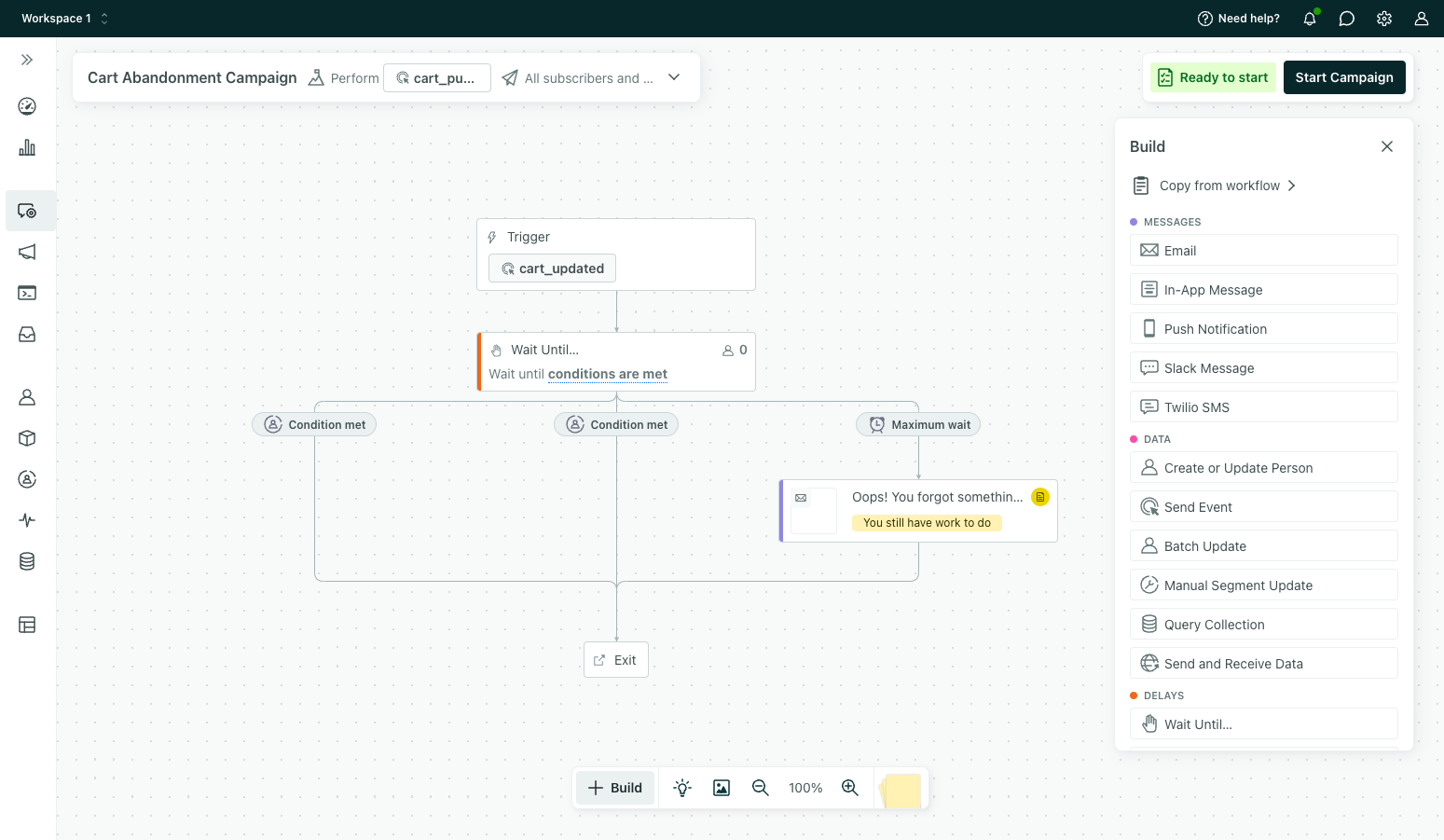
Automation workflows also help you send messages at the right times with blocks like Wait until. These blocks let you delay a message for a set period of time, or until a customer does something relevant. For example, you might send a series of emails explaining how to use your platform when someone joins your service. You can set up Wait until blocks to send follow-up emails when a person completes each step in the setup process.
Goals
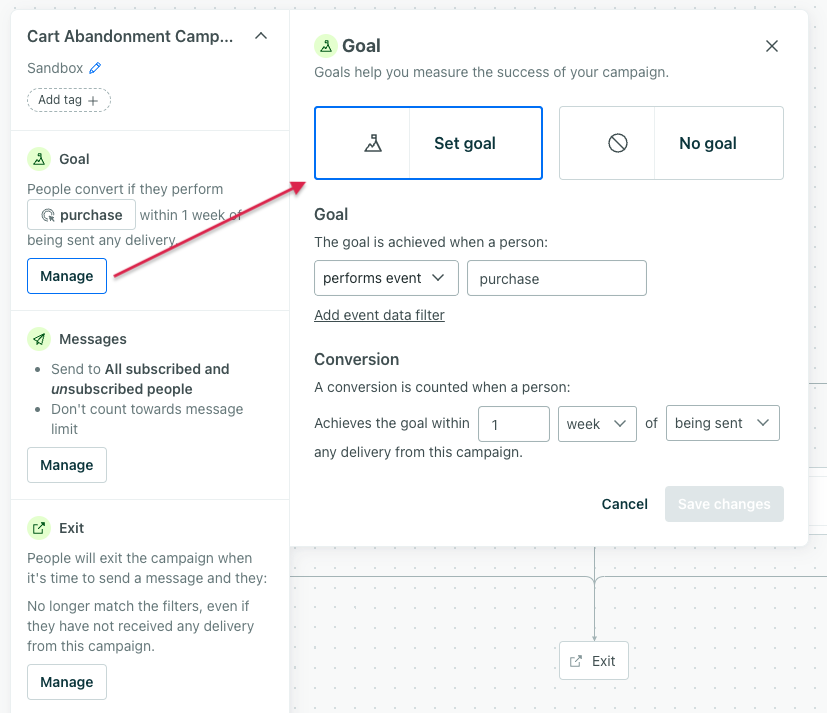
Goals help you measure the success of your automations. Typically, we represent success when a person performs an event or gains an attribute—like when someone completes a purchase or renews their subscription. If someone reaches your goal criteria in response to a part of your automation, we record a conversion, so you can see how effective your automation is.
Exit criteria
Exit criteria determine when someone ends their journey through the automation. For most automations, people will by default exit if they no longer match the trigger’s filter criteria; for segment-triggered automations, the default is when people no longer match the filter criteria OR the trigger conditions. Filters are additional criteria that people must meet to join your automation, giving you more granular control over who travels through your automation. We evaluate filters when someone enters an automation and before actions that affect them (like messages).
For example, if the purpose of your automation is for someone to buy something, you probably want to stop sending messages after someone actually completes the purchase. You could make the goal of the automation: “performs event purchase,” and your exit criteria They match the conversion criteria.
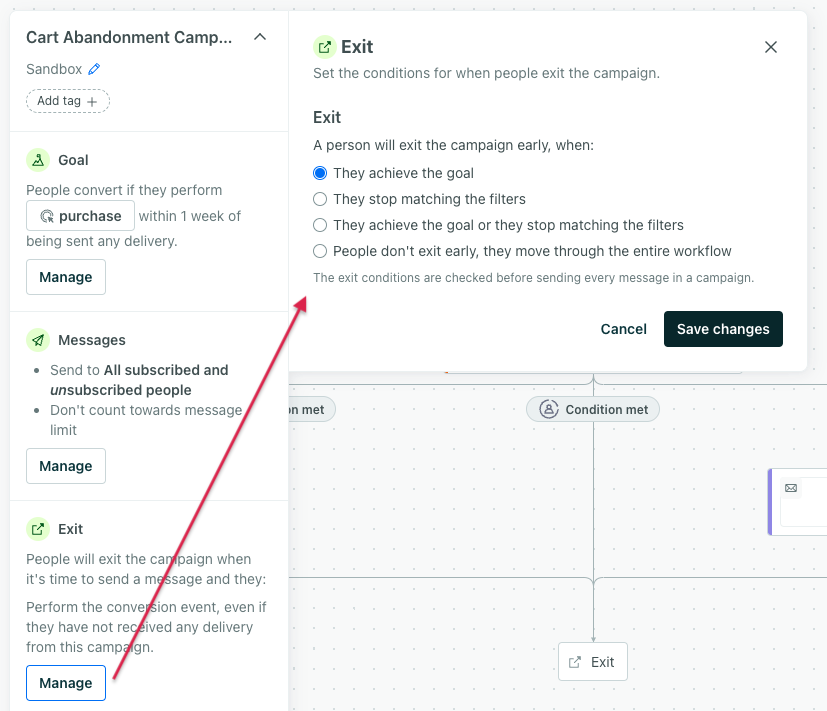
The options for exit criteria include:
- They match the conversion criteria
- They stop matching the filters (or trigger if it’s a segment-triggered automation)
- They match the conversion criteria or they stop matching the filters (or trigger if it’s a segment-triggered automation)
Broadcasts and one-time sends
Broadcasts and one-time sends are grouped together in Customer.io under Broadcasts. You determine whether you’re going to send an API-triggered broadcast or a One-time send when you set up your message.
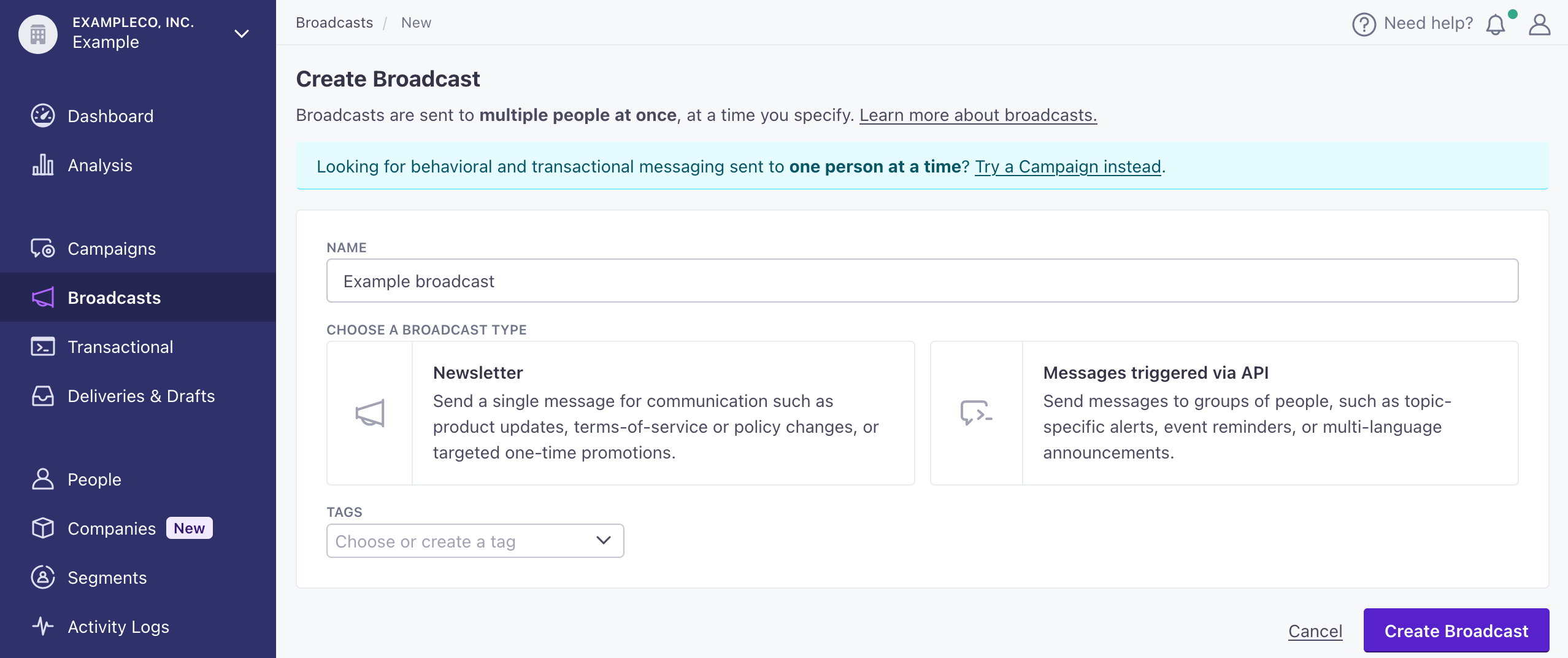
Unlike automations, you trigger broadcasts and one-time sends—they aren’t triggered by your audience. And, where automations can run for a long period of time and people can start or end automation journeys independently of each other, everybody in your broadcast or one-time send audience enters the workflow at roughly the same time when you trigger it. From there, messages send right away unless you add delays to space them out.
API-triggered broadcasts
API-triggered broadcasts let you trigger the broadcast with an API call—which helps you send messages to your audience when something relevant happens. For example, you might trigger a broadcast to your audience when a new product launches, a new coupon becomes available, or when tickets become available for a concert.
Unlike one-time sends, you can set up a workflow for your broadcast and perform multiple actions. The workflow in a broadcast is designed to help you send a message and perform other non-message actions, like updating a person’s attributes A key-value pair that you associate with a person or an object—like a person's name, the date they were created in your workspace, or a company's billing date etc. Use attributes to target people and personalize messages. A segment is a group of people in your workspace. Use segments to trigger automations, track membership over time, or fine-tune your audience. There are three types of segments: data-driven, snapshot, and manual. Data-driven segments automatically update when people start or stop matching criteria. Snapshot segments capture everyone who matches at a point in time and only change when you refresh them. Manual segments are static groups of people.
When you trigger a broadcast, everyone in your audience enters the workflow at roughly the same time. By default, the whole workflow happens at once, so a person gets all of your messages right away. If you want to space messages out, you can add delays to your workflow.
Like other messages, you can personalize broadcasts using your audience’s attributes A key-value pair that you associate with a person or an object—like a person's name, the date they were created in your workspace, or a company's billing date etc. Use attributes to target people and personalize messages.
curl --request POST \
  --url https://api.customer.io/v1/campaigns/{broadcast_id}/triggers \
  --header 'Authorization: Bearer REPLACE_BEARER_TOKEN' \
  --header 'content-type: application/json' \
  --data-raw '
    {
        "data": {
            "headline": "Roadrunner spotted in Albuquerque!",
            "date": 1511315635,
            "text": "We received reports of a roadrunner in your immediate area! Head to your dashboard to view more information!"
        },
        "email_add_duplicates": false,
        "email_ignore_missing": false,
        "id_ignore_missing": false,
    }'
One-time sends
One-time sends are the easiest way to send a single message to a large group of people. You can target a message to segments A segment is a group of people in your workspace. Use segments to trigger automations, track membership over time, or fine-tune your audience. There are three types of segments: data-driven, snapshot, and manual. Data-driven segments automatically update when people start or stop matching criteria. Snapshot segments capture everyone who matches at a point in time and only change when you refresh them. Manual segments are static groups of people.
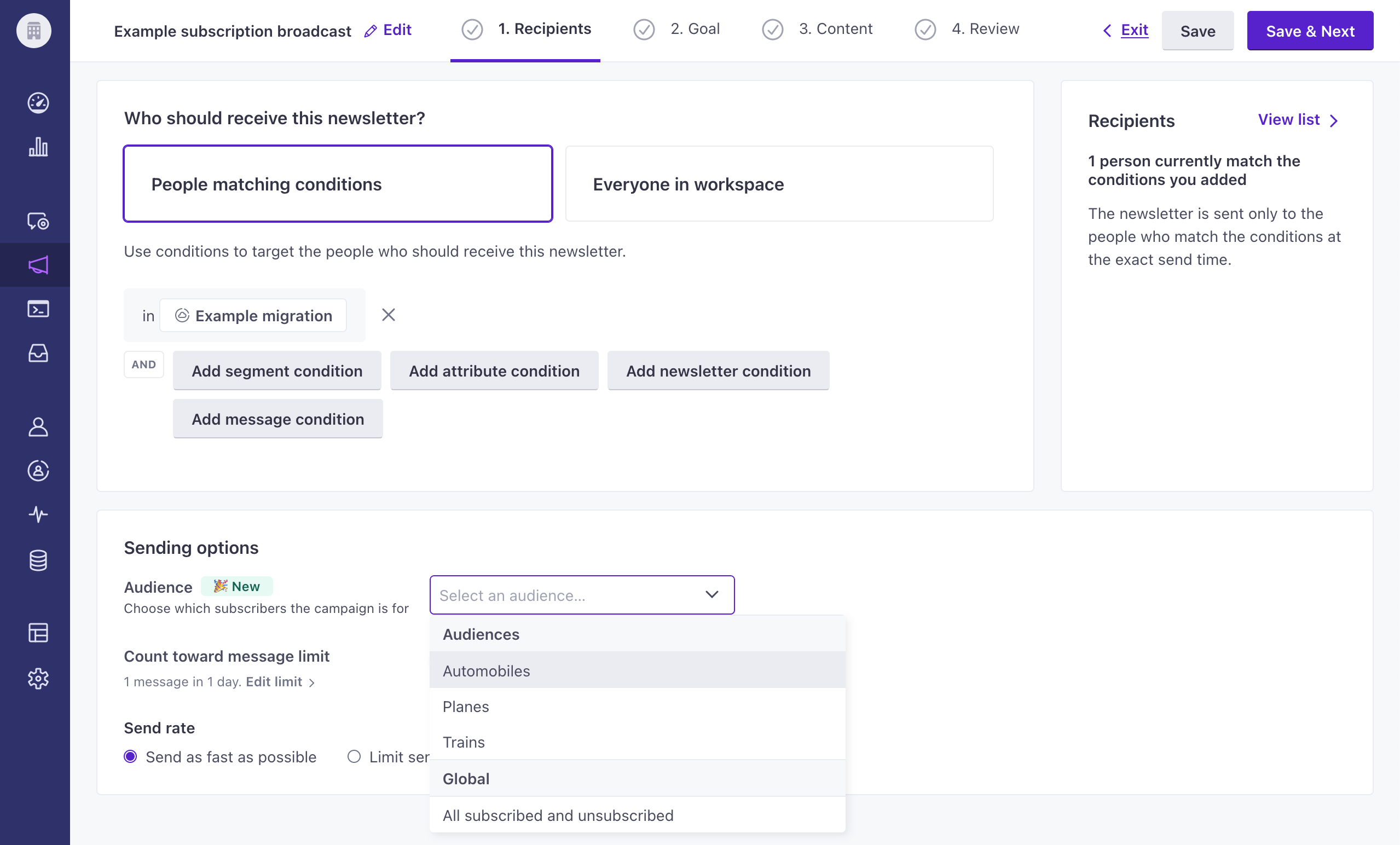
You can also A/B test one-time sends to improve your communications over time. While you can also A/B test messages in automations, one-time sends have a much easier time reaching statistical significance: it’s much easier to tell which of your A/B test messages worked better when you send them all at once.
Transactional messages
Transactional messages are messages that you send to a specific person when they perform an action that expects (or demands) a message—like a receipt when a person makes a purchase or a link to reset a password when someone has trouble logging into your service.
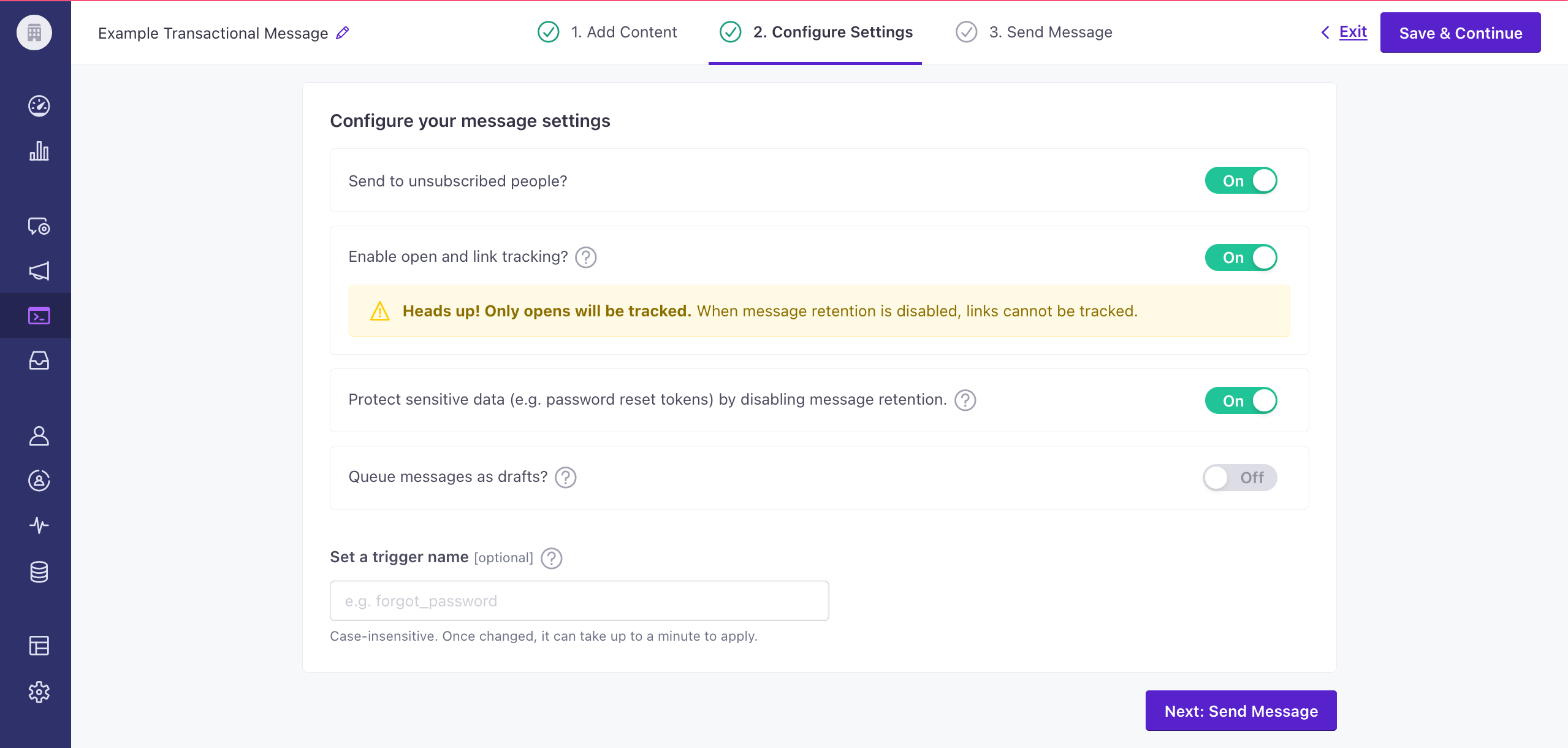
You’ll send a transactional message via API call, similar to the way you trigger a broadcast, but each trigger is unique to a specific person. It’s a one-to-one message.
Like other messages, you can create your transactional message in our UI and personalize it with your audience’s attributes A key-value pair that you associate with a person or an object—like a person's name, the date they were created in your workspace, or a company's billing date etc. Use attributes to target people and personalize messages.
Here’s an example of a transactional message payload:
{
  "transactional_message_id": 44,
  "to": "cool.person@example.com",
  "subject": "Reset your password",
  "identifiers": {
    "email": "cool.person@example.com"
  },
  "message_data": {
    "password_reset_token": "abcde-12345-fghij-d888",
    "account_id": "123dj"
  },
  "cc": "cc@example.com",
  "bcc": "bcc@example.com",
  "disable_message_retention": true,
  "send_to_unsubscribed": true,
  "queue_draft": false
}
Personalizing messages with liquid
As you write your messages, you can use your audience’s attributes A key-value pair that you associate with a person or an object—like a person's name, the date they were created in your workspace, or a company's billing date etc. Use attributes to target people and personalize messages.
The message personalization syntax we use is called liquid A syntax that supports variables, letting you personalize messages for your audience. For example, if you want to reference a person's first name, you might use the variable {{customer.first_name}}.
For example, if you wanted to reference a person’s first name in a message, you might use something like this:
{{customer.first_name | capitalize }}You can use liquid almost anywhere in your messages. For example, when you write an email, you can use liquid to personalize your subject line, the recipient’s email address, and the content of your email.