

Backfill historical data
As you get started with Customer.io, you might want to backfill historical data for people and events. This page helps you get started. Make sure you understand how backfilled data can trigger automations, if you're already up and running.
Backfill people and attributes
You can backfill people and their attributes A key-value pair that you associate with a person or an object—like a person's name, the date they were created in your workspace, or a company's billing date etc. Use attributes to target people and personalize messages. A segment is a group of people in your workspace. Use segments to trigger automations, track membership over time, or fine-tune your audience. There are three types of segments: data-driven, snapshot, and manual. Data-driven segments automatically update when people start or stop matching criteria. Snapshot segments capture everyone who matches at a point in time and only change when you refresh them. Manual segments are static groups of people.
Learn more about when backfilled data would trigger automations.
Advanced: write a script
If you’re a developer, you can write a script to loop through all of the people in your database and add them to Customer.io. Make sure you follow our API guidelines as it can cause significant API traffic.
Easier: upload a CSV
Customer.io shines brightest when you send real-time data about your users. However, sometimes you need to backfill historical data or add data not integrated with your Customer.io account, like a list of leads from a conference. In these cases, you can import a CSV file to add or update your people.
Backfill events
You can send historical event Something that a person in your workspace did. Events can trigger automations, add people to segments, etc, and you can use properties from events to personalize messages. A segment is a group of people in your workspace. Use segments to trigger automations, track membership over time, or fine-tune your audience. There are three types of segments: data-driven, snapshot, and manual. Data-driven segments automatically update when people start or stop matching criteria. Snapshot segments capture everyone who matches at a point in time and only change when you refresh them. Manual segments are static groups of people.timestamp to your API call, as shown in the examples below. You might do this to store all your data within Customer.io, add people to segmentstrack calls.
If you base segment membership on events, backfilling events will add people to segments. However, if you use event-based segment membership as an automation trigger, backfilled events will not reliably trigger automations. Learn more about when backfilled data would trigger automations.
Pipelines API (Recommended)
curl -X POST https://cdp.customer.io/v1/track \
  -H 'Authorization: Bearer <your_api_key>' \
  -H 'Content-Type: application/json' \
  -d '{
        "userId": "5",
        "event": "purchased",
        "properties": {
          "price": 23.45
        },
        "timestamp": "2013-01-28T16:10:15Z"
      }'
Track API cURL
curl -i https://track.customer.io/api/v1/customers/5/events \
  -X POST \
  -u YOUR-SITE-ID-HERE:YOUR-SECRET-API-KEY-HERE \
  -H 'Content-Type:application/json' \
  -d '{"name":"purchased","timestamp":1359389415, "data":{"price":23.45}}'
Backfilled data can trigger automations
Backfilled data can trigger automations made with a segment A segment is a group of people in your workspace. Use segments to trigger automations, track membership over time, or fine-tune your audience. There are three types of segments: data-driven, snapshot, and manual. Data-driven segments automatically update when people start or stop matching criteria. Snapshot segments capture everyone who matches at a point in time and only change when you refresh them. Manual segments are static groups of people. Something that a person in your workspace did. Events can trigger automations, add people to segments, etc, and you can use properties from events to personalize messages.
Segment-triggered automations
After you activate a segment-triggered automation, you might realize you need to backfill data that would add people to the segment A group of people who match a series of conditions. People enter and exit the segment automatically when they match or stop matching conditions._timestamp of the people/attribute change is within 24 hours of when Customer.io processed the data, people can enter the automation. We say people can enter because it also depends on the automation’s filter and frequency settings.
For example, let’s say you activated the segment-triggered automation 10 days ago. Then you backfilled attribute data and looked at your activity log:

The timestamp is today at 11:38:04 am (CST). And it finished processing today at 11:39:04 am (CST). This could trigger your automation because:
- the timestamp is AFTER the automation started
- the difference between the timestamp and processed at timestamp is less than 24 hours
However, if your automation begins with a delay longer than 24 hours, we’ll use the delay length as the maximum difference. For example, if you begin an automation with a 4 day wait, then the max difference between the timestamp and processed at timestamp is now 96 hours, not 24.
Event-triggered automations
After you activate an event-triggered automation, you might realize you need to backfill event data that would trigger this automation. If the timestamp of the event is within 72 hours of when Customer.io processed the data, people can enter your automation. We say people can enter because it also depends on the automation’s filter and frequency settings.
For example, let’s say your automation is triggered when someone completes a survey, and you activated the automation 10 days ago. Then you backfill event data like this:
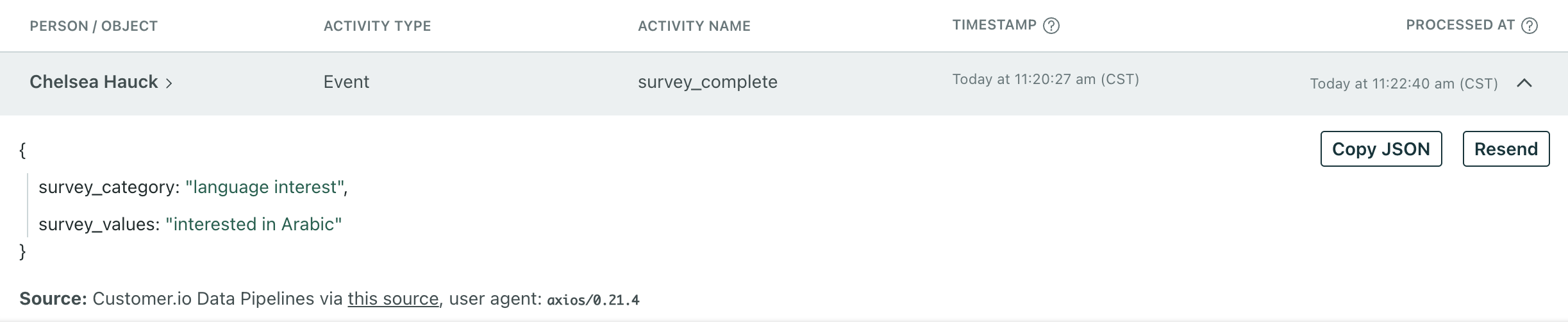
The timestamp is today at 11:20:27 am (CST). And it finished processing today at 11:22:40 am (CST). This could trigger your automation because:
- the timestamp is AFTER the automation started
- the difference between the timestamp and processed at timestamp is less than 72 hours
However, if your automation begins with a delay longer than 72 hours, we’ll use the delay length as the maximum difference. For example, if you begin an automation with a 4 day wait, then the max difference between the timestamp and processed at timestamp is now 96 hours, not 72.