

Use form data in Customer.io
How it works
You can use form submissions to trigger automations and you can personalize messages using form submission data. This helps you talk to users who fill out your forms.
Each form submission also comes into Customer.io as an event called form_submit. You can use this event to create segments or complex automation conditions in automations that aren’t necessarily triggered by the original form submission.
Trigger an automation from a form
Form submission events can trigger automations, so you can start a conversation with people and foster conversions immediately when they fill out your form.
You can start a form-triggered automation by going to Integrations > Forms and clicking Create automation for the form that you want to trigger your automation. This automatically populates an automation trigger with your form name.
Or you can create a form-triggered automation from the Automations menu:
-
Go to Automations and click Create Automation.
-
Click Form submission.
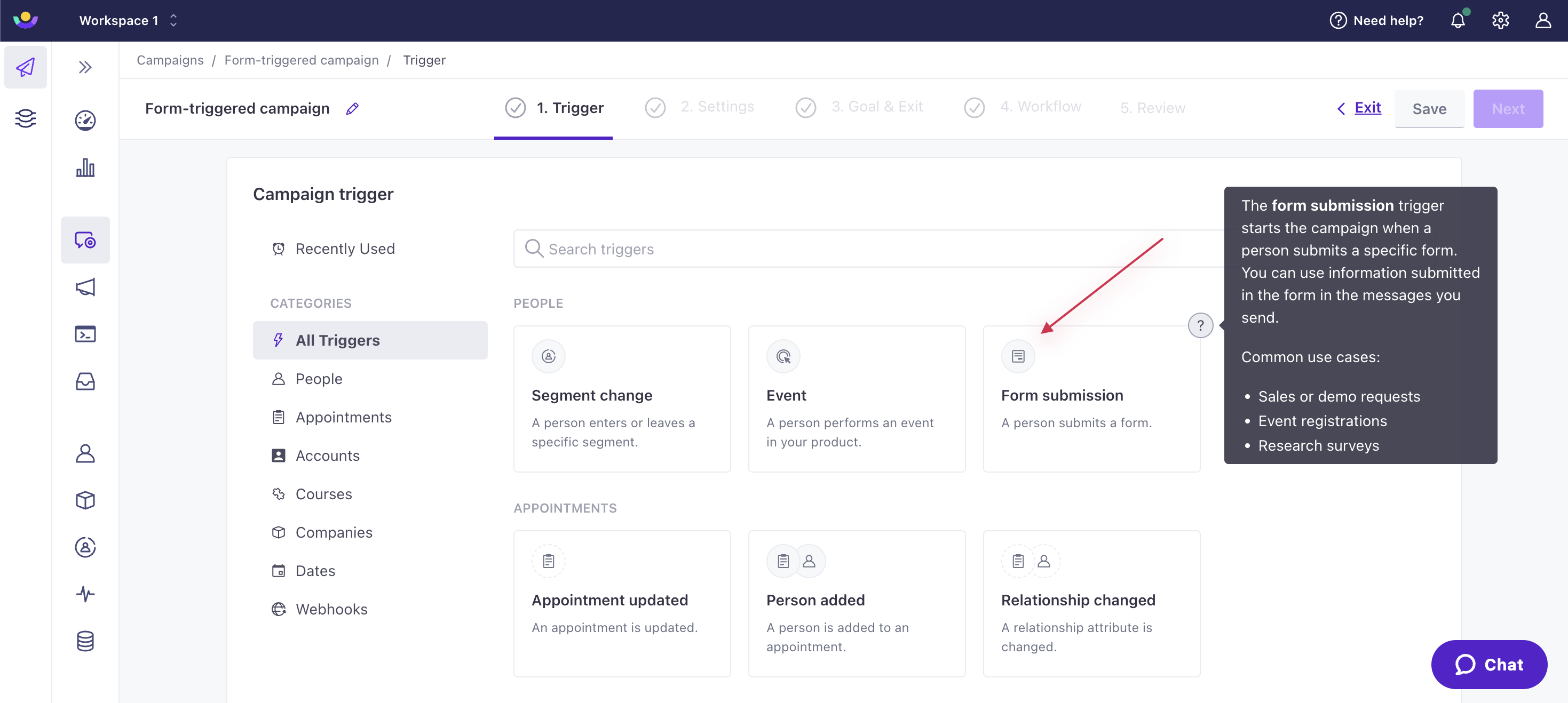
-
Choose the form that should trigger your automation.
-
Continue creating your automation.
After you activate the automation, each form submission will trigger an automation.
Use form data in a message
When someone submits a form, Customer.io captures both the form fields and any URL parameters from the page. You can access these variables in messages using liquid A syntax that supports variables, letting you personalize messages for your audience. For example, if you want to reference a person's first name, you might use the variable {{customer.first_name}}.
Form Fields come in as event properties and are mapped to customer attributes. You can reference form fields either way in automations that are triggered by form submissions, but the two names can be different!
- The event property (
{{event.form_field_name}}) reflects the original form field name. - The customer attribute (
{{customer.attribute_name}}) reflects where that field was mapped during setup.
For example, if you mapped a form field called msisdn to phone, then you could access the event property as {{event.msisdn}} or the customer attribute at {{customer.phone}}—both represent the same value!
You might be able to use either event data or customer data, but there are situations when you should use one over the other:
- Use customer attributes when: You need to reference form data in automations that are not triggered by form submissions. Attributes may also have friendlier names than event properties.
- Use event data when: You need to reference URL parameters or fields that aren’t mapped to customer attributes. URL parameters are only available as
eventproperties in automations triggered by form submissions. For example, if you want to reference a URL parameter from your form page calledreferred-by, you would use{{event.referred-by}}.