

Audit logs
Audit logs help you track changes made to your account, workspaces, messages, and other assets so you can keep your account secure and troubleshoot issues.
To track changes to your workspace data, like updates to people or custom objects, go to Profile Activity.
Overview
As an Account Admin, you have access to two audit logs:
- Go to Account settings > Audit logs to see Account-level audit logs. These provide security-related information like team member session data, changes in permissions, and deletion of API keys.
- Go to Workspace settings > Audit logs to see Workspace-level audit logs. These provide information about changes that team members and Customer.io made to your workspace, including imports and exports.
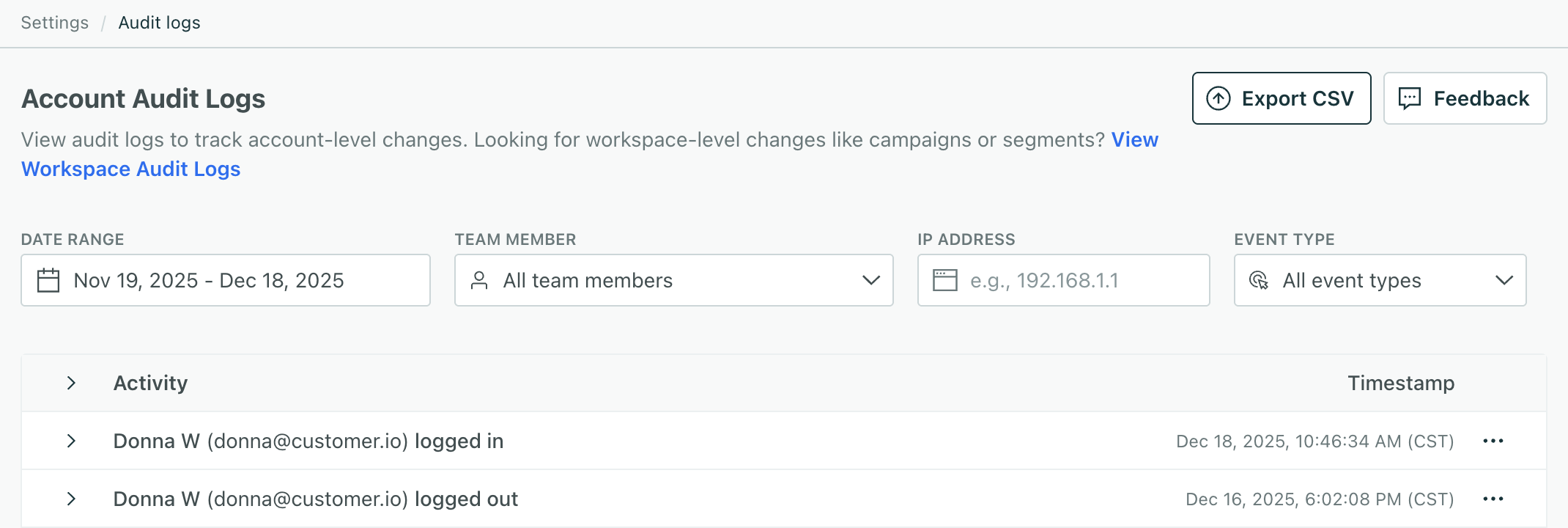
Each entry in the audit log shows an Activity and a Timestamp. Click to see more details about an activity. You’ll see different activities depending on whether you’re viewing account or workspace logs.
Filter your audit logs
You can filter your logs by Date Range, but your plan determines the maximum available time period.
- On an Essentials plan, you can view, filter, and export data from the past 30 days.
- On a Premium or Enterprise plan, you can view and filter for data over any time period, but you can only export up the past year of activities.
You can filter your logs by Date Range, Team member, the IP address of users who perform activities, and Event type. The Event type is a category of activities.
The System team member
Under Team member, the System entry represents Customer.io. We do some things automatically, like adding pre-built segments when you create a new workspace. These activities are attributed to System.
Logging agentic activity
Customer.io attributes activities in the system to both the AI agent or tool that made a change and the person who asked it to. The label depends on where the person worked:
- In Customer.io: When you ask the agent to do something in our user interface, it’s attributed to AI Agent (on behalf of you@company.com).
- In Slack: When you use our agent in Slack, it’s attributed to Slack Agent instead, so you can tell the two surfaces apart.
- Through MCP: When you use an AI tool, like Claude Code or Cursor, through the Customer.io MCP server, it’s attributed to the tool’s name followed by via MCP, like Claude Code via MCP (on behalf of you@company.com). If the tool didn’t give a name when it connected, the label reads AI client via MCP (on behalf of you@company.com).
- With the CLI: The label depends on how you sign in to the Customer.io CLI:
- As yourself: cli (on behalf of you@company.com)
- With a user service account’s token: the service account’s name, followed by (on behalf of …) and the person who created the account
- With a system service account’s token: the service account’s name
Share your audit logs
You can share your audit logs outside of Customer.io in a few ways:
- Export to CSV
- Copy raw data
- Copy metadata
To share an individual activity with another Account Admin, click and then Copy link.
You can also get your audit logs through the API, for example to send them to a security tool like a SIEM.
Get audit logs through the API
The App API has audit log endpoints, so security information and event management (SIEM) tools can collect your activity as it happens:
GET /v1/account/audit_logsreturns account activity: sign-ins and failed sign-ins, team members, roles, API keys, and SSO settings.GET /v1/audit_logsreturns the activity in one workspace.
Both return the IP address of each change and the email address of each team member who made the change. Results cover the same history as your plan’s audit logs in Customer.io. While you can read the account audit log with a regular private key, you’ll need to generate an audit log key to read the account-level audit logs.
The API returns the same activity you see in Customer.io. It leaves out the internal entries that Customer.io hides from your audit logs, and it names the service accounts behind each change in service_accounts. An update includes the fields it changed in changed_from and changed_to, and a segment entry includes the conditions and event types the segment used at the time in related_logs.
Create an audit log key
An audit log key is a private key that can only read audit logs: it can’t read profiles or other workspace data, send data, or make changes. It reads the account audit log only while the person who created it is an Account Admin, and it always reads the audit log of the workspace you choose for it. To collect workspace logs from several workspaces, create a key in each one.
While a regular private key can read a workspace’s audit log, /v1/audit_logs, it can’t read the account audit log. You typically need to create an audit log key to read the account audit log. And, in general, we recommend that you use a specific audit log key to limit the scope to audit logs specifically.
For example, if you send your audit logs to a security tool, an audit log key ensures that your tool can’t read or change anything else in your workspace.
- Go to Account Settings > API Credentials and click Create API key.
- Choose the workspace whose audit log you want, and choose Private API key.
- Leave Used in empty.
- Name the key, select Limit this key to audit logs, and click Create private key.
In the Private API keys list, an audit log key is labeled Audit only. You can’t attach a source to it.
Collect your audit log activity outside of Customer.io
With the audit log API, you can set up an integration that first collects the a change history and then checks back for new activity on a schedule. Both steps request entries oldest first and page with a cursor:
- To collect your history, call
GET /v1/account/audit_logs?sort_order=asc&start_time=<RFC 3339 time>. - Save the
idof the last entry you processed, and callGET /v1/account/audit_logs?sort_order=asc&cursor=<id>to get the entries after it. Repeat untilpagination.next_cursoris0. You then have every entry so far. - To collect new activity, call again on a schedule, for example every few minutes, with the
idyou saved last, and page the same way. If a call returns no entries, keep thatid. If your first call returned nothing, so you don’t have anidyet, repeat it with the samestart_time.
Resume from the last entry’s id, not from the last non-zero next_cursor. The final page can hold entries and still return a next_cursor of 0, so an older cursor would return those entries again.
Do the same with /v1/audit_logs for each workspace. Failed sign-ins appear in the account log as entries with the object_type FailedLogin. The object_id is the team member whose sign-in failed, and data.reason says why, like invalid_password or invalid_2fa_code.
Export to CSV
Click Export to CSV, and then choose the date range to export and which workspace to save the download to.
Keep in mind, if you’re on the Essentials plan, you can export up to the past 30 days of logs. On the Premium or Enterprise plans, you can export up to the last year.
The CSV has one row per activity with the following columns:
- ID: A unique ID for the activity.
- Timestamp: When the activity happened, in UTC.
- User ID and User Email: The team member who performed the activity.
- IP Address: The IP address that the activity came from.
- Object Type: The kind of thing that changed, like a segment or a role. The export uses internal names, which don’t always match the labels in the account and workspace activity tables. For example, a team member is
Userand a dedicated IP address isIP. - Object ID: The ID of the thing that changed. Together, Object Type and Object ID identify a single thing, so rows that share both values are about the same thing.
- Action: What happened to the thing, whether it was
Created,Updated, orDeleted. - Data: A JSON copy of the data for that activity, including the thing’s name if it has one.
- Service Account and Service Account Type: The name and type of the service account behind the activity, like AI Agent, Slack Agent, MCP, or
cli, and whether it’s anagent,user, orsystemaccount. These are blank when the activity didn’t involve a service account. - MCP Client and MCP Client ID: The name of the AI tool, like Claude Code, and its OAuth client ID, for activities that came through the Customer.io MCP server. Both are blank for other activities, and MCP Client is also blank when the tool didn’t give a name when it connected.
The export doesn’t include the list of changed fields that you see when you open an activity in Customer.io. To find what changed, compare the Data values from two rows for the same object.
Copy log data
To copy log data, click :
- Select View raw data to copy the event payload.
- Select View metadata to copy the metadata like IP address and API used in the request.
Show diff
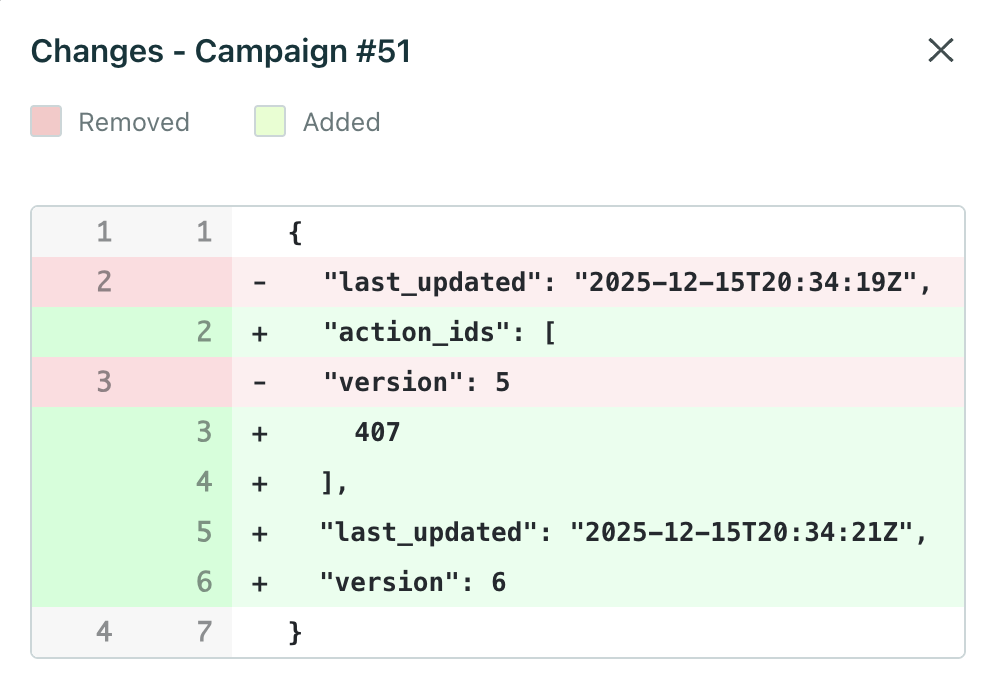
To see how the event changed your account or workspace data, click and then Show diff.
Here’s an example of a diff for an automation in a workspace log. You can see what was removed in red and added in green:
Account audit log activities
Activities are grouped into Event Type values that represent a category of activities. For example, Administration activities are related to account-level settings and permissions.
| Activity | Description |
|---|---|
| Administration | |
| Account | The main Customer.io account settings and configuration |
| Workspace | Separate environments within the account (e.g., production, staging) |
| API & Integrations | |
| API Credentials | API keys used to authenticate with Customer.io Track APIs. We currently don’t surface data for Pipelines integrations. |
| App API Key | API keys used to authenticate with Customer.io App APIs |
| Dedicated IP Address | Custom IP Addresses associated with the account |
| Permissions | |
| Role | Custom roles defining permission sets for team members |
| Team Member | Users with access to the Customer.io account |
| Team Member Workspace Permissions | Workspace-specific permissions assigned to team members |
| Team Member Account Permissions | Account-wide permissions assigned to team members |
| Security | |
| Log in/out | User authentication events |
| SCIM Configuration | SSO user provisioning with System for Cross-domain Identity Management (SCIM) |
| SCIM Token | Authentication tokens for SCIM provisioning |
| SSO Configuration | Single Sign-On identity provider settings, like SAML |
| Whitelisted IP | IP addresses allowed for restricted access |
Workspace audit log activities
Activities are grouped into Event Type values that represent a category of activities. For example, Content activities are related to images, files, and media uploaded to the workspace.
What data’s not available?
For now, you’ll have to reach out to support to audit events for most items under Integrations. The Integrations category mostly accounts for activities related to workspace-level settings, like message integrations (SMS/Twilio, Email/SMTP, Webhooks, and so on).
Click Need help? and choose Get help with an issue to submit a request.
Send us feedback
Click Feedback to let us know what you need to better audit your account and workspaces.