

Customize your UI
You can hide items from your sidebar navigation and choose a color theme that suits you.
These settings apply to your account across all workspaces—they don’t affect other members of your team.
Show or hide items in your sidebar
You can customize the left-hand menu in Customer.io to show only the sections you use. This helps you navigate faster and reduces clutter, especially if you don’t use every feature.
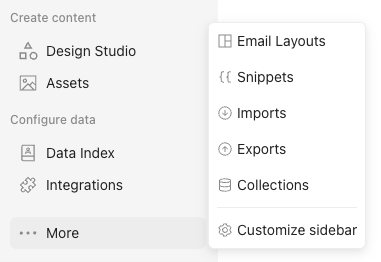
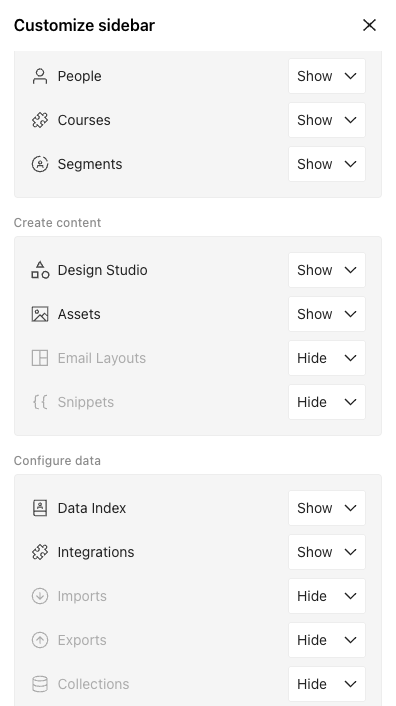
By default, these items are hidden: email layouts for rich text and code editors, reusable snippets, imports, exports, and collections.
To change what’s visible in your sidebar, follow these steps:
- Scroll to the bottom of the menu, click More, and choose Customize sidebar.
- Next to an item you want to change, select the dropdown, and choose Show or Hide.
Set your color theme
You can set your preferred color scheme for Customer.io. Your theme preference applies across all workspaces on your account; other team members can specify their own preferences.
- Click in your top navigation bar.
- Under Theme, select one of the following options:
- System (default)—matches your operating system’s light or dark mode setting.
- Light—always uses the light color scheme.
- Dark—always uses the dark color scheme.
Note: This does not affect your message editor. To preview dark mode in your messages, toggle dark mode on each message.