

Access multiple accounts
If you have multiple Customer.io accounts, you can switch between them without logging out and back in again. If you're a partner managing multiple accounts, you can use guest access to work in all of them with a single login.
You might have multiple Customer.io accounts: accounts for clients you manage, accounts for independent subsidiaries, or separate test and production accounts. There are two ways to move between accounts without logging out and back in again:
- The account switcher: log in to each of your accounts and switch between the active sessions. Each account needs its own login, with its own unique email address.
- Guest access: sign in to your account and switch to any account that’s added you as a guest. You don’t need a second login or another email address.
If you keep a separate login for each account you need to access today, guest access replaces that pattern. See how to migrate for details.
Switch between accounts
Every Customer.io login is tied to a unique email address, and an email address can only belong to one account. That means each of your accounts needs its own login—so you might invent aliased emails like you+client@example.com for each account you need to access. And then have to keep track of all of those logins. The account switcher doesn’t remove that requirement, but it does spare you from logging out and back in: you can log in to all of your accounts at once and switch between them without logging out and back in again.
You can also use the guest access feature to consolidate your logins, so you have a canonical login that acts as a “guest” in all the accounts you need to access. This is a model that works well for partners managing multiple client accounts.
Log in to another account
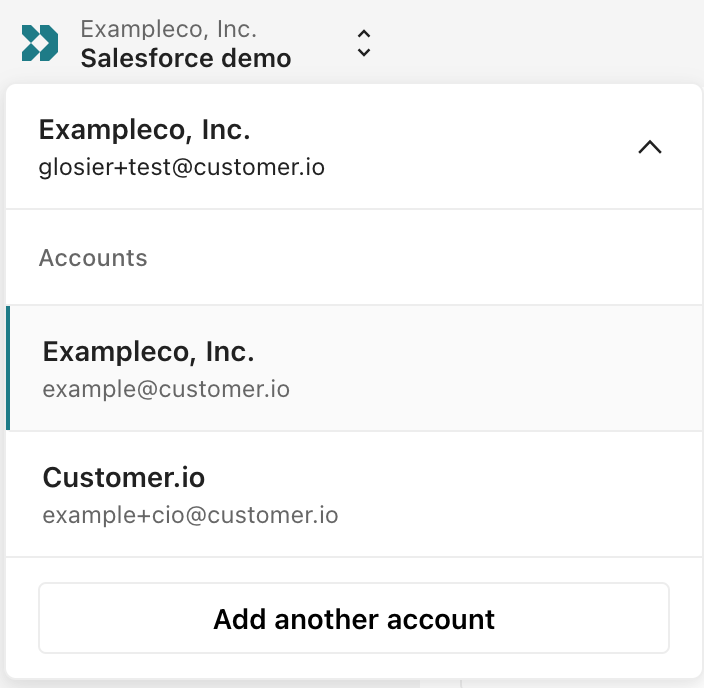
You can log in to up to 30 accounts and switch between them from the dropdown in the upper left corner of Customer.io.
- Click the account switcher dropdown in the upper left corner of the header.
- Click your account at the top of the list and select Add another account.
- Log in with the email address of your other account.
After you log in, the new account appears in the account switcher dropdown, and you can switch to and from it without logging out.
Switch accounts
Accounts remain logged in for up to 14 days—though the exact timeframe depends on your session expiration policy. If you try to switch to an account and it doesn’t appear in the dropdown, your session may have expired. You’ll need to add it again.
- Click the workspace selector in the top-left corner of the header.
- Under Accounts, select the account you want to switch to.
Things to know about the account switcher
- Each account needs a different email address. You can’t log into multiple accounts with the same email. Aliased emails like
you+client@example.comcount as different addresses. - Workspaces are still per-account. You’ll only see the workspaces for the account you’ve selected.
- SSO accounts work too. If an account uses SSO, you can add it to the switcher the same way.
- Up to 30 accounts. You can have up to 30 accounts in the switcher at once.
- Logging out logs you out everywhere. When you log out, you log out of all of your accounts. The next time you log in, you’ll need to add your accounts again.
- Sessions expire independently. Each account’s session follows its own session expiration policy. By default, sessions last 14 days, but an account’s admin can set this to as little as 1 hour. When a session expires, the account disappears from the switcher until you log into it again.
Guest access
With guest access, you have one Customer.io login—in your main account, the account for your own organization. In the account-switcher dropdown, you’ll see all of your guest accounts. This lets you access multiple accounts with a single login.
You’re granted permissions by whomever grants you guest access, and those permissions apply whenever you act as a guest in an account. Because permissions belong to each account, you can have different permissions in every account you’re a guest of—your role in your main account doesn’t carry over. While you’re in a guest account, the app behaves as though you’re a team member of that account: you see that account’s workspaces, automations, people, and settings (access permitting).
Invite a guest
Guests are team members whose login belongs to another account. Anyone you invite as a guest must already have their own Customer.io account—if they don’t, add them as a regular team member instead.
Guests don’t need to be in the same region as your account. A login that belongs to a US account can be a guest in an EU account, and the other way around.
To invite a guest, you must be able to manage team members (an Account Admin, by default):
- Go to Account Settings > Team Members and click Invite a guest.
- Enter the person’s email address—the one they use to log in to their own Customer.io account.
- Set their access the same way you would for any team member: an account-level role (Account Admin or Member) and a role for each workspace they should access. Account Admins automatically get full access to every workspace.
- The person receives an email invitation. When they accept, your account appears in their account switcher.
Everything a guest does in your account is attributed to them, and permission changes are recorded in your audit log—the same as any other team member.
Remove a guest
Remove a guest from the Team Members page the same way you remove any team member. When you remove a guest, Customer.io:
- Removes their membership, permissions, and workspace roles in your account.
- Keeps the resources they created and the audit history of their actions.
- Leaves their login, main account, and access to any other accounts untouched.
You can’t remove the last person who can manage team members in your account—add another Account Admin first.
From the guest’s side, your account disappears from their switcher. If they have it open when you remove them, they’re returned to their main account. Guests can also leave your account themselves at any time.
Partner accounts
A partner account is a Customer.io account flagged for agencies and consultancies that manage client accounts. If you’re interested in becoming a partner, contact your account manager or win@customer.io.
As a partner with guest access, you can:
- Create client accounts from Account Settings > Partner Settings in your main account. You’re automatically added to each account you create as an Account Admin, and the client’s owner receives an email invitation to set up their login.
- See all your client accounts in one place on the Partner Settings page, alongside the switcher.
Customer.io can also grant or revoke a partner’s guest access to an account on the backend. In that case there’s no email invitation—the account simply appears in (or disappears from) your switcher. Contact your account manager if you need this.
Migrate from separate logins
If you have a separate login for each account you manage or log into—often an aliased email like you+client@example.com—you can migrate each of those logins to guest access.
If your logins use Google
If you sign in with Google and your other logins share the same Google identity, you can merge them:
- Log in to your main account; the account you want to use as your canonical login.
- Go to Personal Settings. Under Merge Google logins, click Review duplicate logins.
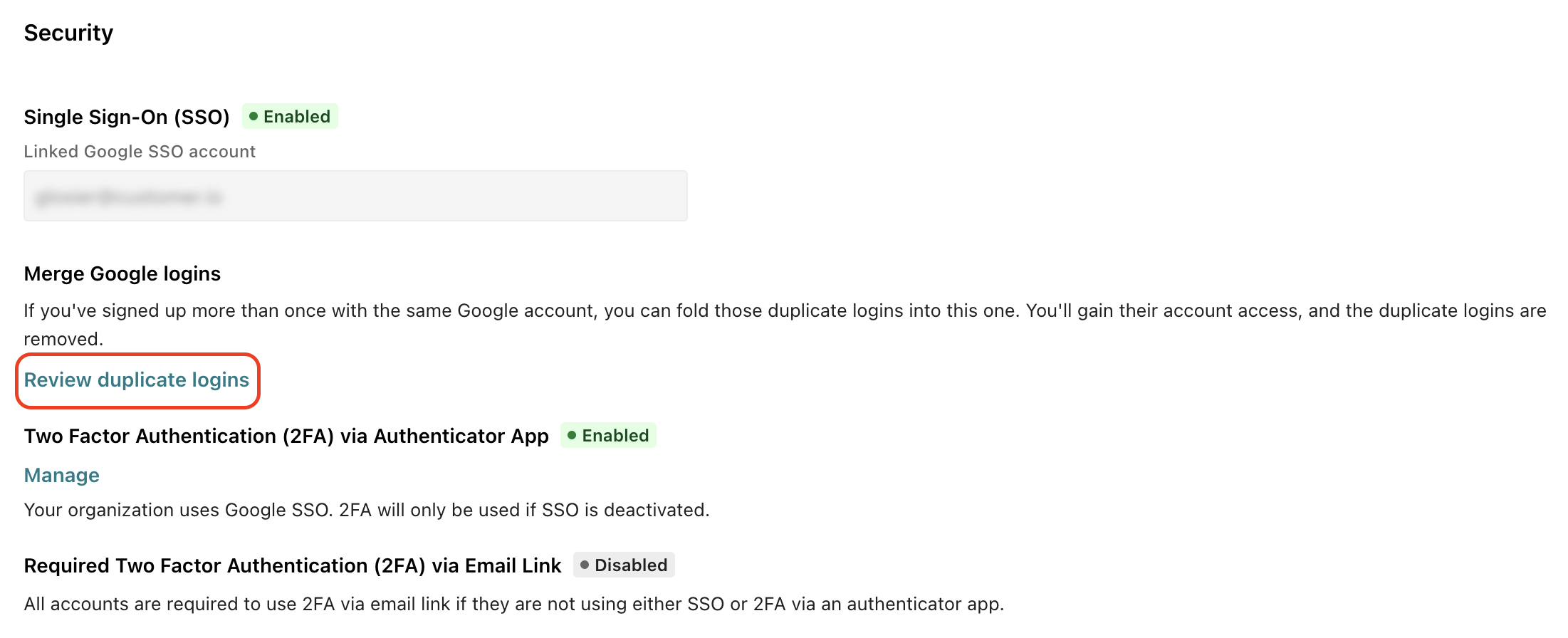
- Select the duplicate logins to merge. You gain each login’s access to its accounts, and the duplicate logins are removed from your account.
If a merge would remove the only Account Admin from an account, the merge is blocked. Add another Account Admin to that account, then merge.
If your logins don’t use Google
Migrate each account from its own Team Members page:
- Log in to the account with its existing login.
- On the Team Members page, find the team member with the aliased email and select Change to guest. This sends an invitation to your real email address—the one on your main account.
- Accept the invitation from your main account. You become a guest with the same access, and the old login is removed from your account.