

Getting started with incoming integrations
What is a data-in integration?
A data-in integration is a website, mobile app, database, or service that you want to capture data from—it’s a “source” of data! These integrations help you collect data from your various customer touchpoints so you can route it to Customer.io and other outgoing integrations, so you can maintain an unbroken chain of customer data throughout your stack.
You’ll add a different data-in integrations for each website or app you want to collect data from. Each integration has an API Key, which lets you send data to Customer.io.
How many incoming integrations should I have?
You should create a different “integration” for each application that you want to collect data from. For example, your website and your mobile app are different integrations; they might represent the same services, but are separate applications.
Having a different integration per app:
- Makes your implementation flexible: granular integrations help you control the specific data that you want to send to different destinations. If you use one API key for all your data, it’ll be harder to filter the data you send out of Customer.io!
- Helps you debug integrations: different API keys per integration makes it easy to see when and where problems occur.
Types of data-in integrations
We organized our incoming into categories to help you find the right integrations. We’ll add new integrations periodically, but they’ll typically fall into these categories:
- Website: You can install our JavaScript library to capture information about people, events, and so on.
- Mobile: Use our mobile SDKs to capture information about people, events, and so on.
- Server: Server-side integrations let you send data directly from your servers.
- Data Warehouse: Use your data warehouse as a source of data for Customer.io. You might do this if you collect data in a single place before you send it to Customer.io.
- Database: Use your database as a source of data.
- CRM 🎉New : Activate your Salesforce data in Customer.io and send it to other downstream integrations!
Your workspace is also a data-in integration!
Customer.io generates metrics from the messages you send, the messages people open, and so on. You can send this data out to various integrations as well.
This makes Customer.io its own “data-in” integration! When you set up a Data Out integration, you can click Add Source and select your workspace as a source of data to send events reflecting the messages you send out of Customer.io
Set up an integration with an AI agent
When you add an integration, look for the Set up with an agent tab. Customer.io gives you a prompt that you can paste into your AI coding agent, like Claude Code, Cursor, or Codex, to help your agent set up your integration from start to finish.
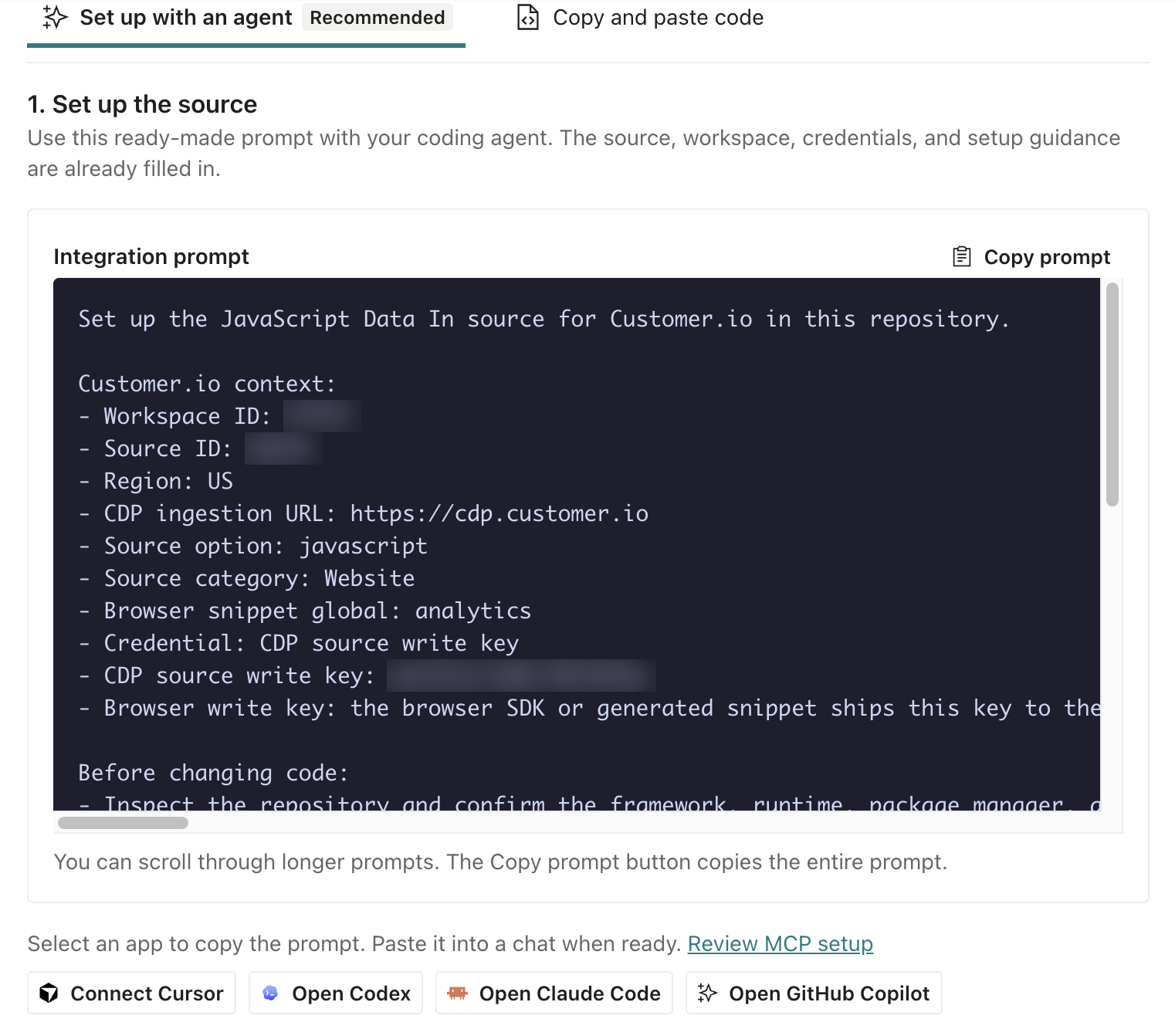
These prompts work best if you install our MCP or CLI. If you’d rather follow the steps yourself, switch to the manual setup tab.
What your agent does depends on the kind of integration:
| Integration | What your agent does |
|---|---|
| Website: JavaScript | Installs the integration in your repository, identifies people, tracks page views, sends a test event, and checks that the event arrived |
| Mobile: iOS, Android, React Native, Flutter, Expo | Installs the SDK in your app, identifies people, tracks screen views, sends a test event, and checks that the event arrived |
| Server: Node.js, Python, Go, HTTP API | Installs the library or API calls in your repository, identifies people, sends a test event, and checks that the event arrived |
| CRM: Salesforce, HubSpot | Checks your setup against the integration’s requirements and drafts a mapping plan for your records |
| Database: Amazon Redshift, Databricks, Google BigQuery, Microsoft SQL Server, MySQL, PostgreSQL, Snowflake | Drafts the query for the sync type you picked |
For CRM and database integrations, you finish the setup in Customer.io: authorize the connection or paste the query, then turn on the sync.
The prompt for a website, mobile app, or server integration includes the integration’s API key, so your agent can configure it. Treat a copied prompt the way you’d treat the key itself: keep it out of shared documentation, tickets, and chat channels. The prompt tells your agent to keep the key out of source control.
You only see the Set up with an agent tab when Customer.io AI is turned on for your account. If someone turned it off in AI settings, you won’t see prompts.