

Amazon Redshift reverse ETL
Best Practices
Before you add a Reverse ETL source, you should take some measures to ensure the security of your customers’ data and limit performance impacts to your database and Customer.io workspace.
-
Create a new database user/service account. Implement a database user with minimal privileges specifically for Customer.io import/sync operations. This account only requires read permissions with access limited to the tables you want to sync from.
-
Avoid using your main database instance. Consider creating a read-only database instance with replication in place, lightening the load and preventing data loss on your main instance.
-
Sync only the data that you’ll use in Customer.io. Limiting your query can improve performance, and minimizes the potential to expose sensitive data. Select only the columns you care about, and make sure you use the
{{last_sync_time}}to limit your query to data that changed since the previous sync. -
Limit your sync frequency so you don’t sync more than necessary and consume unnecessary resources. If the previous reverse ETL operation is still in progress when the next interval occurs, we’ll skip the operation and catch up your data on the next interval. You should monitor your first few reverse ETL intervals to ensure that your sync doesn’t impact your system’s security and performance—frequently skipped operations may indicate that you’re syncing too often.
Granting us access to your database
We support both SSL and non-SSL database connections. As a part of setup, you'll need to provide the credentials of a database user with read-access to the tables you want to select data from.
This integration supports SSH tunneling. You can configure SSH tunneling when you set up your database connection in Customer.io.
If you use a firewall or an allowlist, you must allow the following IP addresses so we can connect to your database. Make sure you use the correct IP addresses for your account region.
| US Region | EU Region |
|---|---|
| 34.29.50.4 | 34.22.168.136 |
| 35.222.130.209 | 34.78.194.61 |
| 34.122.196.49 | 104.155.37.221 |
| 34.9.152.53 | 34.78.153.242 |
| 34.170.216.131 | 34.78.94.137 |
| 35.222.84.131 | 34.140.151.135 |
| 34.57.129.127 | 34.62.147.132 |
Set up a Service Account
When you set up an Amazon Redshift reverse ETL integration, you should create a user account that Customer.io will use to connect to Redshift. This user has limited access to your Redshift instance and gives you granular control over access to your Redshift instance.
-
Log in to Redshift and select the Redshift cluster you want to integrate with Customer.io.
-
Run the commands below to create a user named
customerio.SQL-- create a user named "customerio" CREATE USER customerio PASSWORD '<enter password here>'; -- allows the "customerio" user to create new schemas on the specified database. -- (This is the name you chose when provisioning your cluster) GRANT CREATE ON DATABASE "<enter database name here>" TO "customerio";
Add Amazon Redshift to Customer.io
As a part of this setup, you’ll provide Customer.io with user credentials that we’ll use to query your database. We recommend that you create a new user with Read Only access specifically for Customer.io, so you can manage Customer.io access to your database independent of any other Microsoft SQL users you have.
-
Go to Integrations. In the Directory tab, pick Amazon Redshift
-
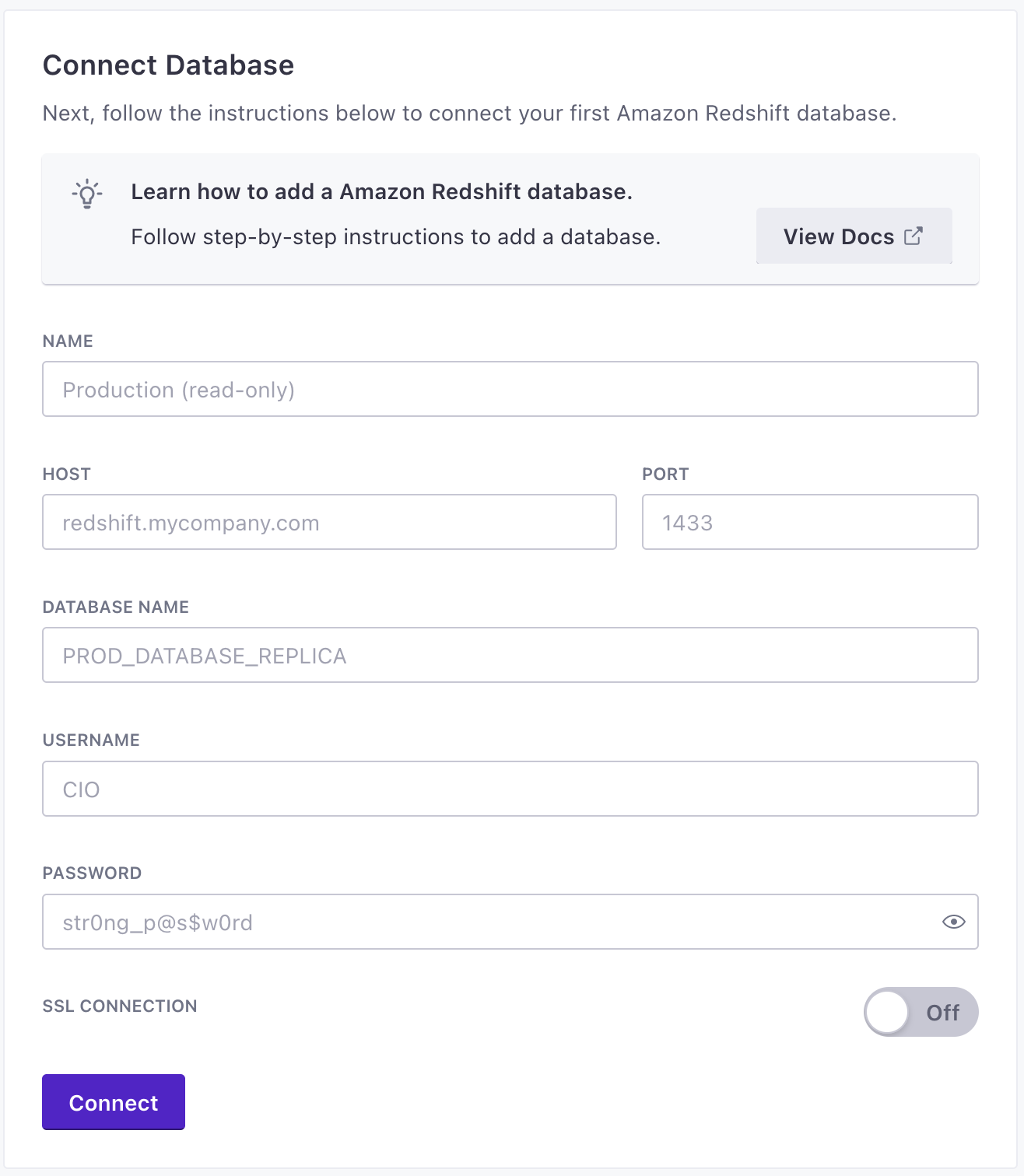
Provide your database information, including credentials to connect to your database, and click Save database.
- The Name is a friendly name you’ll use to recognize your database whenever you reference it in Customer.io.
- Enter Host address and the name of the database you want to connect to.
- Enter a database user’s credentials and click Add database. We suggest that you create a service account and use service account credentials to set up your database.
- Optional: Set up an SSL connection to your database.
- Optional: Set up SSH tunneling.
-
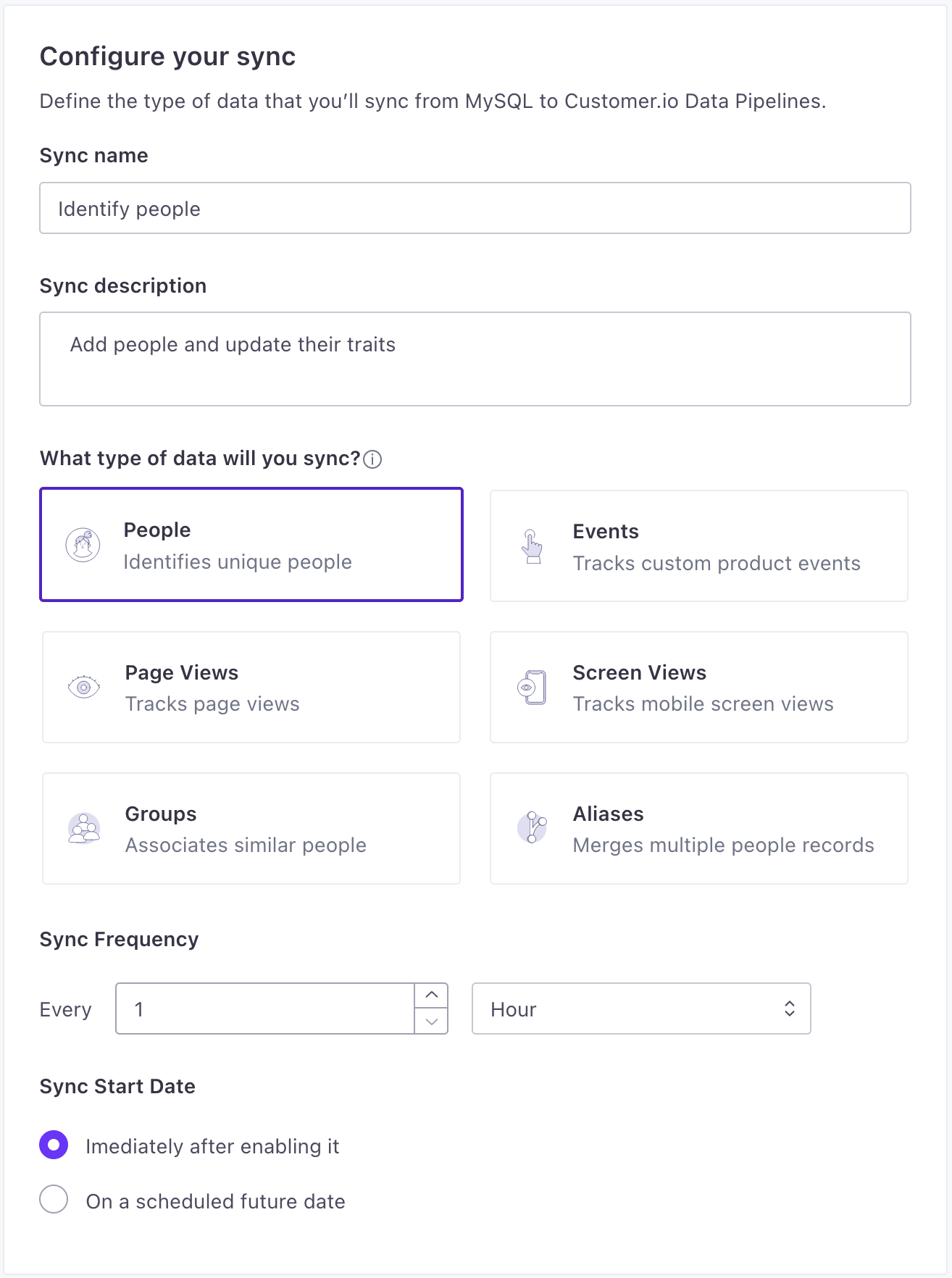
Set up a Sync. A sync is the type of data (
identify,track, etc) you want to import from your database and click Next: Define Query. You can set up syncs for each type of data you want to import.- Provide a Name and Description for the sync. This helps you understand the sync at a glance when you look at your integration’s Overview later.
- Select the type of data you want to import.
- Set the Sync Frequency, indicating how often you want to query your database for new data. You should set the frequency such that sync operations don’t overlap. Learn more about sync frequency.
- Select when you want to start the sync: whether you want to begin importing data immediately, or schedule the sync to start at a later date.
-
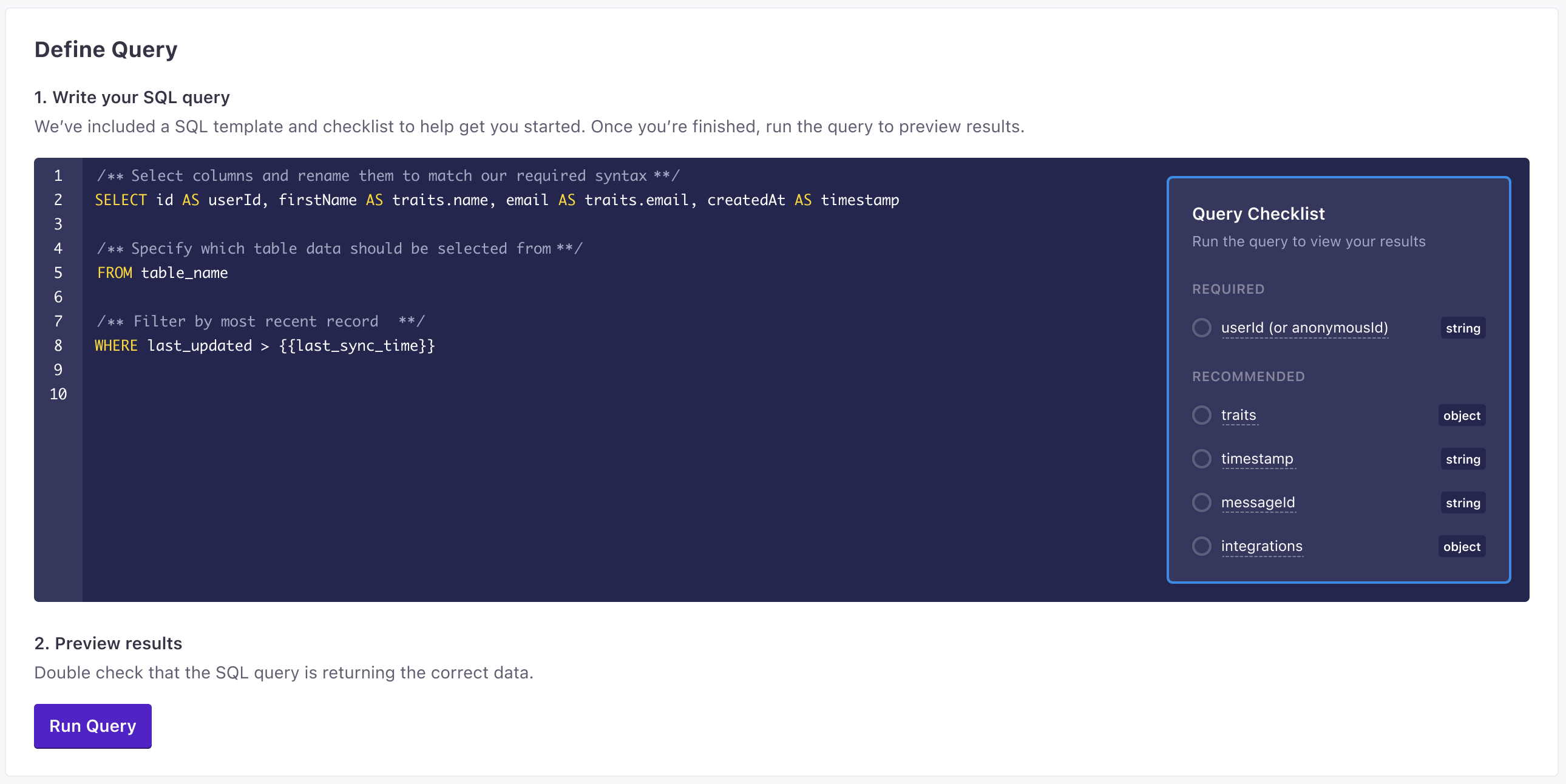
Enter the query that selects the data you want to import. See Queries below for more information about the information you’ll want to select for your sync. Click Run Query to preview results and make sure that your query selects the right information.
-
Click Enable to enable your sync.
Now you can set up additional syncs and connect your integration one or more destinations.
Adding syncs
After you set up your incoming integration, you can add additional syncs to import different types of data from your database. For example, you might want to import identify data for your users, and track data for their actions. Subsequent syncs can rely on your existing database, or you can add another database within your integration.
- In your integration, go to the Syncs tab and click Add Sync.
- Select your database or add a new one and click Next: Create Sync.
- Set up a sync
A sync is the type of source data (
and click Next: Define Query. You can set up syncs for each type of data you want to import.identify,track, etc) you want to import from your database. A sync is essentially the type of source call you want to make.- Provide a Name and Description for the sync. This helps you understand the sync at a glance when you look at your integration’s Overview later.
- Select the type of data you want to import.
- Set the Sync Frequency, indicating how often you want to query your database for new data. You should set the frequency such that sync operations don’t overlap. Learn more about sync frequency.
- Select when you want to start the sync: whether you want to begin importing data immediately, or schedule the sync to start at a later date.
- Enter the query that selects the data you want to import. See Queries below for more information about the information you’ll want to select for your sync. Click Run Query to preview results and make sure that your query selects the right information.
- Click Enable to enable your sync.
Sync Frequency
You can sync data as often as every minute. However, we recommend that you set your sync frequency such that sync operations don’t overlap. If you schedule syncs such that a sync operation is scheduled to start while the previous operation is still we’ll skip the next sync operation.
How your sync frequency affects cost depends on how you run Redshift:
- Provisioned clusters bill per node-hour while the cluster runs, whether or not it’s running queries. Frequent syncs add load rather than cost, and can queue behind your other workloads. If you use concurrency scaling, extra load can add billed time.
- Redshift Serverless bills for compute while queries run, per second with a 60-second minimum. Frequent syncs add billed time. To cap spend, set a usage limit with the Turn off user queries action. When the limit is reached, that stops every query in the workgroup, including your syncs.
Semantic events: Deleting people, groups, and more
You may notice that this integration doesn’t have sync types to delete people, groups, or other objects. To do these kinds of operations, you’ll use what we call semantic events. These are events with specific names that indicate a delete operation. When your Track sync picks up events with an event name we recognize, we’ll perform the associated action—like deleting a person or group.
For example, if you send an event with the name User Deleted, we’ll delete the person from your workspace. See Customer.io Semantic Events for more information.
The semantic events we support are:
| Event Name | Action |
|---|---|
Device Created or Updated | Add or update a mobile device. |
Device Deleted | Delete a mobile device. |
User Deleted | Delete a person. |
Object Deleted | Delete a custom object. |
Relationship Deleted | Delete a relationship. |
User Suppressed | Suppress a person. |
User Unsuppressed | Unsuppress a person. |
Report Delivery Event | Report in-app message events (like delivery, open, click) outside of our JavaScript integration. |
Queries for each sync type
When you create a database sync, you provide a query selecting the people or objects you want to import, and respective properties. You’ll build your queries using the same principles from our Pipelines API.
Each row returned from your query represents an individual operation (like an identify call, a track event, etc). Columns represent the traits or properties that you want to apply to the person, group, or event that your sync imports.
While we support queries that return millions of rows and hundreds of columns, syncing large amounts of data more then once a day can impact your account’s performance—including delaying automations or messages. When you set up your query, consider how much data you want to send and how often; and make sure you limit your results using the last_sync_time.
Preserve column name casing with double quotes
Redshift lowercases unquoted identifiers and attributes, which are case-sensitive in Customer.io. Column names like userId and groupId become userid and groupid in your query results.
With identifiers The attributes you use to add, modify, and target people. Each unique identifier value represents an individual person in your workspace. A key-value pair that you associate with a person or an object—like a person's name, the date they were created in your workspace, or a company's billing date etc. Use attributes to target people and personalize messages.userid or groupid as valid identifiers. For attributes
SELECT id AS "userId", email_address AS "email"
FROM users
WHERE last_updated >= {{last_sync_time}}last_sync_time and limiting your results
We strongly recommend that you index a column in your database representing the date-time each row was last-updated. When you write your query, you should add a WHERE clause comparing your “last updated” column to the {{last_sync_time}}.
The last sync time is a Unix timestamp representing the date-time when the previous successful sync started. Comparing a “last-updated” column to this timestamp helps you limit your sync operations to the columns that changed since the previous sync.This helps you avoid syncing the same records repeatedly, which can make your syncs take longer and impact your workspace’s performance.
If you use ISO date-times, you can convert them to Unix timestamps in your query.
Identify
The A key-value pair that you associate with a person or an object—like a person's name, the date they were created in your workspace, or a company's billing date etc. Use attributes to target people and personalize messages.identify method tells us who someone is and lets you assign unique traitstimestamp to the last_sync_time to ensure that you only import new data.
You can identify people by anonymousId and/or userId.
anonymousIdonly: This assigns traits to a person before you know who they are.userIdonly: Identifies a user and sets traits.- both
userIdandanonymousId: Associates the data from theanonymousIdwith the person you identify byuserId.
SELECT id AS "userId", email_address AS "email", fname, lname, msisdn AS "phone"
FROM users
WHERE last_updated >= {{last_sync_time}}- userIdstringrequiredThe unique identifier for a person. This value should be unique across systems, so you recognize the same person in your sources _and_ destinations.
- anonymousIdstringA unique substitute for a User ID in cases when you don’t have an absolutely unique identifier. Our libraries generate this value automatically to help you track people before they sign up, log in, provide their email, etc.
- A dictionary of context about a source call/event, like the user’s IP address or locale. Context is automatically collected by our source libraries.
- Contains a list of booleans indicating the integrations that are enabled (true) or disabled (false). By default, all integrations are enabled (returning an empty object). Set
"All": falseto reverse this behavior. - messageIdstringA unique identifier for a Pipelines call, ensuring that each individual event is unique. This is set by Customer.io
- originalTimestampstring(date-time)In general, you can use
timestamprather than this field if you want to back-date events. This is the timestamp on the client device you invoke a call or the timestamp value you manually passed in a server-side library call. - sentAtstring(date-time)The ISO-8601 timestamp when a library sends an event to Pipelines.
- timestampstring(date-time)The ISO-8601 timestamp when the event originally took place. This is mostly useful when you backfill past events. If you're not backfilling data, you can leave this field empty and we'll use the current time or server time.
- Additional properties that you know about a person. We've listed some common/reserved traits below, but you can add any traits that you might use in another system.
Identify people by email or ID
If you identify people by email and a unique ID, you can use a CASE statement or the COALESCE function to set the userId to prioritize the customer ID when available, falling back to email for people who don’t have a unique ID yet. This kind of setup is common when you support both leads (identified by email) and customers (identified by a unique ID after they make a purchase, or otherwise convert).
COALESCE
The COALESCE function returns the first non-null value from the list of arguments:
SELECT
  COALESCE(CAST(user_id AS VARCHAR), email) AS "userId",
  email,
  first_name,
  last_name
FROM users
WHERE last_updated >= {{last_sync_time}}
CASE
The CASE statement checks if user_id exists. If it does, it converts the ID to a string; otherwise, it uses the email address:
SELECT
  CASE
    WHEN user_id IS NOT NULL THEN CAST(user_id AS VARCHAR)
    ELSE email
  END AS "userId",
  email,
  first_name,
  last_name
FROM users
WHERE last_updated >= {{last_sync_time}}
Track
The track method records things people do. Every track call represents an event.
You should track your audience’s activities with events both as performance indicators and so you can respond to your audience’s activities with automations An automated process people enter when they meet your criteria. An automation has a trigger (who enters, and when), a workflow of messages and actions, and exit criteria (when they leave). A person's path through the workflow is their journey.
Track calls require an event name describing what a person did. They must also include an anonymousId or a userId. Calls that you make with an anonymousId are associated with a userId when you identify someone by their userId.
In most cases, your query should compare a timestamp to the last_sync_time to ensure that you only import new events.
SELECT id AS "userId", event_name AS event, products, total_price AS value
FROM events
WHERE timestamp > {{last_sync_time}}- eventstringrequiredThe name of the event
- userIdstringrequiredThe unique identifier for a person. This value should be unique across systems, so you recognize the same person in your sources _and_ destinations.
- A dictionary of context about a source call/event, like the user’s IP address or locale. Context is automatically collected by our source libraries.A dictionary of context about a source call/event, like the user’s IP address or locale. Context is automatically collected by our source libraries.
- activebooleanWhether a user is active.
This is usually used when you send an .identify() call to update the traits independently of when you've “last seen” a user.
- Contains information about the campaign that resulted in the API call, gathered from, or mapping to, UTM parameters (e.g.
utm_source). - channelstringThe channel the event originated from.Accepted values:
browser,server,mobile - ipstringThe user's IP address. This isn't captured by our libraries, but by our servers when we receive client-side events (like from our JavaScript source).
- localestringThe locale string for the current user, e.g.
en-US. - Contains information about the current page in the browser. This is automatically collected by our JavaScript source.
- userAgentstringThe user agent of the device making the request
- Contains a list of booleans indicating the integrations that are enabled (true) or disabled (false). By default, all integrations are enabled (returning an empty object). Set
"All": falseto reverse this behavior.- Enabled/Disabled integrations *boolean
- messageIdstringA unique identifier for a Pipelines call, ensuring that each individual event is unique. This is set by Customer.io
- originalTimestampstring(date-time)In general, you can use
timestamprather than this field if you want to back-date events. This is the timestamp on the client device you invoke a call or the timestamp value you manually passed in a server-side library call. - Additional properties for your event.
- Event Properties *any typeAdditional properties that you want to capture in the event. These can take any JSON shape.
- sentAtstring(date-time)The ISO-8601 timestamp when a library sends an event to Pipelines.
- timestampstring(date-time)The ISO-8601 timestamp when the event originally took place. This is mostly useful when you backfill past events. If you're not backfilling data, you can leave this field empty and we'll use the current time or server time.
Backfilling events
In your initial sync, the last_sync_time is 0, and we’ll capture all events that otherwise match your query. After that, we only capture events that occur after the last_sync_time—events that occurred since the previous sync. This prevents you from importing the same events multiple times, but also means that you can’t backfill event history.
If you need to backfill event history after your initial sync, you’ll need to set up a new sync to import the events you want to backfill. In general, you’ll:
- Create a new sync with a new query that captures the events you want to backfill.
- Run the sync to backfill events.
- Disable the backfilling sync so that you don’t capture events that your normal event query would otherwise import.
Group
The Group method associates a person with a group—like a company, organization, project, online class or any other collective noun you come up with for the same concept. In Customer.io Journeys, we call groups objects An object is a non-person entity that you can associate with one or more people—like a company, account, or online course.
Group calls require a groupId to represent the group. In almost every case, a group call should also include a userId to associate the person with the group. You can also include traits to provide additional information about the group (or the relationship between the person and the group). Find more details about the group method in our API specifications.
Your query should compare a timestamp to the last_sync_time to ensure that you only import new data.
SELECT companyId AS "groupId", objectTypeId AS "objectTypeId", companyname, employees, personId AS "userId"
FROM companies
WHERE last_updated >= {{last_sync_time}}- groupIdstringrequiredID of the group
- A dictionary of context about a source call/event, like the user’s IP address or locale. Context is automatically collected by our source libraries.A dictionary of context about a source call/event, like the user’s IP address or locale. Context is automatically collected by our source libraries.
- activebooleanWhether a user is active.
This is usually used when you send an .identify() call to update the traits independently of when you've “last seen” a user.
- Contains information about the campaign that resulted in the API call, gathered from, or mapping to, UTM parameters (e.g.
utm_source). - channelstringThe channel the event originated from.Accepted values:
browser,server,mobile - ipstringThe user's IP address. This isn't captured by our libraries, but by our servers when we receive client-side events (like from our JavaScript source).
- localestringThe locale string for the current user, e.g.
en-US. - Contains information about the current page in the browser. This is automatically collected by our JavaScript source.
- userAgentstringThe user agent of the device making the request
- Contains a list of booleans indicating the integrations that are enabled (true) or disabled (false). By default, all integrations are enabled (returning an empty object). Set
"All": falseto reverse this behavior.- Enabled/Disabled integrations *boolean
- messageIdstringA unique identifier for a Pipelines call, ensuring that each individual event is unique. This is set by Customer.io
- originalTimestampstring(date-time)In general, you can use
timestamprather than this field if you want to back-date events. This is the timestamp on the client device you invoke a call or the timestamp value you manually passed in a server-side library call. - sentAtstring(date-time)The ISO-8601 timestamp when a library sends an event to Pipelines.
- timestampstring(date-time)The ISO-8601 timestamp when the event originally took place. This is mostly useful when you backfill past events. If you're not backfilling data, you can leave this field empty and we'll use the current time or server time.
- Additional information about the group.
- objectTypeIdstringIf you use Customer.io Journeys as a destination, this value is the type of group/object your group belongs to; object type IDs are stringified integers. If you don't include this value, we assume the object type ID is
1. See objects in Customer.io Journeys for more information. - relationshipAttributesobjectAttributes that you want to set for the relationship between the person and the group.
- Group Traits *any type
- userIdstringThe unique identifier for a person. This value should be unique across systems, so you recognize the same person in your sources _and_ destinations.
Relationship attributes
In Customer.io, you can assign attributes A key-value pair that you associate with a person or an object—like a person's name, the date they were created in your workspace, or a company's billing date etc. Use attributes to target people and personalize messages. An object is a non-person entity that you can associate with one or more people—like a company, account, or online course. The connection between an object and a person in your workspace. For instance, if you have Account objects, people could have relationships to an Account if they're admins.relationshipAttributes JSON object.
SELECT companyId AS "groupId", objectTypeId AS "objectTypeId", companyname, employees, personId AS "userId",
    JSON_SERIALIZE(
        OBJECT(
            'is_manager', is_manager,
            'role', role,
            'start_date', start_date,
            'department', department
        )
    ) AS "relationshipAttributes"
FROM companies
WHERE last_updated >= {{last_sync_time}}
Page
The Page method records page views on your website, along with optional extra information about the page a person visited.
Your query should compare a timestamp to the last_sync_time to ensure that you only import new data.
SELECT id AS "userId", metatitle AS name, url, time_on_page
FROM pages
WHERE timestamp > {{last_sync_time}}- userIdstringrequiredThe unique identifier for a person. This value should be unique across systems, so you recognize the same person in your sources _and_ destinations.
- A dictionary of context about a source call/event, like the user’s IP address or locale. Context is automatically collected by our source libraries.
- activebooleanWhether a user is active.
This is usually used when you send an .identify() call to update the traits independently of when you've “last seen” a user.
- Contains information about the campaign that resulted in the API call, gathered from, or mapping to, UTM parameters (e.g.
utm_source). - channelstringThe channel the event originated from.Accepted values:
browser,server,mobile - ipstringThe user's IP address. This isn't captured by our libraries, but by our servers when we receive client-side events (like from our JavaScript source).
- localestringThe locale string for the current user, e.g.
en-US. - Contains information about the current page in the browser. This is automatically collected by our JavaScript source.
- userAgentstringThe user agent of the device making the request
- Contains a list of booleans indicating the integrations that are enabled (true) or disabled (false). By default, all integrations are enabled (returning an empty object). Set
"All": falseto reverse this behavior.- Enabled/Disabled integrations *boolean
- messageIdstringA unique identifier for a Pipelines call, ensuring that each individual event is unique. This is set by Customer.io
- namestringThe name of the page.
- originalTimestampstring(date-time)In general, you can use
timestamprather than this field if you want to back-date events. This is the timestamp on the client device you invoke a call or the timestamp value you manually passed in a server-side library call. - Additional
pageproperties. Analytics.js automatically collectsurl,title,referrer,path, andsearchproperties. But, if you use our other sources or you write your own integration, you should consider sending these properties yourself. Destination actions that takepageevents often rely on theurlandtitleproperties.- categorystringThe category of the page. This might be useful if you have a single page routes or have a flattened URL structure.
- pathstringThe path of the page. This defaults to
location.pathname, but can be overridden. - referrerstringThe referrer of the page, if applicable. This defaults to
document.referrer, but can be overridden. - searchstringThe search query in the URL, if present. This defaults to
location.search, but can be overridden. - titlestringThe title of the page. This defaults to
document.title, but can be overridden. - urlstringThe URL of the page. This defaults to a canonical url if available, and falls back to
document.location.href. - Page Properties *any type
- sentAtstring(date-time)The ISO-8601 timestamp when a library sends an event to Pipelines.
- timestampstring(date-time)The ISO-8601 timestamp when the event originally took place. This is mostly useful when you backfill past events. If you're not backfilling data, you can leave this field empty and we'll use the current time or server time.
Screen
The Screen method sends screen view events for mobile devices. These help you understand the screens that people use in your app.
Your query should compare a timestamp to the last_sync_time to ensure that you only import new data.
SELECT id AS "userId", screen_name AS name, session_started
FROM screens
WHERE timestamp > {{last_sync_time}}- userIdstringrequiredThe unique identifier for a person. This value should be unique across systems, so you recognize the same person in your sources _and_ destinations.
- A dictionary of context about a source call/event, like the user’s IP address or locale. Context is automatically collected by our source libraries.
- activebooleanWhether a user is active.
This is usually used when you send an .identify() call to update the traits independently of when you've “last seen” a user.
- Contains information about the mobile app the event originated from, automatically collected by our mobile libraries when possible.
- channelstringThe channel the event originated from.Accepted values:
browser,server,mobile - Contains information about the device the event originated from.
- ipstringThe user's IP address. This isn't captured by our libraries, but by our servers when we receive client-side events (like from our JavaScript source).
- localestringThe locale string for the current user, e.g.
en-US. - Information about the current network connection, containing
bluetooth,carrier,cellular, andwifi. If thecontext.network.cellularandcontext.network.wififields are empty, then the user is offline. - Dictionary of information about the operating system, containing
nameandversion. - userAgentstringThe user agent of the device making the request
- Contains a list of booleans indicating the integrations that are enabled (true) or disabled (false). By default, all integrations are enabled (returning an empty object). Set
"All": falseto reverse this behavior.- Enabled/Disabled integrations *boolean
- messageIdstringA unique identifier for a Pipelines call, ensuring that each individual event is unique. This is set by Customer.io
- namestringThe name of the screen the person visited.
- originalTimestampstring(date-time)In general, you can use
timestamprather than this field if you want to back-date events. This is the timestamp on the client device you invoke a call or the timestamp value you manually passed in a server-side library call. - Additional properties for your screen.
- Screen Properties *any type
- sentAtstring(date-time)The ISO-8601 timestamp when a library sends an event to Pipelines.
- timestampstring(date-time)The ISO-8601 timestamp when the event originally took place. This is mostly useful when you backfill past events. If you're not backfilling data, you can leave this field empty and we'll use the current time or server time.
Alias
The Alias method combines two previously unassociated user identities. Some integrations automatically reconcile people with different identifiers based on whether you send anonymousId, userId, or another trait that the integration expects to be unique. But for integrations that don’t, you may need to send alias requests to do this.
In general, you won’t need to use the alias call; we try to handle user identification gracefully so you don’t need to merge people. But you may need to send alias calls to manage user identities in some data-out integrations.
For example, in Mixpanel it’s used to associate an anonymous user with an identified user once they sign up.
SELECT id AS "userId", old_id AS "previousId"
FROM user_resolution
WHERE timestamp >= {{last_sync_time}}- previousIdstringrequiredThe anonymousId or userId value that you want to merge into the canonical profile.
- userIdstringrequiredThe userId that you want to keep. This is required if you haven't already identified someone with one of our web or server-side libraries.