

Troubleshooting
If you're having trouble with the SDK, here are some basic steps to troubleshoot your problems, and solutions to some known issues.
Basic troubleshooting steps
- Make sure your app meets our prerequisites: Attempting to use our SDK in an environment that doesn't match our supported versions may result in build errors.
-
Update to the latest version: When troubleshooting problems with our SDKs, we generally recommend that you try updating to the latest version. That helps us weed out issues that might have been seen in previous versions of the SDK.
-
Try running our MCP server: Our MCP server includes an
integrationtool that can provide immediate help with your implementation, including problems with push and in-app notifications. See Use our MCP server to troubleshoot your implementation below. -
Enable
debuglogging: Reproducing your issue withloglevelset todebugcan help you (or us) pinpoint problems. -
Try our test image: Using an image that we know works in push and in-app notifications can help you narrow down problems relating to images in your messages.
If you need to contact support
We’re here to help! If you contact us for help with an SDK-related issue, we’ll generally ask for the following information. Having it ready for us can help us solve your problem faster.
-
Share information about your device and environment: Let us know where you had an issue—the SDK and version of the SDK that you’re using, the specific device, operating system, message, use case, and so on. The more information you share with us, the easier it is for us to weed out externalities and find a solution.
-
Provide comprehensive debug logs: When sharing logs with our support team, please ensure your logs include:
- SDK initialization: Show that the SDK was initialized with your site ID and API key
- Person identification: Show that a person was identified in your app
- Issue reproduction: Capture the exact issue you’re experiencing
- Unfiltered logs: Provide complete, unfiltered logs—don’t remove or filter out any log entries
- Debug level enabled: Make sure
loglevelis set todebugwhen capturing logs for support
-
For push notification issues:
- Use live push examples: If your issue relates to push notifications, provide logs from a live push notification sent through an automation or API call, not a test send. Live pushes show the actual payload that was delivered to the person.
- Test in different app states: Test and document the issue in various app states:
- Foreground: App is open and active
- Background: App is running but not in focus
- Killed/Terminated: App is completely closed
- Include the push payload: Share the complete push notification payload that you sent.
-
Grant access to your workspace: It may help us to see exactly what triggers an automation, what data is associated with devices you’re troubleshooting, etc. You can grant access for a limited time, and revoke access at any time.
Troubleshooting issues with our MCP server
Our MCP server includes an integration tool that can help troubleshoot your implementation, including problems with push and in-app notifications. It has a deep understanding of our SDKs and provides an immediate way to get support with your implementation—without necessarily needing to capture debug logs, etc.
You can ask the MCP server basic questions like, “My push notifications aren’t working. Can you help me troubleshoot the problem?”
Or you can ask more specific questions like, “Deep links in push notifications don’t work for customers in my Android app.” Or “I’m not receiving metrics for push notifications for iOS users.”
The tool will return detailed steps to help you find and troubleshoot problems.
Capture logs
Logs help us pinpoint the problem and find a solution. To capture logs, you should install Flutter DevTools if you haven’t already.
-
Enable debug logging in your app.
DARTimport 'package:customer_io/customer_io.dart'; import 'package:customer_io/customer_io_config.dart'; import 'package:customer_io/customer_io_enums.dart'; await CustomerIO.initialize( config: CustomerIOConfig( siteId: "919a7e12107bd03155f6", apiKey: "86344654754f1c48d32b", region: Region.us, //config options go here logLevel: CioLogLevel.debug ), ); -
Build and run your app on a physical device or emulator.
-
Open the Logging view in your development application. If you use Android Studio, select View > Tool Windows > Logcat to see your logs.
-
Filter for
CIOin the top to find log messages specific to the Customer.io SDK. -
Export your log and send it to our Support team at win@customer.io. In your message, describe your problem and provide relevant information about:
- The version of the SDK you’re using.
- The type of problem you’ve encountered.
- An existing GitHub issue URL or existing support email so we know what these log files are in reference to.
Capturing iOS logs
Logs for iOS are emitted via Apple’s Unified Logging system, so you’ll need to capture them using Xcode or the MacOS console, not just the Flutter debug console. The logLevel set in your CustomerIOConfig is forwarded to the native iOS SDK, but these logs won’t reliably appear in flutter run output.
To capture iOS logs for troubleshooting:
- Run your iOS app via Xcode or on a device/simulator attached to Xcode.
- Use the macOS Console to capture logs. You might want ot filter for
CIOto find log messages specific to the Customer.io SDK.
NaN, infinite, or imaginary number values
Customer.io doesn’t handle invalid JSON values in your payloads, like NaN, infinite, or imaginary number values. If you send these values in identify, track, screen, or similar calls, we’ll drop them and record errors.
While we drop invalid values, we don’t drop the entire payload. The operation itself will still succeed. For example, if you send an identify call with two attributes, one of which is a NaN value, we’ll drop the NaN value, but the identify call succeeds with the other attribute.
Push notification issues
Problems with rich push notifications (images, delivered metrics, etc)
If you have trouble with rich push features, like images not showing up in your push notifications, delivery metrics not being reported when a push notification is visible on the device, and so on, it’s possible that you either need to re-create your NSE target to support rich notifications your you may not have embeded the NotificationServiceExtension (NSE) at all.
-
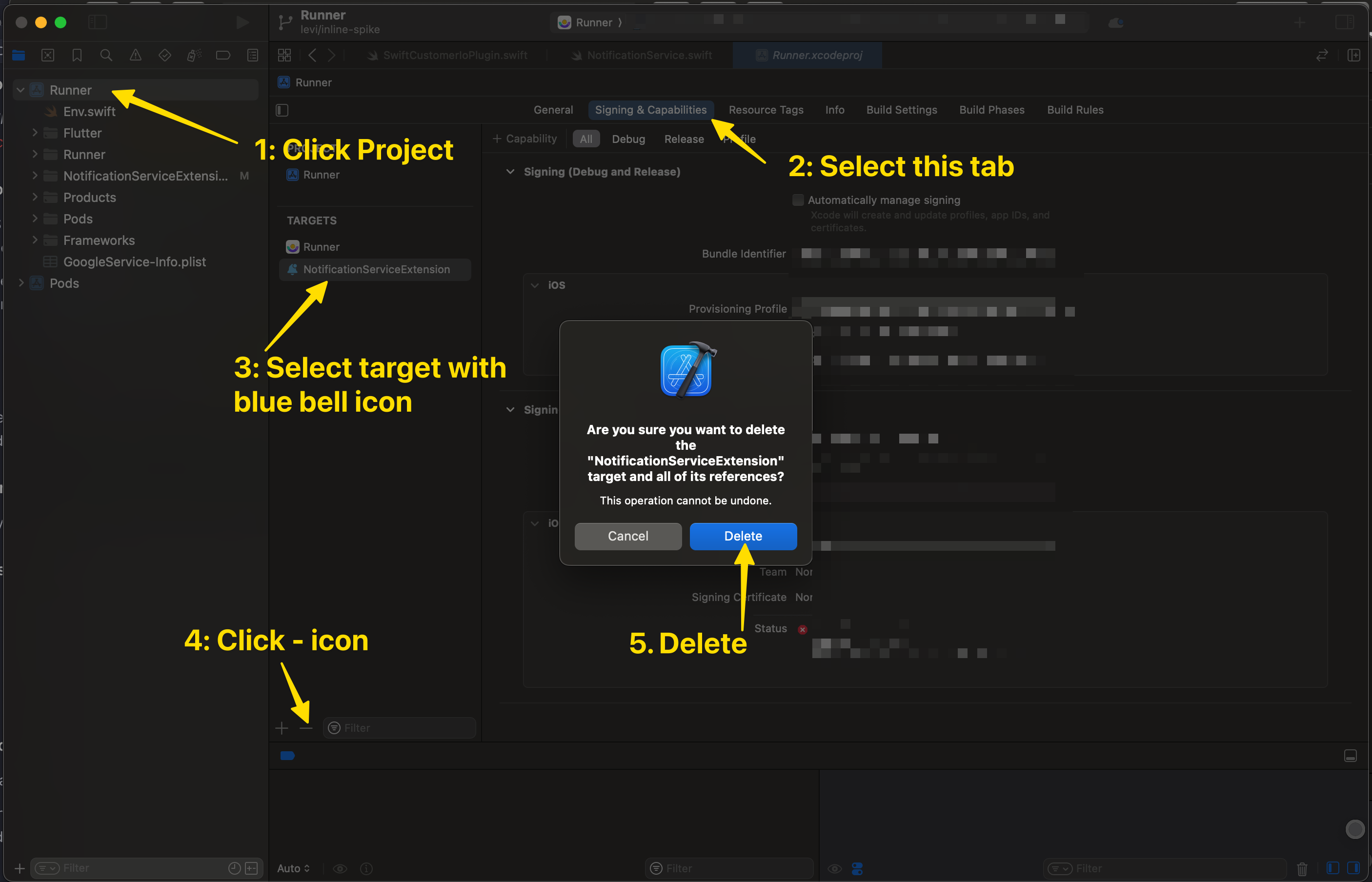
Remove your current NSE extension.
- In XCode, select your project.
- Go to the Signing & Capabilities tab.
- Click the NotificationServiceExtension target; it has a bell icon next to it.
- Click the minus sign to remove the target
- Confirm the Delete operation.
-
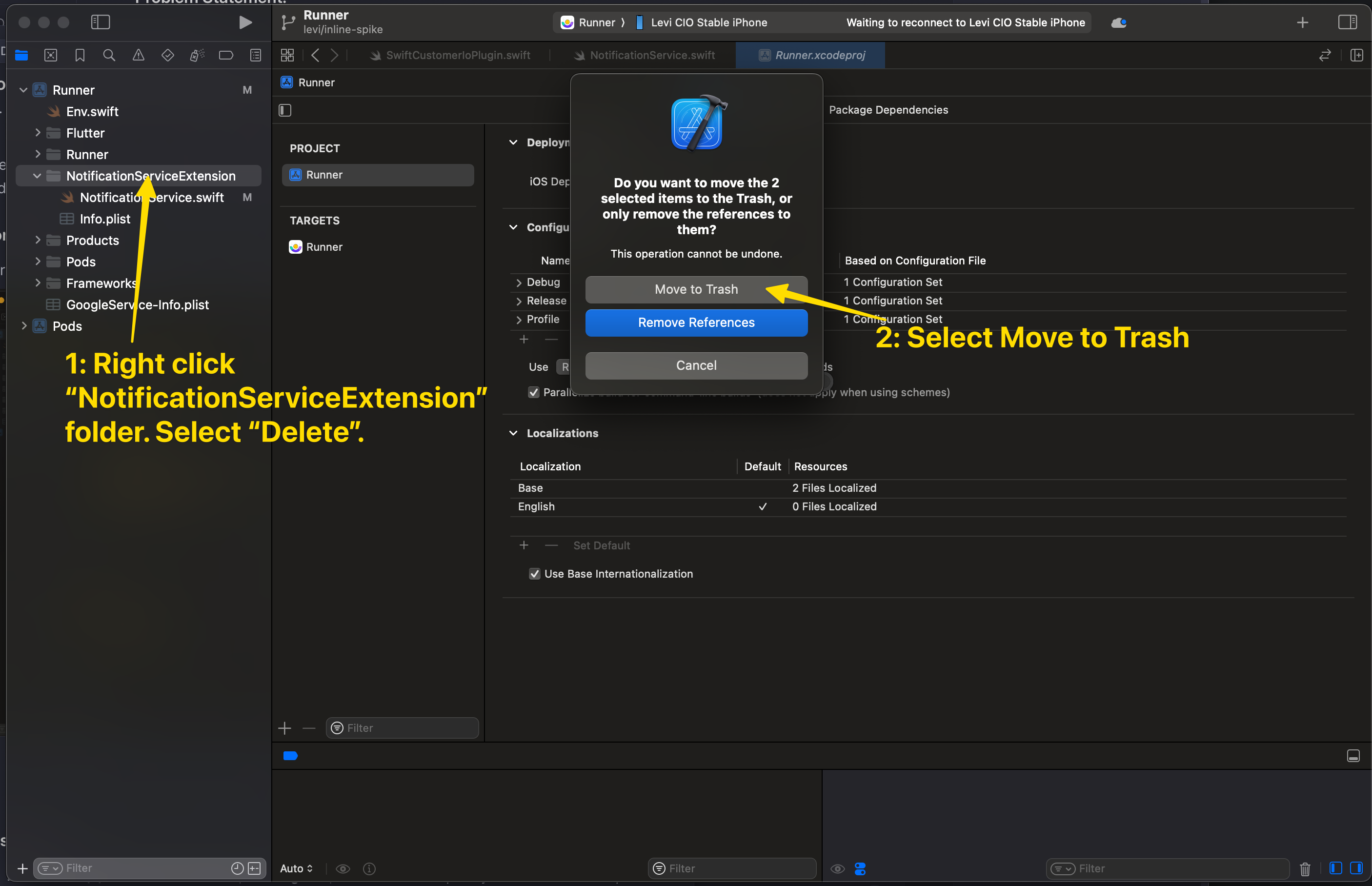
Remove existing NSE files.
- Right click the
NotificationServiceExtensionfolder in your project and select Delete. - Confirm Move to Trash.
- Right click the
-
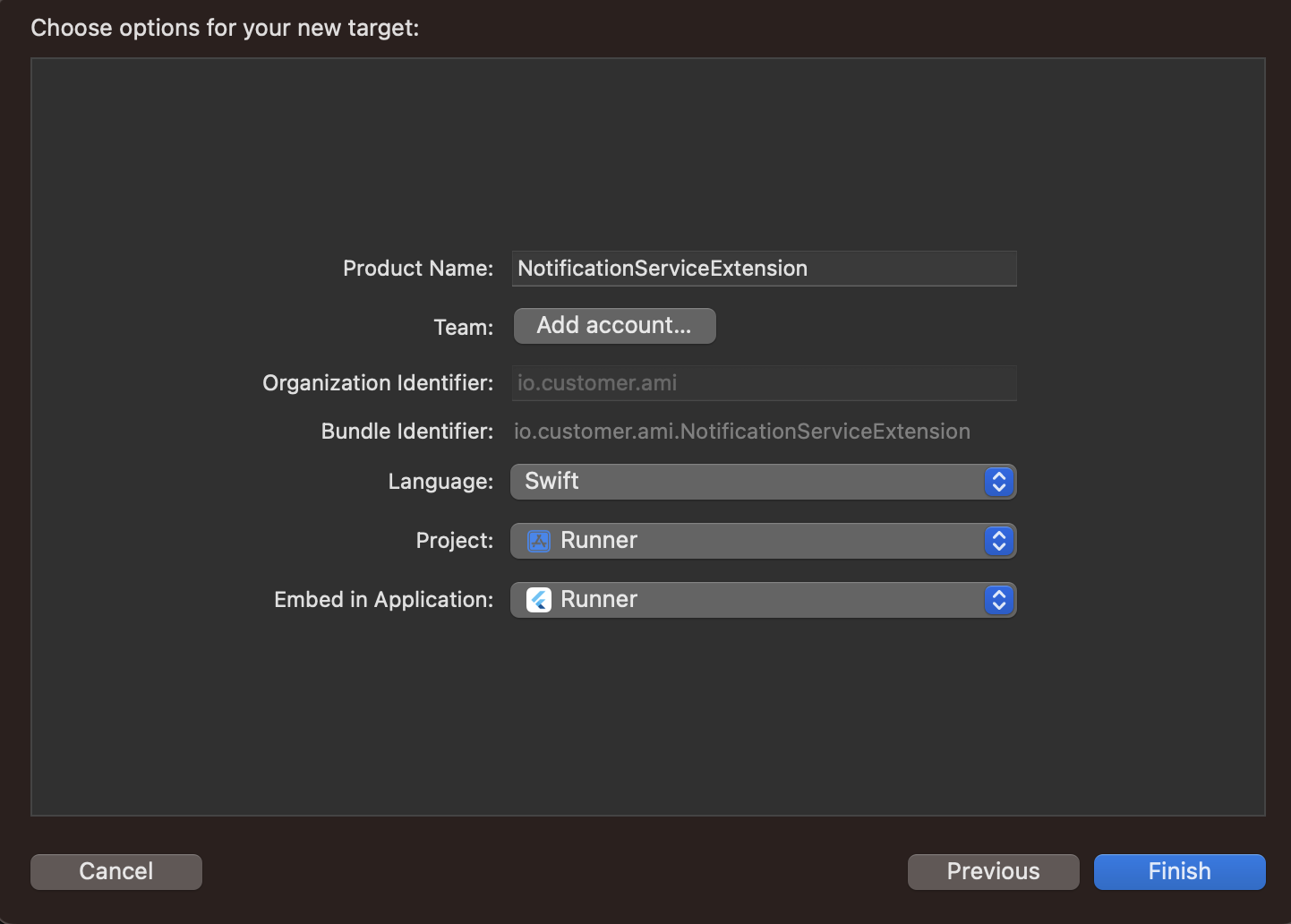
Recreate the notification service extension, following instructions for your framework. When You create your target NSE file, make sure you select your app’s name from the Embed in Application dropdown.
-
Then add the required files:
- React Native
- Flutter
- Expo (does this automatically)
- iOS
-
After all files are added, go to the NSE target and, under the General tab, check Deployment Target and set it to a value that is identical to your host app’s iOS version.
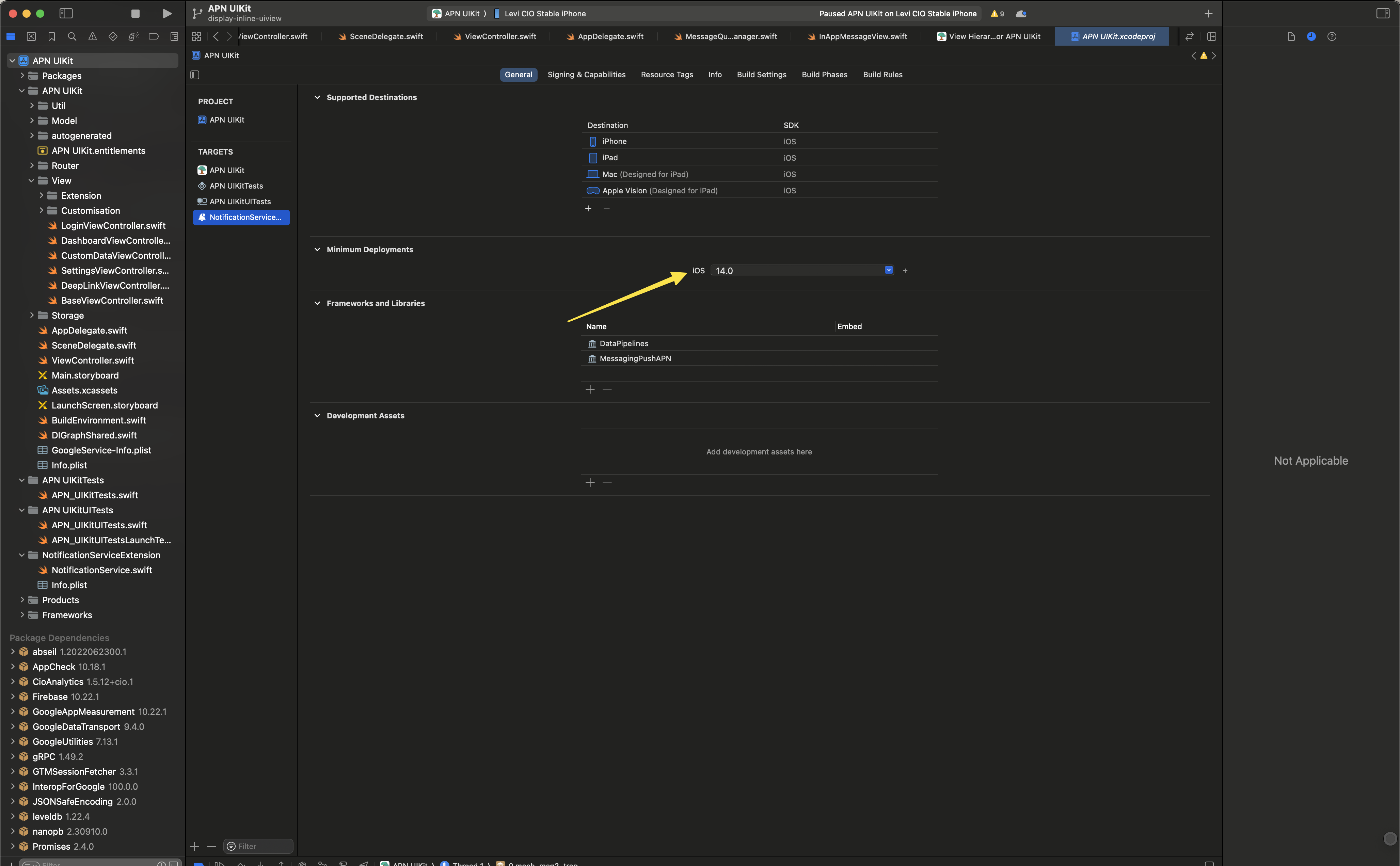
When you create a new target, by default, XCode sets the highest version of deployment target version available. While testing if your device’s iOS version is lower than this deployment target, then the NSE won’t be connected to the main target and you won’t receive rich push notifications.
Then you can build and run your app to test if you can receive a rich push notification.
Why aren’t devices added to people in Production builds?
If you see devices register successfully on your Staging builds, but not in Production or TestFlight builds, there might be an issue with your project setup. Check that the Push capability is enabled for both Release and Debug modes in your project. You might also need to enable the Background Modes (Remote Notifications) capability, depending on your project setup and messaging needs.
Image display issues
If you’re having trouble, try using our test image in a message! If it works, then there’s likely a problem with your original image.

Android and iOS devices support different image sizes and formats. In general, you should stick to the smallest size (under 1 MB—the limit for Android devices) and common formats (PNG, JPEG).
| iOS | Android | In-App (all platforms) | |
|---|---|---|---|
| Format | JPEG, PNG, BMP, GIF | JPEG, PNG, BMP | JPEG, PNG, GIF |
| Maximum size | 10 MB* | 1 MB | |
| Maximum resolution | 2048 x 1024 px | 1038 x 1038 px |
Why didn’t everybody in my segment get a push notification?
If your segment A group of people who match a series of conditions. People enter and exit the segment automatically when they match or stop matching conditions.
Why are messages sent but not delivered or opened?
The sent status means that we sent a message to your delivery provider—APNS or FCM. It’ll be marked delivered or opened when the delivery provider forwards the message to the device and the SDK reports the metric back to Customer.io. If a person turned their device off or put it in airplane mode, they won’t receive your push notification until they’re back on a network.
Why don’t my messages play sounds?
When you send a push notification to iOS devices that uses our SDK, you can opt to send the Default system sound or no sound at all. If your audience’s phone is set to vibrate, or they’ve disabled sound permissions for your app, the Default setting will cause the device to vibrate rather than playing a sound.
In most cases, you should use the Default sound setting to make sure your audience hears (or feels) your message. But, before you send sound, you should understand:
- Your app needs permission from your users to play sounds. This is done by your app, not our SDKs. Here’s an example from our iOS sample app showing how to request sound permissions.
- iOS users can go into System Settings and disable sound permissions for your app. Enabling the Default setting doesn’t guarantee that your audience hears a sound when your message is delivered!
FCM SENDER_ID_MISMATCH error
This error occurs when the FCM Sender ID in your app does not match the Sender ID in your Firebase project. To resolve this issue, you’ll need to ensure that the Sender ID in your app matches the Sender ID in your Firebase project.
- Check that you uploaded the correct JSON certificate to Customer.io. If your JSON certificate represents the wrong Firebase project, you may see this error.
- Verify that the Sender ID in your app matches the Sender ID in your Firebase project.
- If you imported devices (device tokens) from a previous project, make sure that you imported tokens from the correct Firebase project. If the tokens represent a different app than the one you send push notifications to, you’ll see this error.
In some cases, we may make fixes in our iOS push packages that fix downstream issues in the Flutter SDK. Before you contact support, you might want to update your iOS dependencies to get the latest packages and see if that fixes the issue.
You can also check out our latest iOS changes to see if we've already fixed the issue or check out open issues to see if you're experiencing a known issue.
Deep links on iOS only open in a browser
It sounds like you want to use universal links, links that go to your app if a person has your app installed and to your website if they don't. Universal links are a bit different than your average deep link and require a little bit of additional setup.
Notifications not coming through when app is in background
If your app does not receive push notifications when it’s in the background, check the following:
- Ensure that you have implemented the
_firebaseMessagingBackgroundHandleras suggested by the Firebase Messaging documentation. This handler is responsible for processing messages received while the app is in the background or closed. - Verify that the handler is set correctly and receiving callbacks. Double-check the implementation to ensure it’s properly registered within your app’s code.
- Confirm the Flutter version you are using. For Flutter version 3.3.0 or higher, you will need to add
@pragma('vm:entry-point')to the handler function for it to work correctly.
Swift Package Manager (SPM) issues
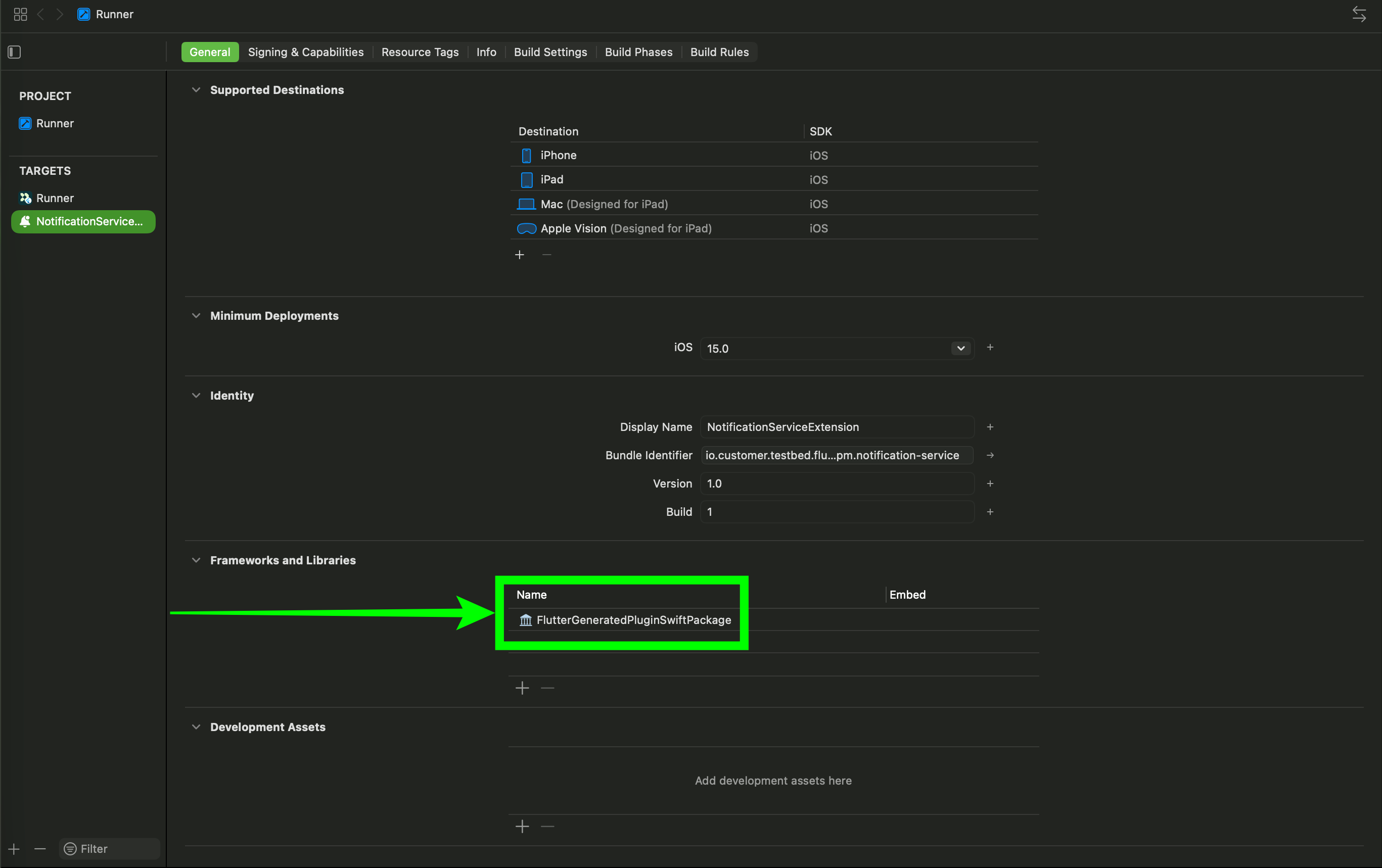
Unable to find module dependency: 'CioMessagingPushFCM' in NSE
The NotificationServiceExtension target is missing the SPM package link.
- In Xcode, select the NotificationServiceExtension target and go to General > Frameworks and Libraries
- Click + and add FlutterGeneratedPluginSwiftPackage.
redefinition of module 'Firebase'
Firebase is being loaded from both CocoaPods and SPM, causing a conflict.
-
Update your Firebase dependencies to SPM-compatible versions in your
pubspec.yaml:YAMLfirebase_core: ^3.5.0 # we recommend at least ^4.6.0 firebase_messaging: ^15.2.0 # we recommend at least ^16.1.3 -
Remove any manual Firebase pod lines from your
ios/Podfileand runflutter pub upgrade firebase_core firebase_messaging.
requires minimum platform version 15.0 for the iOS platform
The Customer.io SDK and Firebase require iOS 15.0 or later.
Set the deployment target to 15.0 or later in Xcode:
- Select the Runner project and go to Build Settings
- Set iOS Deployment Target to 15.0.
- Update your
ios/Podfile:RUBYplatform :ios, '15.0'
NSE unable to find CioMessagingPushFCM dependency
The NotificationServiceExtension can’t resolve the Customer.io SDK dependency. This can happen in both local builds and CI environments.
-
Make sure SPM is enabled before building. You can enable it globally or per-project:
- Global: Run
flutter config --enable-swift-package-manager - Per-project: Add
enable-swift-package-manager: trueto theflutter:>config:section of yourpubspec.yaml
- Global: Run
-
Clean and rebuild:
BASHflutter clean flutter pub get flutter build ios
In your CI pipeline, make sure that you run flutter config --enable-swift-package-manager before running flutter pub get to ensure that the configuration takes effect.
import UserNotifications error
SPM doesn’t transitively import system frameworks the way CocoaPods does. If your NSE fails to compile with errors about UNNotificationServiceExtension, UNNotificationRequest, or UNNotificationContent, you’re missing the system import.
Add import UserNotifications at the top of your NotificationService.swift:
import CioMessagingPushFCM
import UserNotifications
In-App message issues
My in-app messages are sent but not delivered
People won’t get your message until they open your app. If you use page rules, they won’t see your message until they visit the right screen(s), so delivery times for in-app messages can vary significantly from other types of messages.