

Troubleshooting tips for integrations
When data doesn't flow into Customer.io or out to other services, you may need to determine if you have a problem with your data-in integration, your data-out actions, or your connection with your incoming and outgoing services.
This page helps you check the various areas of your pipeline to find and solve problems.
General troubleshooting tips
- Check your Integrations page to determine if an integration has a problem. You can hover over each integration to see if we’ve noticed a problem.
- Check your incoming integration’s Data In tab: are you sending the right calls to Customer.io?
- Check your outgoing integration’s Data Out tab: are you sending data to its ultimate destination?
Pinpoint the problem
If you have a problem with an integration, the first thing you’ll need to do is figure out where the problem is—whether your data reaches the appropriate system, is it formatted correctly, and so on.
- Is data reaching Customer.io? If not, the problem is with your data-in integration.
- Is data reaching its expected destination? If not, the problem may have to do with your data out
An integration that sends data out of Customer.io.
integration’s credentials. - If you’ve connected a data-in integration to multiple outgoing integrations:
- Is the problem limited to a single outgoing integration? If yes, the problem is likely in a specific data-out integration.
- Do all outgoing integrations have the same problem? If yes, your problem is likely in the data-in integration.
- If data reaches its final destination, but doesn’t look quite right, then the problem is in your data-out integration’s actions
The source event and data that triggers an API call to your destination. For example, an incoming
.identifyevent from your sources adds or updates a person in our Customer.io Journeys destination.
Troubleshooting data-in problems
Go to your data-in integration’s page and check the Data In tab. Now you can examine your incoming data:
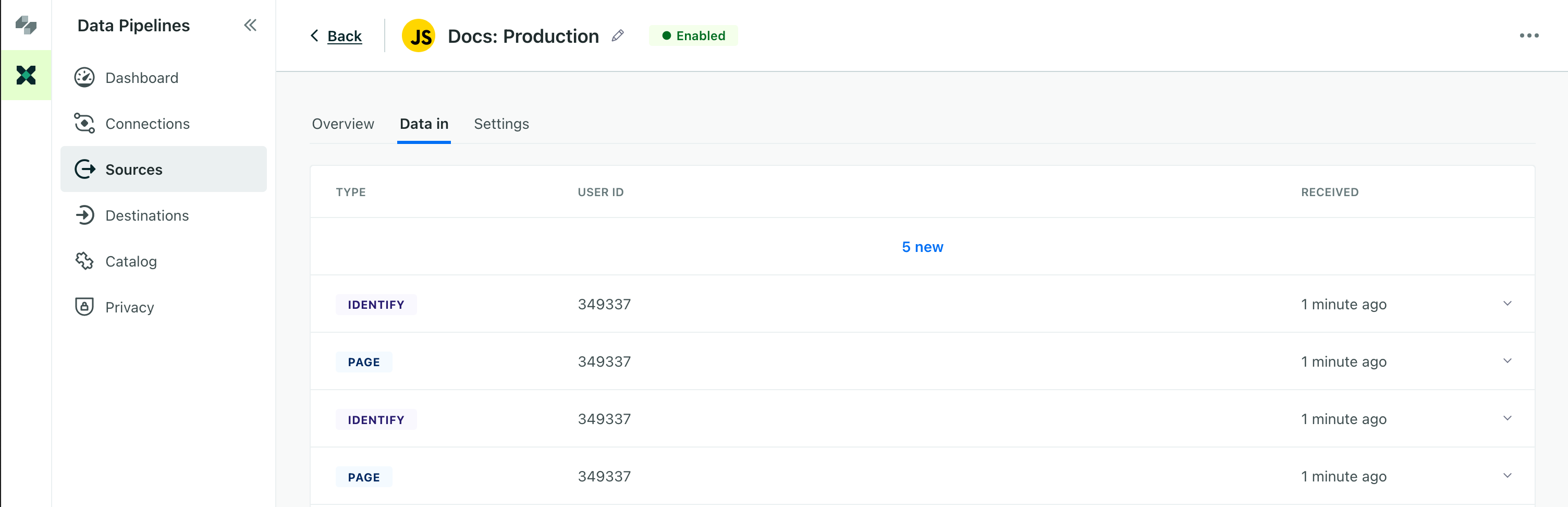
- Do you see any data at all? If not, check your integration’s credentials and make sure that you’ve added the correct library to your client, server, or app.
- Do you see all the calls you expect to see? If not, you may need to make sure that your integration sends the correct methods—
identify,track, and so on. - Do your calls contain the correct data? If not, check that your integration includes the correct information in the payload.
Troubleshooting data-out problems
Go to your data-out integration and check the Data Out tab and observe the data flowing out of Customer.io:
- Do you see data at all? If not, make sure that your integration credentials are correct.
- Do you not see data of a specific type? Check your integration’s actions
The source event and data that triggers an API call to your destination. For example, an incoming
to make sure that they’re triggered correctly.identifyevent from your sources adds or updates a person in our Customer.io Journeys destination. - Do your actions not contain the correct data? You likely have an issue with the data mapped to one or more actions.
Use the Data Out Tester to pinpoint issues
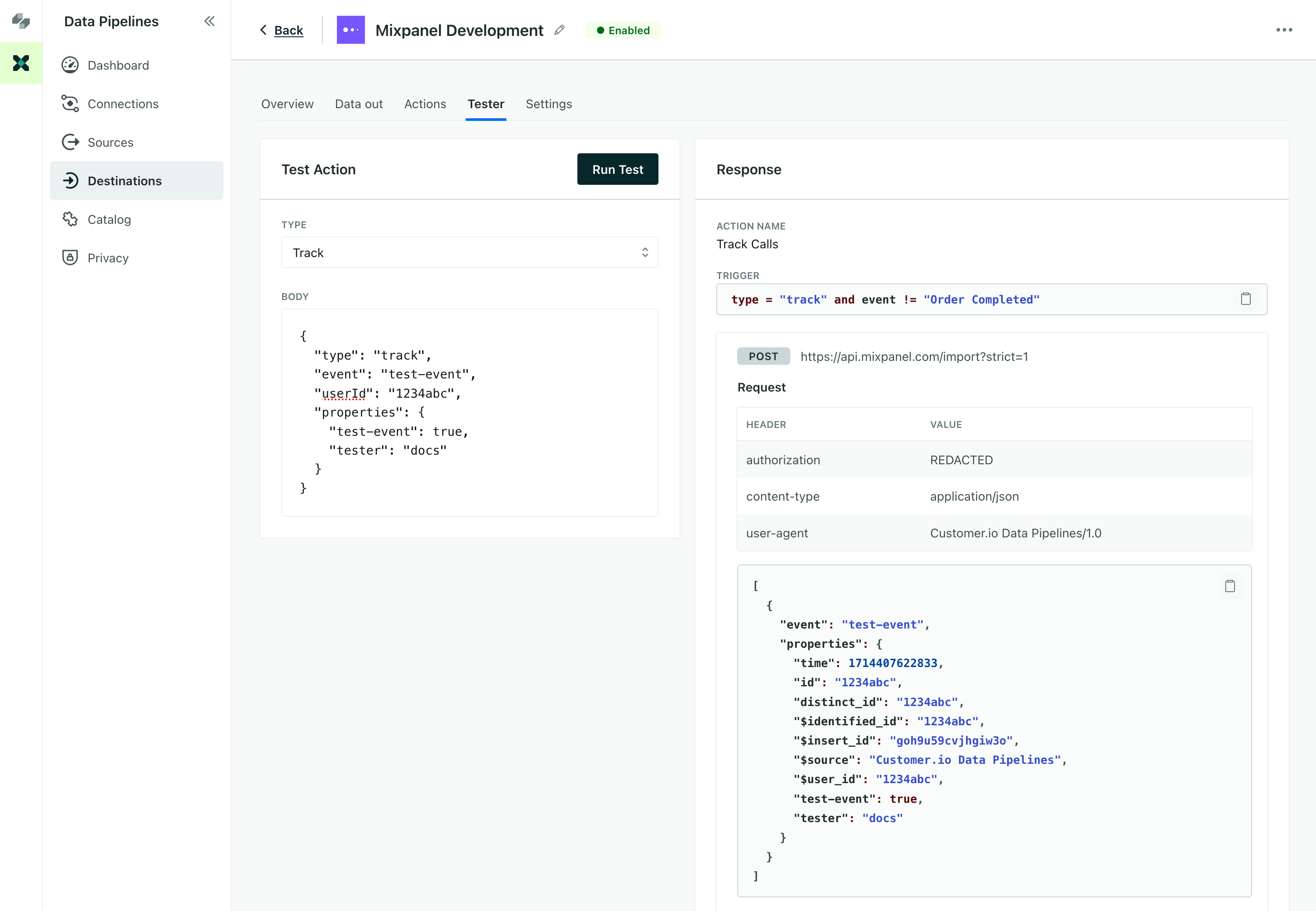
Your outgoing integration’s Tester tab can help you send test calls to find problems in your integration’s actions The source event and data that triggers an API call to your destination. For example, an incoming identify event from your sources adds or updates a person in our Customer.io Journeys destination.
For example, if you trigger an action when a Track Event Name is Clicked Button, you can set the Type to Track and change the event field to Clicked Button to test your action. If you see a response, your Trigger is set up correctly!
The Response area shows the call as sent to your destination. Here you can check that your action’s Mappings are set correctly. For example, if you map a property called firstName to fName, and fName is correctly set in your response, then your data is mapped correctly!
Troubleshooting data-out actions
Your outgoing integration’s actions tell us when to send data, and what data to send, to its ultimate destination. Each action has two major components:
- The Trigger tells us when to send data out
- The Mappings tells us what data to send out
If you go to your outgoing integration’s Data Out tab, you can quickly see your problems. If you don’t see a particular action (and you know that the appropriate data comes into your integration pipeline), there’s probably an issue with your action’s trigger. If you don’t see specific data in an action, there’s an issue with your data mapping.
Problems with triggers
A trigger determines when we send data out of Customer.io to a particular integration. If you used one of the default triggers that Customer.io already set up for you, the trigger probably isn’t your problem!
But, if your action doesn’t trigger at all, or it does so inconsistently, then you likely have a trigger issue to troubleshoot.
But if you use a custom trigger, we occasionally see the following issues:
Make sure your trigger conditions don't conflict
Some parameters aren’t compatible with each other. For example, if you set a trigger to fire when All conditions are true, and you set conditions where Type is Track and an Identify or Group Trait condition, your action will never fire.
Track calls don’t contain identify/group traits, so your trigger conditions never occur together. This means that your action will never fire.
Make sure you've spelled conditions correctly
When you add certain conditions, like Identify or Group Trait and Track Event Name, you’ll provide us the names/values of some of your properties, and your spelling and capitalization matter! Make sure that you enter the names and values of trigger values exactly as they appear in your code or integration.
Do you want to trigger when all conditions are true, or some conditions are true?
When you set up a trigger with multiple conditions, we default to All. This means that all your conditions have to be true to trigger the action. But if you want to perform the action when any of the conditions are true, you need to change the top-value under Trigger!
Problems with mappings
If data makes it to its ultimate destination, but it’s formatted incorrectly or missing specific properties, you probably have an issue with mappings!
Make sure you've spelled your property names and traits correctly
When you map values to an outbound integration, you often have to type out the names of properties. For each action, we look for properties exactly as you provide them. If the incoming property uses a different case or is spelled differently than your mapping, we’ll ignore it!
Set a fallback for empty values (using coalesce)
If you map a value, but it isn’t always populated in incoming call(s), it may be empty, null, or missing in outbound data. You can set a fallback using the coalesce function in your mappings. If the value you want to map is empty or absent, we’ll use the coalesce fallback to make sure that the value is populated correctly.
What does a dash in the Last activity column mean?
The Last activity column on the Integrations page shows the most recent traffic we recorded for an integration. If this column shows a dash (-), we have not recorded any traffic for that integration.