Edit or disconnect forms
How it works
You can edit a form at any time to add, remove, or re-map form fields. But changing form fields does not affect form submissions you’ve already received. If you want to keep attributes A key-value pair that you associate with a person or an object—like a person's name, the date they were created in your workspace, or a company's billing date etc. Use attributes to target people and personalize messages.
Edit a form
You can edit your form to add fields, re-map fields to attributes, or turn off fields you no longer want to capture. Your changes only reflect new respondents. Changing form fields doesn’t change attributes on people who already filled out your form.
If you move a form to a new page, you do not need to edit or re-scan your form. You simply need to make sure that the page you move the form to has the custom forms JavaScript snippet.
- Go to Integrations and select Forms.
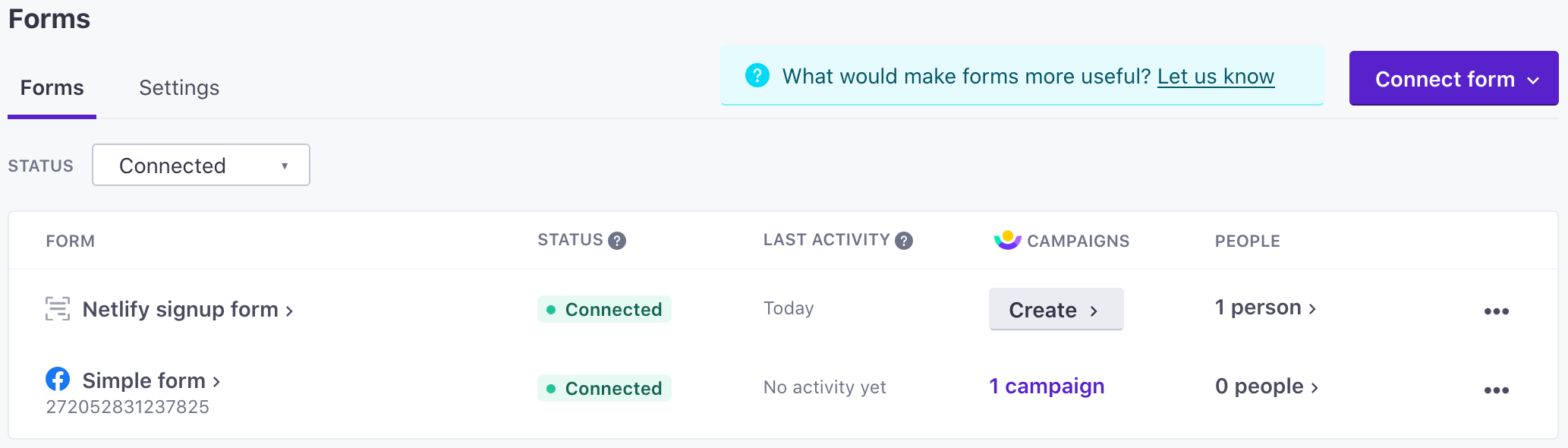
- Select the form you want to edit and click Edit.
- Add, remove, or re-map form fields.
- Enable/disable fields: If you have a form that uses the custom forms JavaScript snippet, check and un-check fields to enable and disable them. You cannot disable fields for Typeform, Jotform, or the
/formsAPI. In these cases, we use your form’s fields on every submission. - Add fields: If your form uses the custom forms JavaScript snippet, click Re-scan to update the fields on your form. If your form integrates directly with our API, click Add Field.
- Edit field names: Change the names of attributes you want to map form fields to. If integrated with the
/formsAPI, you can also change the name of the form field that you want to map.
- Enable/disable fields: If you have a form that uses the custom forms JavaScript snippet, check and un-check fields to enable and disable them. You cannot disable fields for Typeform, Jotform, or the
- Click Save.
Disconnect a form
Disconnecting a form prevents Customer.io from collecting form submissions and identifying people who fill out your form. You can reconnect the form later, if you want to stop collecting submissions temporarily.
- Go to Integrations > Forms.
- Click and then click Disconnect.
- Confirm that you want to disconnect the form.
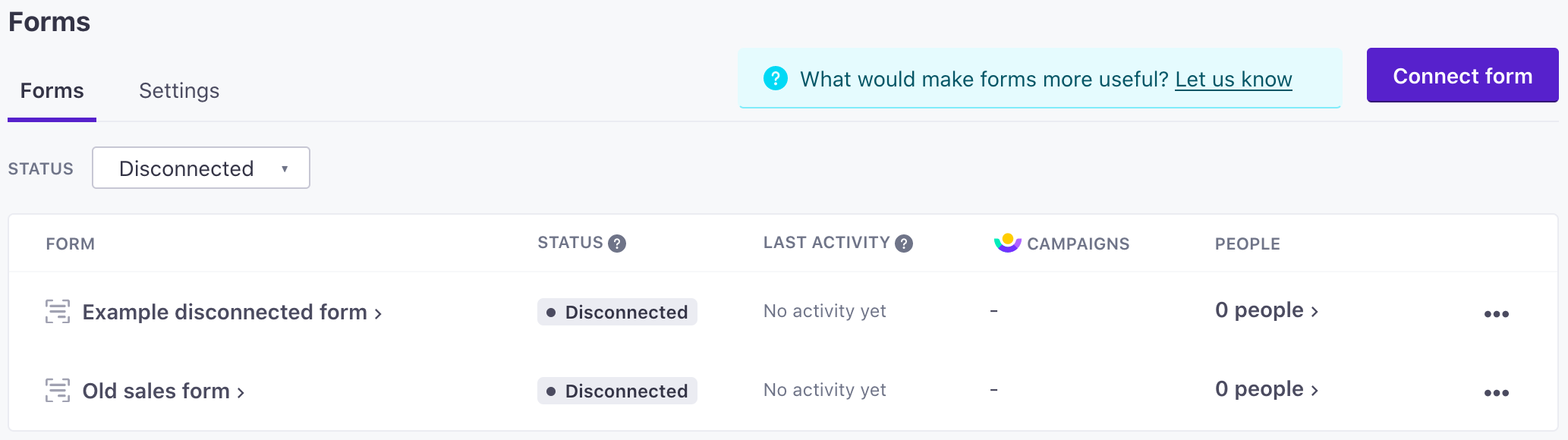
Disconnected forms still appear in the forms list. You can find all your disconnected forms by selecting the Disconnected status.