

Scheduled syncs
We pull data from Salesforce on a regular interval (that you set) called a sync.
While you can see incoming data in the Data In tab, syncs also show in the Imports tab. Here, you’ll see each scheduled sync operation and how many records were successful or failed. It gives you an at-a-glance understanding of the data that makes it into your pipeline.
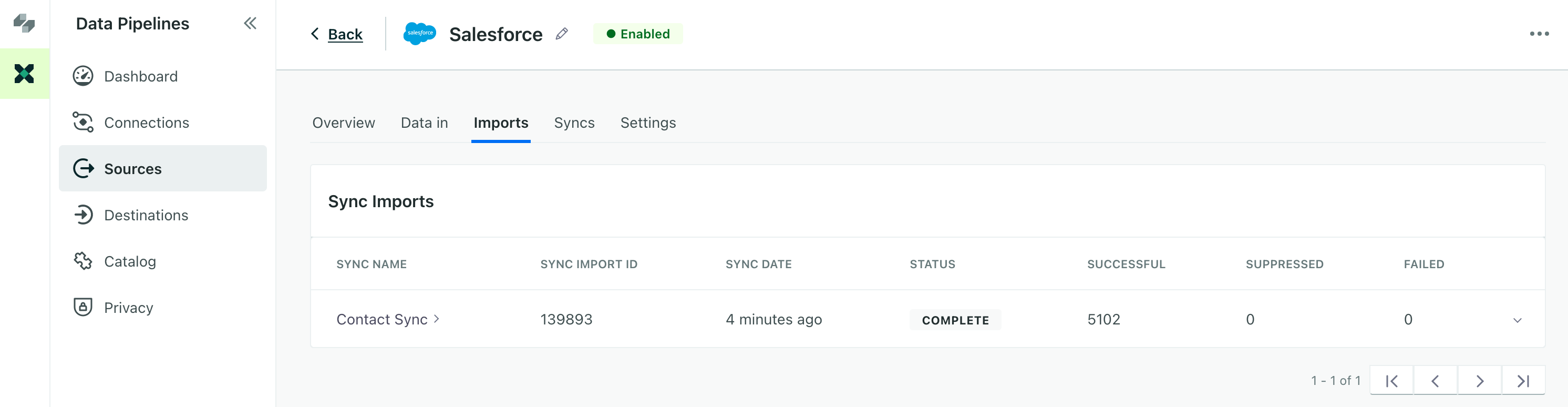
Scheduled syncs use Salesforce’s API limits. These limits are fairly generous if you’re using Salesforce’s Enterprise edition or Professional edition with the API access add-on. It’s highly unlikely you’ll hit the limit.
How Salesforce handles API limits
Salesforce has daily API limits which depend on your plan. These limits are shared across every application that uses the Salesforce API, not just Customer.io. When you reach an API limit, Salesforce stops sending data and responds with an error.
When you reach your limit, you’ll stop seeing data in Customer.io for the rest of the 24 hour period. If you notice a conspicuous lack of Salesforce data for a period of time, it’s likely that you’ve reached your Salesforce’s API limit(s). You can find errors related to API limits by inspecting your latest syncs in the Imports tab.
Salesforce OAuth connection limits
You should not create more than five Salesforce connections (between data-in and data-out) per user.
Salesforce enforces a limit of five connections per user for each app, including the Customer.io External Client App that you’ll use to connect Customer.io to Salesforce. When you hit this limit, Salesforce revokes the oldest connection. This limit is not configurable and Customer.io is not notified when Salesforce revokes a connection.
Because this limit is per user, you can circumvent the limit by creating multiple Salesforce integration users and carefully managing their connections—no more than five connections per user.
Recover syncs after an authentication failure
Salesforce can end the session it gave Customer.io for several reasons, and only your Salesforce admin can investigate why Salesforce ended a particular one. Common causes include a password change or a permission change on the Salesforce user that connected the integration. Salesforce also revokes your oldest connection when a user goes over its connection limit. If you connect with a dedicated integration user, routine changes to a person’s own Salesforce account don’t affect your syncs.
When Salesforce rejects a sync because the session expired or ended, Customer.io tries to get a new access token. If that fails, Customer.io turns the sync off, and its status on the Syncs tab changes to Disabled.
Reauthorizing restores your connection to Salesforce, but it doesn’t turn those syncs back on. To recover from an authentication failure:
- Go to your Salesforce integration’s Settings tab and click Reauthorize. If the panel says Not connected, click Connect Salesforce instead. Log in with the Salesforce user you want Customer.io to use. If your integration shows a banner that asks you to upgrade authentication, it still uses the retired Connected App, and reauthorizing doesn’t restore it. Follow the upgrade steps instead.
- Go to the Syncs tab and switch the status toggle of each sync that shows Disabled to Enabled. The toggle stays locked until you reauthorize. Each sync runs again at its next scheduled time. To run one right away, click next to it and select Sync changes now.
- After a sync runs, check the Imports tab to confirm that it completed. If records in Customer.io still look out of date, click next to the sync and select Resync all data.
Syncs batch incoming data
Syncs batch incoming data up to 1000 records at a time. This means that a sync can process up to 1000 Salesforce records with a single Salesforce API call. This helps stay within your Salesforce REST API limits.